OpenCueWeb Quick Start
Get up and running with OpenCueWeb, the web-based interface for OpenCue.
Table of contents
Overview
OpenCueWeb is a web-based application that brings the core functionality of CueGUI to your browser. It provides an intuitive interface for managing rendering jobs, monitoring frame status, and interacting with your OpenCue render farm from anywhere.
What you’ll learn
- How to set up and run OpenCueWeb locally
- How to configure the REST Gateway dependency
- How to access and navigate the OpenCueWeb interface
- Basic job management operations
Prerequisites
Before you begin, ensure you have:
- OpenCue stack running (Cuebot, RQD, and PostgreSQL)
- Docker installed on your system
- Node.js (version 18 or later) for development mode
- npm package manager
- Git for cloning the repository
Step 1: Set up the REST Gateway
OpenCueWeb requires the OpenCue REST Gateway to communicate with Cuebot. The REST Gateway is not included in the main OpenCue Docker Compose stack and must be deployed separately.
Build the REST Gateway
# From the OpenCue root directory
docker build -f rest_gateway/Dockerfile -t opencue-rest-gateway:latest .
Run the REST Gateway
# Start the REST Gateway container
docker run -d --name opencue-rest-gateway \
  --network opencue_default \
  -p 8448:8448 \
  -e CUEBOT_ENDPOINT=cuebot:8443 \
  -e JWT_SECRET=your-secret-key \
  -e REST_PORT=8448 \
  opencue-rest-gateway:latest
Verify the REST Gateway
# Check if the gateway is running (expects 401 - service is up)
curl -s -o /dev/null -w "%{http_code}" http://localhost:8448/
# Should return: 401 (Unauthorized - this is expected)
Step 2: Configure OpenCueWeb
Navigate to the OpenCueWeb directory and set up the environment configuration.
cd cueweb
Create Environment Configuration
Create a .env file with the following configuration:
# REST Gateway Configuration
NEXT_PUBLIC_OPENCUE_ENDPOINT=http://localhost:8448

# Leave empty so the client builds same-origin relative API URLs.
# That way OpenCueWeb works from any host the browser reached it at:
# http://localhost:3000 on this machine, or http://<lan-ip>:3000
# from another device on the same network (useful for testing on a
# phone). Only set this to an absolute URL if the API is served on
# a different origin than the UI.
NEXT_PUBLIC_URL=

NEXT_JWT_SECRET=your-secret-key

# Development Configuration
SENTRY_ENVIRONMENT='development'
NEXTAUTH_URL=http://localhost:3000
NEXTAUTH_SECRET=canbeanything

# Authentication (optional - can be commented out for local development)
# NEXT_PUBLIC_AUTH_PROVIDER=github,okta,google

# Optional deep-link template for the Frame context menu's
# "View Log on <editor>" item. {path} is substituted with the
# absolute log path at click time. Empty hides the menu item.
# The OpenCue sandbox docker-compose defaults this to
# vscode://file{path}.
# NEXT_PUBLIC_LOG_EDITOR_URL=vscode://file{path}

# Optional: read frame logs from a Grafana Loki server instead of the
# on-disk .rqlog file (mirrors CueGUI's Loki log viewer). Leave unset to
# use the default file-based viewer. Base URL only - OpenCueWeb appends
# /loki/api/v1/... The query runs in the browser, so Loki must be
# reachable from clients and allow CORS from the OpenCueWeb origin.
# NEXT_PUBLIC_LOKI_URL=http://your-loki-host:3100

# Optional: command shown by the job menu's "Show Progress Bar" ({job} is
# substituted) and the frame menu's "Preview All" external image viewer
# ({paths}/{job}/{layer}/{frame} substituted). The *_URL variants are
# optional registered URL schemes for a one-click launch button.
# NEXT_PUBLIC_CUEPROGBAR_COMMAND=python -m cuegui.cueguiplugin.cueprogbar {job}
# NEXT_PUBLIC_PREVIEW_COMMAND=rv {paths}
# NEXT_PUBLIC_PREVIEW_URL=

# Optional: tune the OpenCueWeb Audit trail (see "Review the audit trail" in
# Step 5). CUEWEB_AUDIT_STORE is the path to the append-only JSONL log
# (default: cueweb-audit.jsonl in the OS temp dir) - point it at a mounted
# volume to persist across restarts. CUEWEB_AUDIT_MAX_RECORDS caps how many
# records are retained, dropping the oldest on write (default 50000; 0 = no cap).
# CUEWEB_AUDIT_STORE=/var/lib/cueweb/cueweb-audit.jsonl
# CUEWEB_AUDIT_MAX_RECORDS=50000
Important Notes:
- The
NEXT_JWT_SECRETmust match the REST Gateway’sJWT_SECRET - Authentication is disabled by default for local development
- Sentry integration is optional and can be disabled
NEXT_PUBLIC_URLis empty by default so the same image works fromlocalhost, a LAN IP, or any reverse-proxy host without rebuilding. Override it only when the UI and API live on different origins.NEXT_PUBLIC_LOKI_URLis empty by default, so logs are read from the mounted.rqlogfiles. Set it only if your site centralizes frame logs in Loki.
Restrict access by group (optional)
By default every signed-in user can use OpenCueWeb. To limit access by group membership, opt in with these env vars (all off/empty by default):
# Turn the gate on (off by default — leave unset for an open deployment)
CUEWEB_AUTHZ_ENABLED=true
# Groups allowed to use OpenCueWeb at all (empty = everyone signed in)
CUEWEB_ALLOWED_GROUPS=renderwranglers,supervisors
# Groups allowed on the entire CueCommander section + CueSubmit + Manage facilities (empty = everyone)
CUEWEB_ADMIN_GROUPS=supervisors
# The token claim that carries the user's groups (default: groups)
CUEWEB_GROUPS_CLAIM=groups
The gate is enforced server-side: a user outside CUEWEB_ALLOWED_GROUPS sees an Access denied page (API routes get 403), and non-admins are blocked from the entire CueCommander section, CueSubmit and Manage facilities… (those menus are hidden) but keep Cuetopia Monitor Jobs and the Dashboard. It only works when your authentication provider emits the user’s groups in the token, so configure your identity provider’s groups claim accordingly. For the sandbox (auth disabled) the gate stays inactive - you don’t need any of these.
Step 3: Install Dependencies and Run OpenCueWeb
Install Dependencies
npm install
Start OpenCueWeb in Development Mode
npm run dev
You should see output similar to:
▲ Next.js 14.2.32
- Local:        http://localhost:3000
- Environments: .env

✓ Ready in 1778ms
Step 4: Access OpenCueWeb
- Open your web browser
- Navigate to: http://localhost:3000
- You should see the OpenCueWeb interface
Expected Interface
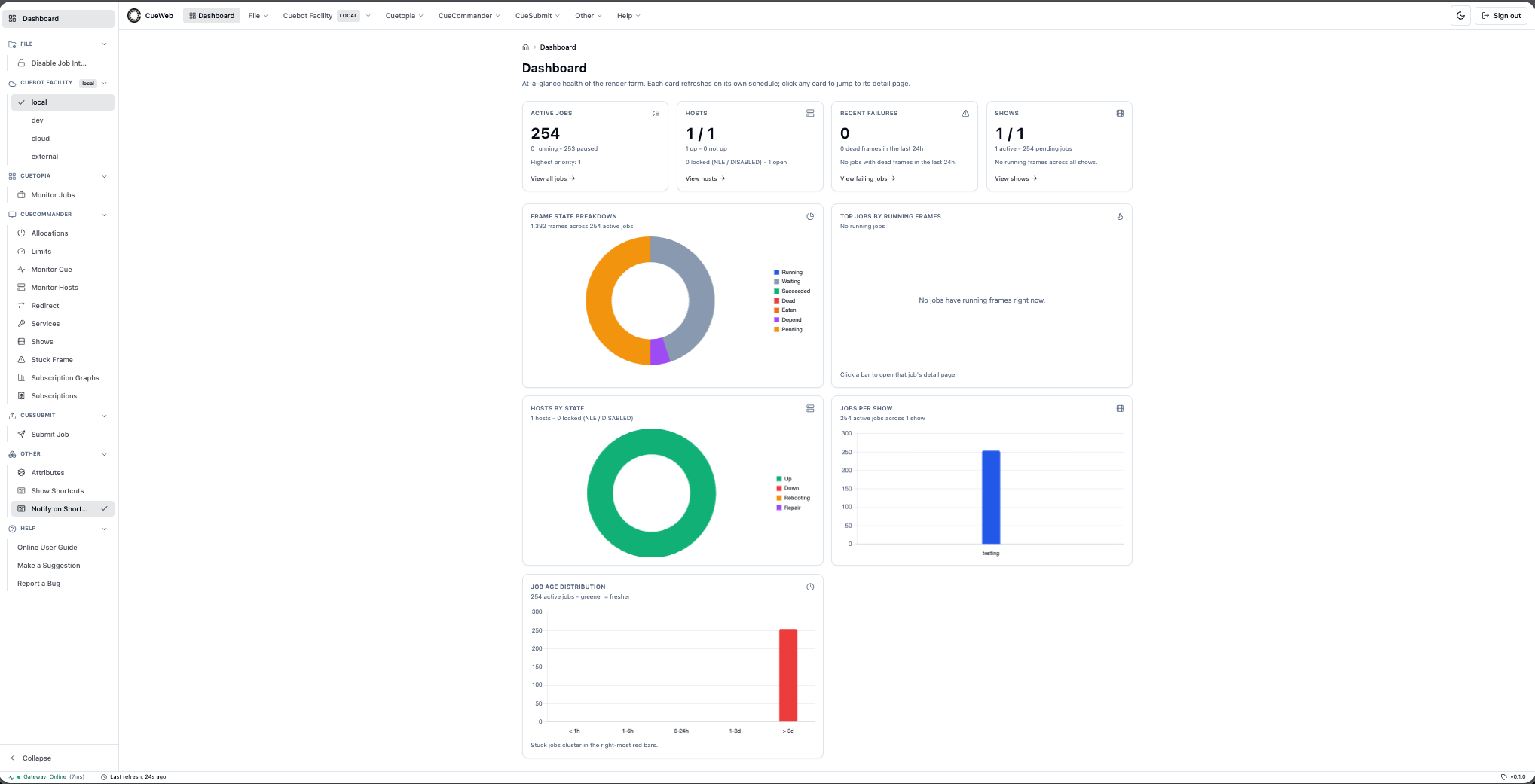
The OpenCueWeb interface includes:
- Global Header: Persistent across every page. Shows the OpenCue logo (theme-aware: black in light mode, white in dark mode) + the OpenCueWeb wordmark on the left, six dropdown menus mirroring the CueGUI menu bar — File, Cuebot Facility, Cuetopia, CueCommander, Other (Attributes, Immersive (full-screen), Split view, Show Shortcuts, Notify on Shortcut), Help (with a search box that finds commands across every menu) — a theme toggle on the right, and an always-visible Sign out button. With auth disabled (
NEXT_PUBLIC_AUTH_PROVIDER=), the Sign out button still appears — clicking it just navigates to/login, which shows an OpenCueWeb Home button. - Left Sidebar: Same six groups as the header, organized as accordion sections. Click Collapse at the bottom to shrink to an icon-only rail.
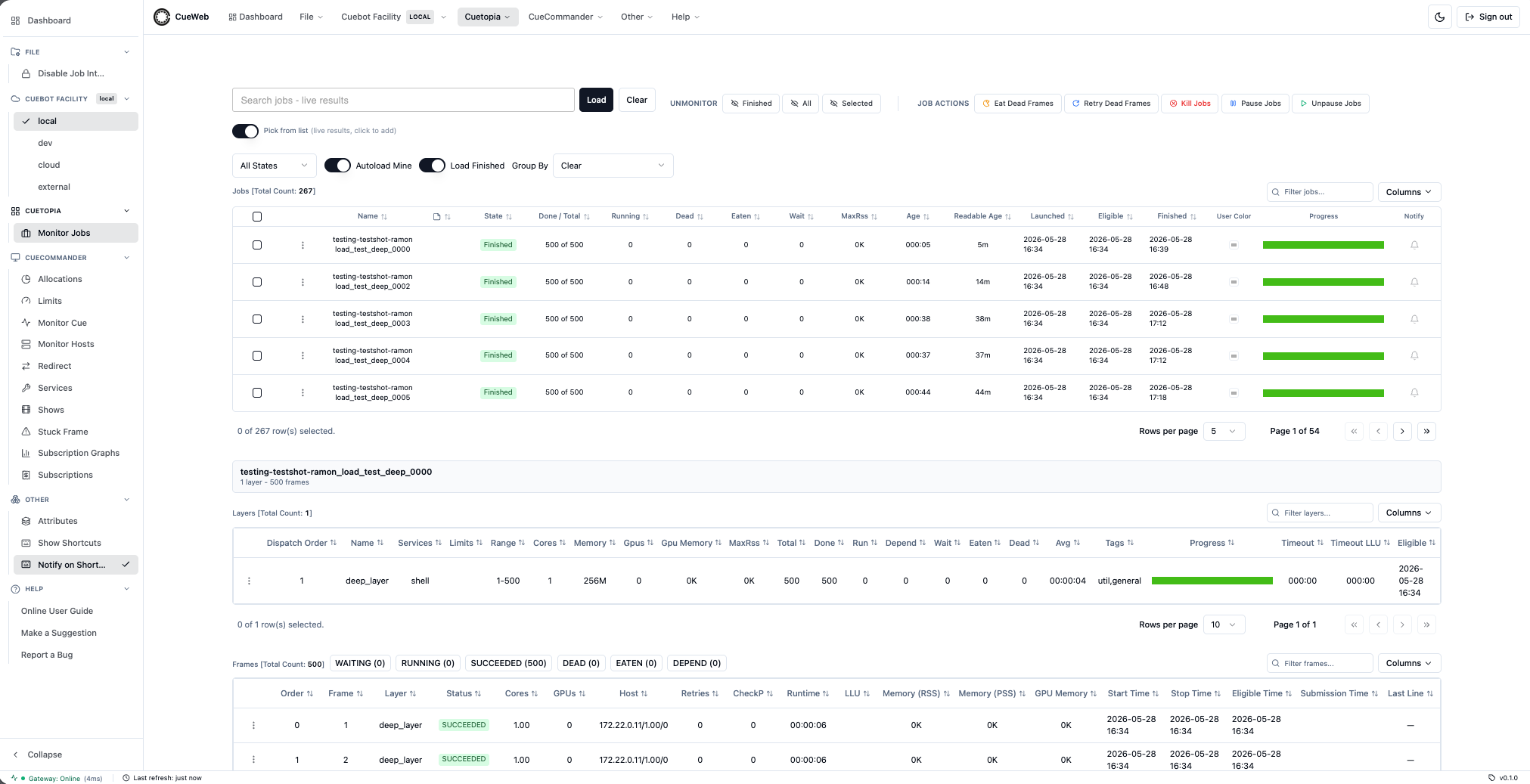
- Jobs Dashboard: View and manage rendering jobs, with CueGUI-parity columns (Launched, Eligible, Finished, User Color, …).
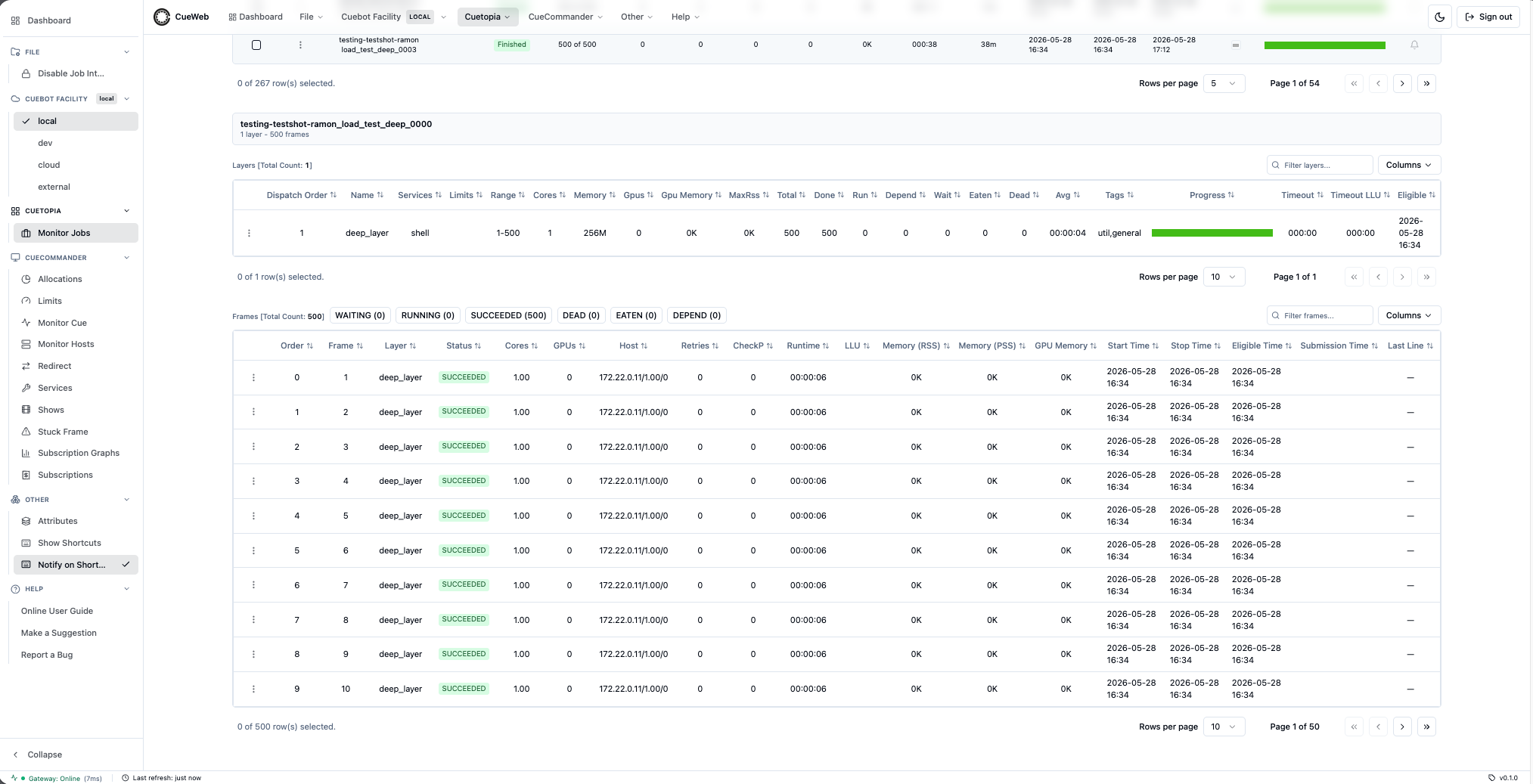
- Layers / Frames panels: Inline below the jobs table. Click a job row to reveal them; click a layer to filter the frames panel; double-click a frame row to open the log viewer.
- Job Search: Search for specific jobs by name or pattern.
- Per-table Filter: Small substring filter input on each table (Jobs, Layers, Frames) that narrows the rows already loaded.
- Customizable + reorderable columns: Every table has a Columns dropdown where each column has a visibility checkbox plus
←/→reorder buttons, and a pinned Reset to Default button. - Frame Management: Monitor frame status and logs (CueGUI-parity columns include LLU, Memory (RSS), Memory (PSS), Eligible Time, Submission Time, Last Line).
- Layer Operations: Manage job layers and dependencies (CueGUI-parity columns include Eligible, Start After and a stacked Progress bar).
- Dark/Light Mode: Toggle between themes via the sun/moon button in the header
- Real-time Updates: Automatic refresh of job status
- Job-finished Notifications: Two channels - a per-row Notify bell for browser notifications (in-app toast + optional desktop popup) and a right-click Subscribe to Job entry for email notifications sent by Cuebot. Independent of each other.
- Disable Job Interaction: Read-only safety toggle in File ▸ Disable Job Interaction (header or sidebar). When on, an amber banner appears under the header and destructive actions (Pause / Unpause / Retry / Eat / Kill) — in the toolbar and in the right-click menus — are dim and inert.
- Attributes Panel: Other ▸ Attributes opens a docked drawer with a collapsible key/value tree of the selected entity. Click a row in the jobs table to populate it; pick the dock position (right / bottom / left / top) from the panel’s title bar.
- Bottom Status Bar: a fixed 24-pixel bar at the bottom of every page shows REST gateway status (a colored dot + Online/Offline + the last round-trip latency), the time since the jobs table last refreshed, and the OpenCueWeb build version. The whole bar turns red when the gateway is unreachable.
- Breadcrumb Navigation: detail views (frame log page, per-job comments page) render a small “Home > Jobs > …” breadcrumb above the content so you can navigate back to the index. Long labels truncate with an ellipsis and the full text appears in a tooltip on hover.
- Keyboard shortcuts: Press
?anywhere (or use Other ▸ Show Shortcuts) to open the cheat-sheet. A small toast appears on every triggered shortcut so you know it registered; turn it off via Other ▸ Notify on Shortcut if you prefer silence.
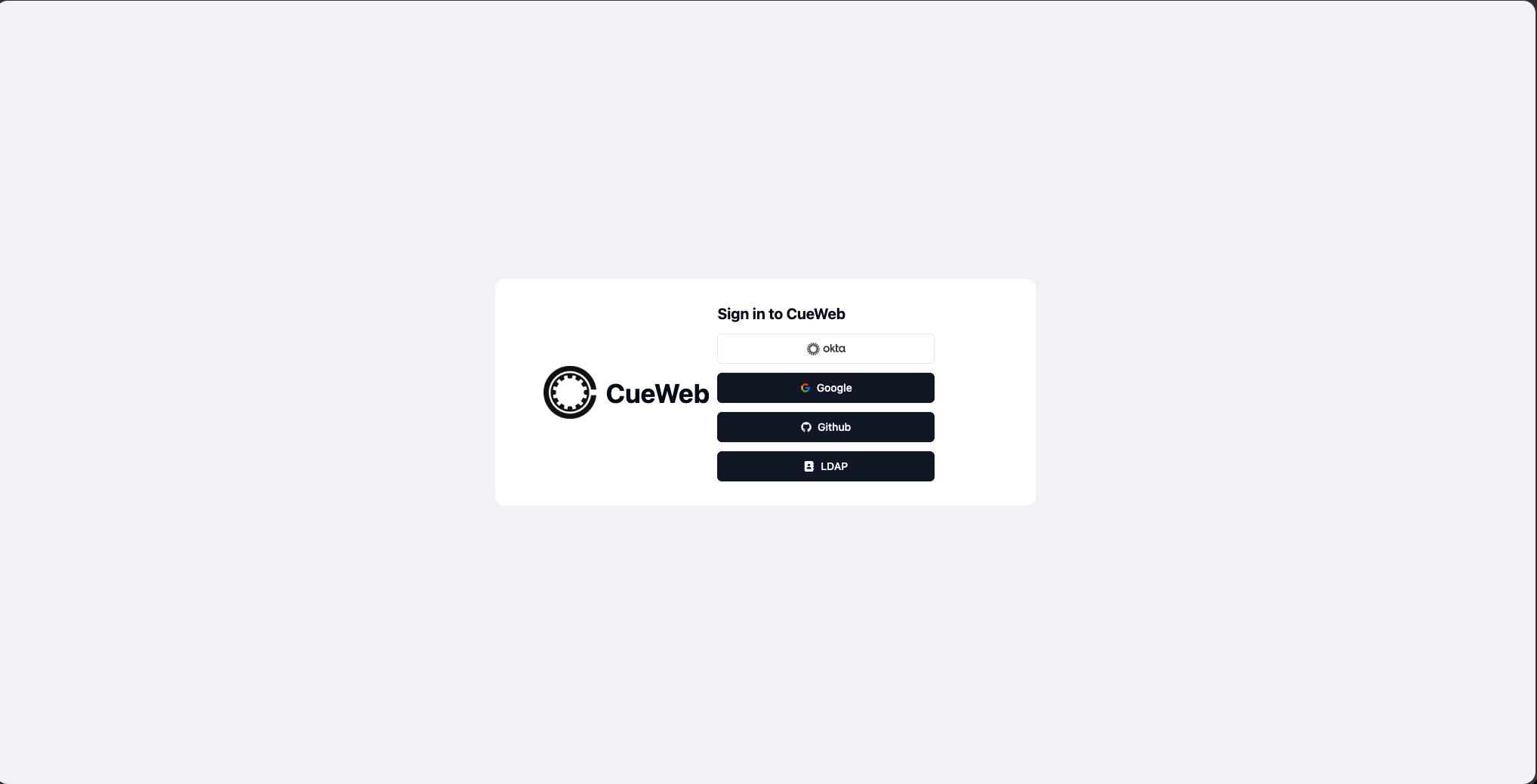
The login page (or the OpenCueWeb Home button when authentication is disabled):
The Dashboard you land on after signing in:
The Cuetopia Monitor Jobs view with the jobs table:
Step 5: Basic Operations
View Jobs
- The main dashboard displays all jobs from your OpenCue shows
- Use the Show dropdown to filter jobs by show
- Apply status filters (Active, Paused, Completed)
Click a job row to reveal the inline Layers and Frames panels below the jobs table:
Job Management
- Pause/Resume: Right-click a job and pick Pause (or Unpause if the job is already paused). The same entry toggles between the two labels based on the job’s current state, and is grayed out for Finished jobs.
- Set Priority: Right-click a job and pick Set Priority… to open a 1-100 slider + number input. Either control drives the value; both stay in sync. The Priority column updates immediately on Apply. Available on both Cuetopia Monitor Jobs and CueCommander Monitor Cue.
-
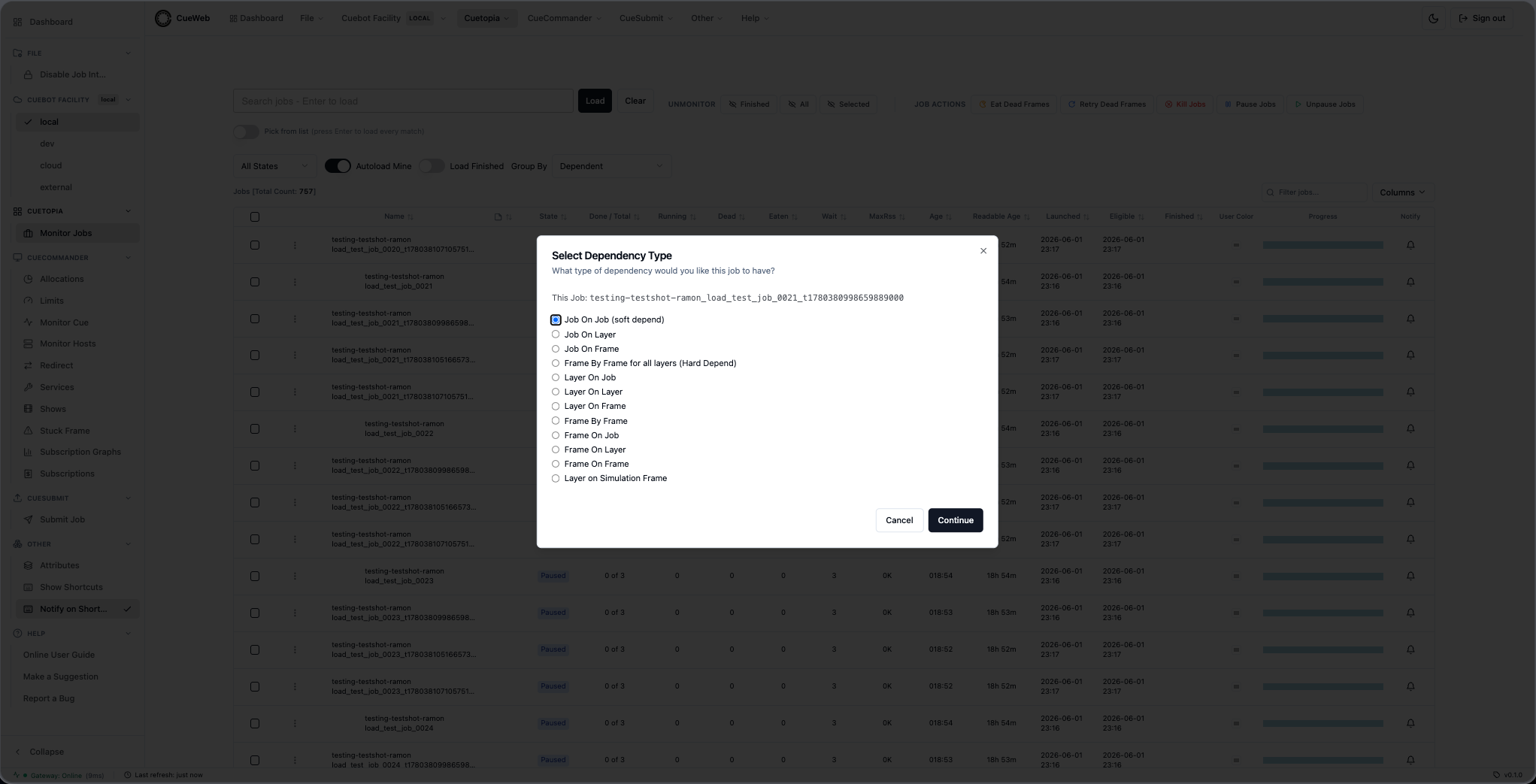
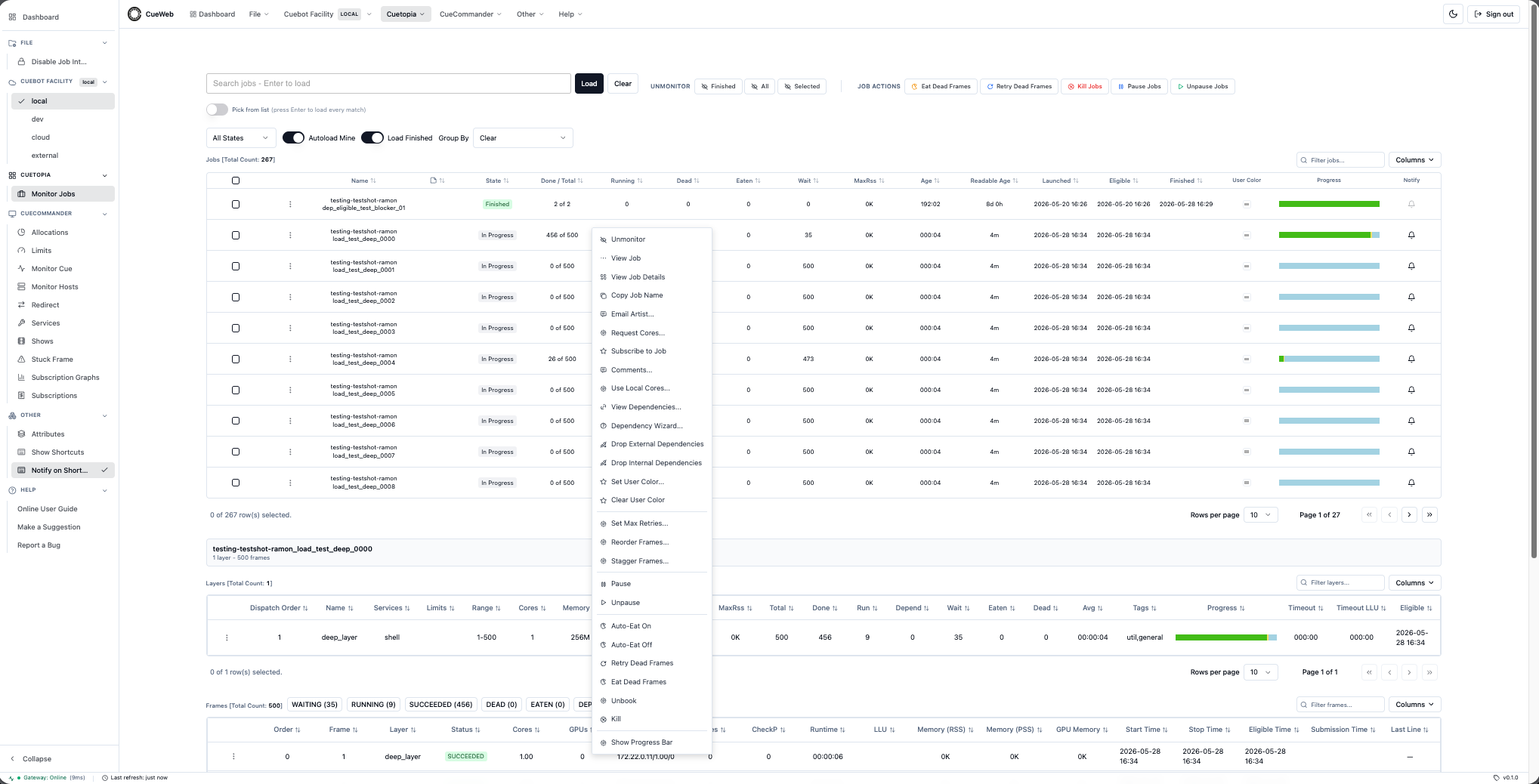
Manage Dependencies: Right-click a job to access four dependency entries. View Dependencies… opens a read-only dialog listing every depend on the job (Type / Target / Active / OnJob / OnLayer / OnFrame). Dependency Wizard… walks you through creating a new depend across every CueGUI
depend.DependType(Job On Job, Job On Layer / Frame, Hard Depend, Layer On Job / Layer / Frame, Frame By Frame, Frame On Job / Layer / Frame, Layer on Simulation Frame); every picker is multi-select and Done fires the full source x target cross-product. Drop External Dependencies and Drop Internal Dependencies clear those depend categories in one click; the Jobs table auto-refreshes after success.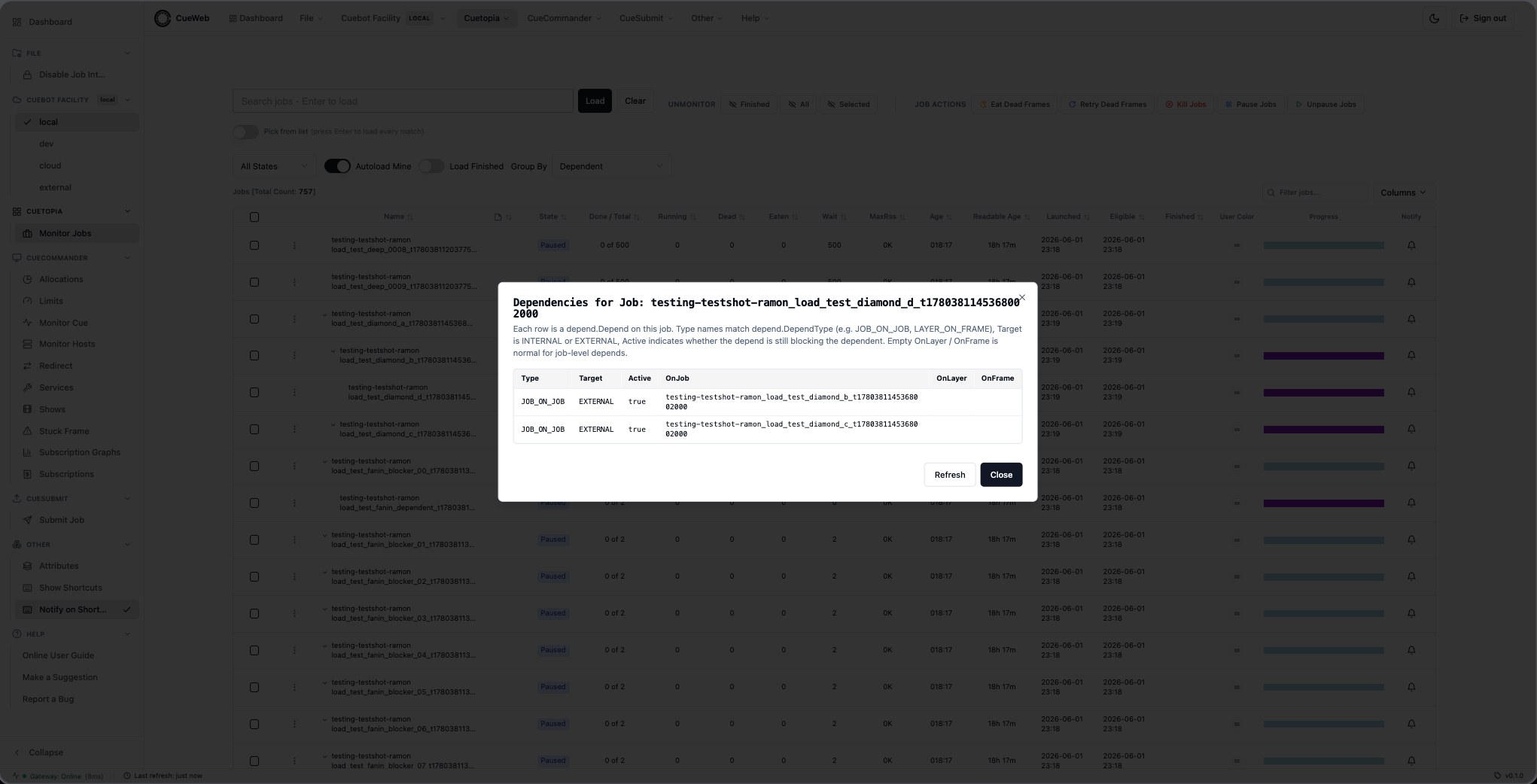
- Kill Jobs: Use the stop button to terminate jobs
-
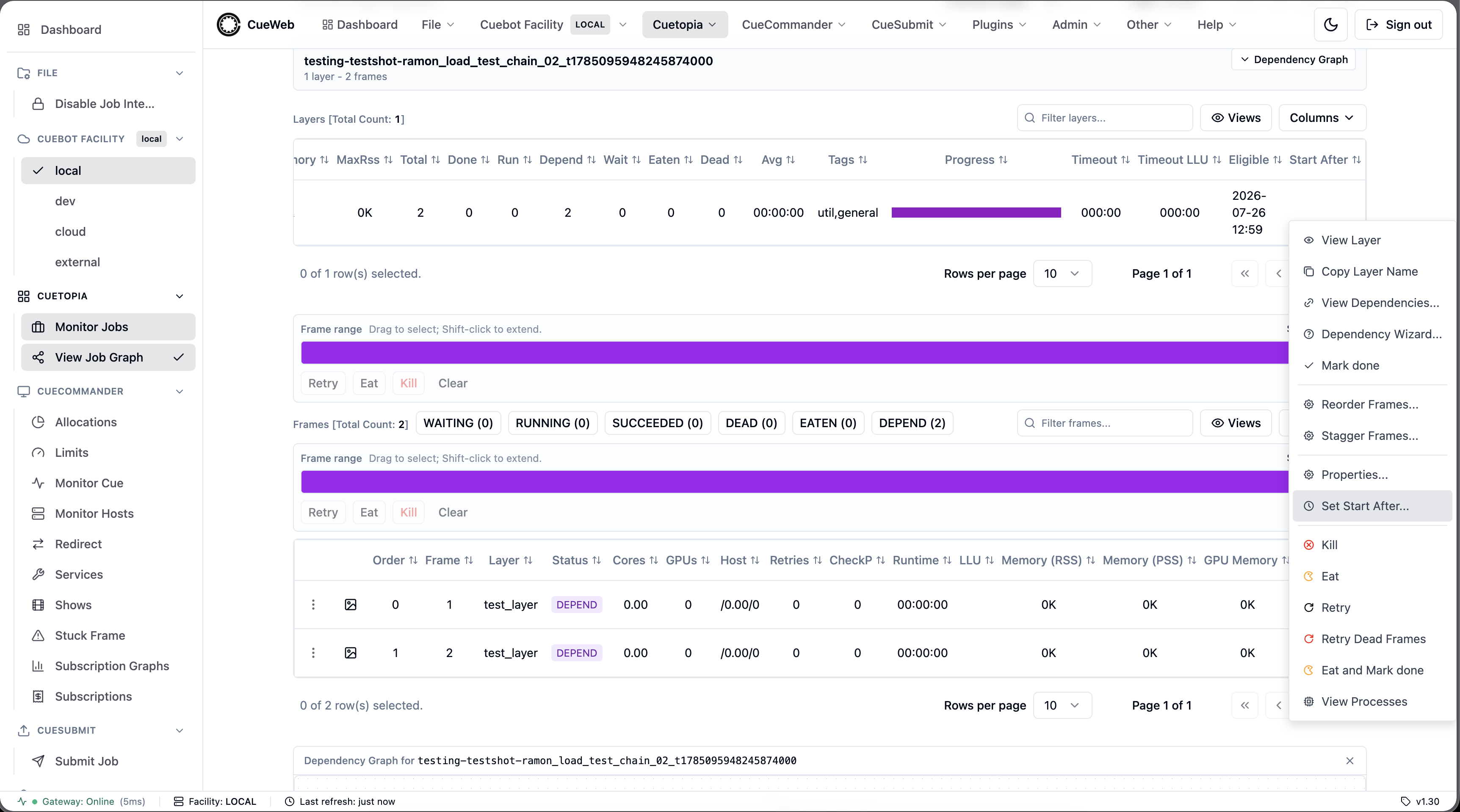
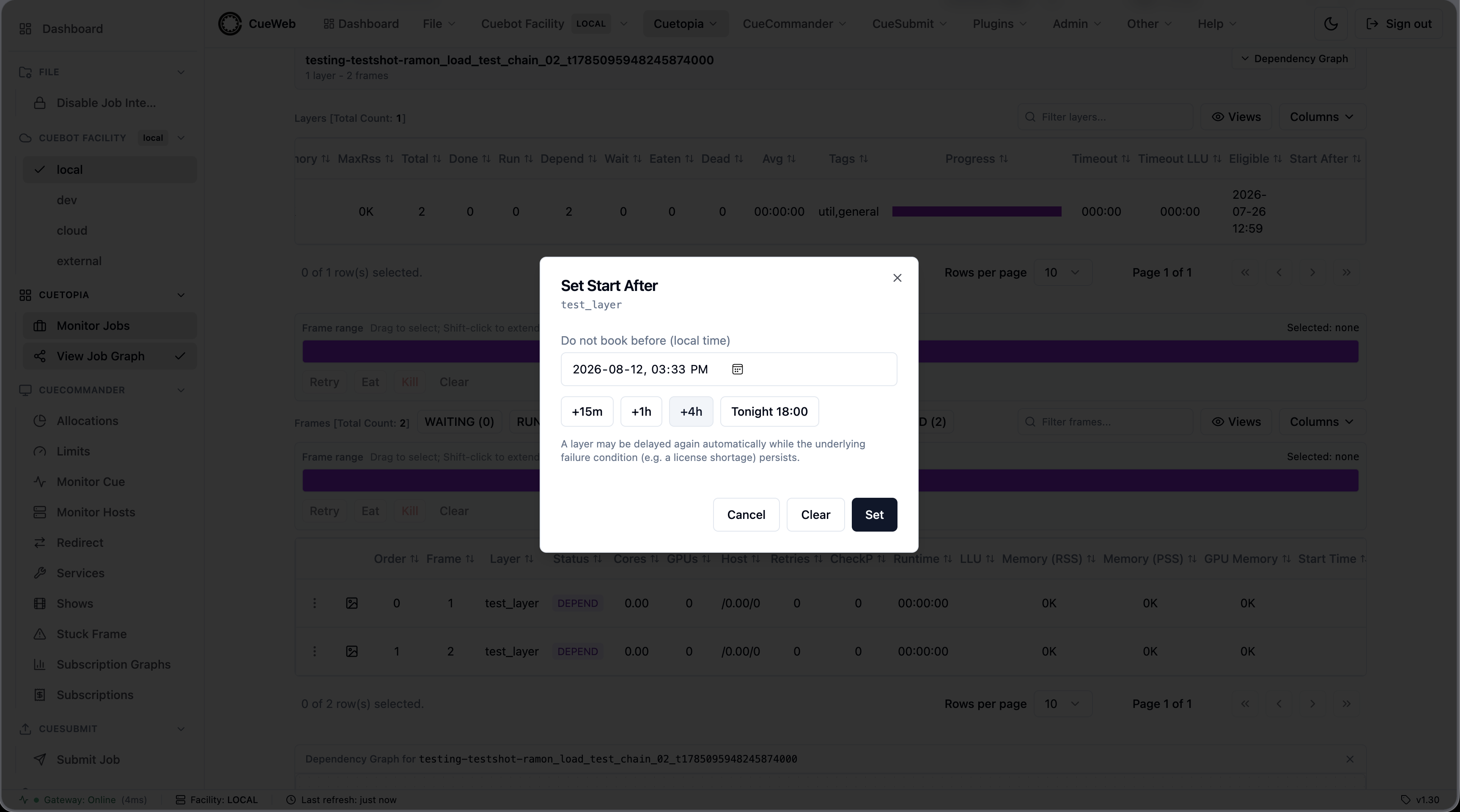
Set Start After: Right-click a layer and pick Set Start After… to defer its booking until a time you choose - no frame of the layer starts before then. The picker uses your local time and offers +15m / +1h / +4h / Tonight 18:00 presets. OpenCue also sets this itself when a frame fails in a way worth waiting out (such as a license shortage), so Clear removes the delay the layer currently has, but a new one can be applied automatically while that condition persists. Delayed layers are tinted and show the time in a Start After column whose tooltip explains why.
- Job Details (inline): Click on a job row to reveal the inline Layers + Frames panel below the Jobs table.
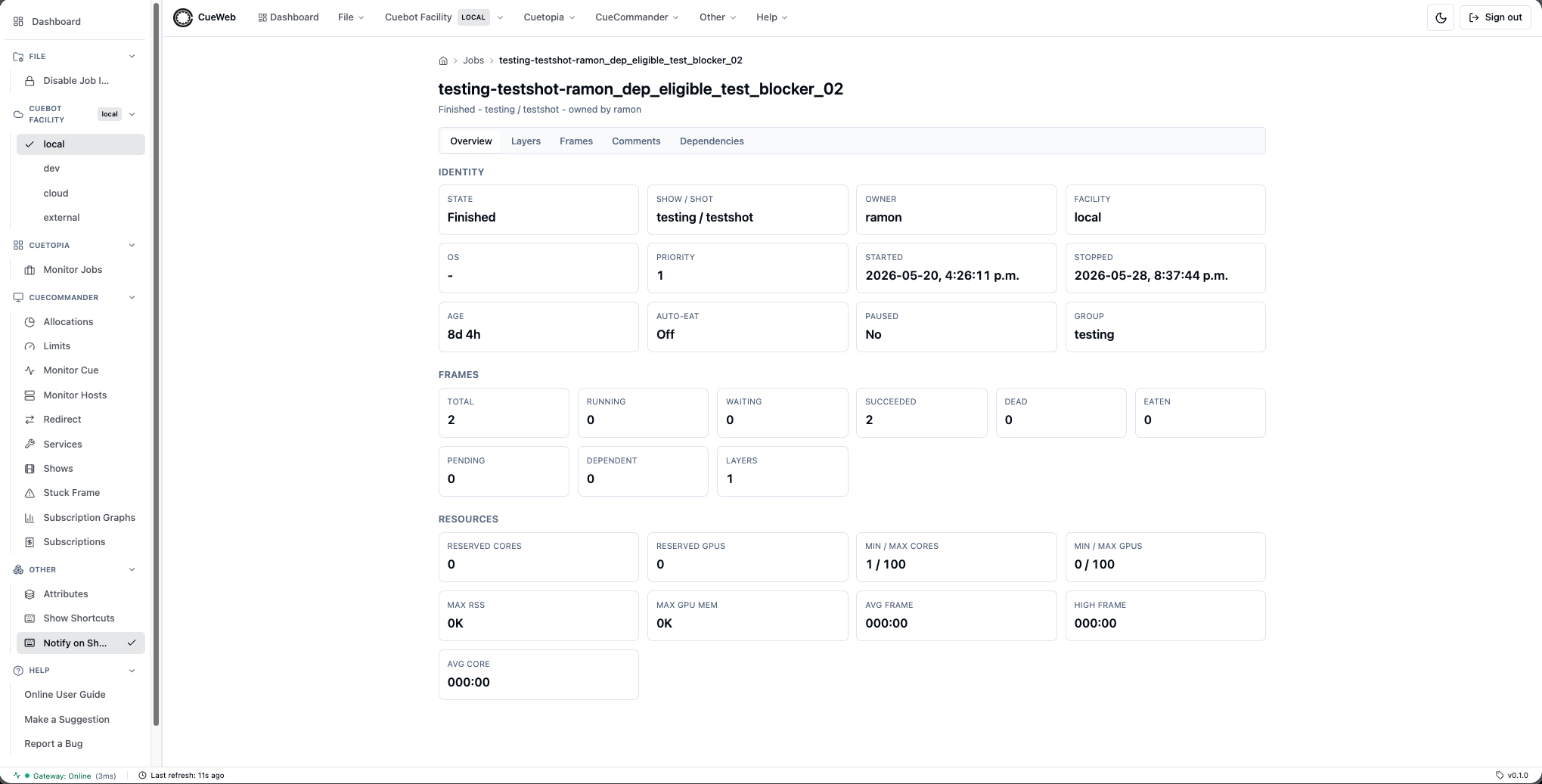
- Job Details (tabbed page): Right-click a job and choose View Job Details to open the tabbed
/jobs/<jobName>page with Overview / Layers / Frames / Comments / Dependencies tabs. The active tab is stored in the URL so the page is bookmarkable. -
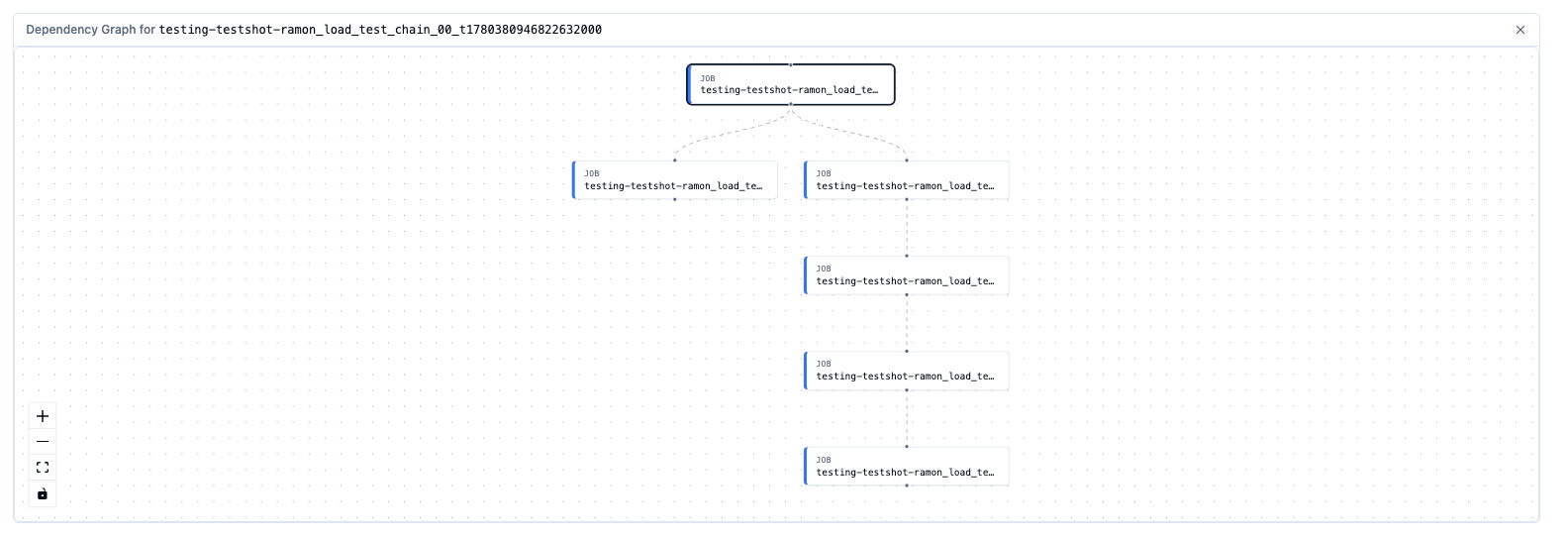
Job Dependency Graph: Toggle Cuetopia → View Job Graph, then click a job to mount a read-only, interactive node graph below the inline Layers + Frames panels. It shows the focus job with its layers (so even a job with no cross-job dependencies renders its structure) plus any cross-job depends, color-coded by kind (JOB / LAYER / FRAME) with the focus job ringed. Double-click a node to open that job’s detail page; right-click a layer node for the Layers-table actions (Auto Layout Nodes, View/Wizard dependencies, Mark done, Reorder/Stagger, Properties, Set Start After, Kill/Eat/Retry/Retry Dead).
- Job Comments: Right-click a job and choose Comments, or click the sticky-note icon in the Jobs table’s Comments column (sortable, sits right after Name), to open the Comments page where you can list / add / edit / delete comments and manage predefined-comment macros.
The job right-click menu, and the tabbed Job Details page it can open:
Frame Operations
- Click on a job to view its layers and frames
- Retry Frames: Right-click failed frames to retry (or tap the
⋮Actions button on the left of the row, on phones) - View Logs: Double-click a frame row to open the in-browser log viewer. Right-click → View Log does the same. By default the viewer reads the rqlog from disk; if your deployment sets
NEXT_PUBLIC_LOKI_URL, it pulls the same log from a Loki server instead (CueGUI Loki log viewer parity) - the viewer looks identical either way. The sandbox deploy also ships a View Log on VSCode item that launches the rqlog directly in VSCode via thevscode://file{path}URL scheme (setNEXT_PUBLIC_LOG_EDITOR_URLat build time to target a different editor like Sublime / TextMate / IntelliJ, or to an empty string to hide the menu item). - Frame States: Monitor frame progress with color-coded status
- Frame State Filter Chips: Use the chips above the frames table (
WAITING,RUNNING,SUCCEEDED,DEAD,EATEN,DEPEND) — each shows a live count and toggles a filter. Multiple selections combine with OR and persist in the URL via?frameStates=.... - Job Progress Tooltip: Hover the stacked progress bar in the Jobs table to see exact frame counts and percentages for each state.
- Subscribe to Completion - in browser: Click the bell in the Notify column of the Jobs table to subscribe to a notification when the job reaches
FINISHED. The subscription always succeeds; the browser’s notification permission is an optional upgrade (granted = in-app toast + desktop popup; denied = in-app toast only). Subscriptions are saved in your browser and survive page reloads, and a background check runs on each subscribed job every 15 seconds. When the same job is open in several tabs, only one tab shows the notification. - Subscribe to Completion - by email: For notifications that should survive a browser close, follow you between machines, or fan out to a team alias, right-click the job and pick Subscribe to Job. A dialog opens with the job name and an editable To address; Save registers the address with Cuebot so Cuebot emails the subscriber when the job finishes. Independent of the Notify bell.
- Copy actions: every row’s context menu has copy items - Copy Job Name / Copy Layer Name / Copy Frame Name / Copy Log Path - that push the value to the clipboard with a confirmation toast. Works on
http://localhost:3000and also when accessing OpenCueWeb at a LAN IP over plain HTTP. - Mobile: load OpenCueWeb on a phone via
http://<lan-ip>:3000from the same network (e.g.ipconfig getifaddr en0on the Mac shows the IP). The hamburger button at the top-left opens a nav drawer with every menu group; each row’s leftmost⋮button replaces the right-click menu on touch.
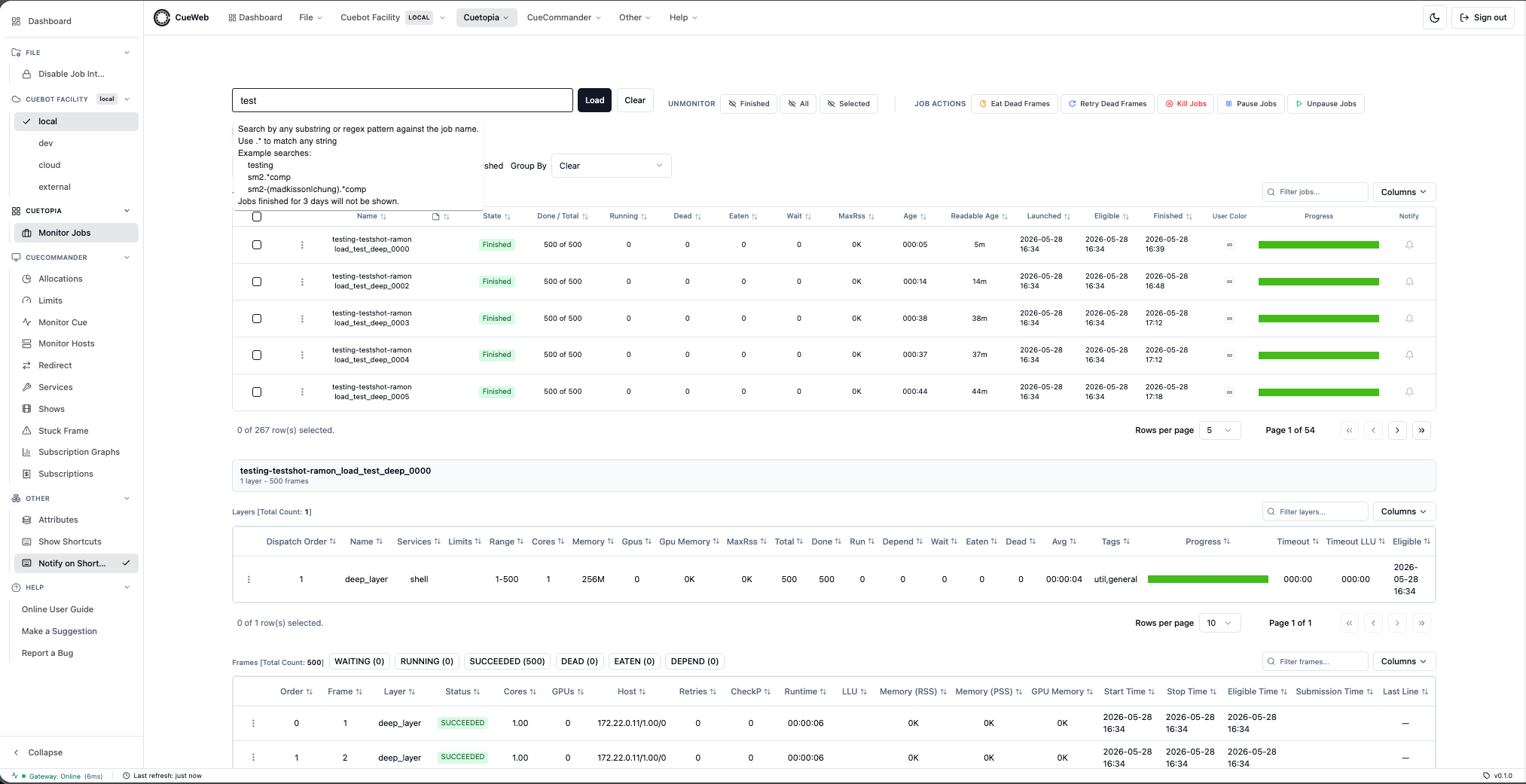
Search Functionality
- Simple Search: Type show name followed by hyphen (e.g., “myshow-“)
- Regex Search: Prefix with
!for advanced patterns (e.g., “!.test.”) - Dropdown Suggestions: Shows matching jobs as you type
Redirect cores to a job
Open CueCommander → Redirect to hand cores to a job that needs them. The tool finds procs currently busy on other work and reassigns them to a Target job - the frames on those procs are killed and the freed cores are booked onto your target, so use it deliberately.
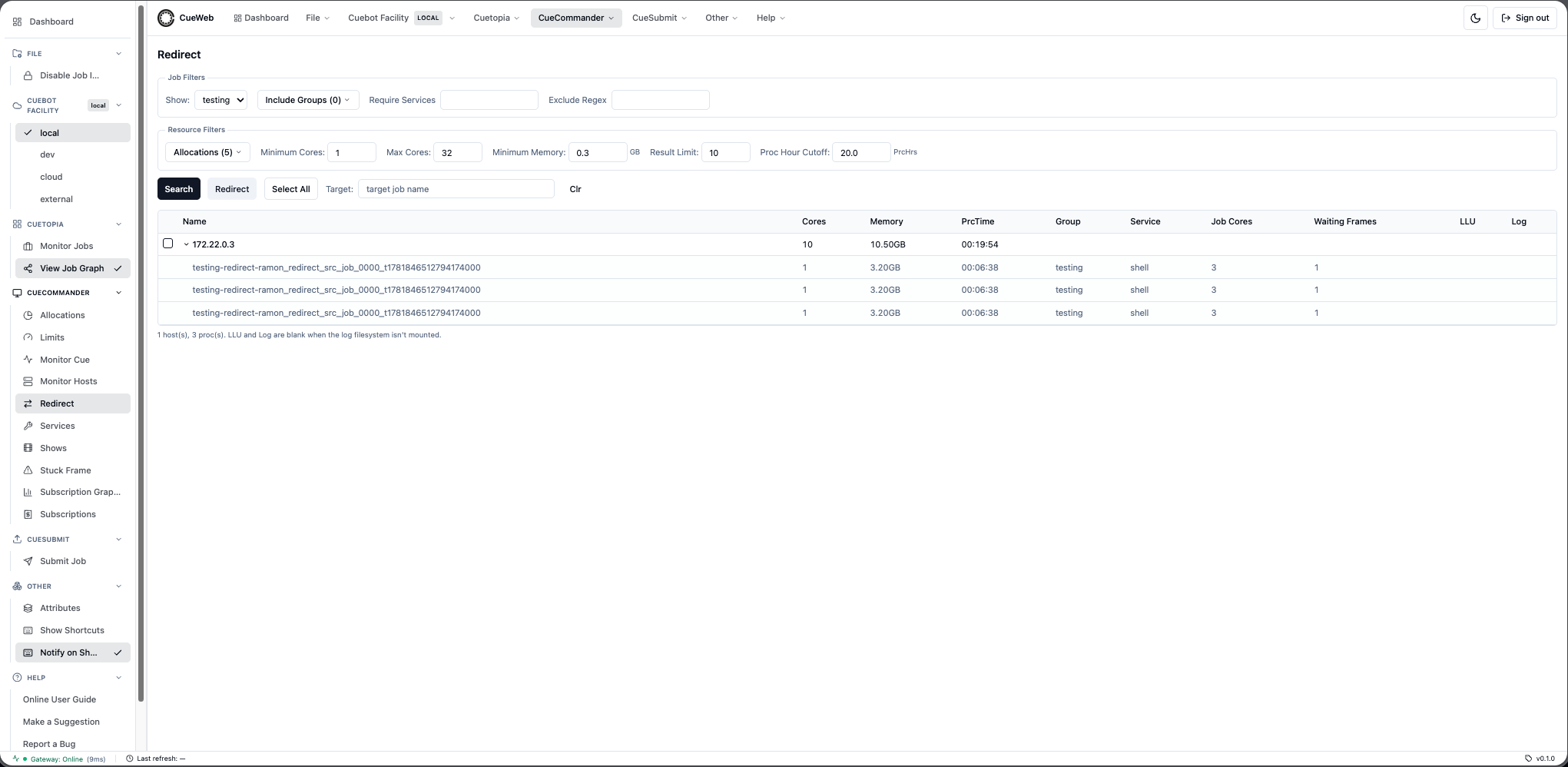
- Type the Target job name (this auto-fills the Show and minimum cores/memory from its layers).
- Adjust the filters (Allocations, Minimum/Max Cores, Minimum Memory, Proc Hour Cutoff) and click Search.
- Tick the hosts to take from (or Select All) and click Redirect. OpenCueWeb refuses if the target has no waiting frames or is at max cores, and warns before a paused-target or cross-show redirect.
Find stuck frames
Open CueCommander → Stuck Frame to find running frames that look hung - frames that keep running but have stopped writing to their log. The page scans every running frame and lists the ones that cross the detection thresholds (Last Log Update vs. runtime), grouped by job.
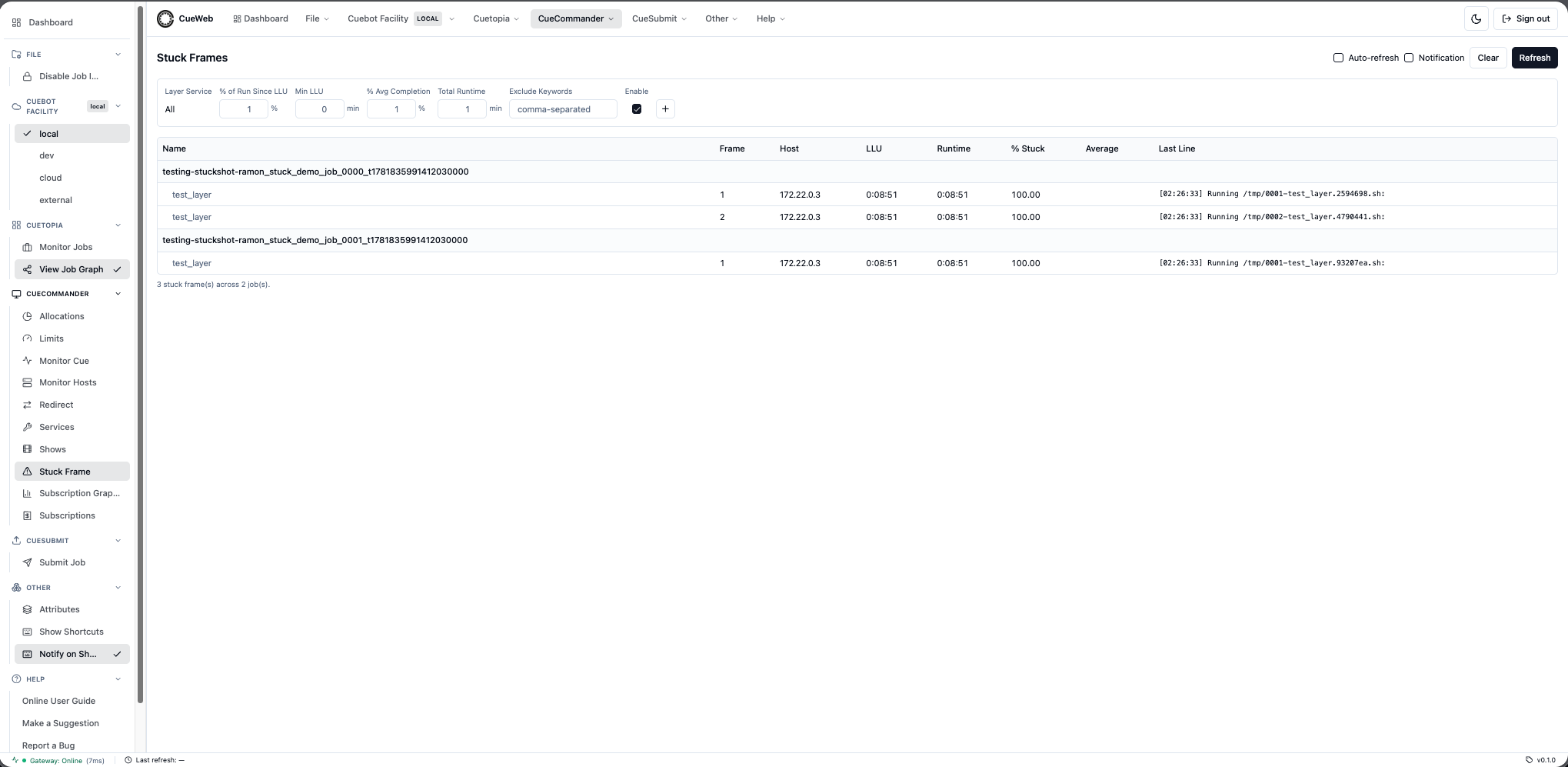
- Tune the filter bar (Min LLU, % of Run Since LLU, Total Runtime) to control how aggressively frames are flagged; the + button adds a per-service filter row so long-running services (e.g. Arnold) can use looser limits than quicker ones.
- Right-click a frame for Retry / Eat / Kill, View Log, or Core Up (raise the layer’s minimum cores - a common fix when a frame is starved for resources). Right-click a job header for job-wide actions.
Monitor the cue
Open CueCommander → Monitor Cue to watch every job for the shows you pick, grouped under their show and groups (the OpenCueWeb version of CueGUI’s Monitor Cue window). Choose shows from the Shows menu to populate the tree.
- Full CueGUI columns (Run, Cores, Gpus, Wait, Depend, Total, a Booking bar with min/max core markers, Min/Max cores & GPUs, Pri, MaxRss, Age, Progress, …); sort by any header, show/hide & reorder via the Columns dropdown, and narrow with the Filter jobs… box. Rows are tinted by condition (blue = paused, red = dead, green = waiting, purple = all-depend).
- Select jobs (checkboxes, Shift+click ranges, or the live Select: name/regex box) and act on them from the toolbar: Eat / Retry / Pause / Unpause / Kill. Right-click a job for the full menu, including Send To Group… and the resource/priority setters.
Manage render hosts
Open CueCommander → Monitor Hosts to see every render host with the full CueGUI column set (Load %, Swap / Physical / GPU Memory / Temp usage bars, cores, GPUs, hardware/lock state, OS, tags). Rows are tinted by condition - red for a non-UP host, amber for one waiting to reboot when idle, yellow for an UP but locked host.
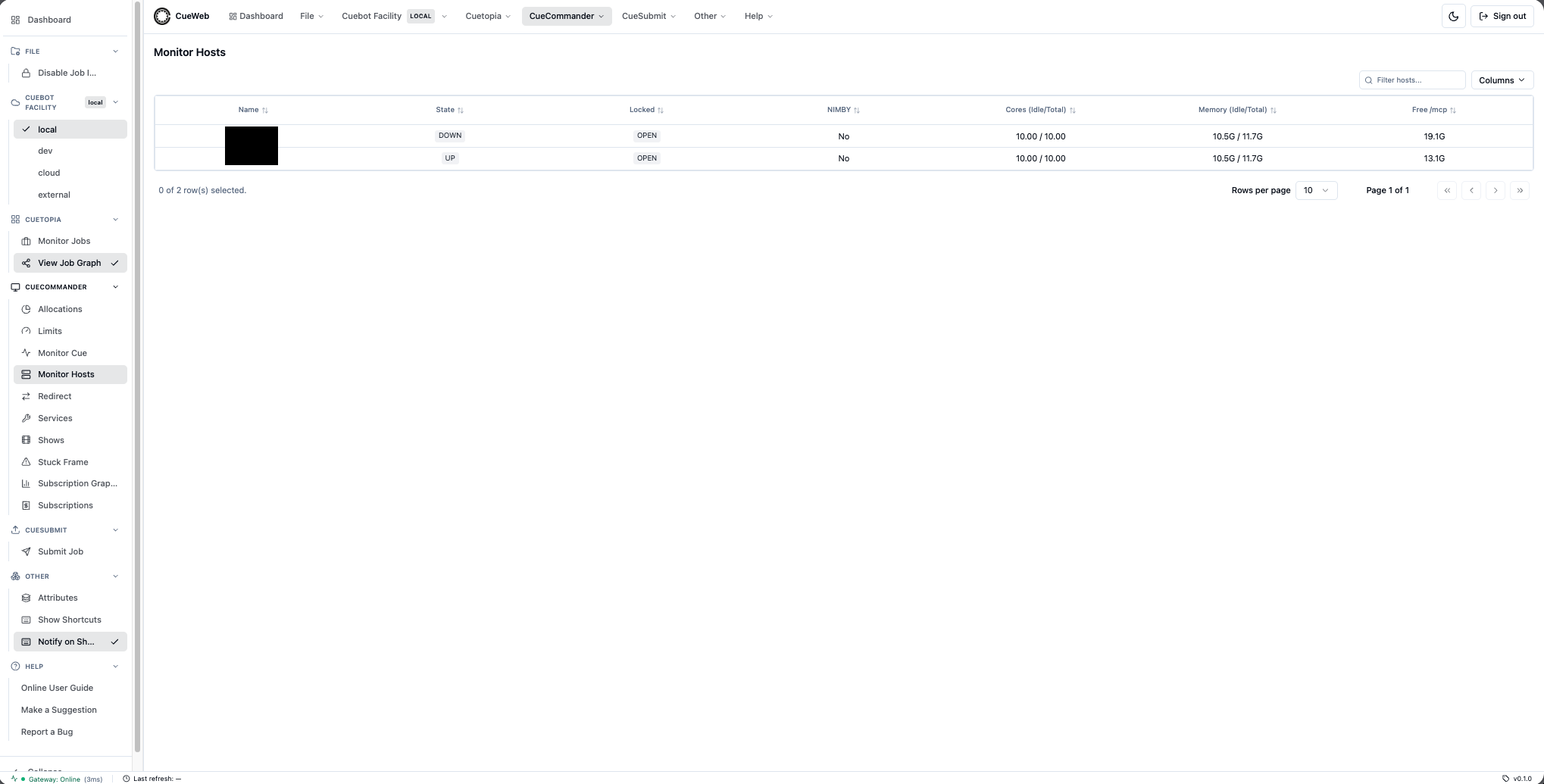
- Narrow the list with the name/regex box and the Filter Allocation / HardwareState / LockState / OS dropdowns (the filters are reflected in the URL, so a view is shareable).
- Right-click a host for Comments, View Procs, Lock / Unlock, Edit Tags / Rename Tag / Change Allocation, Reboot / Reboot when idle / Restart service now / Restart service when idle / Delete Host, and Set / Clear Repair State.
- Left-click a host row (or use View Procs, or the Procs box below the table) to list a host’s running procs, then right-click a proc for View Job / Unbook / Kill / Unbook and Kill.
Switch Cuebot facilities
If your render farm spans more than one facility (each with its own Cuebot), use the Cuebot Facility menu in the header to switch between them. OpenCueWeb shows one facility at a time - the same behavior as CueGUI’s Cuebot Facility menu.

- Pick a facility from the menu; OpenCueWeb re-routes to that facility’s Cuebot and reloads whatever you are viewing. The active facility shows as a chip on the menu and in the bottom status bar, and your choice is remembered for the session.
- Each facility shows a green/red health dot - green when its REST gateway is reachable, red when it is down (polled every 30s). A facility whose gateway is down is disabled, so you can’t switch into it.
- The list of facilities comes from
NEXT_PUBLIC_CUEBOT_FACILITIES(defaultlocal,dev,cloud,external). To point a facility at its own gateway, set the server-only pairCUEBOT_<NAME>_REST_GATEWAY_URLandCUEBOT_<NAME>_JWT_SECRET(e.g.CUEBOT_DEV_REST_GATEWAY_URL); a facility with no override falls back toNEXT_PUBLIC_OPENCUE_ENDPOINT/NEXT_JWT_SECRET. The single-facility sandbox works with justlocal. - To change a facility’s gateway URL or JWT secret without a redeploy, choose Manage facilities… from the menu. The admin screen edits each facility’s connection at runtime (applied immediately, layered over the env defaults) and keeps a change-history log. Persist these overrides across container restarts by pointing
CUEWEB_FACILITY_STOREat a mounted volume.
Check the OpenCueWeb version (About OpenCueWeb)
The build version is always visible at the right of the bottom status bar. For full build details, open Help → About OpenCueWeb.
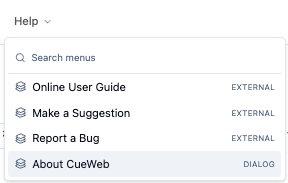
The dialog shows the Version, the Build SHA, and a license link, with a Copy diagnostics button that copies all fields as JSON (handy for bug reports).
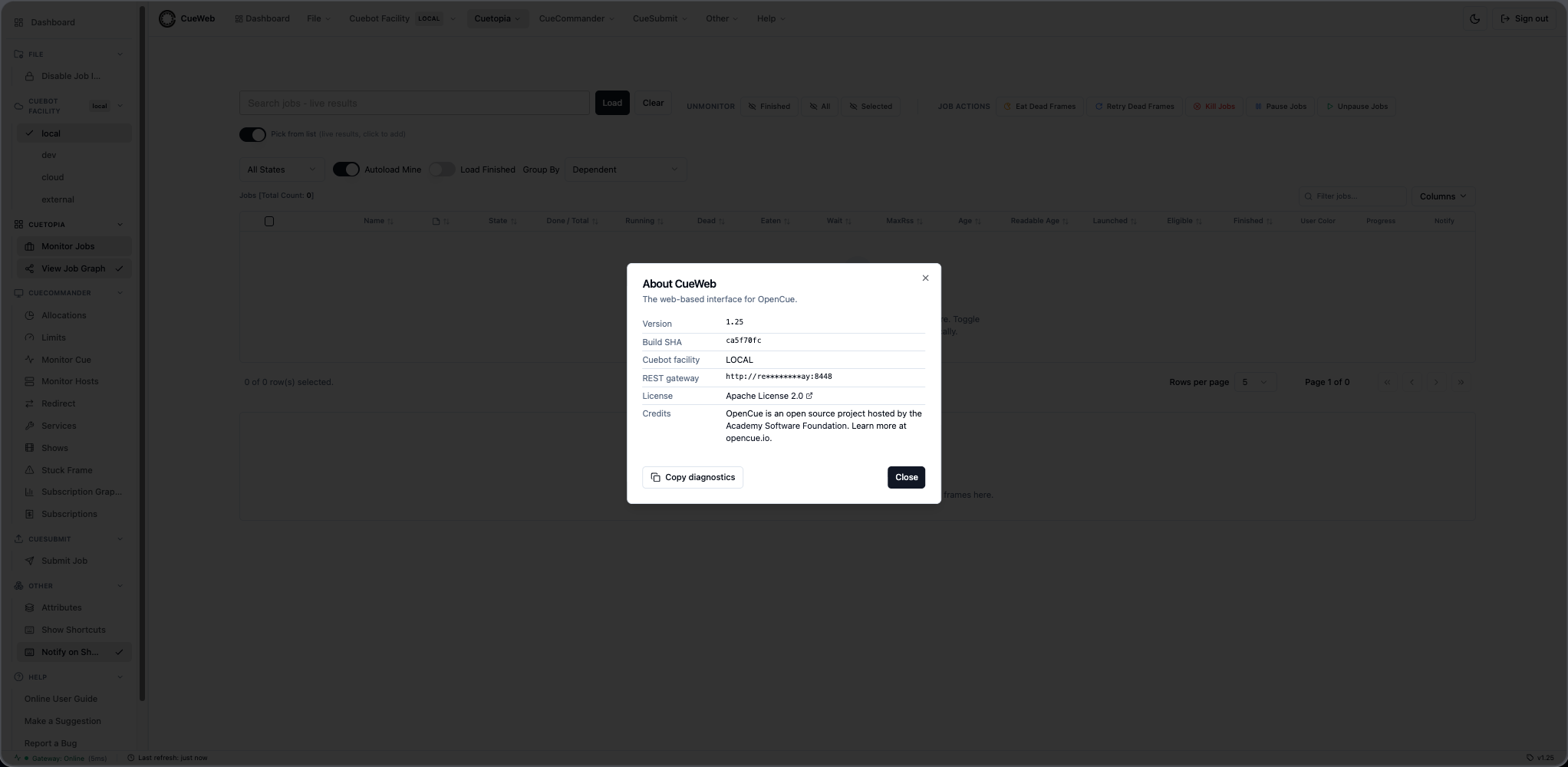
- The Version is resolved at build time: an explicit
NEXT_PUBLIC_APP_VERSIONbuild-arg wins; otherwisecueweb/OVERRIDE_CUEWEB_VERSION.indecides - the default valueVERSION.inmeans “track the repo-rootVERSION.in” (OpenCue’s shared version), while any other value is used verbatim as an OpenCueWeb-specific override;package.jsonis the last-resort fallback. - The Build SHA comes from the
NEXT_PUBLIC_GIT_SHAbuild-arg (CI injectsgit rev-parse --short HEAD); it showsunknownwhen not provided.
Try a plugin
OpenCueWeb ships a small plugin system with two sample add-ons. Open the Plugins page (the Plugins menu sits to the right of CueSubmit in the header) to see the registered plugins.
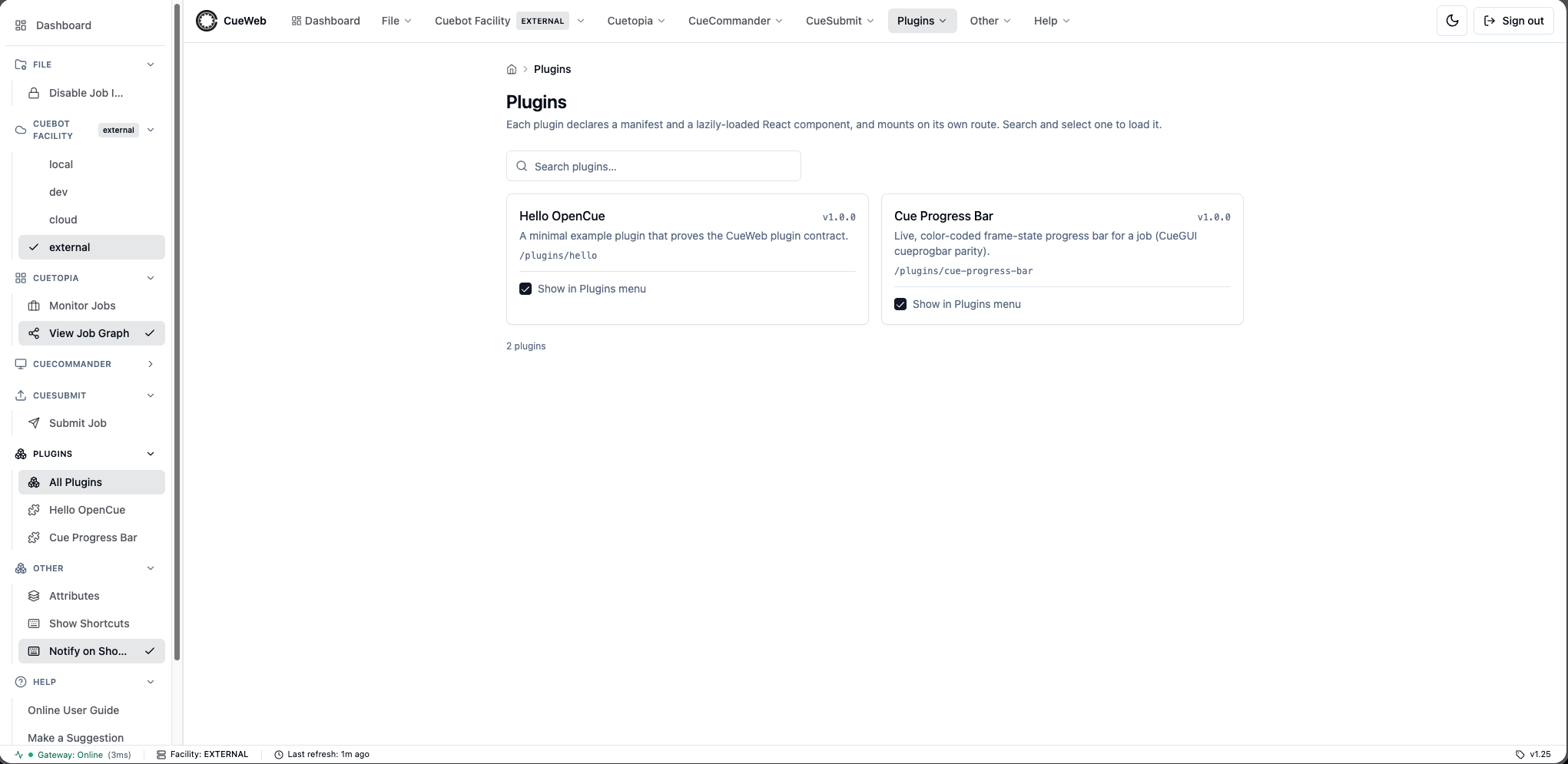
- Each plugin has a checkbox that controls whether it appears in the Plugins menu; your choice is saved in your browser. Open a plugin to use it, and use its Open plugin settings control to tweak its options (also saved per browser).
- Cue Progress Bar (on by default) draws a live frame-state bar for a job with pause / unpause / kill / retry-dead controls; Hello OpenCue (off by default) is a minimal example. Developers can add their own under
cueweb/app/plugins/<name>/.
Customize your workspace
Three quick ways to shape the workspace (all saved in your browser):
-
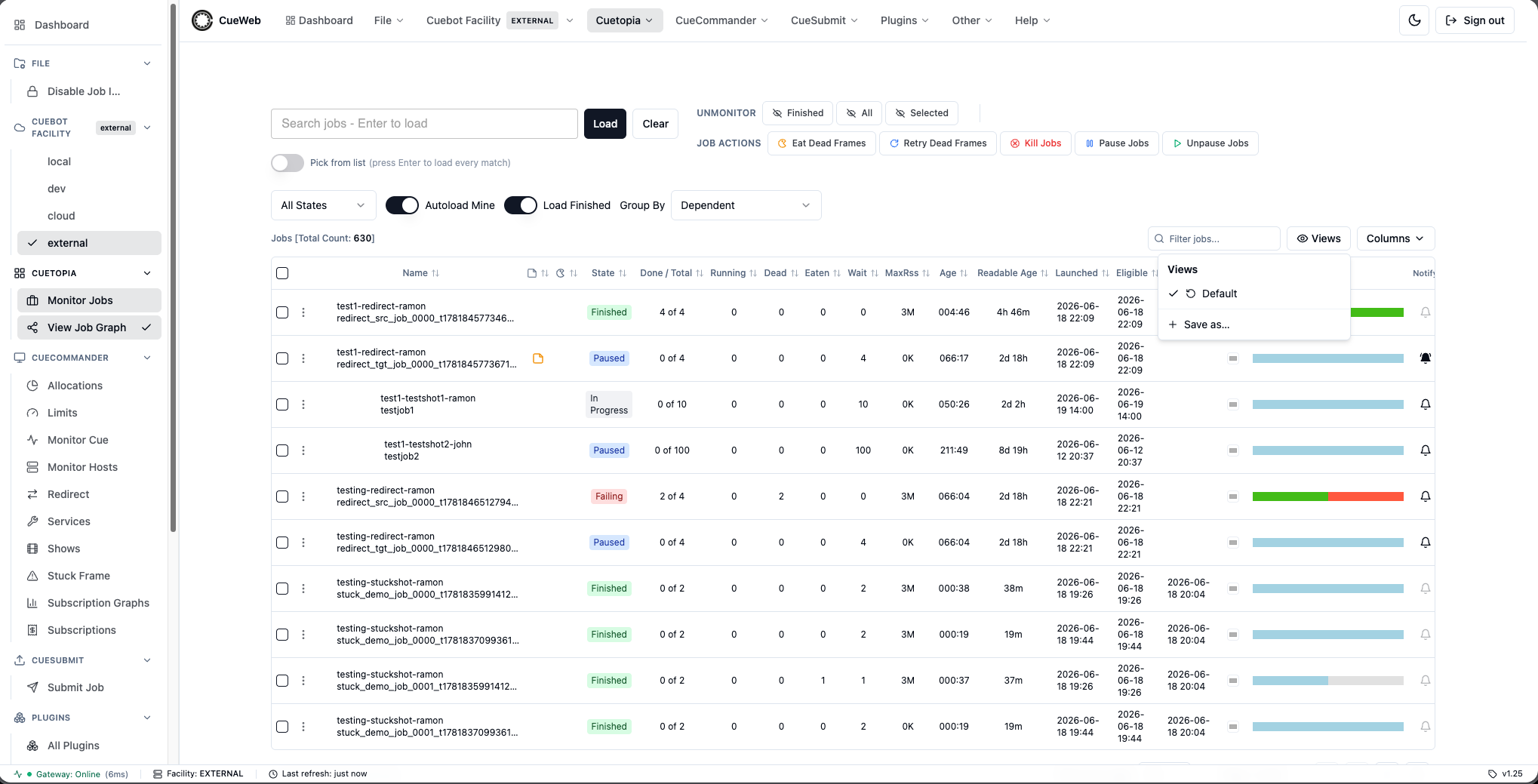
Save a view preset: set up a table’s columns, sort, filters, and page size, then use the Views dropdown (next to Columns) → Save as… to recall that exact layout later. The built-in Default restores the original layout.
-
Go full-screen: press
F(or use Other → Immersive (full-screen)) to hide the header, sidebar, and status bar so a table fills the screen. A floating Exit immersive button brings the chrome back.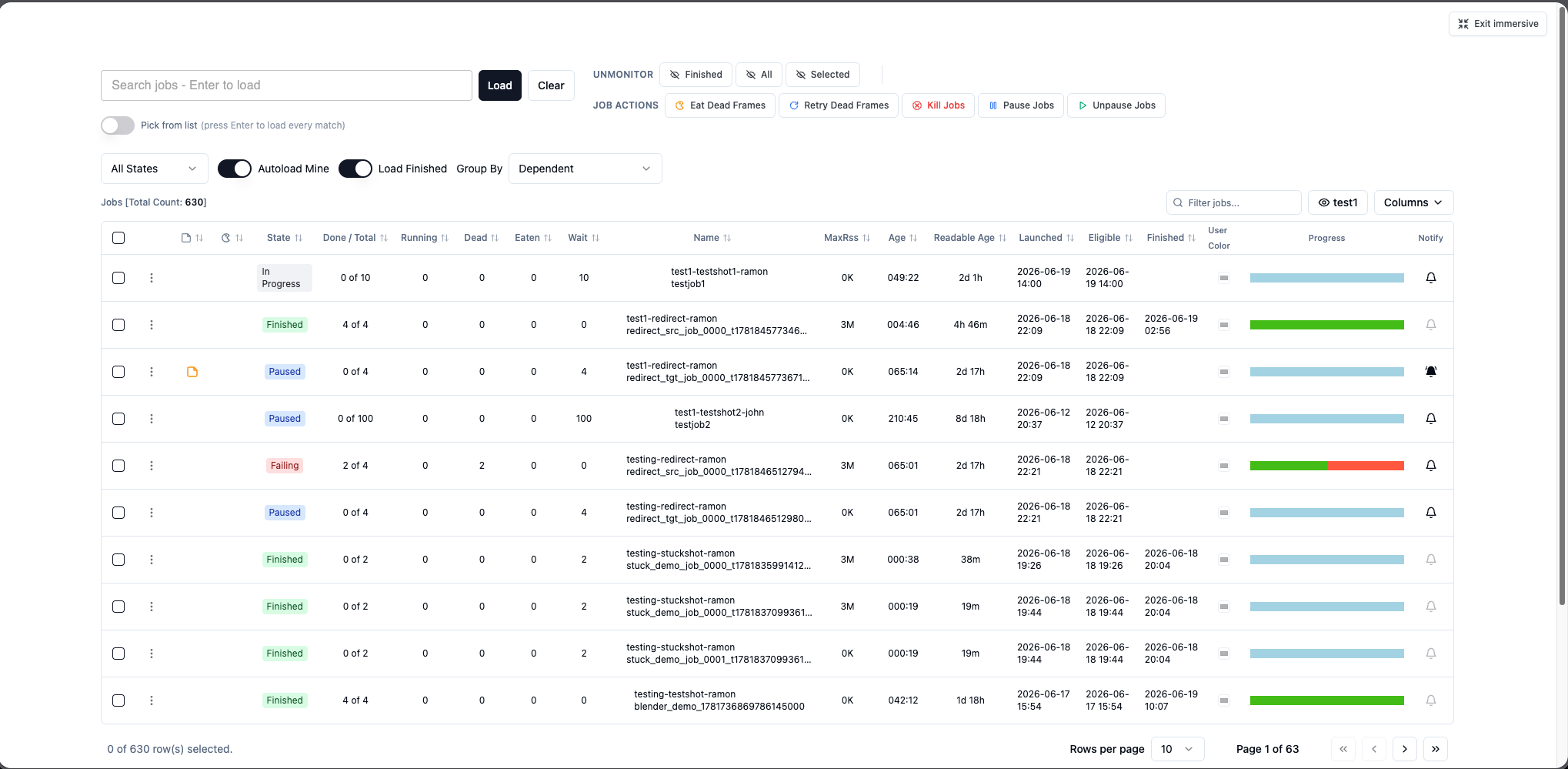
-
Split the view: open Other → Split view to see two pages side-by-side in resizable panes (e.g. Monitor Jobs next to a host). The layout lives in the URL (
/split?left=…&right=…), so it’s bookmarkable and reload-safe.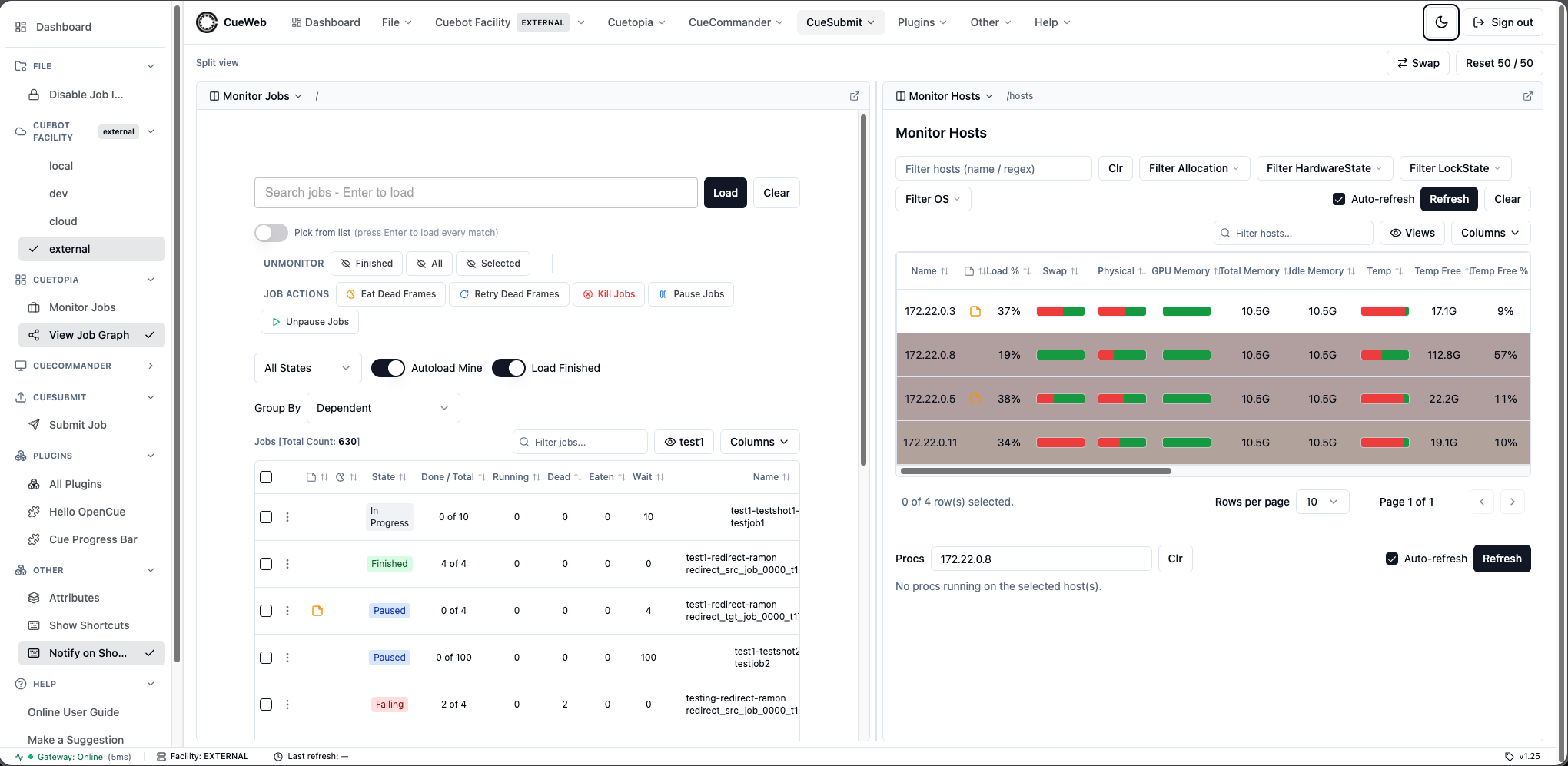
Review the audit trail
Open Admin → OpenCueWeb Audit (in the top header or the left sidebar) to see who changed what. OpenCueWeb records every state-changing action - who did it, the action, the timestamp, the target entity, the Cuebot facility, and whether it succeeded or errored - plus sign in / sign out. Read-only views are not recorded.
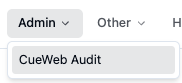
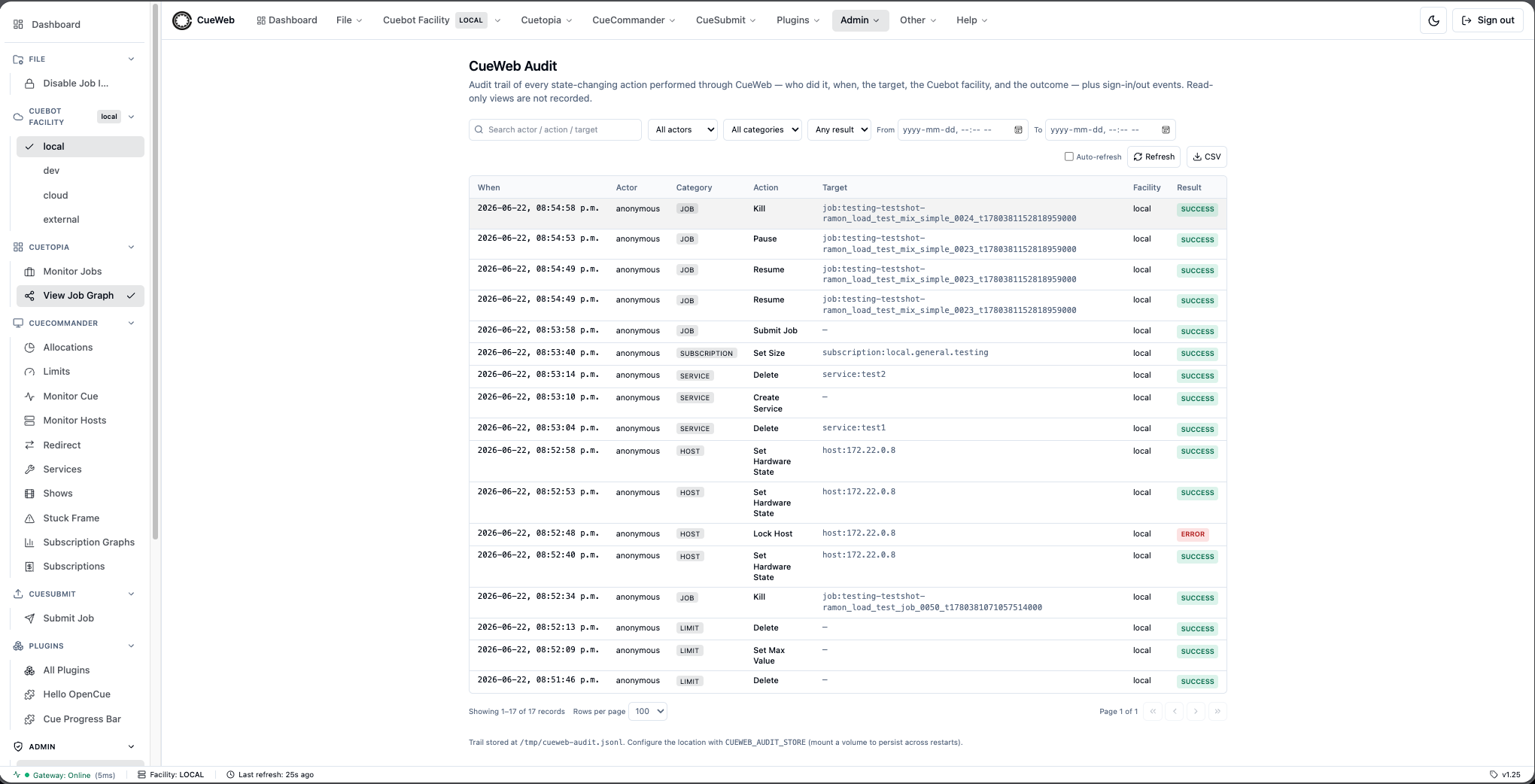
- Filter by actor, category, or result, set a From/To time window, or type in the free-text search; expand a row to see sanitized details.
- Page through results (First / Prev / Next / Last, “Page X of N”, with a rows-per-page selector that defaults to 10), flip on auto-refresh, and use Export CSV to download the current view.
- Access follows the same group gate as the rest of OpenCueWeb: with no group authorization configured (no auth provider,
CUEWEB_AUTHZ_ENABLEDoff, or noCUEWEB_ADMIN_GROUPSset) the page is open to everyone; when the gate is active, only members ofCUEWEB_ADMIN_GROUPScan reach it. See Restrict access by group in Step 2. - The trail lives at
CUEWEB_AUDIT_STOREand is bounded byCUEWEB_AUDIT_MAX_RECORDS(both shown in Step 2).
Step 6 (optional): Submit a job from the browser (CueSubmit)
OpenCueWeb ships a browser-based equivalent of the standalone CueSubmit CLI tool so you don’t need a separate desktop install just to launch a test job:

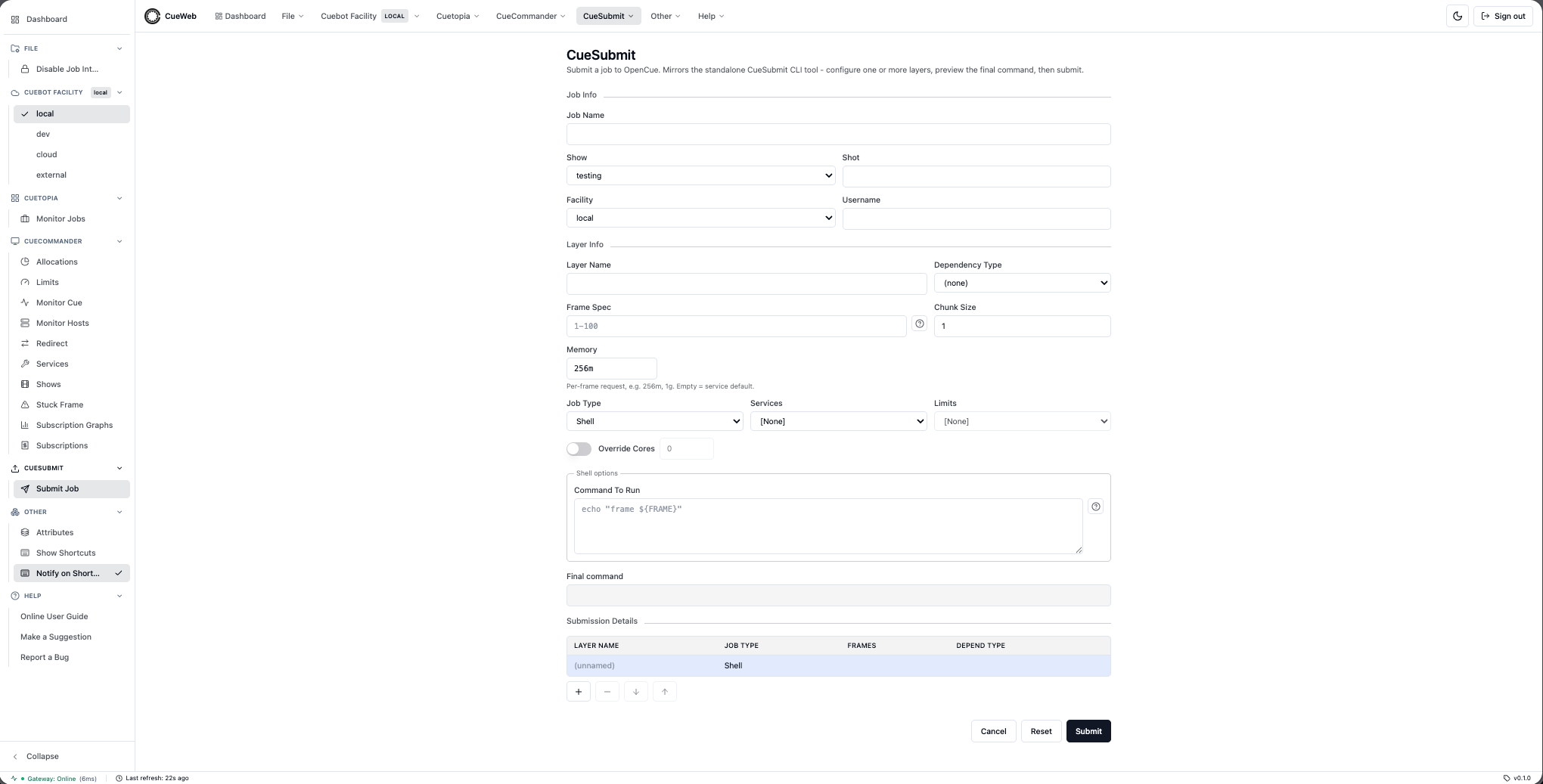
- Click CueSubmit > Submit Job in the top header (or the matching entry in the sidebar / mobile drawer).
- In Job Info fill in a Job Name (e.g.
quickstart_test), picktestingfor Show, type a Shot liketest_shot, leave Facility as[Default], and confirm Username. - In Layer Info fill in a Layer Name (e.g.
layer1), set Frame Spec to1-3, leave Chunk Size at1and Memory at the256mdefault, and keep Job Type set to Shell. - In Shell options type
sleep 5for Command To Run. Watch the Final command field at the bottom update per-keystroke. - Click Submit. OpenCueWeb redirects you to the job’s detail page where the three frames will go WAITING -> RUNNING -> SUCCEEDED in a few seconds.
- Click View in Monitor Jobs in the detail-page header to open Cuetopia with the new job already loaded.
The form keeps an autocomplete history (per browser) for Job Name, Shot, and Layer Name across submissions, and auto-saves a draft on every keystroke so an accidental refresh never wipes a multi-layer setup. Click Reset to clear the form back to a blank canvas.
Troubleshooting
OpenCueWeb won’t start
Problem: npm run dev fails
# Check Node.js version
node --version  # Should be 18+

# Clear cache and reinstall
rm -rf node_modules package-lock.json
npm install
Can’t connect to OpenCue
Problem: “Failed to fetch jobs” error
- Check REST Gateway status:
docker logs opencue-rest-gateway - Verify Cuebot connection:
docker ps | grep cuebot - Test REST Gateway:
# Generate test JWT
JWT_TOKEN=$(python3 -c "
import base64, hmac, hashlib, json, time
header = {'alg': 'HS256', 'typ': 'JWT'}
payload = {'sub': 'test', 'exp': int(time.time()) + 3600}
h = base64.urlsafe_b64encode(json.dumps(header).encode()).decode().rstrip('=')
p = base64.urlsafe_b64encode(json.dumps(payload).encode()).decode().rstrip('=')
m = f'{h}.{p}'
s = base64.urlsafe_b64encode(hmac.new(b'your-secret-key', m.encode(), hashlib.sha256).digest()).decode().rstrip('=')
print(f'{m}.{s}')
")

# Test endpoint
curl -X POST http://localhost:8448/show.ShowInterface/GetShows \
  -H "Authorization: Bearer $JWT_TOKEN" \
  -H "Content-Type: application/json" \
  -d '{}'
Authentication Issues
Problem: Login loops or authentication errors
- Disable authentication for local development:
# In .env file, comment out: # NEXT_PUBLIC_AUTH_PROVIDER=github,okta,google - Check JWT secret matching:
- Ensure
NEXT_JWT_SECRETin.envmatches REST Gateway’sJWT_SECRET
- Ensure
Production Deployment
For production deployment, see:
- OpenCueWeb User Guide - Complete user documentation
- OpenCueWeb Developer Guide - Development and deployment guide
- REST API Reference - API documentation
Next Steps
Now that OpenCueWeb is running:
- Explore the Interface: Familiarize yourself with job management features
- Configure Authentication: Set up OAuth providers for multi-user access
- Customize Settings: Adjust table columns and refresh intervals
- Monitor Production: Set up alerts and monitoring for your render farm
For detailed usage instructions, see the OpenCueWeb User Guide.