OpenCueWeb and REST Gateway
Learn about OpenCueWeb’s web-based interface and the REST Gateway that enables HTTP communication with OpenCue.
Table of contents
- What is OpenCueWeb?
- What is the OpenCue REST Gateway?
- Authentication and Security
- OpenCueWeb Audit (web action audit)
- Cuebot facilities (multi-facility routing)
- Plugins (extending OpenCueWeb)
- Workspace layout (web-native windows)
- Frame logs (file-based and Loki)
- Deployment Patterns
- Data Flow and API Coverage
- Configuration and Environment Variables
- Performance and Scalability
- Best Practices
- Troubleshooting Common Issues
What is OpenCueWeb?
OpenCueWeb is a web-based application that brings the core functionality of CueGUI to your browser. Built with Next.js and React, OpenCueWeb provides a responsive, accessible interface for managing OpenCue render farms from anywhere on the network.
Key Features
- Persistent Global Header: OpenCue logo + OpenCueWeb wordmark, plus the full CueGUI menu bar (File, Cuebot Facility, Cuetopia, CueCommander, Other [Attributes / Immersive (full-screen) / Split view / Show Shortcuts / Notify on Shortcut], Help with a search box that finds commands across every menu), a theme toggle, and an always-visible Sign out button
- Collapsible Left Sidebar: Same six groups as the header, organized as accordion sections; persists open/closed state and overall collapsed-vs-expanded width across reloads
- Disable Job Interaction: Global read-only safety toggle (File ▸ Disable Job Interaction) that dims every destructive action and shows an amber banner under the header
- Attributes Panel: Docked drawer (Other ▸ Attributes) with a position picker (right / bottom / left / top), filter input, and a collapsible key/value tree of the selected entity
- Bottom Status Bar: IDE-style 24-pixel fixed bar showing REST gateway reachability (Online / Offline + round-trip latency, polled every 10 seconds via
/api/health), time since the jobs table last refreshed, and the OpenCueWeb build version (NEXT_PUBLIC_APP_VERSION). Turns red when the gateway is unreachable. - Breadcrumb Navigation: detail views (frame log page, per-job comments page) render a “Home > Jobs > …” trail above the content. Long labels truncate with an ellipsis; the full text is recoverable on hover.
- Job / Layer / Frame tables (CueGUI parity): Full CueGUI column sets (Comments / Launched / Eligible / Finished / User Color on Jobs; Eligible on Layers; LLU / Memory (RSS) / Memory (PSS) / Remain / Eligible Time / Submission Time / Last Line on Frames). The Jobs table’s dedicated Comments column shows a sortable sticky-note icon next to Name, so jobs with comments can be pulled to the top in one click. Per-table substring filter, hide / show +
← / →reorder + Reset to Default in each table’s Columns dropdown. Both visibility and ordering persist inlocalStorage. - Inline Layers + Frames panel: Clicking a job row reveals the associated Layers and Frames tables stacked below the Jobs grid; clicking a layer narrows the frames panel to that layer and pushes the layer attributes into the docked Attributes panel; double-clicking a frame opens the log viewer.
- Job Dependency Graph (Cuetopia ▸ View Job Graph): a read-only, interactive node graph mirroring CueGUI’s
JobMonitorGraph. Shows the focus job with its layers (so a job with no cross-job dependencies still renders its structure) plus the cross-job dependency tree; double-click a node to open its detail page, right-click a layer node for the same actions as the Layers table. - CueGUI-parity context menus: right-clicking any row in the Jobs, Layers, or Frames tables opens a menu that mirrors the CueGUI Monitor Jobs / Monitor Job Details menus. Touch devices get the same menu via a
⋮Actions button as the leftmost cell of each row. Includes View Job Details (opens the tabbed/jobs/<jobName>page with Overview / Layers / Frames / Comments / Dependencies), Copy Job Name / Copy Layer Name / Copy Frame Name / Copy Log Path (works on plain-HTTP LAN deployments too), plus View Log / Tail Log (in-browser viewer) and an optional View Log on <editor> that launches the log file directly in a desktop editor (configured at build time viaNEXT_PUBLIC_LOG_EDITOR_URL, defaults to VSCode in the sandbox). - Animated progress bar (Jobs AND Layers): shared stacked-segment renderer with a hover tooltip showing per-state counts and percentages.
- Real-time Updates: Automatic refresh of job, layer, and frame status
- Advanced Search: Regex-enabled search with dropdown suggestions
- Frame Navigation: Detailed frame inspection with log viewing
- Multi-job Operations: Bulk operations on multiple jobs
- Job Comments: List / add / edit / delete per-job comments (markdown, sanitized) with predefined-comment macros - mirrors CueGUI’s Comments dialog
- Job-finished Notifications: Per-job bell that subscribes the browser to an in-app toast (always) and an optional desktop popup (when Notification permission is granted) when the job reaches
FINISHED. The notify decision is serialized cross-tab via the Web Locks API. - Keyboard shortcuts + menu access: press
?(or use Other ▸ Show Shortcuts) for the cheat-sheet overlay. An opt-out toggle (Other ▸ Notify on Shortcut) controls whether a toast names every triggered shortcut. - Dark/Light Mode: Theme switching for user preference
- Mobile-friendly UI: Hamburger-triggered nav drawer on phones, per-row
⋮Actions button so touch users reach the right-click menu via a tap, swipeable wide data tables, and tappable key badges in the shortcuts overlay so single-letter shortcuts work without a physical keyboard. - LAN access by default: The same image works whether the browser loads OpenCueWeb from
localhost, a LAN IP, or a reverse-proxy host. Clipboard actions also work over plain-HTTP LAN access. - Authentication Support: Optional OAuth integration (GitHub, Google, Okta, LDAP)
OpenCueWeb vs CueGUI
| Feature | CueGUI | OpenCueWeb |
|---|---|---|
| Platform | Desktop application | Web browser |
| Installation | Requires Python/Qt setup | No client installation |
| Access | Local workstation only | Network accessible |
| Updates | Manual client updates | Automatic via web |
| Mobile Support | No | Yes (responsive design) |
| Multi-user | Individual instances | Shared web service |
| Authentication | System-based | OAuth providers |
What is the OpenCue REST Gateway?
The OpenCue REST Gateway is a production-ready HTTP service that provides RESTful endpoints for OpenCue’s gRPC API. It acts as a translation layer, converting HTTP requests to gRPC calls and responses back to JSON.
Architecture Overview
- OpenCueWeb
- Mobile App
- curl/Scripts
- Third-party"] B["REST Gateway
- Authentication
- Request Trans.
- Response Form.
- Error Handling"] C["Cuebot
- Job Mgmt
- Scheduling
- Resources
- Monitoring"] A <-->|HTTP/JSON| B B <-->|gRPC| C
Request Flow
- HTTP Request: Client sends HTTP POST with JSON payload and JWT token
- Authentication: Gateway validates JWT token signature and expiration
- gRPC Translation: HTTP request converted to gRPC call
- Cuebot Communication: Request forwarded to Cuebot service
- Response Translation: gRPC response converted back to JSON
- HTTP Response: Formatted JSON returned to client
Self-Describing API
The same .proto files that generate the gateway’s HTTP handlers also generate an OpenAPI (Swagger) definition for every OpenCue interface. These definitions are produced at build time by protoc-gen-openapiv2 and packaged into the gateway image. Because both come from one source, the documented paths and message schemas can never drift from the handlers. That shared source does not, however, guarantee that every generated method is routed; see below.
The gateway serves those definitions, and a Swagger UI that renders them, under /swagger/:
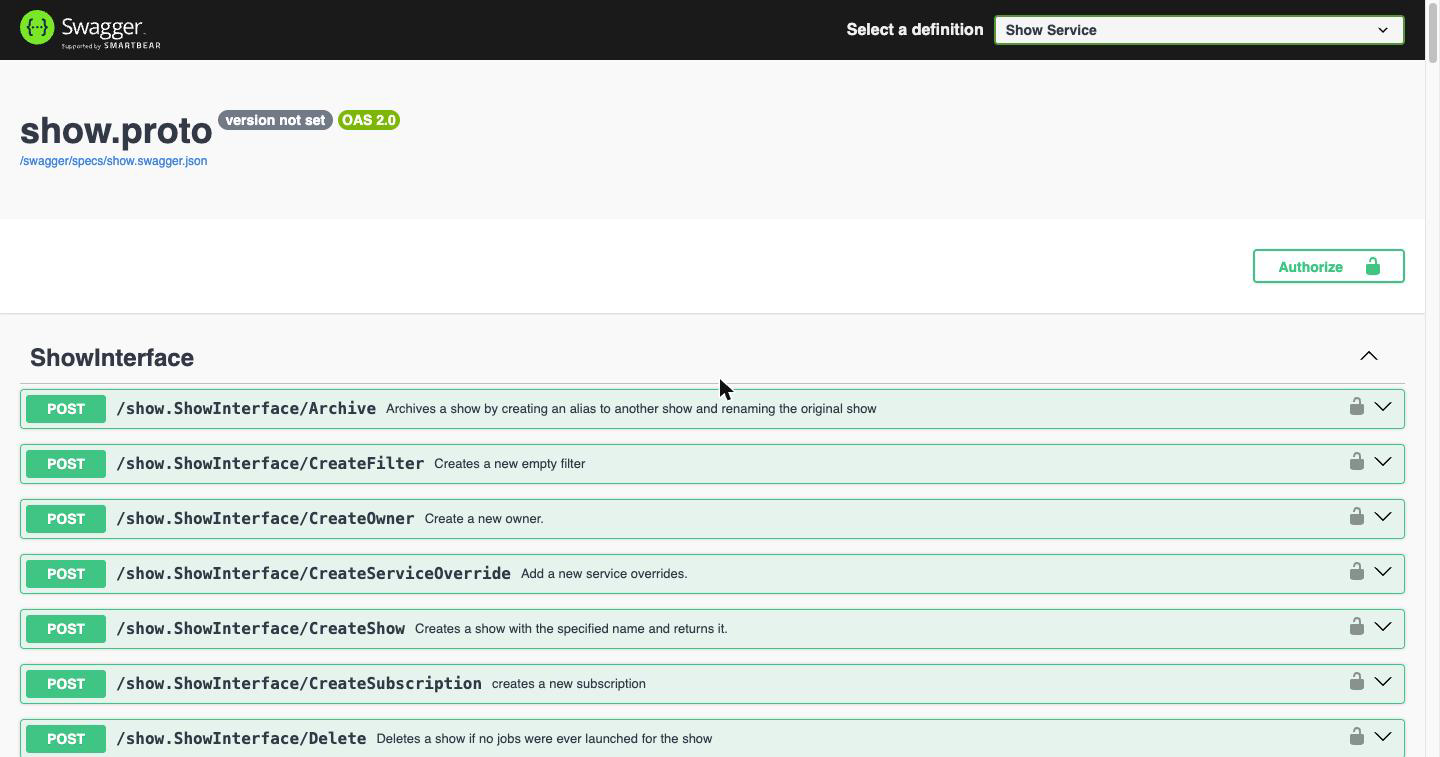
This makes the gateway self-describing: a client that can reach it can discover the complete set of interfaces, methods, request bodies, and response schemas without any external documentation. All Swagger UI assets are served by the gateway itself, so the page works on an isolated network.
There is one nuance to be aware of. The definitions are generated with generate_unbound_methods=true, which emits an entry for every method in every .proto file, whereas the gateway registers handlers for a chosen subset. The published surface is therefore slightly wider than the routed one: 304 endpoints across 28 interfaces are described, and 273 across 22 interfaces are reachable. The remaining 31 endpoints return 404 simply because this gateway does not register them, and they fall into two groups. RqdInterface and RunningFrame are implemented by the RQD agent on each host rather than by Cuebot, so the gateway has nothing to forward them to. CueInterface, MonitoringInterface, RenderPartitionInterface, and RqdReportInterface are Cuebot services, but they are internal or agent-facing rather than intended for REST clients. The API reference lists them.
Documentation and the Authentication Boundary
The /swagger/ routes sit deliberately outside the JWT middleware. Documentation is browsable anonymously; the API is not:
| Route | Authentication |
|---|---|
/swagger/, /swagger/specs/, /swagger/assets/ |
None |
Every /<interface>/<method> API route |
JWT required |
This is a considered trade-off. It makes the API easy to explore and test, but it also means anyone who can reach the gateway’s port can read the complete API surface, including the interfaces, the method names, and the message schemas. No data is exposed, and no operation can be performed without a valid token, but the shape of the system is visible.
Deployments where the gateway is reachable beyond a trusted network should set SWAGGER_ENABLED=false, which unmounts the routes entirely, or restrict /swagger/ at the reverse proxy. See Deploying the REST Gateway for the production configuration.
Authentication and Security
JWT Token System
The OpenCueWeb server and the REST Gateway use JSON Web Tokens (JWT) for secure authentication:
- Algorithm: HMAC SHA256 (HS256)
- Header Format:
Authorization: Bearer <token> - Expiration: Configurable token lifetime
- Secret Sharing: The shared secret is held only by the OpenCueWeb server (which signs each token and forwards requests to the gateway) and the REST Gateway (which verifies it). It must never be exposed to browser or client code — the browser calls OpenCueWeb’s own server-side routes, and those routes attach the gateway JWT server-side.
Token Lifecycle
Security Features
- No API Keys: JWT tokens eliminate need for permanent credentials
- Token Expiration: Automatic token expiry prevents unauthorized access
- Request Validation: All requests validated before processing
- CORS Support: Configurable cross-origin resource sharing
- TLS Support: Optional HTTPS encryption
Group-based authorization (optional)
Authentication answers who you are; authorization answers what you may do. OpenCueWeb adds an optional, opt-in authorization layer that restricts access by group membership, enforced server-side at a single middleware chokepoint. It is off by default - when disabled (or when no auth provider is configured) the middleware is a pure pass-through and every signed-in user is treated as an admin.
The design separates resolution from enforcement, which is what keeps it both correct and fast:
- Resolution happens once, at sign-in (in Node). The NextAuth
jwtcallback reads the user’s groups from the identity provider - the OIDC token claim named byCUEWEB_GROUPS_CLAIM(defaultgroups), or agroupsfield attached by a credentials/LDAP provider - and stamps them onto the signed JWT. - Enforcement happens per request, at the Edge. The middleware can only read the already-issued JWT (the Edge runtime has no database or LDAP access), so it simply reads the groups off the token and applies the policy - no per-request directory lookup.
Two gates are applied:
CUEWEB_ALLOWED_GROUPS- who may use OpenCueWeb at all. A signed-in user outside this list is sent to an Access denied page (/unauthorized); API routes get a403.CUEWEB_ADMIN_GROUPS- who may reach the entire CueCommander section (all of its pages, including Monitor Cue, Monitor Hosts and Stuck Frame), job submission (CueSubmit), and the Manage facilities… screen. On a restricted deployment those menus are hidden from everyone else; non-admins keep Cuetopia Monitor Jobs and the Dashboard.
Infrastructure routes - the health probe, metrics, the auth flow, the login and unauthorized pages, and static assets - are never gated. Prerequisite: the gate only works when your identity provider emits the user’s group memberships in the token; if the token carries no groups, the resolution seam can be extended (e.g. a directory lookup) without touching enforcement.
OpenCueWeb Audit (web action audit)
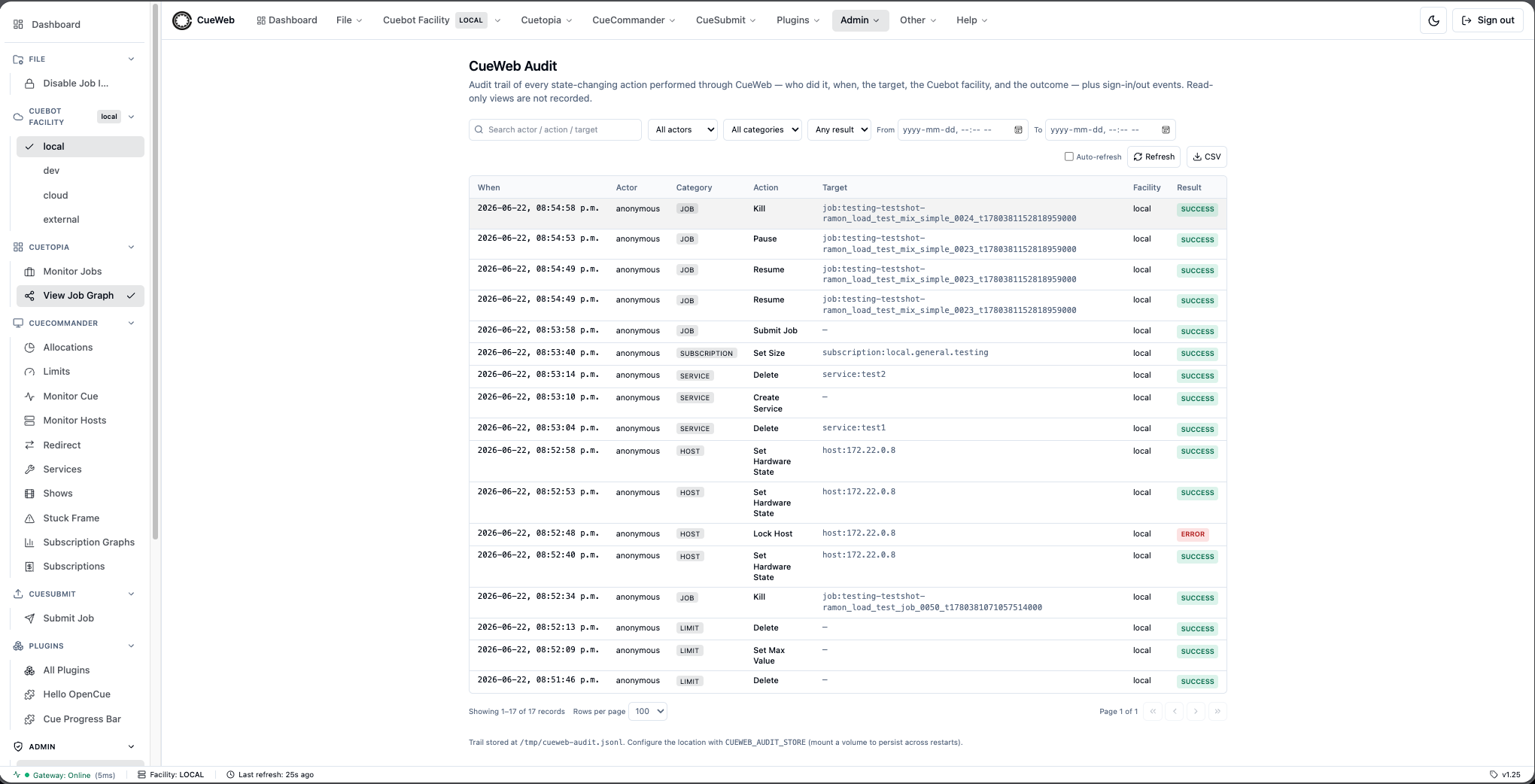
OpenCueWeb keeps a web audit trail: an append-only record of who did which state-changing action, when, against which target, and with what outcome - for actions performed through OpenCueWeb. It answers the operational question “who killed that job?” (or paused it, retried that frame, rebooted that host, changed a show) by recording each mutating action as a single timestamped entry. The trail is surfaced in an admin-only Admin → OpenCueWeb Audit page (reachable from both the top menu and the left sidebar).
Where events are captured
The architectural insight is that OpenCueWeb proxies every mutating action through a single chokepoint - the server-side gateway request handler that signs and forwards each call to the facility’s REST Gateway → Cuebot. Because all writes already funnel through that one place, instrumenting it once captures every mutating route with no per-route changes. It is also the only place where the three things an audit entry needs are available together: the signed-in user identity, the selected facility, and the gRPC endpoint being called. Read-only calls (Get* / Find* / List*) are skipped, so the trail stays focused on actions that change state. Sign in and sign out are captured separately, via the authentication layer’s events, since they don’t flow through the gateway.
Each record carries: the timestamp (at), the actor, a category (job, frame, layer, host, show, …, or auth), the action, the target, the facility, the result (success or error) plus any error message, sanitized details (request parameters with secrets dropped), and the endpoint and method.
How it’s stored
The trail is an append-only JSONL file - one JSON record per line - mirroring an existing OpenCueWeb pattern (the per-facility override store). No database is introduced, so OpenCueWeb has no database dependency on the backend. The file path is configurable (CUEWEB_AUDIT_STORE), and its size is bounded (CUEWEB_AUDIT_MAX_RECORDS): once the cap is reached the oldest records are dropped. Because the default location is the OS temp directory, persisting the trail across restarts means pointing it at a mounted volume. The store is file-backed and single-process, so running multiple OpenCueWeb replicas means pointing them at shared storage (and the writes are last-writer-wins without a cross-process lock).
Who can see it
Access reuses the same optional group-authorization gate described above. When no group authorization is configured (CUEWEB_AUTHZ_ENABLED off), the audit page is shown to everyone - consistent with OpenCueWeb’s “everyone is an admin” default. When authorization is active, only members of the admin groups (CUEWEB_ADMIN_GROUPS) can reach it.
Scope and limitation
This is an OpenCueWeb audit, not a farm-wide audit: it records only actions taken through OpenCueWeb. Actions performed from CueGUI, cueman, or pycue go straight to Cuebot and are not seen here. Capturing every client’s actions would require an audit layer in the backend (Cuebot / gateway); the OpenCueWeb trail is the pragmatic, no-new-infrastructure step that covers the web interface today.
Cuebot facilities (multi-facility routing)
A facility in OpenCue labels and separates farm resources - typically by physical location. Each facility is served by its own Cuebot (and, for OpenCueWeb, its own REST Gateway). OpenCueWeb mirrors CueGUI’s Cuebot Facility concept: you work in one facility at a time, and a menu lets you switch between them.
What “switching a facility” means
Switching the active facility re-points OpenCueWeb at that facility’s Cuebot and reloads the current view. You never see two facilities mixed together - the jobs, hosts, shows, and everything else you see belong to the selected facility. The active facility is shown as a chip on the menu and in the bottom status bar, and the selection is remembered for the session.
How routing works
Because the browser only talks to OpenCueWeb’s own /api routes, facility routing is resolved server-side, per request:
- The client sends the active facility with each API call; a server-side resolver picks the matching gateway URL and JWT secret for that facility, signs the request, and forwards it to that facility’s gateway → Cuebot.
- The facility list comes from
NEXT_PUBLIC_CUEBOT_FACILITIES(defaultlocal,dev,cloud,external). - Each facility may define a server-only
CUEBOT_<NAME>_REST_GATEWAY_URLandCUEBOT_<NAME>_JWT_SECRETpair. A facility with no override falls back to the defaultNEXT_PUBLIC_OPENCUE_ENDPOINT/NEXT_JWT_SECRET, so a single-facility deployment needs no extra configuration.
Why this design
Keeping the per-facility gateway URLs and secrets server-only means the browser never holds a gateway credential - it only knows the facility name. This keeps the same security model as single-facility OpenCueWeb (secrets live in the Node server, never in the client bundle) while letting one OpenCueWeb deployment front many facilities. It also means a facility’s gateway can change without touching the client.
Per-facility health and runtime configuration
Fronting many facilities raises two operational questions: is each one reachable? and can I re-point one without a redeploy? OpenCueWeb answers both while preserving the server-only credential model.
- Live health per facility. A server endpoint probes every configured facility’s gateway in parallel and reports only reachability and round-trip latency (never gateway payloads). The Cuebot Facility menu polls it and shows a green/red dot next to each facility; a facility whose gateway is down can’t be selected, so you can’t switch into a dead facility by accident.
- Runtime overrides, layered over the env defaults. Each facility’s gateway URL and JWT secret can be edited at runtime from a Manage facilities… admin screen. The effective value is resolved as override → per-facility env var → legacy default, so an empty override store reproduces the env-only behavior exactly, and clearing an override falls back to the env/default. Overrides are persisted to a server-side file (
CUEWEB_FACILITY_STORE) with an append-only audit log; the JWT secret is stored with restrictive permissions and is never logged or returned to a client.
Why this design: health and runtime config are both resolved server-side, so the browser still only ever knows a facility name - the credential model is unchanged. Runtime overrides make a facility’s gateway re-pointable by an operator (e.g. failing over to a standby gateway) without rebuilding or restarting the image, and the audit log records who changed what.
Plugins (extending OpenCueWeb)
OpenCueWeb is extensible through a small plugin system - the browser counterpart of CueGUI’s plugin architecture, where each plugin declares metadata and exposes a component the host mounts. The same idea translates cleanly to the web:
- A plugin is a manifest (its name, title, version, route, and an optional description) plus a lazily-loaded React component. Each plugin mounts on its own route under
/plugins/<name>. - Plugins are discovered from a static registry in the code rather than scanned at runtime. That registry is the single source of truth, which keeps discovery predictable and lets the bundler code-split each plugin into its own chunk that’s only fetched when its page is opened - so unused plugins cost nothing.
- Users curate their own experience: a Plugins page lists everything registered, and checkboxes decide which plugins appear in the Plugins menu. A plugin can also register its own settings. Both the menu selection and the settings live in the browser (
localStorage) and sync across tabs - they’re per-user preferences, not server state.
Why this design: keeping discovery static and components lazy means plugins extend the UI without bloating the core bundle or adding server round-trips, and because preferences are client-side, enabling a plugin or changing its settings never touches Cuebot. Two samples ship in-tree - a minimal Hello OpenCue and a Cue Progress Bar (a port of CueGUI’s cueprogbar) - which double as templates for new plugins. See the developer guide for the contract and how to add one.
Workspace layout (web-native windows)
CueGUI is a desktop app, so it shapes the workspace with windows: saving window settings, toggling full-screen, and opening additional windows. OpenCueWeb is a single browser tab, so it offers the same affordances in web-native form, and treats them all the same way - as personal, client-side preferences (browser localStorage, synced across tabs via the storage event), never server state:
- View presets replace CueGUI’s Save Window Settings: a named snapshot of a table’s column order/visibility, sort, filters, and page size. They’re built on top of each table’s existing per-column persistence and operate purely through the table component’s own API, which is why they work uniformly across every table without per-table code.
- Immersive (full-screen) mode replaces Toggle Full-Screen: the app shell drops the header, sidebar, and status bar so the active view fills the viewport.
- Split view replaces Add new window: two pages share one tab as side-by-side panes. Each pane is a same-origin
<iframe>so it keeps its own router context (URL, dynamic params), and the two pane targets live in the page’s query string - so a split workspace is itself just a URL, making it bookmarkable, shareable, and reload-safe.
Why this design: modeling these as URL- and localStorage-addressable state (rather than server-side window managers) keeps them stateless on the backend, shareable as links, and consistent with how the rest of OpenCueWeb persists per-user preferences - enabling any of them never touches Cuebot.
Frame logs (file-based and Loki)
A frame’s log can be read two ways, and OpenCueWeb supports both behind the same viewer:
- File-based (default): RQD writes each frame’s output to a
.rqlogfile on a shared filesystem. OpenCueWeb’s server reads that file (so the render-log directory must be mounted into the OpenCueWeb container). This is the zero-extra-infrastructure default. - Loki (optional): in studios that already centralize logs, RQD ships frame output to a Grafana Loki server tagged with
frame_idandsession_start_timelabels. SettingNEXT_PUBLIC_LOKI_URLmakes OpenCueWeb query Loki for a frame’s lines instead of reading a file - the same model as CueGUI’s Loki log viewer. There’s no shared log mount to manage, logs survive the worker, and each frame attempt is a selectable version.
Why this design: the backend is a single deployment-time switch (NEXT_PUBLIC_LOKI_URL set or not), not a UI choice, and the viewer is identical either way - so a site adopts centralized logging without changing how artists view logs. Because the var is browser-readable (NEXT_PUBLIC_*), the Loki query goes straight from the browser to Loki, which must therefore be reachable from clients and allow CORS from the OpenCueWeb origin.
Deployment Patterns
Standalone Deployment
OpenCueWeb and REST Gateway run as separate services:
Port: 3000"] --> B["REST Gateway
Port: 8448"] B --> C["Cuebot
Port: 8443"]
Container Deployment
Using Docker containers for isolation and scalability:
services:
  cueweb:
    image: cueweb:latest
    ports: ["3000:3000"]
    environment:
      - NEXT_PUBLIC_OPENCUE_ENDPOINT=http://rest-gateway:8448

  rest-gateway:
    image: opencue-rest-gateway:latest
    ports: ["8448:8448"]
    environment:
      - CUEBOT_ENDPOINT=cuebot:8443
      - JWT_SECRET=${JWT_SECRET}
High Availability Setup
Load-balanced deployment for production environments:
(Clustered)"] CW2 --> RG CW3 --> RG RG --> CB["Cuebot
(Clustered)"]
Data Flow and API Coverage
Supported Interfaces
The REST Gateway exposes all OpenCue gRPC interfaces:
Core Interfaces
| Interface | Description | Example Endpoints |
|---|---|---|
| ShowInterface | Project management | GetShows, FindShow, CreateShow |
| JobInterface | Job lifecycle + launch | GetJobs, Kill, Pause, Resume, GetComments, AddComment, SetPriority, LaunchSpecAndWait |
| CommentInterface | Comment management | Save, Delete |
| FrameInterface | Frame operations | GetFrame, Retry, Kill, Eat |
| LayerInterface | Layer management | GetLayer, GetFrames, Kill |
| GroupInterface | Resource groups (Monitor Cue tree + Send To Group) | GetGroup, GetJobs, ReparentJobs, SetMinCores, SetMaxCores |
| HostInterface | Host management (Monitor Hosts) | GetHosts, Lock, Unlock, Reboot, RebootWhenIdle, RestartRqdNow, RestartRqdWhenIdle, AddTags, RenameTag, SetAllocation, SetHardwareState, AddComment, Delete |
| OwnerInterface | Resource ownership | GetOwner, TakeOwnership |
| ProcInterface | Process control (proc panel) | GetProcs, Kill, Unbook |
| DeedInterface | Resource deeds | GetOwner, GetHost |
Management Interfaces
| Interface | Description | Example Endpoints |
|---|---|---|
| AllocationInterface | Resource allocation | GetAll, Find, SetBillable |
| FacilityInterface | Multi-site facilities | Get, Create, GetAllocations |
| FilterInterface | Job filtering | FindFilter, GetActions, SetEnabled |
| ActionInterface | Filter actions | Delete, Commit |
| MatcherInterface | Filter matchers | Delete, Commit |
| DependInterface | Dependencies | GetDepend, Satisfy, Unsatisfy |
| SubscriptionInterface | Show subscriptions | Get, Find, SetSize, SetBurst |
| LimitInterface | Resource limits | GetAll, Create, SetMaxValue |
| ServiceInterface | Service definitions | GetService, CreateService, Update |
| ServiceOverrideInterface | Service overrides | Update, Delete |
| TaskInterface | Task management | Delete, SetMinCores |
Job Submission (CueSubmit)
OpenCueWeb’s /cuesubmit route is a browser-based equivalent of the standalone CueSubmit CLI tool. The data path is:
- The form serializes a typed payload (job info, layers, per-type options) to JSON.
- The Next.js route
POST /api/job/submitparses + validates the payload with zod. - The same route assembles an OpenCue job-spec XML document (the CJSL format that the standalone pyoutline tool also emits) and forwards it to
job.JobInterface/LaunchSpecAndWaiton the REST Gateway. - The gateway calls the same gRPC RPC against cuebot. Cuebot creates the job, dispatches frames as RQDs become available, and returns the resolved
JobSeqto the gateway. - OpenCueWeb redirects the browser to the tabbed
/jobs/<name>detail view; the user can immediately watch their frames go WAITING -> RUNNING -> SUCCEEDED.
The browser never needs outline / pyoutline / pycuerun runtime - the XML the CLI tool builds locally is built server-side inside OpenCueWeb’s Node process and posted straight to the gateway. This keeps the deploy footprint small and ensures that submissions from the browser are indistinguishable from CueGUI / CueSubmit-CLI submissions on cuebot’s side.
Real-time Updates
OpenCueWeb implements automatic updates through:
- Polling Strategy: Regular API calls to refresh data
- Configurable Intervals: Adjustable refresh rates per table
- Intelligent Updates: Only update changed data to minimize load
- Background Workers: Web workers for filtering and processing
Configuration and Environment Variables
OpenCueWeb Configuration
Key environment variables for OpenCueWeb:
# Required
NEXT_PUBLIC_OPENCUE_ENDPOINT=http://localhost:8448  # REST Gateway URL
NEXT_PUBLIC_URL=http://localhost:3000               # OpenCueWeb URL
NEXT_JWT_SECRET=your-secret-key                     # JWT signing secret

# Authentication (optional)
NEXT_PUBLIC_AUTH_PROVIDER=github,okta,google        # OAuth providers
NEXTAUTH_URL=http://localhost:3000                  # Auth callback URL
NEXTAUTH_SECRET=random-secret                       # NextAuth secret

# Web audit (optional)
CUEWEB_AUDIT_STORE=/data/cueweb-audit.jsonl         # Path to the JSONL audit trail (default: OS temp dir; mount a volume to persist)
CUEWEB_AUDIT_MAX_RECORDS=50000                      # Max records retained, oldest dropped (default 50000; 0 = no cap)

# Third-party integrations (optional)
SENTRY_DSN=your-sentry-dsn                          # Error tracking
GOOGLE_CLIENT_ID=your-google-client-id              # Google OAuth
GITHUB_ID=your-github-app-id                        # GitHub OAuth
REST Gateway Configuration
Key environment variables for the REST Gateway:
# Required
CUEBOT_ENDPOINT=localhost:8443                      # Cuebot gRPC address
REST_PORT=8448                                      # HTTP server port
JWT_SECRET=your-secret-key                          # JWT validation secret

# Optional
LOG_LEVEL=info                                      # Logging verbosity
GRPC_TIMEOUT=30s                                    # gRPC call timeout
CORS_ORIGINS=https://cueweb.example.com             # CORS configuration
RATE_LIMIT_RPS=100                                  # Rate limiting
Performance and Scalability
OpenCueWeb Performance
- Server-Side Rendering: Fast initial page loads with Next.js SSR
- Code Splitting: Automatic bundle optimization
- Virtual Scrolling: Efficient rendering of large job lists
- Web Workers: Background processing for data filtering
- Caching: Browser and server-side caching strategies
REST Gateway Performance
- Connection Pooling: Efficient gRPC connection reuse
- Concurrent Handling: Multiple simultaneous requests
- Memory Efficiency: Minimal overhead HTTP-to-gRPC translation
- Rate Limiting: Configurable request throttling
- Health Monitoring: Built-in health checks and metrics
Scaling Considerations
- Horizontal Scaling: Multiple OpenCueWeb instances behind load balancer
- Gateway Clustering: Multiple REST Gateway instances for redundancy
- Database Optimization: Efficient Cuebot database queries
- CDN Integration: Static asset delivery optimization
- Monitoring: Application performance monitoring (APM) integration
Best Practices
Development
- Environment Separation: Use different configurations for dev/staging/prod
- Secret Management: Use secure secret storage for JWT keys
- Testing: Implement unit and integration tests
- Code Quality: Follow TypeScript and React best practices
- Documentation: Maintain API and component documentation
Deployment
- Container Security: Use minimal base images and security scanning
- Network Security: Implement proper firewall rules and TLS
- Monitoring: Set up logging, metrics, and alerting
- Backup Strategy: Regular configuration and data backups
- Update Procedures: Establish rolling update procedures
Operations
- Performance Monitoring: Track response times and error rates
- Capacity Planning: Monitor resource usage and plan scaling
- User Training: Provide documentation and training materials
- Incident Response: Establish procedures for troubleshooting
- Regular Maintenance: Schedule updates and maintenance windows
Troubleshooting Common Issues
Connection Problems
- 502 Bad Gateway: Check REST Gateway status and Cuebot connectivity
- CORS Errors: Verify CORS configuration in REST Gateway
- Timeout Issues: Adjust GRPC_TIMEOUT and HTTP_TIMEOUT settings
Authentication Issues
- JWT Validation Failed: Ensure JWT_SECRET matches between services
- Token Expired: Check token expiration times and refresh logic
- OAuth Failures: Verify OAuth provider configuration and callbacks
Performance Issues
- Slow Page Loads: Enable caching and optimize bundle sizes
- High Memory Usage: Review data fetching patterns and implement pagination
- API Rate Limits: Implement request throttling and caching strategies
For detailed troubleshooting guides, see: