OpenCueWeb User Guide
Complete guide to using OpenCueWeb for OpenCue render farm management.
Table of contents
- Overview
- Getting Started
- Dashboard
- Jobs Dashboard
- Job Management Operations
- Job Comments
- Job Search and Filtering
- Frame and Layer Management
- Attributes panel
- Table Customization
- Real-time Updates and Monitoring
- Monitor Cue
- Monitor Hosts
- Allocations
- Shows
- Stuck Frames
- Facility Service Defaults
- Subscriptions
- Subscription Graphs
- Limits
- Redirect
- OpenCueWeb Audit
- Plugins
- Workspace layout
- Keyboard Shortcuts
- Submitting Jobs (CueSubmit)
- Mobile and Responsive Usage
- Troubleshooting and Support
- Advanced Features
Overview
OpenCueWeb is a web-based interface for managing OpenCue render farms, replicating the core functionality of CueGUI (Cuetopia and CueCommander) in a web-accessible format. It extends OpenCue access across multiple platforms, ensuring users can manage their rendering tasks from virtually anywhere.
Key Benefits
- Browser-based Access: No client software installation required
- Cross-platform: Works on Windows, macOS, Linux, tablets, and mobile devices
- Real-time Updates: Automatic refresh of job status and frame progress with configurable intervals
- Collaborative: Multiple users can access the same interface simultaneously
- Modern UI: Dark/light themes, responsive design, and intuitive navigation
- Enhanced Security: JWT token generation for secure API communication
- Advanced Search: Regex-enabled search with dropdown suggestions
Core Features
- Secure User Authentication
- Multiple OAuth providers (GitHub, Google, Okta, Apple, GitLab, Amazon, Microsoft Azure, LinkedIn, Atlassian, Auth0)
- Email and credential-based authentication options
- Configurable authentication through NextAuth.js
- Customizable Job Management Dashboard
- Paginated table with sortable columns
- Column visibility controls for personalized views
- Filter jobs by state (active, paused, completed, failing, dependency)
- Flexible Monitoring Controls
- Add/remove jobs from monitoring
- Bulk operations on multiple selected jobs
- Un-monitor jobs across all statuses
- Detailed Job Inspection
- Pop-up windows showing layers and frames
- Resource allocation information
- Job statistics and performance metrics
- Stacked job progress bar with hover tooltip showing per-state frame counts and percentages (succeeded / running / waiting / depend / dead)
- Frame state filter chips above the frames table (WAITING / RUNNING / SUCCEEDED / DEAD / EATEN / DEPEND) with per-state counts, OR-combined selection, and URL-persisted state
- Interactive Job Dependency Graph - a read-only node graph of the selected job’s upstream and downstream dependency tree, toggled from Cuetopia → View Job Graph
- Frame Navigation and Logs Access
- Hyperlinked frames leading to dedicated pages
- Comprehensive log viewing with version selection
- Real-time log updates for running frames
- Advanced Job Search Functionality
- Search by show name with “show-shot-“ prefix
- Regex search with “!” prefix
- Dropdown suggestions with green highlighting for monitored jobs
- Optimized loading with virtualization and web workers
- Context Menu Actions
- Job actions: Un-monitor, Comments, Pause/Unpause, Retry dead frames, Eat dead frames, Kill
- Layer actions: Kill, Eat, Retry, Retry dead frames
- Frame actions: Retry, Eat, Kill
- Context-aware menu items (disabled for finished jobs)
- Auto-reloading Tables
- All tables (jobs, layers, frames) auto-reload at configurable intervals
- Loading animations for better user experience
- Job Comments
- View, add, edit, and delete per-job comments (markdown-supported, sanitized)
- Sticky-note indicator on the jobs table for jobs that already have comments
- Predefined comment macros stored per browser for repeated text
- Monitor Hosts
- Host registry table (CueCommander → Monitor Hosts) with sortable columns
- Columns: Name, State, Locked, NIMBY, Cores (Idle/Total), Memory (Idle/Total), Free /mcp
- Substring filter and auto-refresh every 30 seconds
- Right-click host actions: lock / unlock, reboot / reboot when idle, edit tags
- Per-host detail page (Overview / Procs / Comments / Tags) with an auto-refreshing running-procs table
Getting Started
Accessing OpenCueWeb
- Open your web browser
- Navigate to your OpenCueWeb URL (typically
http://your-server:3000) - If authentication is enabled, sign in with your credentials
Authentication
OpenCueWeb supports secure authentication through multiple providers:
- OAuth Providers: GitHub, Google, Okta, Apple, GitLab, Amazon, Microsoft Azure, LinkedIn, Atlassian, Auth0
- Email Authentication: Email-based login
- Custom Credentials: Username/password authentication
- Other Providers: Additional providers can be configured using NextAuth.js
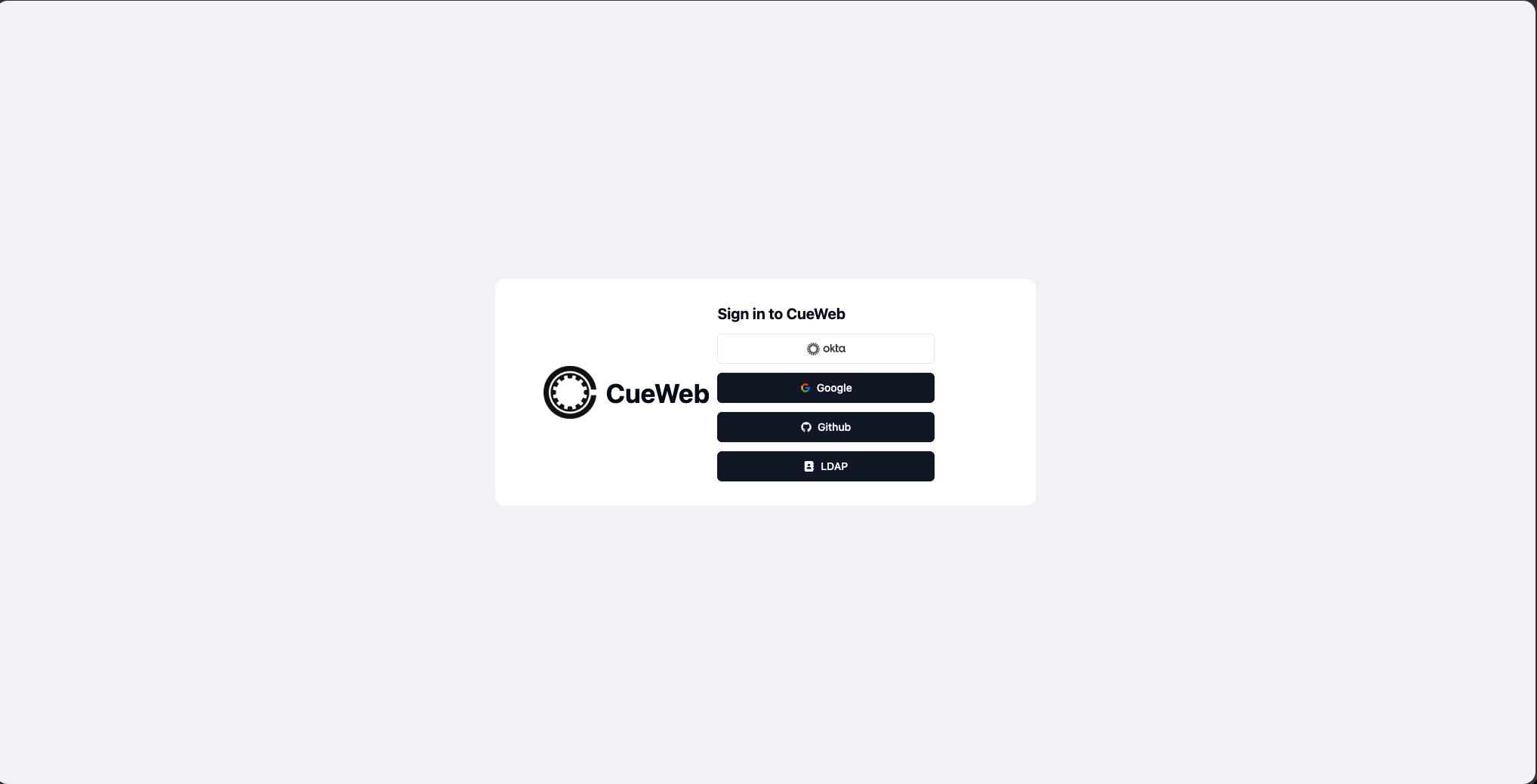
Note: If authentication is disabled for development, you’ll see an “OpenCueWeb Home” button to access the interface directly.
Restricted access
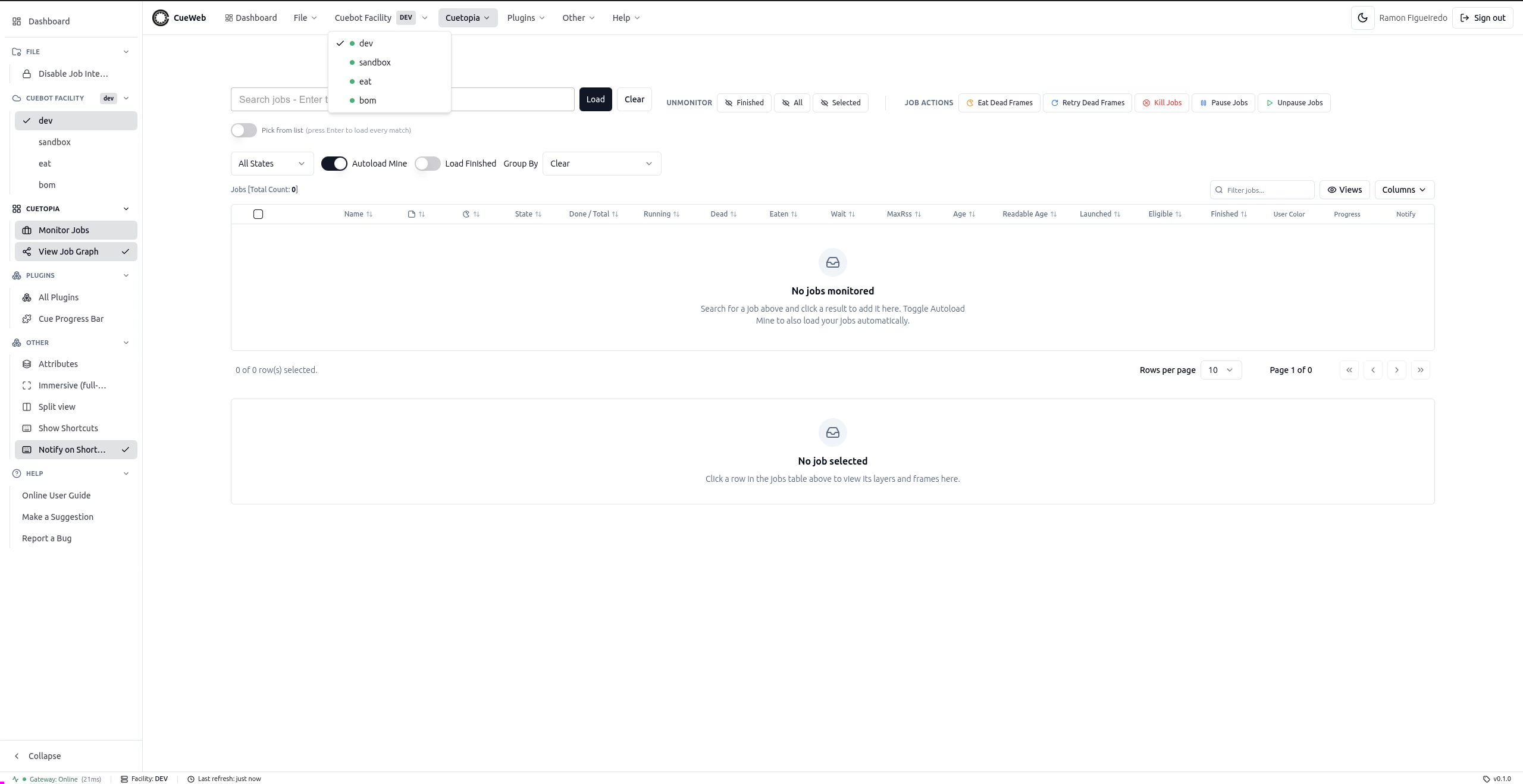
Some deployments restrict access by group membership. If your account is not authorized for an area you open, OpenCueWeb shows an Access denied page instead. The entire CueCommander section (including Monitor Cue, Monitor Hosts and Stuck Frame), CueSubmit, and Manage facilities… may be limited to administrators - on a restricted deployment those menus are hidden from non-admins. Cuetopia Monitor Jobs and the Dashboard stay available to everyone who can sign in. If you believe you should have access, contact your OpenCue administrator.
A non-admin sees only the unrestricted menus - Dashboard, File, Cuebot Facility, Cuetopia, Plugins, Other, and Help (no CueCommander or CueSubmit):
First Time Setup
When you first access OpenCueWeb, you’ll see the main dashboard:
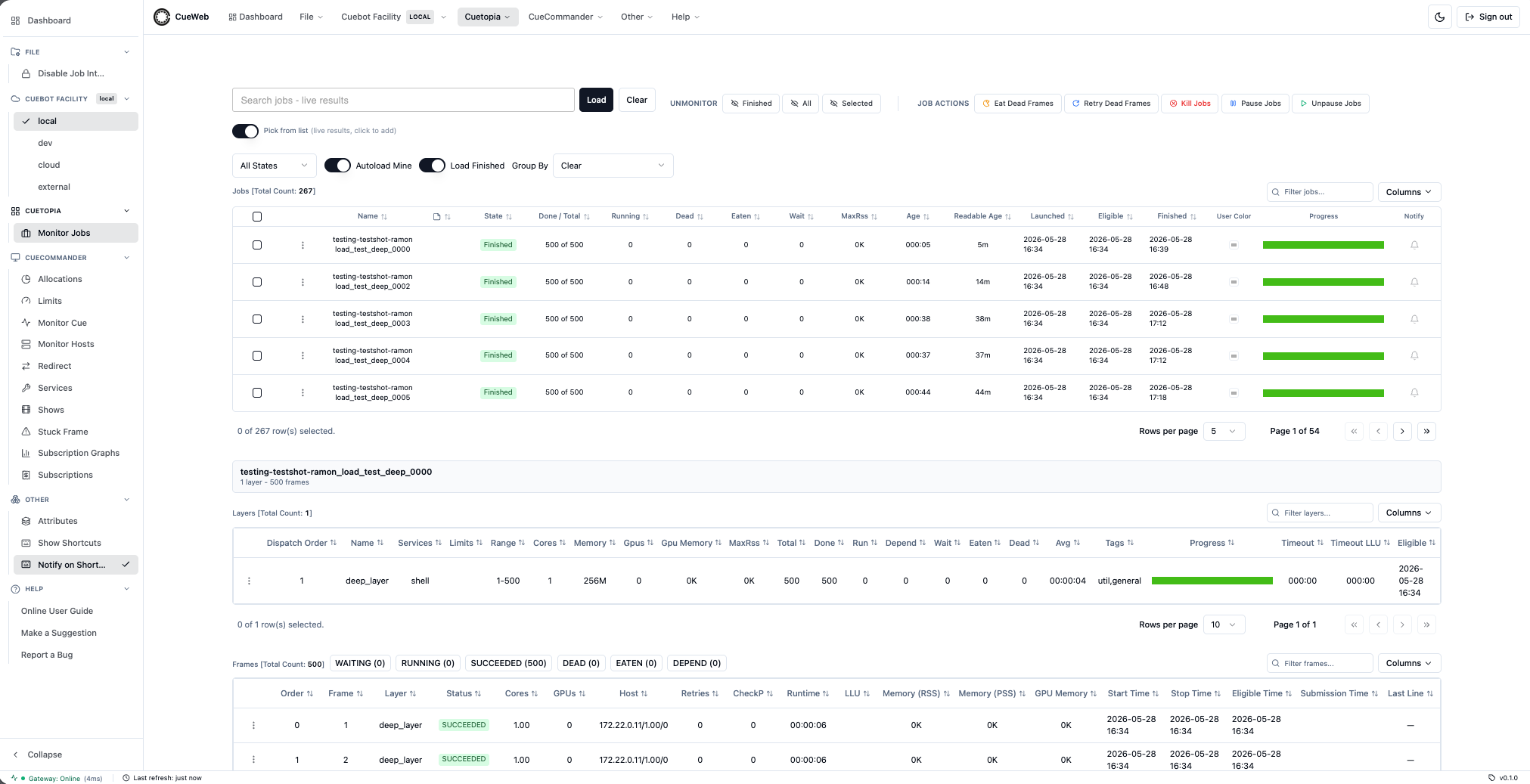
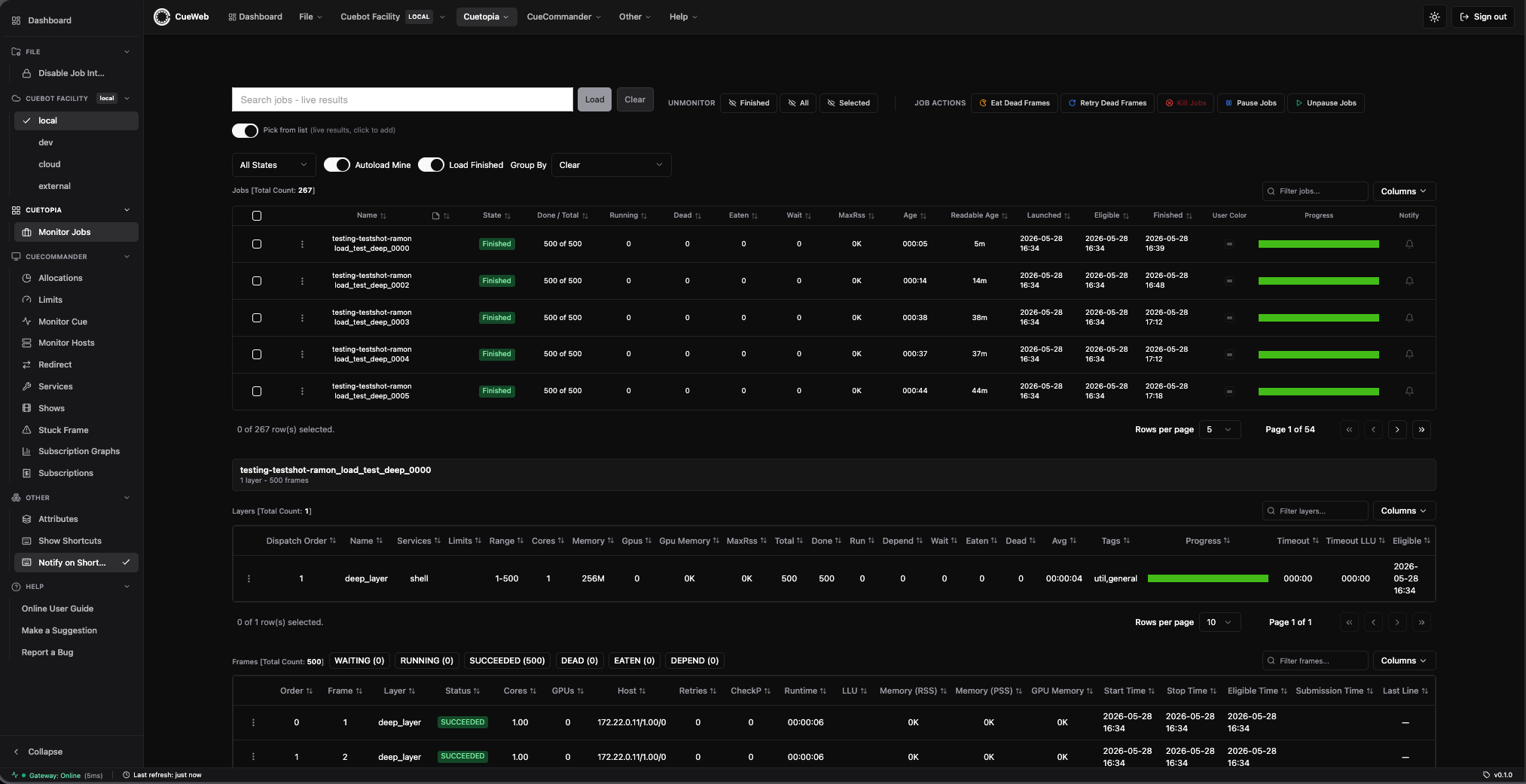
OpenCueWeb ships light and dark themes; use the sun/moon toggle in the header to switch (your choice persists across sessions). The rest of this guide uses light-mode screenshots, but every view has a dark equivalent - here is the same Monitor Jobs view in dark mode:
The screen is composed of:
- Global header (persistent across every authenticated route):
- Logo and wordmark: OpenCue icon (black in light mode, white in dark mode) followed by OpenCueWeb. Clicking the logo returns you to the jobs dashboard (
/). - Menus (mirror the CueGUI menu bar):
- File -> Disable Job Interaction (read-only safety toggle, see below).
- Cuebot Facility -> switch between
local·dev·cloud·external(the active facility is shown as a small chip on the menu trigger). - Cuetopia -> Monitor Jobs.
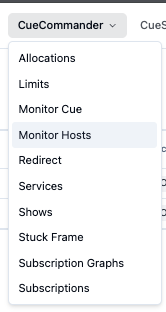
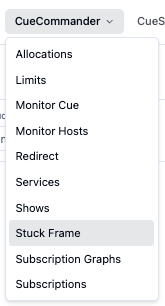
- CueCommander -> Allocations, Limits, Monitor Cue, Monitor Hosts (see Monitor Hosts), Redirect, Services, Shows, Stuck Frame, Subscription Graphs, Subscriptions. The remaining unimplemented routes 404 gracefully - they are placeholders for upcoming features.
- Other -> Attributes (toggles the docked Attributes panel, see below).
- Help -> a search box that finds commands across every menu in OpenCueWeb (CueGUI parity), plus Online User Guide, Make a Suggestion, Report a Bug, and About OpenCueWeb.
- Theme toggle: Switch between light and dark modes (your choice persists across sessions).
- Sign out: Always visible. When you are signed in, it shows your name or email next to the button and clicking it ends the session and returns you to
/login. When you are not signed in (or when authentication is disabled in the deployment), clicking it just navigates to/login- the/loginpage itself shows the OpenCueWeb Home button if no auth provider is configured, or the provider buttons otherwise.
- Logo and wordmark: OpenCue icon (black in light mode, white in dark mode) followed by OpenCueWeb. Clicking the logo returns you to the jobs dashboard (
- Left sidebar (persistent across every authenticated route):
- Same six groups as the header (File, Cuebot Facility, Cuetopia, CueCommander, Other, Help), organized as accordion sections. The group containing the active route auto-expands; the others remember their open/closed state per browser.
- Click the Collapse button at the bottom to shrink the sidebar to an icon-only rail (your choice persists across reloads). Hover an icon to see its label.
- Hidden on
/loginand on mobile viewports.
- Read-only banner (only when Disable Job Interaction is on): an amber strip just under the header explains that destructive actions (Pause / Unpause / Retry Dead Frames / Eat Dead Frames / Kill - both in the jobs toolbar and in the right-click menus on job / layer / frame rows) are temporarily disabled. Click Re-enable to clear it.
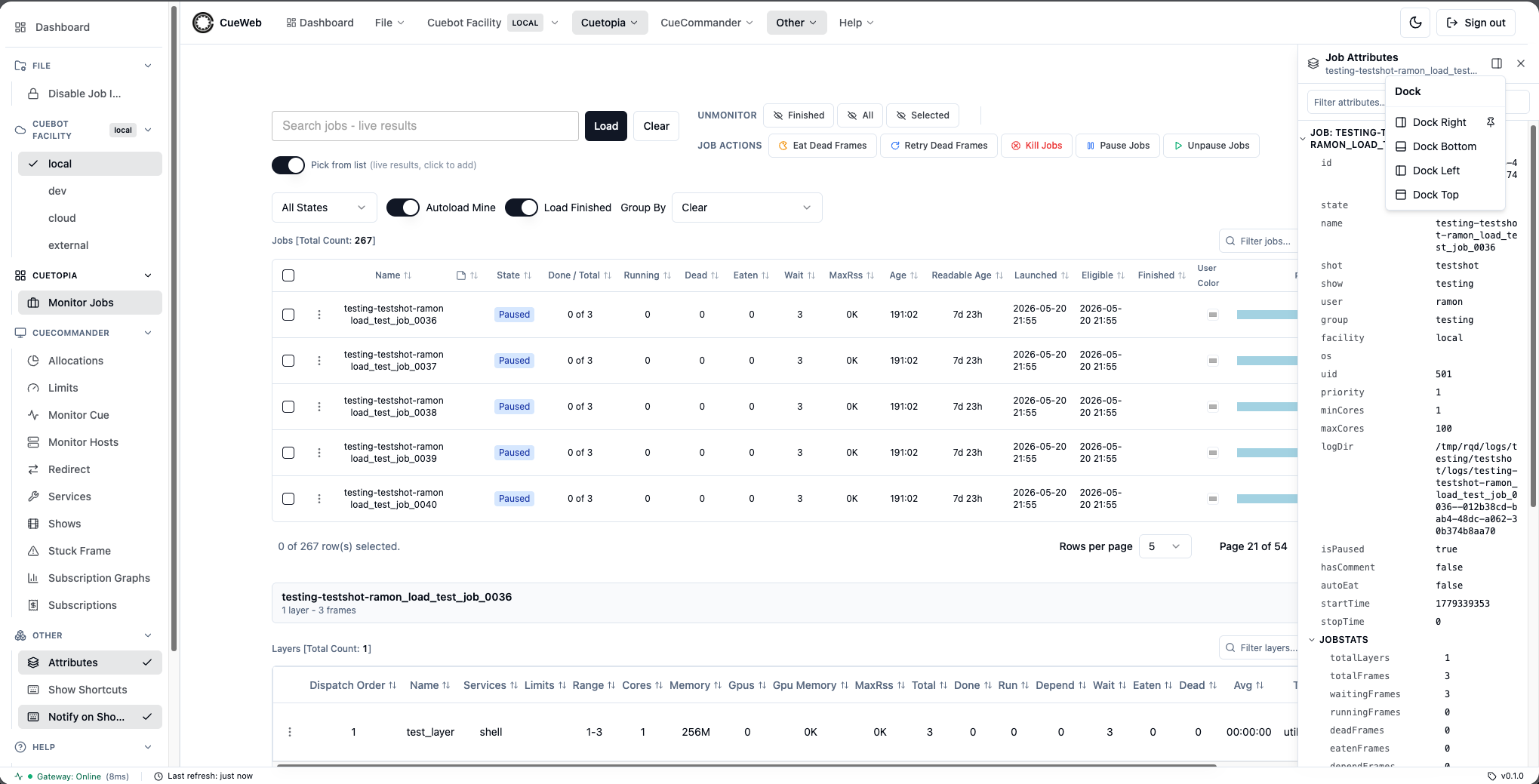
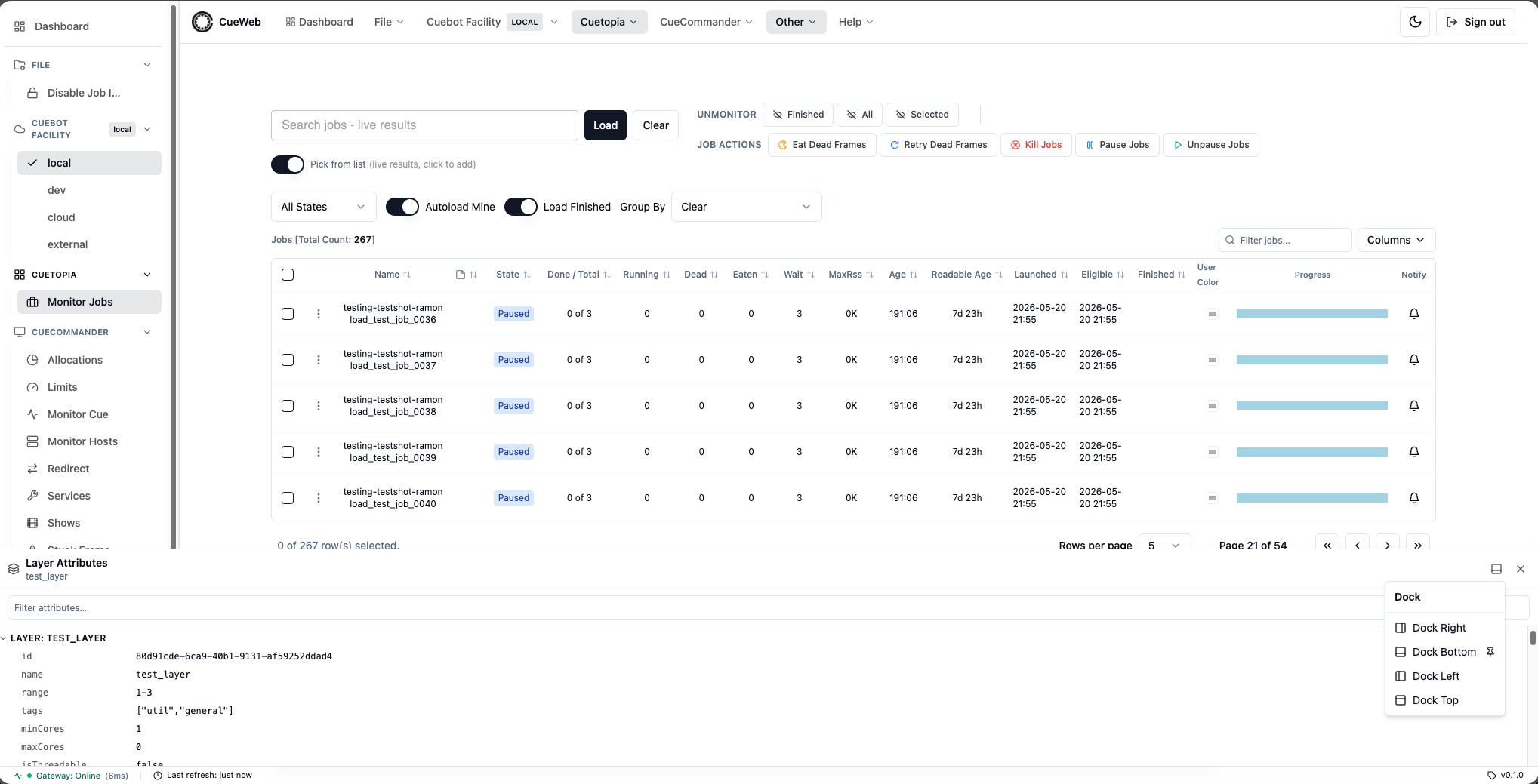
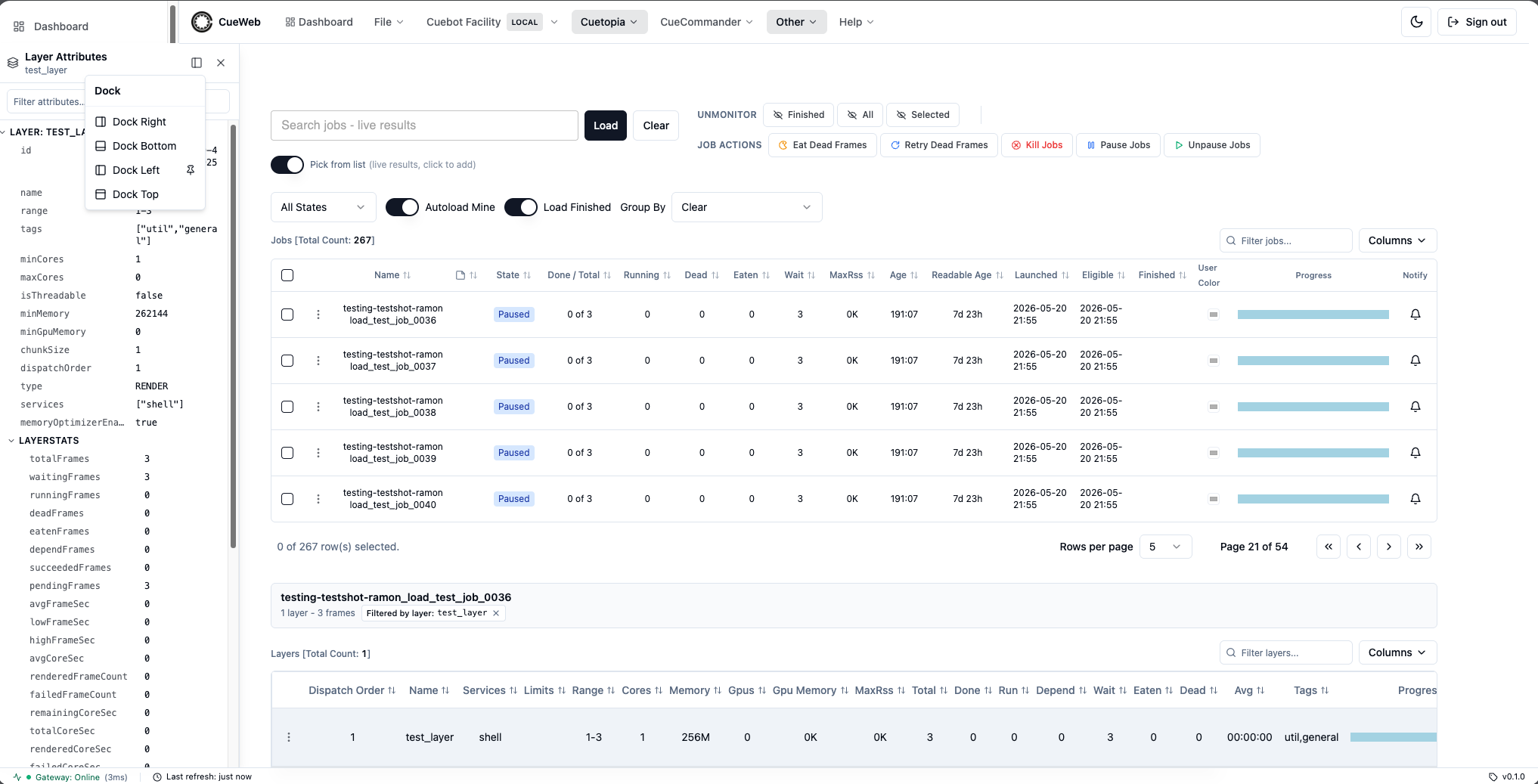
- Attributes panel (toggled from Other ▸ Attributes): a docked drawer that displays a collapsible key/value tree for the currently-selected entity. Click any row in the jobs table to populate it. The title bar’s position picker lets you dock the panel on the right (default), bottom, left, or top of the viewport - the choice persists across reloads. A filter input narrows the tree live.
- Breadcrumb (only on detail pages such as the frame log and the per-job comments page): a small “Home > Jobs > …” trail above the content lets you click back to the jobs index or to any parent in the path. Long labels truncate with an ellipsis and the full text is recoverable by hovering over the segment.
- Bottom status bar (IDE-style, always visible): 24-pixel-tall fixed bar at the bottom of the viewport. Three metrics with tooltips:
- Gateway: a colored dot plus
Online/Offlineplus the last round-trip latency. Polled every 10 seconds; the bar’s surface turns red whenever the REST gateway is unreachable. - Last refresh: a live “just now” / “Ns ago” timer that updates every time the jobs table re-fetches.
- Version: the OpenCueWeb build version (
v<x.y.z>) baked in at build time.
- Gateway: a colored dot plus
- Jobs Dashboard: Central paginated table populated with OpenCue jobs (below the header).
Navigation menus
The left sidebar and the header menus give you the same set of groups. Use the sidebar’s accordion sections to jump between pages, and collapse it to an icon-only rail when you want more room for the tables.

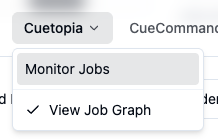
The Cuetopia menu opens Monitor Jobs and holds the checkable View Job Graph toggle (see Job dependency graph).

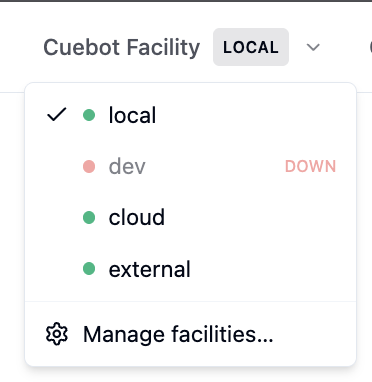
The Cuebot Facility menu lets you switch the active facility. Choosing a facility re-routes OpenCueWeb to that facility’s Cuebot and reloads the data you are viewing, so you only ever see one facility at a time (the same behavior as CueGUI’s “Cuebot Facility” menu). The active facility is shown as a chip on the menu and in the bottom status bar, and your choice is remembered for the session.
Each facility shows a live status dot — green when its gateway is reachable, red when it is down — and a facility that is down can’t be selected.
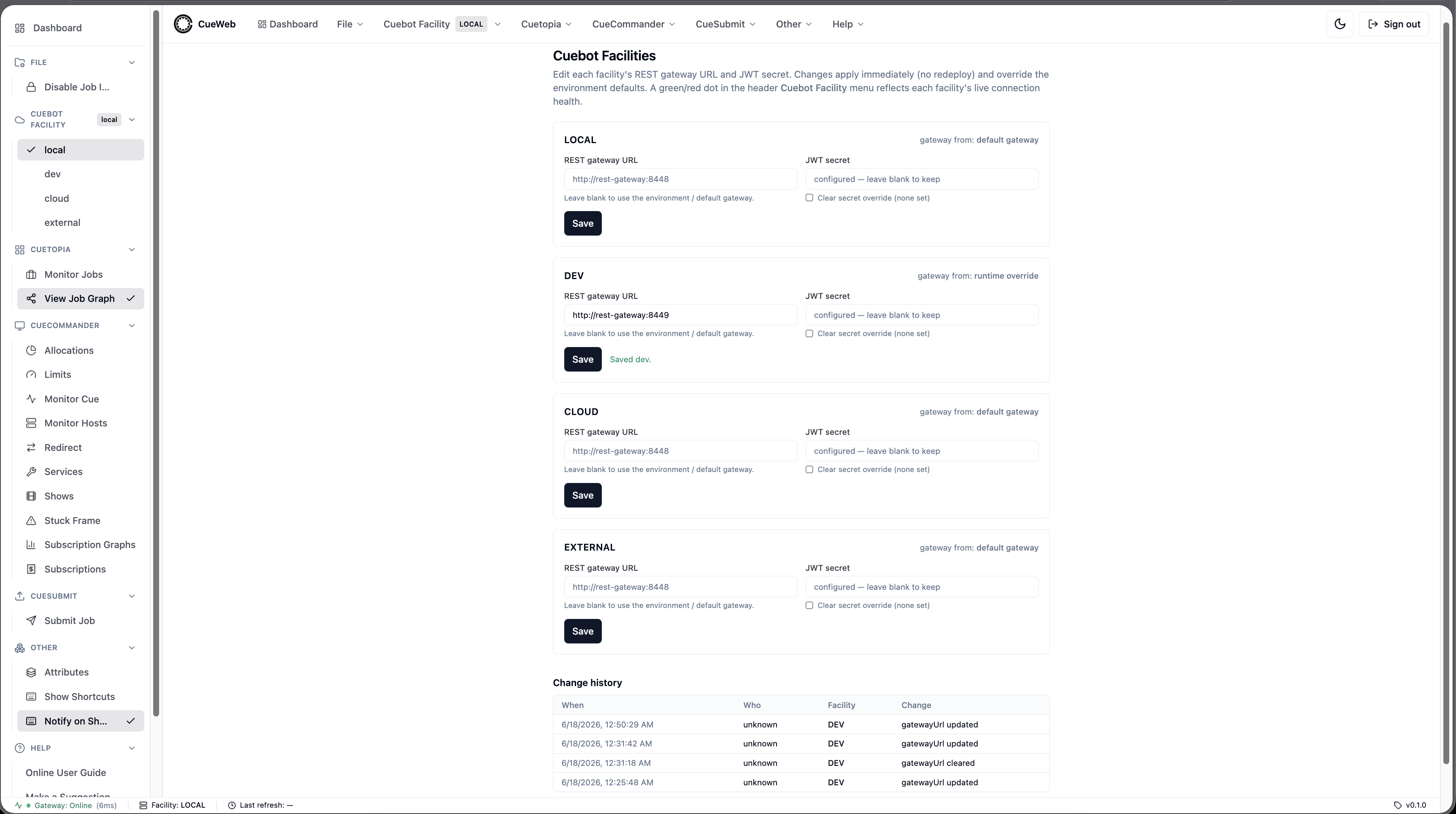
Choose Manage facilities… from the menu to open the admin screen, where you can edit each facility’s REST gateway URL and JWT secret at runtime — changes apply immediately, without a redeploy, and a change-history table records who edited what. Leave a facility’s gateway URL blank to fall back to the default gateway.
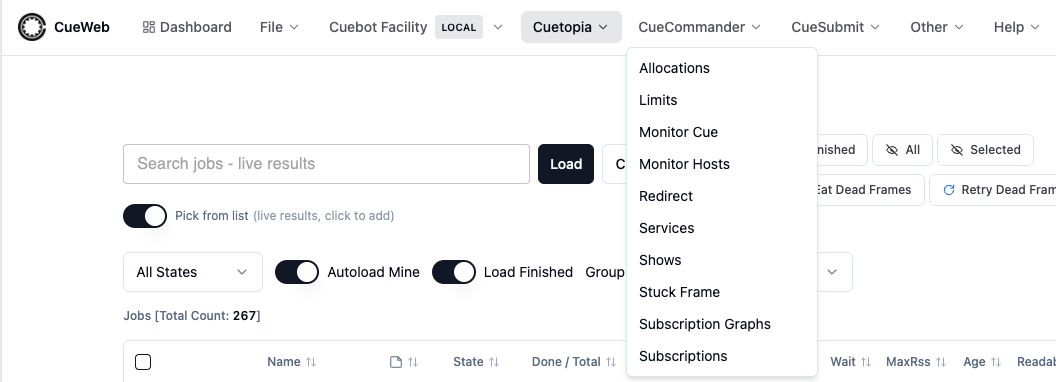
The CueCommander menu lists the farm-administration pages.
The File menu holds the Disable Job Interaction safety toggle.

When the toggle is on, a read-only banner appears under the header and destructive actions are disabled until you click Re-enable.
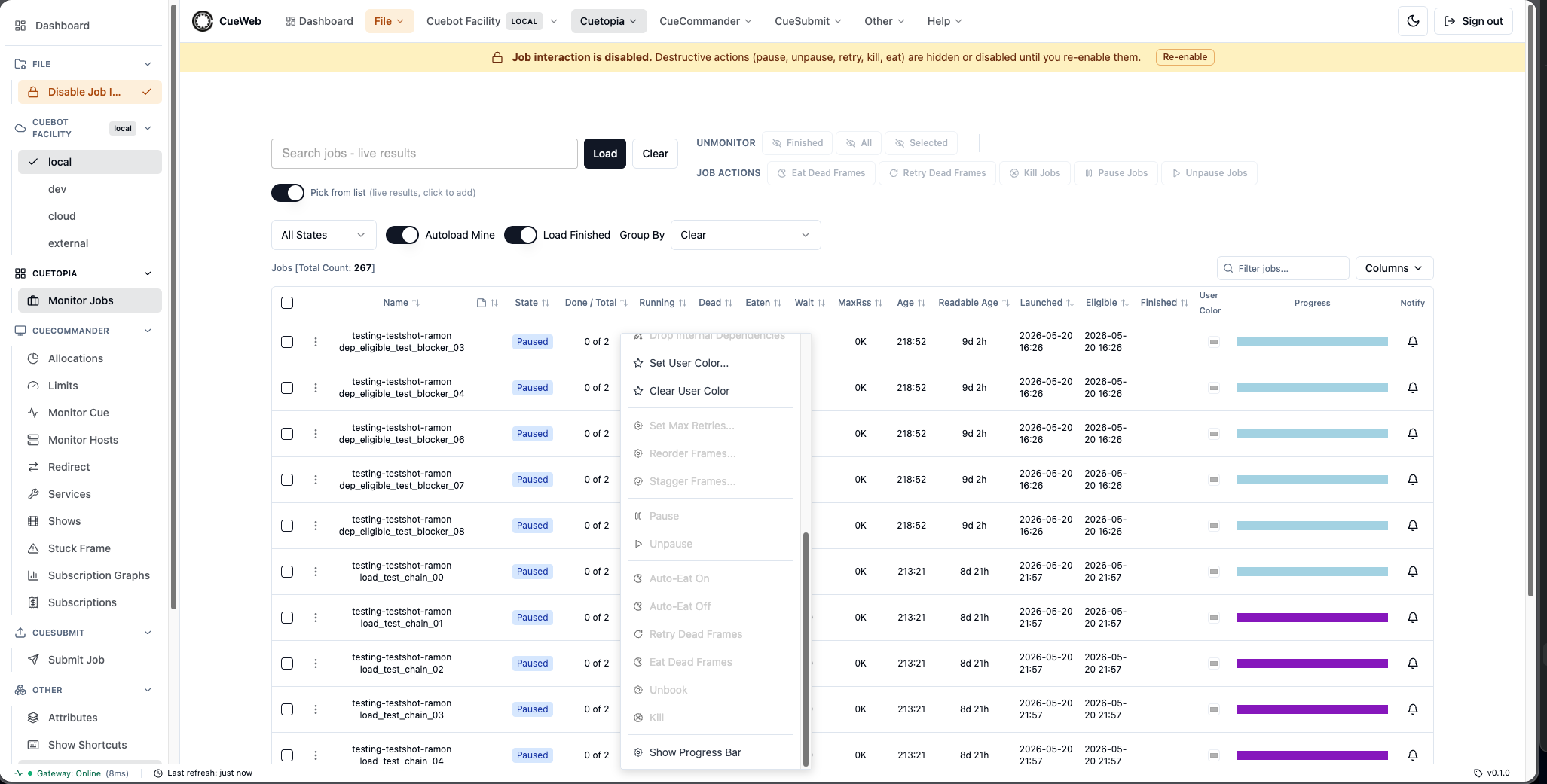
The Other menu collects the Attributes panel toggle, the shortcuts overlay, and the shortcut-toast preference.

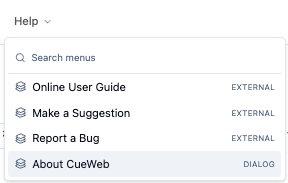
The Help menu provides a search box that finds commands across every menu, plus links to the online guide and feedback forms, and an About OpenCueWeb entry.
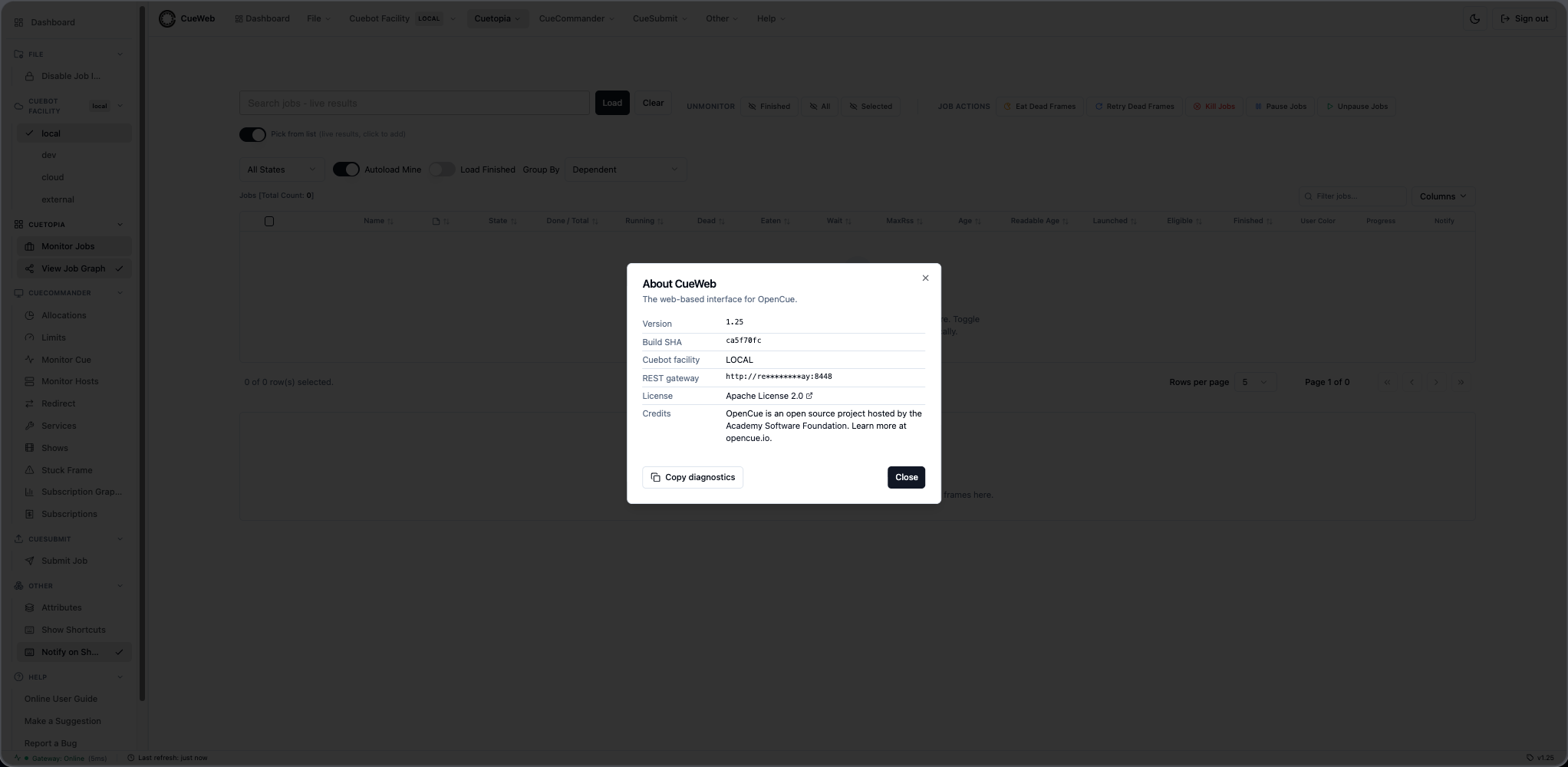
About OpenCueWeb opens a dialog with the OpenCueWeb version and build SHA, the active Cuebot facility, the REST gateway URL (masked), the Apache-2.0 license, and credits. Use Copy diagnostics to copy all of these as JSON to paste into a bug report.
The bottom status bar shows the gateway connection, the last refresh time, and the build version.

Dashboard
The Dashboard is a dedicated statistics page, separate from the Jobs table below. It summarizes farm activity at a glance.
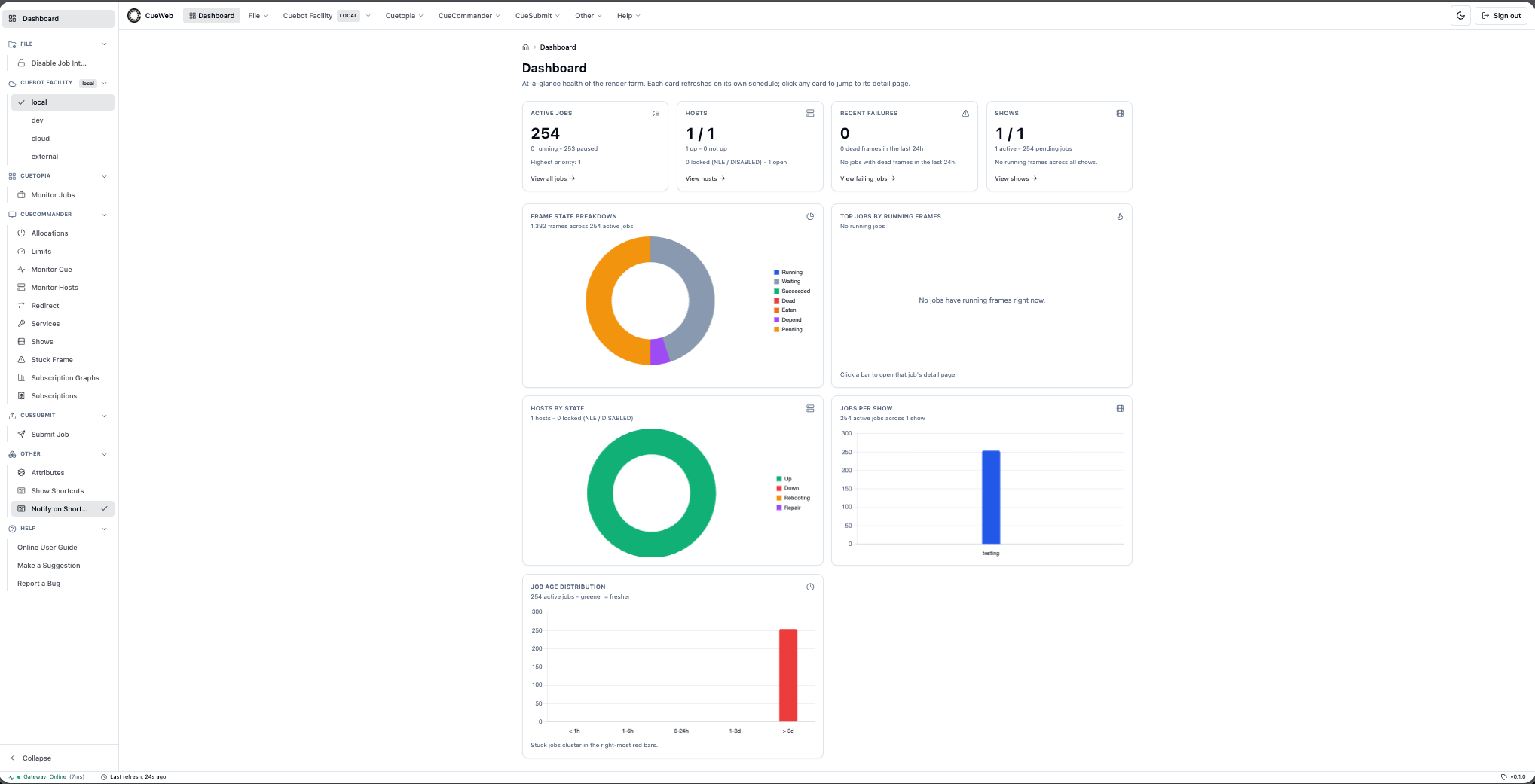
Open it from the Dashboard entry in the navigation.

Jobs Dashboard
The Jobs Dashboard is the main interface for monitoring and managing rendering jobs.
Dashboard Layout
The dashboard consists of:
- Filter Bar: Show selection, status filters, and search
- Jobs Table: Sortable table with job information
- Action Buttons: Job control operations
- Status Indicators: Visual job state representation
Job Information Columns
The Jobs table ships every CueGUI-parity column visible by default. You can hide / show any of them or reorder them left/right via the Columns dropdown (see Customizing the column set below).
| Column | Description |
|---|---|
| Select | Checkbox for multi-job selection. Anchored at the leftmost position - column reorder skips over it. |
| Name | Job identifier with show-shot-user and job name on separate lines. |
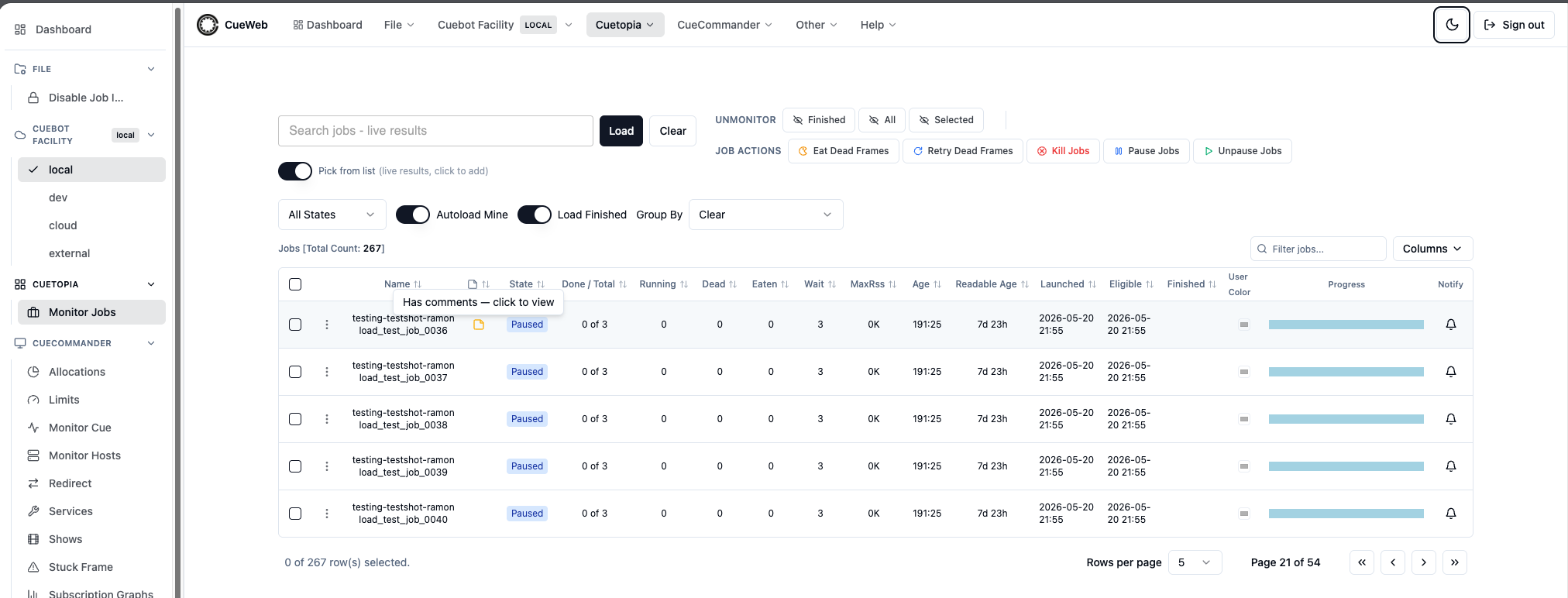
| Comments | Sticky-note icon when the job has one or more comments; empty otherwise. The column is sortable, so you can pull jobs with comments to the top in one click on the header. Clicking the icon itself opens the per-job Comments page in a new tab. |
| State | Current job state (Failing, Finished, In Progress, Dependency, Paused). |
| Done / Total | Succeeded frames out of total frames (e.g., “150 of 200”). |
| Running | Number of currently running frames. |
| Dead | Number of failed frames. |
| Eaten | Number of frames marked as completed (skipped). |
| Wait | Number of frames waiting to run. |
| MaxRss | Maximum resident set size (peak memory usage). |
| Age | Total time since job started (HHH:MM format). |
| Readable Age | Same value as Age, formatted as 2h 14m or 3d 4h. |
| Launched | Job start timestamp in human-readable format (YYYY-MM-DD HH:MM). Mirrors CueGUI’s “Launched” column. |
| Eligible | Timestamp when the job became eligible to dispatch. Blank when the field is zero / unset. |
| Finished | Job completion timestamp. Blank while the job is still running. |
| User Color | Per-job color swatch. Click the swatch to open the native color picker; right-click or click the × to clear. Color is yours alone - saved in your browser and synced across your open tabs. |
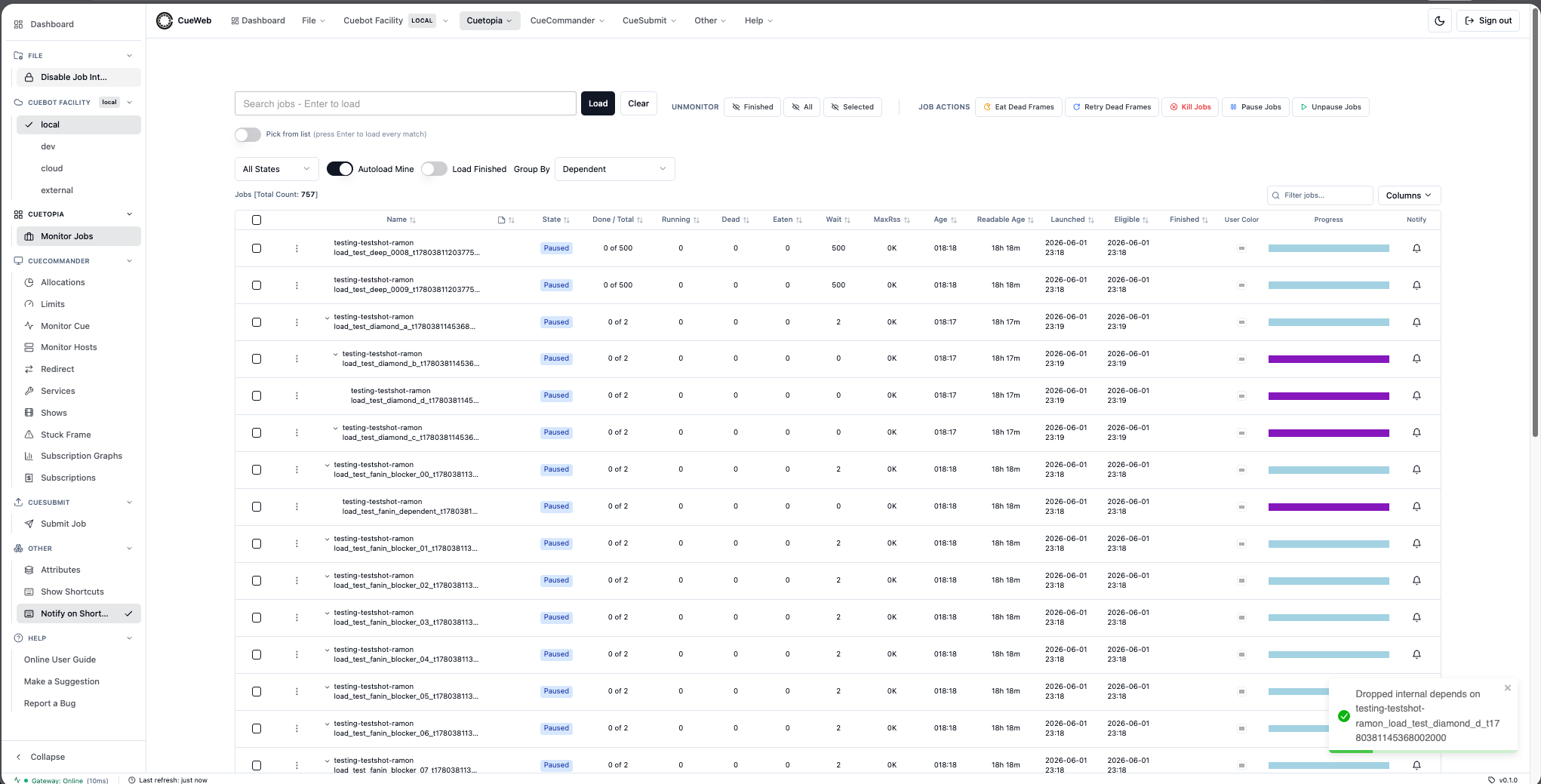
| Progress | Stacked progress bar with five colored segments - green (succeeded), yellow (running), light blue (waiting), purple (depend), and red (dead). Hover the bar to display a tooltip with the exact frame count and percentage for each state. |
| Notify | Bell button to subscribe to a notification when the job reaches FINISHED (see Job-finished notifications). |
Customizing the column set
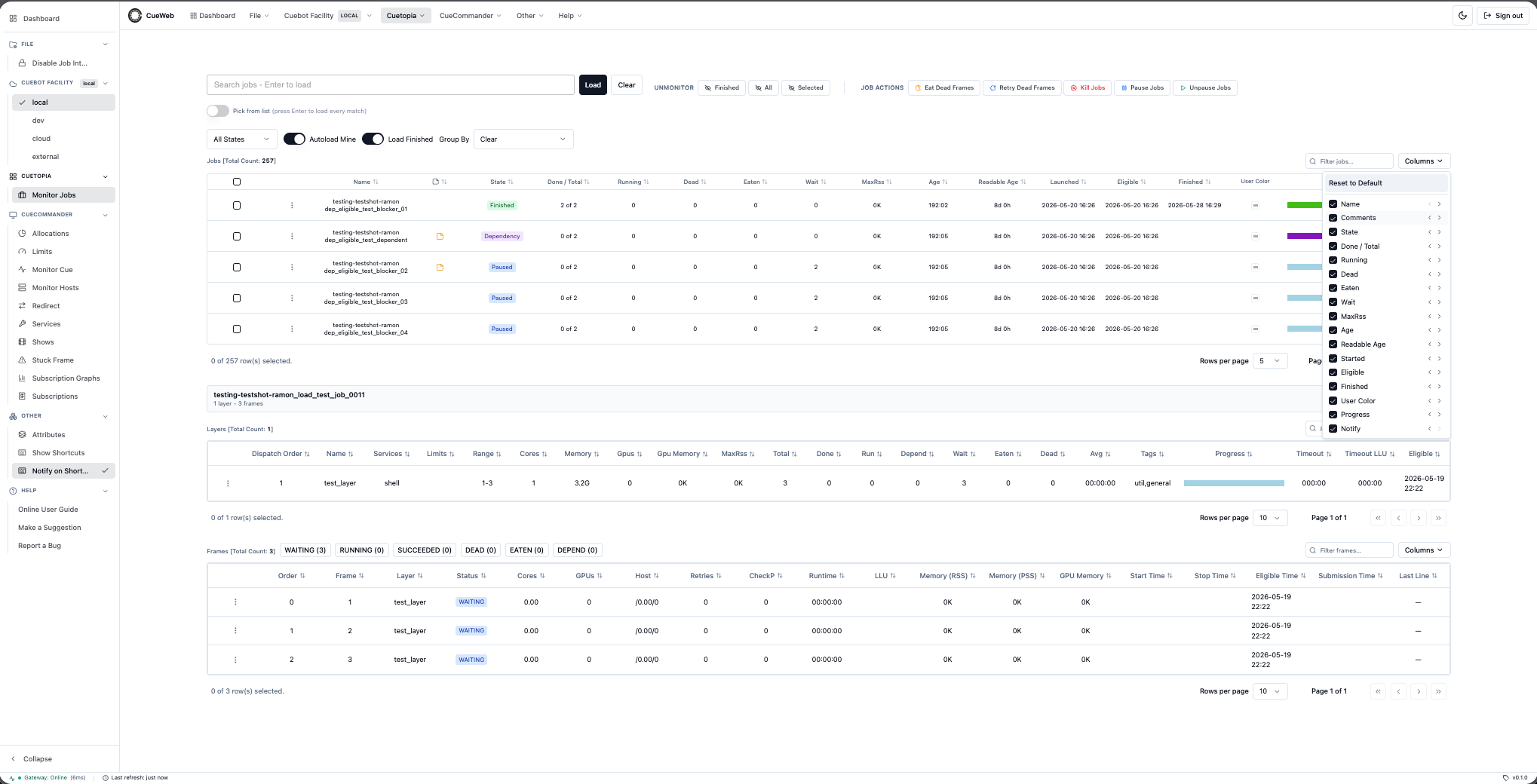
Each of the three tables (Jobs, Layers, Frames) has its own Columns dropdown in the per-table toolbar (just left of the table). The dropdown contains, top to bottom:
- A pinned Reset to Default button that clears both column visibility and order, restoring the table to the layout shipped by OpenCueWeb.
- One row per hideable column with three controls:
- A checkbox to hide / show the column.
- A
←button to nudge the column one slot left in the table. - A
→button to nudge it one slot right.
The dropdown stays open between clicks so you can chain several adjustments without reopening it.
Your visibility and ordering choices are saved in your browser per table and survive reloads, navigations, and redeployments. If you ever need to start over, click Reset to Default.
Filtering the loaded rows
Each of the three tables (Jobs, Layers, Frames) also has a small Filter … input next to its Columns dropdown. The filter performs a case-insensitive substring match across every visible column and narrows the rows already loaded; sorting, column visibility, column ordering and pagination all keep working over the filtered subset.
The filter snaps you back to page 1 on every keystroke so you never sit on an empty page. A small × button appears inside the input once you’ve typed something - click it to clear the filter in one go.
Tip: The Filter input narrows what’s already loaded into the table. On the Jobs page, the separate Search jobs - Enter to load box at the top of the page is what tells Cuebot to load new jobs.
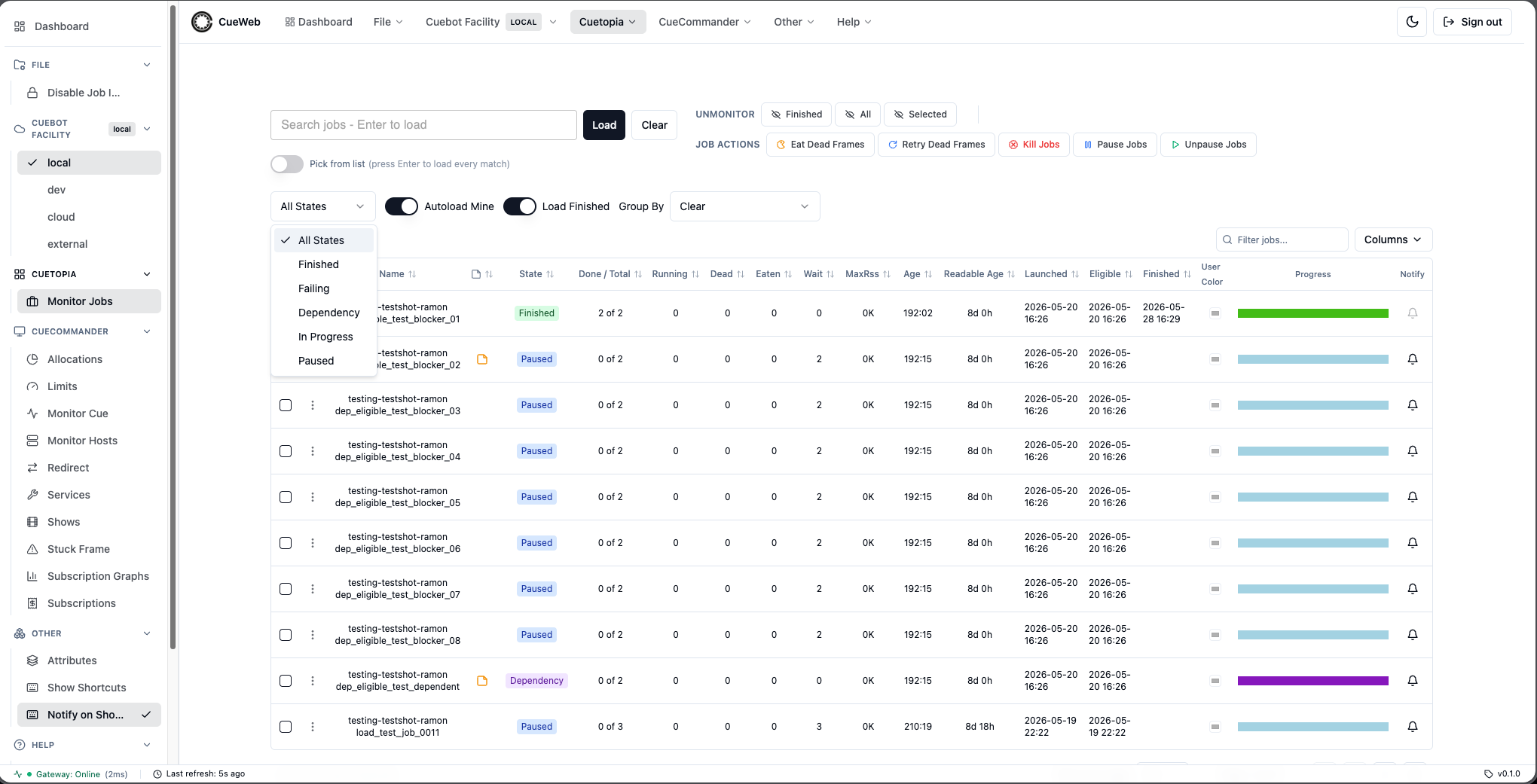
Group By (Jobs table)
The Jobs toolbar has a Group By dropdown that lets you reshape the table the same way CueGUI does:
- Clear keeps the flat list.
- Dependent renders the jobs as a parent / child tree. A job that other monitored jobs depend on becomes a parent with a chevron in front of its name; the dependents nest under it at increasing depth. Click the chevron to collapse or expand a subtree. OpenCueWeb fetches the dependency graph from Cuebot in the background, so the tree fills in within a second or two of switching modes.
- Show, Show-Shot, and Show-Shot-Username group the rows under collapsible headers (with a count on each header). Useful for sorting jobs by who owns them.
The default is Clear. Switching modes preserves your filters, column visibility, and substring search.
Job Status Indicators
Jobs are color-coded by status:
- Green: Successfully completed or finished jobs (
SUCCEEDED,FINISHED) - Yellow: Currently running jobs with active frames (
RUNNING) - Blue: Paused jobs or jobs waiting for resources (
PAUSED,WAITING) - Purple: Jobs with dependencies (
DEPEND,DEPENDENCY) - Red: Failed or failing jobs (
DEAD,FAILING) - Gray: Default/other statuses
Job Management Operations
Basic Job Controls
Pause/Resume Jobs
The right-click menu shows a single entry that reflects the job’s current state:
- The entry reads Pause when the job is running (In Progress, Failing, or Dependency) - clicking it pauses the job.
- The entry reads Unpause when the job is already paused - clicking it resumes the job.
- The entry is shown disabled (grayed) when the job is Finished, since a completed job cannot be paused.
- Single Job: Right-click the row and pick Pause / Unpause, or click the toolbar button in the Actions menu.
- Multiple Jobs: Select jobs using checkboxes, then use the Pause Jobs / Unpause Jobs toolbar buttons.
Kill Jobs
- Single Job: Click the
Killbutton in the Actions menu - Multiple Jobs: Select jobs and click
Kill
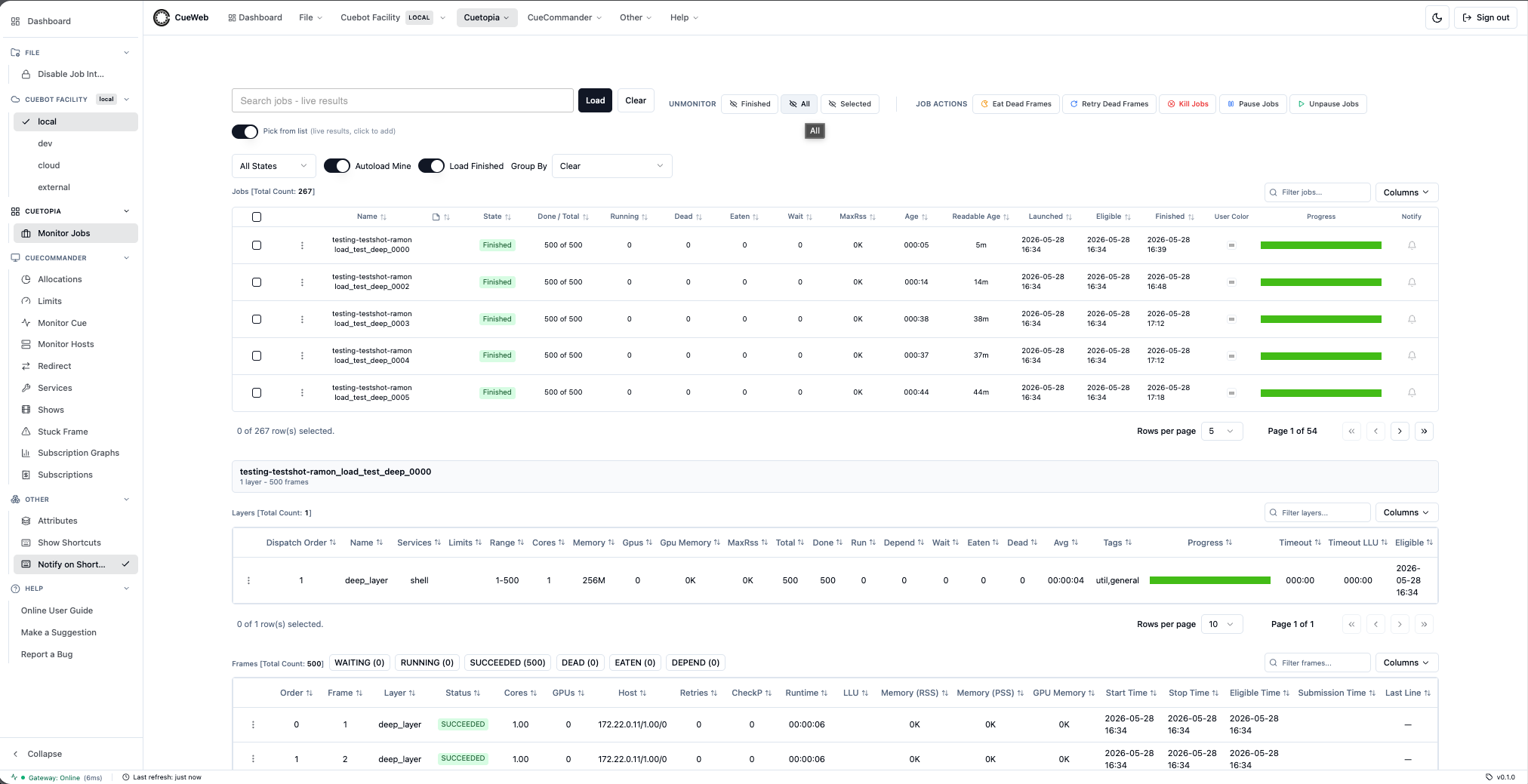
Monitor/Unmonitor Jobs
Jobs can be added or removed from monitoring:
- Add to Monitor: Search for jobs and select them to monitor (selected jobs are green)
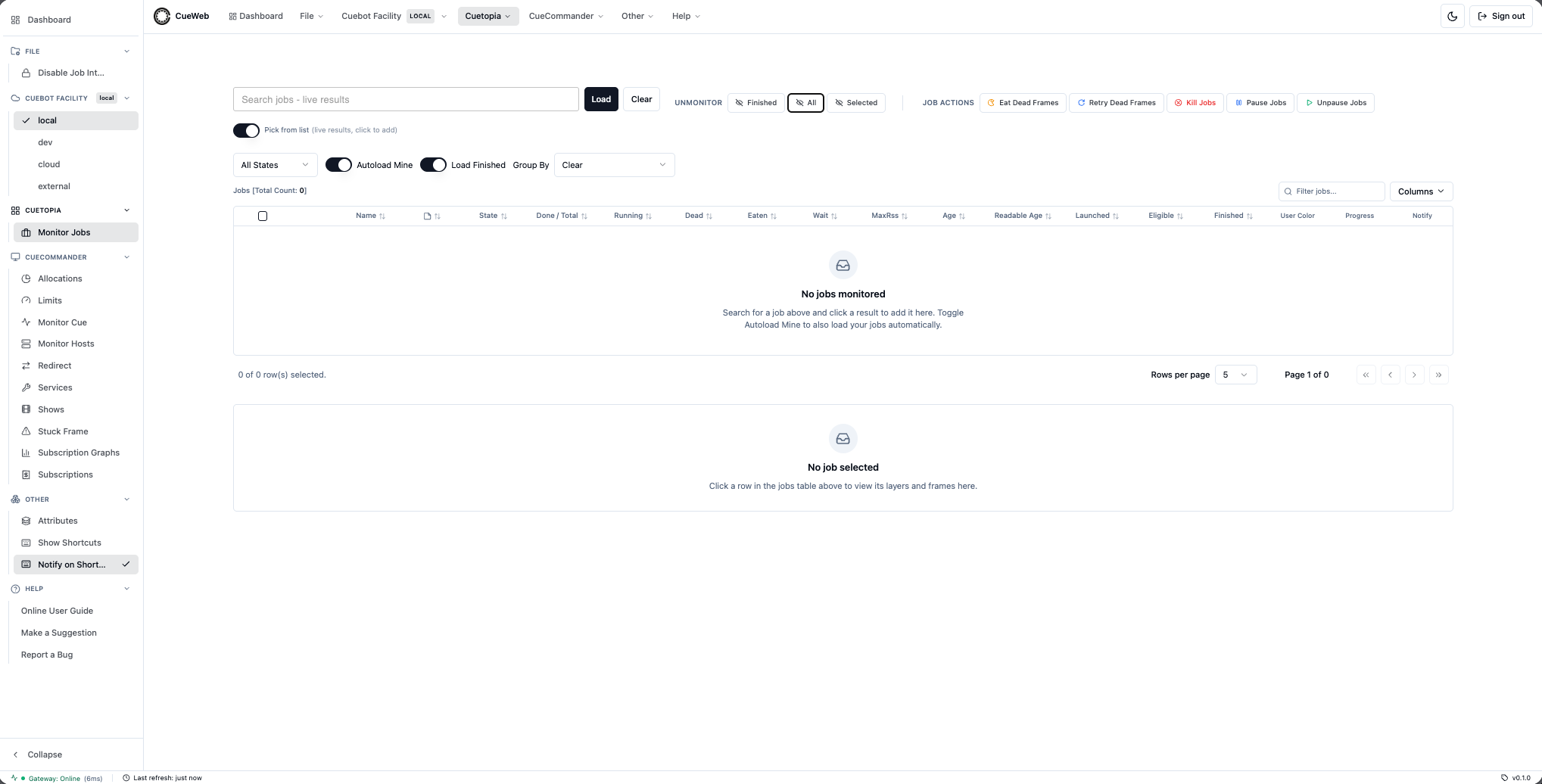
- Remove from Monitor: Select the job and use the “Unmonitor” option
-
Bulk Operations: Select multiple jobs using checkboxes for batch operations
Advanced Job Operations
Context Menu Actions
Right-click on a job, layer, or frame row to open a CueGUI-parity context menu. The full menu structure for each type is listed in the reference doc; common entries:
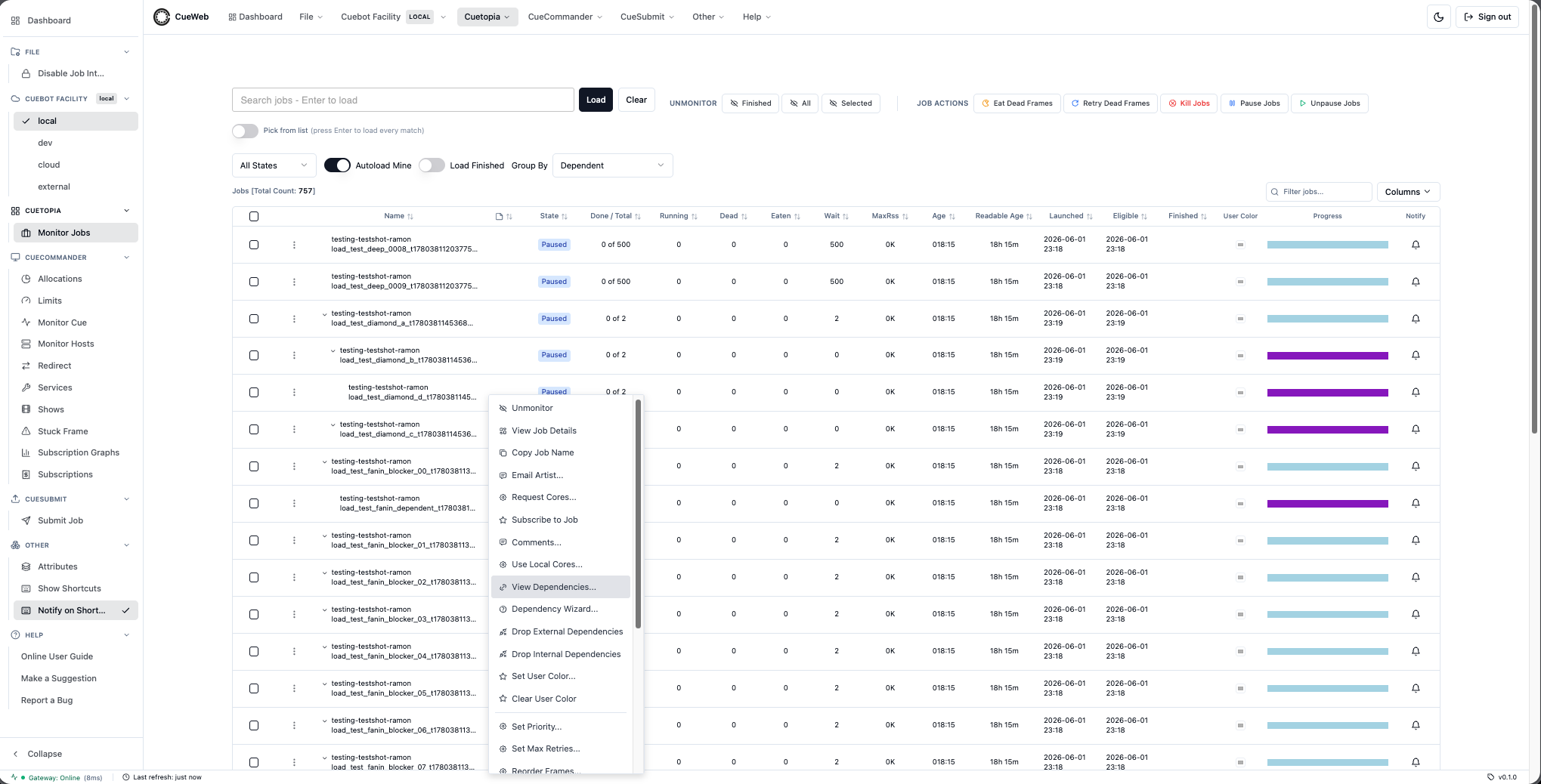
- Job menu: Unmonitor, View Job Details (tabbed detail page with Overview / Layers / Frames / Comments / Dependencies), Copy Job Name, Comments, Pause / Unpause (single toggle - the label flips with the job’s paused state and is grayed out for Finished jobs), Retry / Eat Dead Frames, Kill, Set Priority…, Set Max Retries, Auto-Eat On / Off, View Dependencies…, Dependency Wizard…, Drop External / Internal Dependencies.
Managing job dependencies
The job context menu groups four dependency actions together so you can audit, create, or remove depends without leaving Monitor Jobs:
- View Dependencies… opens a read-only dialog listing every depend on the job (Type, Target, Active, OnJob, OnLayer, OnFrame). Use Refresh to re-poll after creating or dropping depends elsewhere.
- Dependency Wizard… opens a multi-step dialog that creates a new depend on the job. The OpenCueWeb wizard supports every CueGUI
depend.DependType: Job On Job / Layer / Frame, Frame By Frame for all layers (Hard Depend), Layer On Job / Layer / Frame, Frame By Frame, Frame On Job / Layer / Frame, and Layer on Simulation Frame. Every picker (source layers, source frames, target jobs, target layers, target frames) is multi-select; Done fires the full source x target cross-product in one batch. - Drop External Dependencies removes every external (cross-job) depend on the selected job in one click. The Jobs table re-polls immediately after success.
- Drop Internal Dependencies removes every internal (within-job) depend in one click. Same auto-refresh.
View Dependencies
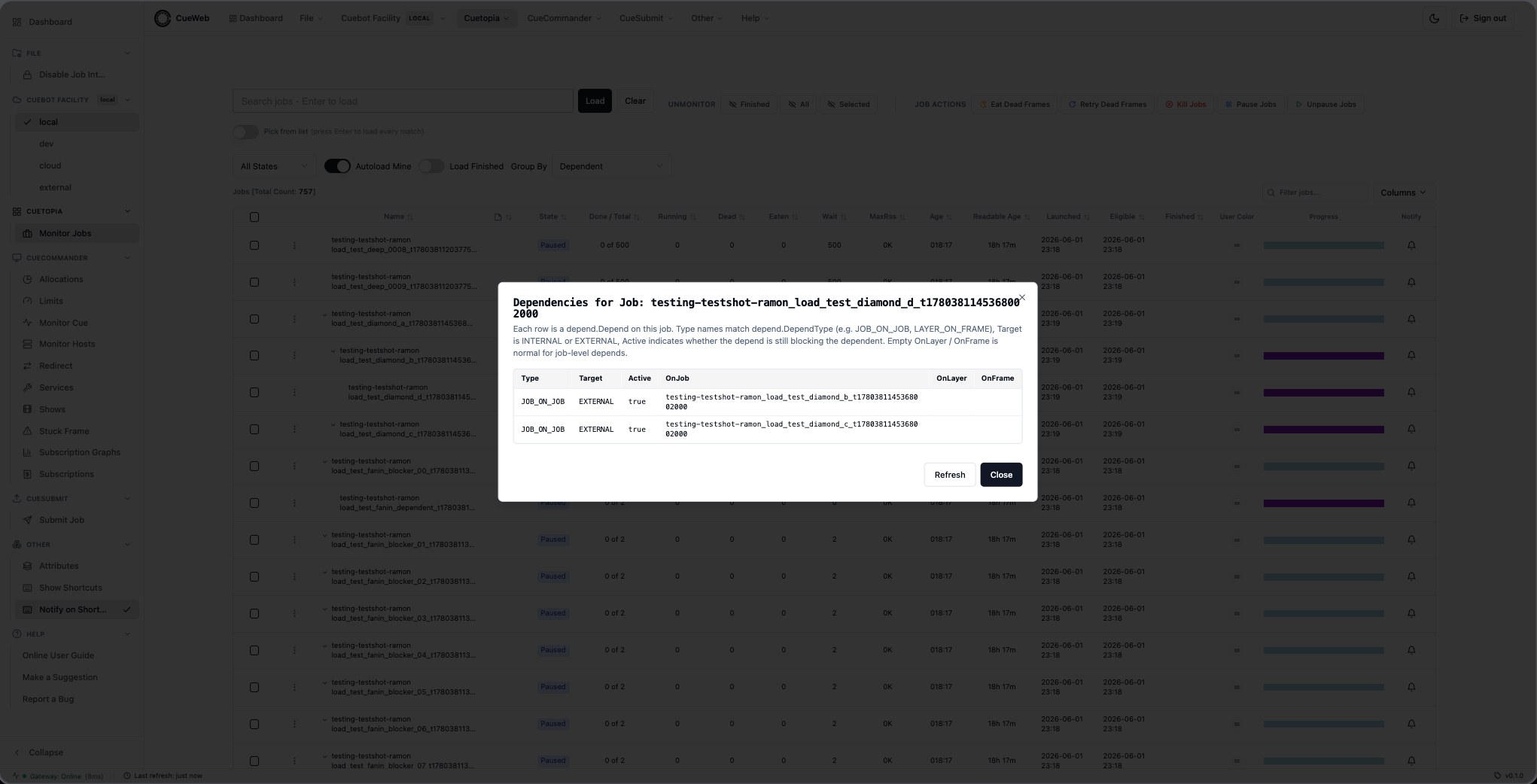
Dependency Wizard (the menu entry plus the Job On Job flow as the simplest example):
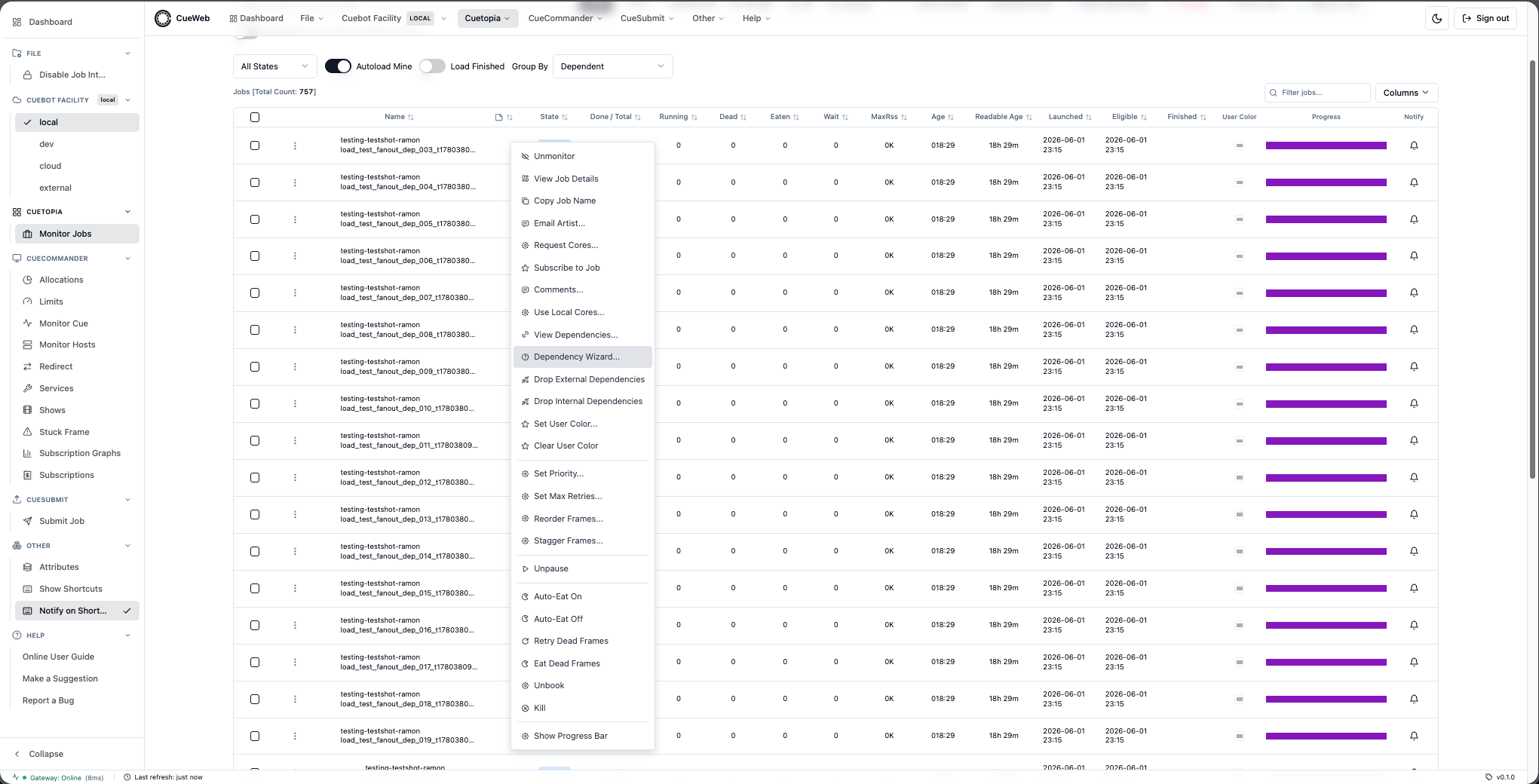
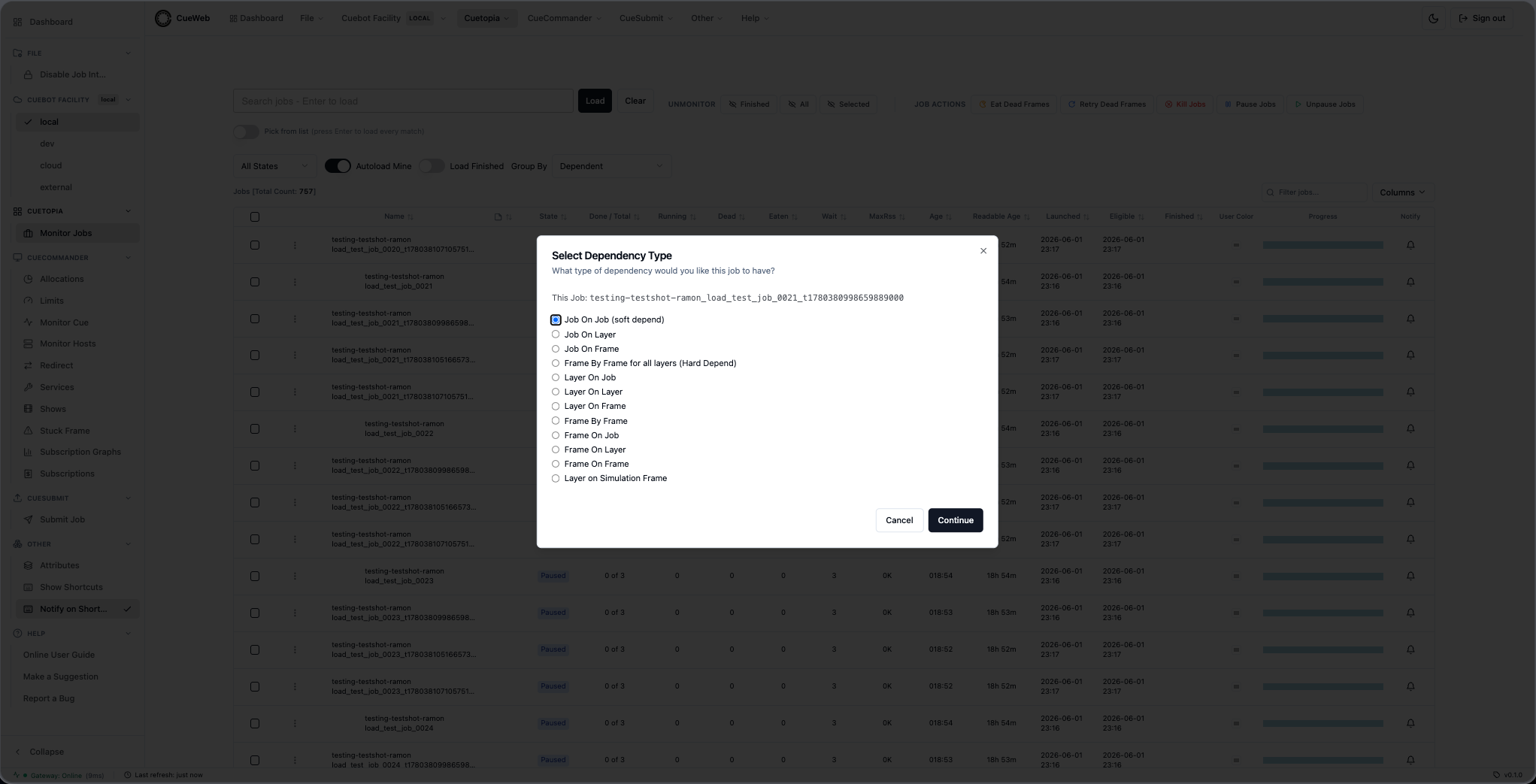
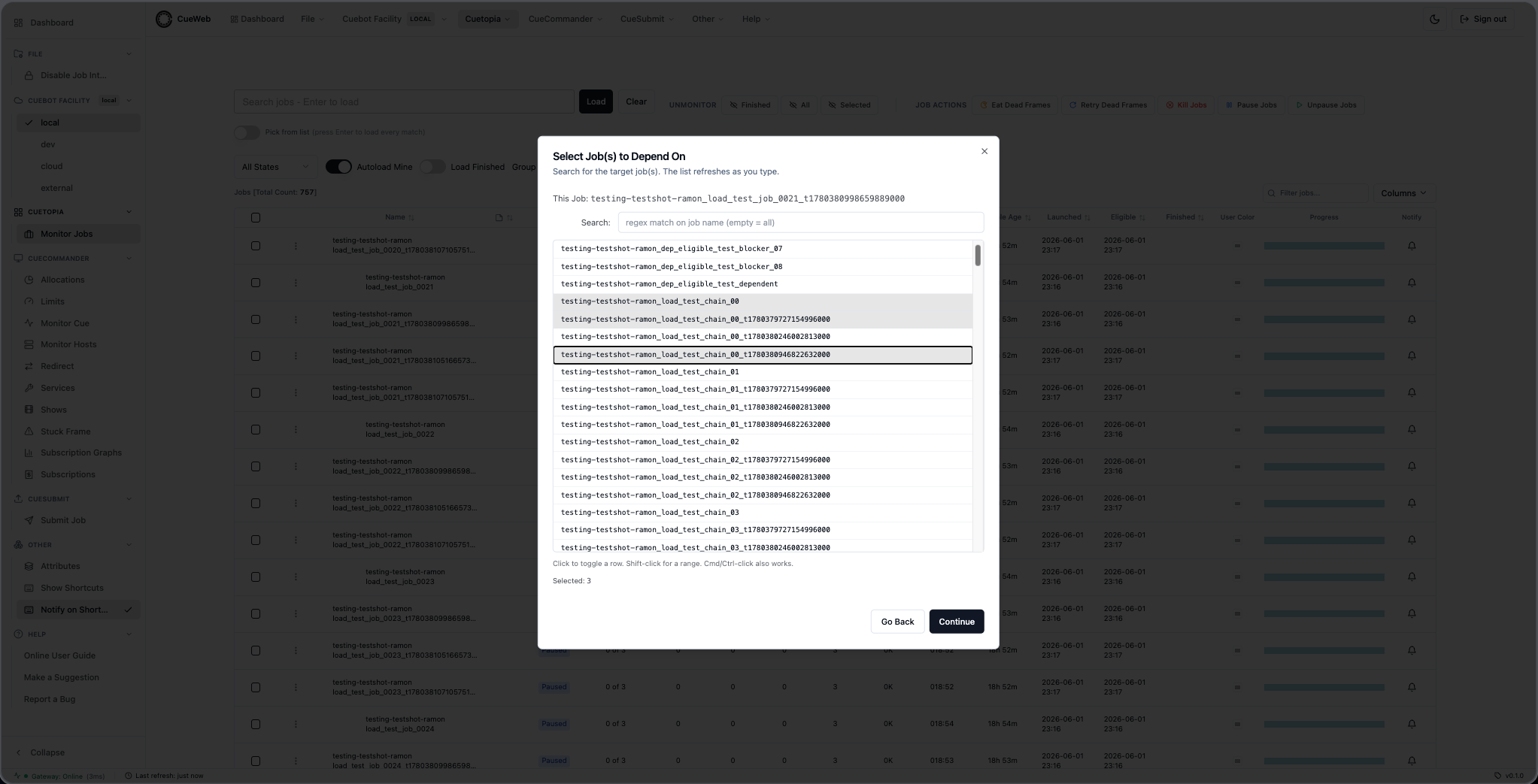
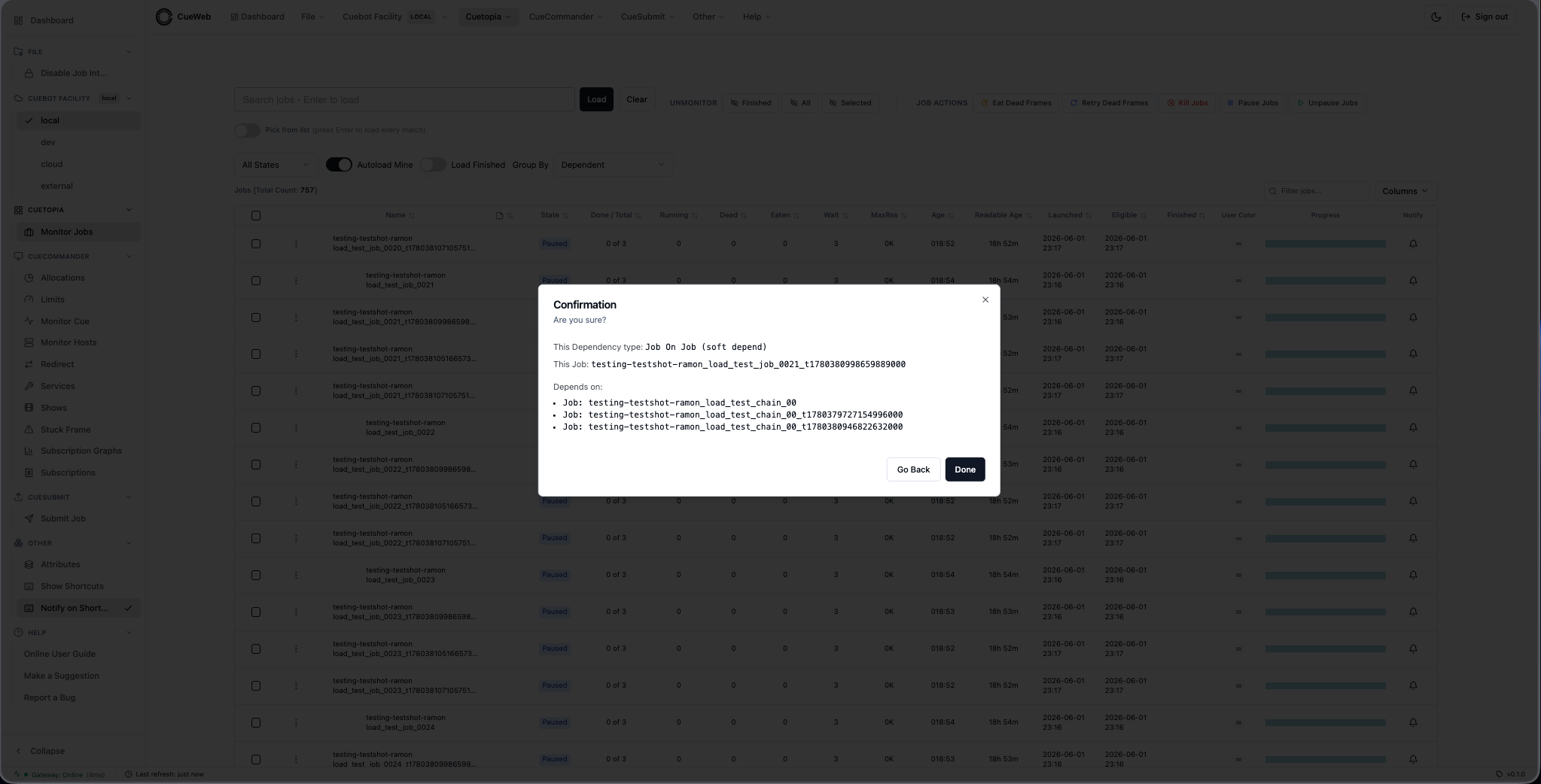
The full per-type screenshot set lives in the Dependency Wizard dialog reference.
Drop External / Internal
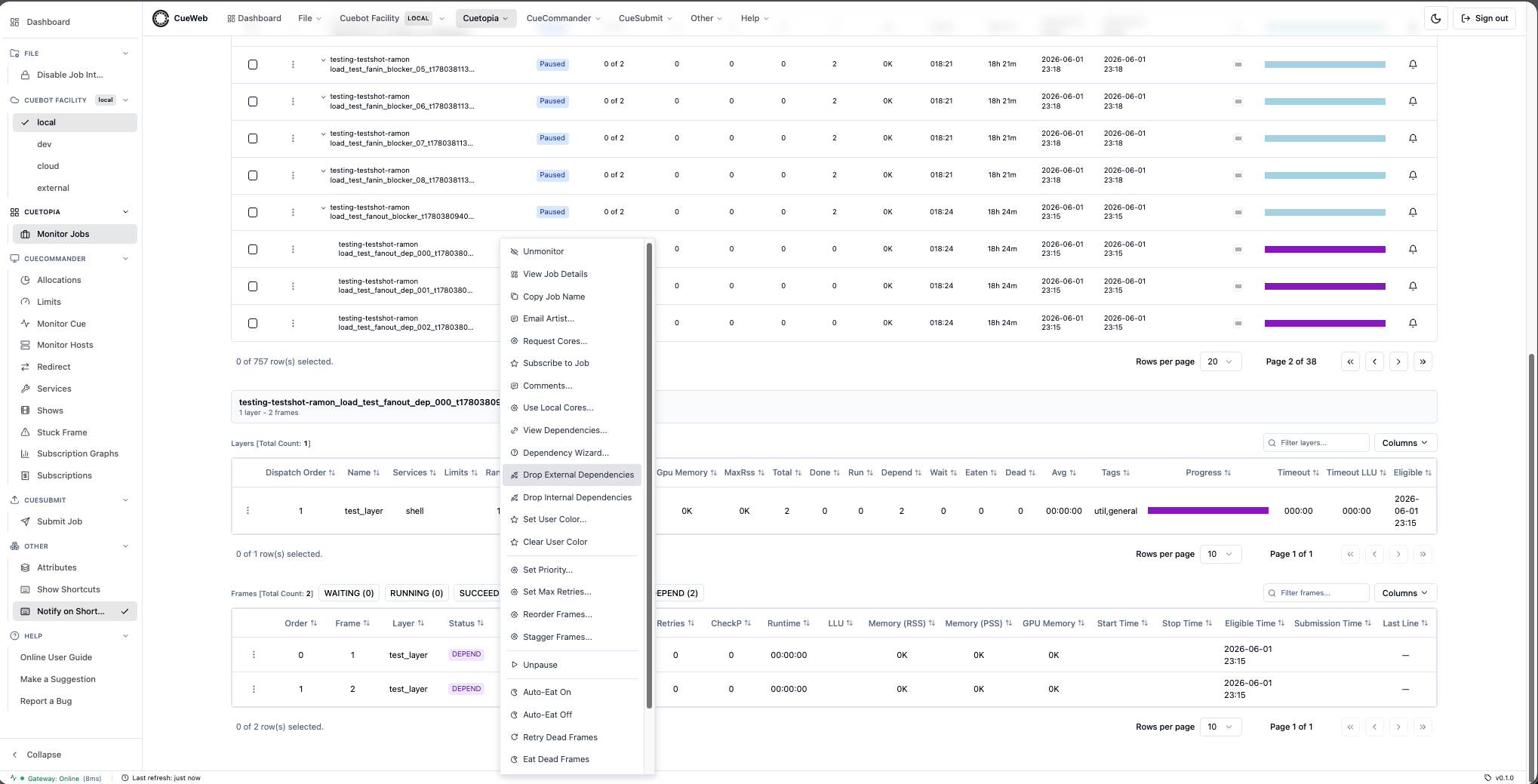
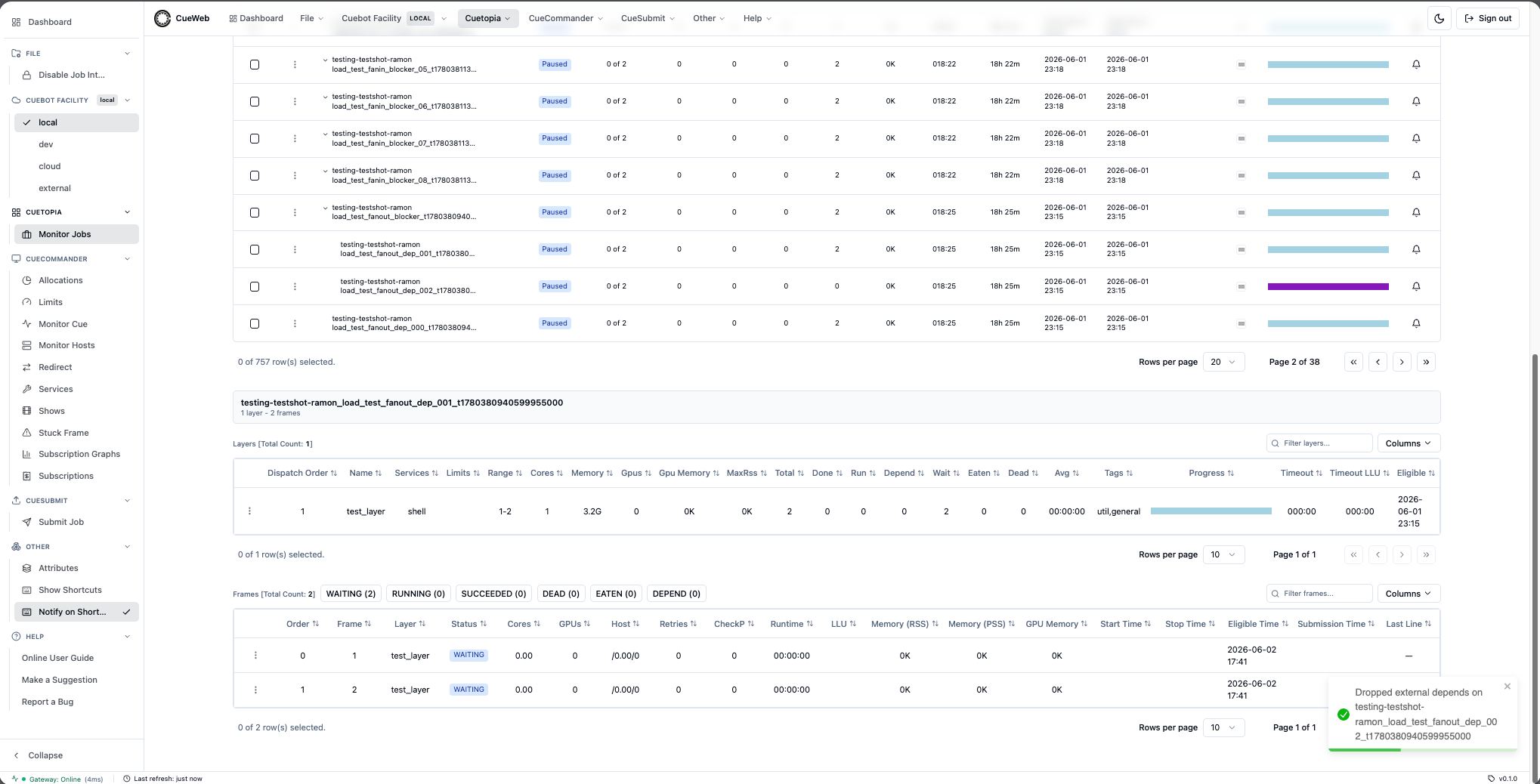
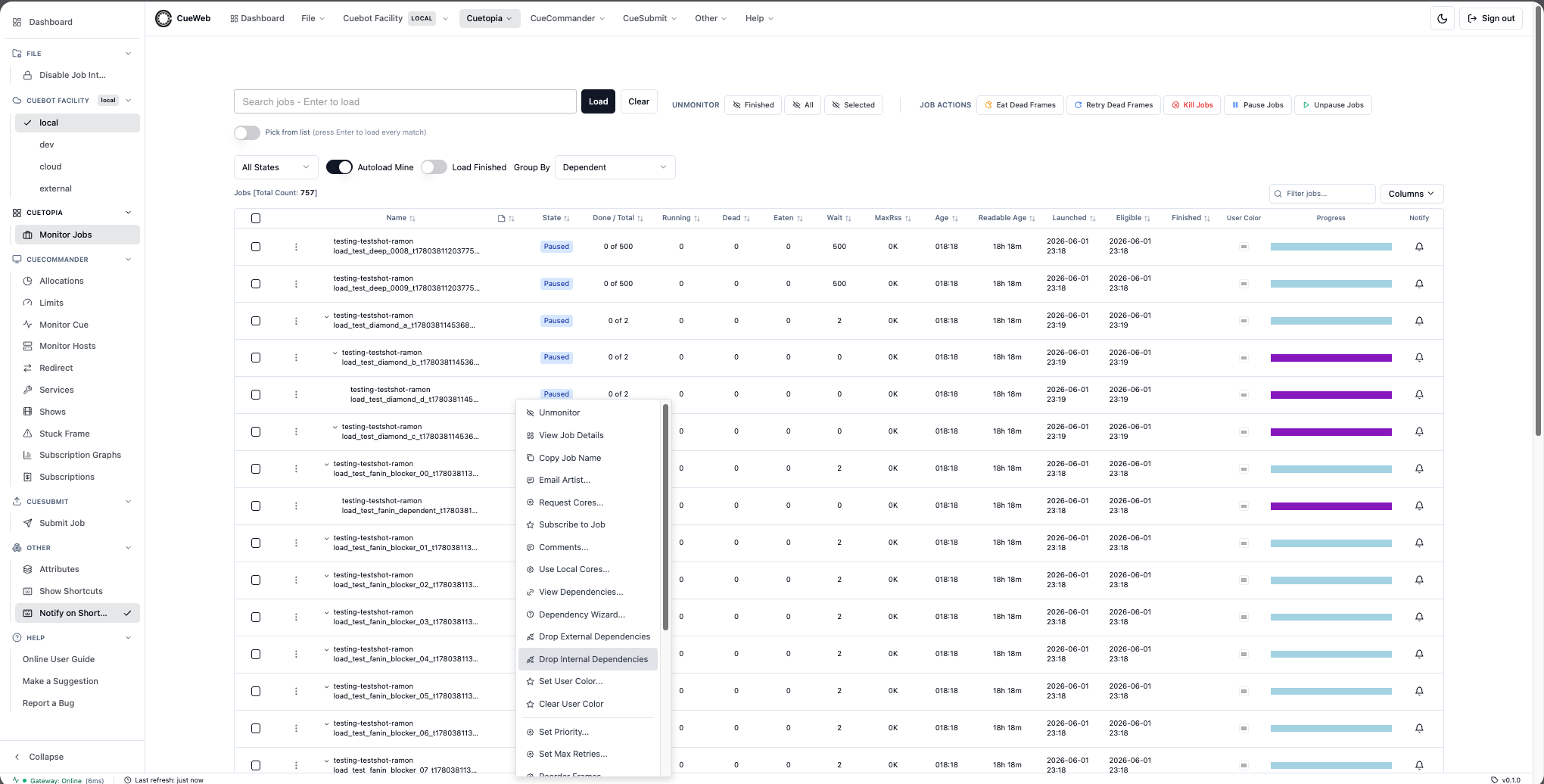
Adjusting job priority (Set Priority)
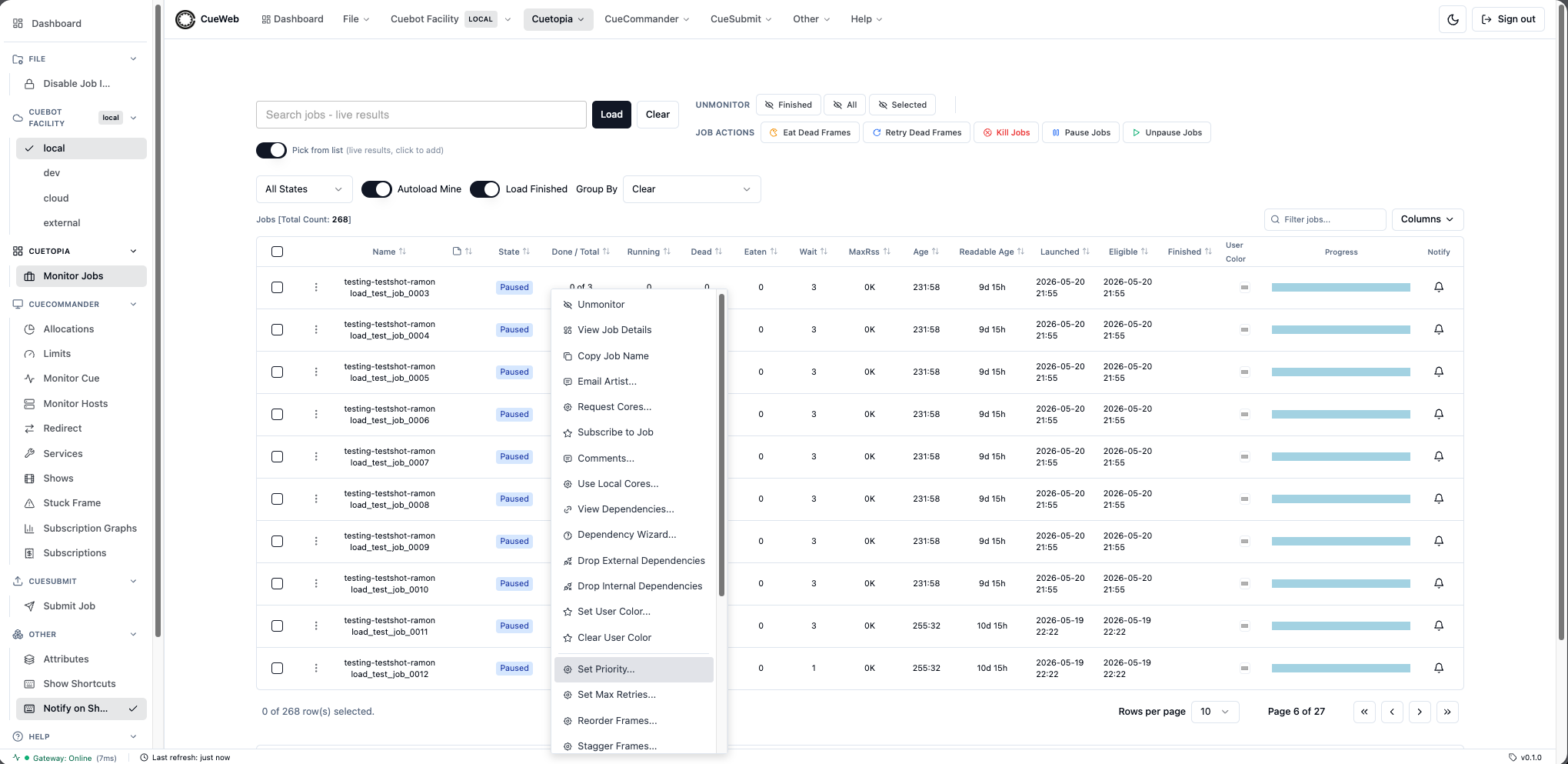
Set Priority… is available everywhere the job context menu appears - both Cuetopia → Monitor Jobs (the / page you land on by default) and CueCommander → Monitor Cue (/monitor-cue). The dialog and behavior are identical on either page.
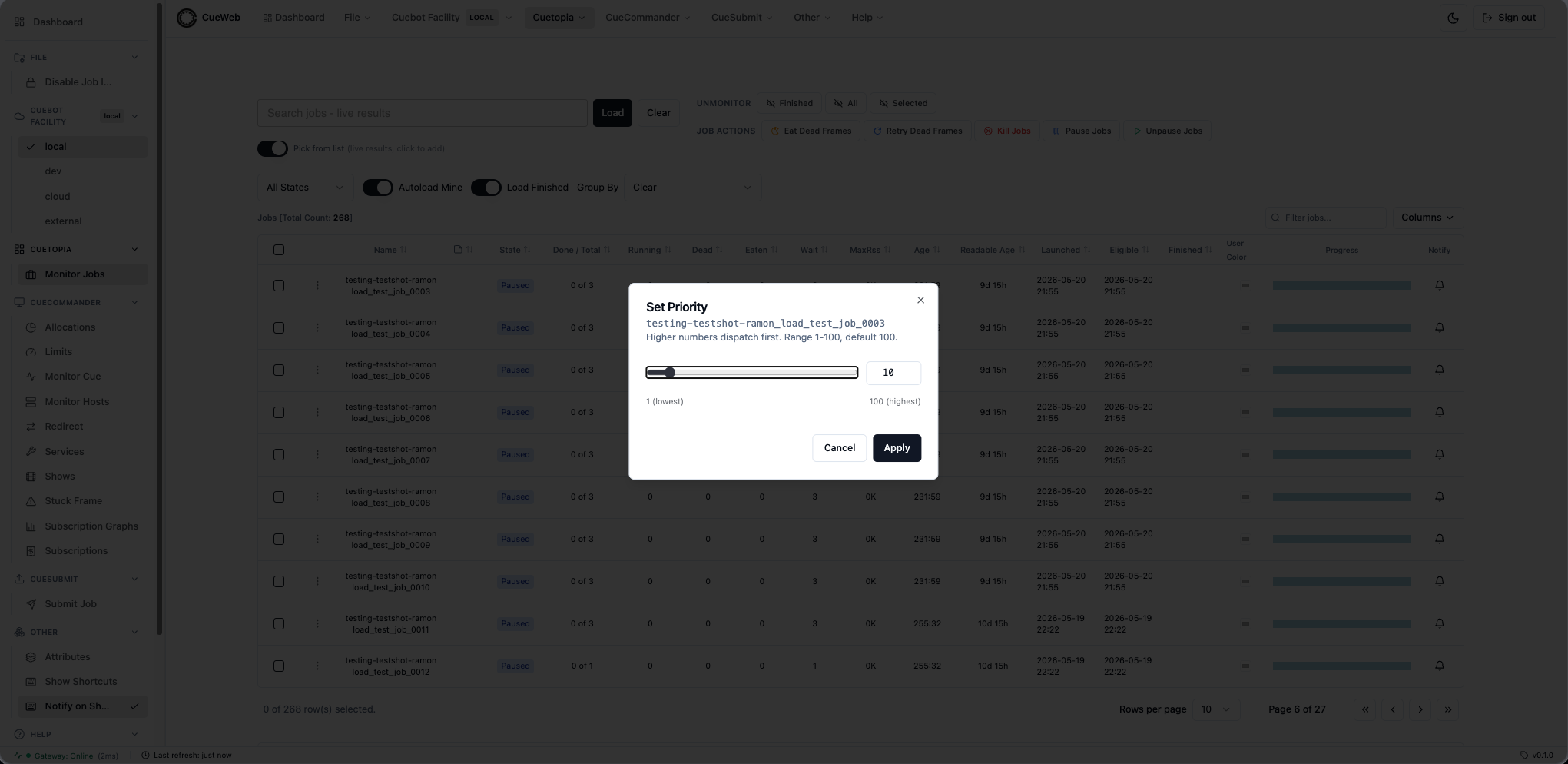
Right-click a job row and pick Set Priority… to open a themed dialog. The dialog has a 1-100 range slider and a matching number input - either control drives the value; both stay in sync. The number input is pre-filled with the job’s current priority. Higher numbers dispatch first; the cuebot default is 100.
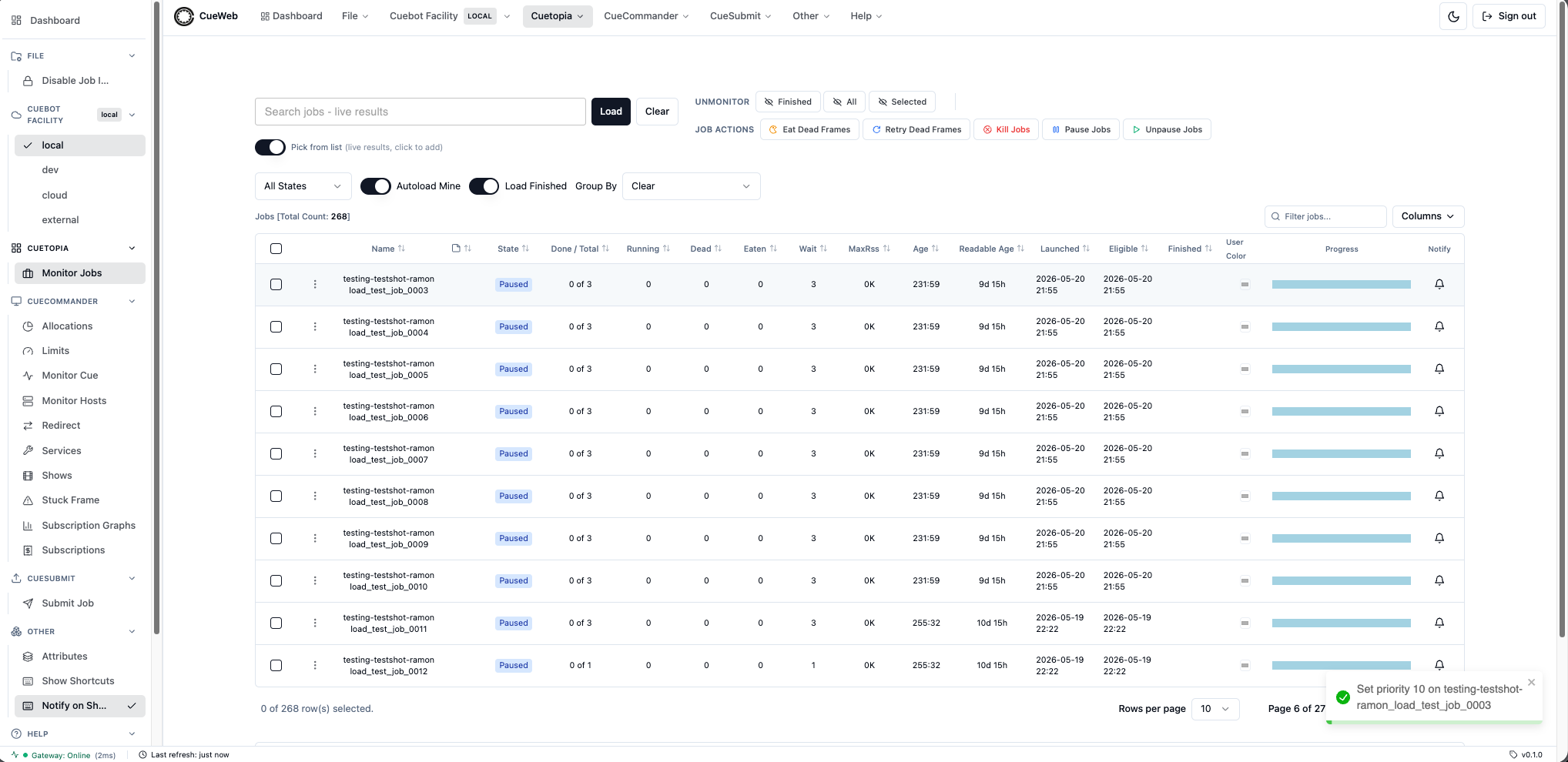
After Apply:
- A success toast confirms the new value.
- The job’s Priority column in the Jobs table updates immediately (no need to wait for the regular 5-second refresh tick).
- Layer menu: View Layer, Copy Layer Name, Kill, Eat, Retry, Retry Dead Frames.
- Frame menu: Tail Log / View Log (in-browser viewer), **View Log on
** (external editor - see below), **Copy Log Path**, **Copy Frame Name**, Retry, Eat, Kill.
Tapping the actions menu on touch devices
On phones / tablets without a contextmenu event, every Jobs / Layers / Frames row has a small ⋮ button as its leftmost cell. Tapping it opens the same menu the desktop right-click opens. Use this on iPhone / iPad / Android to reach every action.
Opening the log in an external editor
The Frame menu shows an additional View Log on <editor> item when the deployment has NEXT_PUBLIC_LOG_EDITOR_URL configured (the sandbox docker-compose.yml defaults it to VSCode). Selecting that item launches the rqlog file in your desktop editor via a custom URL scheme - the same approach GitHub’s “Open in VSCode” button uses.
Important notes:
- The log file only exists on disk once RQD has started running the frame. Right-clicking a WAITING / DEPEND frame produces a warning toast instead of handing a non-existent path to your editor.
- If the configured editor isn’t installed (no app registered for
vscode://,subl://, etc.), OpenCueWeb shows a warning toast after a short timeout pointing you at the alternatives. - Double-clicking the row (or choosing View Log / Tail Log) opens the in-browser Monaco log viewer instead - always available, no editor install required.
Note: Destructive items (Pause / Unpause / Retry / Eat / Kill) are automatically disabled when the global Disable Job Interaction safety toggle is on, and the context menu always stays on-screen even on small viewports (it scrolls internally if it would overflow).
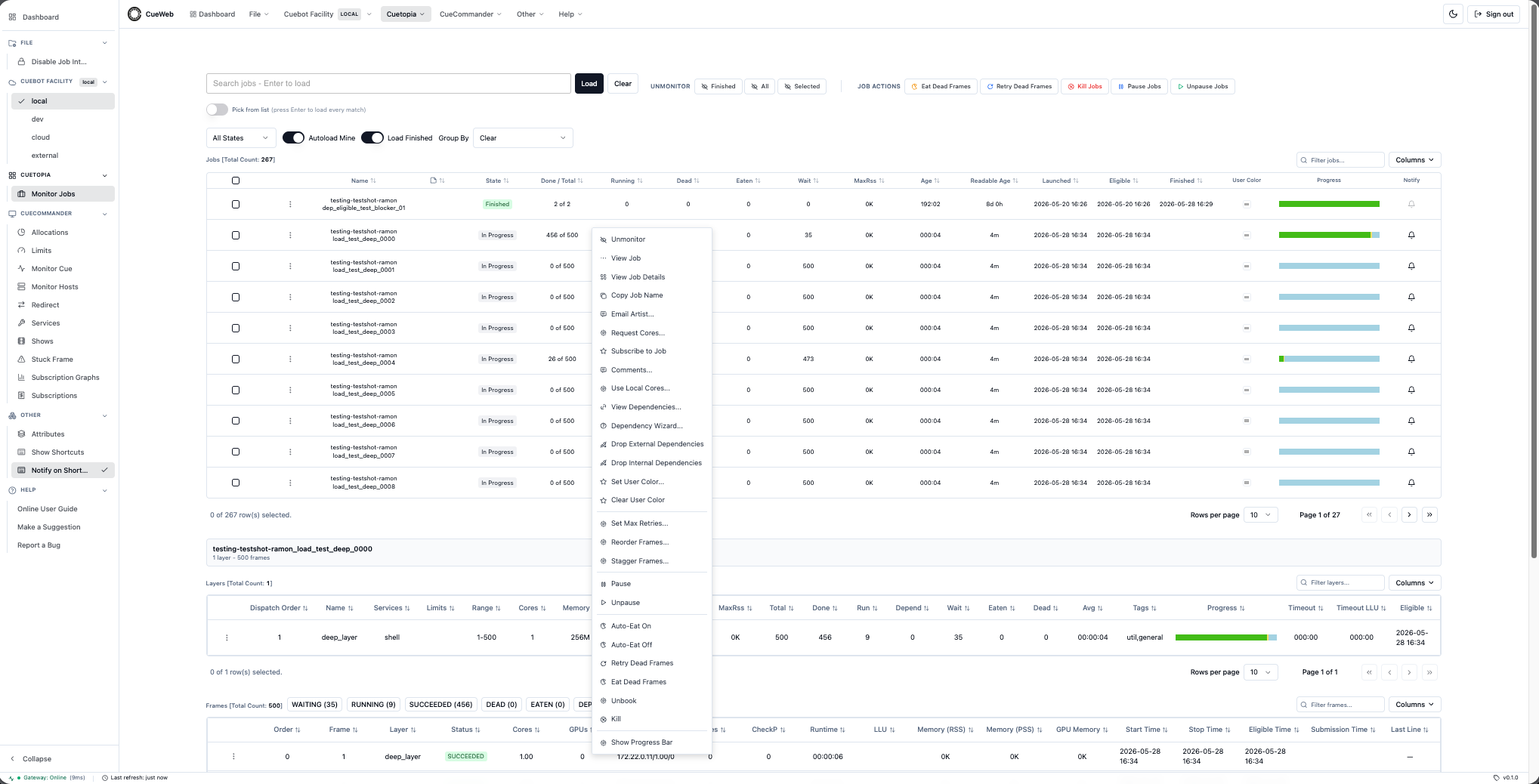
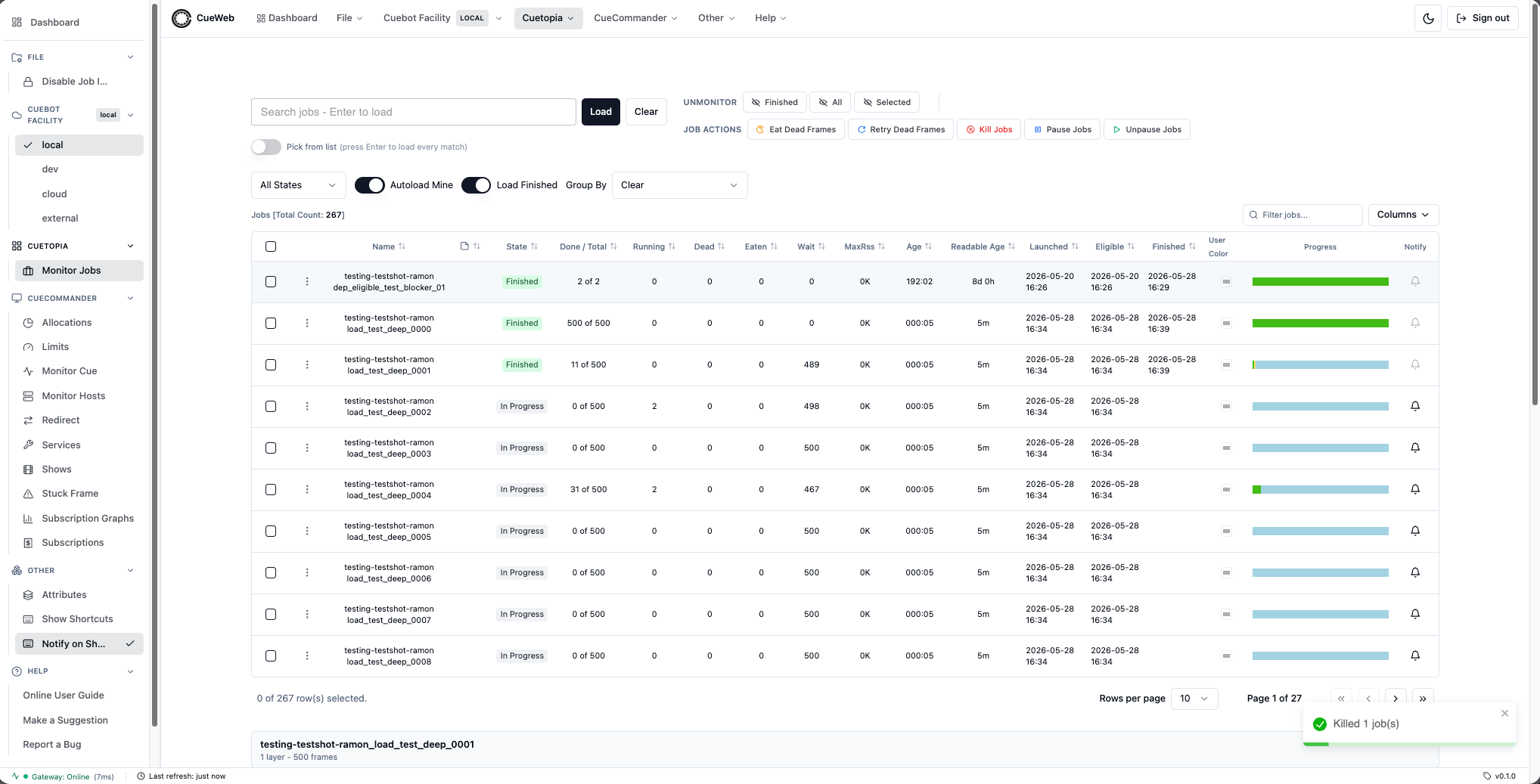
Emailing the artist
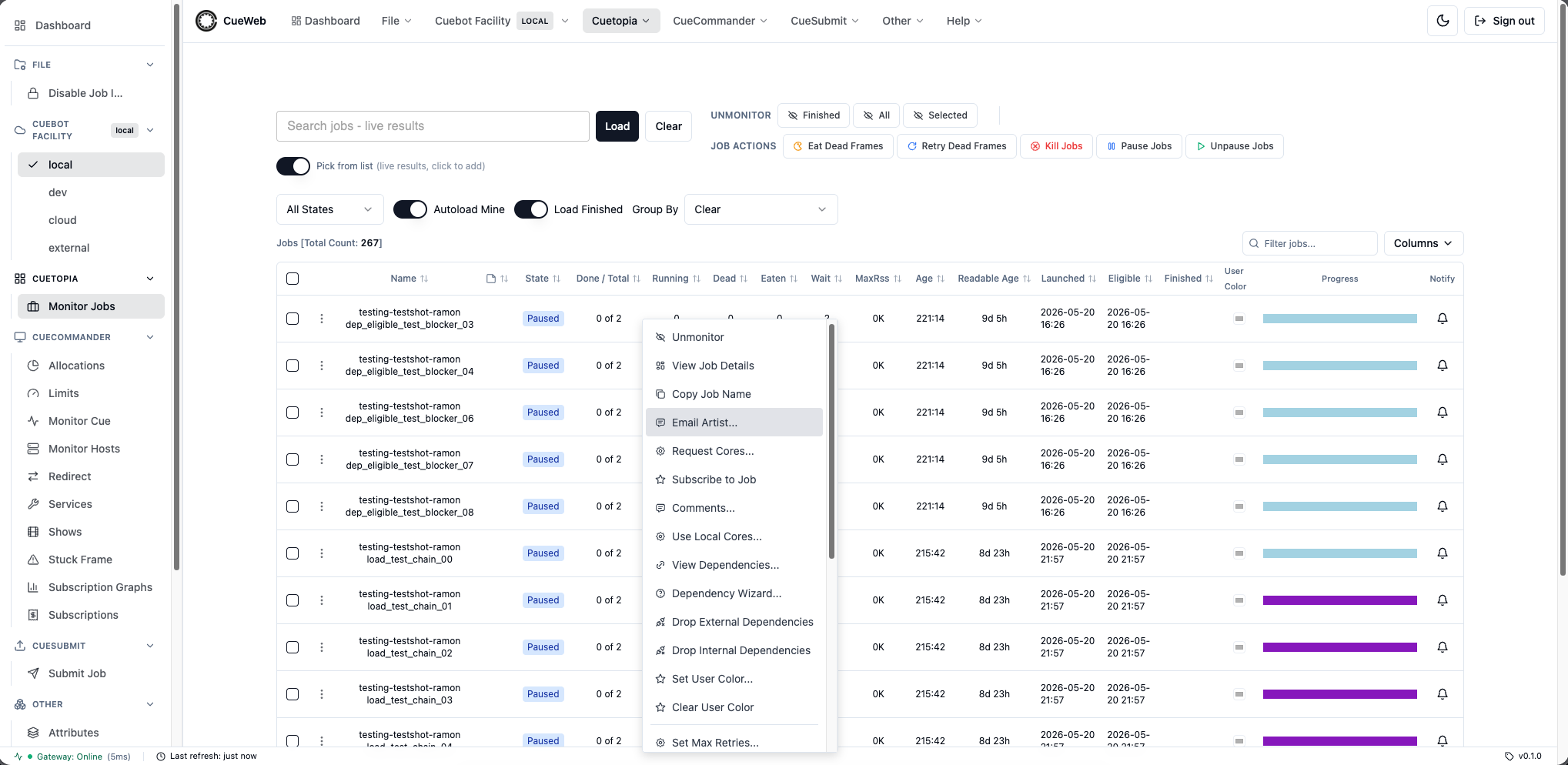
The job context menu’s Email Artist… entry mirrors CueGUI’s Email dialog. Right-click a job and pick the entry from the menu:
A themed dialog opens pre-filled from the job - From, To (the job’s owner), CC, Subject (cuemail: please check <jobName>), and a Body that greets the artist by name. Every field is editable.
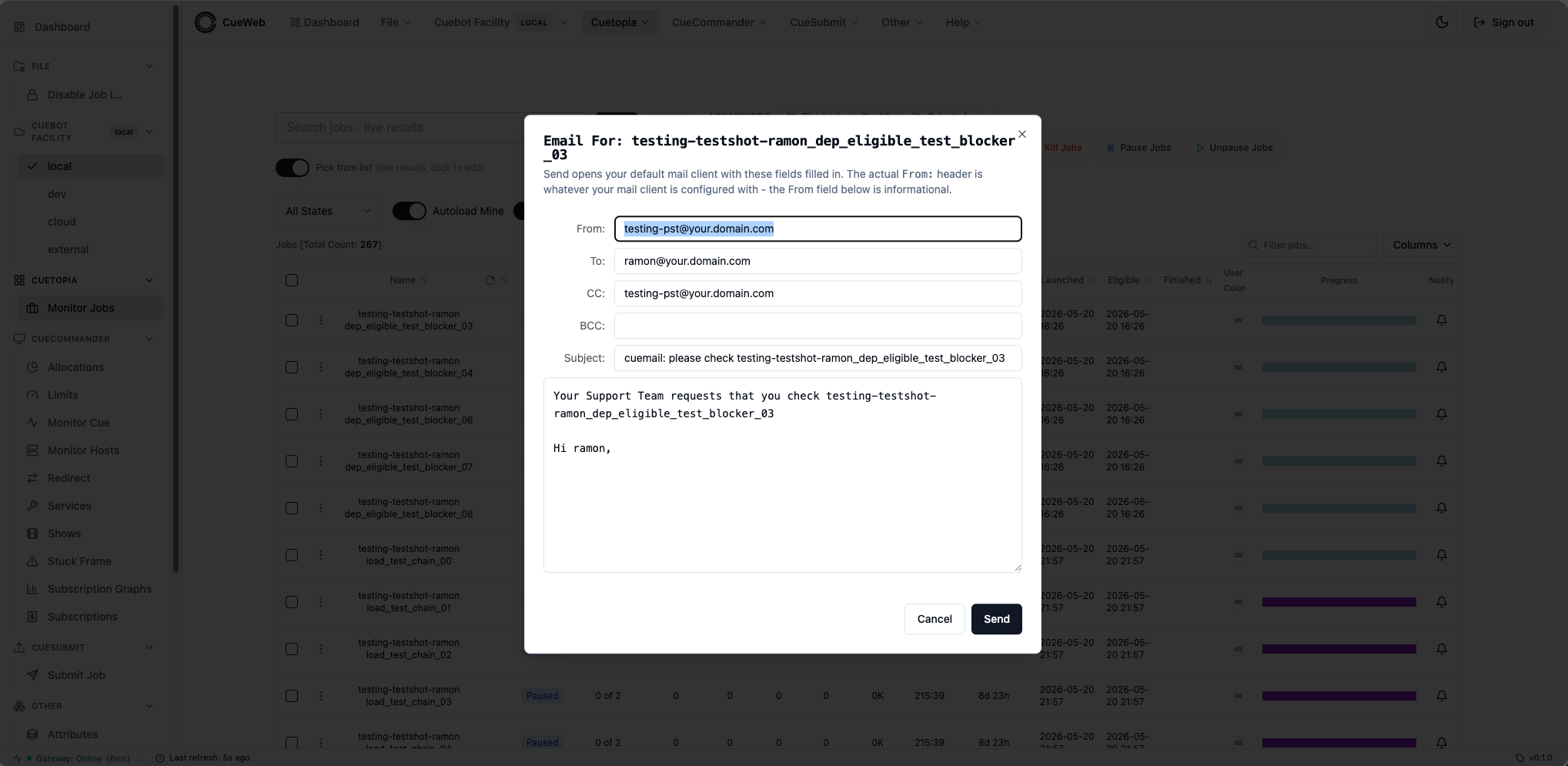
Clicking Send hands the filled-in fields to your default mail client (Mail.app on macOS, Outlook on Windows, your configured mailto: handler on Linux). Because the browser uses a mailto: URL, the From header on the email you actually send is decided by your mail client - the From field in the dialog is informational and shows the support alias the team typically uses.
The email domain and the per-show support alias suffix are configured at deployment time, so production emails resolve to your real addresses rather than the your.domain.com placeholder shown in the sandbox.
Requesting cores from the support team
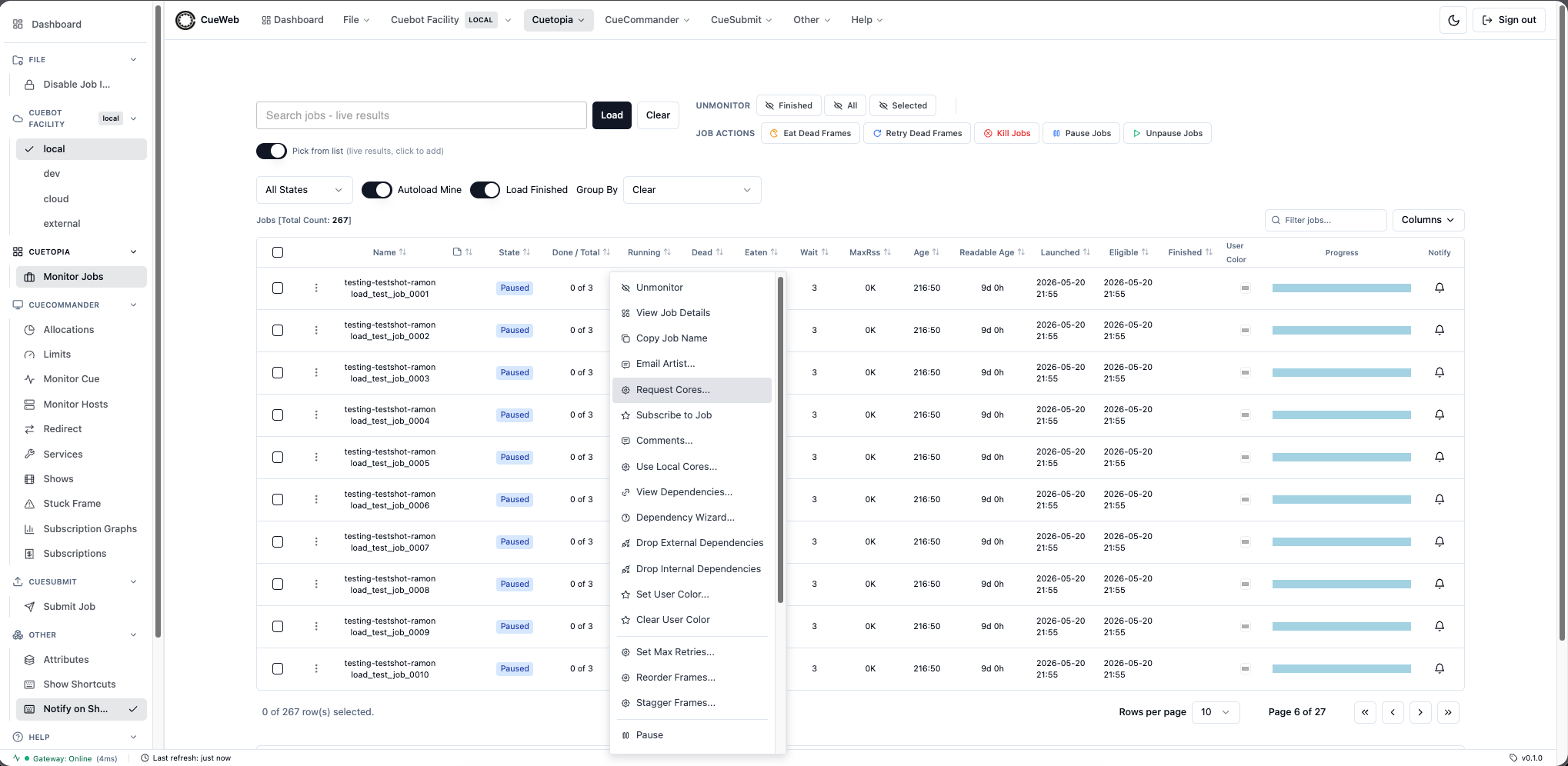
When a job is starved for cores, the Request Cores… entry on the job context menu opens an email composer addressed to the show’s support team (mirroring CueGUI’s RequestCoresDialog). Right-click a job and pick the entry:
The dialog opens pre-filled: From comes from your signed-in session, CC is the per-show support alias (<show>-support@<domain>), Subject is Requesting Cores for <jobName>, and the body is auto-populated with a table of the job’s still-active layers (Layer Name / Minimum Memory / Min Cores) so the support team can see at a glance which layers need more capacity. Two extra fields below the table let you add the Date/Time by which completion is needed and any additional notes (priority frames, willingness to raise the memory floor, etc.).
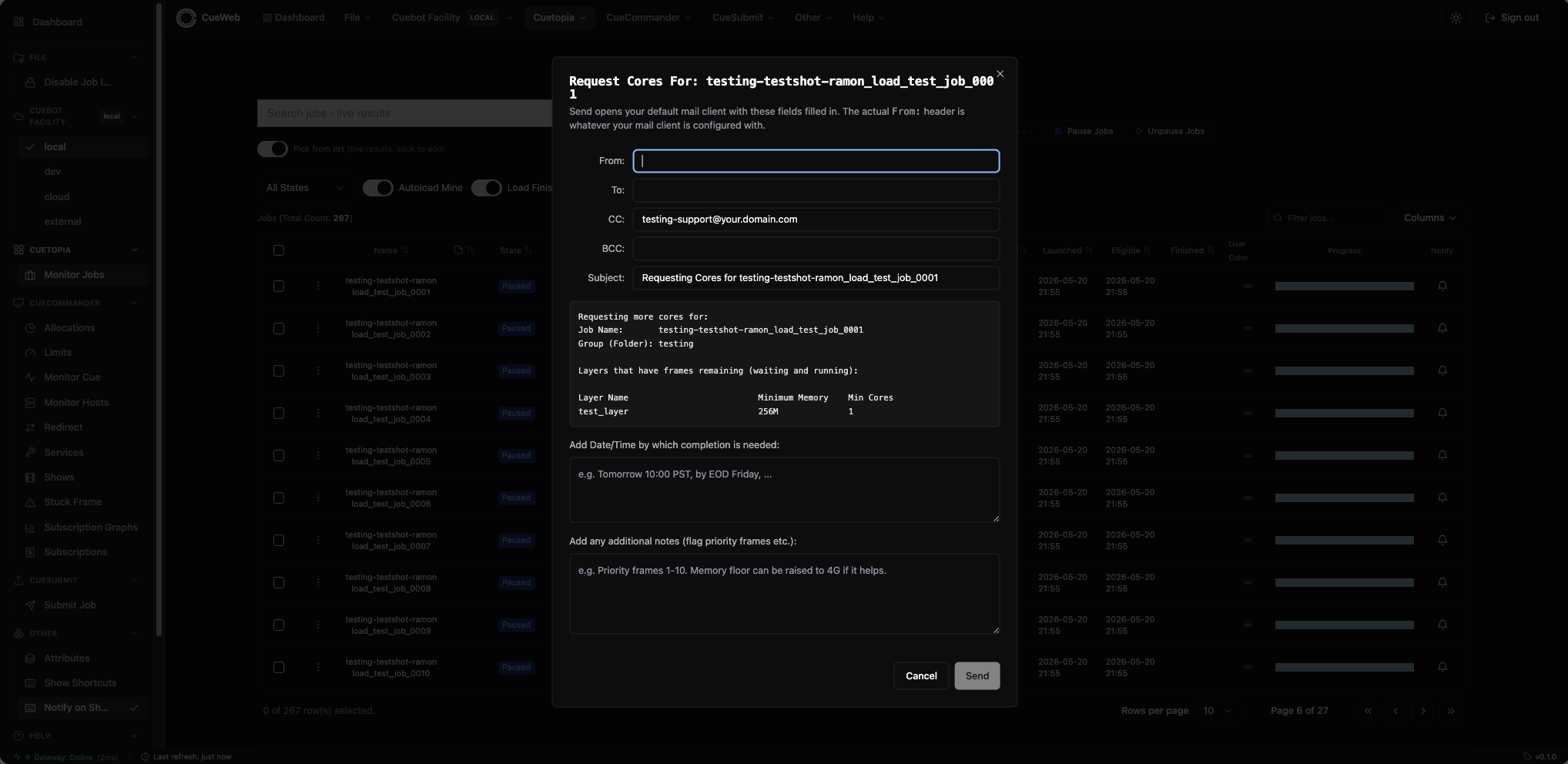
Clicking Send stitches the auto-populated body together with your Date/Time and Notes and hands the result to your default mail client. As with Email Artist…, the From header on the email you actually send is decided by your mail client, not by the dialog.
Setting min and max cores (Set Min/Max Cores)
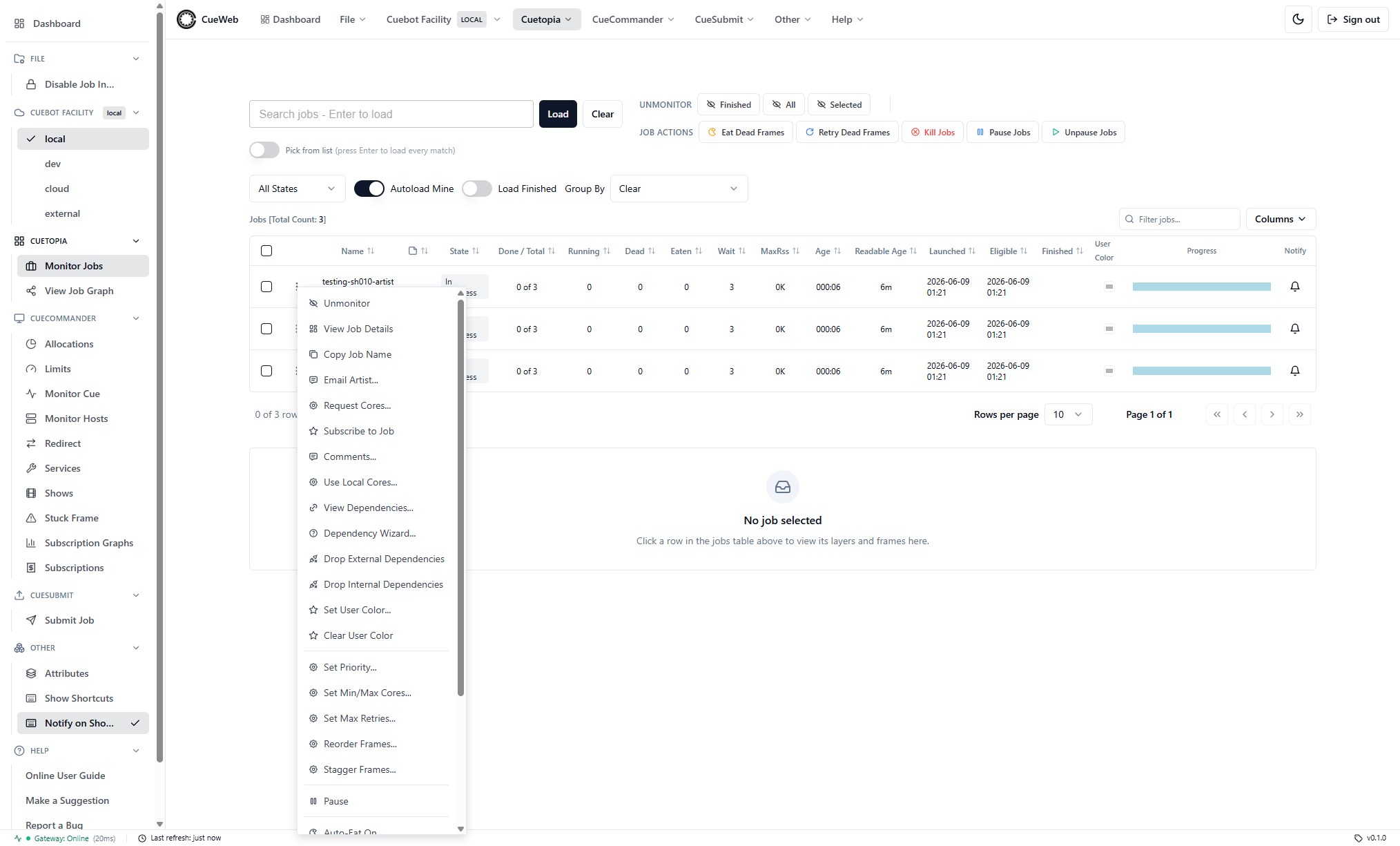
Set Min/Max Cores… on the job context menu adjusts how many cores Cuebot may book for a job (mirroring CueGUI’s set-min-cores / set-max-cores actions). Like Set Priority…, it is available everywhere the job context menu appears - both Cuetopia → Monitor Jobs and CueCommander → Monitor Cue.
Right-click a job row and pick Set Min/Max Cores… to open a themed dialog with two number inputs - Min and Max - both pre-filled with the job’s current values. The range is 0-50000. A client-side guard keeps Min ≤ Max: enter a minimum above the maximum and the Apply button is disabled with an inline message explaining why.
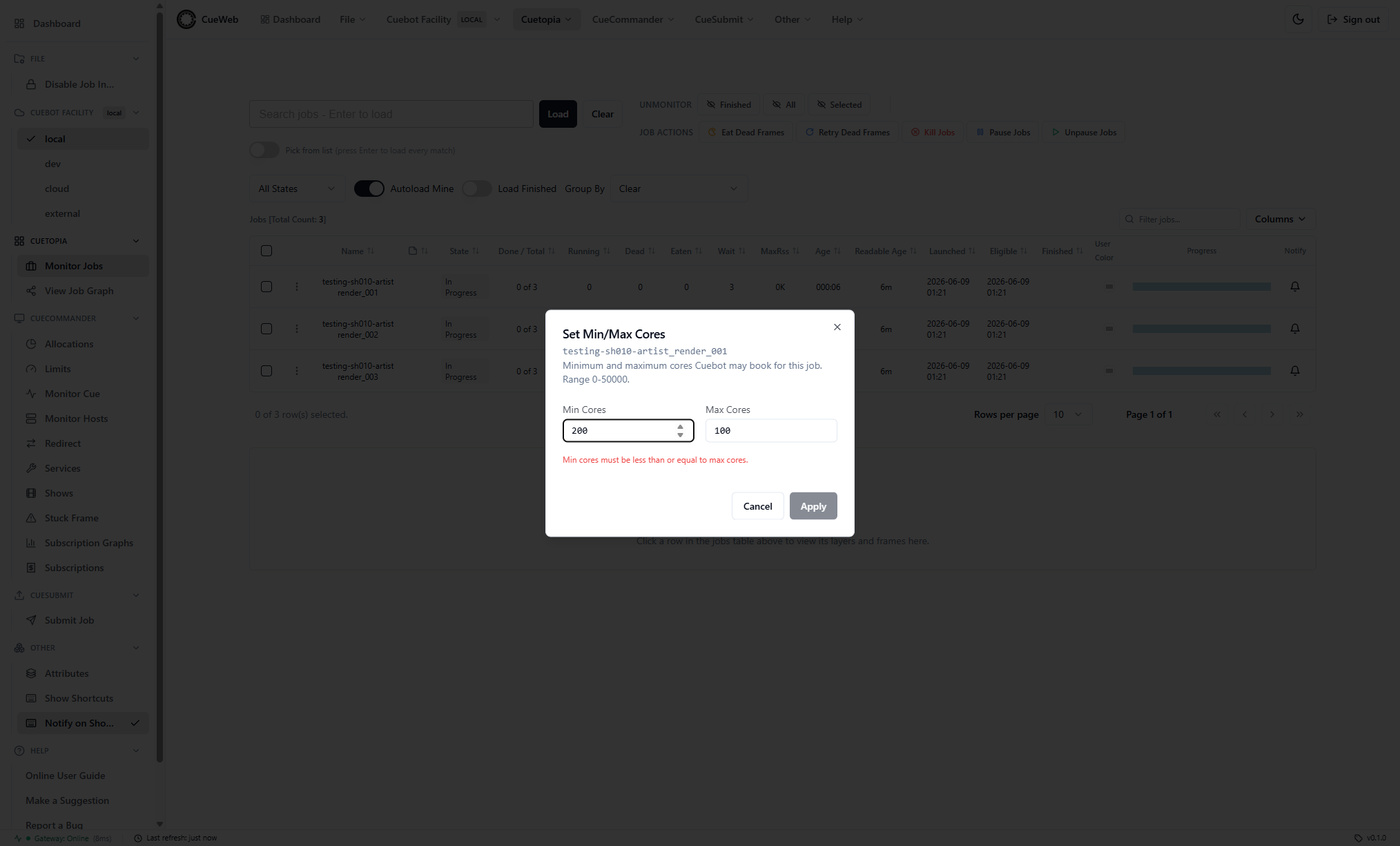
Apply sends both values in a single action (Cuebot exposes them as two separate calls). On success a toast confirms the new range; if Cuebot rejects the change an error toast explains why and nothing is changed.
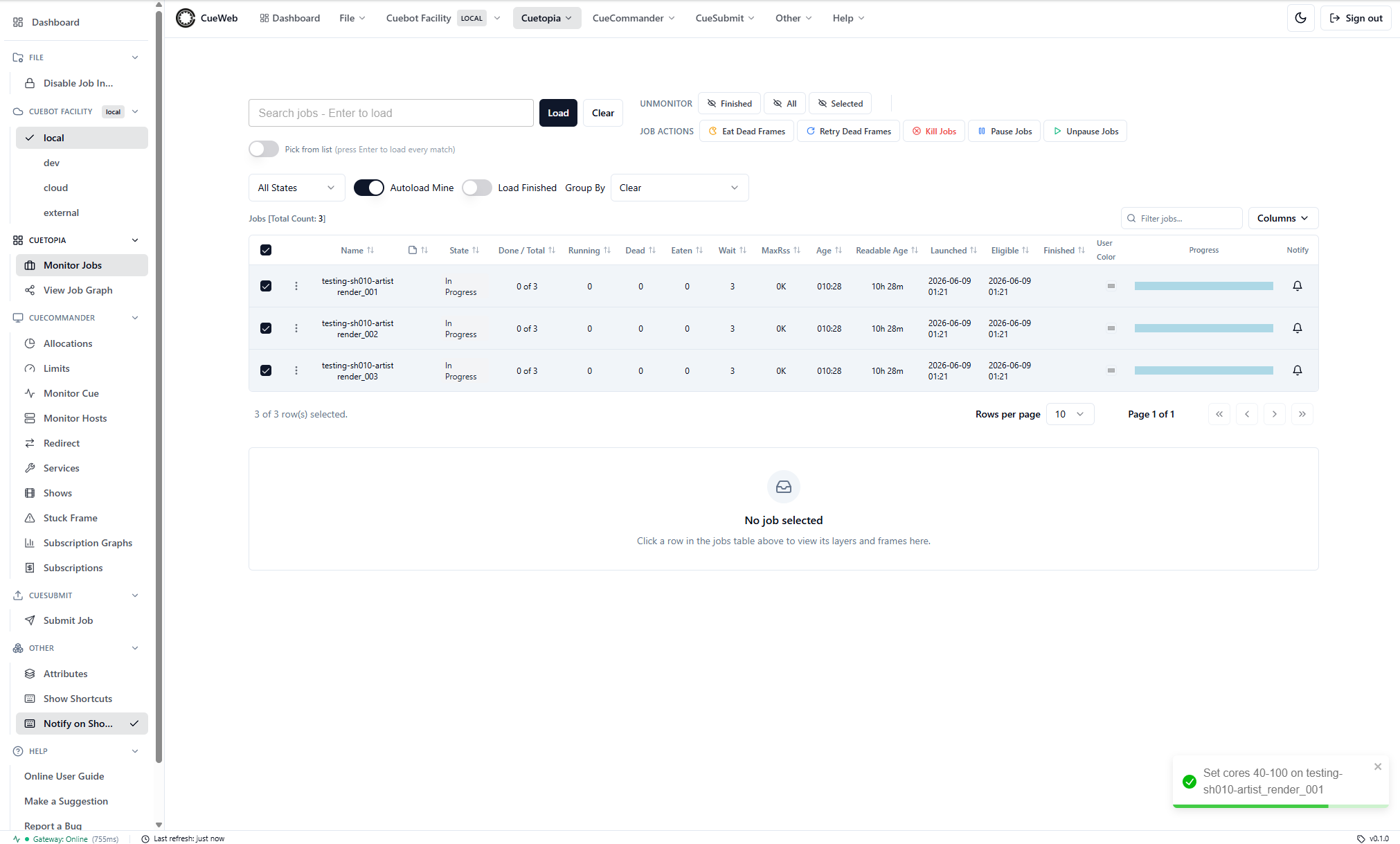
Unbooking a job (Unbook)
Unbook… on the job context menu releases every proc the job currently holds (mirroring CueGUI’s UnbookDialog). The freed procs return to the booking pool for Cuebot to re-dispatch.
Right-click a job and pick Unbook…. The dialog explains what will happen and offers a Kill unbooked frames? checkbox:
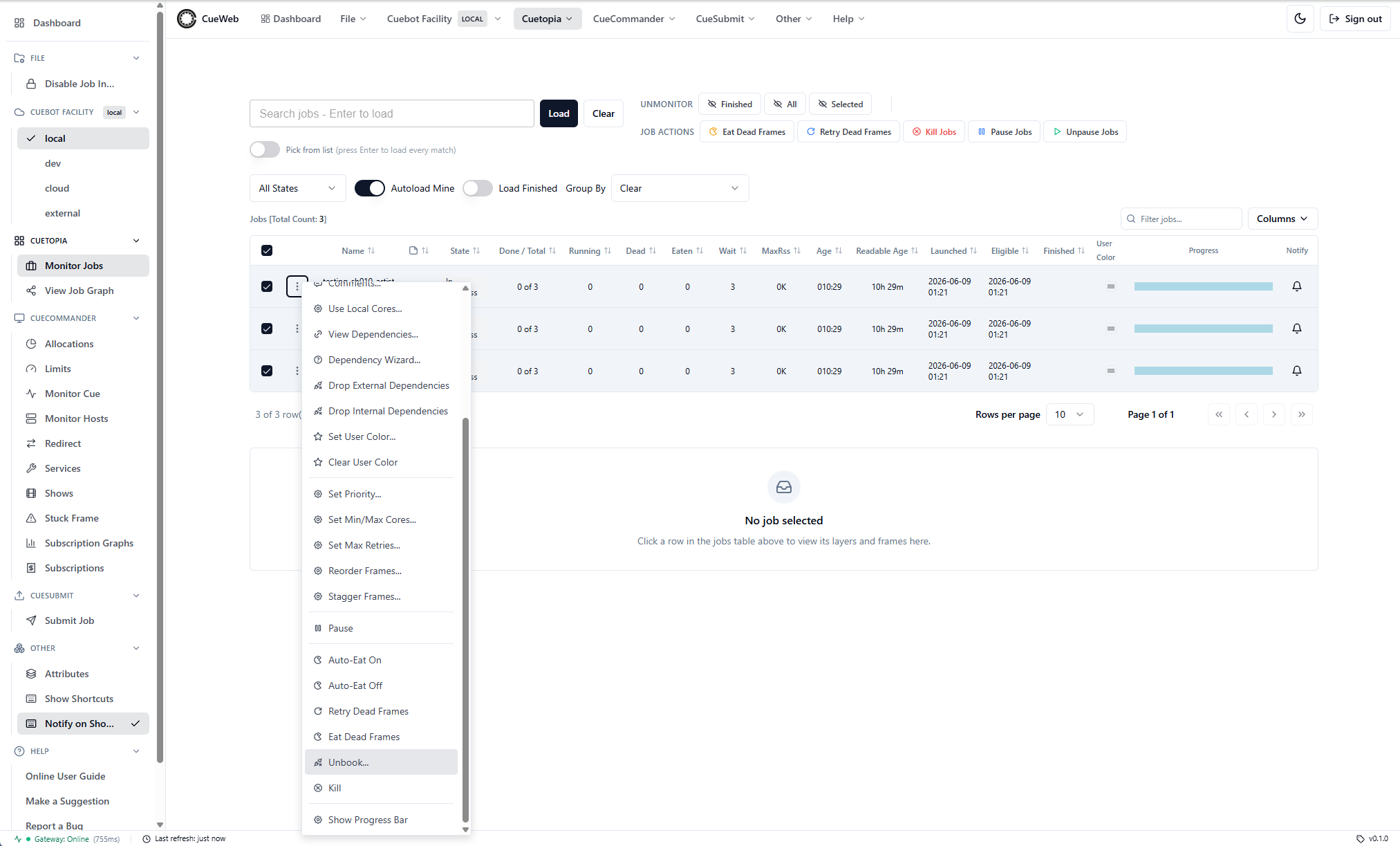
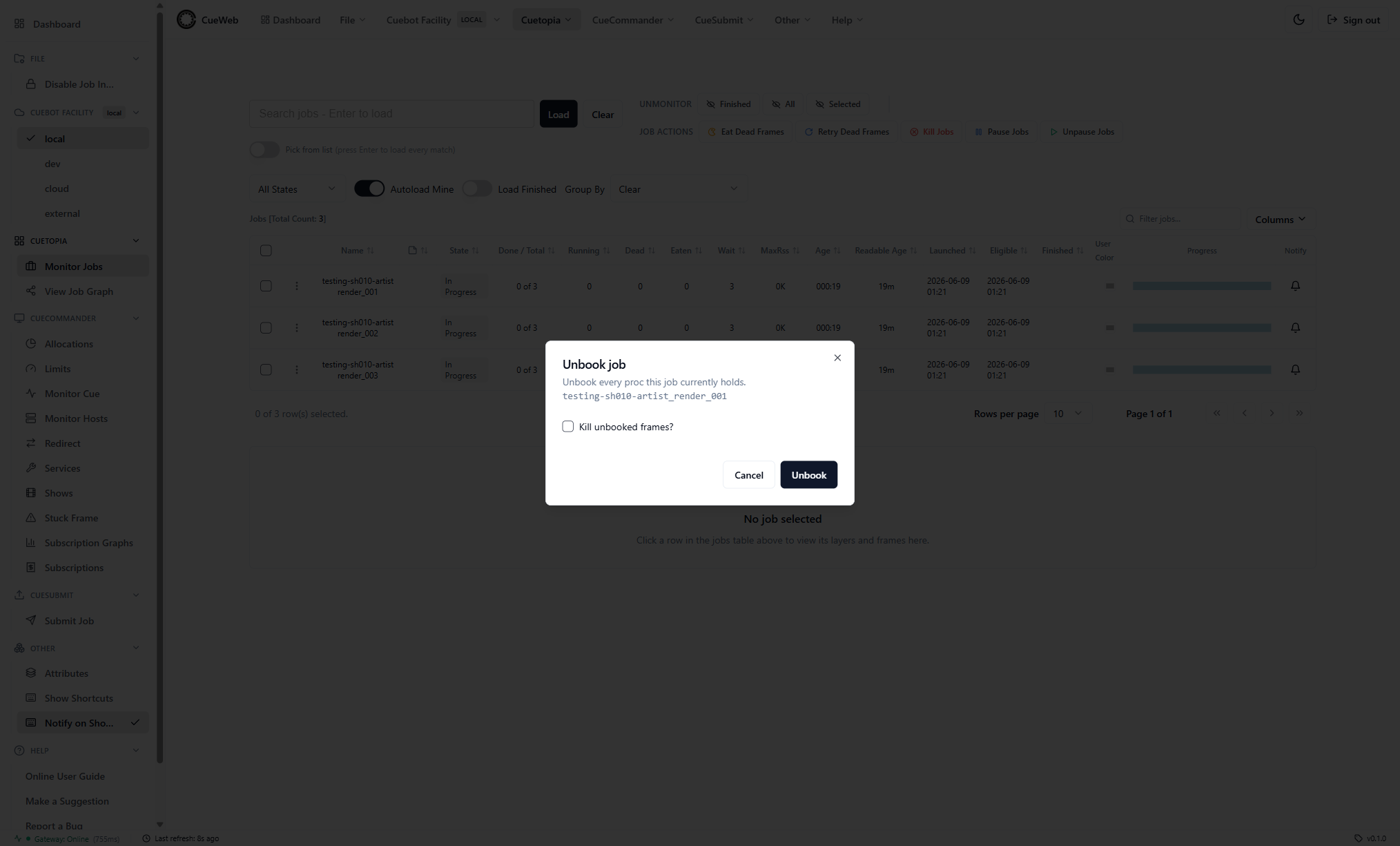
- Left unchecked, the procs are unbooked but their current frames are allowed to finish.
- Checked, a second confirmation step (mirroring CueGUI’s kill confirmation) appears before the running frames are killed - killed frames stop immediately and lose their progress.
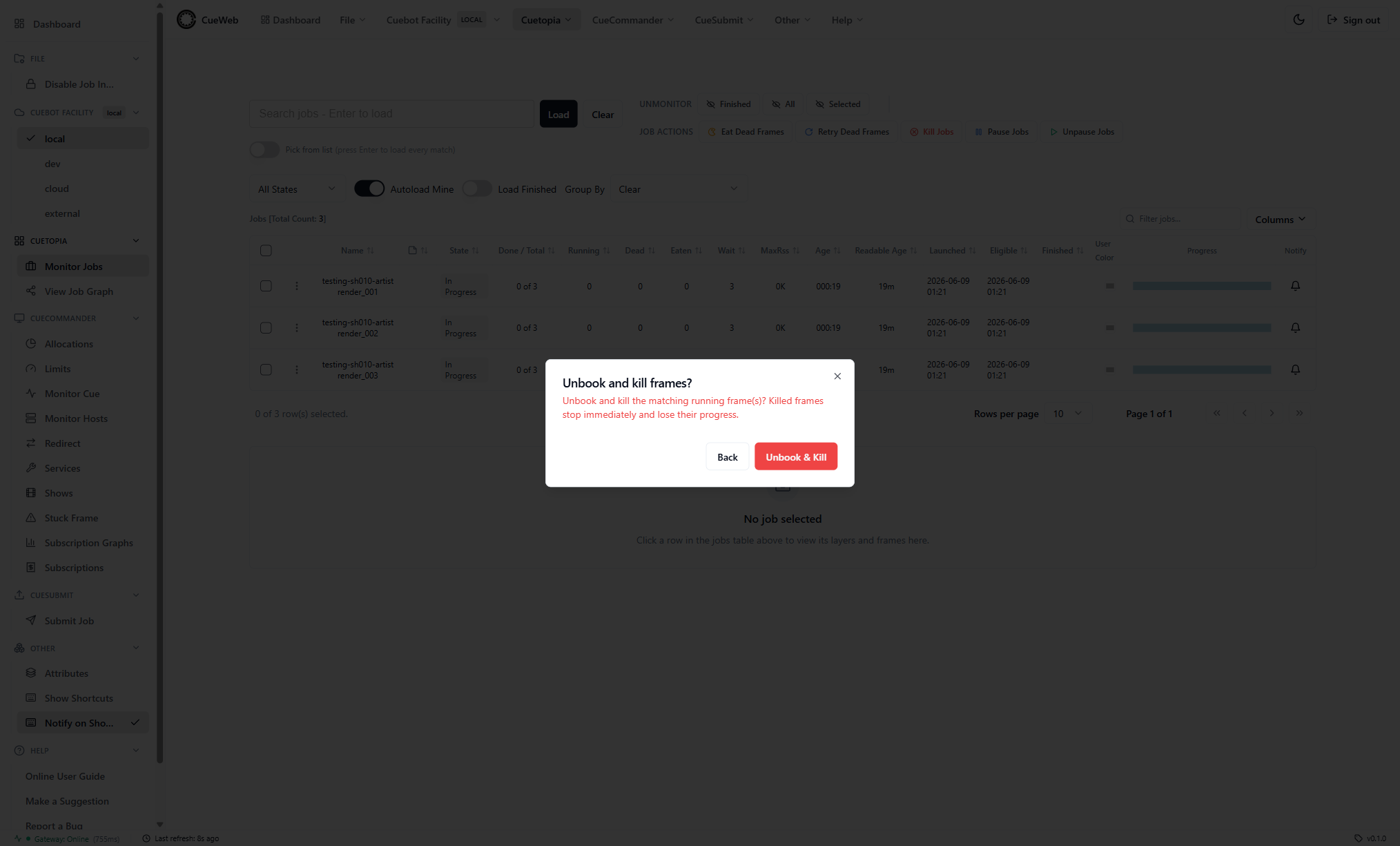
This first version is job-scoped: it unbooks every proc the job holds. CueGUI’s UnbookDialog additionally offers allocation, amount, and memory / runtime filters plus redirect-to-group/job; those are deferred.
Confirming multi-job toolbar actions
When two or more jobs are selected, the Jobs toolbar’s bulk actions ask for confirmation before running, listing the affected job names so you can double-check the selection.
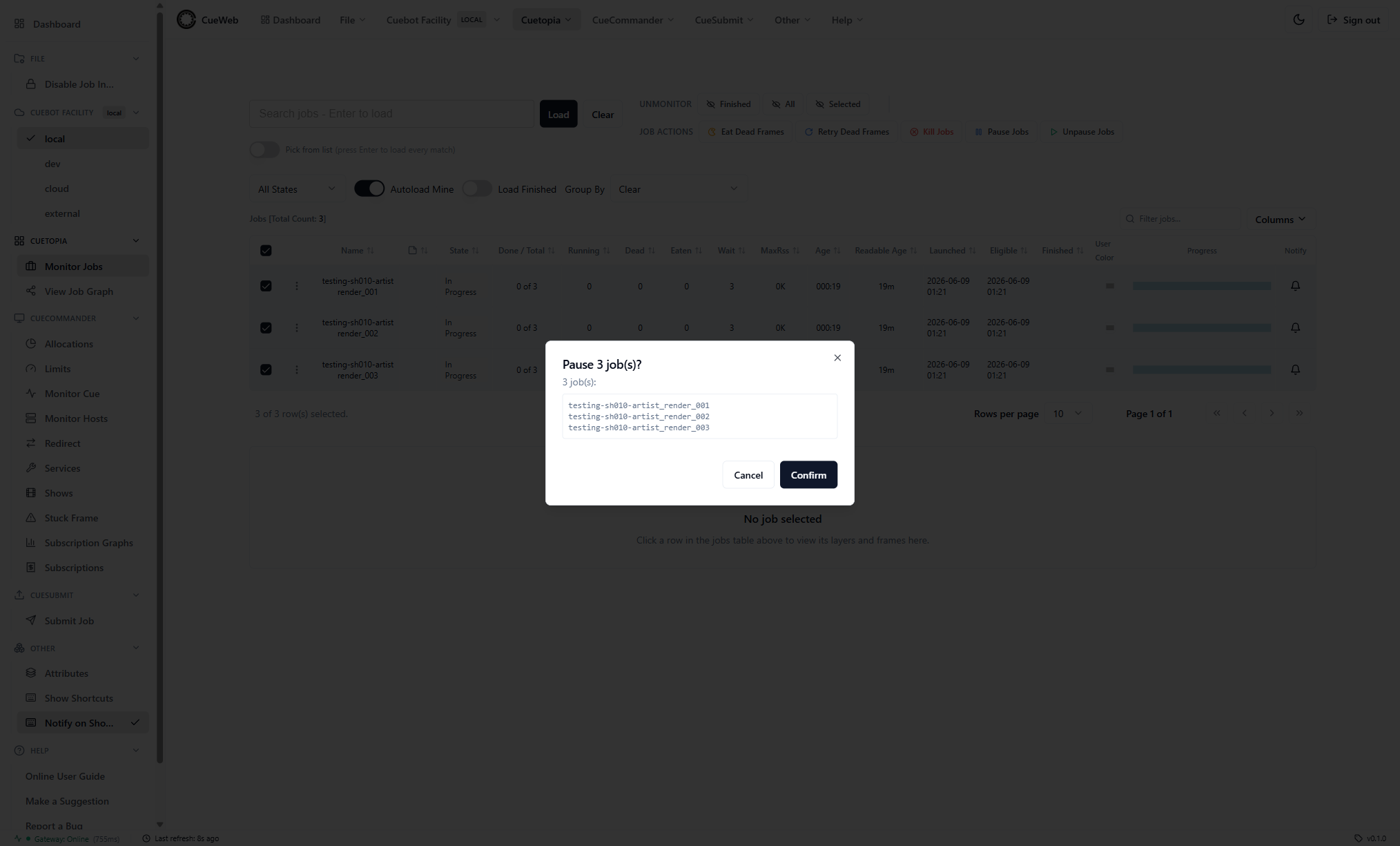
The policy mirrors CueGUI and is per-action: Kill, Eat, and Retry always confirm (even for a single job, since they are destructive), while Pause and Unpause confirm only when two or more jobs are selected. Destructive confirmations use a red action button and CueGUI’s kill warning text; Cancel aborts without sending anything.
Job Comments
OpenCueWeb provides full per-job comments, equivalent to the Comments dialog in CueGUI.
Opening the Comments page
You can reach a job’s Comments page in two ways:
- Context menu: Right-click a job row and choose Comments.
- Indicator icon: The Jobs table has a dedicated Comments column (right after Name). A sticky-note icon appears there when the job has at least one comment; the column is sortable so you can pull jobs with comments to the top. Clicking the icon opens the Comments page in a new tab.
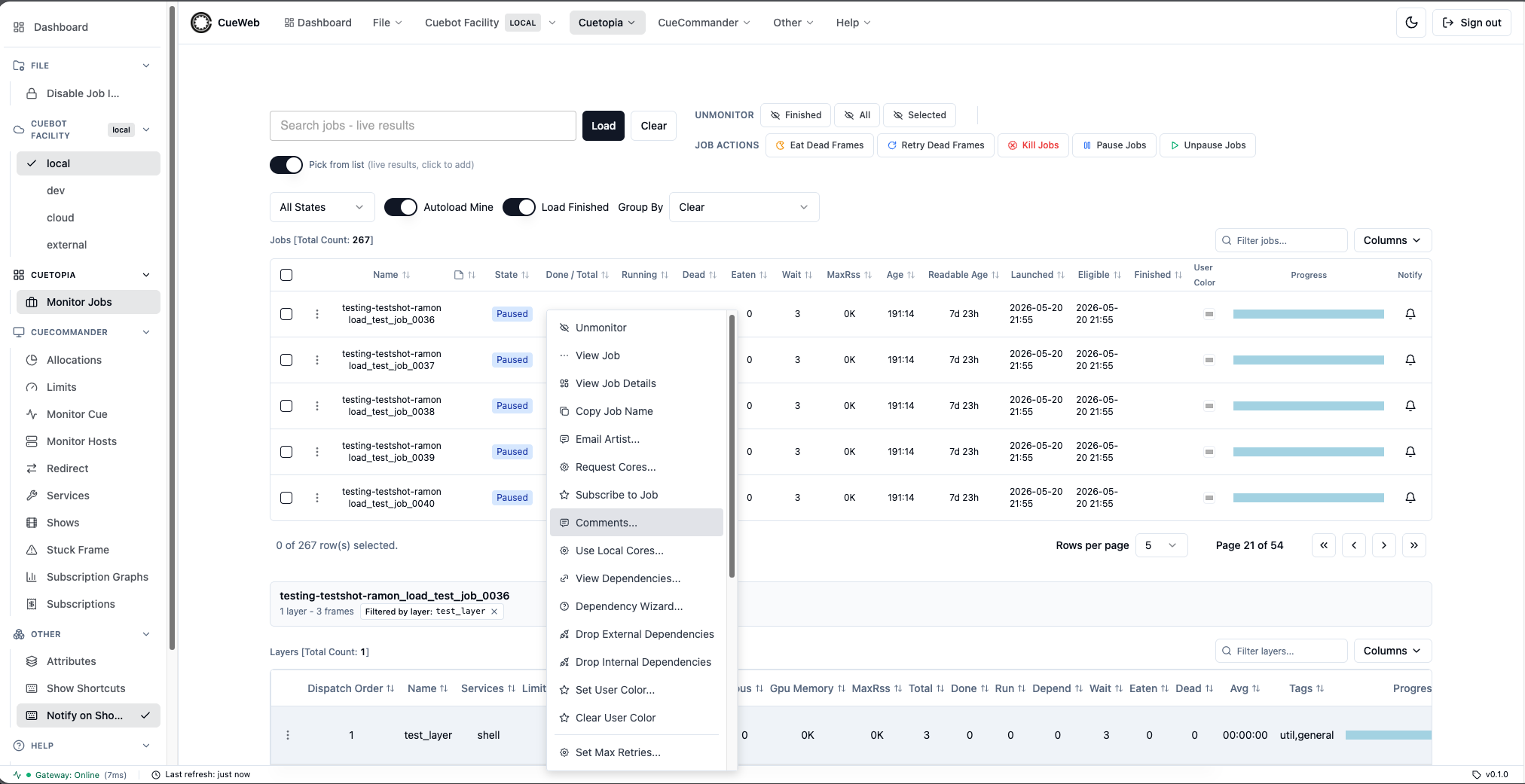
The Comments page opens in a new tab.
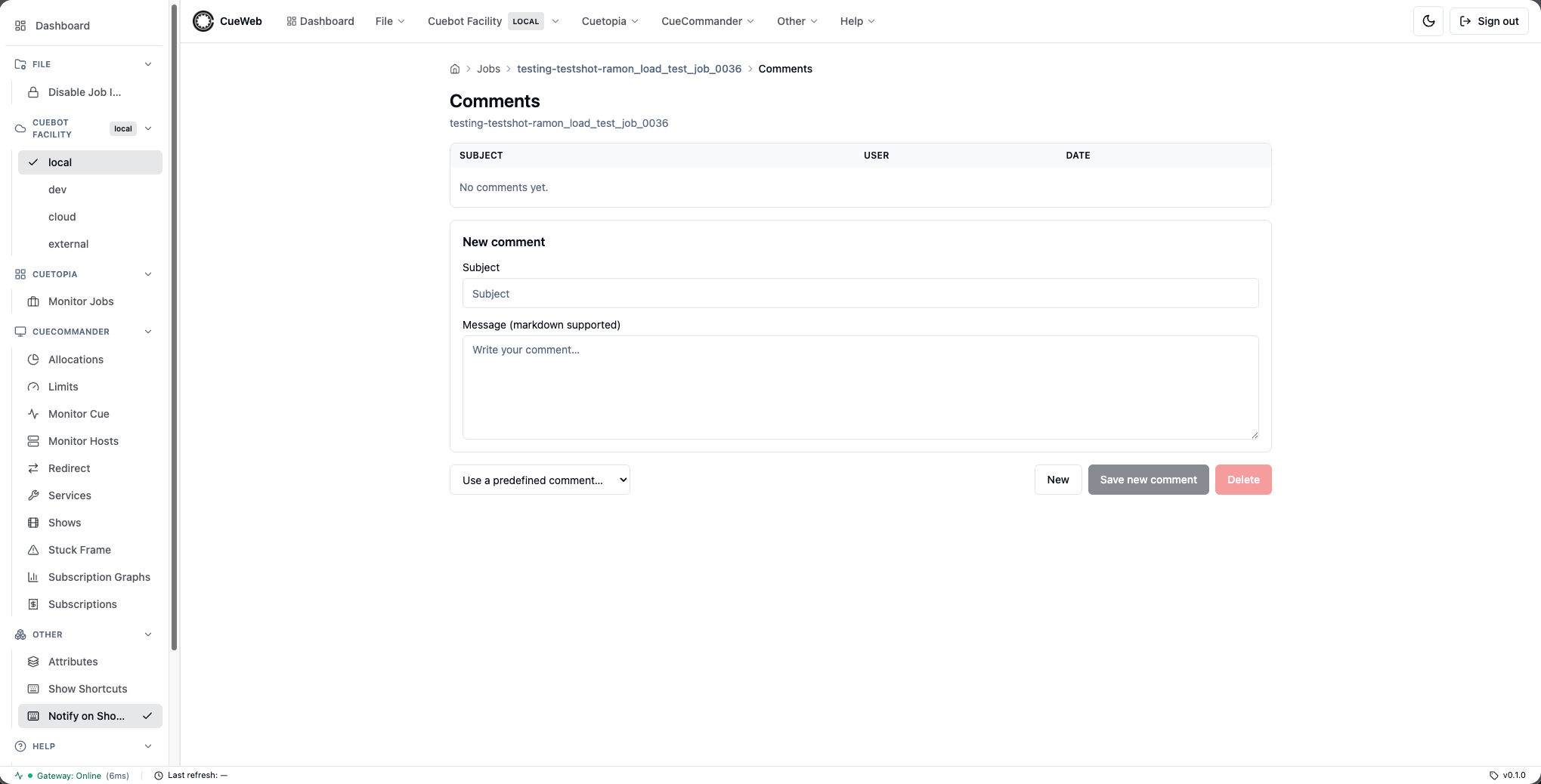
Both open the job’s Comments page in a new browser tab. OpenCueWeb identifies you from your signed-in session; only the author of a comment can edit or delete it, and everyone else sees it read-only.
Page layout
The page replicates the CueGUI Comments dialog:
| Region | Purpose |
|---|---|
| Comment list | Table of existing comments showing Subject, User, and Date. Click a row to load it into the editor below. |
| Preview | Sanitized markdown preview of the currently selected message. |
| Edit Comment | Subject + Message fields. Editable only when the comment’s author matches the session-derived signed-in user; otherwise the form is read-only. Server-side ownership enforcement is authoritative, the client UI just mirrors what the server will accept. |
| Action bar | The predefined-comment dropdown on the left, then New, Save changes / Save new comment, and Delete buttons on the right. |
Creating, editing, deleting
| Operation | How to perform it |
|---|---|
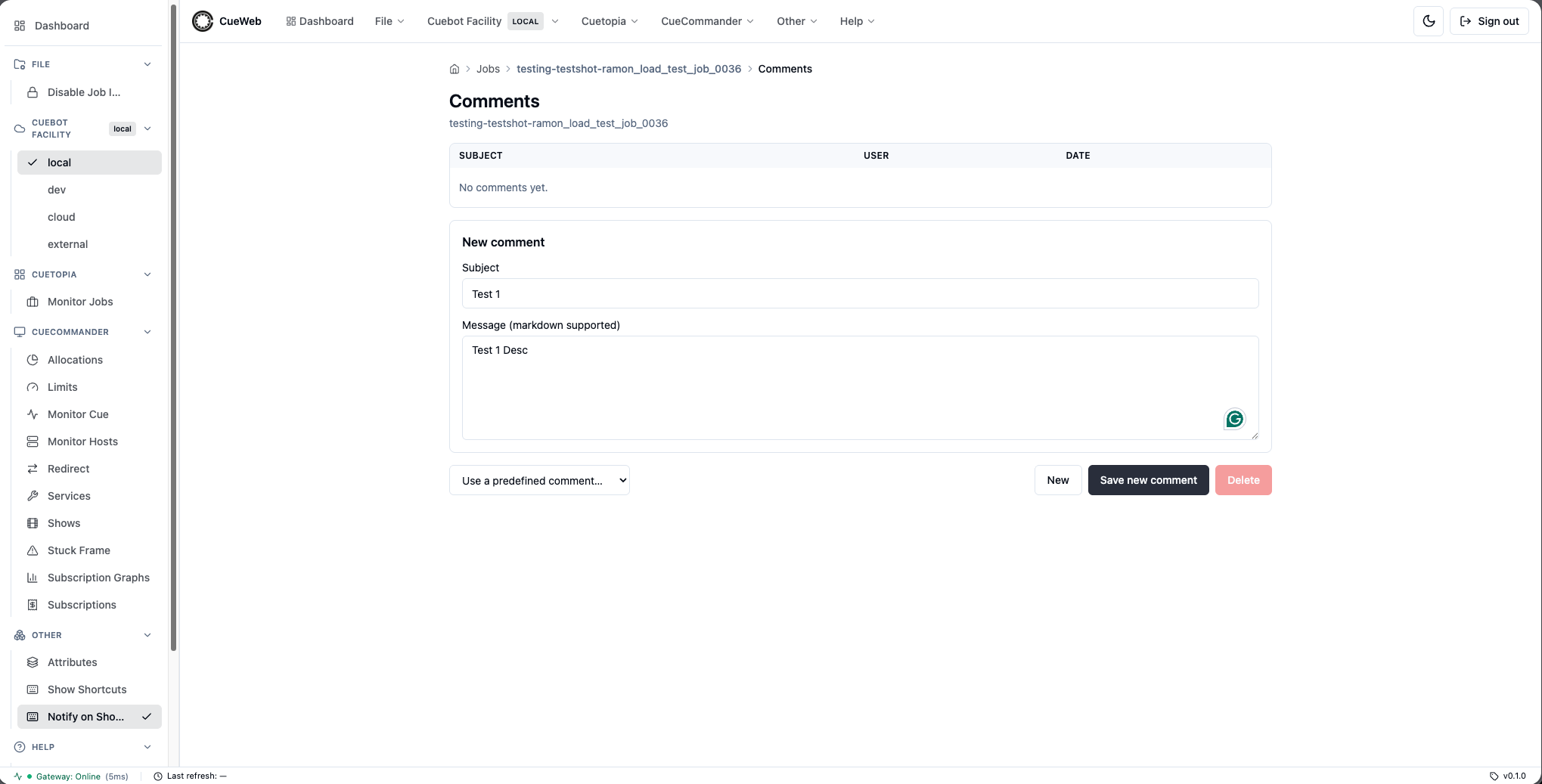
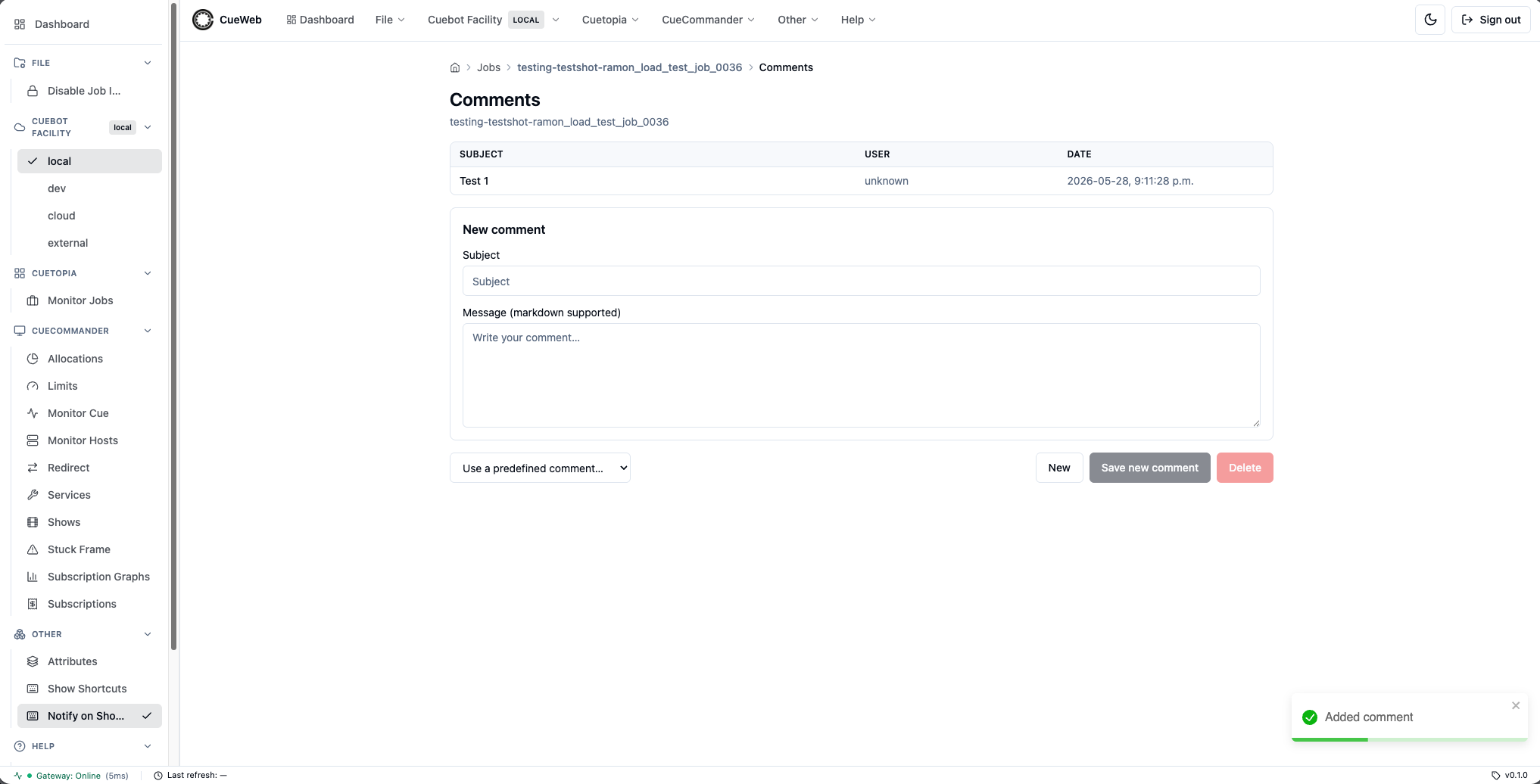
| Add a new comment | Click New (or land on the page with no comment selected), enter a Subject and Message, then click Save new comment. The Subject field cannot be empty. |
| Edit an existing comment | Click the comment in the list. The form switches to Save changes. Make edits and save. Only the comment’s author can edit. |
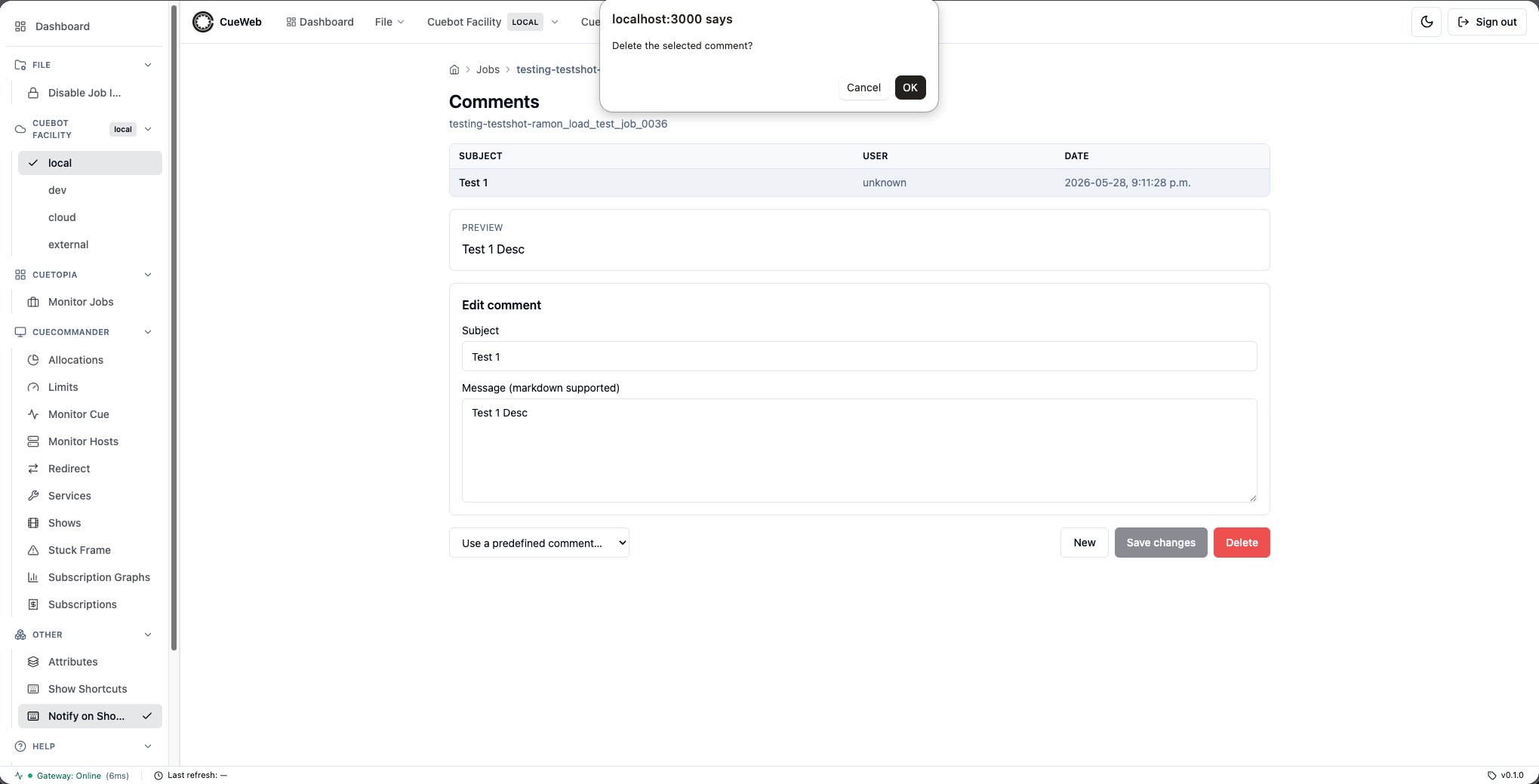
| Delete a comment | Select a comment and click Delete. A confirmation prompt appears. Only the author can delete. |
Comments support markdown in the message body. Content is sanitized before rendering, so embedded HTML or scripts are stripped.
Selecting a comment in the list loads it into the editor and shows its preview.
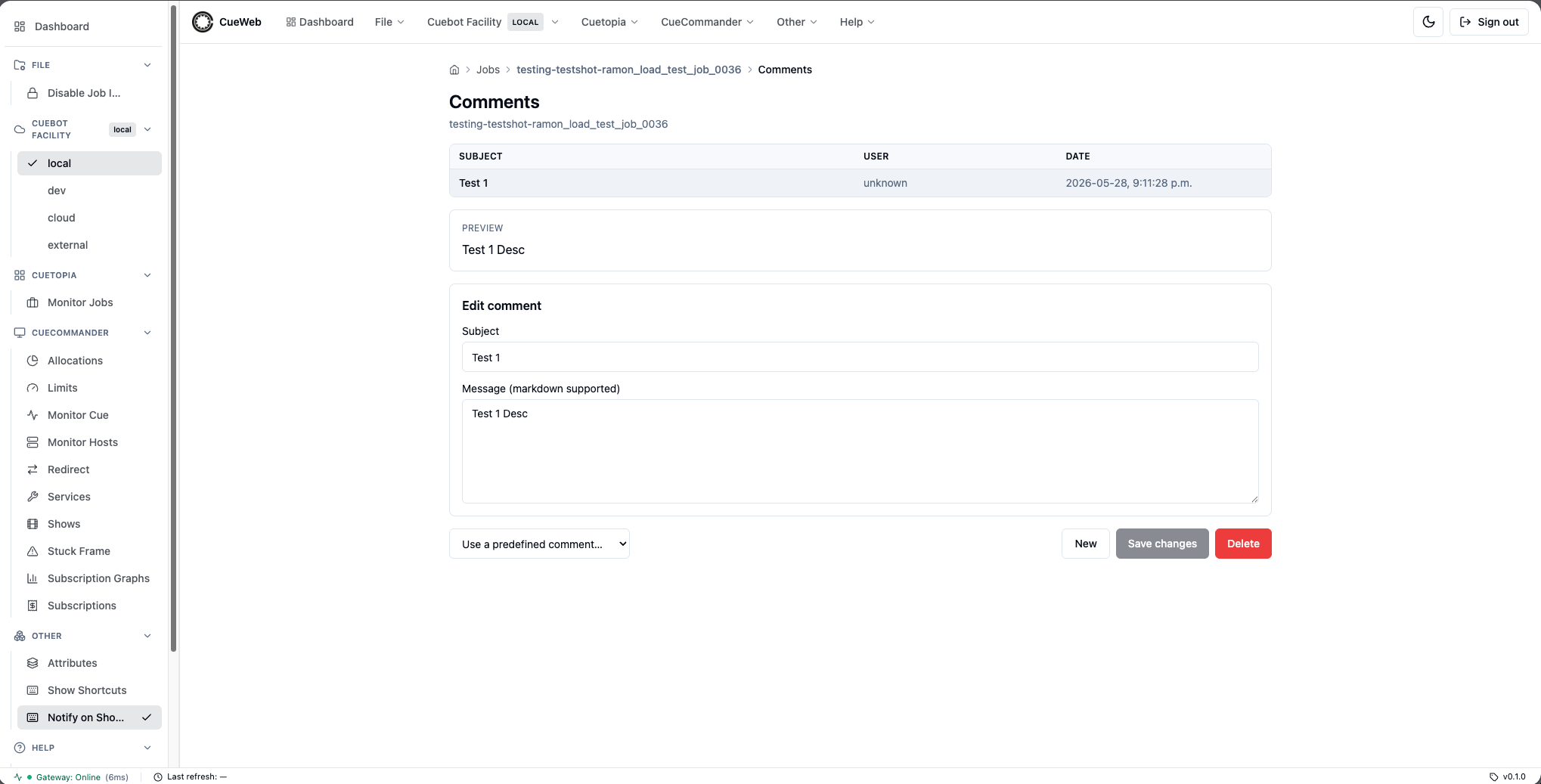
To create a comment, fill in the Subject and Message fields.
After saving, the new comment appears in the list.
Deleting a comment prompts for confirmation first.
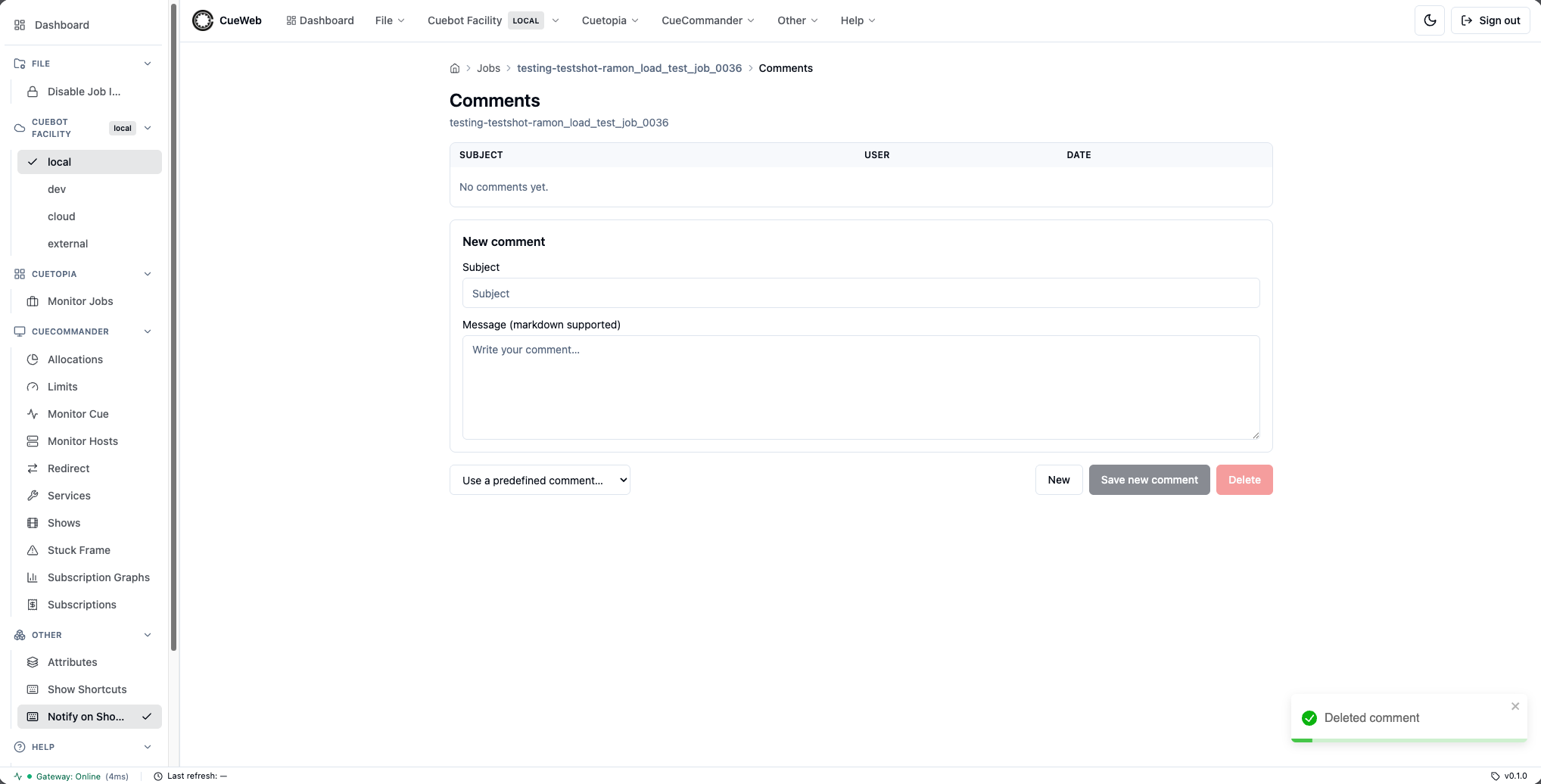
A notification confirms the comment was deleted.
Predefined comment macros
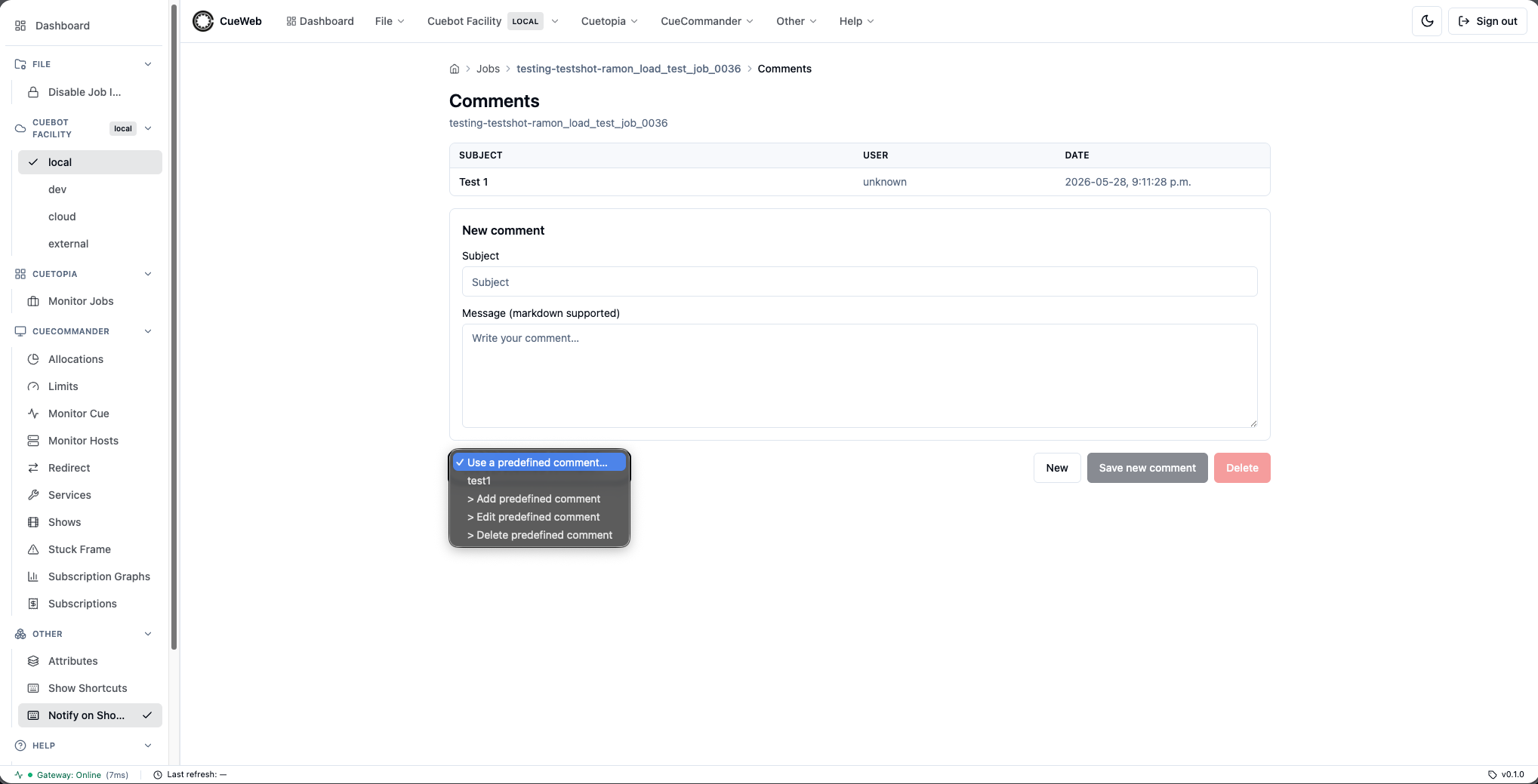
The Use a predefined comment… dropdown mirrors CueGUI’s macro list and is stored per browser. Macros are not shared across users or browsers.
- Apply a macro: Pick its name from the dropdown. The Subject and Message are loaded into the form for editing; saving creates a new comment.
- Add a macro: Choose
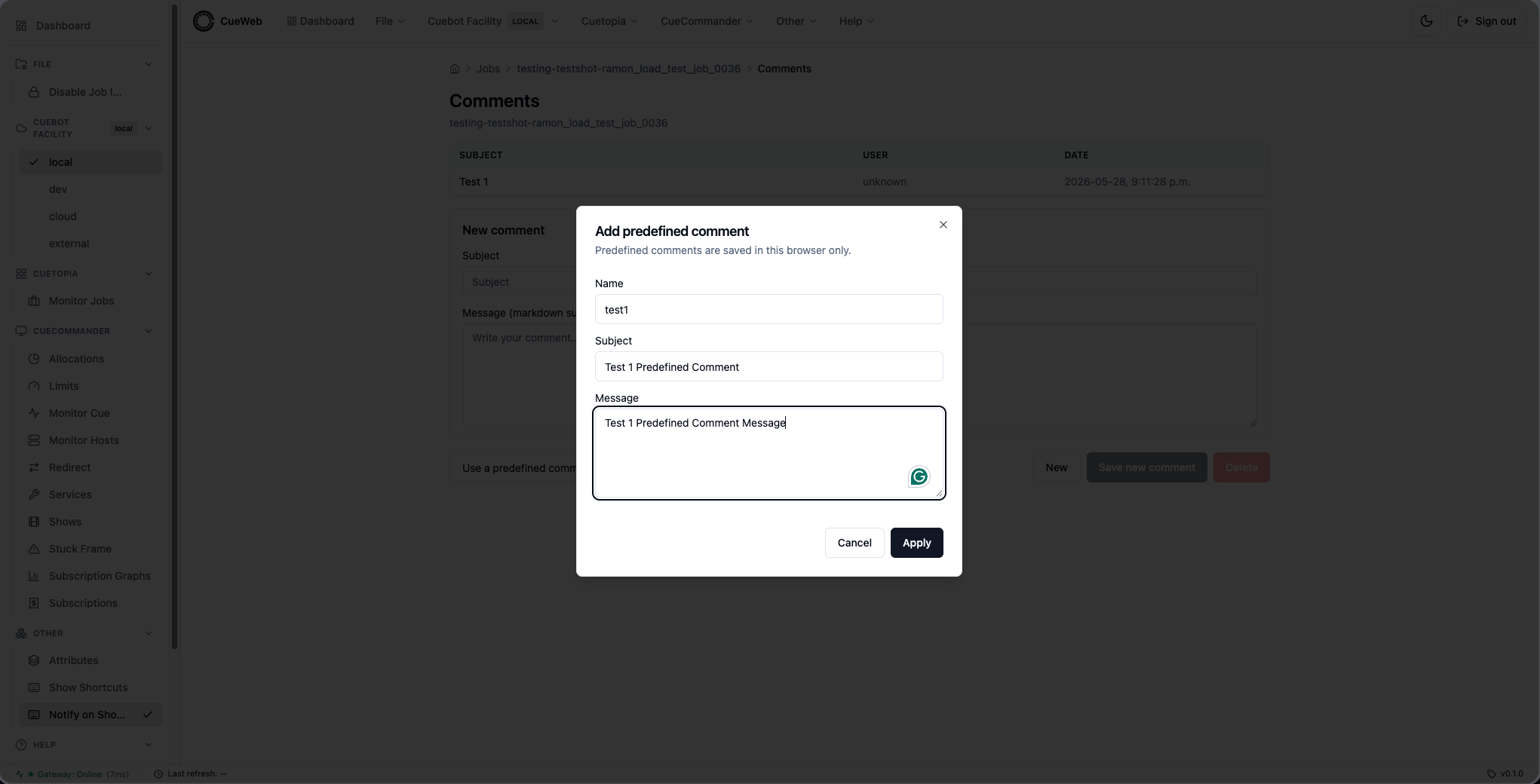
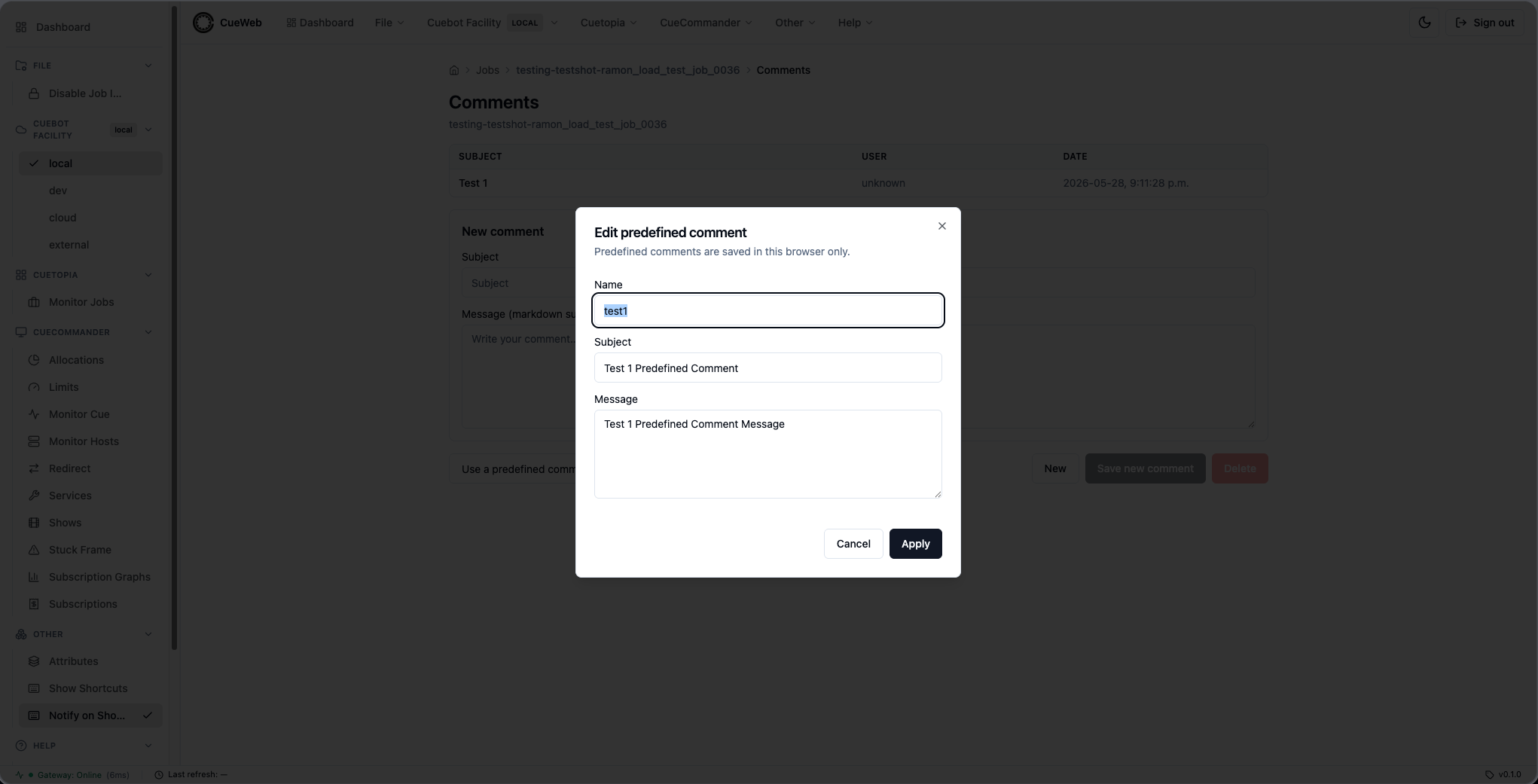
> Add predefined comment. A dialog prompts for Name, Subject, and Message. Names must be unique. - Edit a macro: Choose
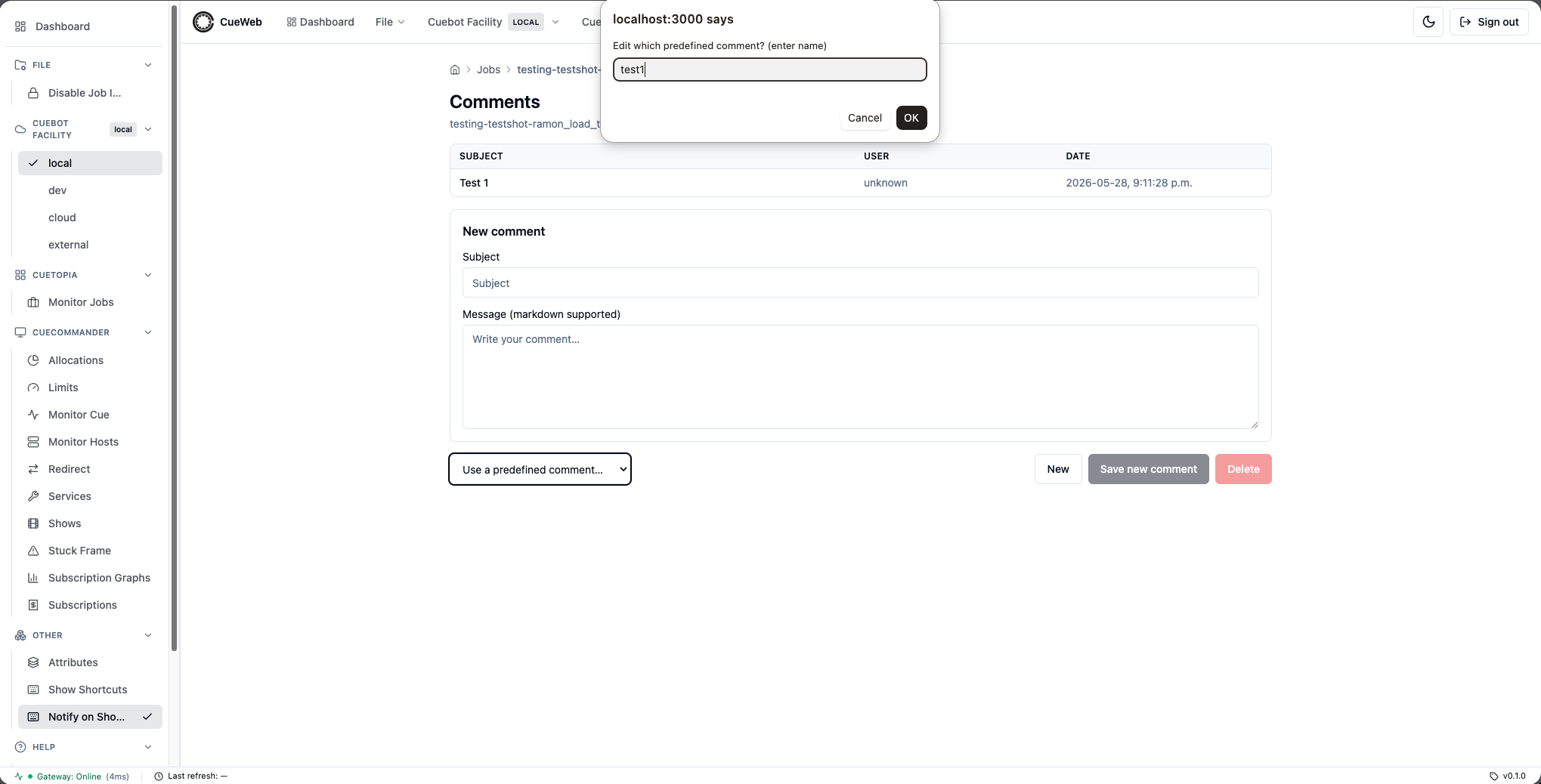
> Edit predefined comment, then enter the macro name when prompted. The Add/Edit dialog opens with the existing values. - Delete a macro: Choose
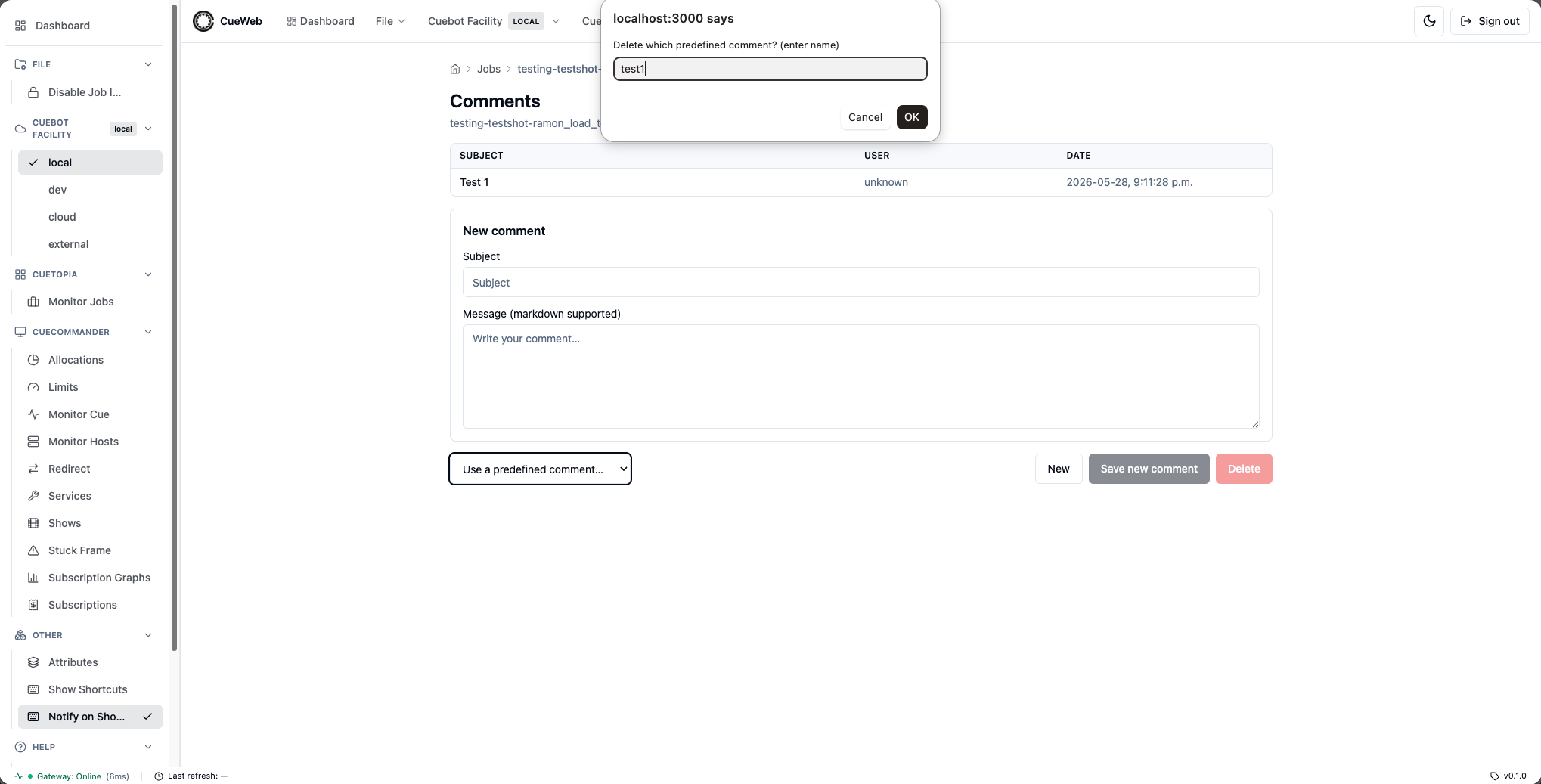
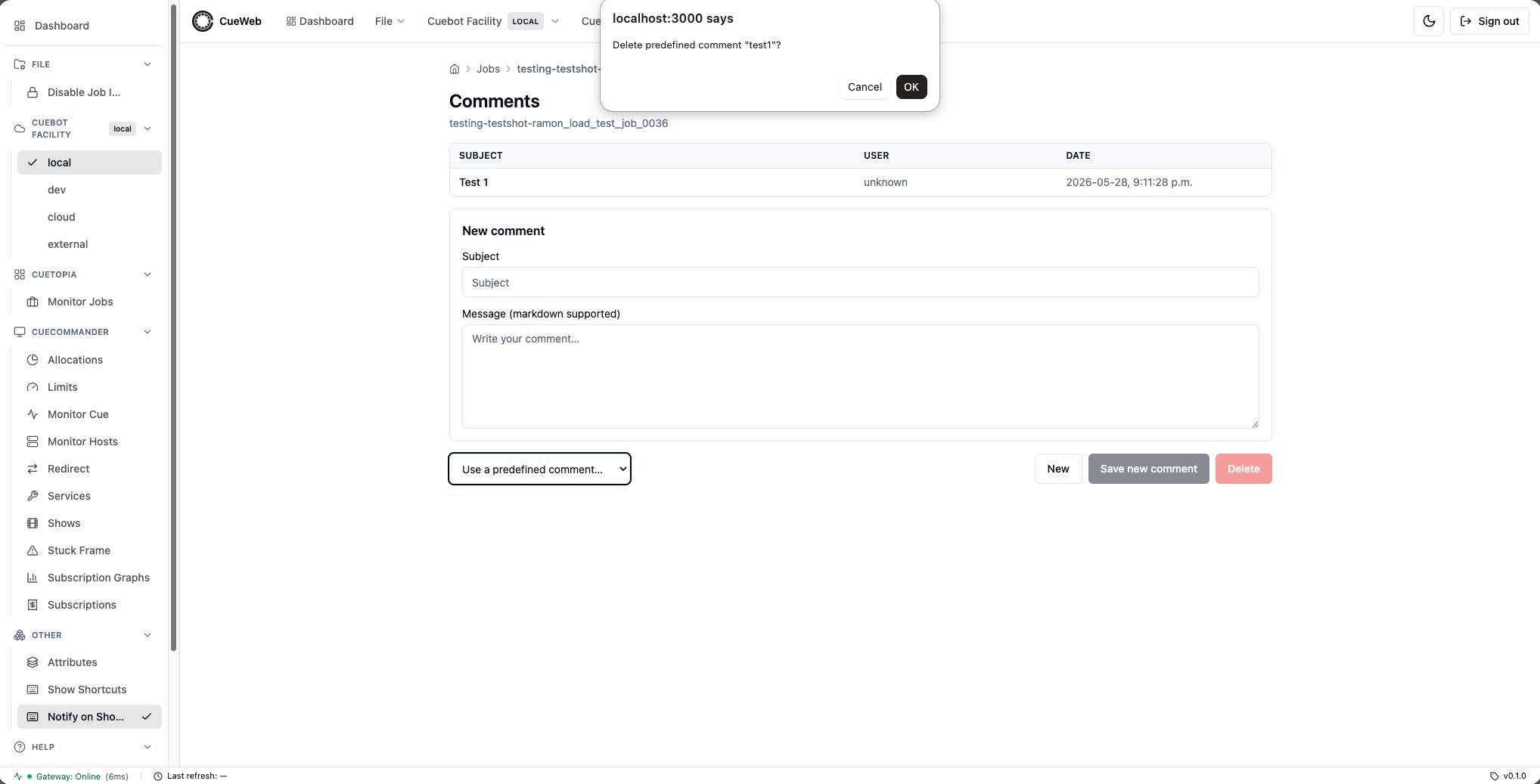
> Delete predefined comment, then enter the macro name. Confirm to remove.
Open the Use a predefined comment… dropdown to apply or manage macros.
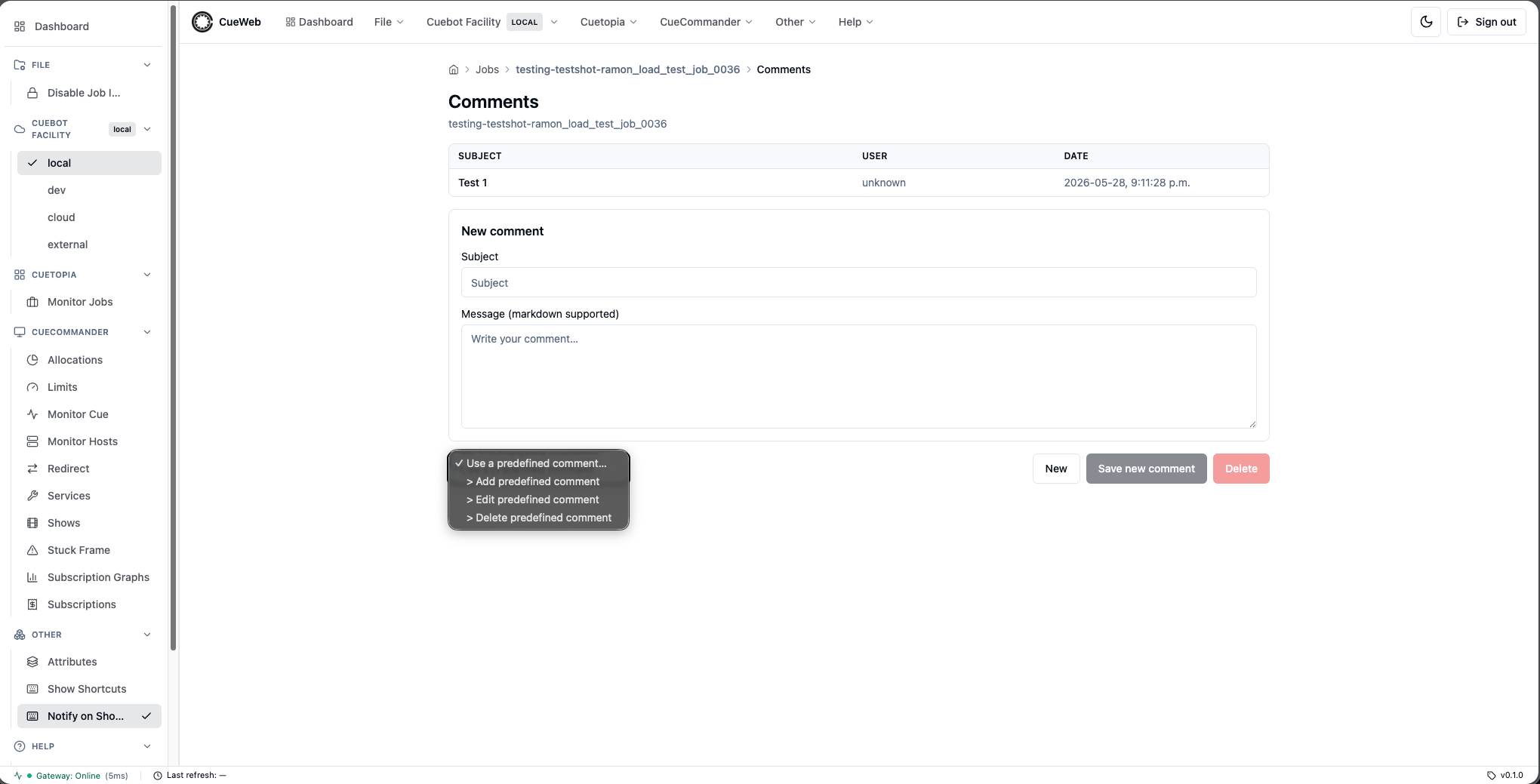
Choose to add a new predefined comment.
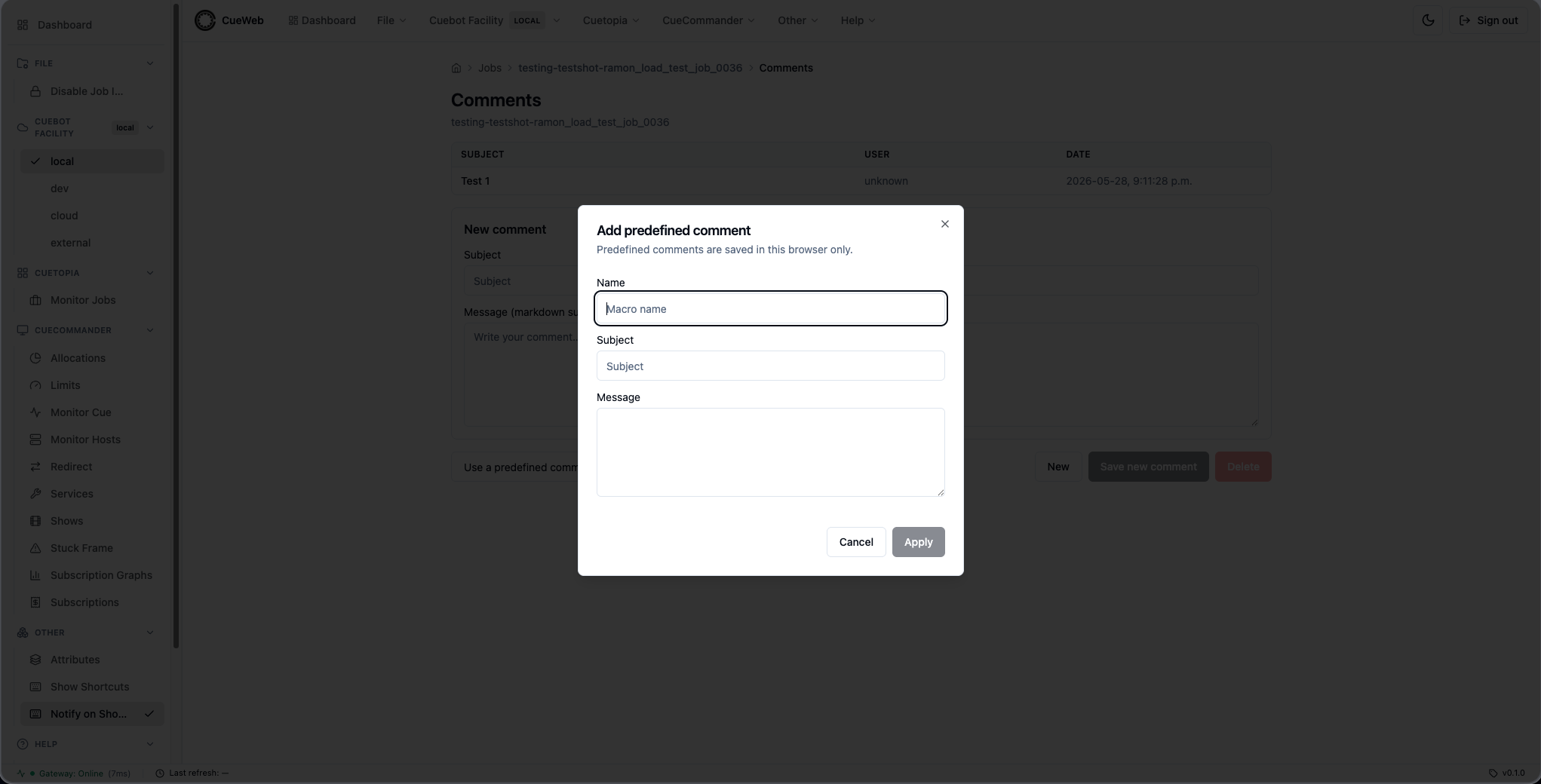
Fill in the macro’s name, subject, and message.
The new macro is saved to the dropdown.
To change a macro, edit its values.
The edited macro is updated in the dropdown.
To remove a macro, choose to delete it.
Confirm the deletion to remove the macro.
Comment indicator on the jobs table
When a job has at least one comment, the Jobs table’s dedicated Comments column (right after Name) shows a sticky-note icon for that row. The indicator is refreshed on the regular jobs-table polling cycle (every 5 seconds by default), so a freshly added comment may take one tick to surface on the table. Click the column header to sort jobs with comments to the top.
Job Search and Filtering
Basic Search
- Show Filter: Select specific shows from the dropdown
- Status Filter: Filter by job state (Active, Paused, Completed)
- User Filter: Show jobs for specific users
- Quick Search: Type in the search box for name matching
Advanced Search Features
Pattern Matching
- Simple Search: Type show name followed by hyphen and shot (e.g., “show-shot-“) to trigger dropdown suggestions
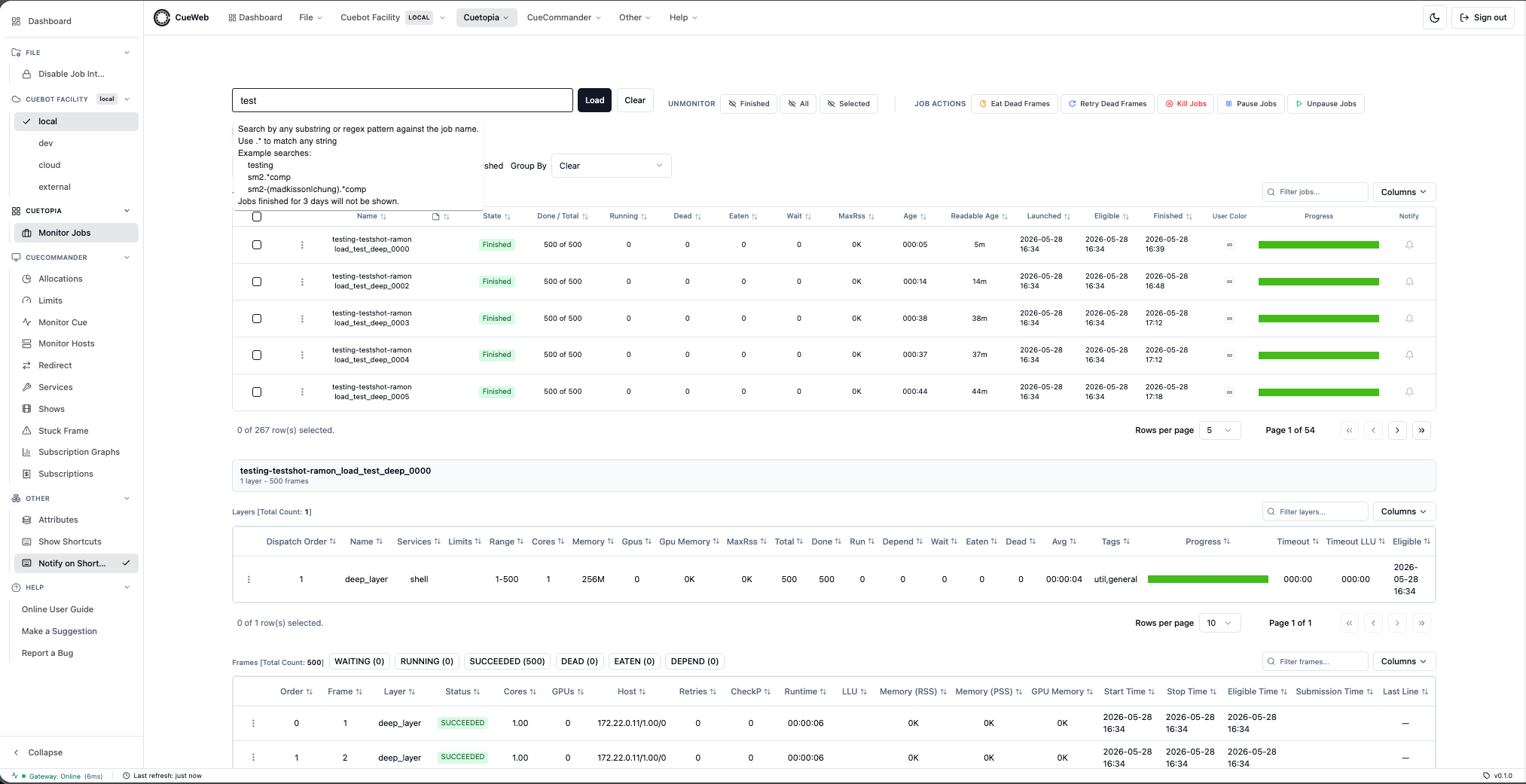
- Wildcard Search: Use
*for any characters (e.g., “test*job”) - Regex Search: Prefix with
!for regex patterns (e.g., “!.character-name.”) - Tooltip Guidance: Tooltips are provided to guide search functionality
Search Results
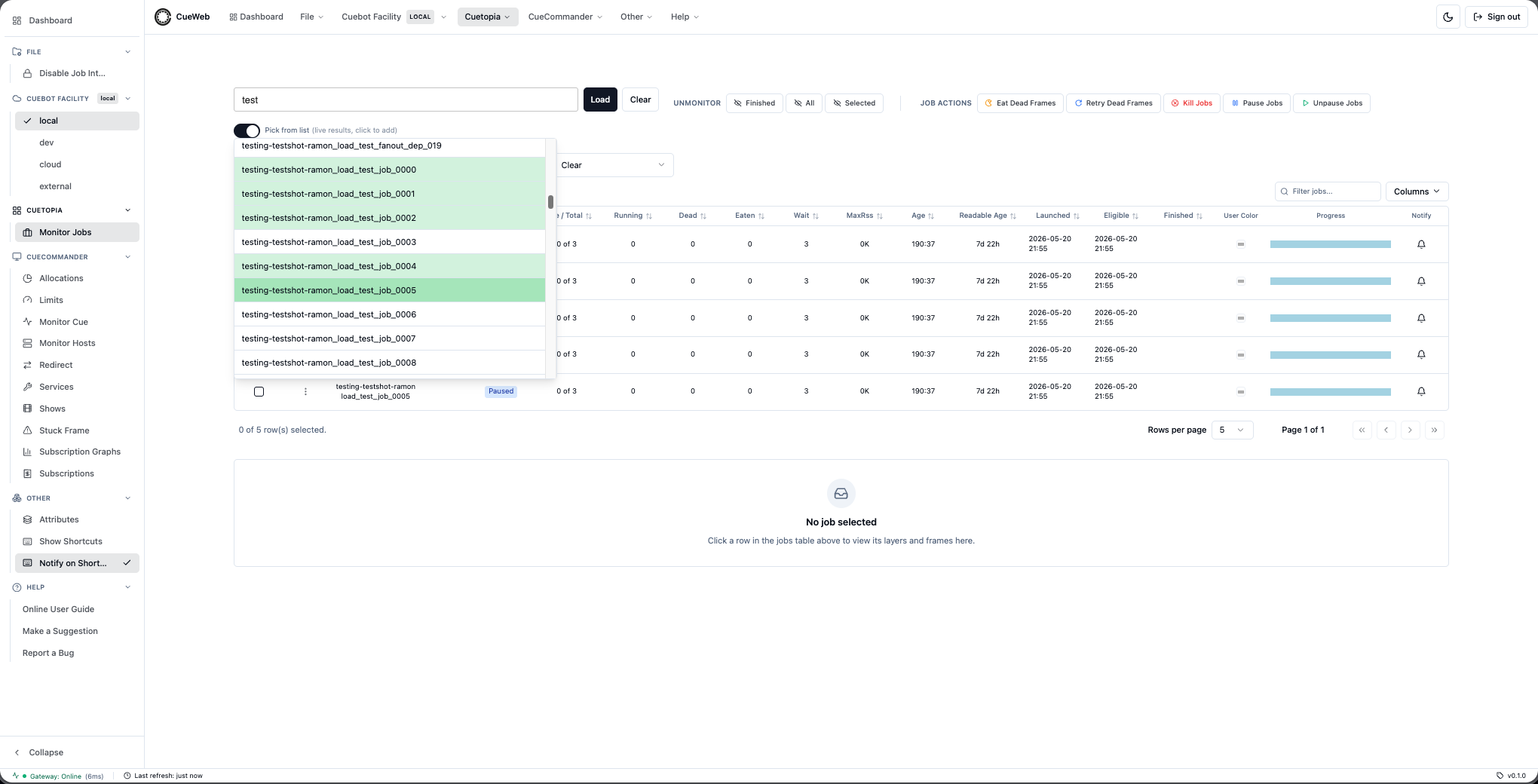
- Dropdown Suggestions: Shows matching jobs as you type with optimized loading using virtualization and web workers
- Add to Monitor: Click to add jobs to your monitoring dashboard
- Green Indicators: Jobs already in your monitor list are highlighted in green
-
Multiple Job Selection: Add or remove multiple jobs directly from search results
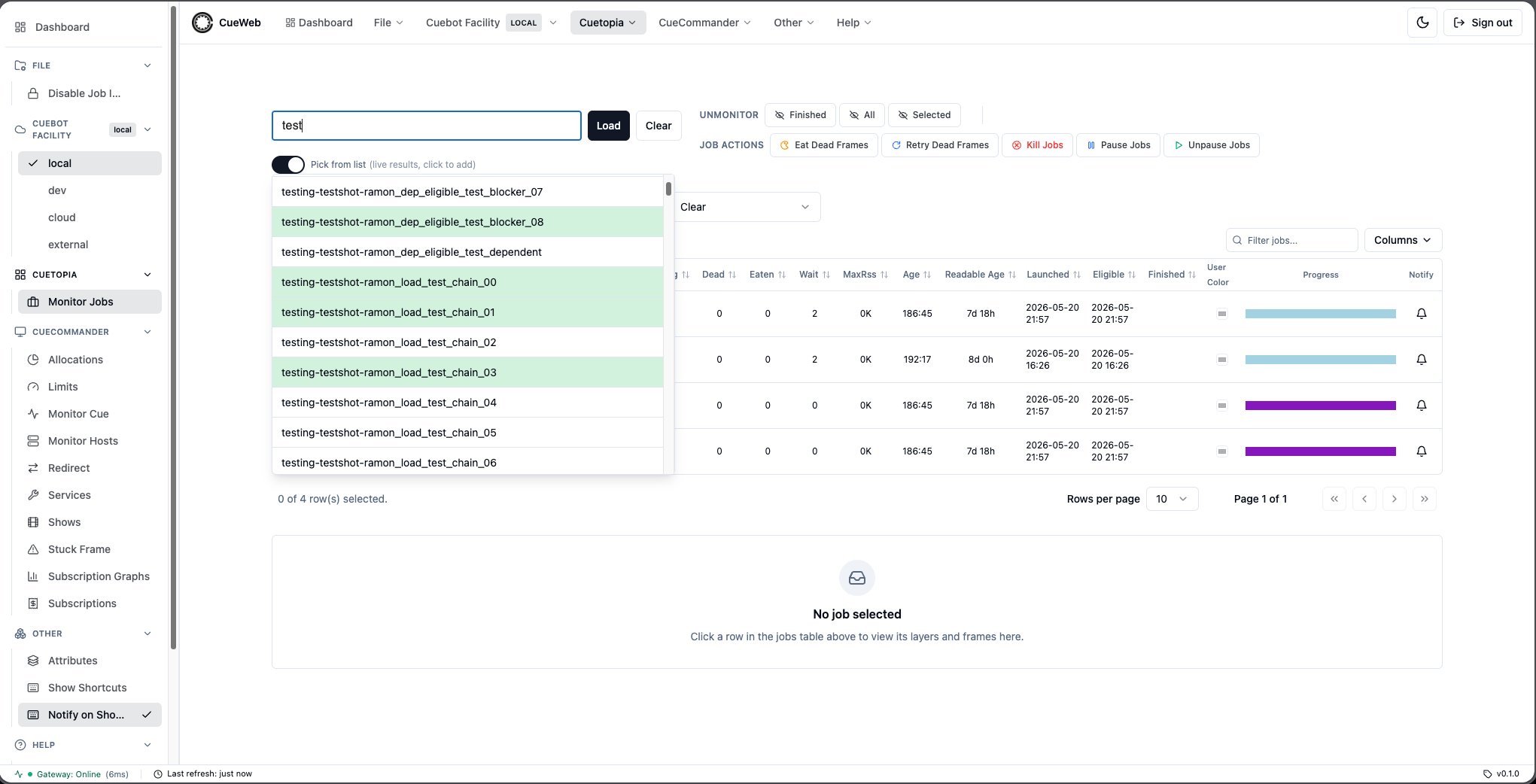
Type into the Search jobs box to find jobs to load.
Pick matching jobs from the dropdown suggestions to add them to your monitor list.
Frame and Layer Management
Viewing Job Details
-
Click a row in the Jobs table. The inline Layers and Frames panels appear stacked below the Jobs grid (CueGUI Monitor Jobs + Monitor Job Details parity).
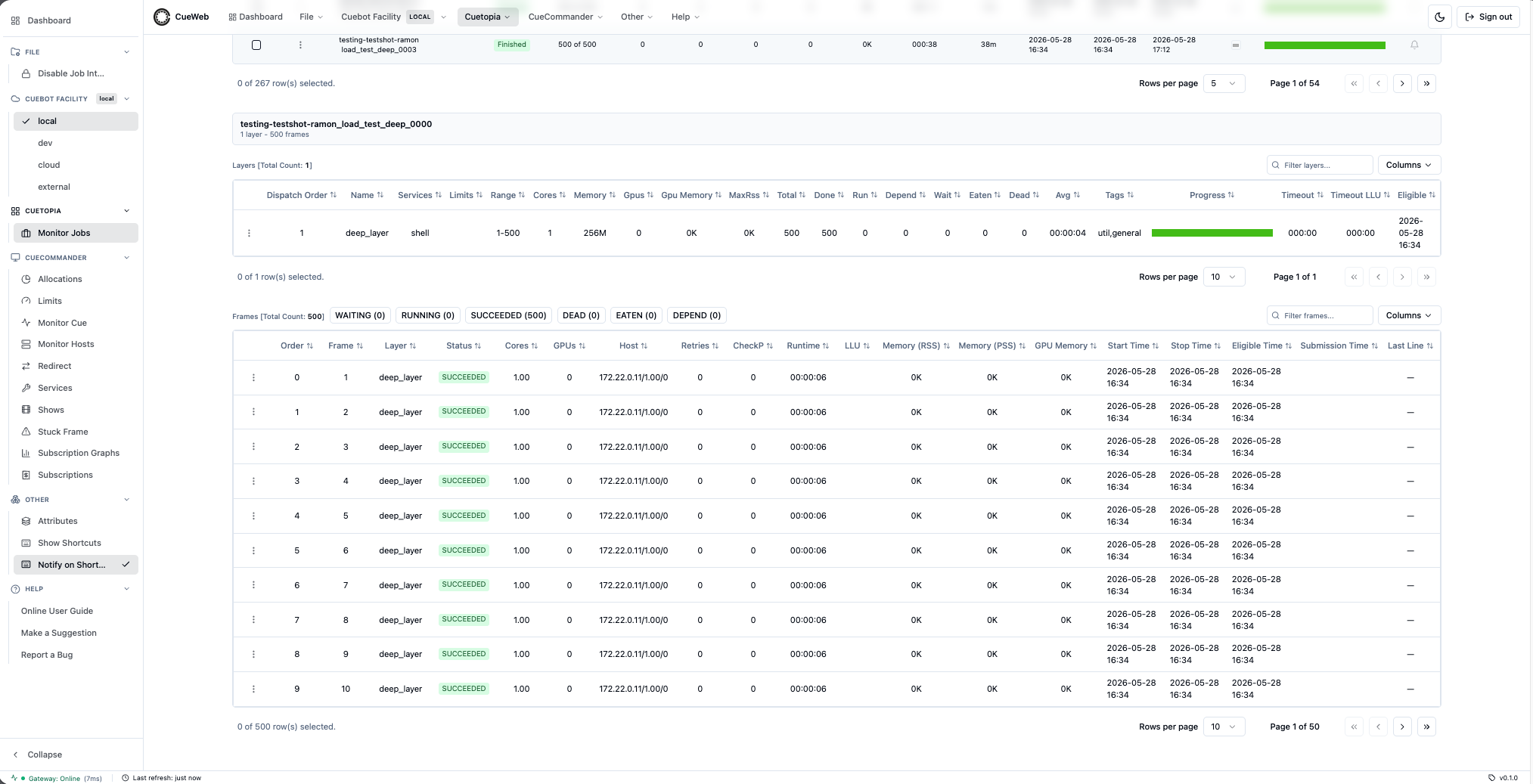
- Click a layer in the Layers panel to:
- Narrow the Frames panel to that layer (the Frames title shows
X of Y). - Push the layer’s attributes into the docked Attributes panel.
- Clicking the same layer again clears the filter and re-selects the job in Attributes.
- Narrow the Frames panel to that layer (the Frames title shows
- Double-click a frame in the Frames panel to open the log viewer for that frame.
Both inline panels refresh every 5 seconds while a job is selected; switching to a different job clears the panels and reloads.
Job Details page
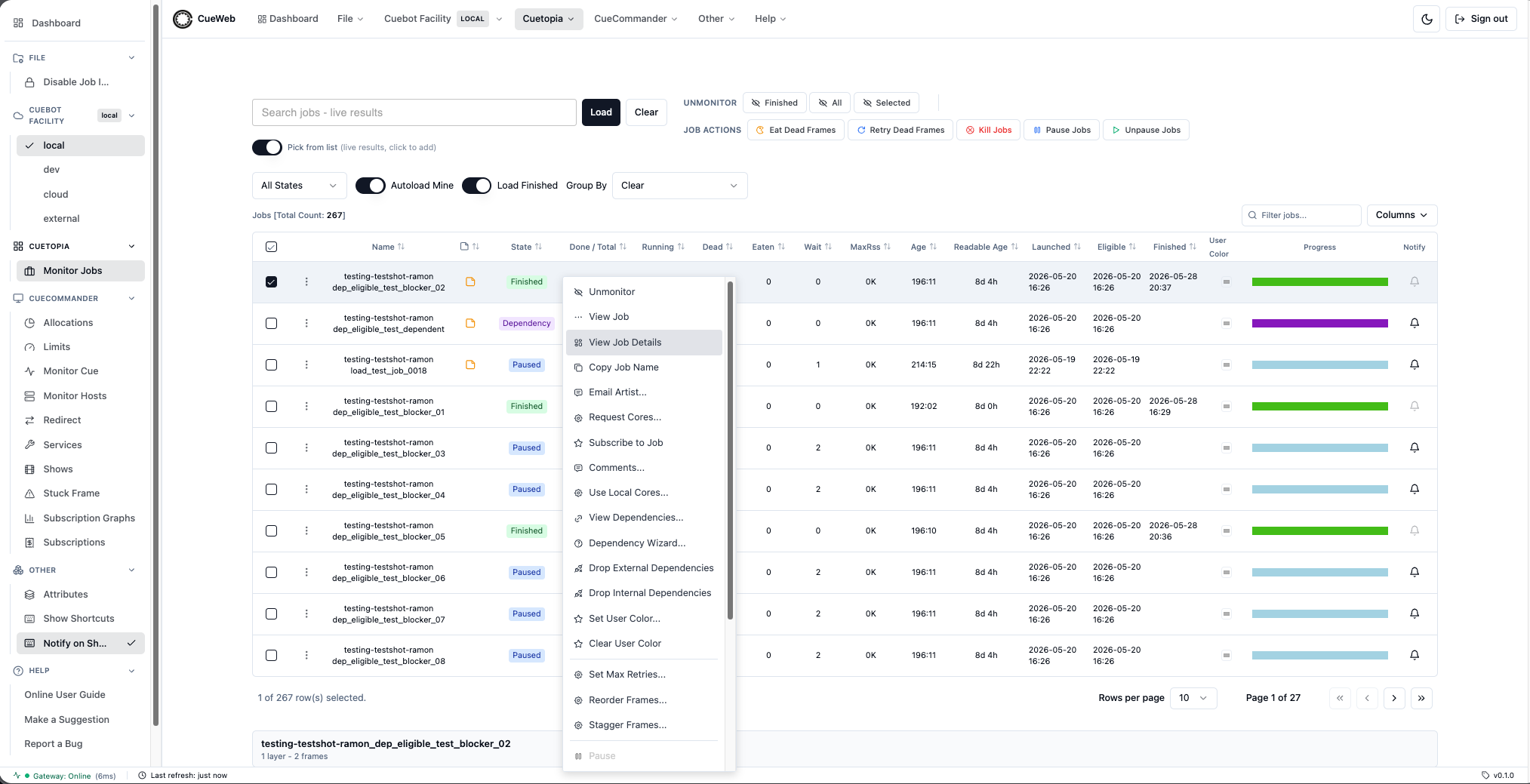
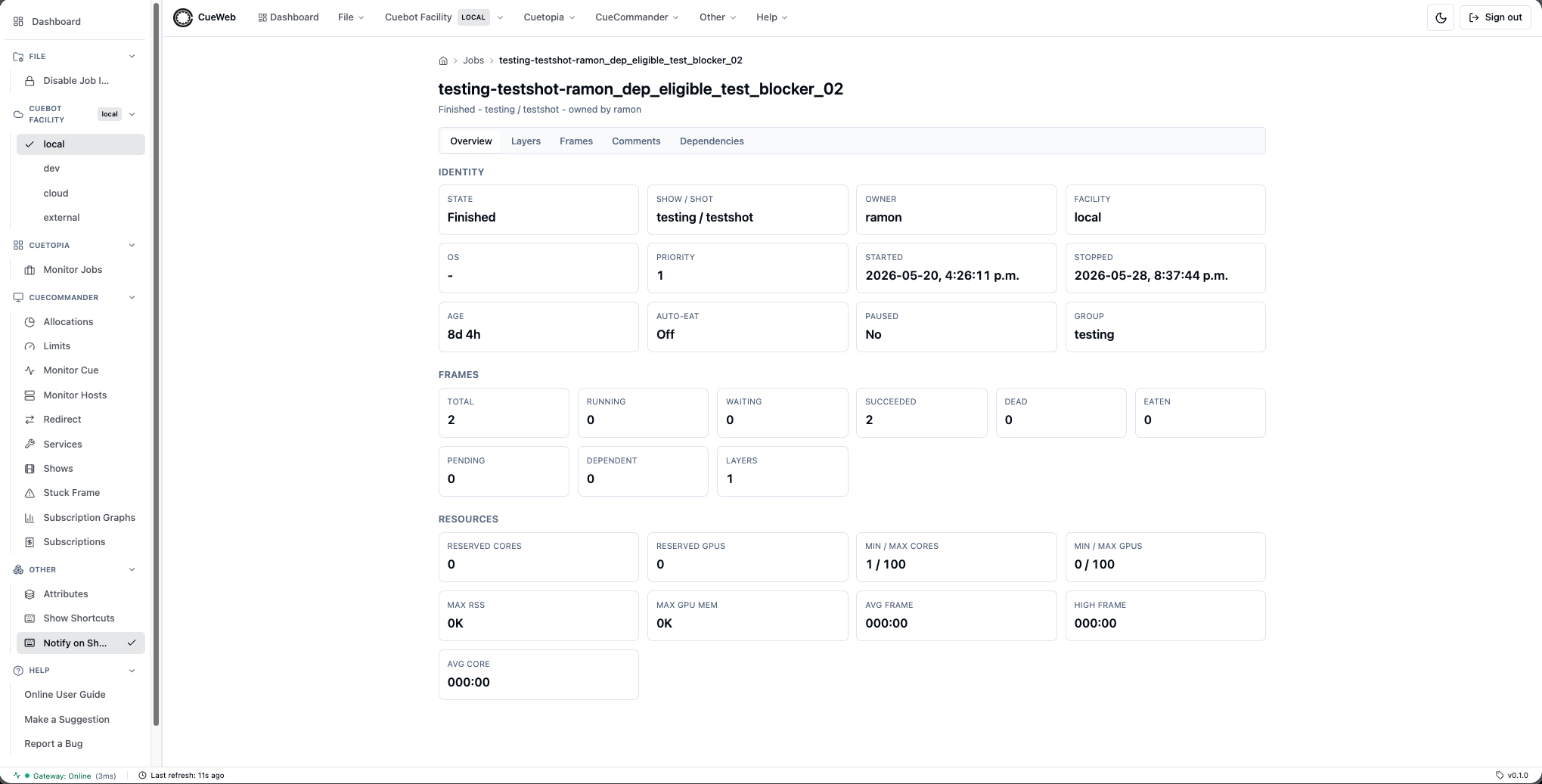
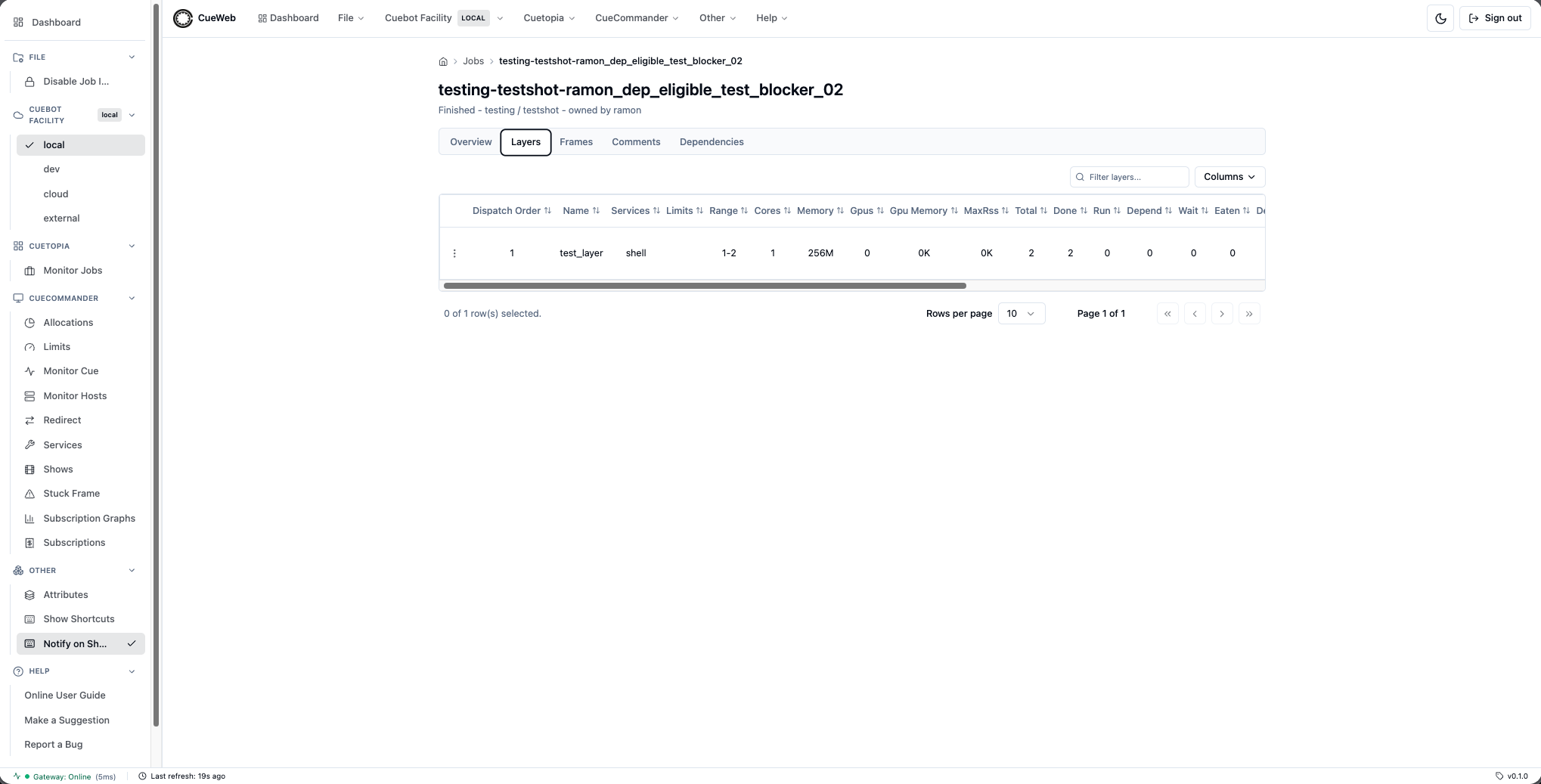
For a fuller view, right-click a job row and choose View Job Details to open a tabbed detail page.
The Overview tab summarizes the job’s status and statistics.
The Layers tab lists every layer in the job.
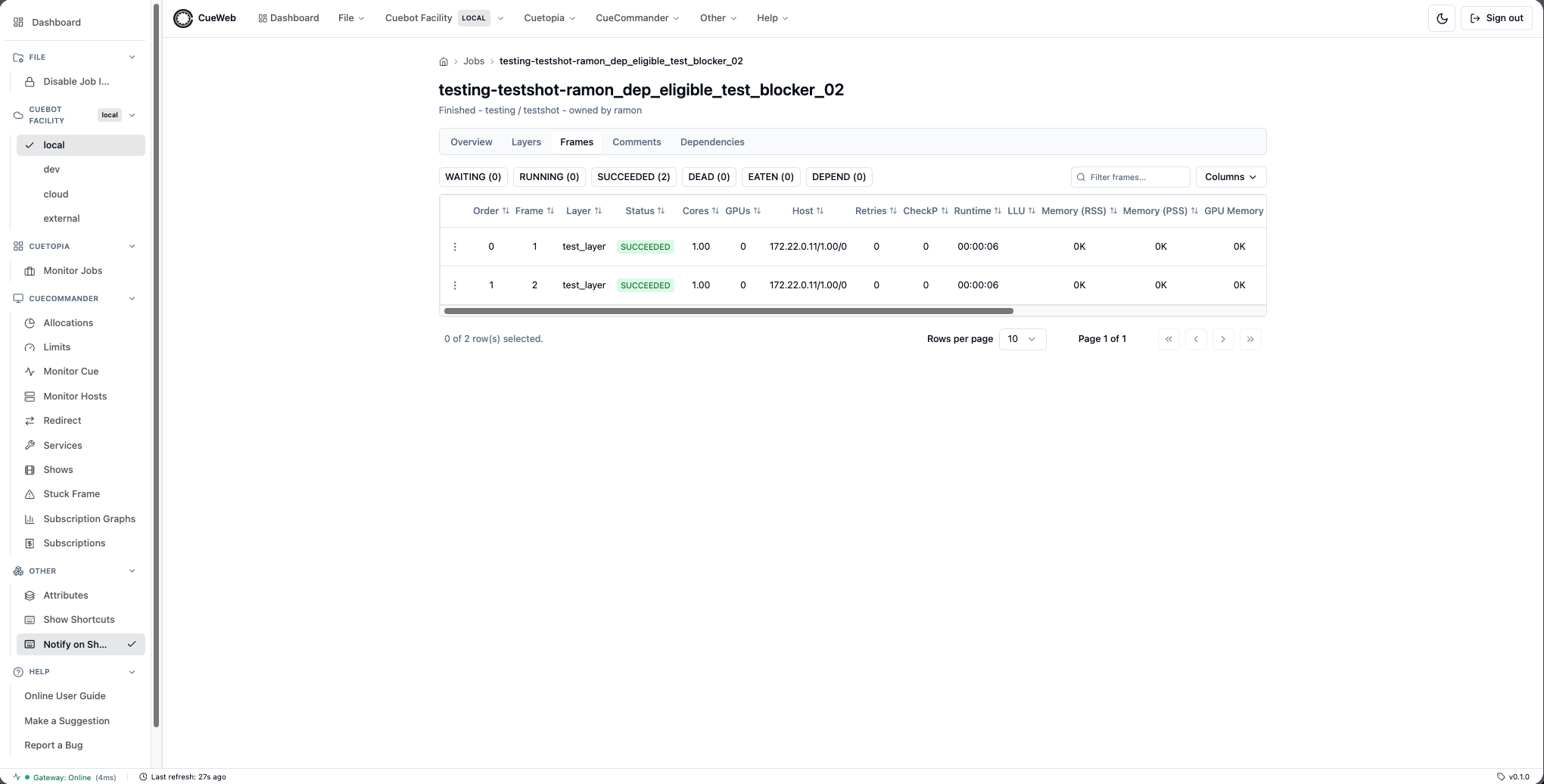
The Frames tab lists the job’s frames.
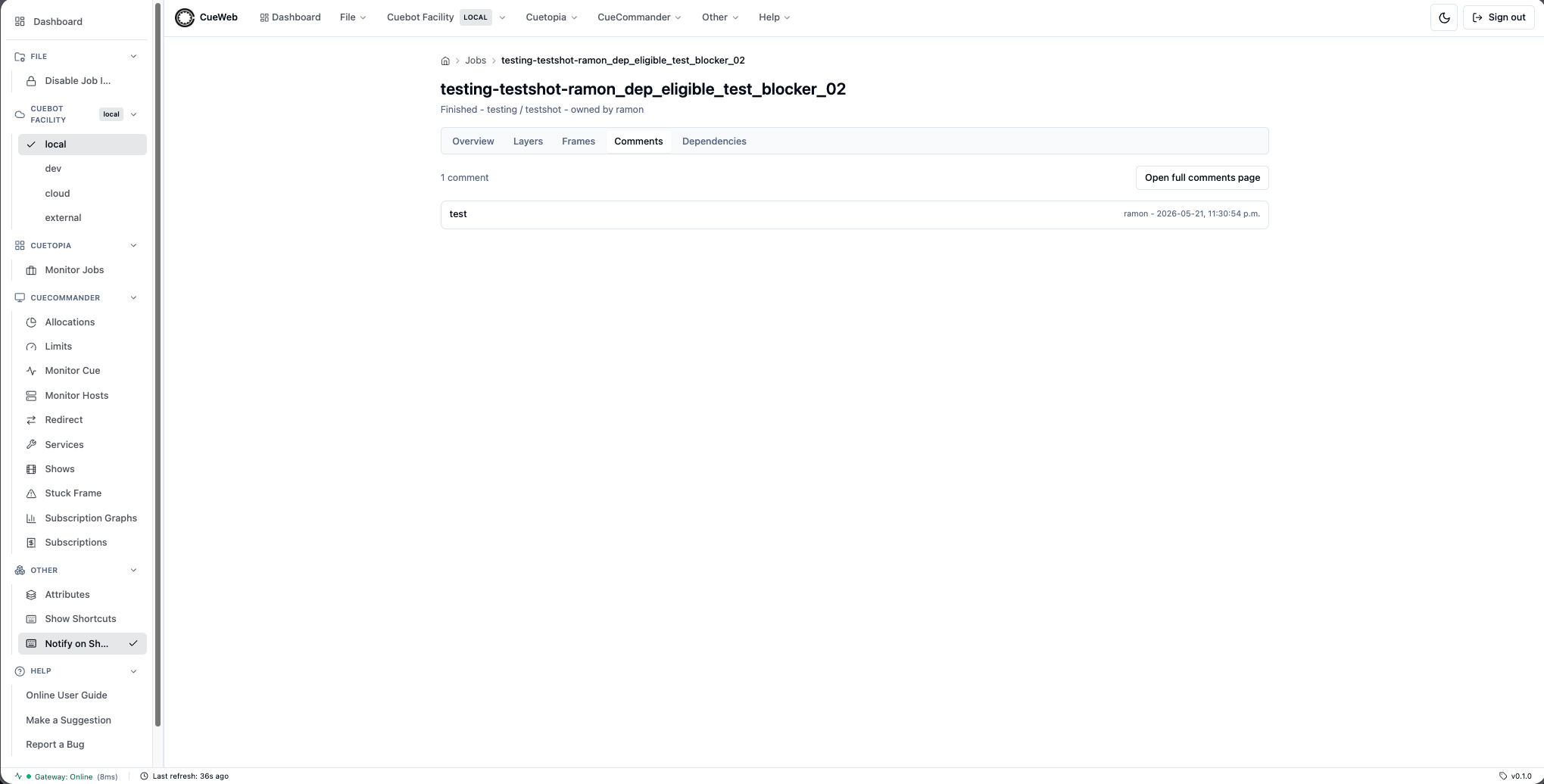
The Comments tab shows the job’s comments.
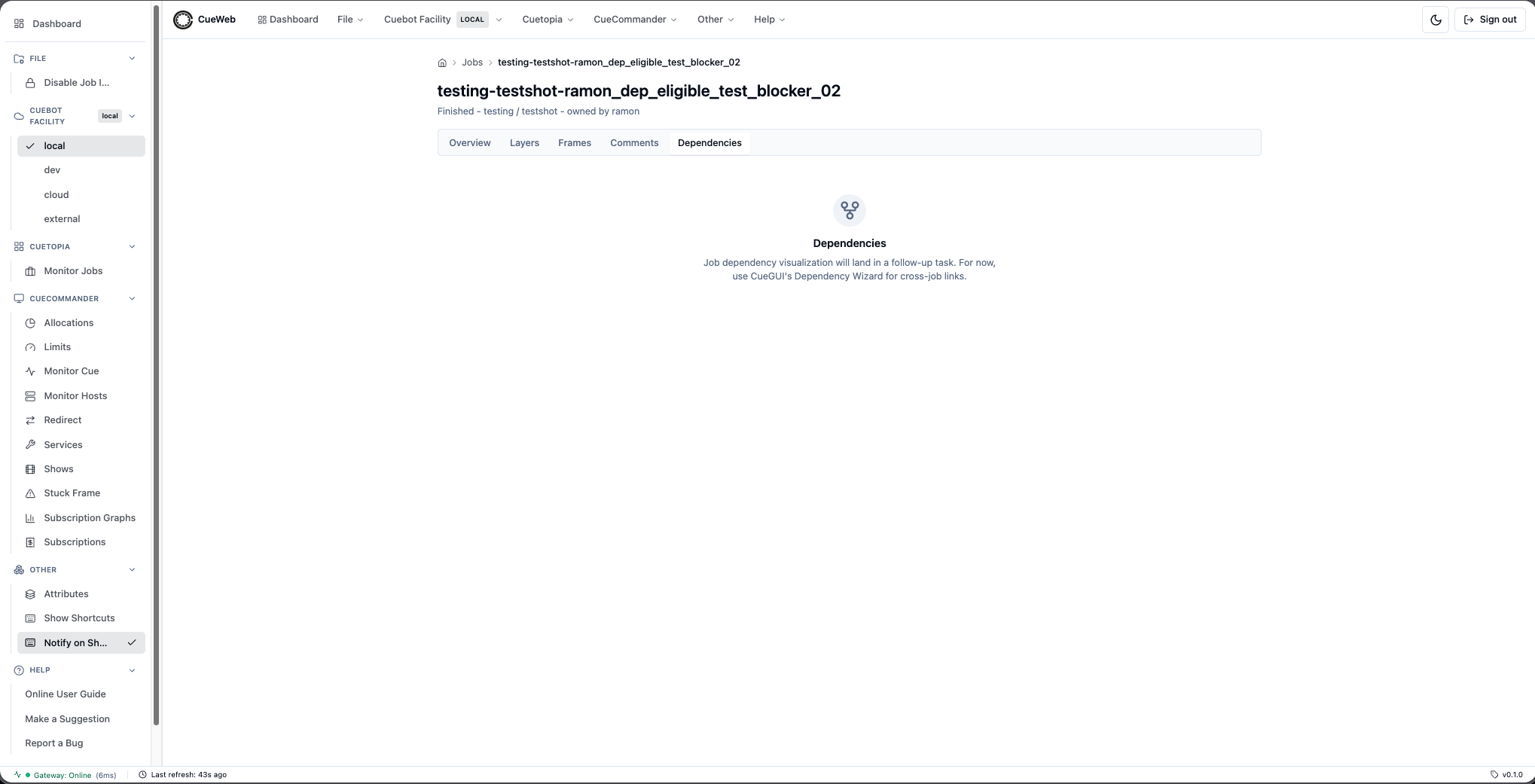
The Dependencies tab shows the job’s dependency relationships.
Job dependency graph
The Job Dependency Graph is a read-only, interactive node graph of a job’s dependency tree (CueGUI Monitor-Jobs parity). It walks the job’s depends in both directions - what the job depends on and what depends on the job - and lays the result out as a top-to-bottom tree so you can see an entire render chain at a glance.
Turning it on. Open the Cuetopia menu (header dropdown or sidebar) and click View Job Graph. The entry is a checkable toggle - a check mark appears when it is on, and the choice is remembered across pages, tabs, and reloads.
Where it appears. With the toggle on, click any job row in Monitor Jobs. The graph mounts as a third panel stacked under the inline Layers and Frames panels. The panel header names the focus job and has a close (×) button; you can also collapse or expand it from the Dependency Graph button above the Layers panel.
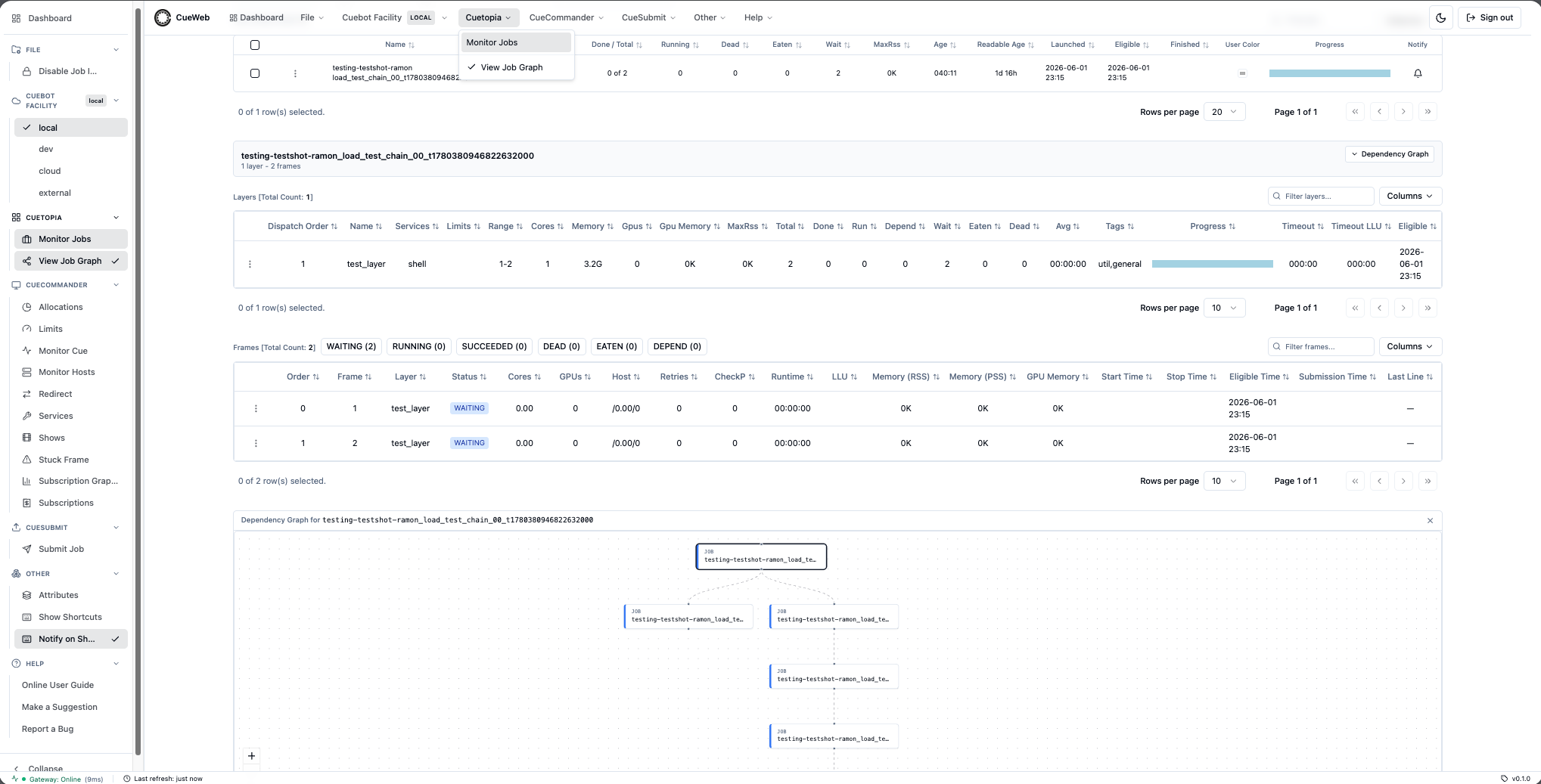
Reading the graph.
- Each box is a node. A small kind label (JOB, LAYER, or FRAME) and a color-coded left border tell you what the node represents; layer and frame nodes also show their parent job below the name.
- The focus job is shown with its layers hanging off it (CueGUI Job-Graph parity), so a job that has no cross-job dependencies still shows its structure rather than an empty panel.
- The job you opened the panel for - the focus node - is highlighted with a ring.
- Long names are truncated; hover any node to see its full name in a tooltip.
- Edges flow from upstream (top) to the jobs/layers that wait on them (bottom).
- Use the zoom / fit / lock controls in the corner to pan and zoom; the view fits the whole tree on first render.
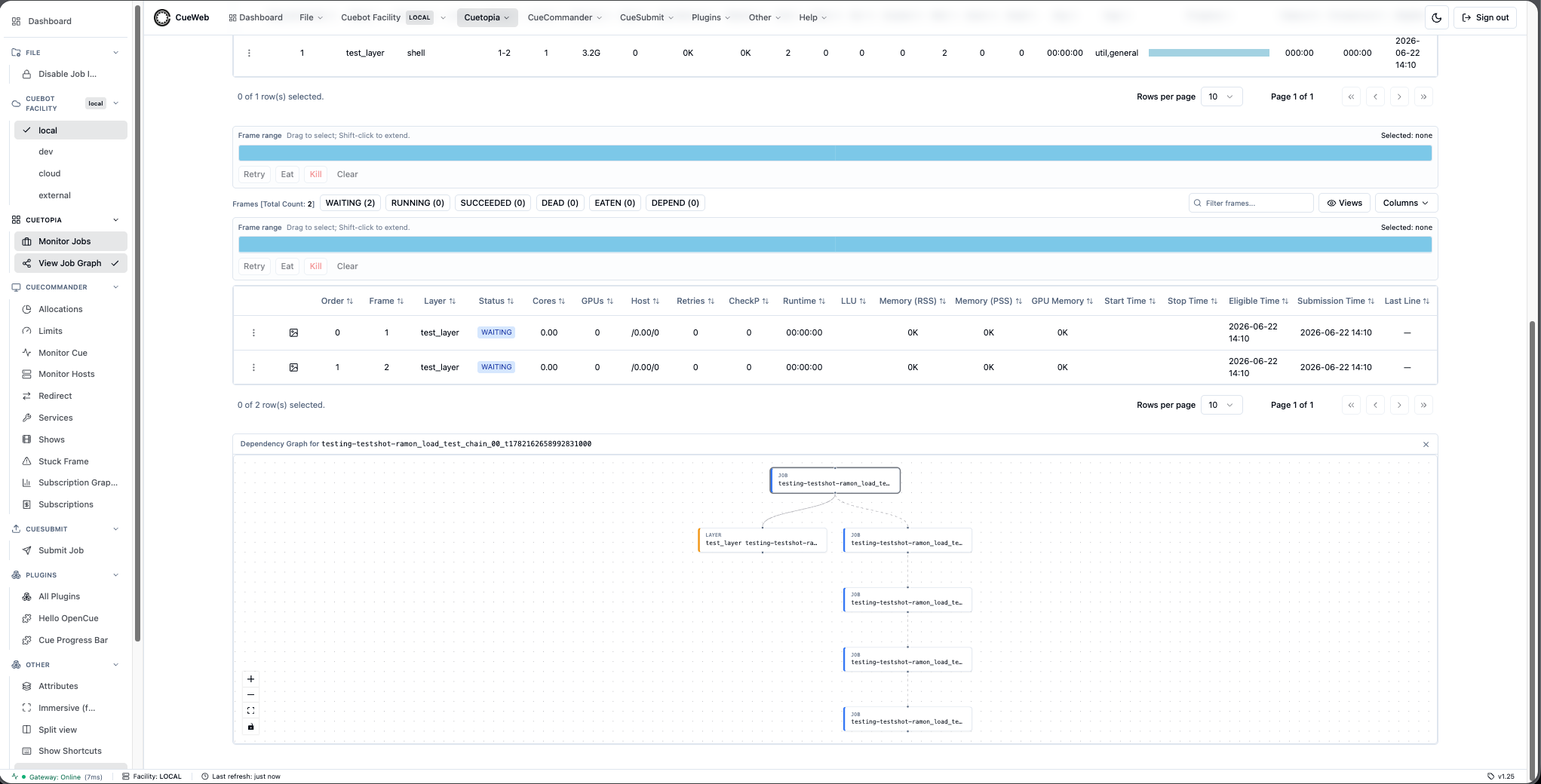
Open a job. Double-click a node to open that job’s tabbed detail page. A single click just selects the node, so you won’t navigate away by accident.
Layer actions (right-click a layer node). Right-clicking a layer node opens the same action menu as the Layers table (CueGUI Job-Graph node menu parity):
- Auto Layout Nodes - re-runs the automatic layout and refits the view.
- Dependencies - View Dependencies…, Dependency Wizard…, Mark done.
- Reorder Frames…, Stagger Frames….
- Properties… - edit the layer’s cores / memory / GPU memory / threadable / tags.
- Set Start After… - defer booking of the layer until a time you pick.
- Kill, Eat, Retry, Retry Dead Frames.
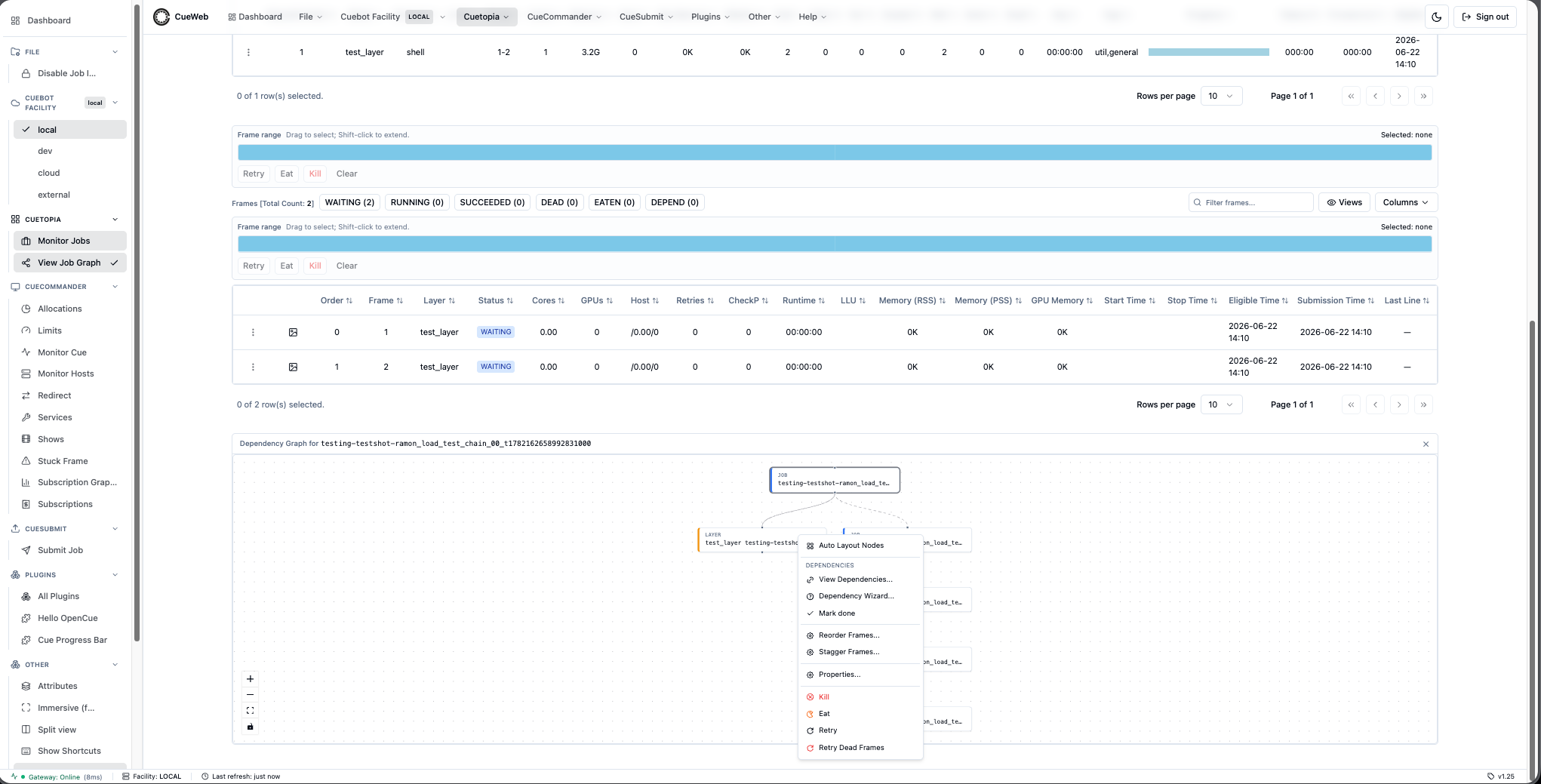
The graph is theme-aware: it follows the light/dark toggle without re-fetching the dependency tree. To create or remove cross-job depends, use the dependency context-menu actions.
Layer Operations
Layer Information Columns
| Column | Description |
|---|---|
| Dispatch Order | Processing order for the layer |
| Name | Layer identifier/name |
| Services | Associated render services |
| Limits | Resource limits applied |
| Range | Frame range (start-end frames) |
| Cores | Minimum CPU cores required (minCores) |
| Memory | Minimum RAM required |
| Gpus | Minimum GPU count required |
| Gpu Memory | Minimum GPU memory required |
| MaxRss | Maximum resident set size (memory usage) |
| Total | Total number of frames |
| Done | Successfully completed frames (succeeded) |
| Run | Currently running frames |
| Depend | Frames waiting on dependencies |
| Wait | Frames waiting to run |
| Eaten | Skipped/marked complete frames |
| Dead | Failed frames |
| Avg | Average frame render time (HH:MM:SS) |
| Tags | Associated tags/labels |
| Progress | Stacked progress bar with the same five-state palette as the Jobs progress bar (green / yellow / light blue / purple / red), with a hover tooltip showing per-state counts and percentages. |
| Timeout | Frame timeout duration (HHH:MM) |
| Timeout LLU | Timeout for last layer update (HHH:MM) |
| Eligible | Timestamp when the layer became eligible to dispatch. |
| Start After | The time before which no frame of the layer may start. Blank when the layer has no delay. Hover the value to see why the layer is delayed. |
Layer Actions
- Kill: Kill/stop all frames in the layer
- Eat: Mark layer as completed (skip)
- Retry: Restart all frames in the layer
- Retry Dead Frames: Restart only failed frames
- Set Start After…: Defer booking of the layer until a time you pick
Deferring a Layer with Start After
A layer can carry a start-after time: no frame of the layer starts before it. Two things write it - you, and OpenCue itself when a frame fails in a way that is worth waiting out rather than retrying immediately (for example, a license shortage).
A layer with no delay leaves the Start After column blank. Scroll the Layers table to the right if that column is off screen.
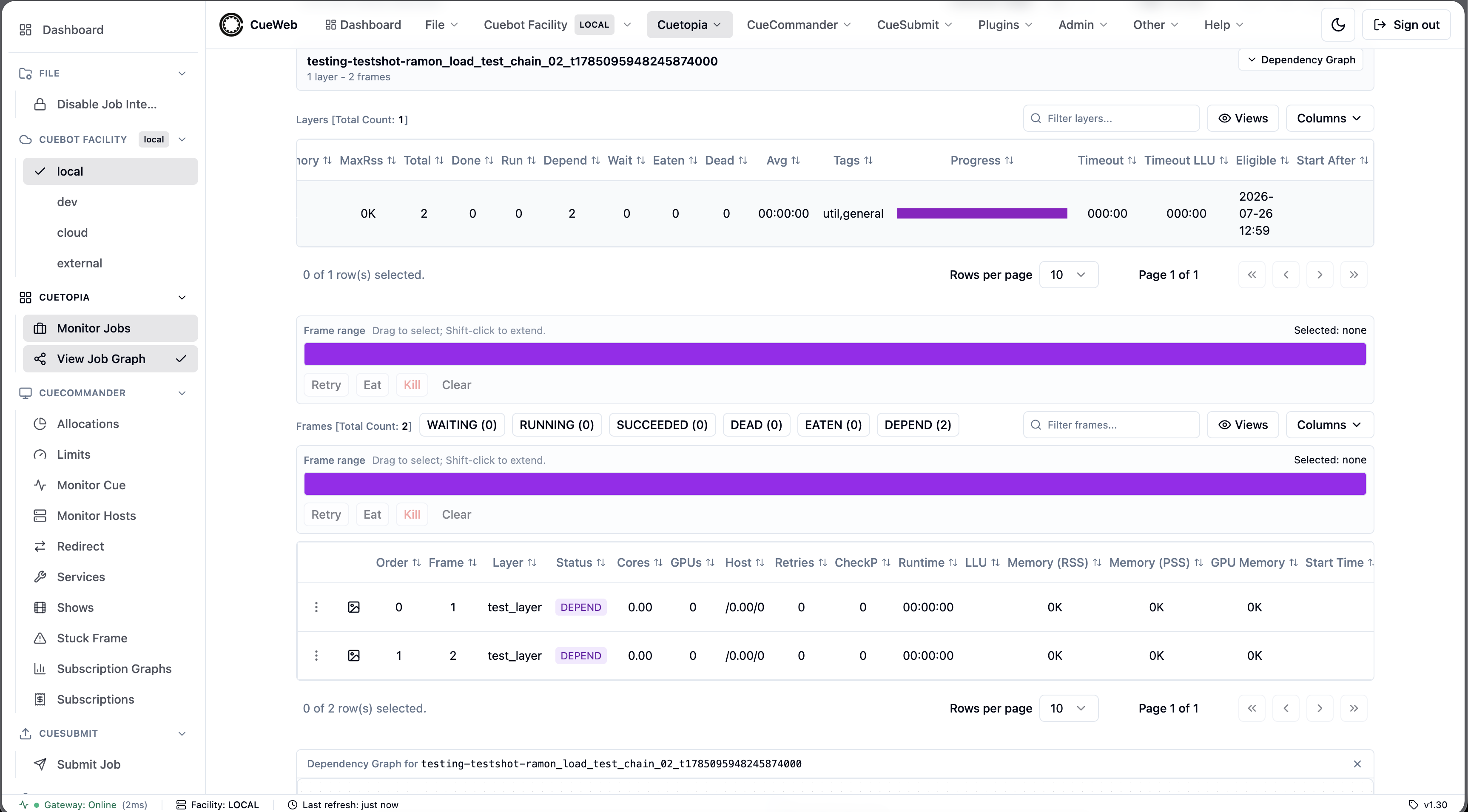
To set or change the time, right-click the layer and choose Set Start After….
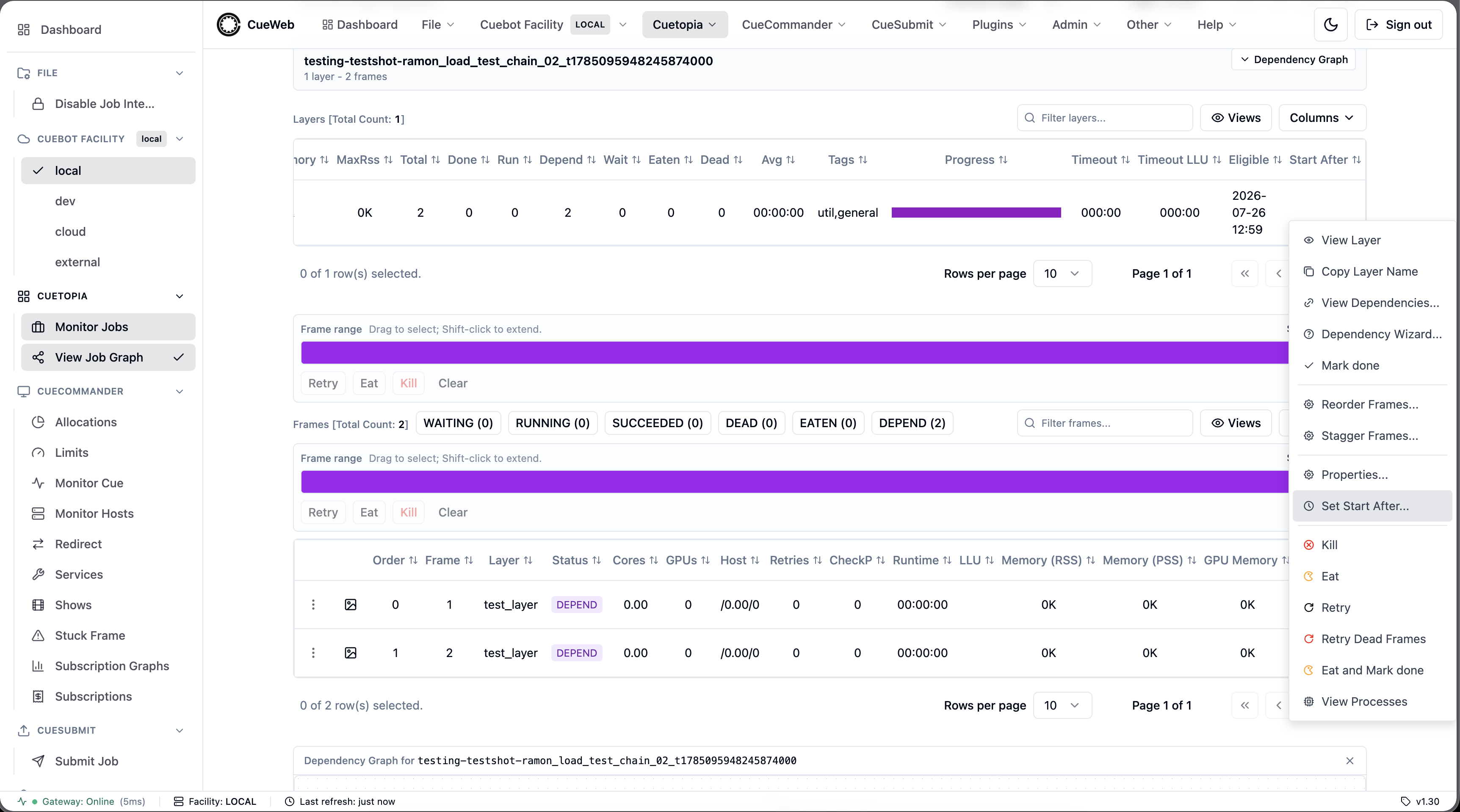
In the dialog:
- Pick a date and time. The picker shows and accepts your local time.
- The +15m, +1h, +4h and Tonight 18:00 buttons fill the picker for you; you can still adjust the value afterward.
- When the layer is already delayed, the dialog shows the current time and the reason it was set.
-
Set applies the time; Clear removes the delay and makes the layer bookable immediately.
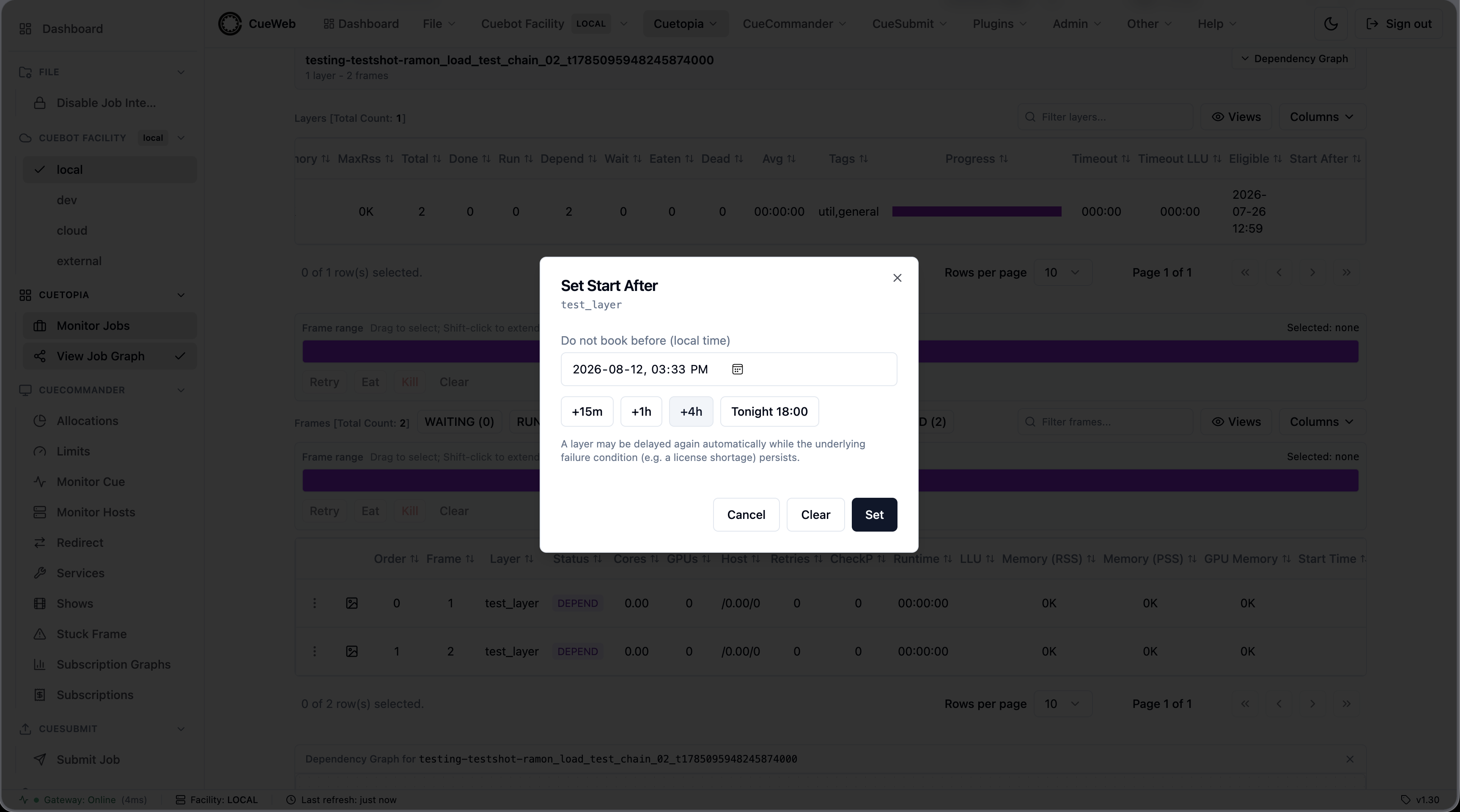
A notification confirms the change.
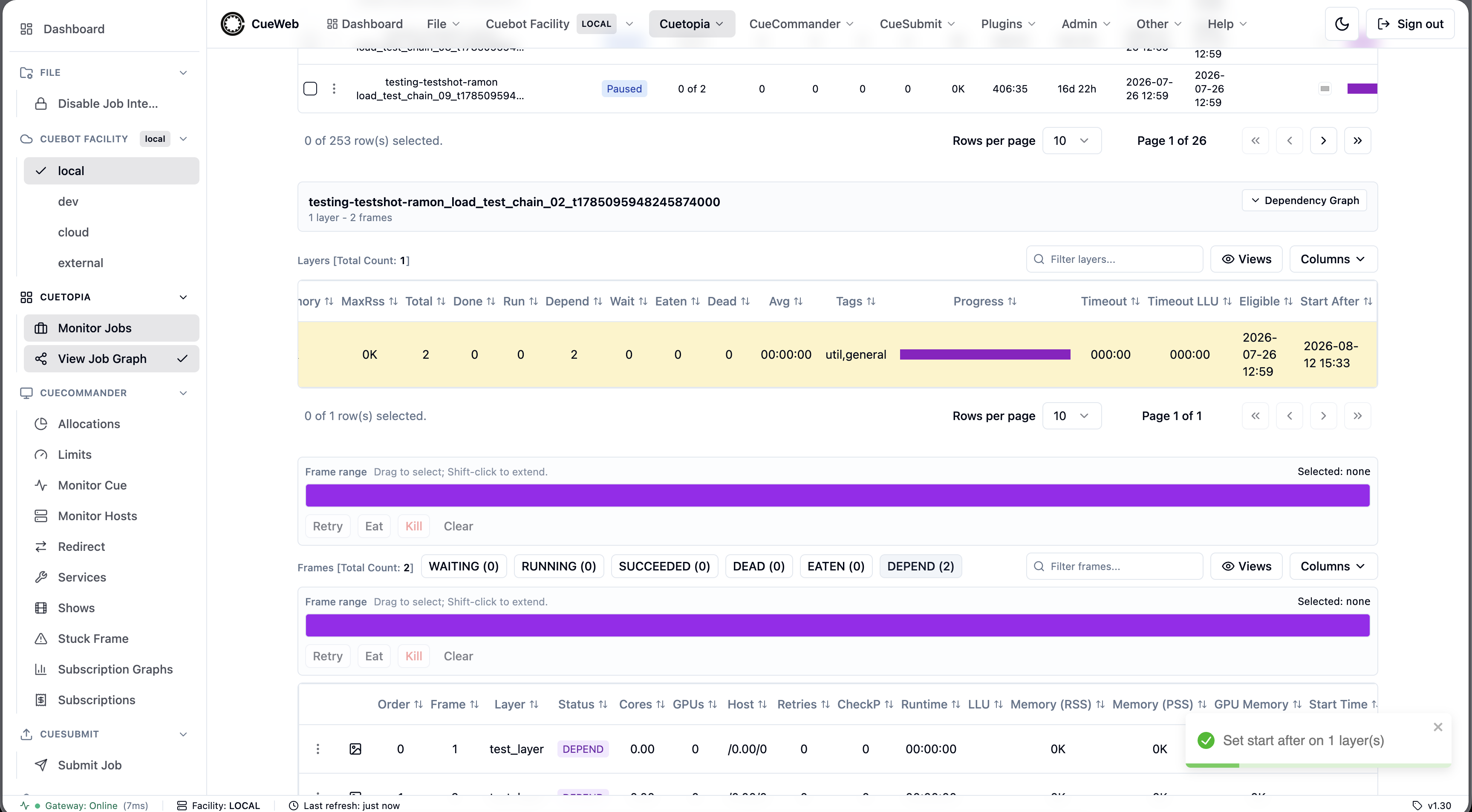
The delayed layer is now tinted, so you can spot it without reading any column, and the Start After column shows the time it is waiting for. Hover that value to see why the layer is delayed - either Set by <user> or the automatic backoff that wrote it.
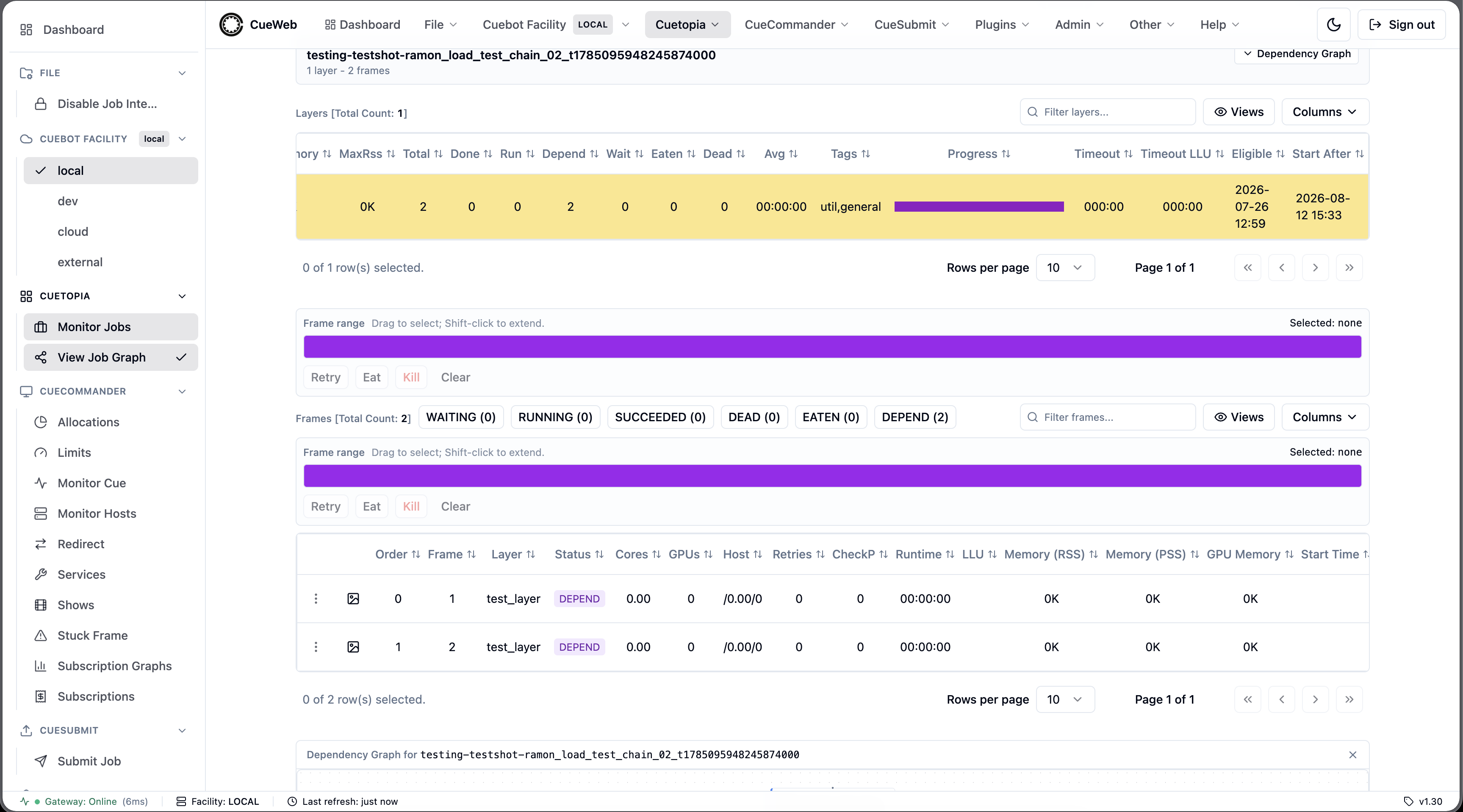
A layer you clear may be delayed again automatically while the condition that caused the automatic delay (for example, that license shortage) is still going on. A time you set yourself is authoritative: an automatic backoff can only push a layer further into the future, never pull it earlier.
Frame Operations
Frame State Filter Chips
Above the frames table, OpenCueWeb renders one filter chip per supported frame state - WAITING, RUNNING, SUCCEEDED, DEAD, EATEN, DEPEND - each annotated with the current count of frames in that state.
- Toggle: Click a chip to add or remove its state from the filter. Selected chips switch to a solid (filled) style.
- OR semantics: When multiple chips are selected, frames matching any of the selected states are shown.
- No selection: When no chip is selected, every frame is displayed.
- URL-mirrored: Selected states are written to the
frameStatesquery parameter (e.g.,?frameStates=WAITING,DEAD), so a filtered view can be bookmarked or shared. Whitespace and duplicates in the URL are tolerated. - Pagination reset: Toggling a chip resets the table to page 1 so the filtered results are immediately visible. Background data refreshes preserve the current page.
- Counts: Counts shown on each chip always reflect the full unfiltered data set, so you can see how many frames each state has even after applying a filter.
Frame Information Columns
| Column | Description |
|---|---|
| Order | Dispatch order for frame processing |
| Frame | Frame number identifier |
| Layer | Layer name the frame belongs to |
| Status | Current frame state (RUNNING, SUCCEEDED, DEAD, etc.) |
| Cores | Number of CPU cores assigned to the frame |
| GPUs | Number of GPUs assigned to the frame |
| Host | Host machine where the frame is/was processed |
| Retries | Number of retry attempts for this frame |
| CheckP | Checkpoint count for the frame |
| Runtime | Frame execution time (HH:MM:SS format) |
| LLU | Elapsed time since the frame’s log was last updated (HH:MM:SS). Only populated for RUNNING frames - blank for everything else, matching CueGUI. |
| Memory (RSS) | Resident-set memory usage (used memory for running, max RSS for completed). |
| Memory (PSS) | Proportional-set-size memory usage (used PSS for running, max PSS for completed). |
| GPU Memory | GPU memory usage (used for running, max for completed). |
| Remain | CueGUI’s ETA estimate. Hidden by default; the value is a placeholder (an em-dash) until the underlying predictor is wired into OpenCueWeb. |
| Start Time | Frame start timestamp in human-readable format. |
| Stop Time | Frame completion timestamp (if finished). |
| Eligible Time | Timestamp when the frame became eligible to dispatch. |
| Submission Time | Timestamp when the frame was first submitted. |
| Last Line | Last line of the frame log. Placeholder (an em-dash) until the per-frame log-tail fetch is wired in. |
Frame Status Colors
Frames are color-coded by status:
- Green: Successfully completed frames (
SUCCEEDED) - Yellow: Currently running frames (
RUNNING) - Red: Failed/dead frames (
DEAD) - Blue: Waiting frames (
WAITING) - Gray: Default/other statuses
Frame Actions
- Right-click on frame for context menu:
- Retry: Restart failed frame
- Eat: Mark frame as completed (skip)
- Kill: Stop running frame
- Mark as waiting: move the frame back to
WAITINGso it is re-dispatched - Mark done / Eat and Mark done: treat the frame as succeeded (optionally eating it first)
- View Host: open the detail page for the host running the frame
- View Dependencies / Dependency Wizard / Drop depends: inspect and manage the frame’s dependencies (the wizard opens with Frame-on-Frame pre-selected)
- Filter Selected Layers: narrow the frames table to this frame’s layer
- Reorder: open the reorder dialog
- Preview All: open the frame’s rendered output in an external image viewer (see below)
- View Processes: list the procs running this frame
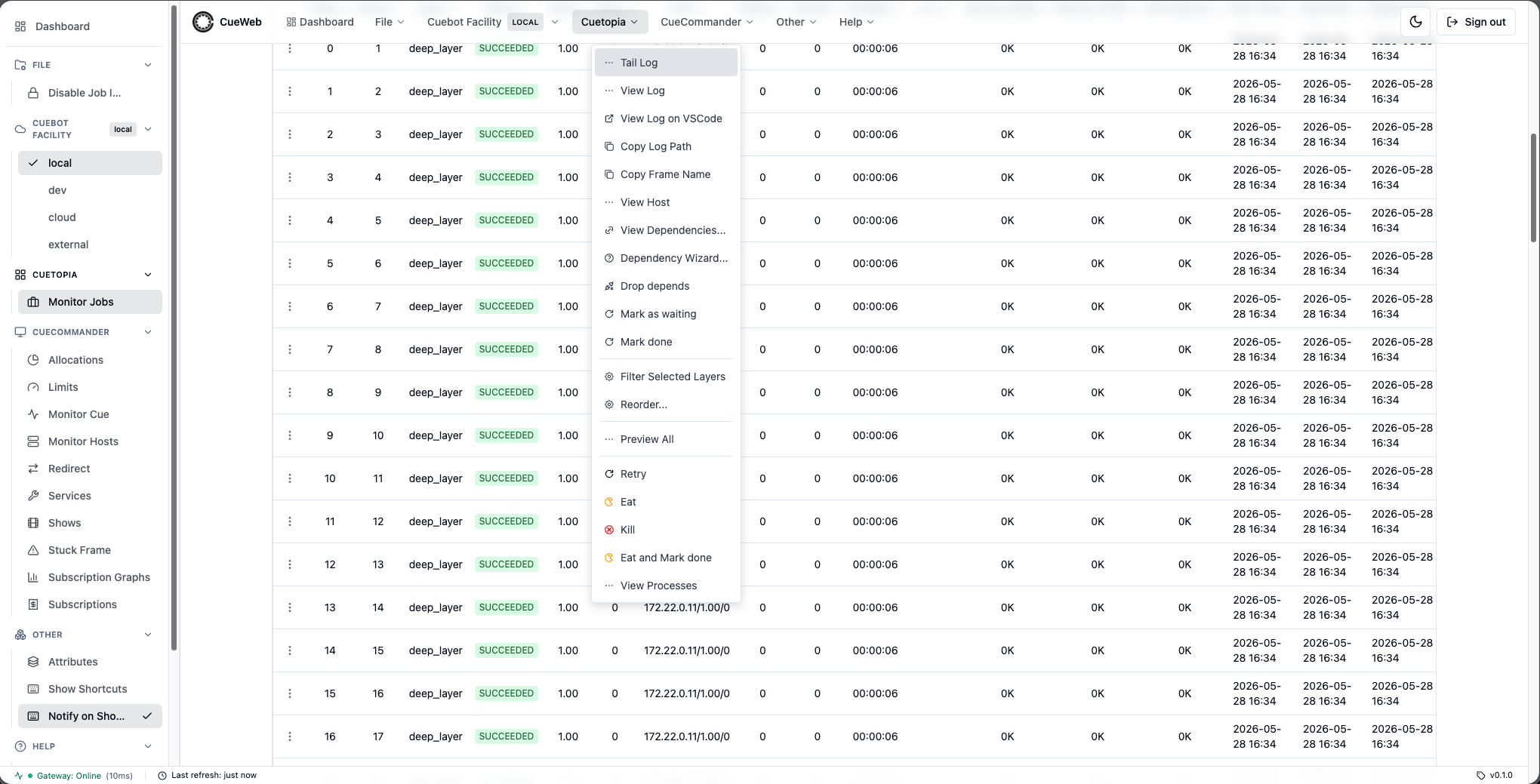
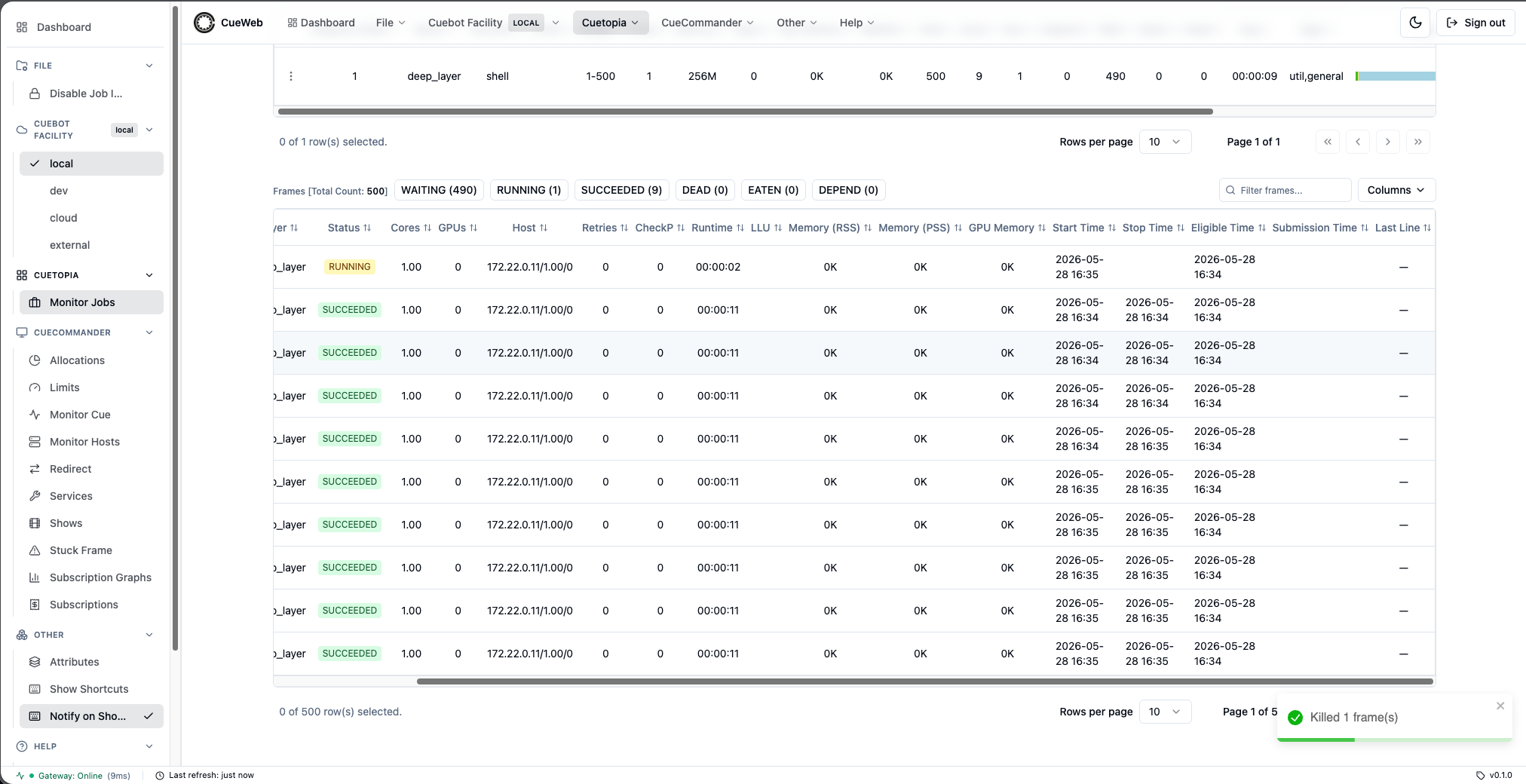
You can also select a contiguous range of frames (drag, or shift-click two rows) and Retry / Eat / Kill the whole range at once.
Preview All opens the frame’s rendered images in an external viewer. The command it shows (and the optional one-click Launch button) are set by the deployment via NEXT_PUBLIC_PREVIEW_COMMAND / NEXT_PUBLIC_PREVIEW_URL (defaults to rv {paths}). To get real frames to preview in the sandbox, render some with the Blender demo (python sandbox/load_test_jobs.py blender).
Frame Log Viewer
- View Log: Click on the link in the frame line to open the logs
- Log Selection: Choose from available log versions
-
Auto-refresh: Automatically update running frame logs
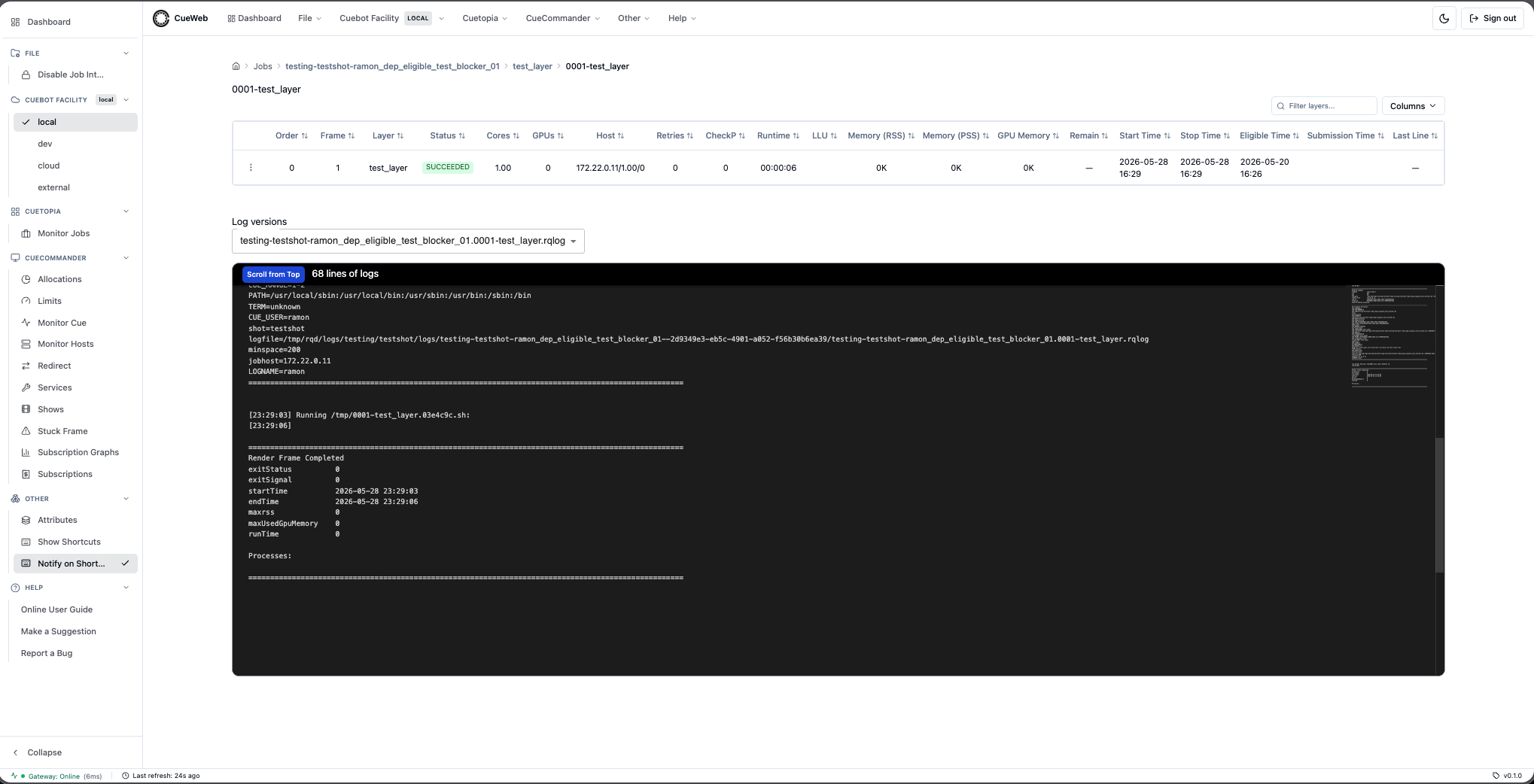
The viewer adds CueGUI-style controls for working through large logs:
- Search: a search bar highlights matches with an
n / totalcounter; Enter / Shift+Enter jump to the next/previous match, with case-sensitive and regex toggles. - Follow (tail) mode: auto-scrolls as new lines arrive and pauses when you scroll up, with a Jump to bottom button. Choosing Tail Log from the frame menu opens the viewer already following (the last ~200 lines, polled about once a second).
- Line numbers: absolute file line numbers stay correct while you page through a long log.
- Per-line copy: hover a line (or use the right-click menu) to copy just that line, with a confirmation toast.
- Download: save the raw log as a
.logfile.
The viewer has two interchangeable backends, and both look and behave the same - the same read-only editor, the same Log versions dropdown, and the same loading / empty states:
- File-based (default): OpenCueWeb reads the frame’s
.rqlogfile from the render-log directory mounted into the server. The Log versions dropdown lists the rotated log files on disk, and you can scroll up through very large logs (“Scroll from Top”). - Loki (optional): when your deployment is configured to pull logs from a Grafana Loki server (the OpenCueWeb equivalent of CueGUI’s Loki log viewer), the viewer queries Loki for the frame’s lines instead of reading a file. Here each entry in the Log versions dropdown is a separate frame attempt (newest first), and a Refresh button reloads the selected attempt’s lines. You don’t choose the backend in the UI - whichever one the deployment is set up for is used automatically. If you ever see “No logs in Loki” for a frame, it either hasn’t started yet or its logs weren’t shipped to Loki.
Attributes panel
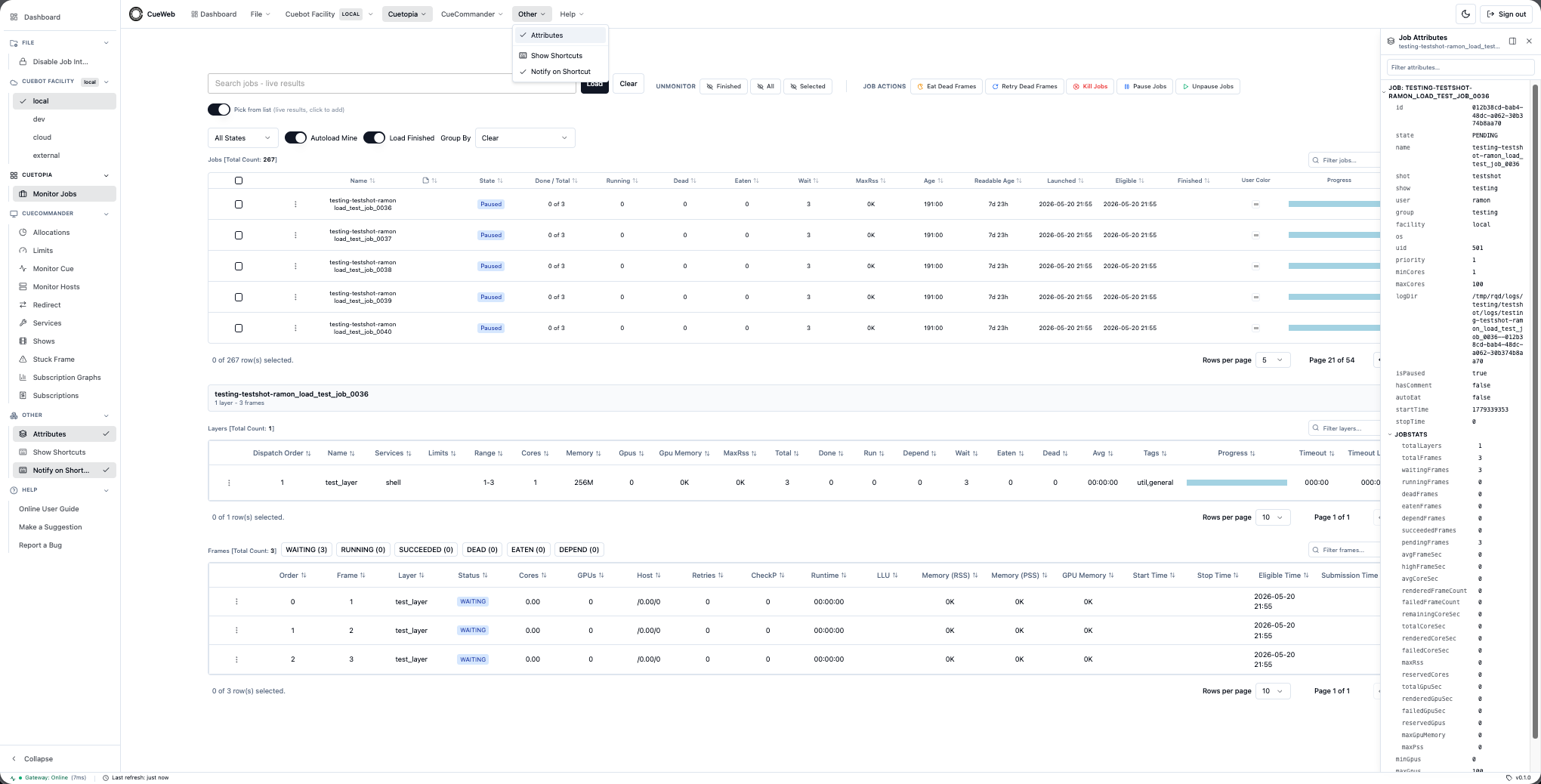
The Attributes panel is a docked drawer that shows a collapsible key/value tree for the currently-selected entity. Toggle it from the Other menu, then click a row in the jobs table to populate it.
Selecting a job shows that job’s attributes.
Selecting a layer shows that layer’s attributes.
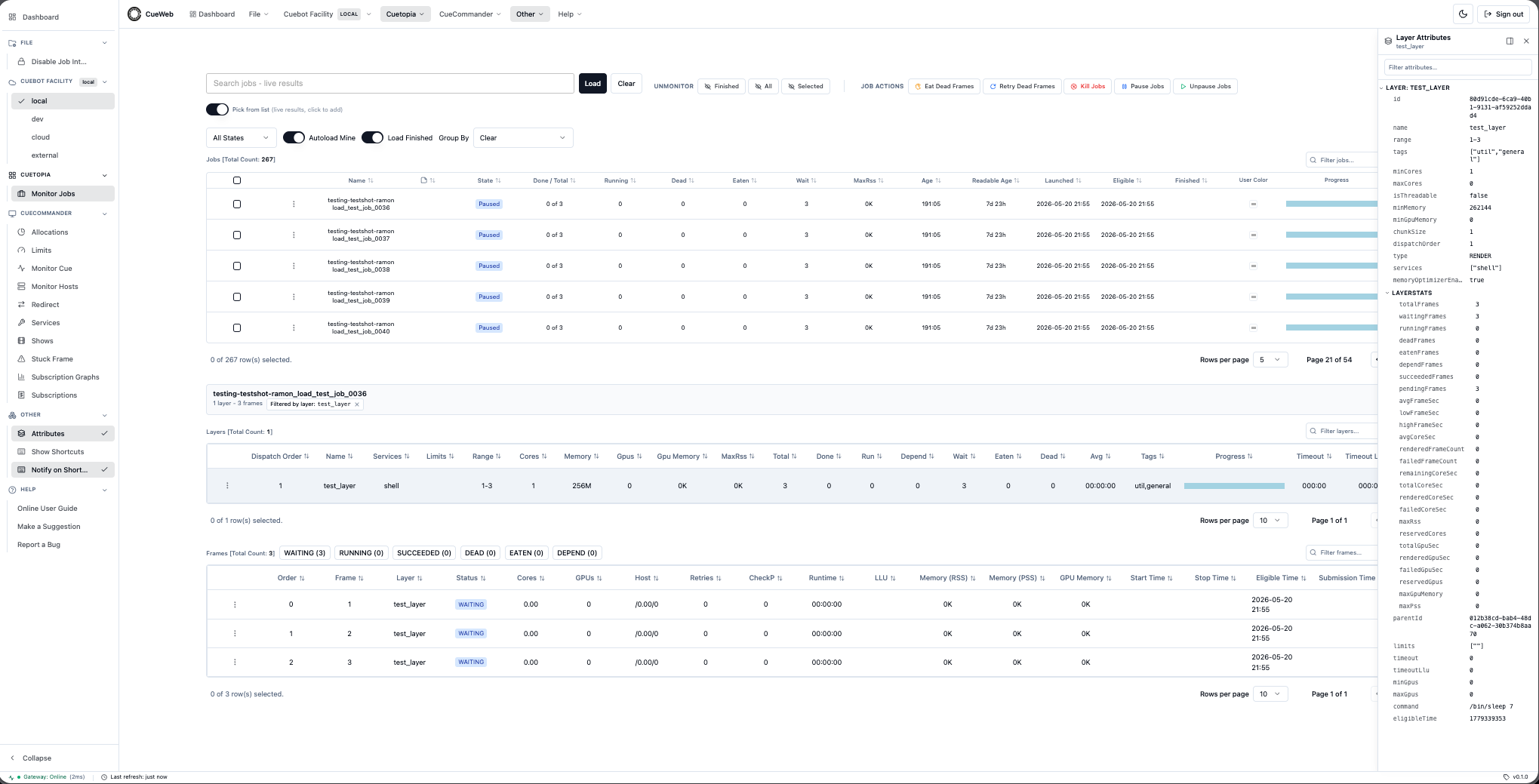
The title bar’s position picker lets you dock the panel on any edge of the viewport, and your choice persists across reloads.
Docked on the right (the default).
Docked on the bottom.
Docked on the left.
Docked on the top.
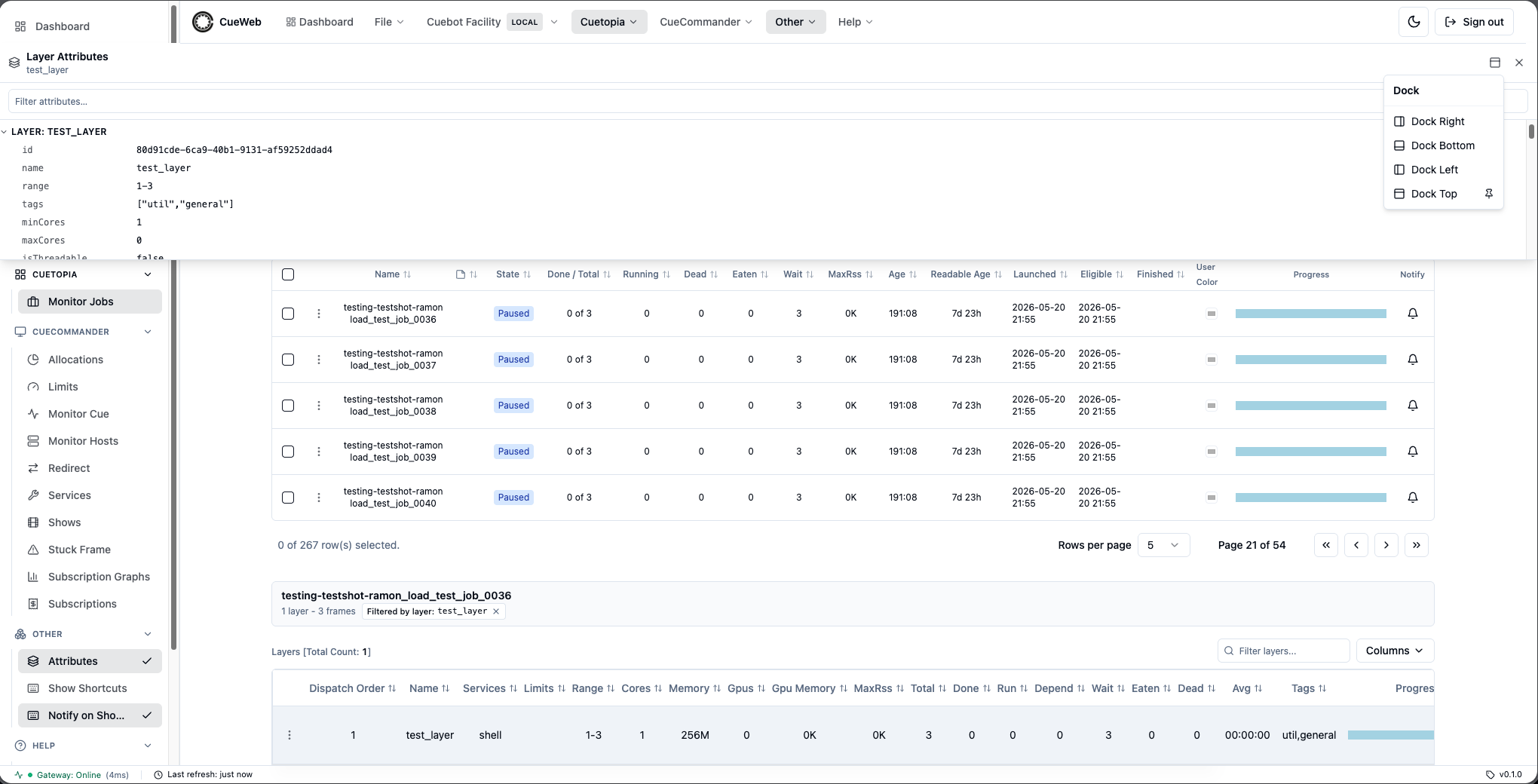
Table Customization
Column Management
-
Show/Hide Columns: Click the columns button to toggle visibility
- Sort Data: Click column headers to sort (ascending/descending)
- Resize Columns: Drag column borders to adjust width
Real-time Updates and Monitoring
Auto-refresh Settings
OpenCueWeb provides automatic real-time updates:
- Fixed Refresh Interval: All tables automatically update every 5 seconds
- All Tables: Jobs, layers, and frames tables are auto-reloaded at regular intervals to display the latest data
- Background Updates: Continue updates when tab is not active
- Performance Optimization: Loading animations and virtualization optimize performance on slow connections
Job-finished notifications
Each row in the jobs table has a bell button (the Notify column) that lets you subscribe to a browser notification when the job reaches FINISHED. The bell has three visual states:
- Outline bell: not subscribed → click to subscribe
- Filled bell: subscribed, waiting for
FINISHED→ click to cancel - Filled bell + green dot: notification has fired → click to clear
Behavior:
- The bell is disabled (faded, with tooltip) on jobs that are already
FINISHEDwhen first viewed; there is nothing to notify on. - The subscription always succeeds. After saving it, the browser’s notification permission is requested as an optional upgrade for system-level popups. A toast tells you what you got:
- granted — in-app toast plus a desktop popup when the job finishes.
- denied — in-app toast only. To also receive desktop popups, enable notifications for the OpenCueWeb origin in your browser site settings.
- default — you dismissed the prompt without choosing. In-app toast only, same as
denied.
- A background poller checks each subscribed job every 15 seconds. When a job reaches
FINISHEDan in-apptoast.success("Job finished: <jobName>")always fires; a desktopNotificationpopup is layered on top when the permission was granted at fire-time. The bell switches to filled with a green dot, and the entry is marked as notified. - When several OpenCueWeb tabs are open for the same job, only one of them shows the notification, so you see exactly one notification per finished job per browser profile.
- Subscriptions are saved in your browser and survive page reloads. They are scoped to the browser and profile; clearing site data removes them.
- If a subscribed job is deleted from Cuebot (the API returns null), the subscription is removed automatically on the next poll.
Subscribe to Job (email subscription)
The Notify bell above is a browser-side subscription: it stays in your browser and fires a popup in your OpenCueWeb tab. If you want Cuebot to send you an email when the job finishes - for example, so you get notified after closing the browser, or so a team alias is informed - use the Subscribe to Job entry in the job’s right-click menu instead.
The two are independent. You can use either, or both at the same time. Their differences in plain terms:
| Notify bell (Notify column) | Subscribe to Job (right-click menu) | |
|---|---|---|
| Where the subscription lives | Your browser | Cuebot |
| Notification channel | In-app toast (always) + desktop popup (when permission granted) | Email sent by Cuebot |
| Survives a browser reset or new device | No | Yes |
| Cancel | Click the bell again | Outside OpenCueWeb (whatever Cuebot supports) |
To subscribe by email:
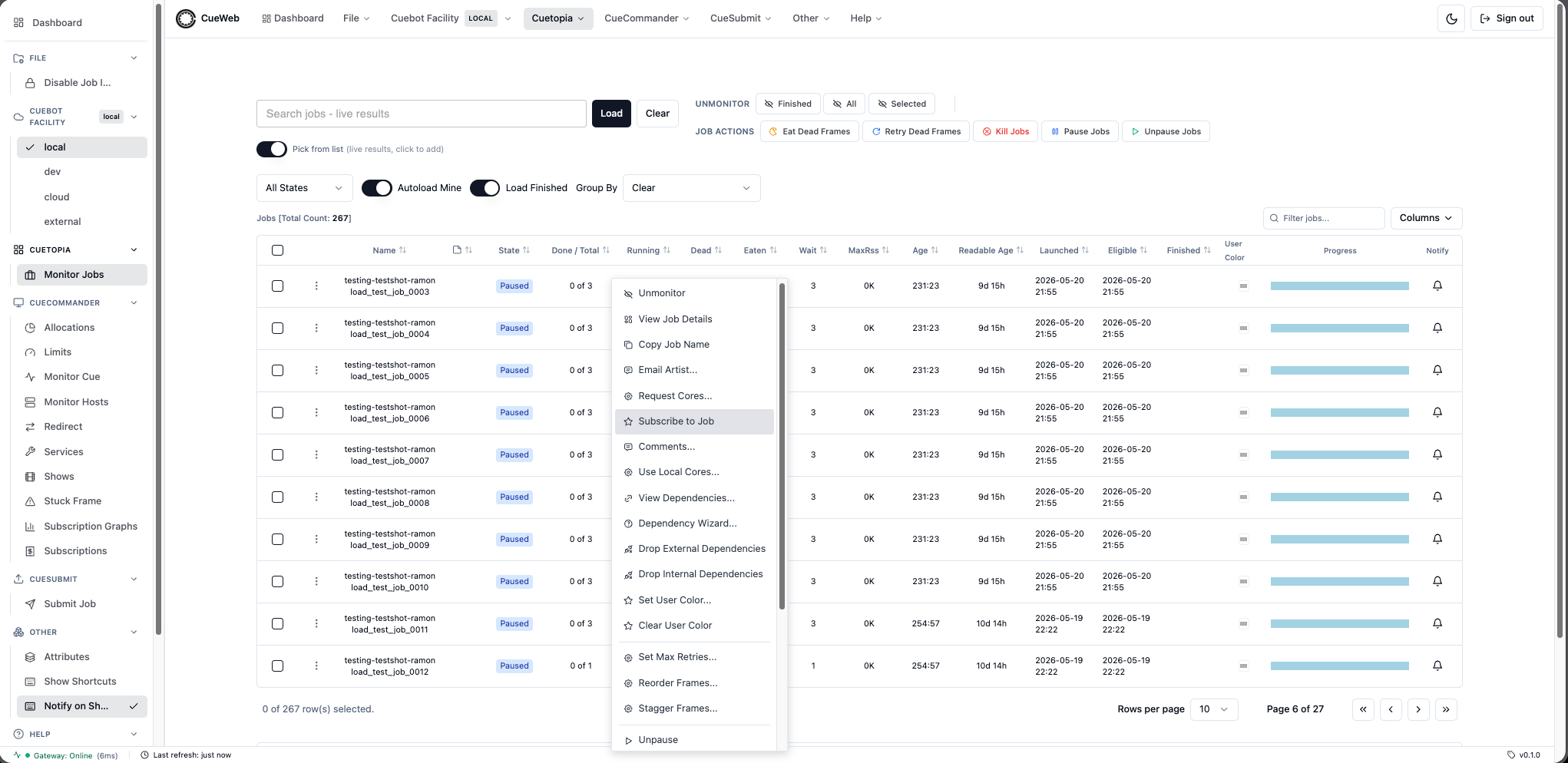
-
Right-click the job row in the Jobs table and pick Subscribe to Job.
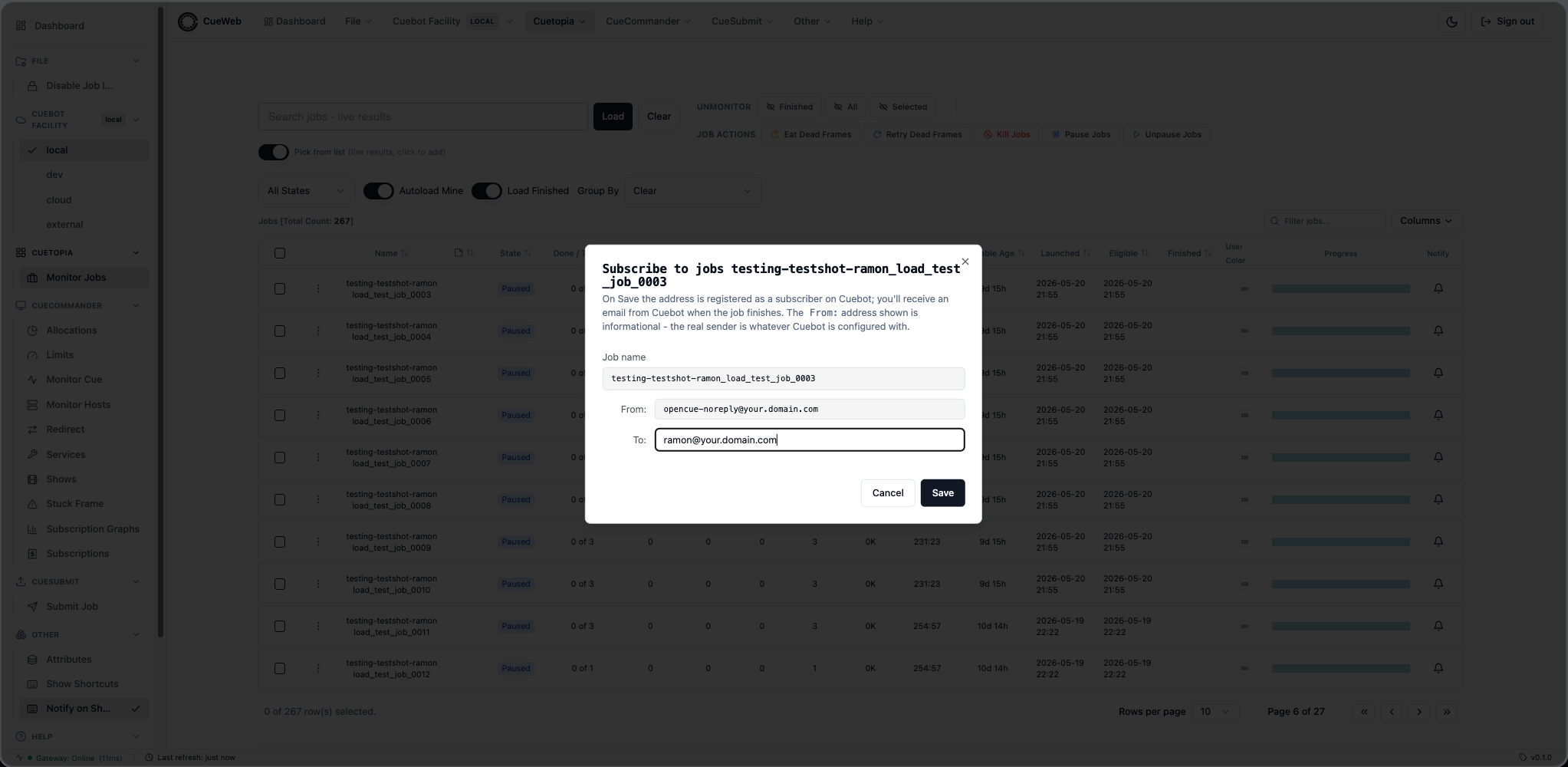
-
A small dialog opens with the job name, an informational From address (your administrator sets the default), and an editable To address pre-filled with your account email.
-
Edit the To field if you want notifications sent somewhere else (a team alias, a personal address, etc.) and click Save.
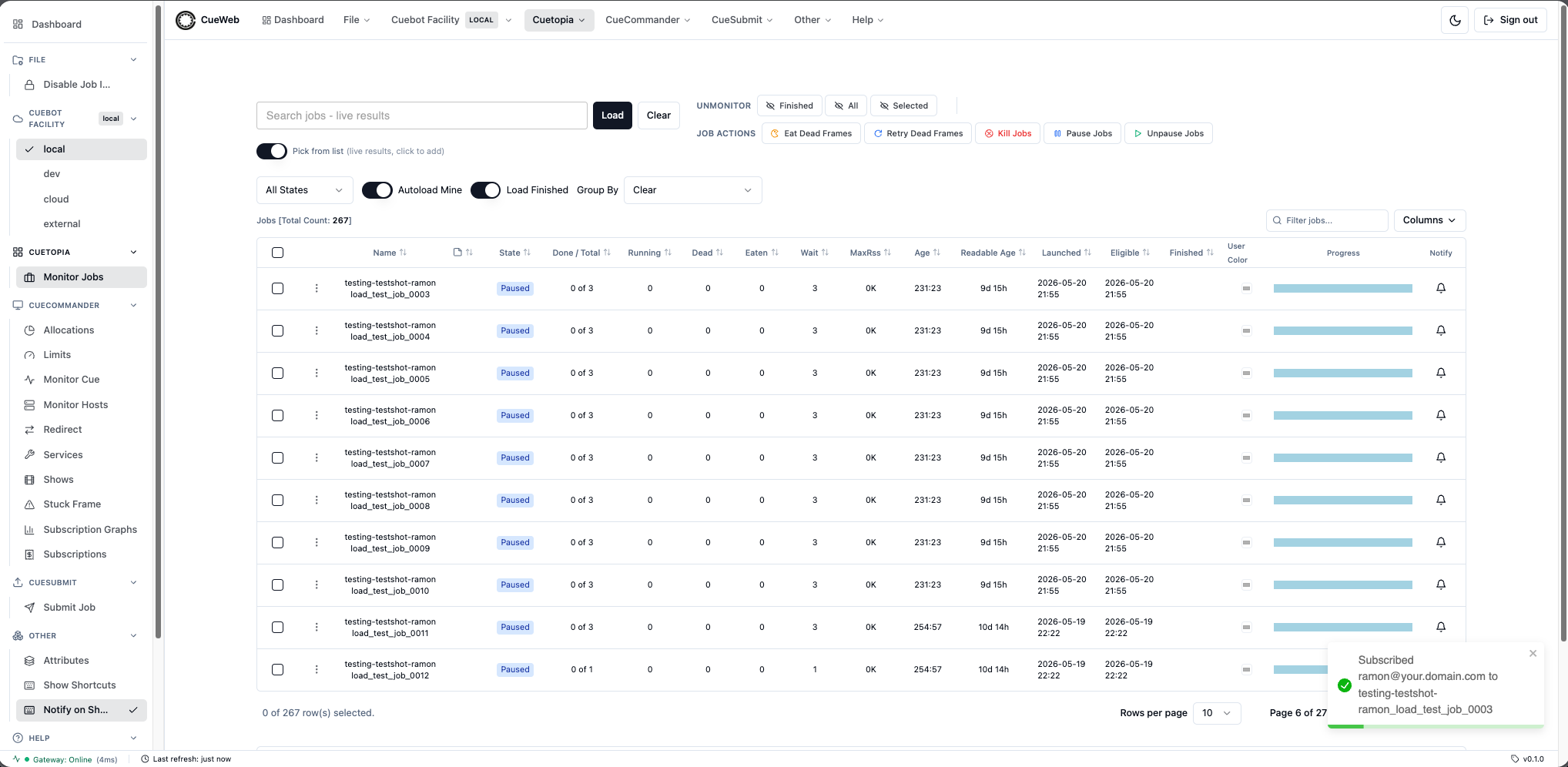
-
A toast confirms the subscription is registered with Cuebot.
When the job reaches FINISHED, Cuebot sends the configured notification email to the saved address. The address you see in the From field is informational only - the real sender is whatever your Cuebot deployment is configured with.
Monitor Cue
The Monitor Cue page (CueCommander → Monitor Cue in the sidebar or header) is the OpenCueWeb equivalent of CueGUI’s CueCommander Monitor Cue window. Unlike Monitor Jobs (which searches across shows), Monitor Cue shows every job for the shows you pick, grouped under their show and groups.
Choose shows
The page starts empty. Open the Shows menu and pick one or more shows (All Shows selects every active show, Clear deselects all). Your selection is remembered per browser, and the job tree loads the chosen shows’ groups and jobs.
Job columns
The table mirrors CueGUI’s Monitor Cue columns: a Comment icon (amber sticky-note when the job has comments), an Auto-eat icon (yellow when auto-eat is on), Job (name, indented by its place in the group tree), Run, Cores, Gpus, Wait, Depend, Total, Booking (a booking bar, see below), Min, Max, Min G, Max G, Pri, ETA (reserved, like CueGUI), MaxRss, MaxGpuMem, Age, Readable Age, and Progress (the stacked frame-state bar).
- Click a column header to sort (ascending/descending, with an arrow indicator).
- The Columns dropdown (top-right) shows/hides and reorders columns with a Reset to Default; the Filter jobs… box next to it narrows the visible rows by substring without re-fetching. Both persist per browser.
- The Booking column draws CueGUI’s booking bar: a running (yellow) / waiting (sky-blue) bar with a cyan marker at the job’s minimum cores and a red marker at its maximum cores.
Rows are tinted by condition (CueGUI parity): blue = paused, red = has dead frames, yellow = high peak memory, green = nothing running but frames waiting, purple = all remaining frames are on a dependency.
Toolbar and selection
- Eat / Retry (dead frames), Pause / Unpause, and Kill act on the selected jobs (Kill asks for confirmation). The buttons carry the same icons as Monitor Jobs.
- Refresh reloads now; Auto-refresh (on by default) polls every 5 seconds. Expand All / Collapse All open or fold the show/group tree.
- Select: type a name or regex to live-select matching jobs as you type; Clr clears the selection. A select-all header checkbox toggles every visible job, and Shift+click selects a contiguous range of rows.
Job actions
Right-click a job for the same menu as Monitor Jobs, plus Monitor-Cue-only entries: View Job (jump to Monitor Jobs for that job), Send To Group… (reparent the job into another group of its show), the resource/priority setters (Set Min/Max Cores, Set Minimum/Maximum Cores, Set Minimum/Maximum Gpus, Set Priority), Use Local Cores, Unbook Frames…, and Set User Color / Clear User Color. Auto-eat is a single state-aware toggle (Enable auto eating / Disable auto eating).
Monitor Hosts
The Monitor Hosts page (CueCommander → Monitor Hosts in the sidebar or header, or the View hosts link on the dashboard hosts widget) lists the render hosts registered with Cuebot. It is the OpenCueWeb equivalent of CueGUI’s CueCommander Monitor Hosts plugin, and mirrors the jobs table interactions (sortable columns, substring filter, column show/hide, pagination).
Open it from the CueCommander menu (or the matching entry in the left sidebar).
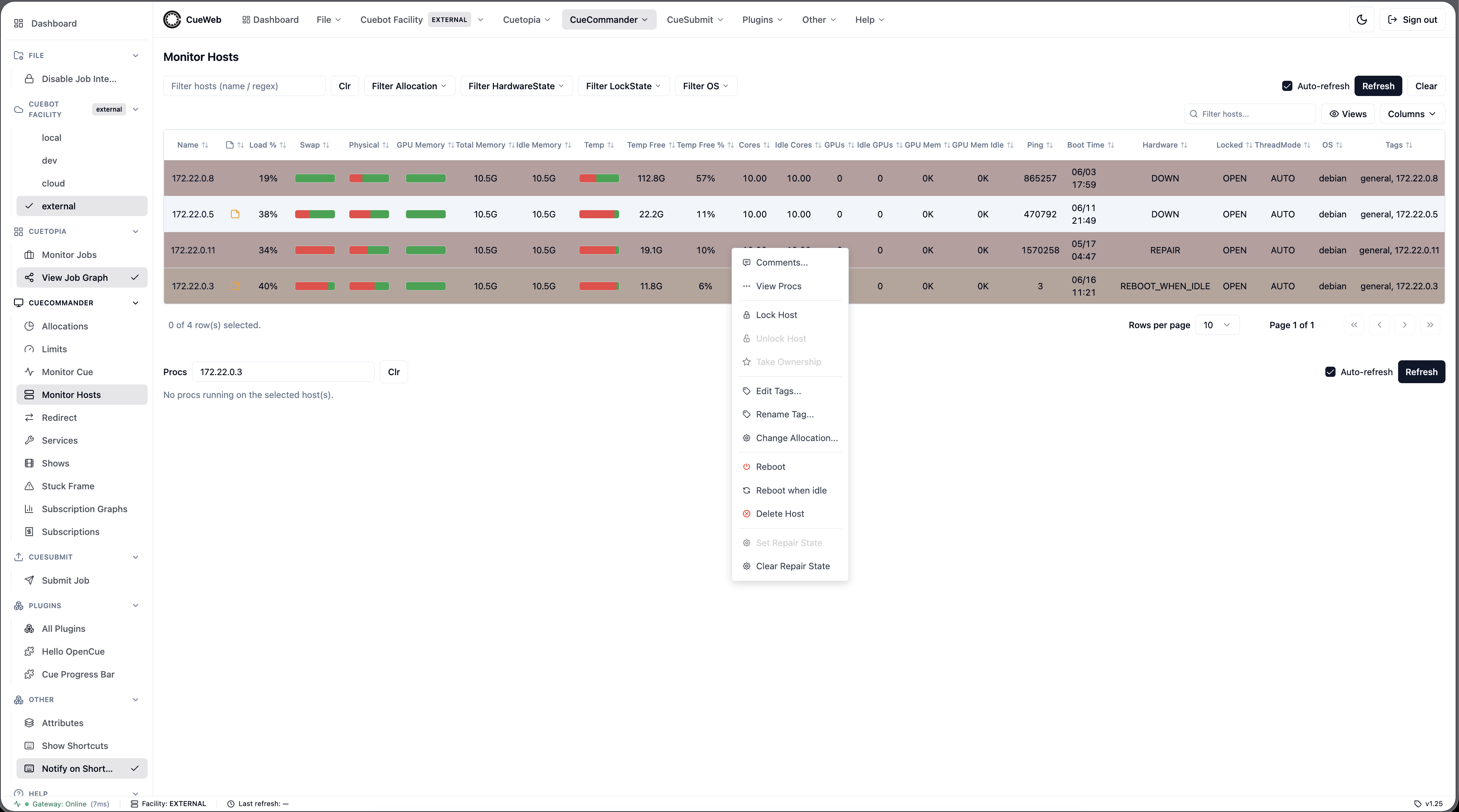
The page renders the full CueGUI Monitor Hosts column set in a sortable, filterable table of every host:
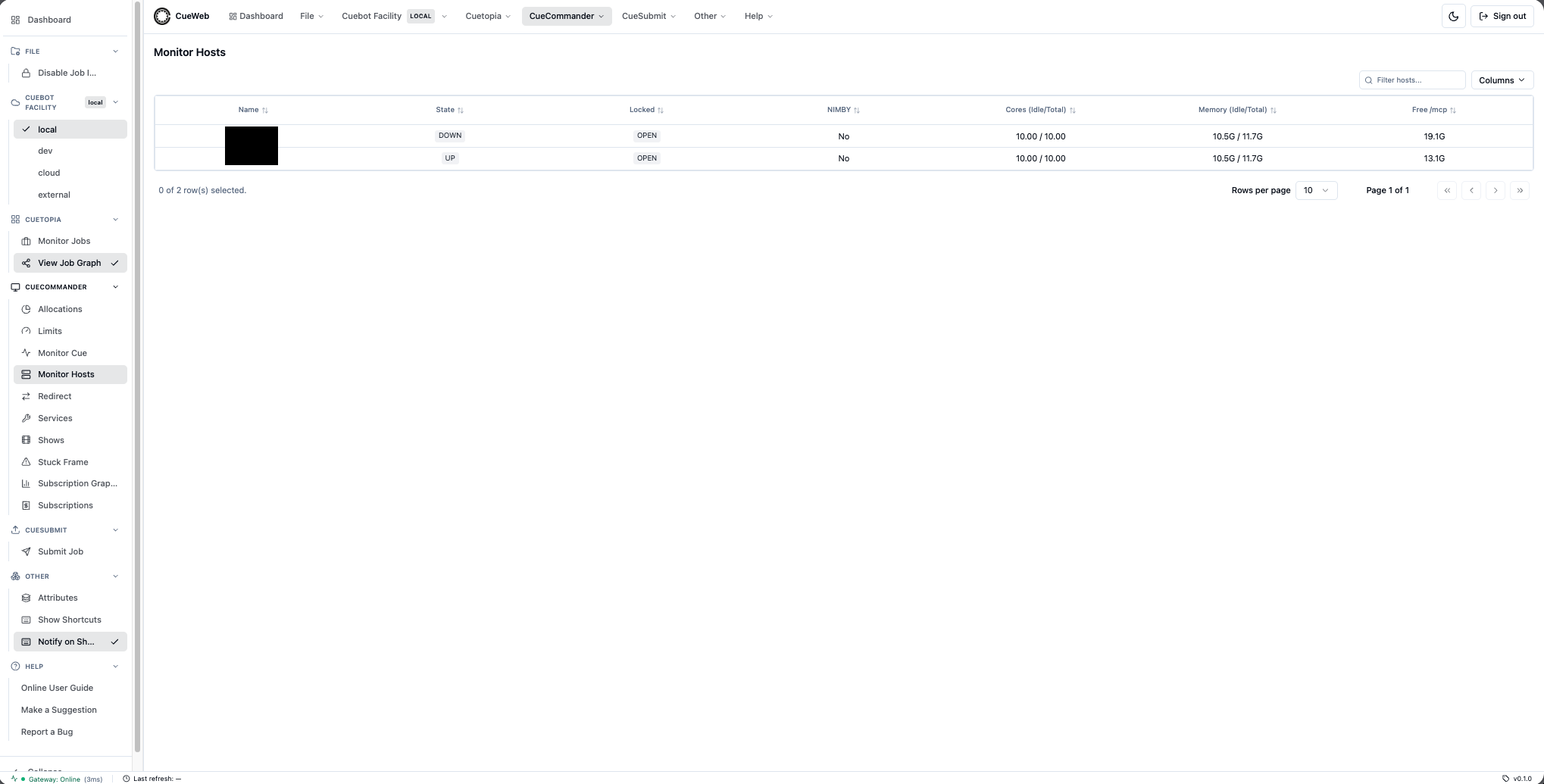
Host columns
The table mirrors CueGUI’s Monitor Hosts columns, in this order: Name, a Comments icon column (an amber sticky-note when the host has comments), Load %, Swap, Physical, GPU Memory, Total Memory, Idle Memory, Temp, Temp Free, Temp Free %, Cores, Idle Cores, GPUs, Idle GPUs, GPU Mem, GPU Mem Idle, Ping, Boot Time, Hardware (hardware state), Locked (lock state), ThreadMode, OS, and Tags.
The Swap, Physical, GPU Memory, and Temp columns render as red/green usage bars (green = free, red = used), the same at-a-glance view CueGUI gives. Numeric columns sort by their underlying value rather than the formatted text. Use the Columns menu to show, hide, and reorder columns (your choice persists per browser) and the Views menu to save named column/sort/filter presets.
Rows are tinted by host condition so problem hosts stand out:
- Red - the host’s hardware state is anything other than
UP(for exampleDOWNorREPAIR). - Amber - the host is
REBOOT_WHEN_IDLE(waiting to reboot once its frames finish). - Yellow - the host is
UPbutLOCKED.
Filter bar
The toolbar above the table narrows what you see without re-fetching:
- Filter hosts (name / regex) - substring or regular-expression match on the host name; Clr clears it.
- Filter Allocation, Filter HardwareState, Filter LockState, Filter OS - multi-select dropdowns. Allocation and OS are populated from the hosts currently loaded; HardwareState (
UP,DOWN,REBOOTING,REBOOT_WHEN_IDLE,REPAIR) and LockState (OPEN,LOCKED,NIMBY_LOCKED) are the fixed CueGUI sets. Each dropdown shows a count of how many values are selected and has a Clear option. - Auto-refresh (on by default), Refresh (manual), and Clear (reset every filter).
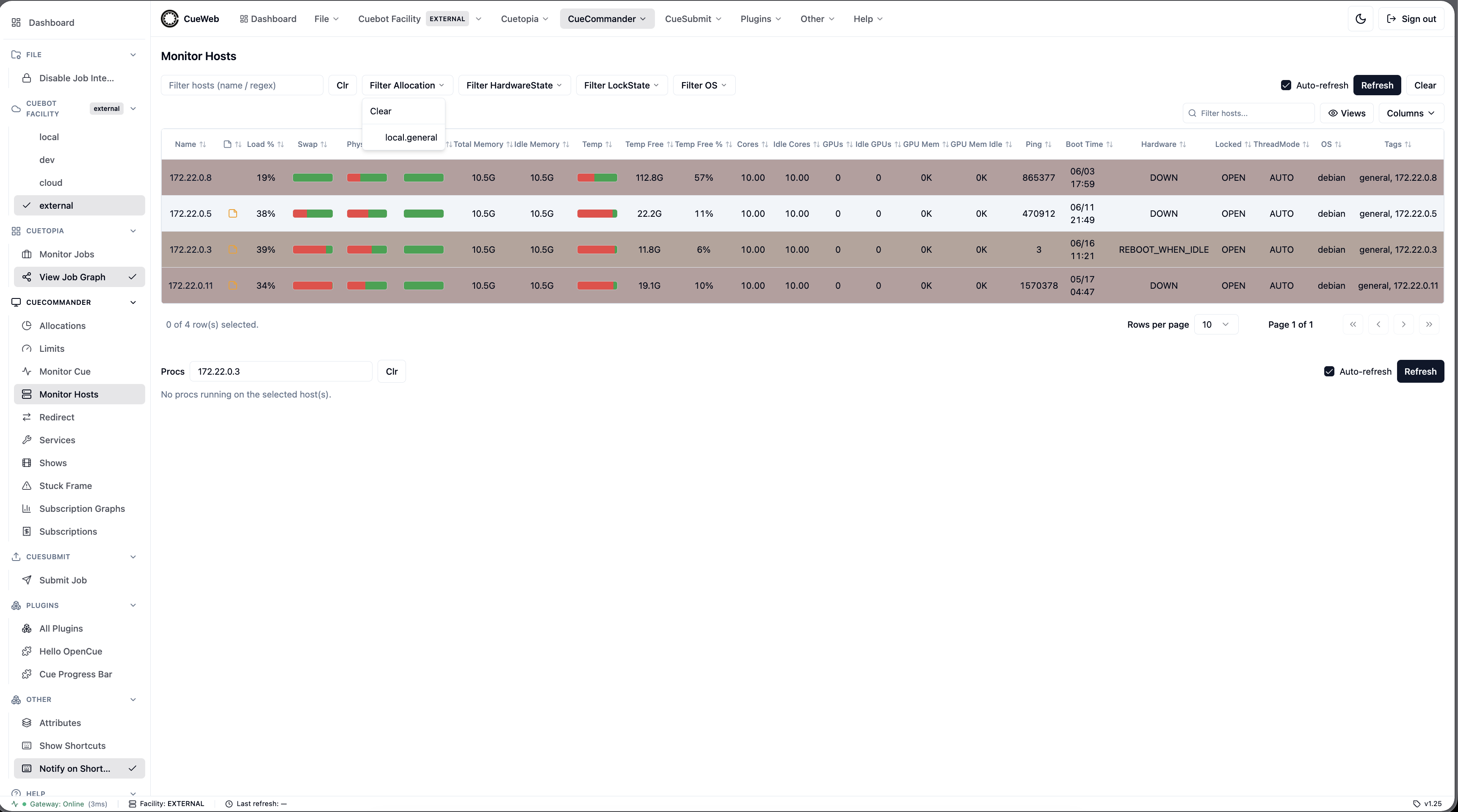
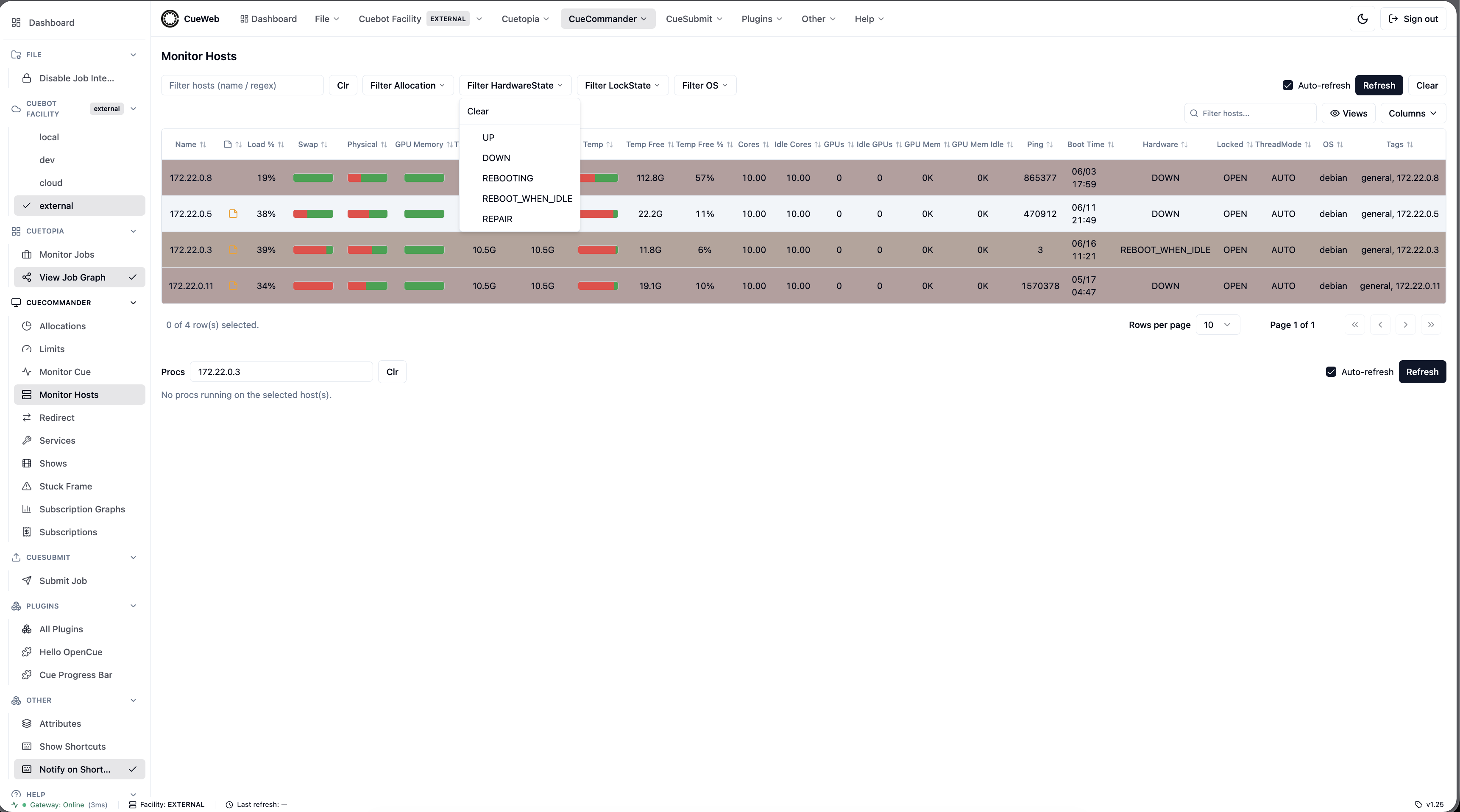
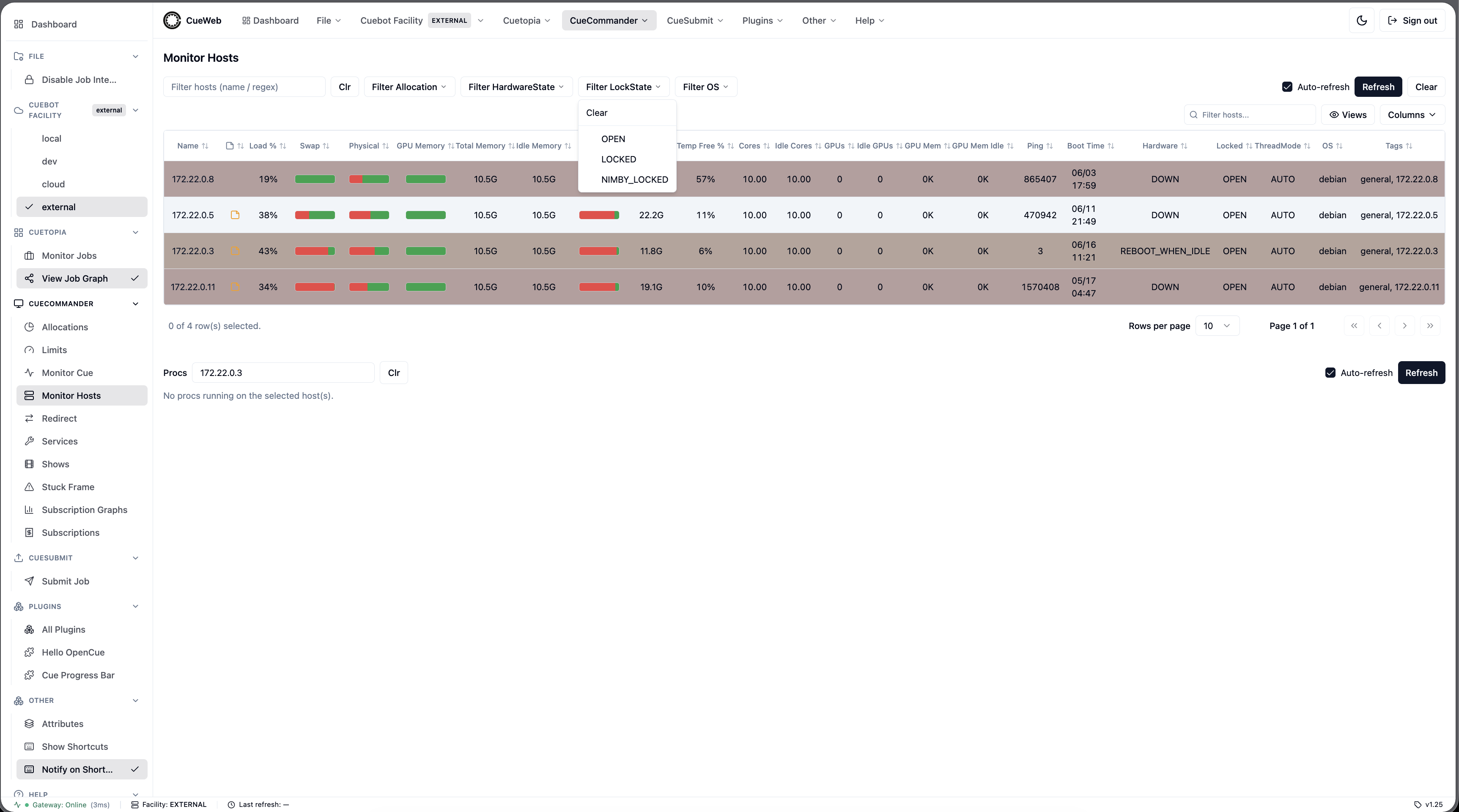
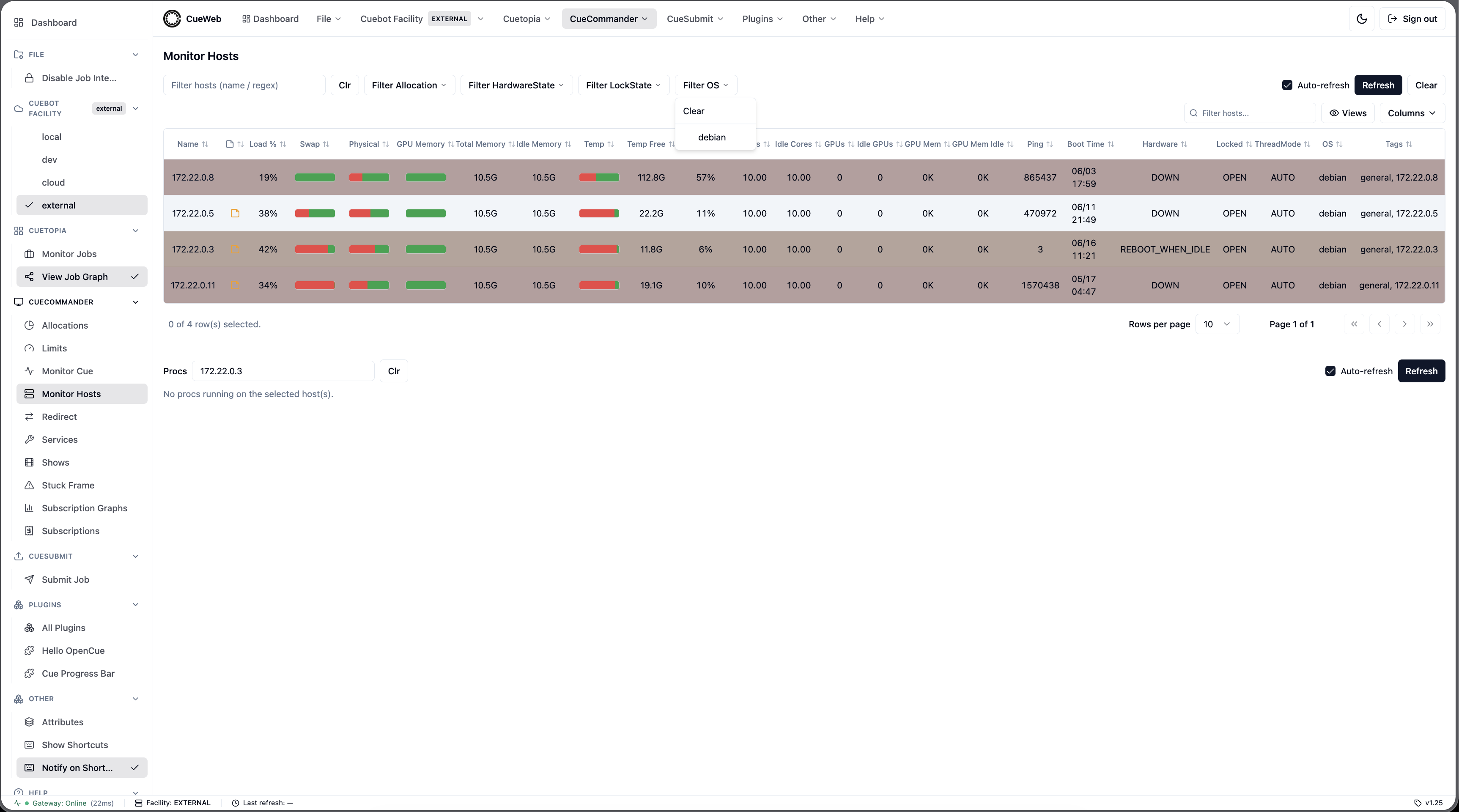
The active filters are reflected in the page URL, so a filtered view is bookmarkable and shareable.
Refresh
The host list auto-refreshes every 30 seconds. A failed refresh keeps the previously loaded rows in place; if the first load fails with no data, an inline error with a Retry button is shown.
Host actions
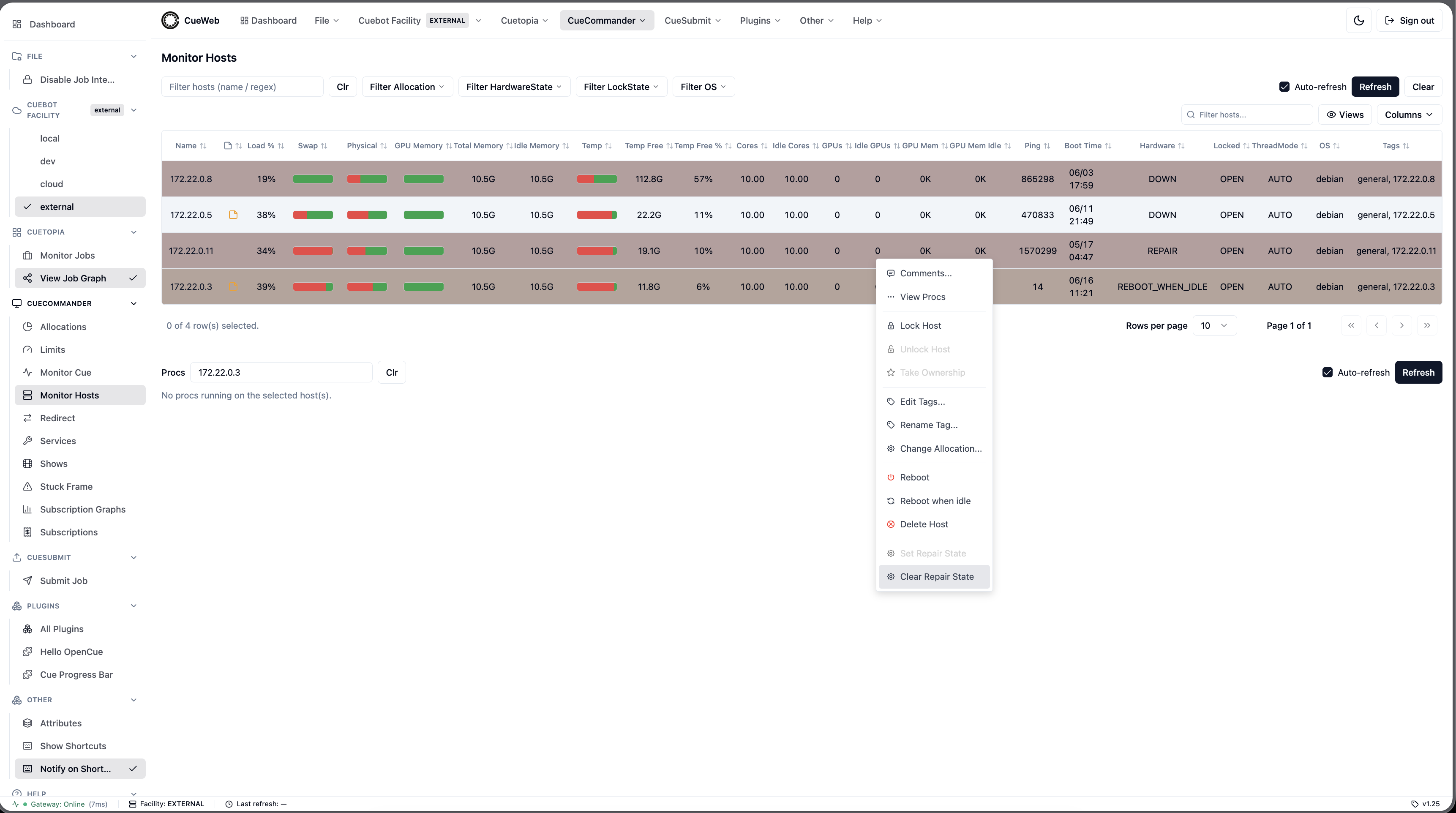
Right-click a host row to open its actions menu. After an action succeeds the affected row updates immediately, then reconciles on the next refresh.
The menu mirrors CueGUI’s Monitor Hosts menu: Comments…, View Procs, Lock Host / Unlock Host / Take Ownership, Edit Tags… / Rename Tag… / Change Allocation…, Reboot / Reboot when idle / Restart service now / Restart service when idle / Delete Host, and Set Repair State / Clear Repair State. Items that don’t apply to a host’s current state are greyed out (for example Unlock Host unless the host is LOCKED, Clear Repair State unless it is in REPAIR).
Lock and unlock
Locking a host takes it out of the booking pool so it stops picking up new frames; frames already running keep going. OpenCueWeb asks you to confirm, listing the host(s) affected. Unlock returns the host to the booking pool; a NIMBY_LOCKED host can’t be unlocked this way, so Unlock Host stays disabled for those.
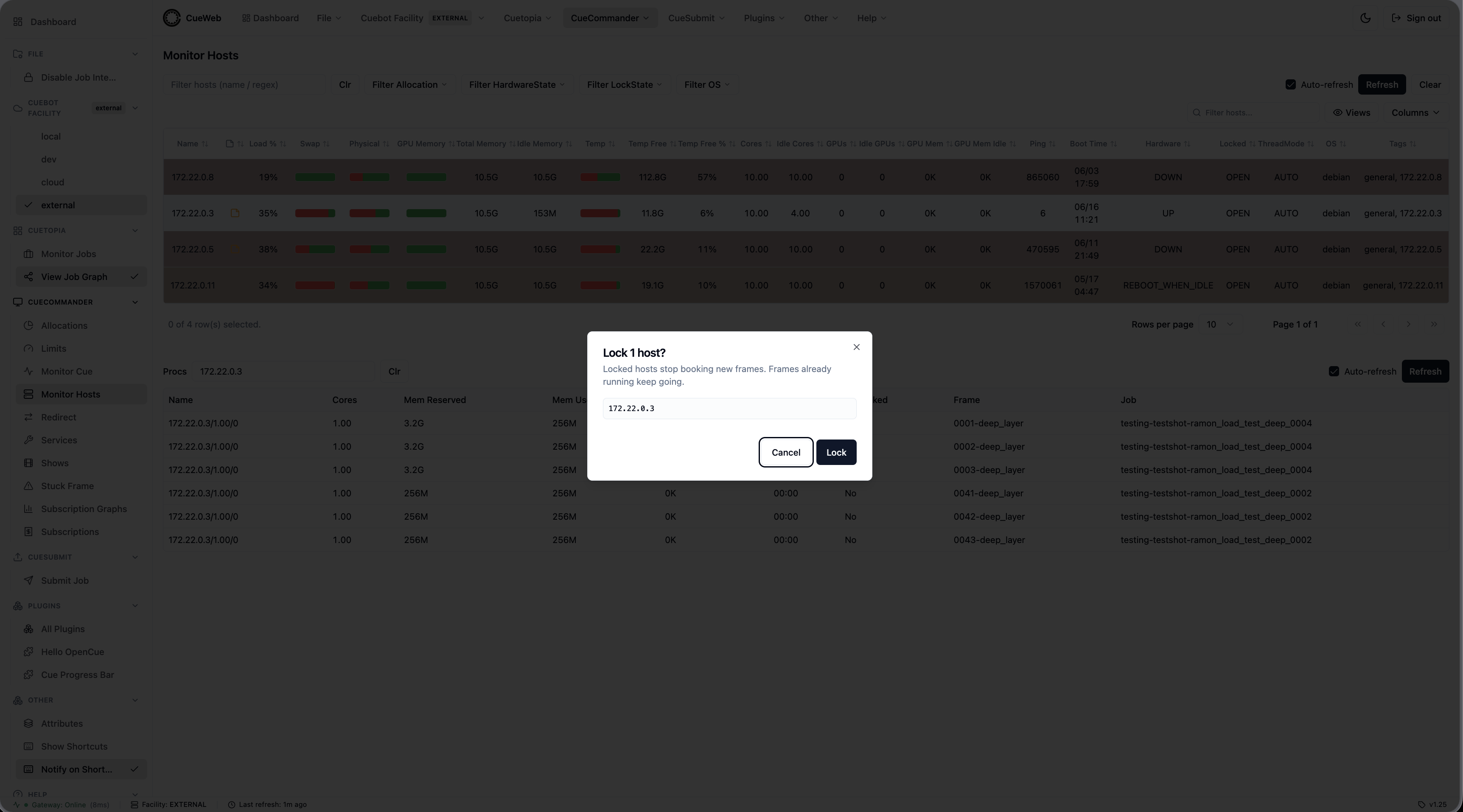
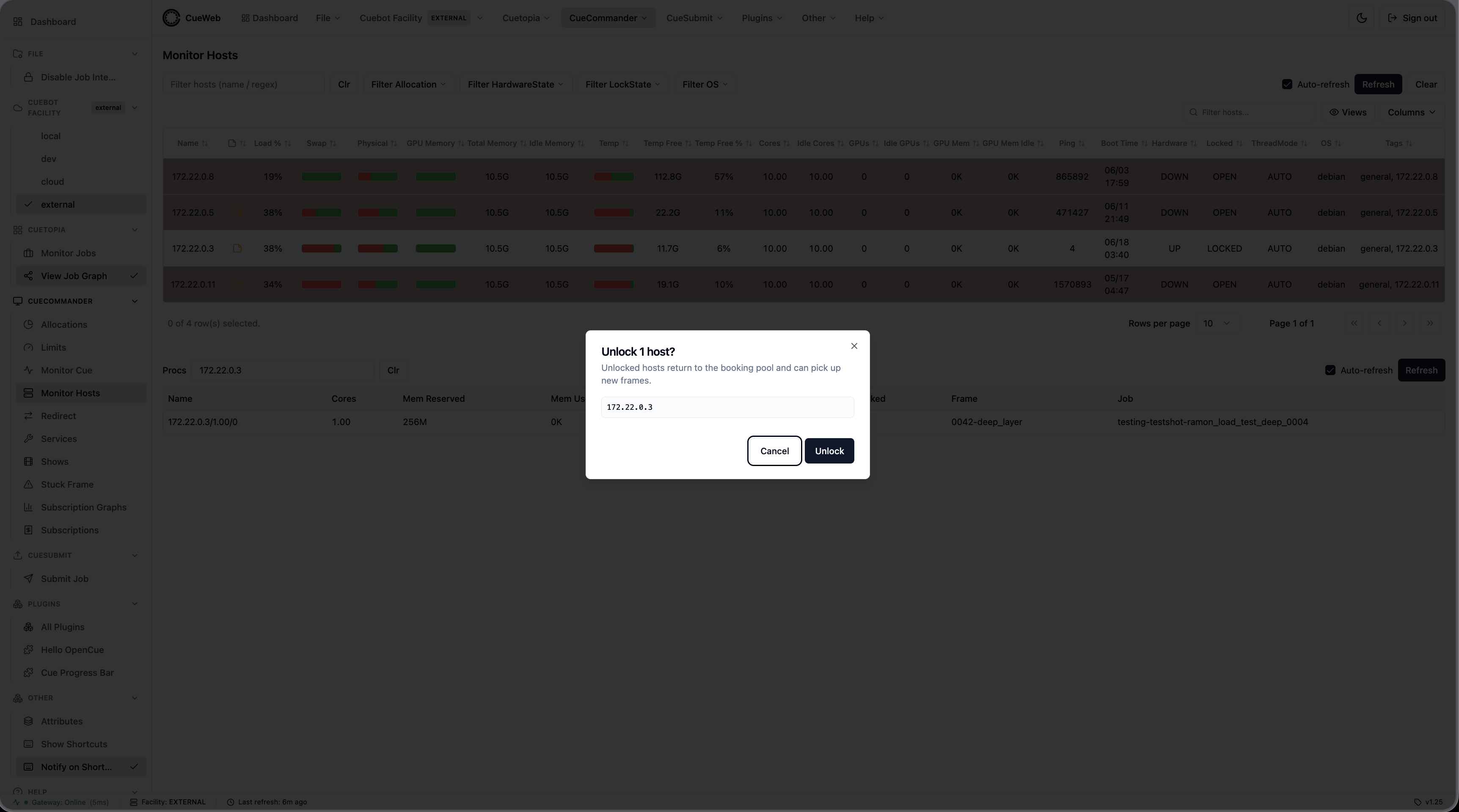
Take ownership
A host becomes NIMBY_LOCKED when its workstation owner is using it (NIMBY - “not in my back yard”). Take Ownership reclaims such a host for yourself, the same as CueGUI’s Take Ownership action. It is enabled only when the host is NIMBY_LOCKED; for any other lock state the entry stays greyed out.
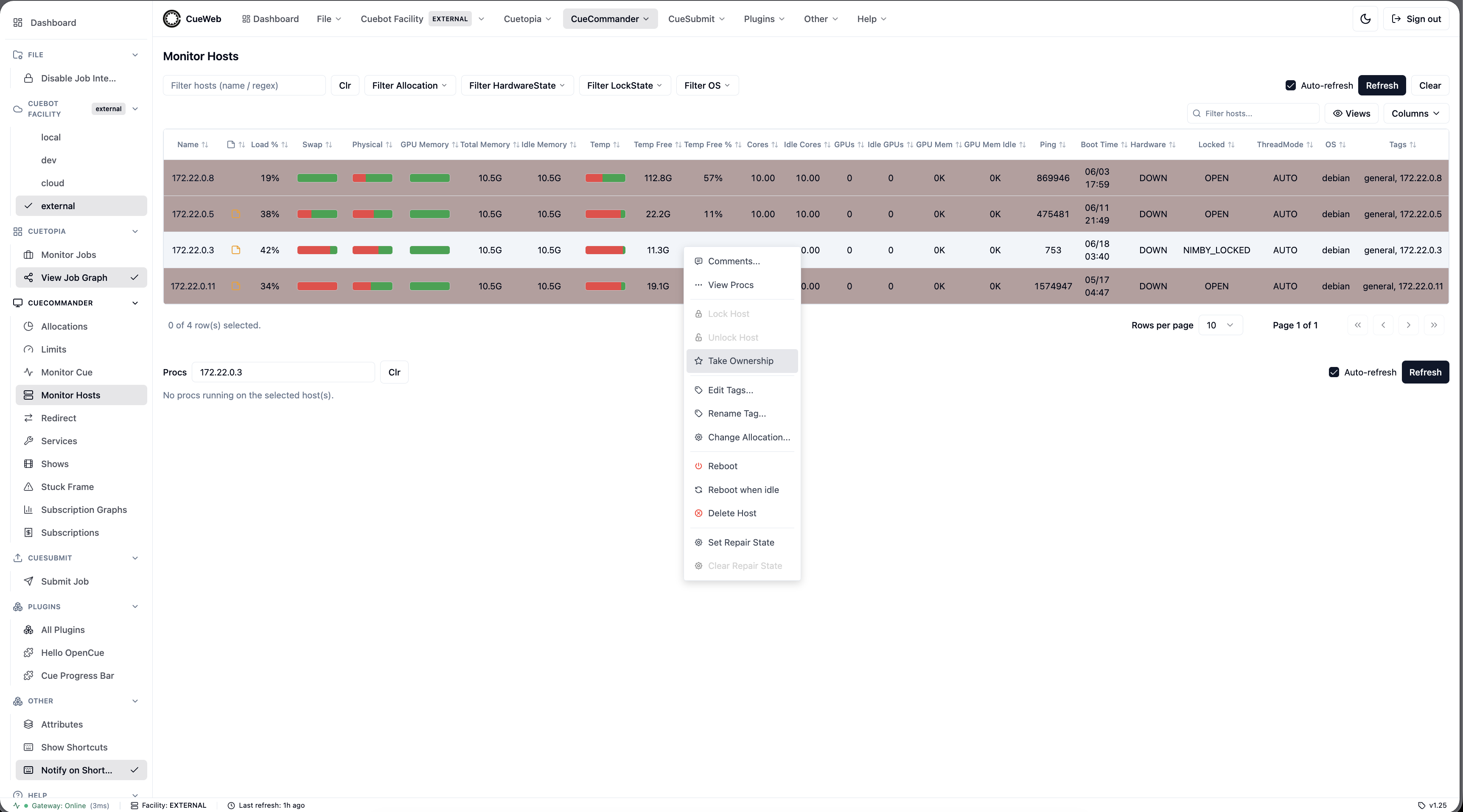
Choosing it asks you to confirm; on success the host is owned by the signed-in user.
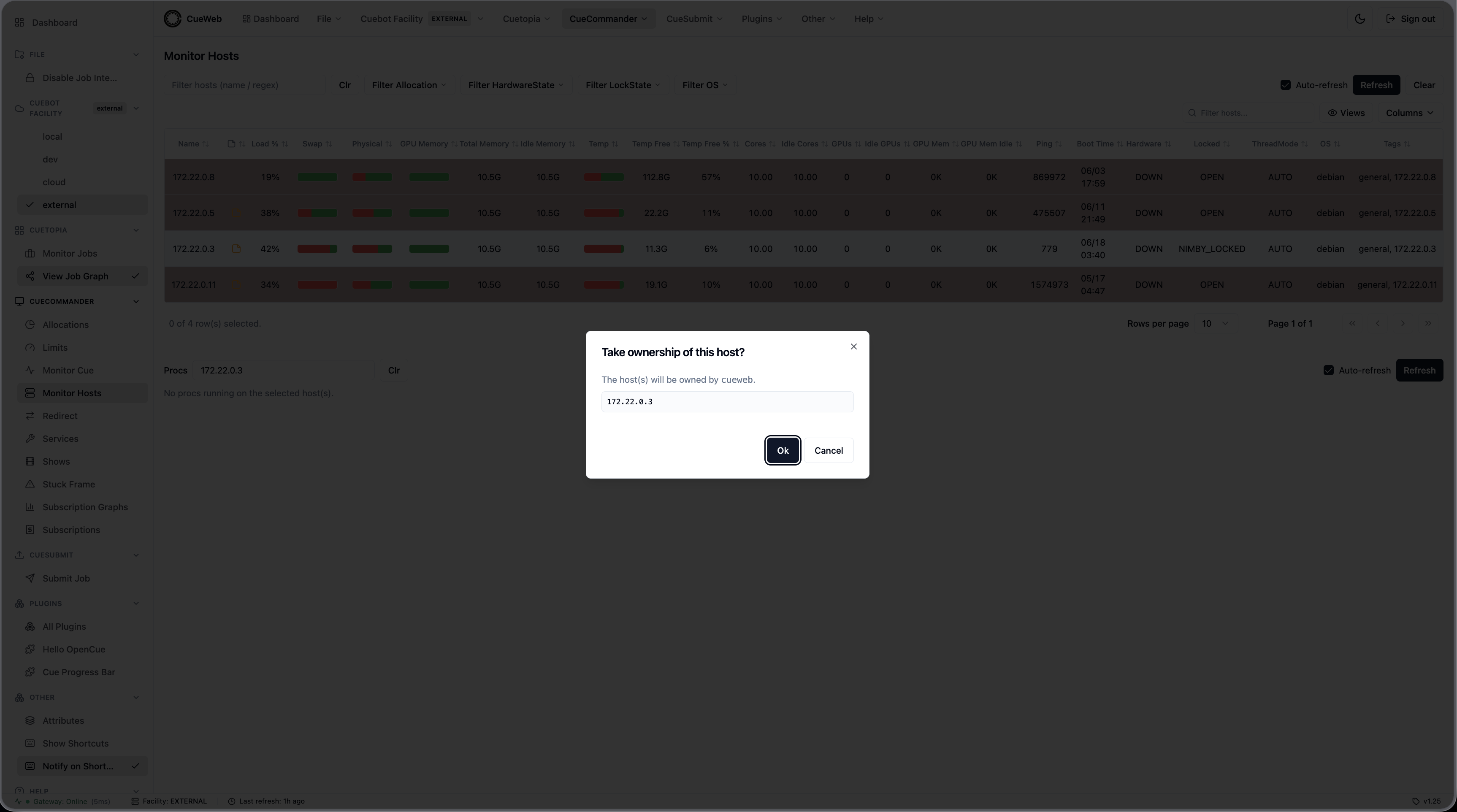
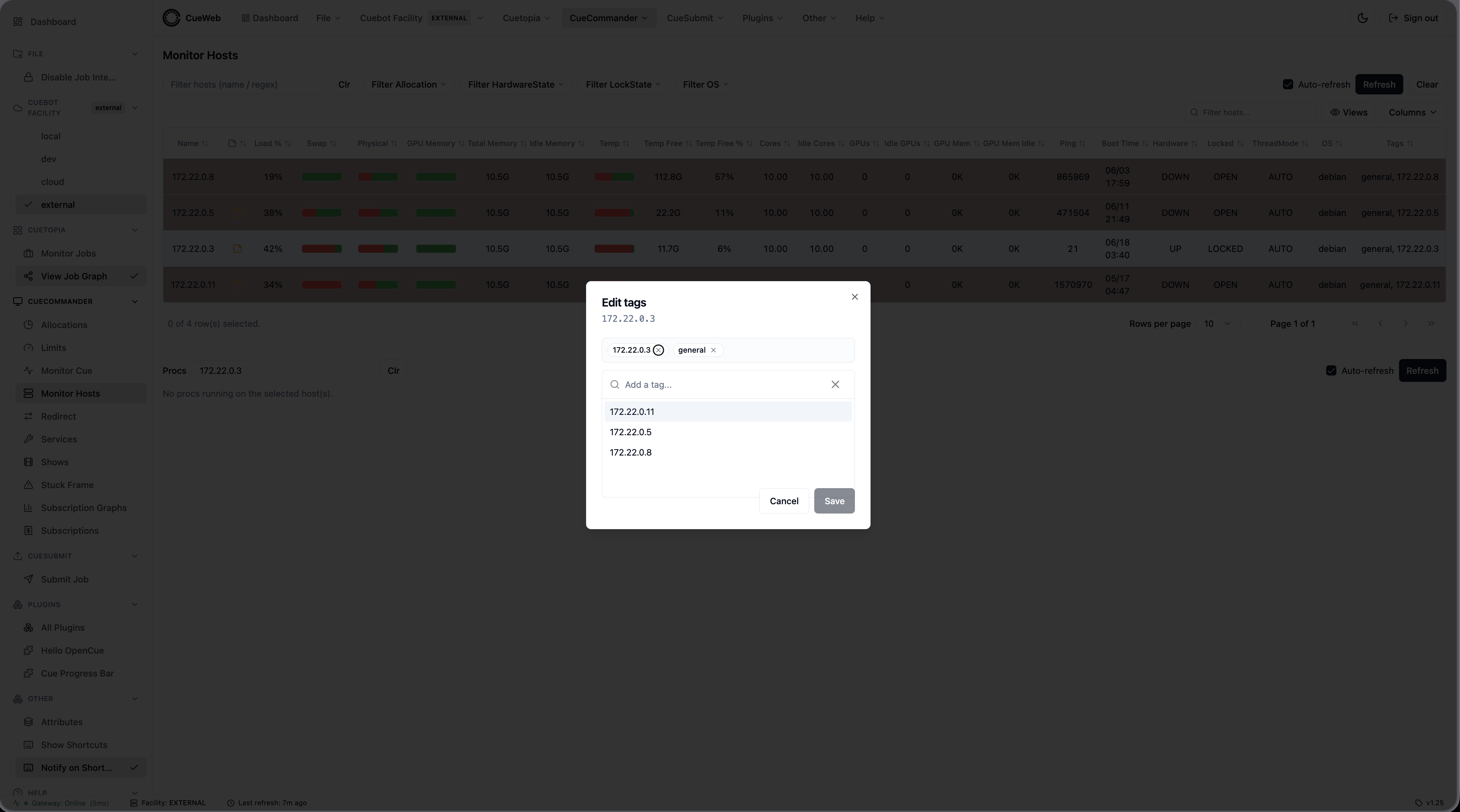
Edit tags, rename tag, change allocation
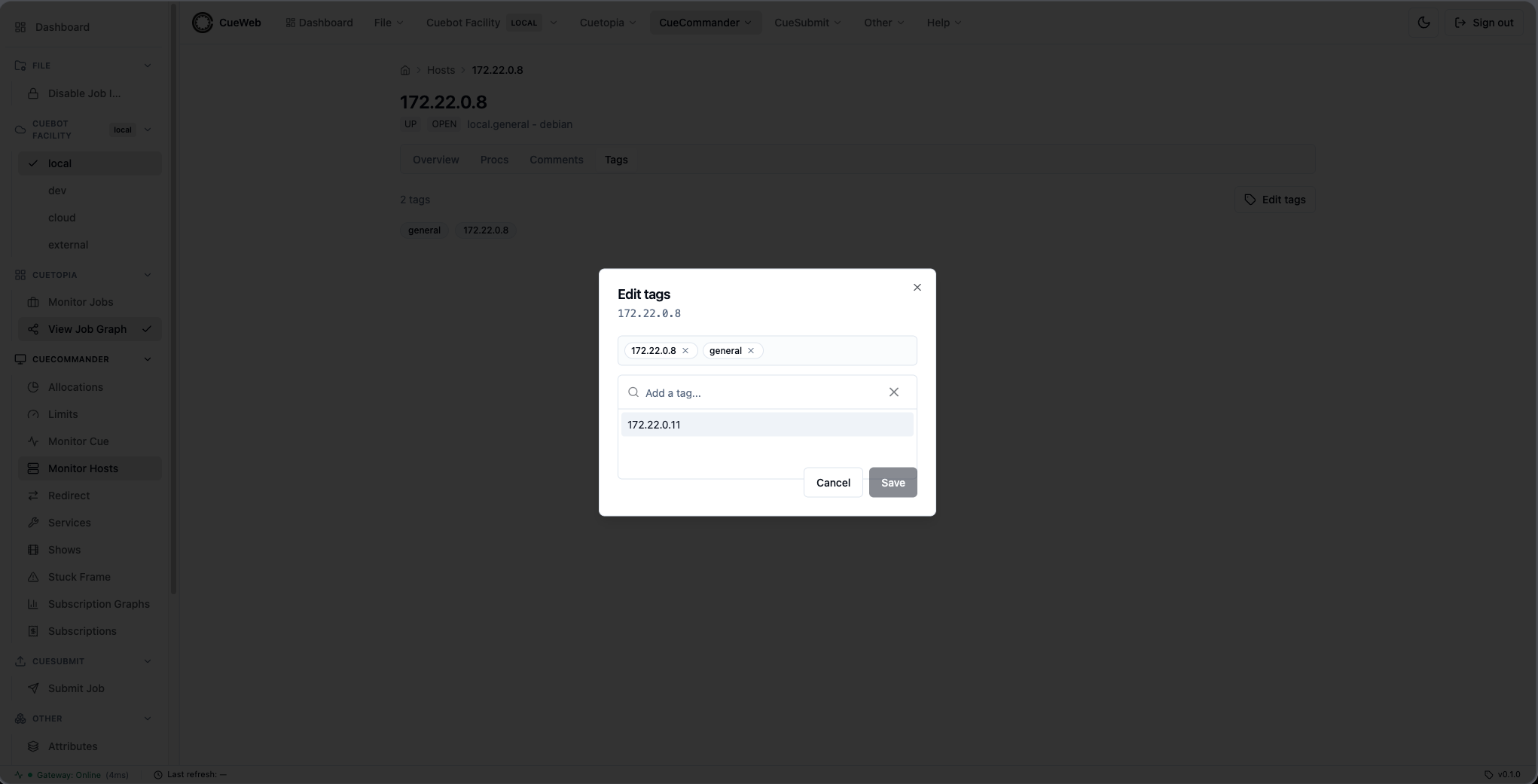
Edit Tags… opens a dialog to add or remove the host’s tags. The current tags show as removable chips; start typing to autocomplete from tags that already exist across the host registry, or create a new one.
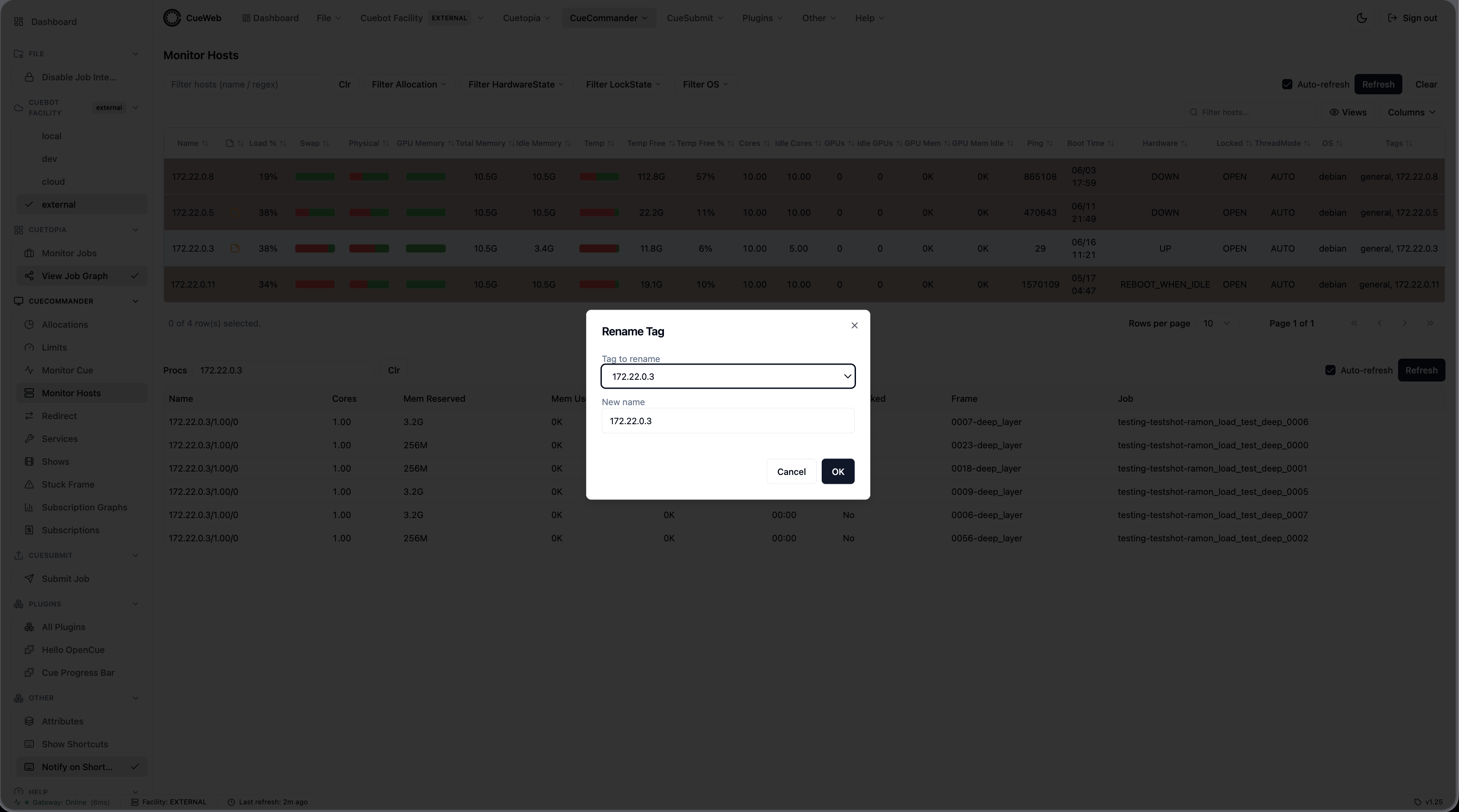
Rename Tag… renames one of the host’s existing tags - pick the tag and type its new name.
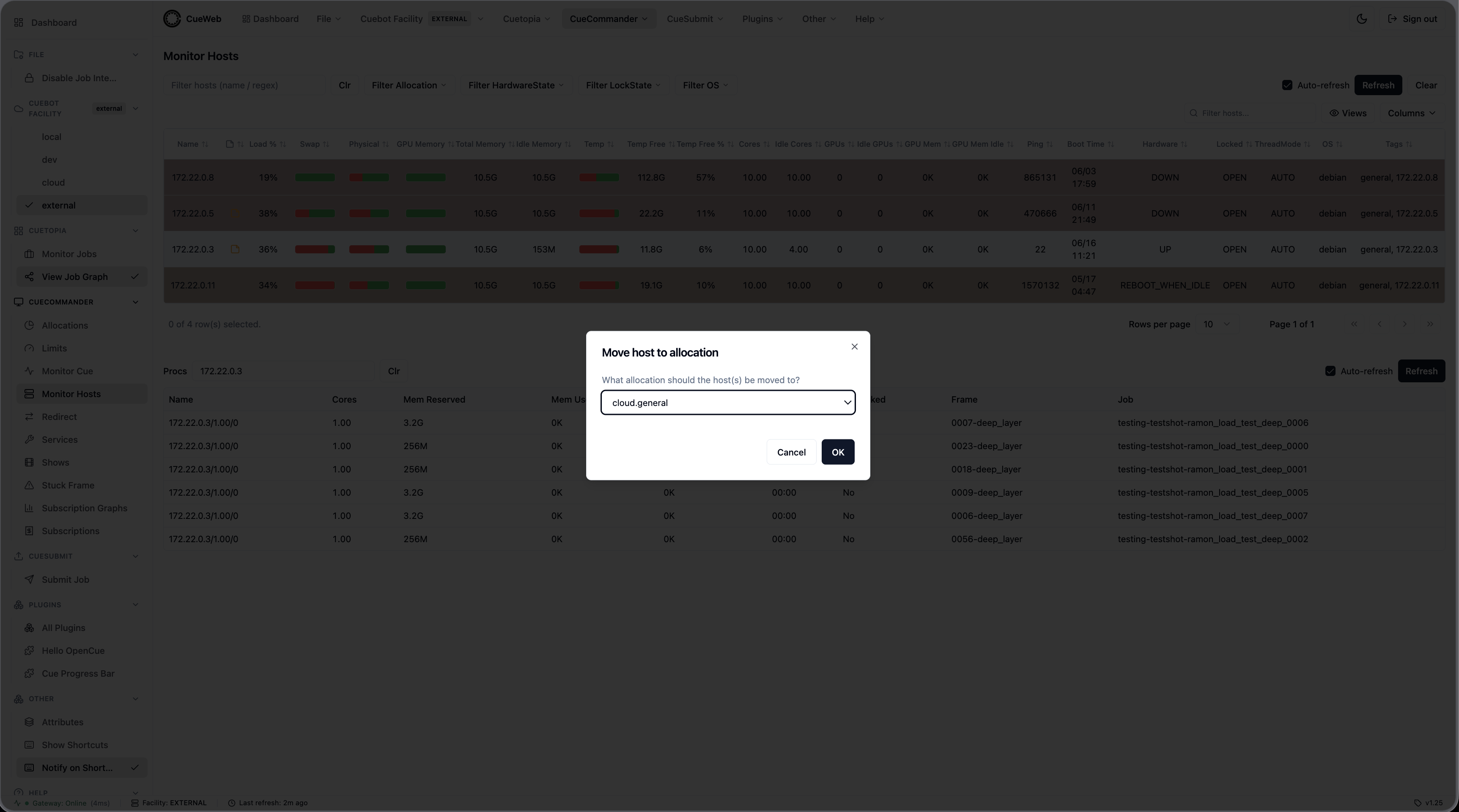
Change Allocation… moves the host into a different allocation; the dialog lists the allocations configured in Cuebot.
Reboot and reboot when idle
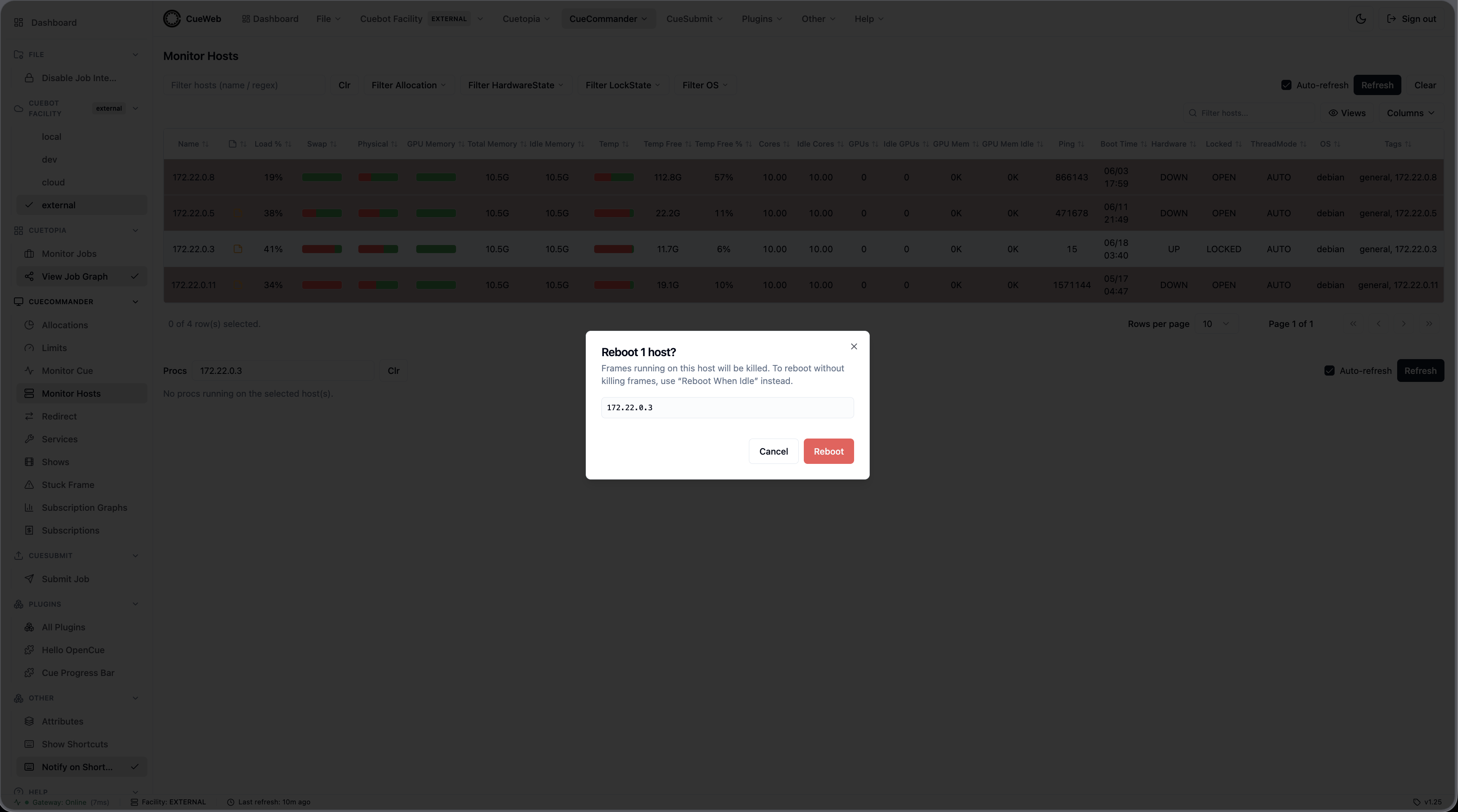
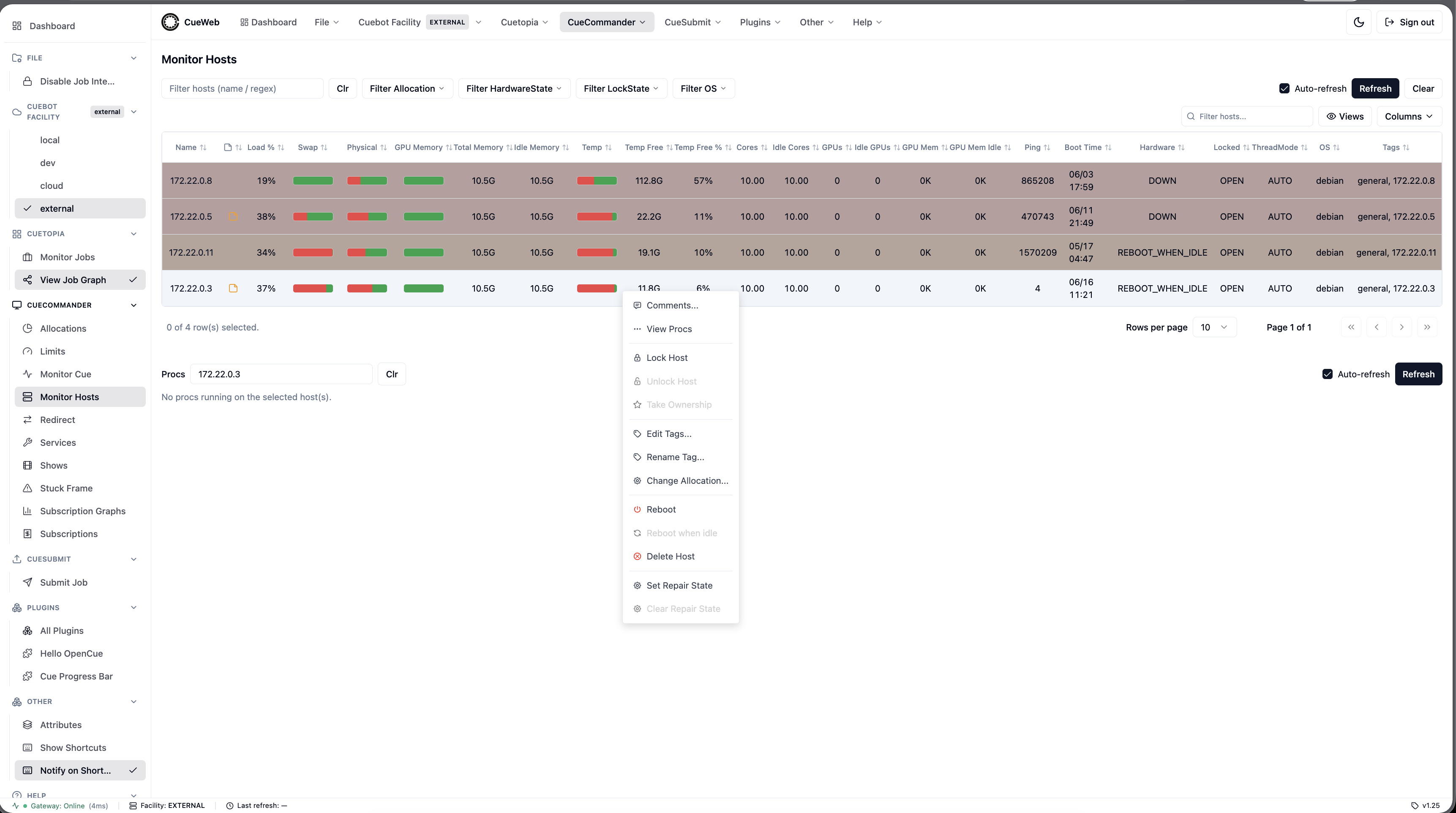
Reboot issues an immediate reboot. Any frames running on the host are killed, so OpenCueWeb asks you to confirm first.
Reboot when idle schedules the reboot for when the host finishes its running frames - nothing is killed. Both entries are disabled while the host is already rebooting, and Reboot when idle is also disabled once it is already scheduled.
Restart the RQD service
Restart service now restarts only the RQD service on the host - the machine is not rebooted, and running frames are not killed (the restarted service recovers them). OpenCueWeb asks you to confirm since the host drops out of the booking pool for the restart window: it shows as REBOOTING until the restarted service’s boot report returns it to UP. Restart service when idle asks RQD to restart once it is fully idle - all running frames finished and their completion reports acknowledged by Cuebot (so no completion is lost across the restart); the host parks in REBOOT_WHEN_IDLE (no new frames are booked) and likewise returns to UP after the restart. Both entries are enabled only while the host is UP, and require an RQD with restart support (the Rust RQD running under a service supervisor such as systemd). To cancel a scheduled restart, unlock the host (which aborts RQD’s pending restart) and set its hardware state back to UP (e.g. with cueadmin -host <name> -fixed).
Delete host
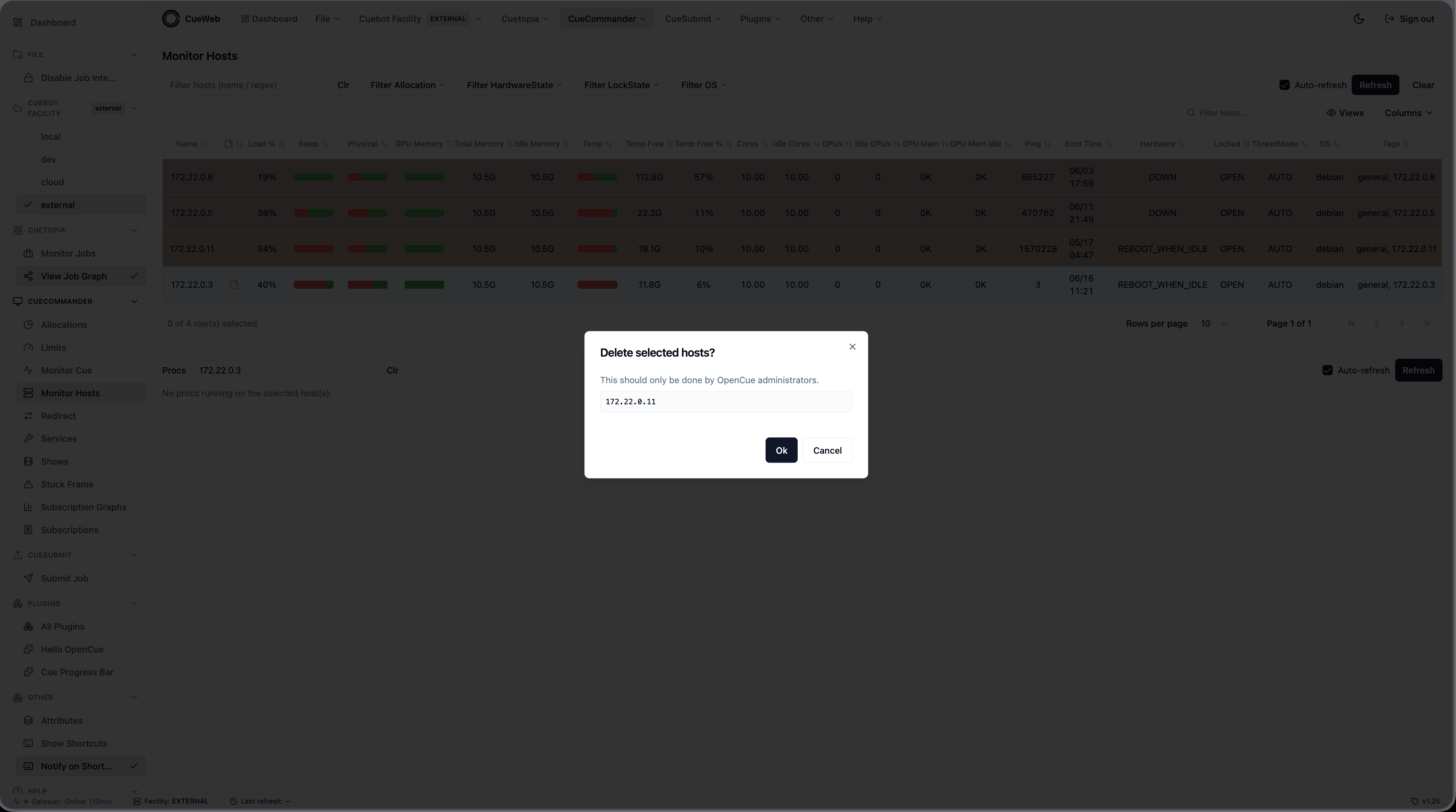
Delete Host removes the host record from Cuebot. This is an administrator action, so OpenCueWeb confirms first and lists the host(s) to be deleted. (A live host that is still reporting will re-register on its next ping.)
Repair state
Set Repair State marks a host as in REPAIR so the scheduler stops booking it; Clear Repair State returns it to UP. The two entries are mutually exclusive - only the applicable one is enabled for a given host.
Comments
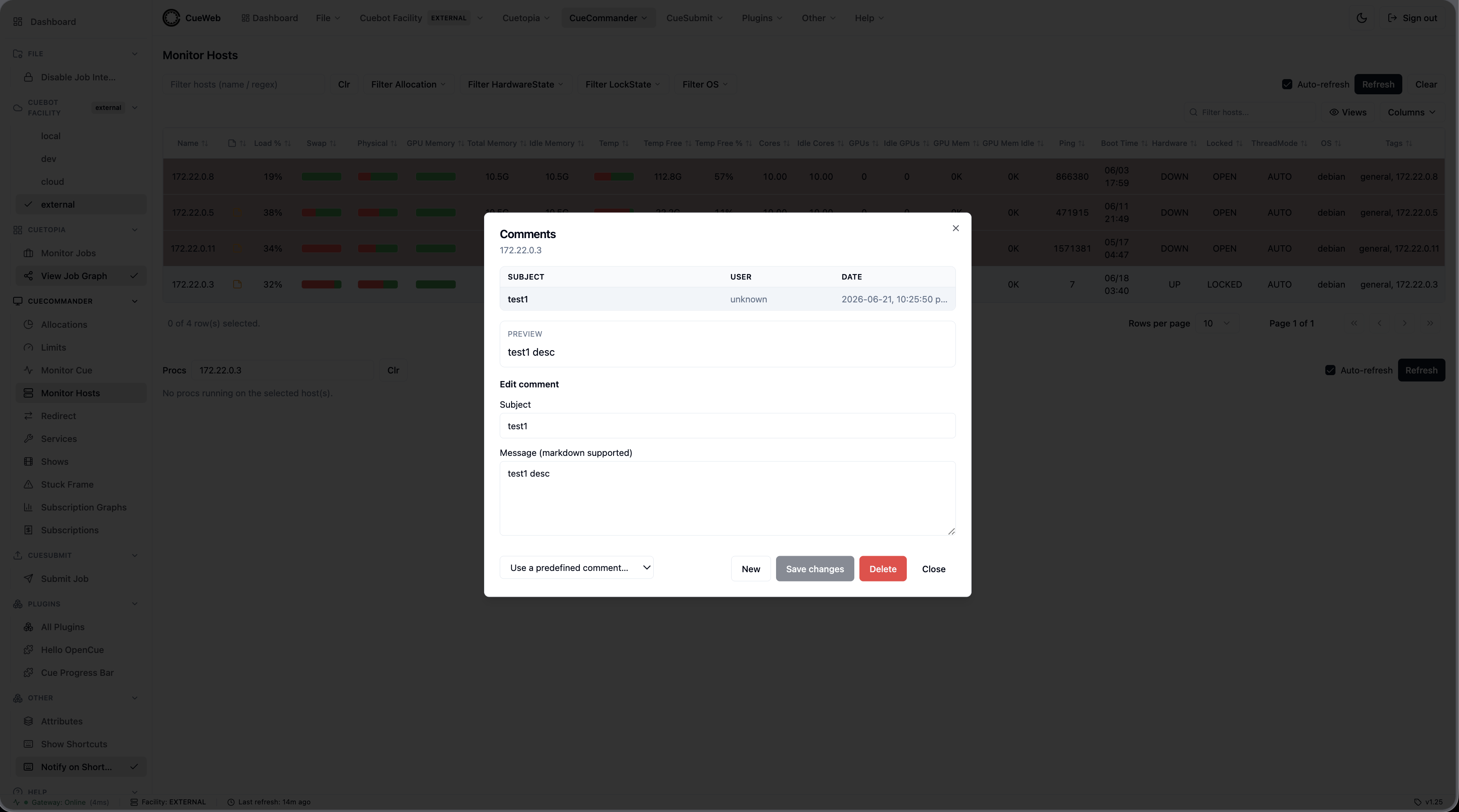
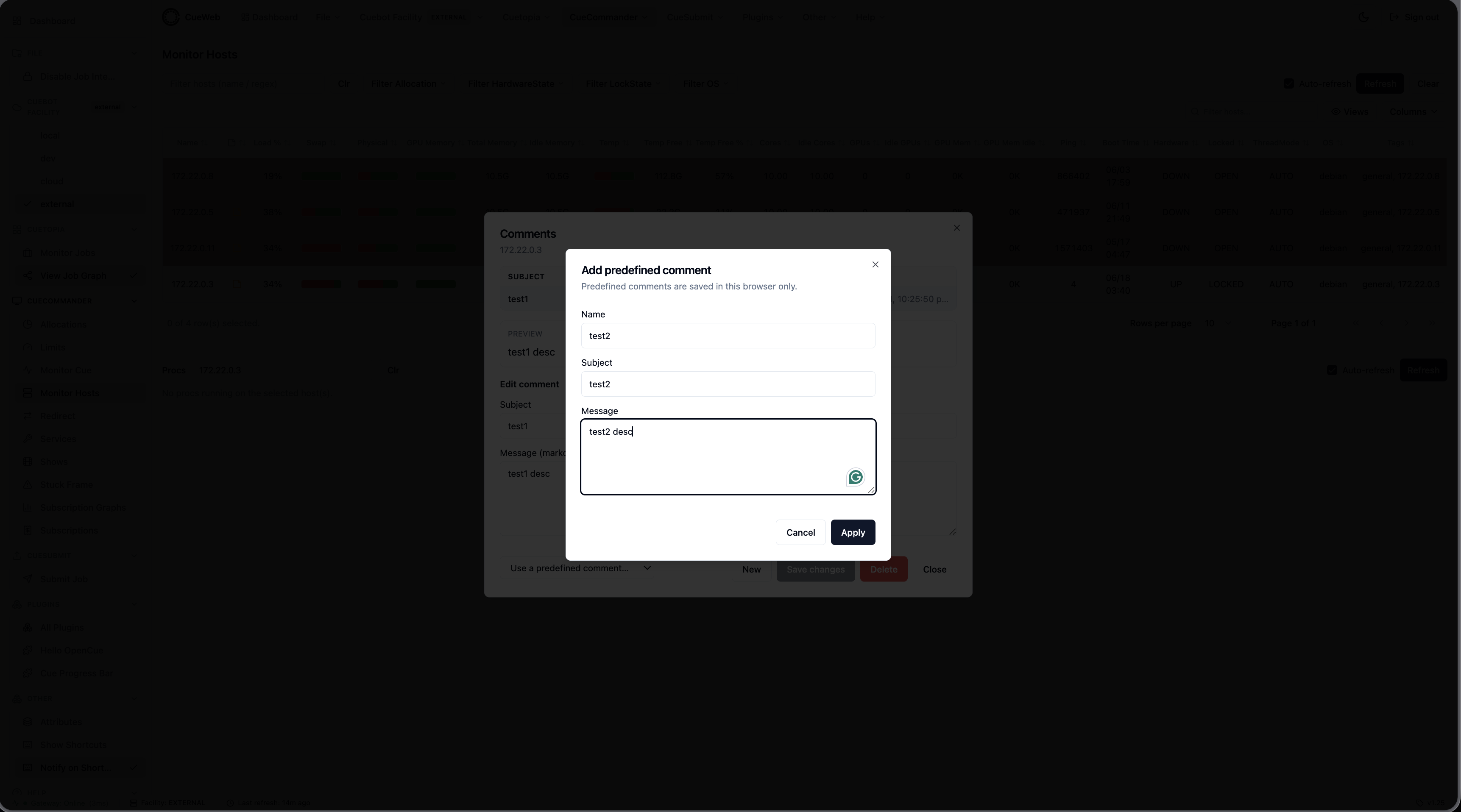
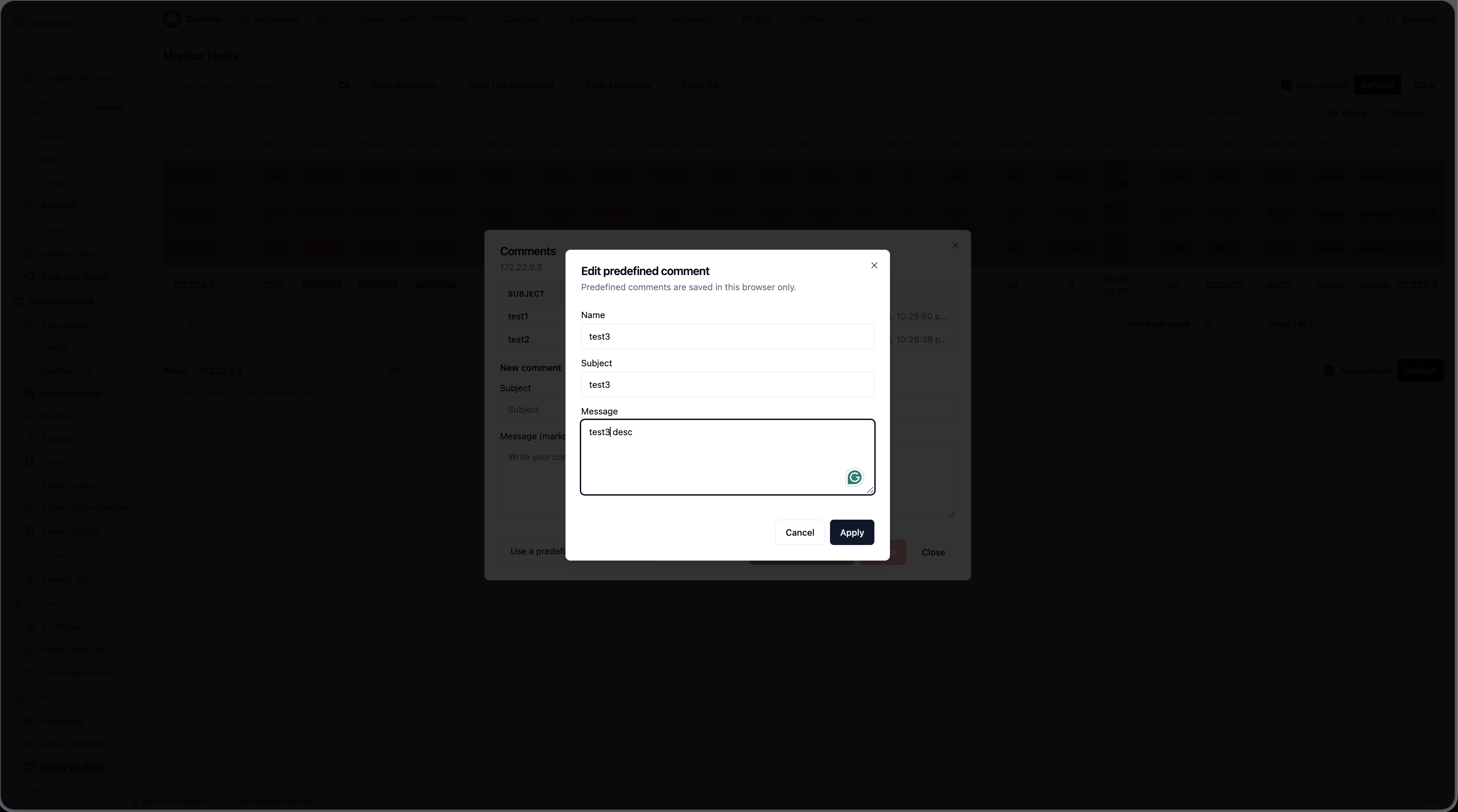
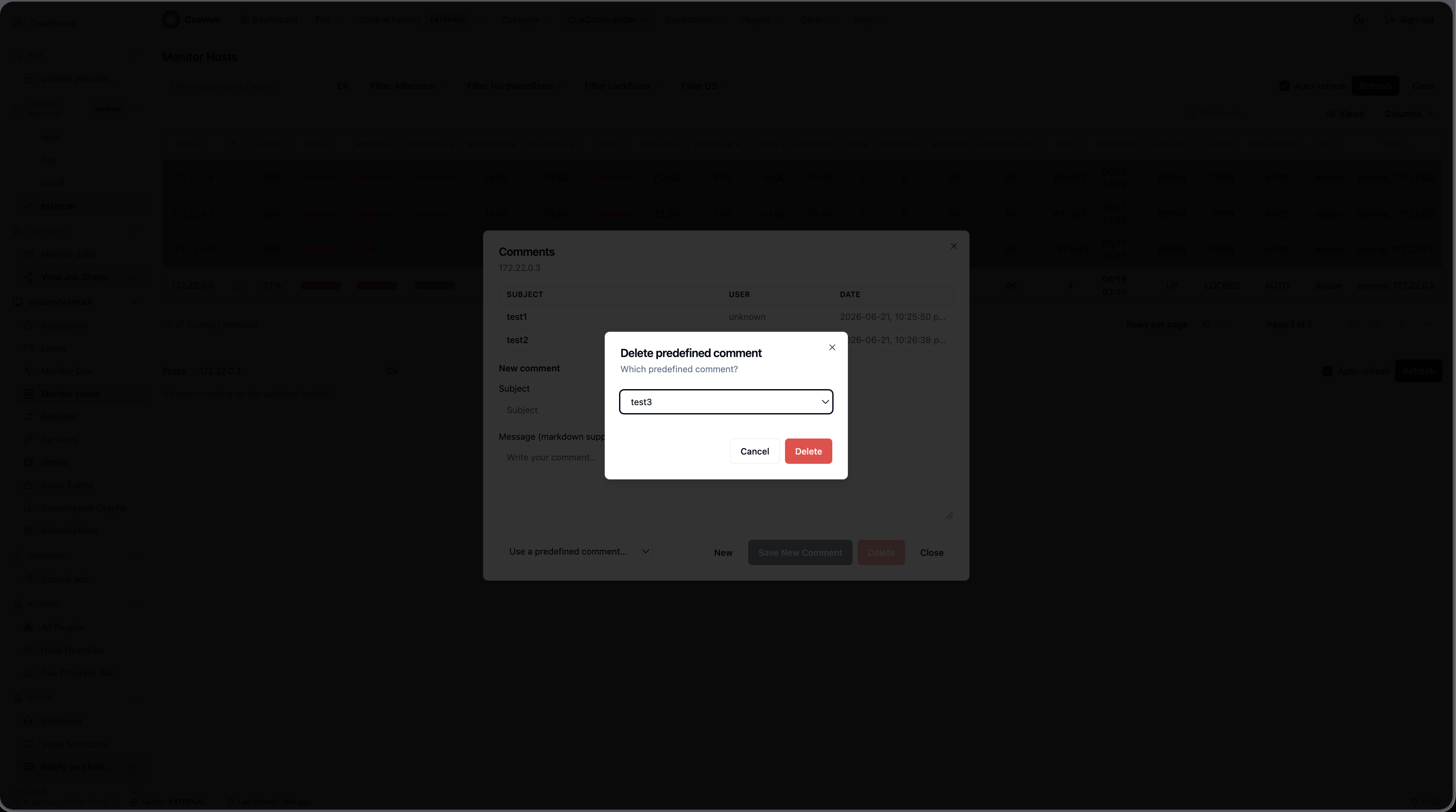
Comments… opens the host’s comments dialog: a list of existing comments (Subject, User, Date) on the left and an editor for adding or editing one on the right (Subject + a markdown Message). You can only delete a comment you authored.
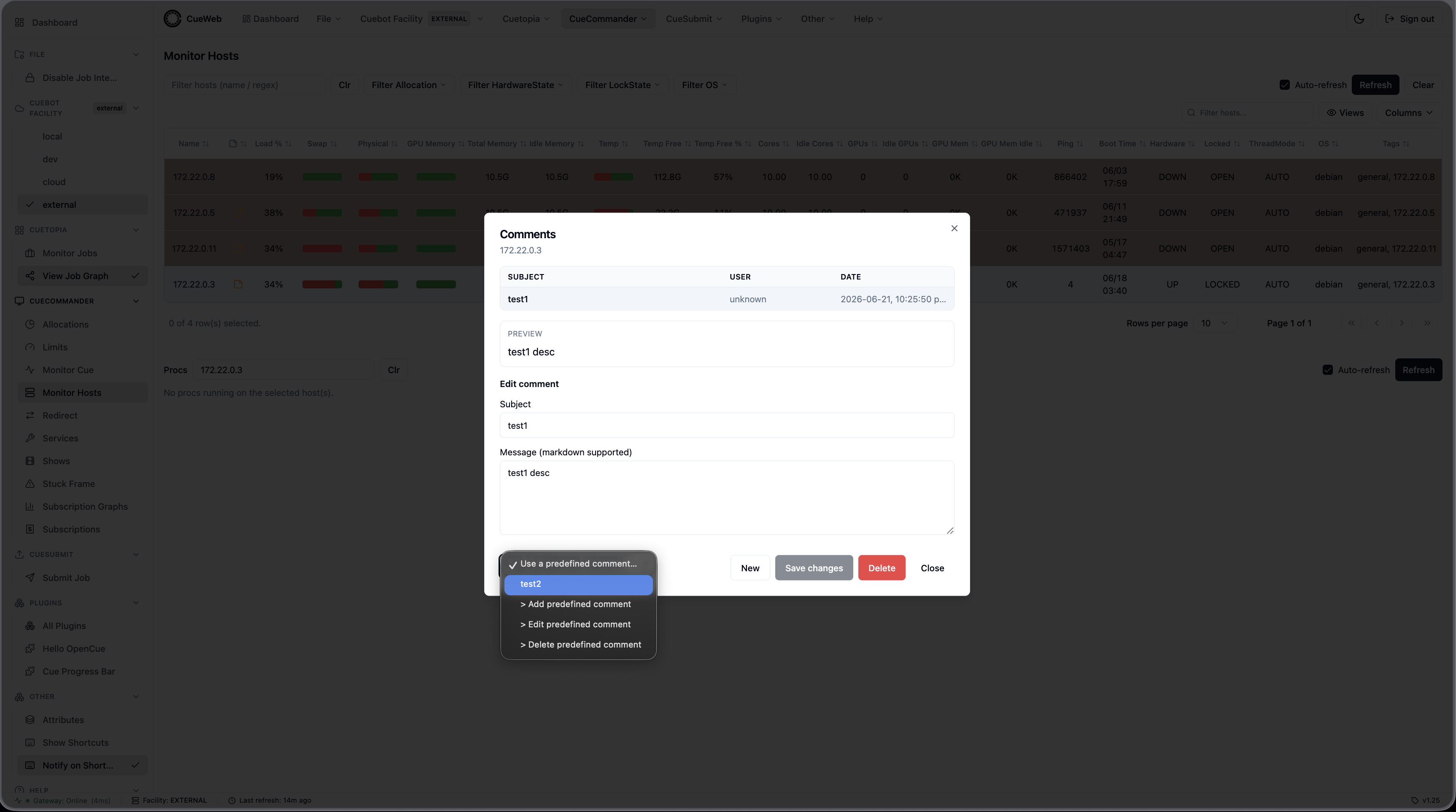
Like CueGUI’s Comments dialog, you can save reusable predefined comments (macros) and apply them with one click from the Use a predefined comment… dropdown. The dropdown also lets you add, edit, and delete macros; they’re stored per browser.
Proc monitor panel
The panel below the table shows the procs (running frames) on one or more hosts - the OpenCueWeb equivalent of CueGUI’s Monitor Hosts proc view. Populate it by left-clicking a host row (which also loads the host into the Attributes panel), by choosing View Procs from a host’s right-click menu, or by typing host names (space-separated) into the Procs box. It auto-refreshes every 30 seconds (toggle with the panel’s own Auto-refresh / Refresh), and Clr empties it.
Each proc row shows Name, Cores, Mem Reserved, Mem Used, GPU Used, Age, Unbooked, Frame, and Job. Right-click a proc for View Job (opens the job detail page), Unbook (release the proc after the current frame), Kill (kill the running frame), and Unbook and Kill.
Host detail page
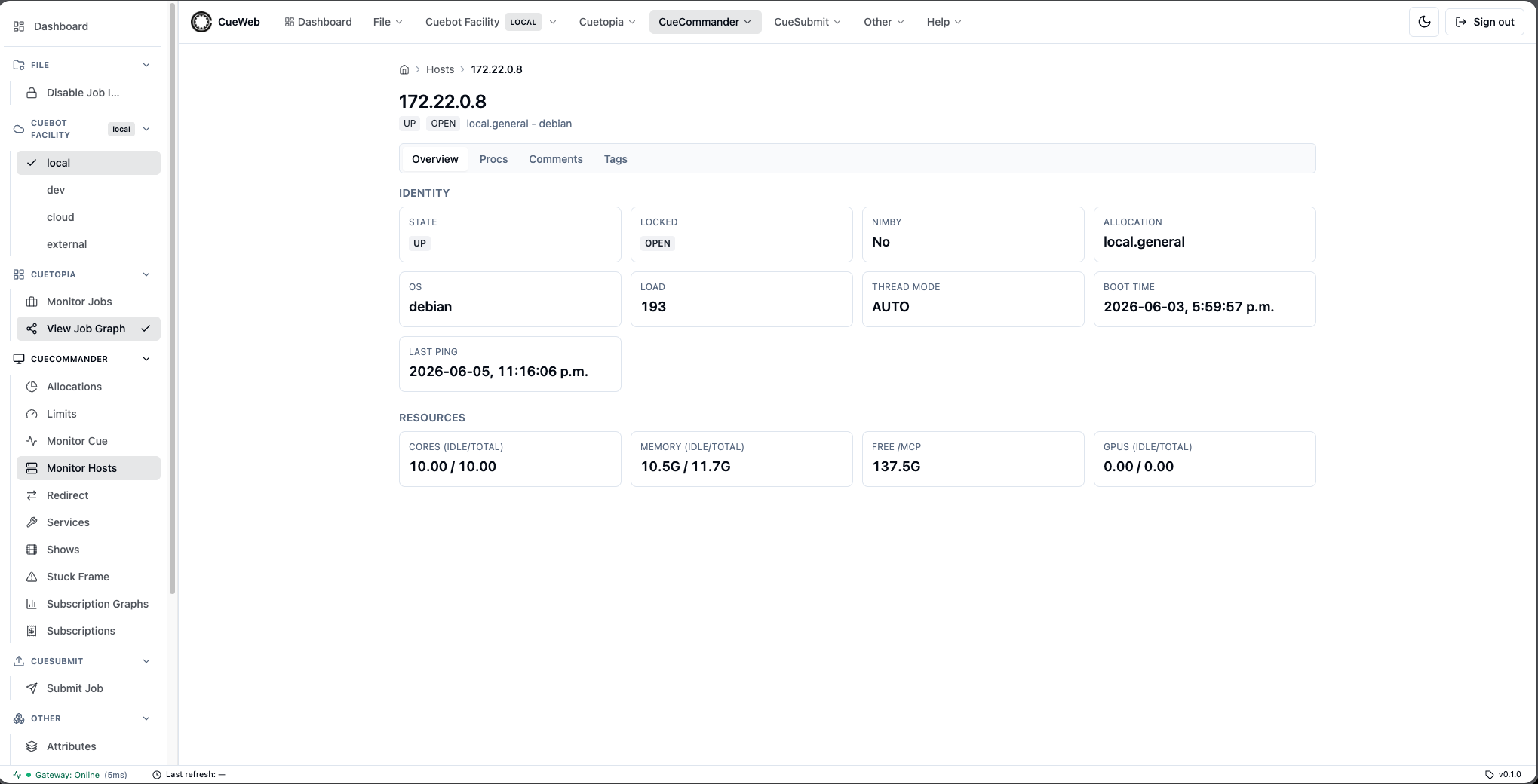
Click a host’s Name in the table to open its detail page. The page has four tabs, and the active tab is kept in the URL so the view is bookmarkable.
Overview - identity and resource summary (state, lock state, NIMBY, allocation, OS, load, thread mode, boot/ping time, cores, memory, free /mcp, GPUs).
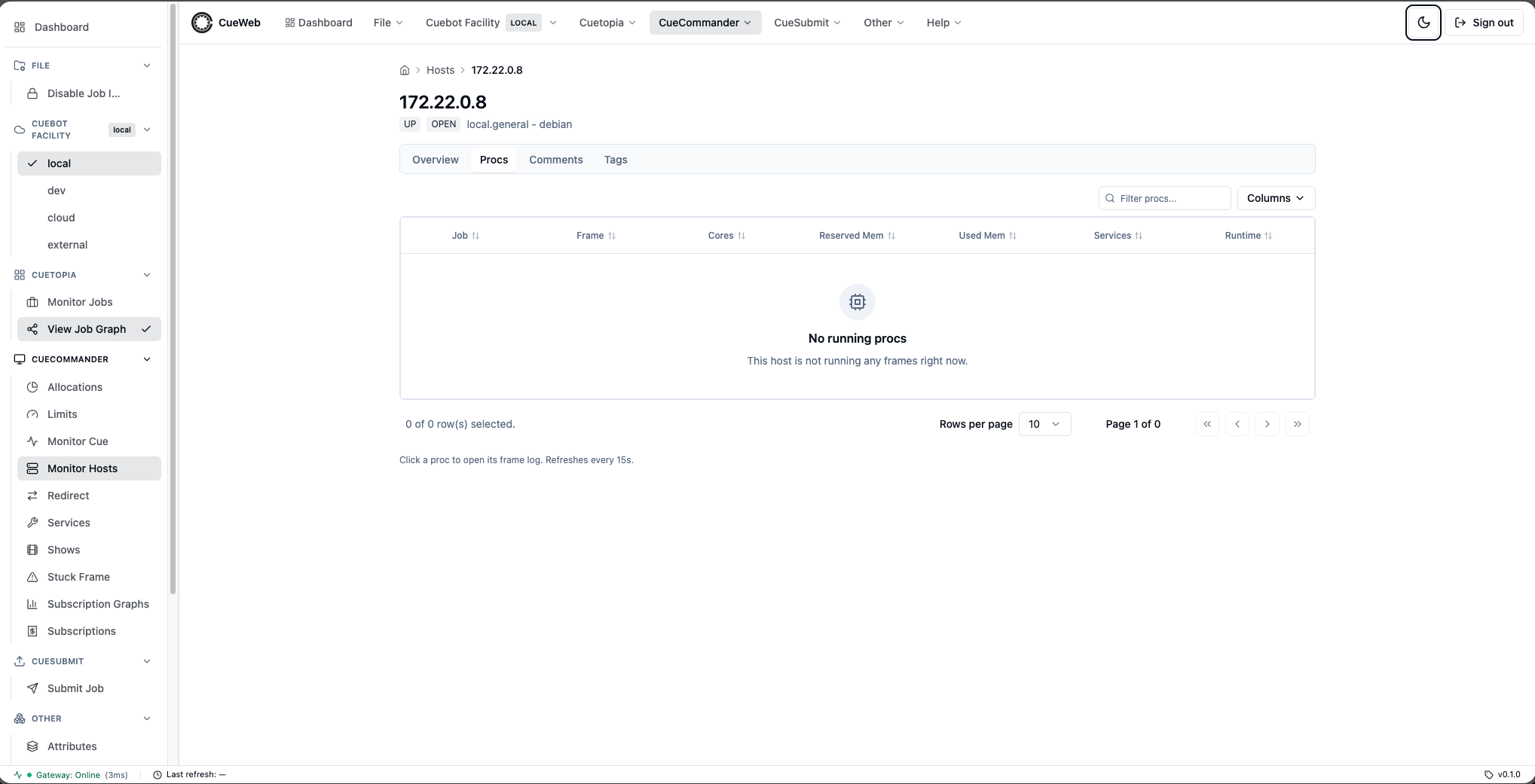
Procs - the frames currently running on the host, auto-refreshing every 15 seconds. Click a proc to open that frame’s log.
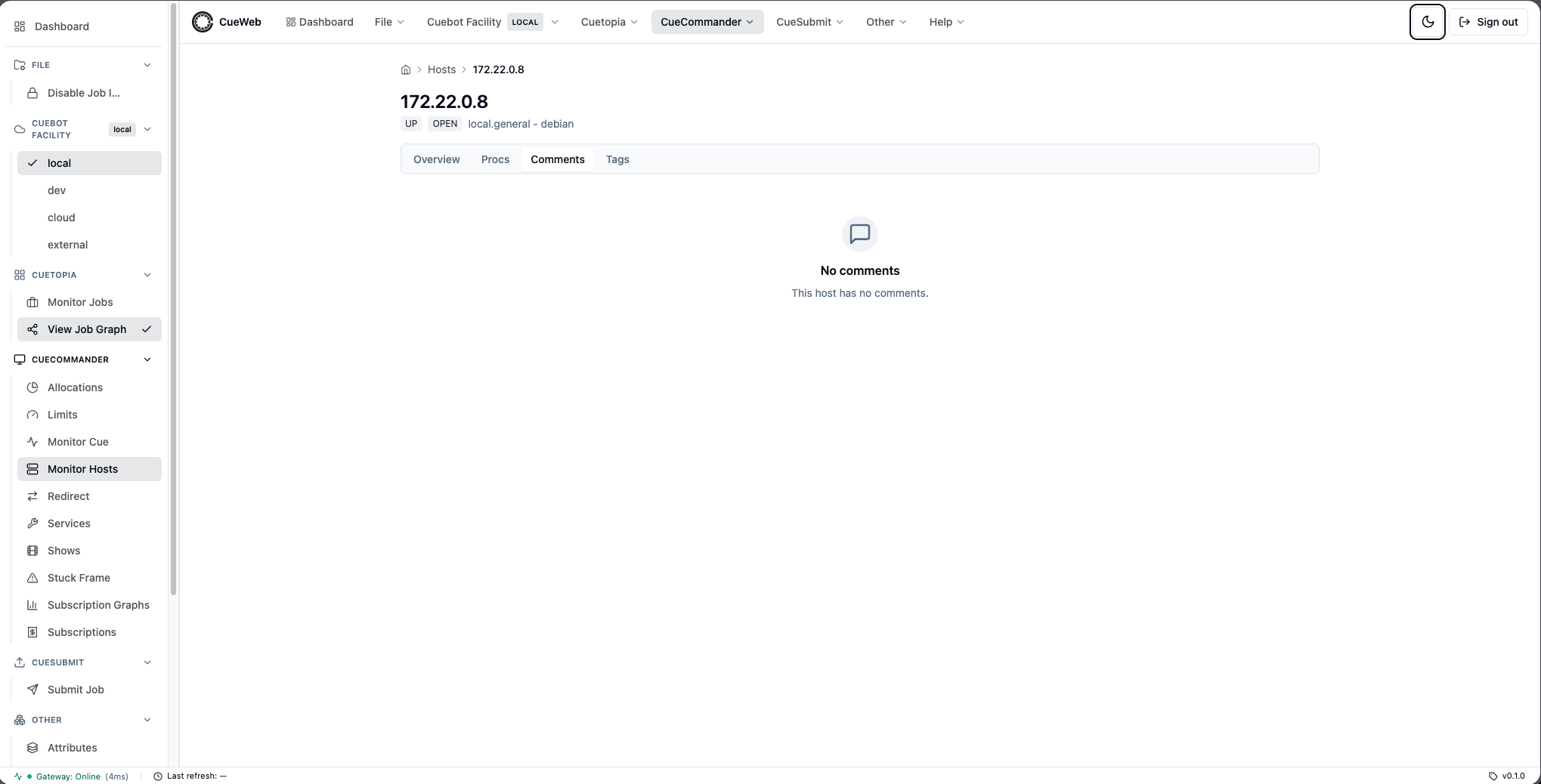
Comments - comments attached to the host.
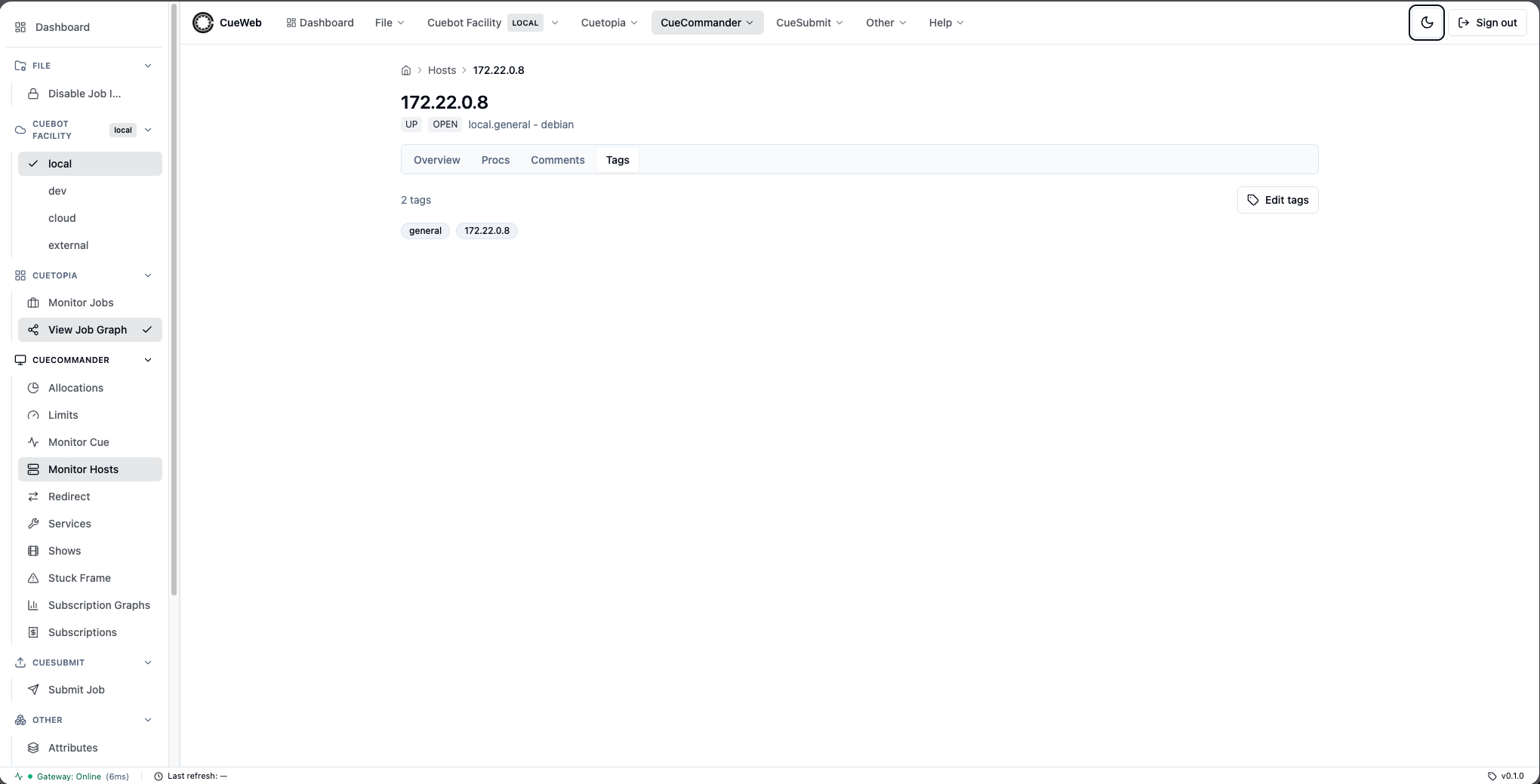
Tags - the host’s tags, with an Edit tags button that opens the same dialog as the table’s context menu.
Allocations
The Allocations page (CueCommander → Allocations in the sidebar or header) lists the allocations configured in Cuebot. It is the OpenCueWeb equivalent of CueGUI’s CueCommander Allocations window, with a sortable, filterable table.
Open it from the CueCommander menu (or the matching entry in the left sidebar).
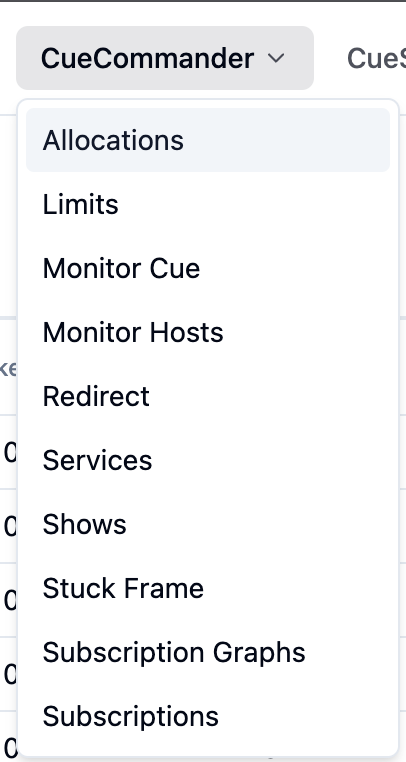
The page renders a sortable, filterable table of every allocation.
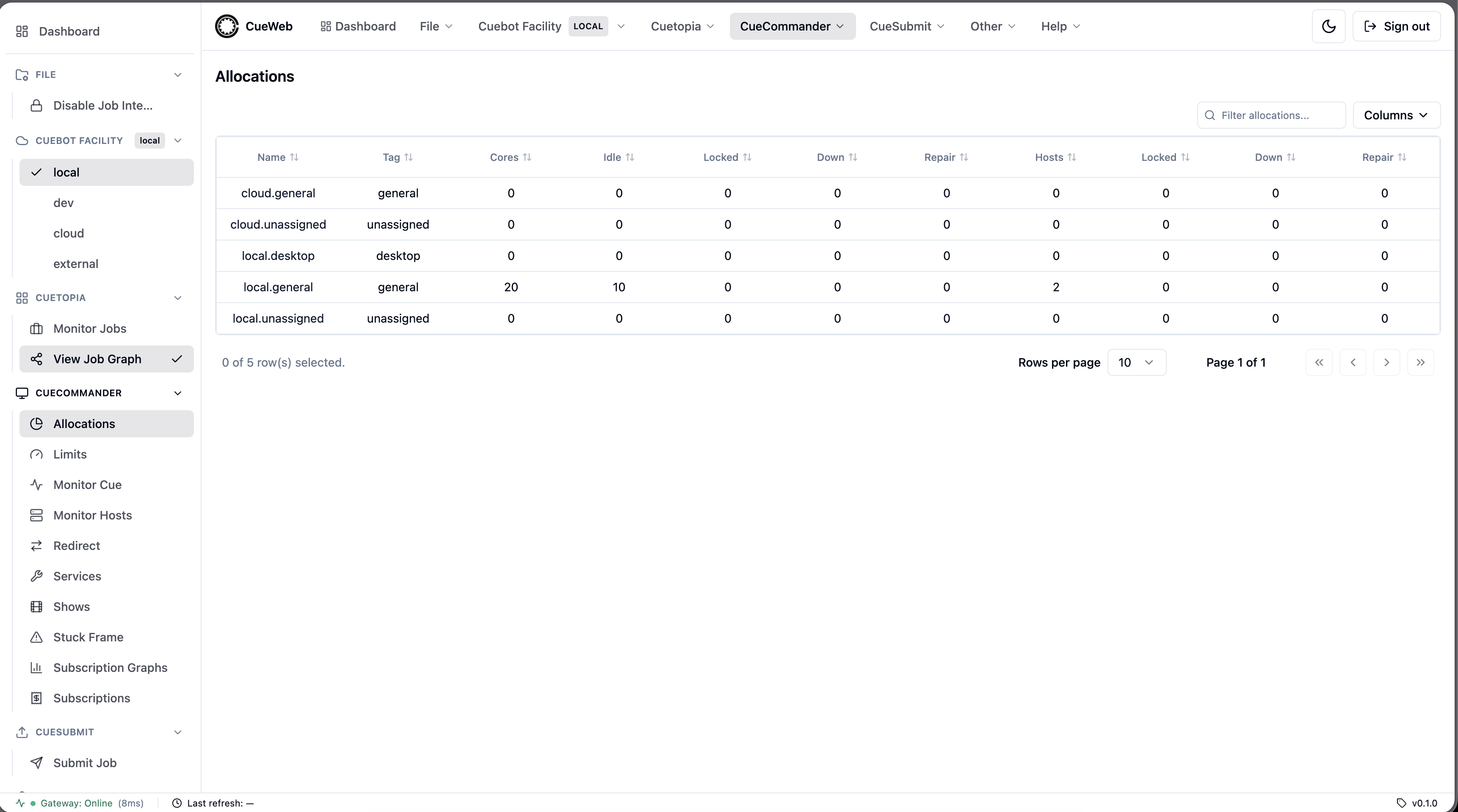
Allocation columns
The columns mirror CueGUI: an identity pair, a cores group, and a hosts group.
| Column | Group | Description |
|---|---|---|
| Name | - | Allocation name. Click it to open the hosts list filtered to this allocation |
| Tag | - | Allocation tag |
| Cores | Cores | Total cores in the allocation |
| Idle | Cores | Available (idle) cores |
| Locked | Cores | Locked cores |
| Down | Cores | Cores on hosts in the DOWN state |
| Repair | Cores | Cores on hosts in the REPAIR state |
| Hosts | Hosts | Number of hosts |
| Locked | Hosts | Number of locked hosts |
| Down | Hosts | Number of hosts in the DOWN state |
| Repair | Hosts | Number of hosts in the REPAIR state |
Numeric columns sort by their underlying value. Use the Columns menu to show or hide columns - your choice persists per browser - and the Filter allocations… box to narrow the table by a substring. The table auto-refreshes every 30 seconds.
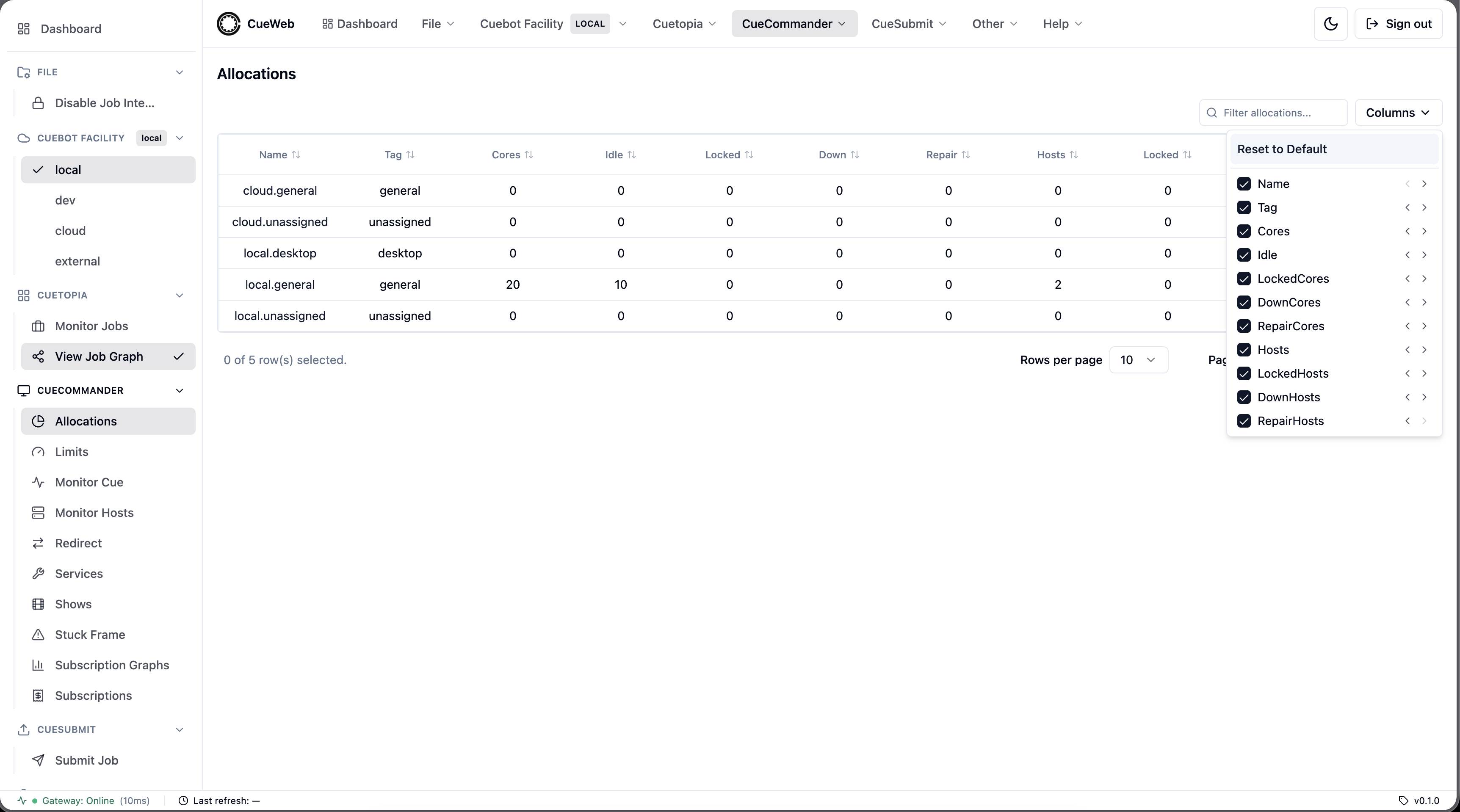
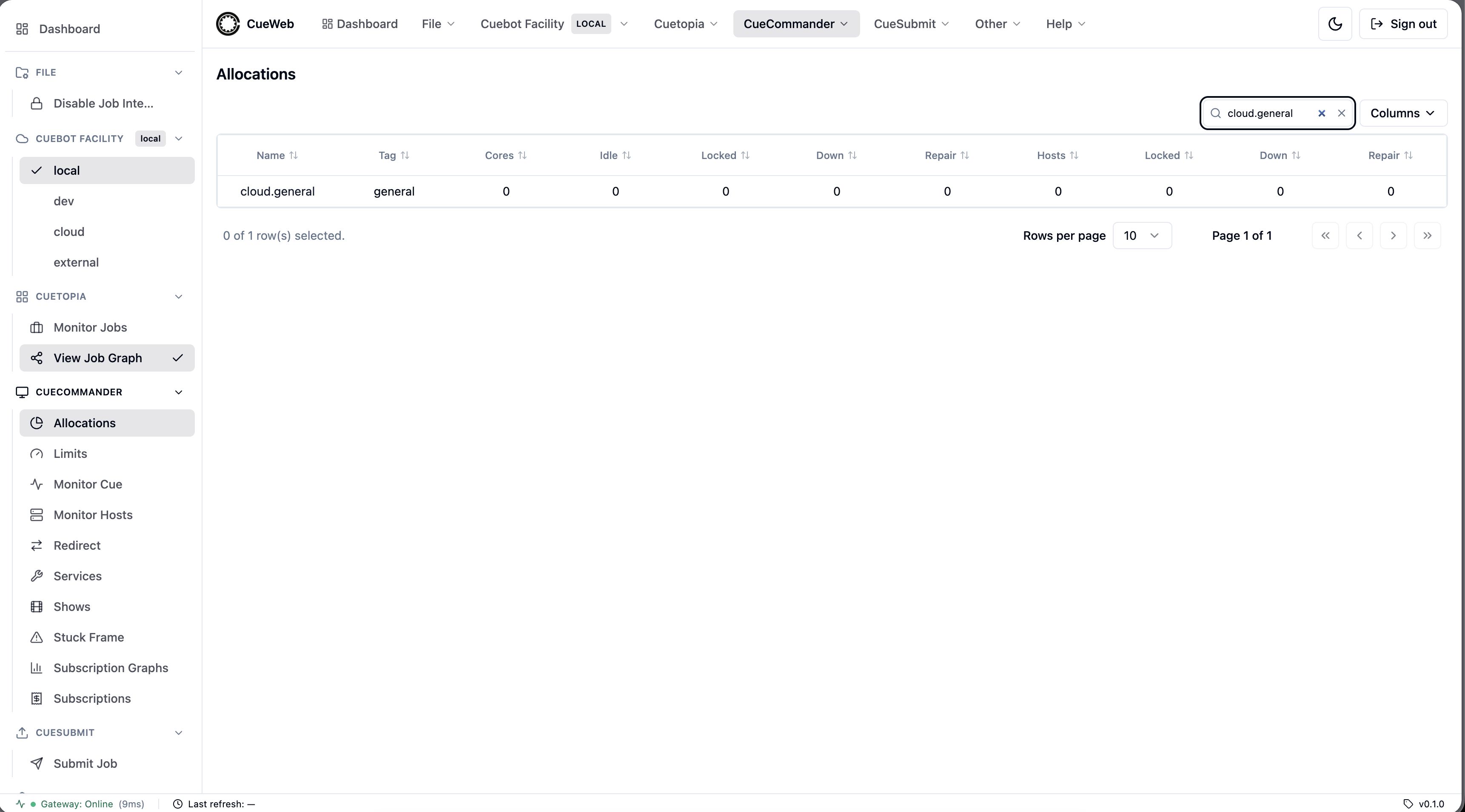
Clicking an allocation’s Name navigates to the hosts list scoped to that allocation (/hosts?allocation=<name>).
Shows
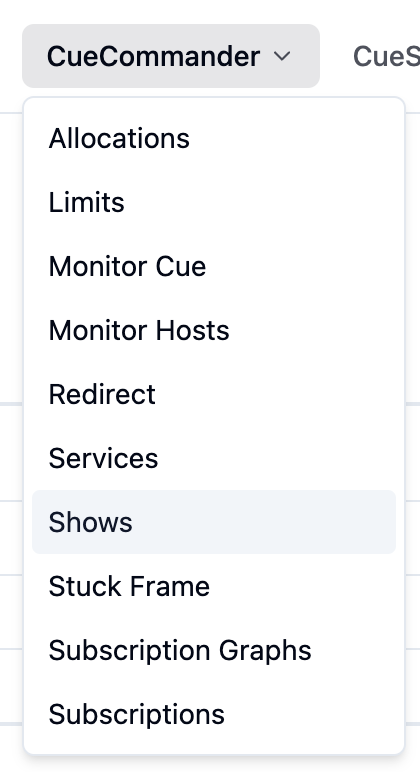
The Shows page (CueCommander → Shows in the sidebar or header) lists the active shows registered with Cuebot. It is the OpenCueWeb equivalent of CueGUI’s CueCommander Shows window, with a sortable, filterable stats table, a Create Show button, and a per-row actions menu.
Open it from the CueCommander menu (or the matching entry in the left sidebar).
The page renders a sortable, filterable table of the active shows.
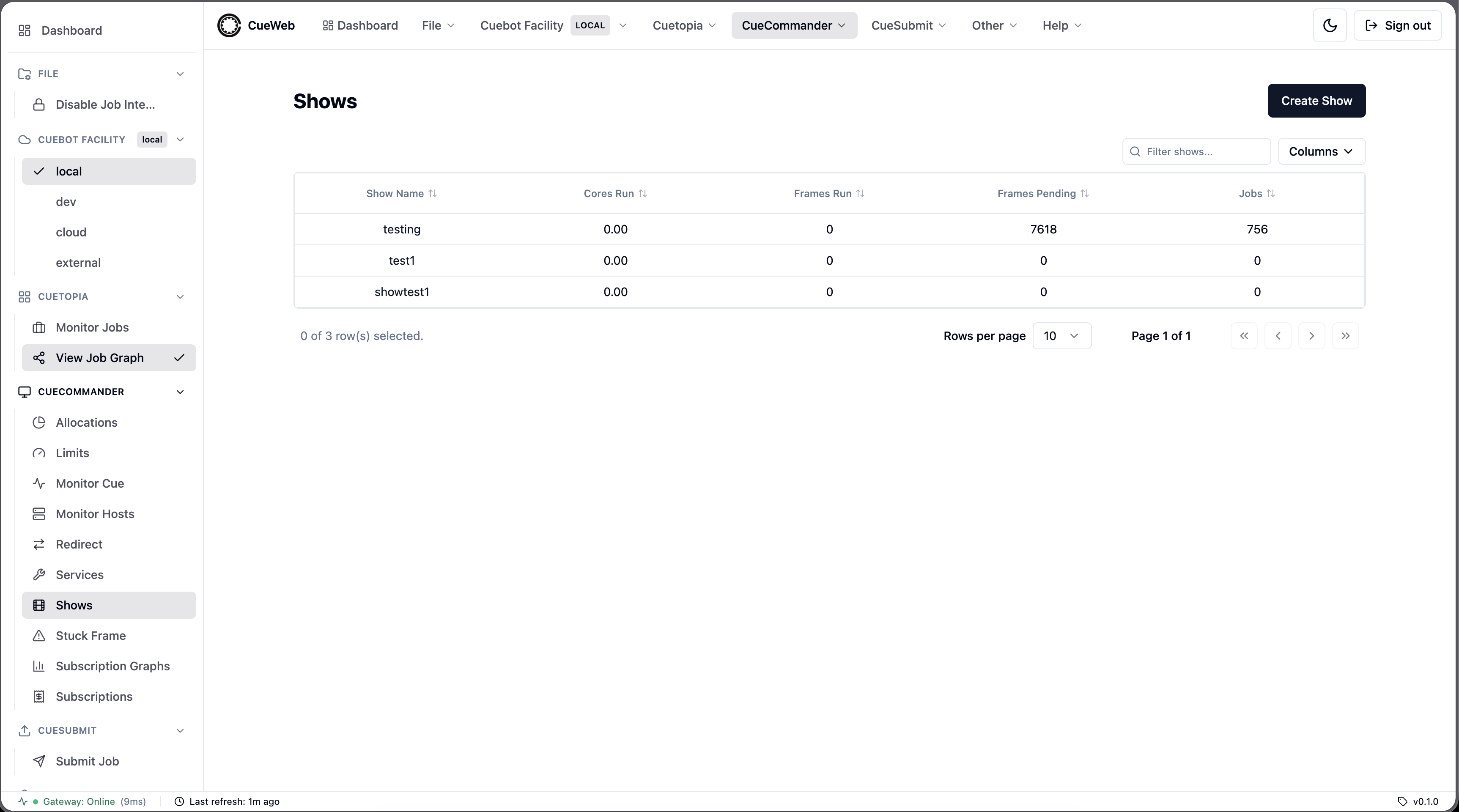
Show columns
| Column | Description |
|---|---|
| Show Name | Show name. Click it to open the show’s detail page |
| Cores Run | Reserved (running) cores |
| Frames Run | Running frame count |
| Frames Pending | Pending frame count |
| Jobs | Pending job count |
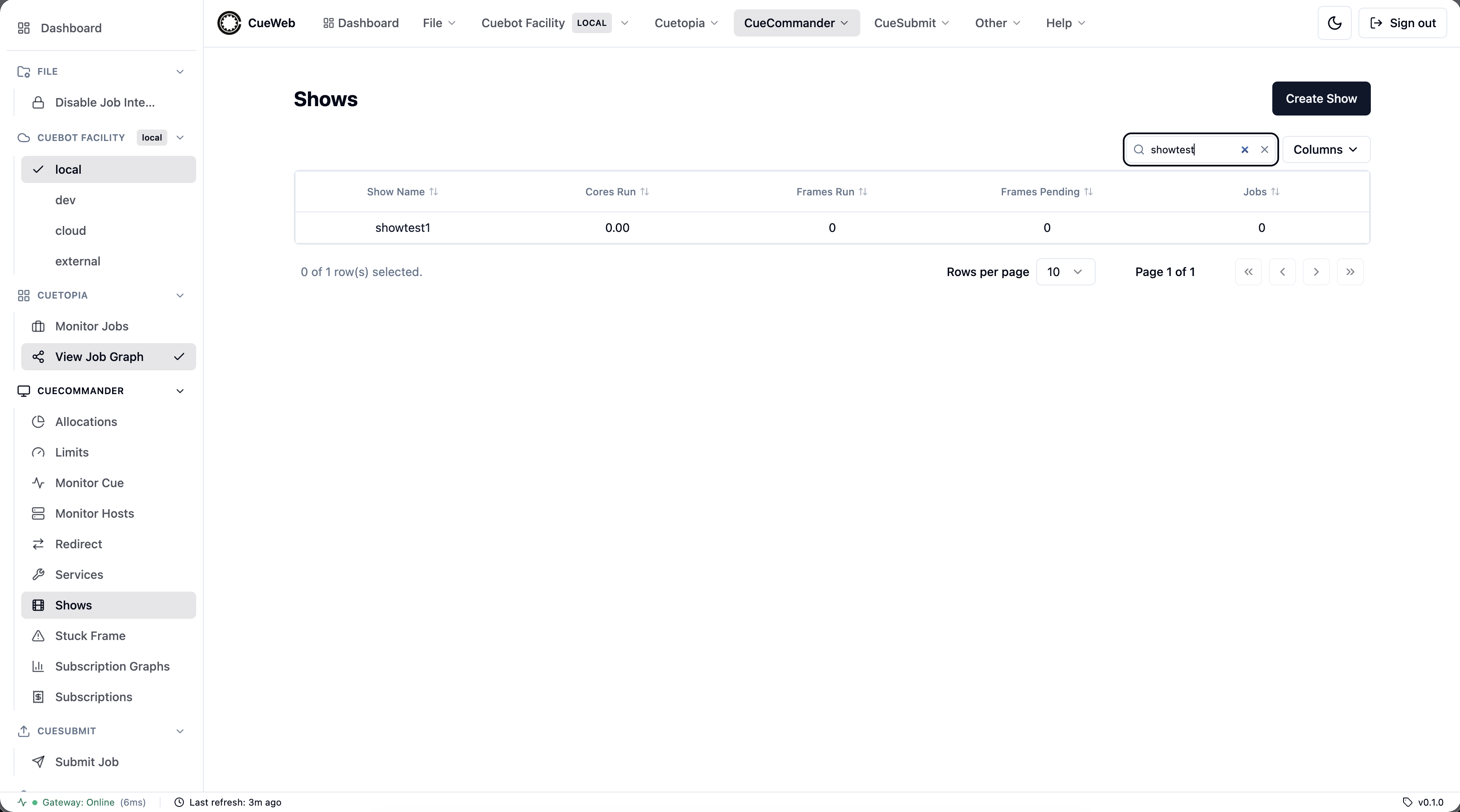
Numeric columns sort by their underlying value. Use the Columns menu to show or hide columns - your choice persists per browser - and the Filter shows… box to narrow the table by a substring of the show name. The table auto-refreshes every 30 seconds.
Create a show
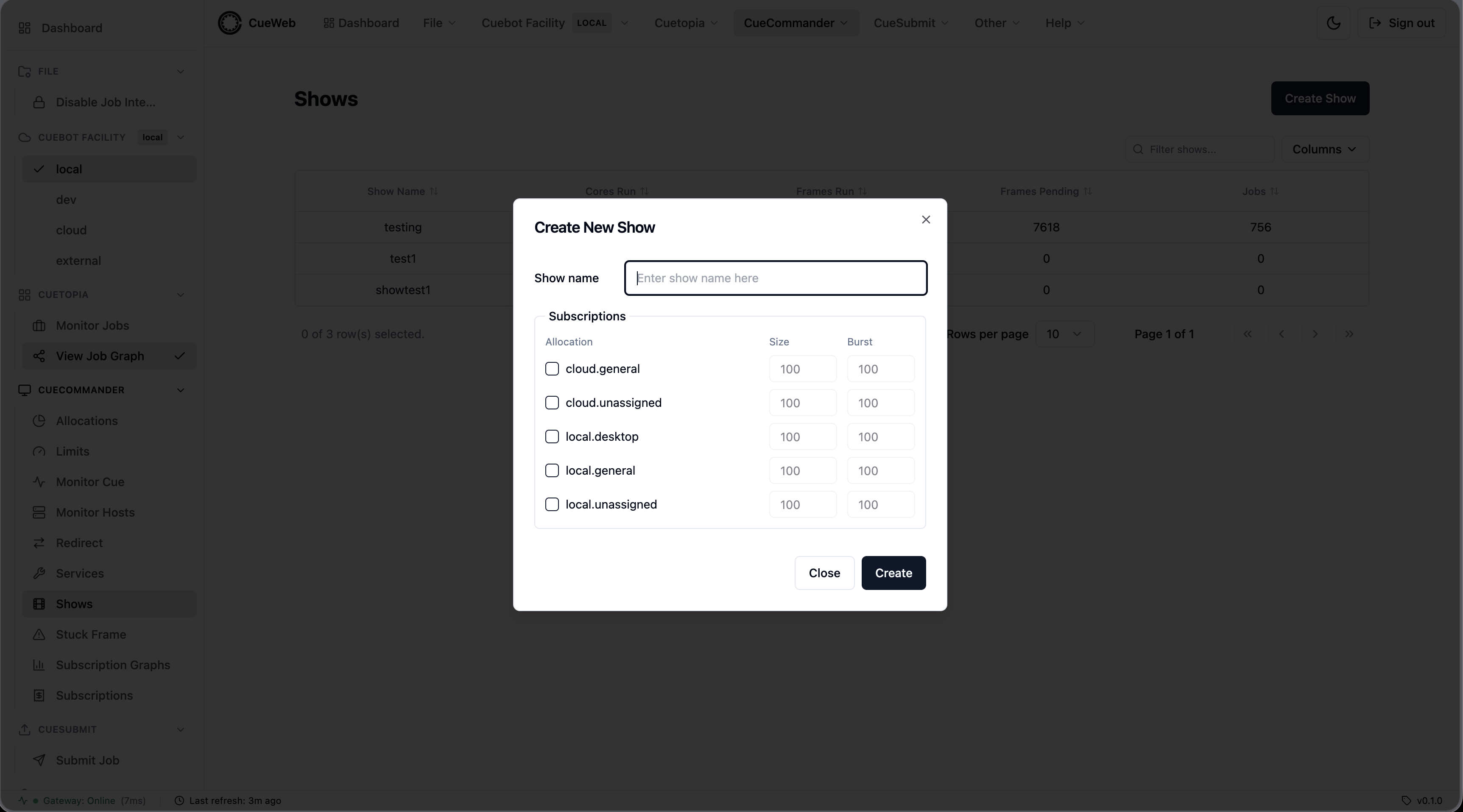
Click Create Show to open the dialog. Enter a show name (alphanumeric, must be unique), then optionally subscribe the new show to one or more allocations by checking each allocation and setting its Size and Burst. Clicking Create registers the show and creates a subscription on each checked allocation.
Show row actions
Right-click a show row to open its actions menu: Show Properties and Create Subscription….
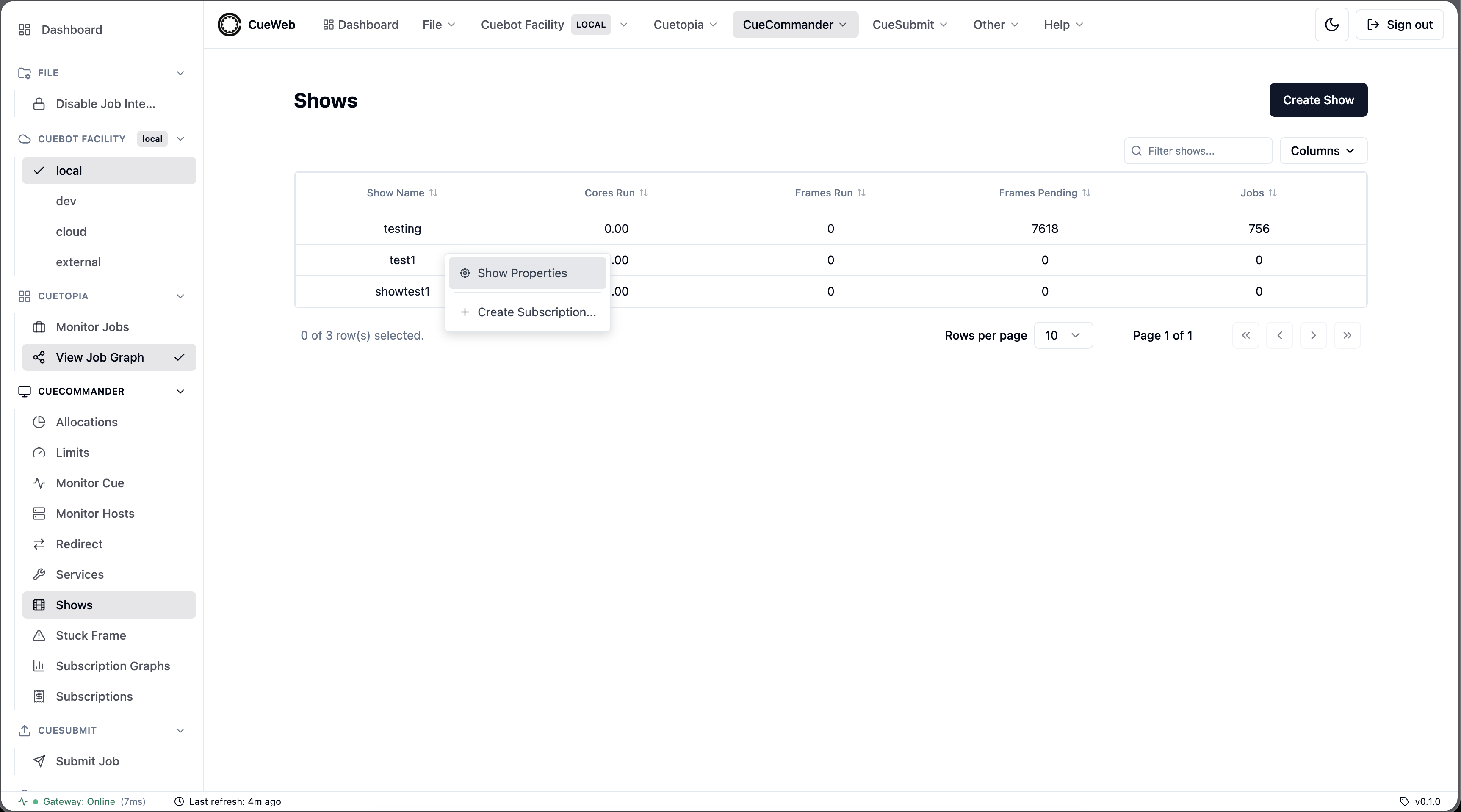
Show Properties
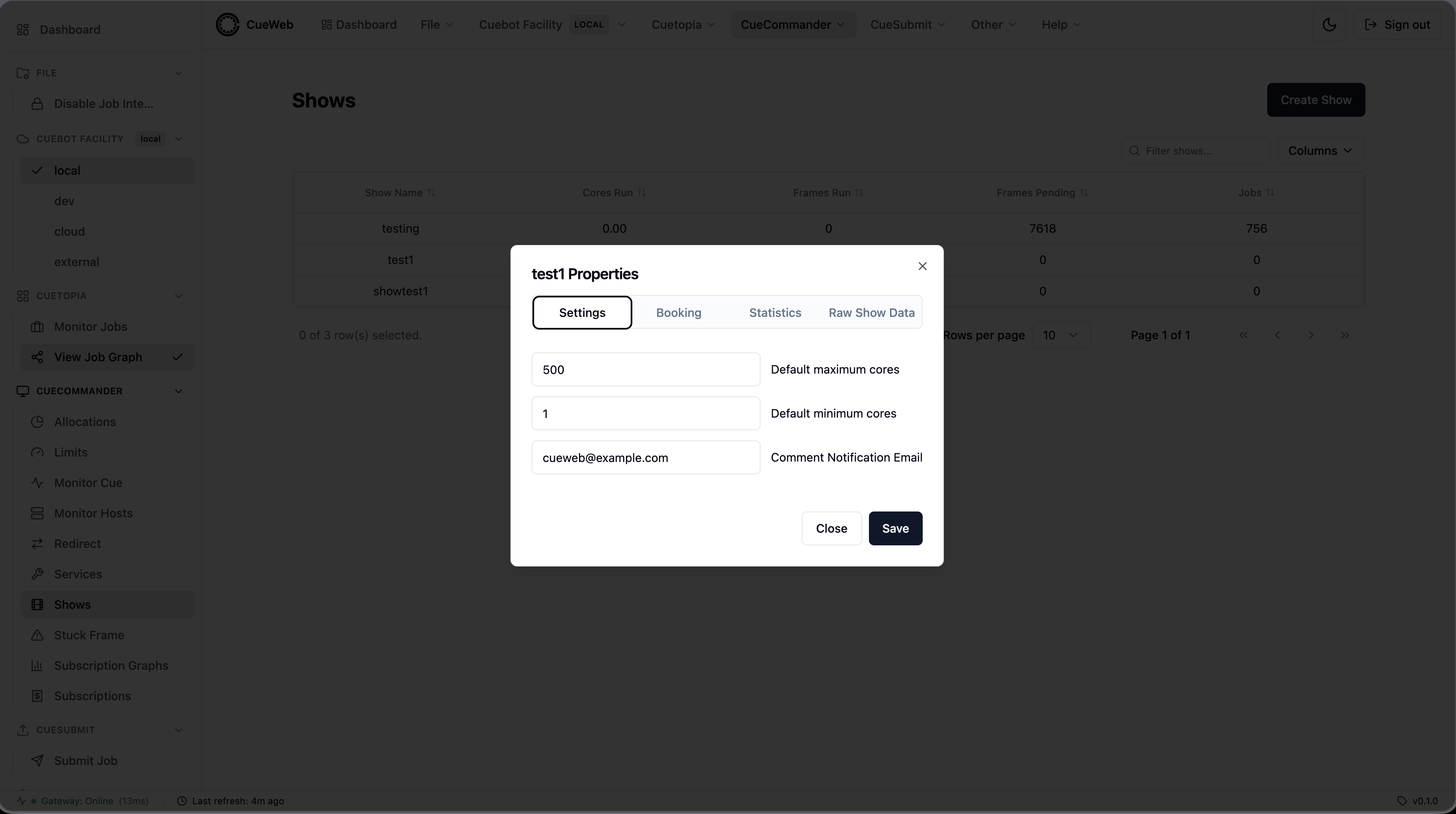
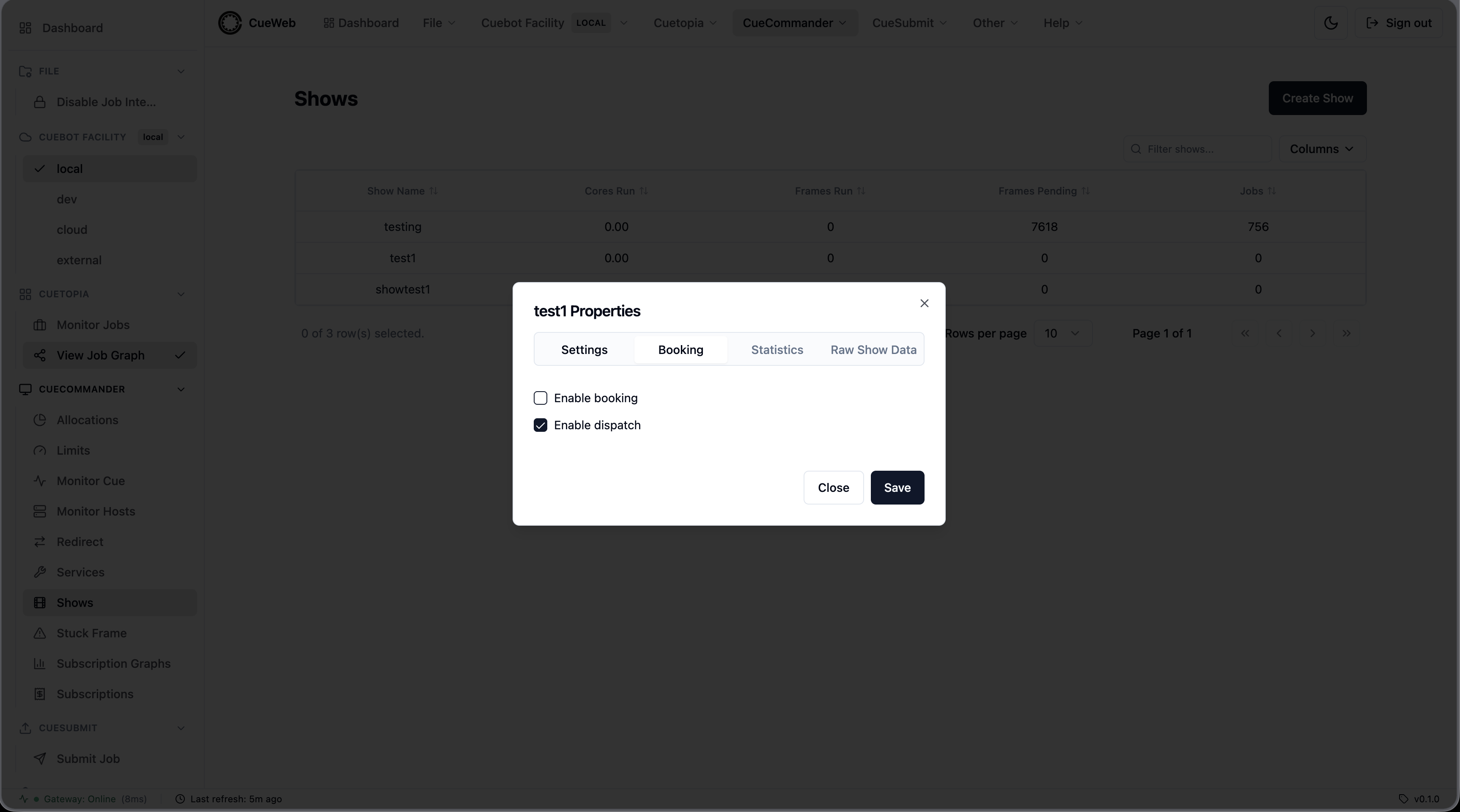
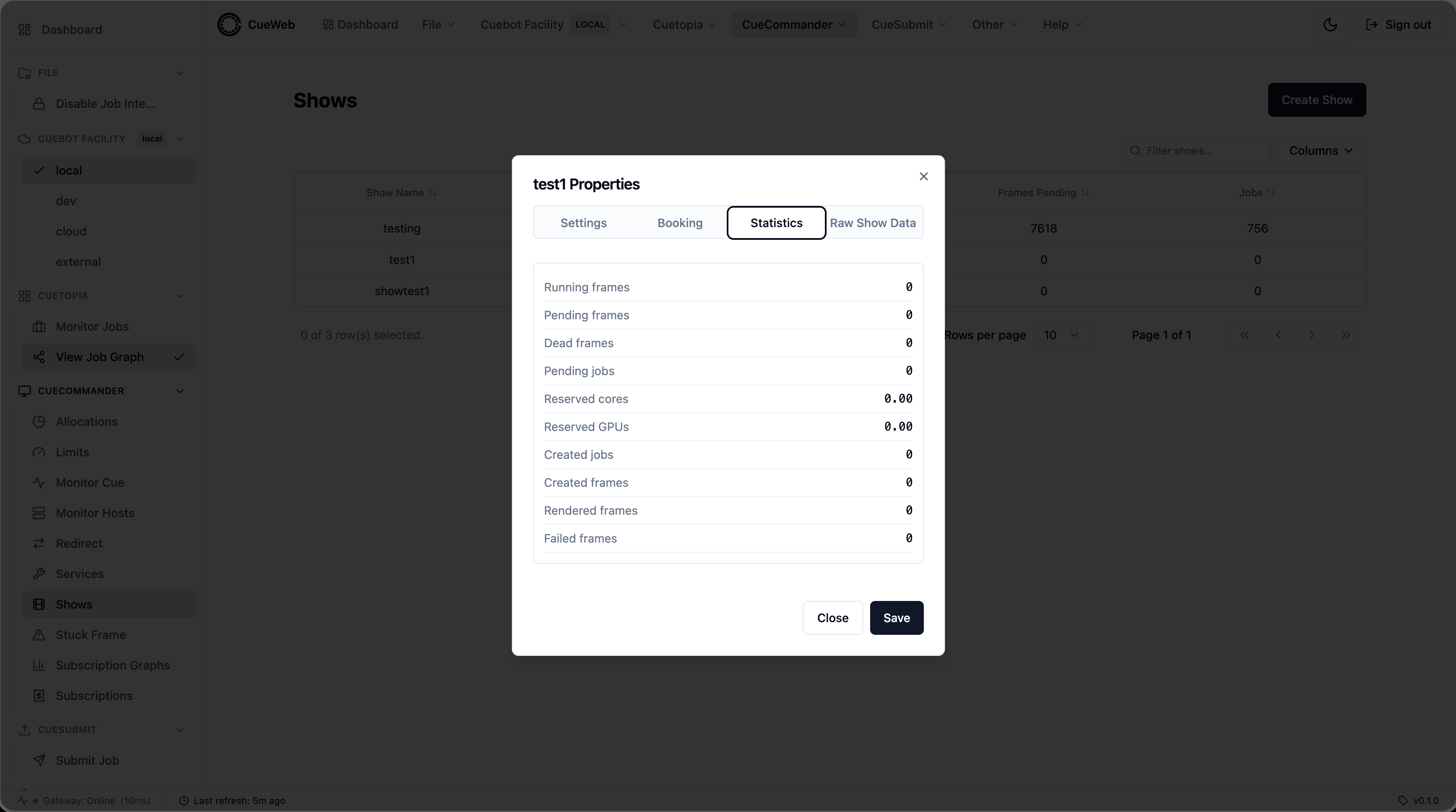
Show Properties opens a dialog with four tabs:
Settings - default maximum cores, default minimum cores, and the comment notification email.
Booking - toggle Enable booking and Enable dispatch.
Statistics - read-only show statistics (running / pending / dead frames, pending jobs, reserved cores, and created / rendered / failed counts).
Raw Show Data - a read-only dump of the show object for support and debugging.
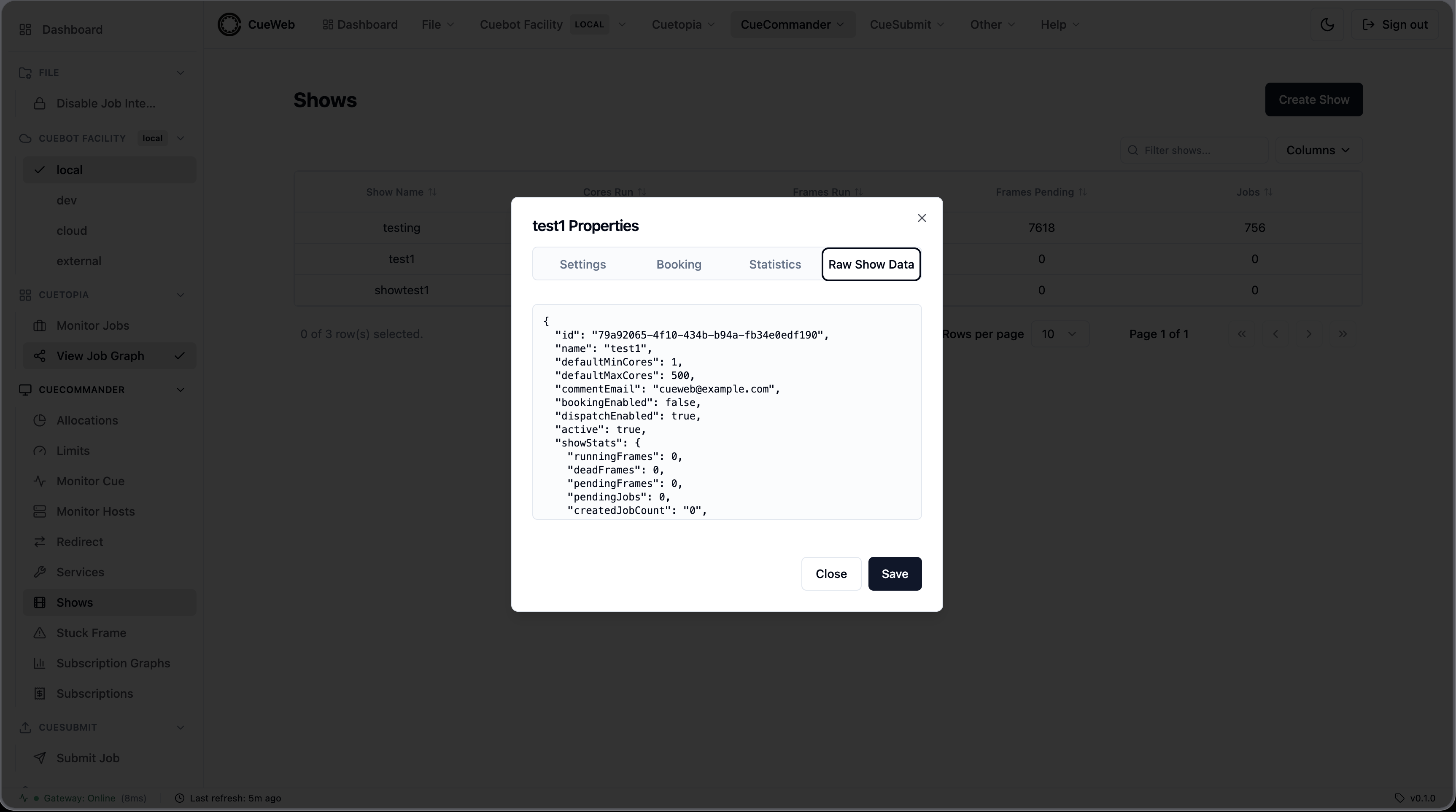
Save applies only the values you changed; Close dismisses the dialog without saving.
Create Subscription
Create Subscription… opens a dialog to subscribe a show to an allocation. Pick the Show and Alloc from the dropdowns and set the Size and Burst, then click OK.
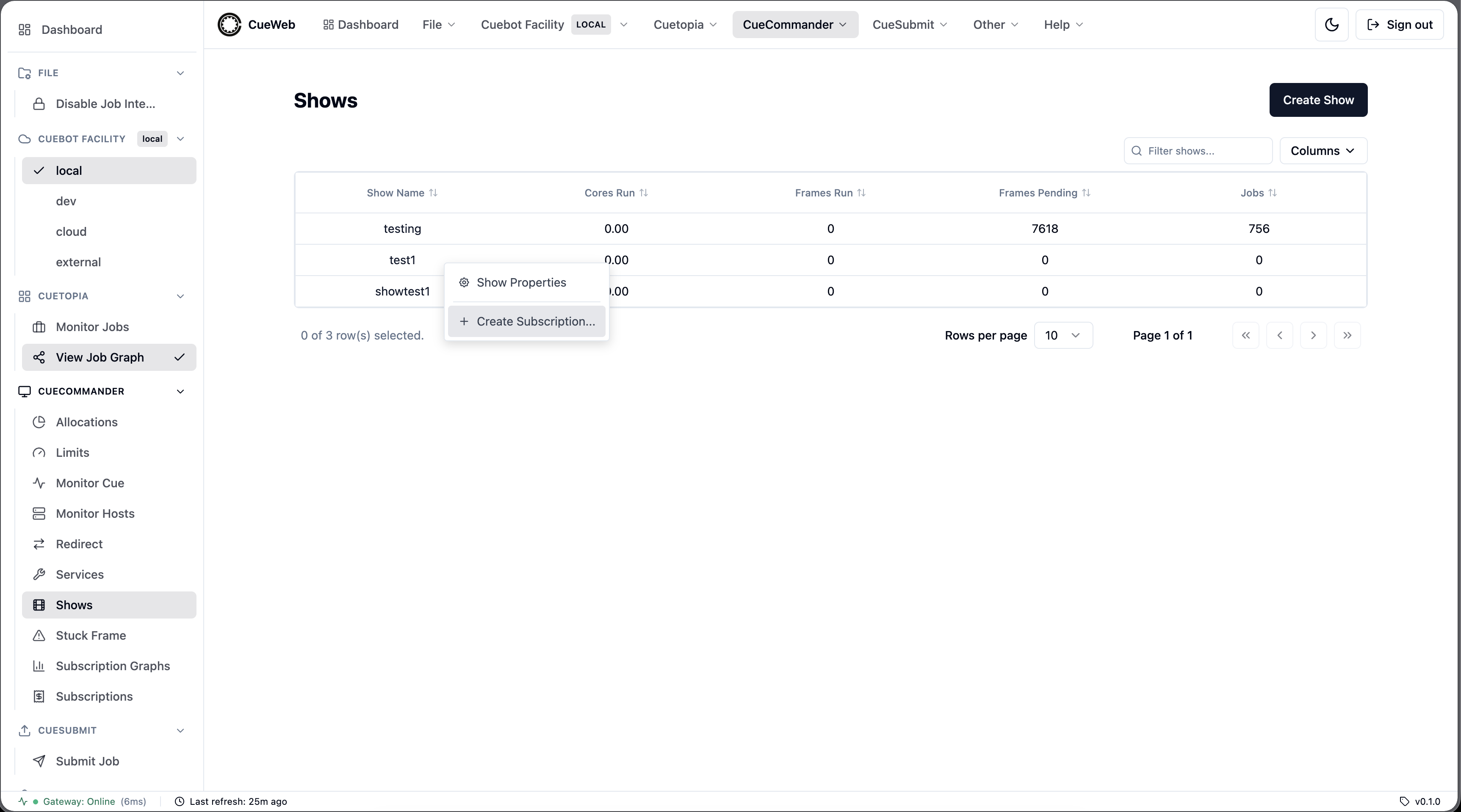
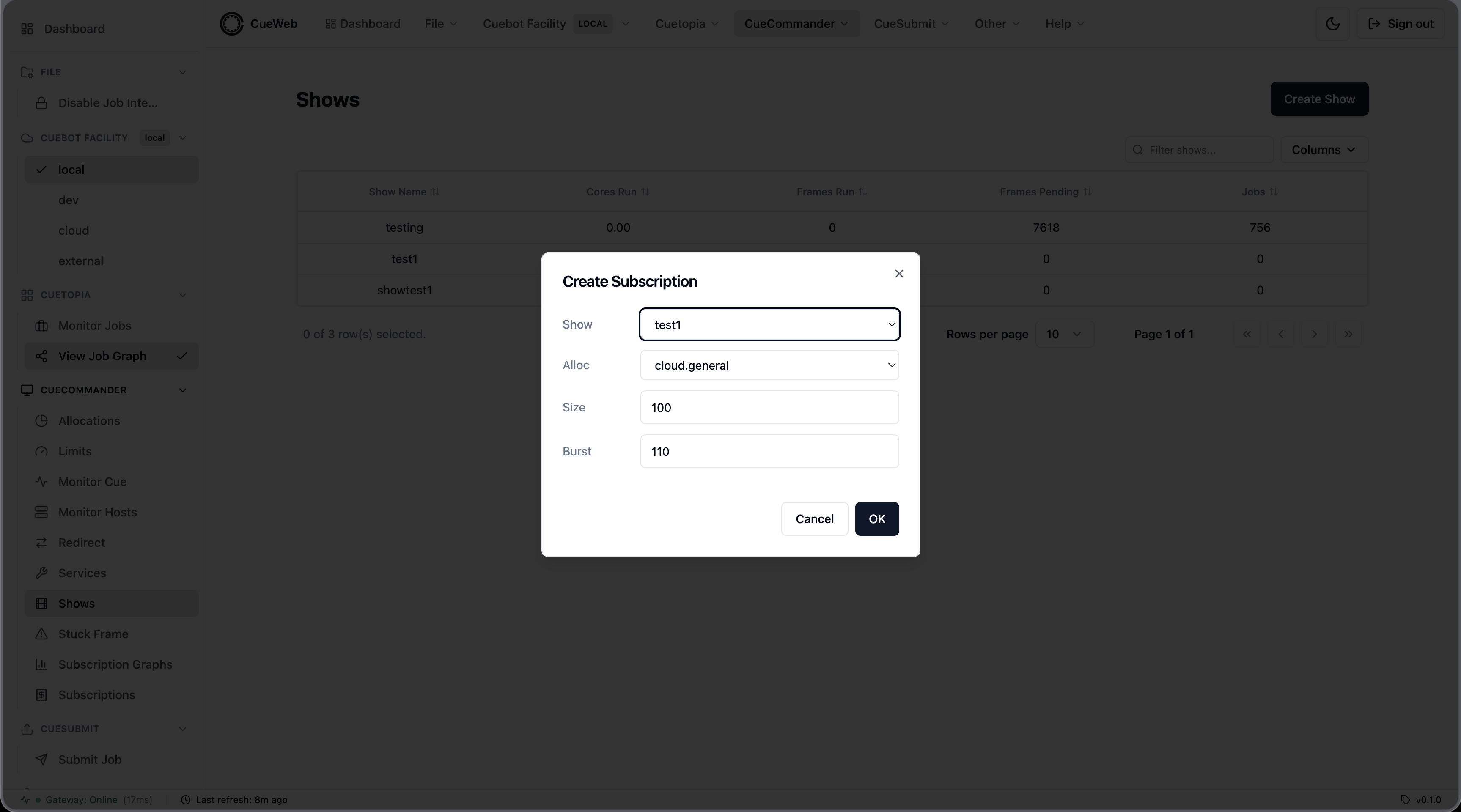
A show can have only one subscription per allocation; if one already exists, OpenCueWeb reports that instead of creating a duplicate.
Show detail page (group tree)
Clicking a show name (or navigating to /shows/<show>) opens the show’s group tree - the nested groups and jobs that make up the show, mirroring the grouping in CueGUI’s Cuetopia. The breadcrumbs and header show the show name and whether it is active, and a Refresh button reloads the tree.
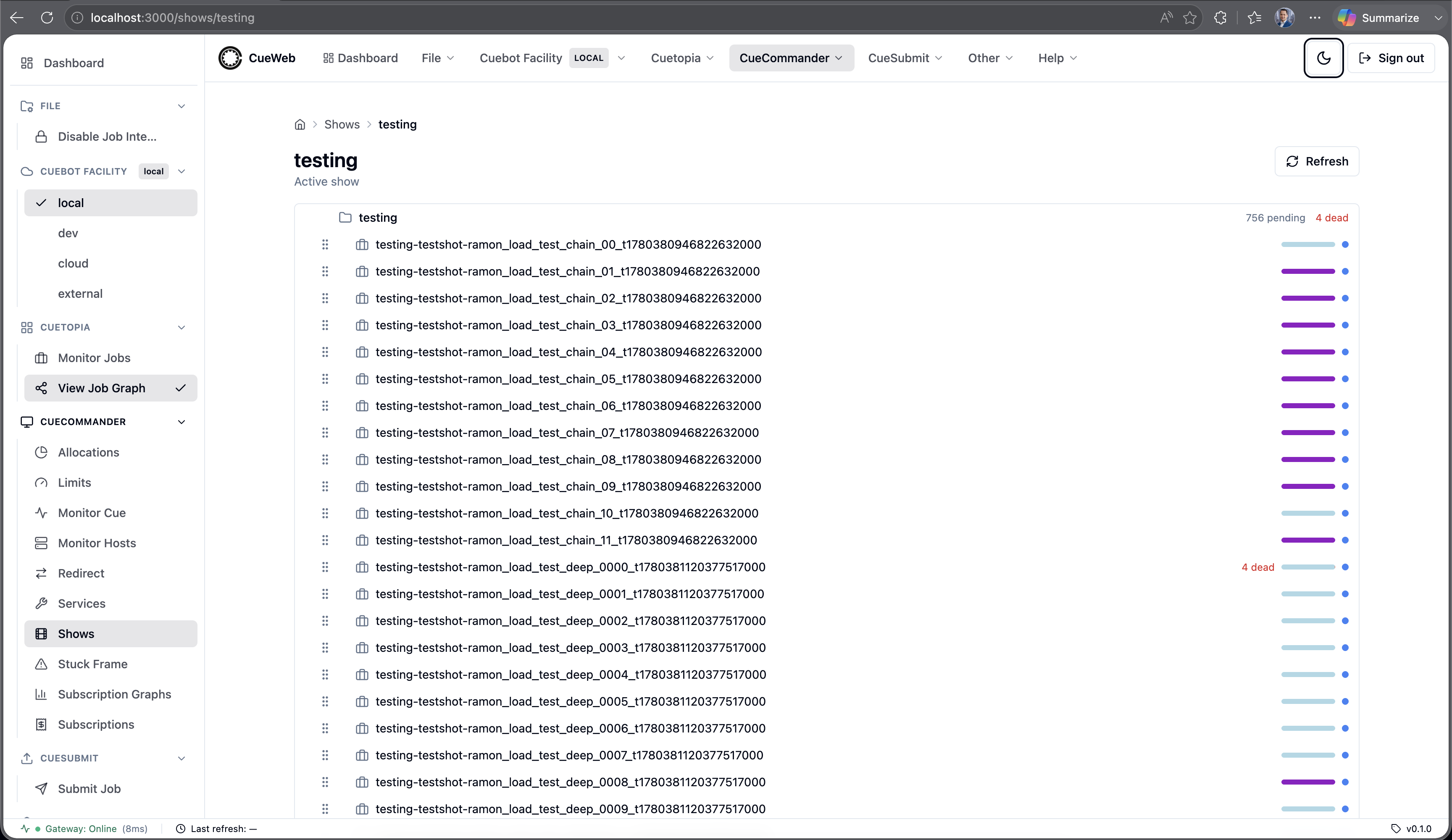
- Expand or collapse a group to load and reveal its jobs. Each job links to its job detail page and shows a frame-state progress bar, a dead-frame count when any frames have died, and a job-state indicator dot. The set of expanded groups is kept in the page URL (
?expanded=...), so a particular view is bookmarkable and shareable. - Drag to reparent: drag a group onto another group to make it a child of that group, or drag a job onto a group to move the job into it. Only valid drop targets highlight - you cannot drop a group into itself or one of its own descendants. Moves are applied one at a time and roll back automatically if Cuebot rejects the change.
Stuck Frames
The Stuck Frames page (CueCommander → Stuck Frame in the sidebar or header) helps you find running frames that appear to be hung - frames that keep running but have stopped writing to their log. It is the OpenCueWeb equivalent of CueGUI’s CueCommander Stuck Frame window.
Open it from the CueCommander menu (or the matching entry in the left sidebar).
The page scans every running frame across all active jobs and lists the ones that match the current detection filters, grouped under their job.
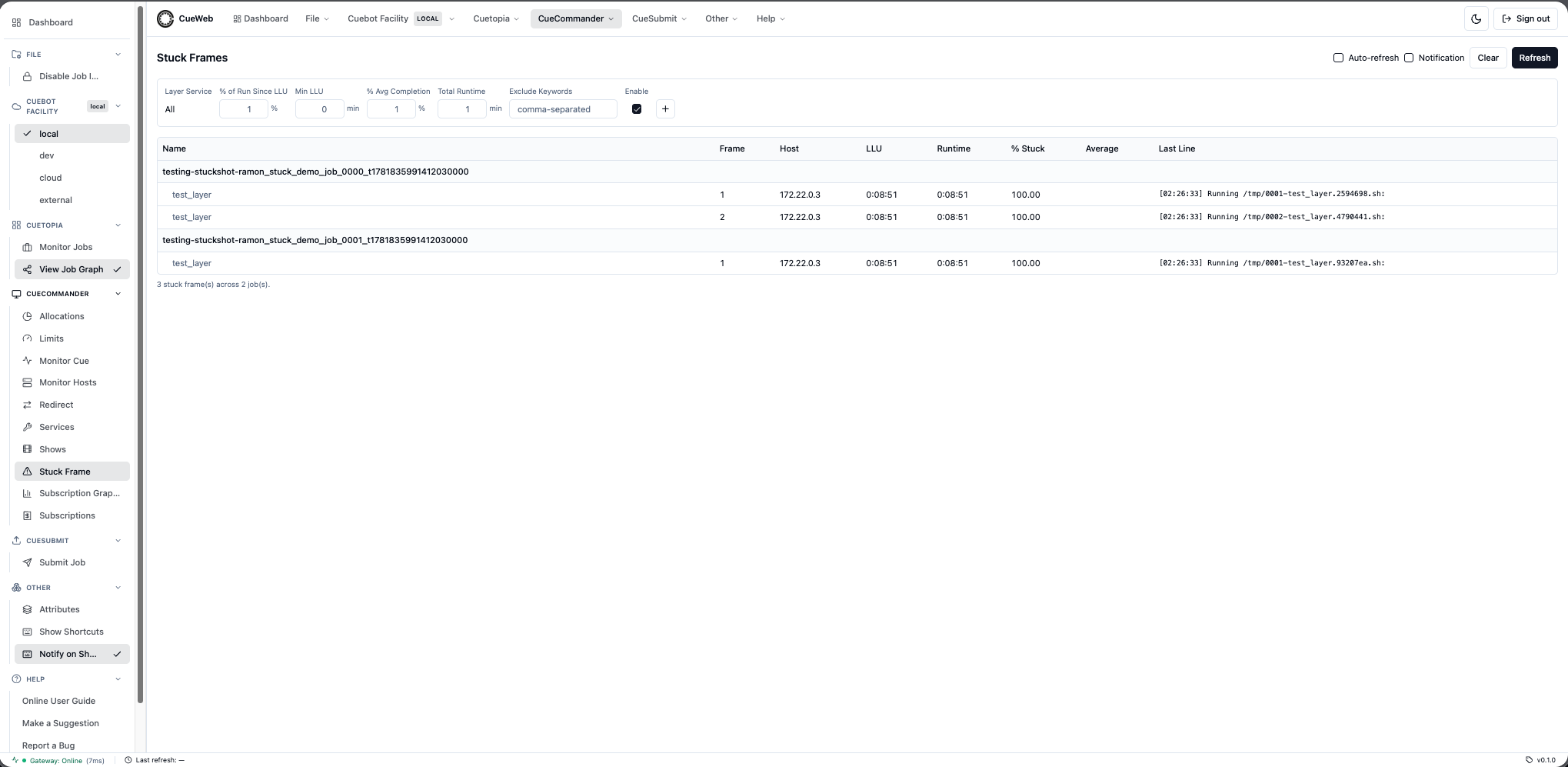
Stuck Frame columns
| Column | Description |
|---|---|
| Name | Layer name (rows are grouped under a job header) |
| Frame | Frame number |
| Host | Host the frame is running on |
| LLU | Time since the Last Log Update - how long the log has been silent |
| Runtime | How long the frame has been running |
| % Stuck | LLU as a percentage of runtime - the closer to 100%, the more likely it is hung |
| Average | The layer’s average frame time, for comparison |
| Last Line | The last line written to the frame’s log |
The table auto-refreshes on a timer (toggle Auto-refresh off to freeze it), and Refresh reloads immediately. Clear resets any rows or jobs you have manually hidden.
Detection filters
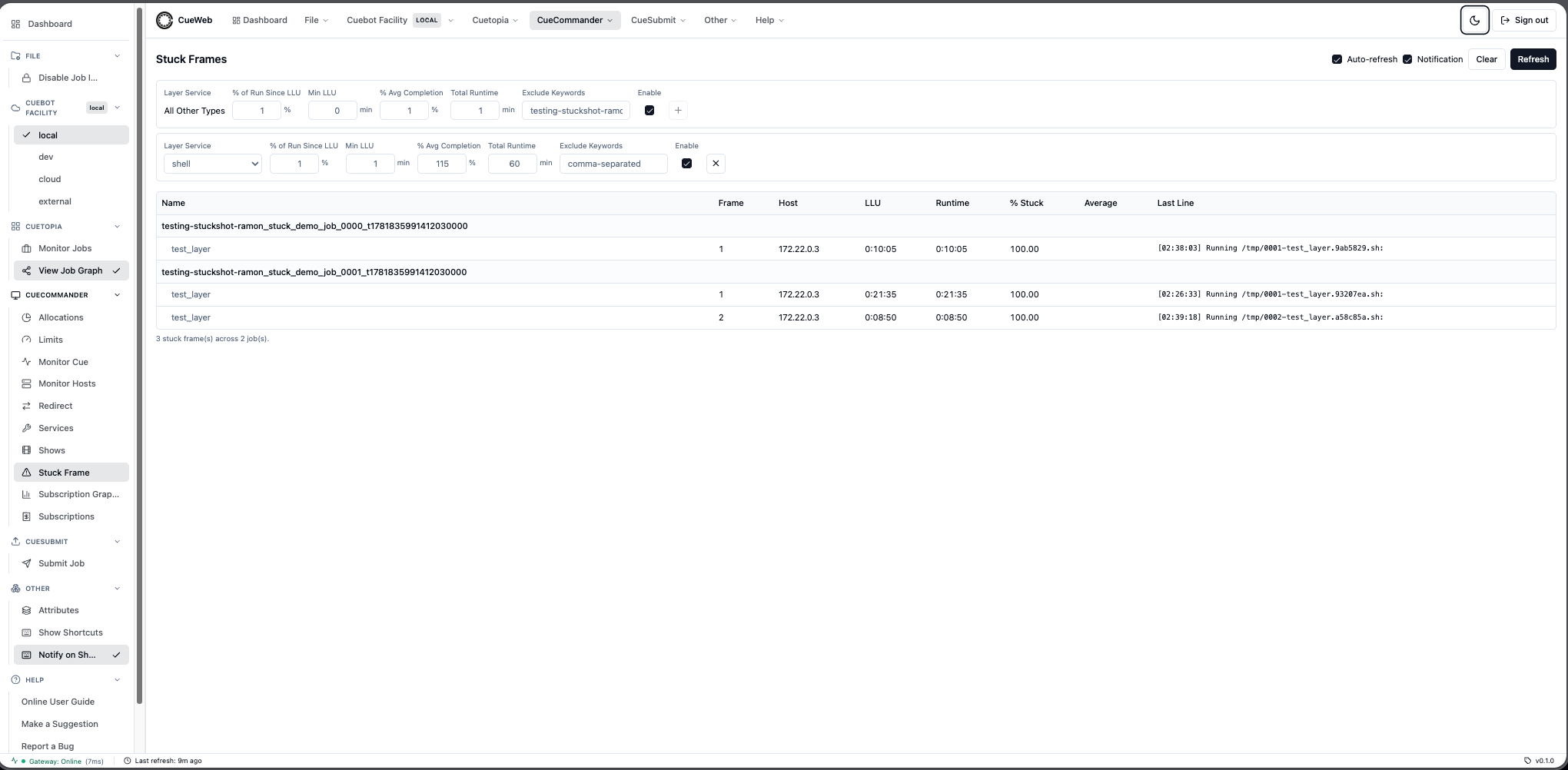
The filter bar at the top controls which frames are flagged. A frame is considered stuck only when its log has been silent longer than Min LLU, its % of Run Since LLU exceeds the threshold, and it has been running long enough relative to its layer average. Your filter settings are saved per browser.
- % of Run Since LLU - minimum percentage of the runtime spent with no log activity.
- Min LLU - minimum time (minutes) the log must have been silent.
- % Avg Completion - how far past the layer’s average frame time the frame must be.
- Total Runtime - minimum runtime threshold.
- Exclude Keywords - comma-separated terms; frames whose job or layer name matches are skipped.
- Enable - turn a filter row on or off.
Click the + button to add a service-specific filter. The first row is the catch-all (labelled All on its own, or All Other Types once service rows exist); each added row targets one render service from a dropdown and applies its own thresholds, so long-running services (e.g. Arnold) can use looser limits than quick ones. A frame is matched to the most specific row for its service. Use the × button to remove a service row.
Frame actions
Right-click a frame row to open its actions menu.
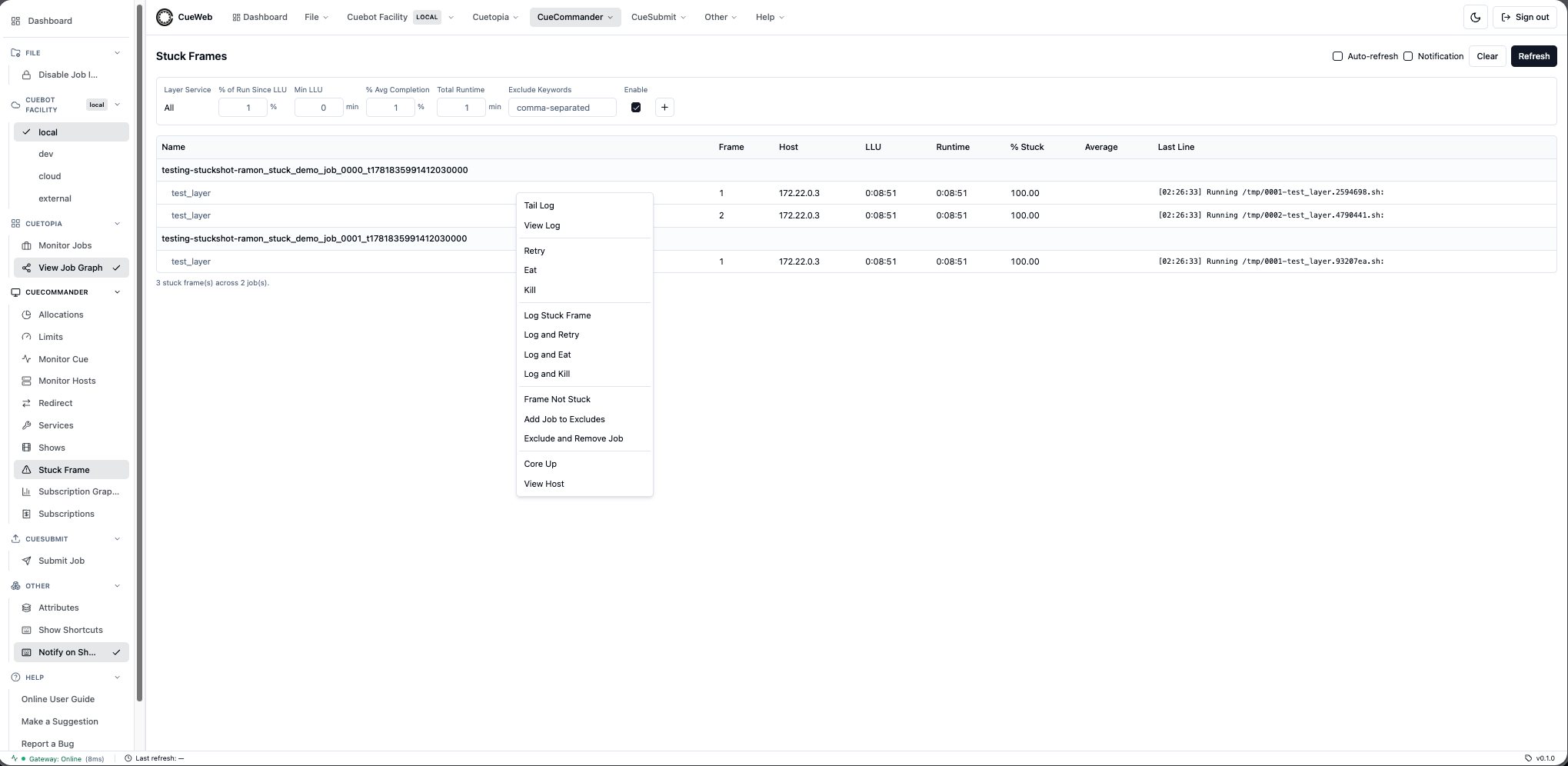
- Tail Log / View Log / View Last Log - open the frame’s log.
- Retry / Eat / Kill - the standard frame operations.
- Log Stuck Frame - export the frame’s details for a report; Log and Retry / Log and Eat / Log and Kill combine the export with an action.
- Frame Not Stuck - hide this frame from the list (it is not really stuck).
- Add Job to Excludes / Exclude and Remove Job - add the job’s name to the exclude keywords (and optionally drop it from the list now).
- Core Up - raise the minimum cores on the frame’s layer (see below).
- View Host - open the host’s detail page.
Job actions
Right-click a job header row for job-level actions.
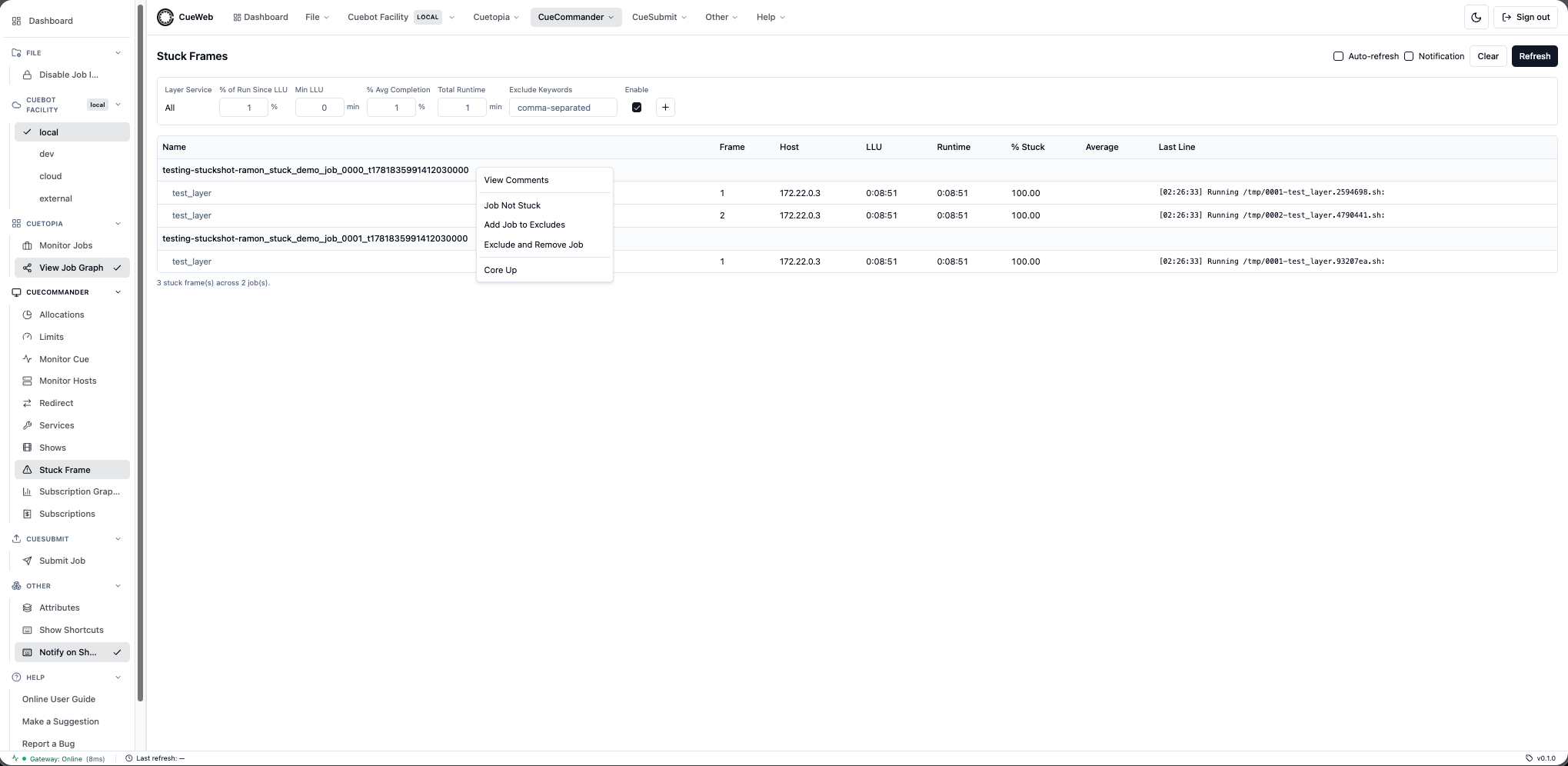
- View Comments - open the job’s comments page.
- Job Not Stuck - hide the whole job from the list.
- Add Job to Excludes / Exclude and Remove Job - exclude the job by name.
- Core Up - raise the minimum cores across the job’s stuck layers.
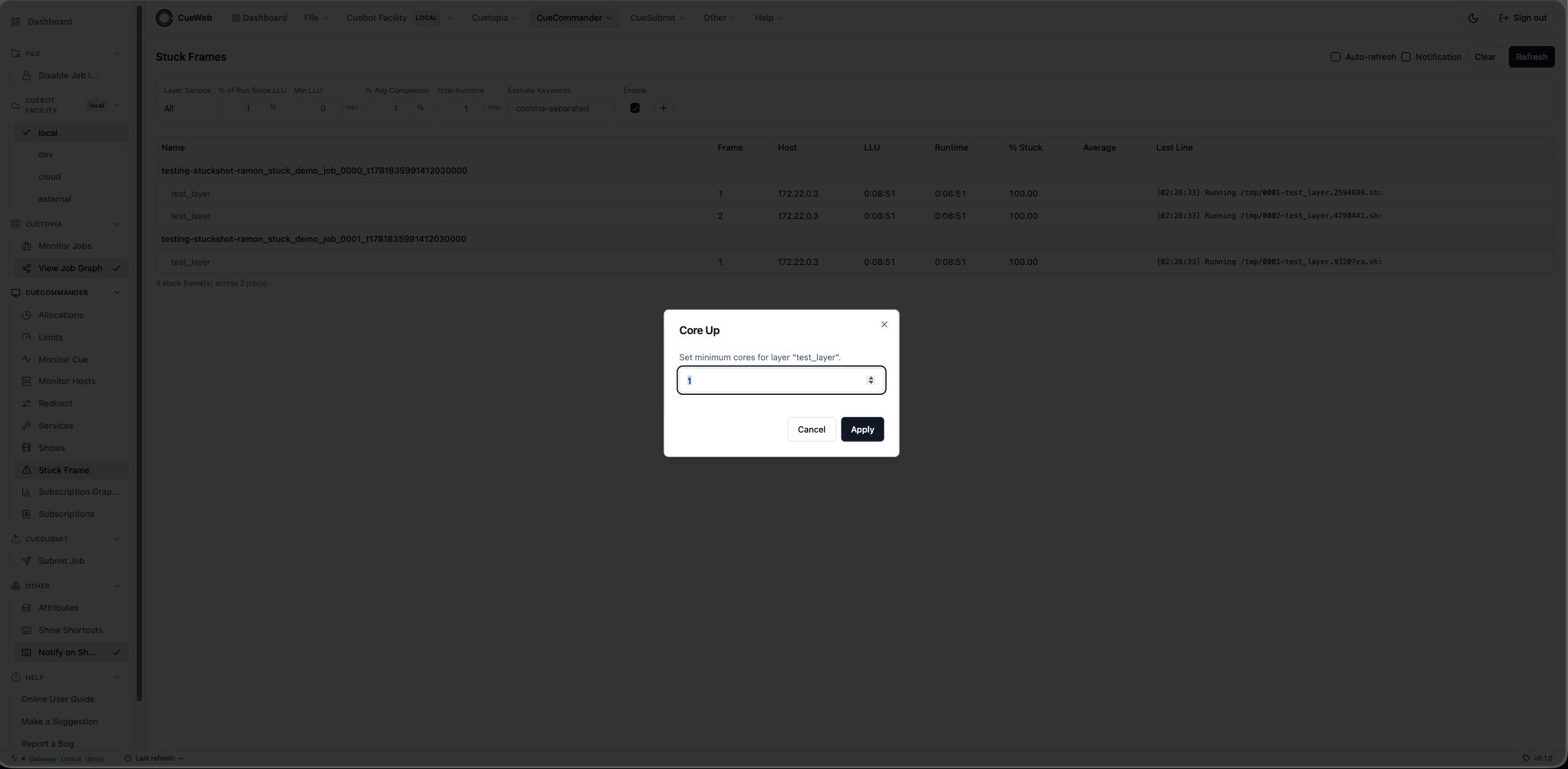
Core Up
Core Up opens a dialog to increase the minimum cores reserved for the affected layer(s) - a common remedy when a frame is stuck because it is starved for cores. Enter the new core count and click Apply.
Facility Service Defaults
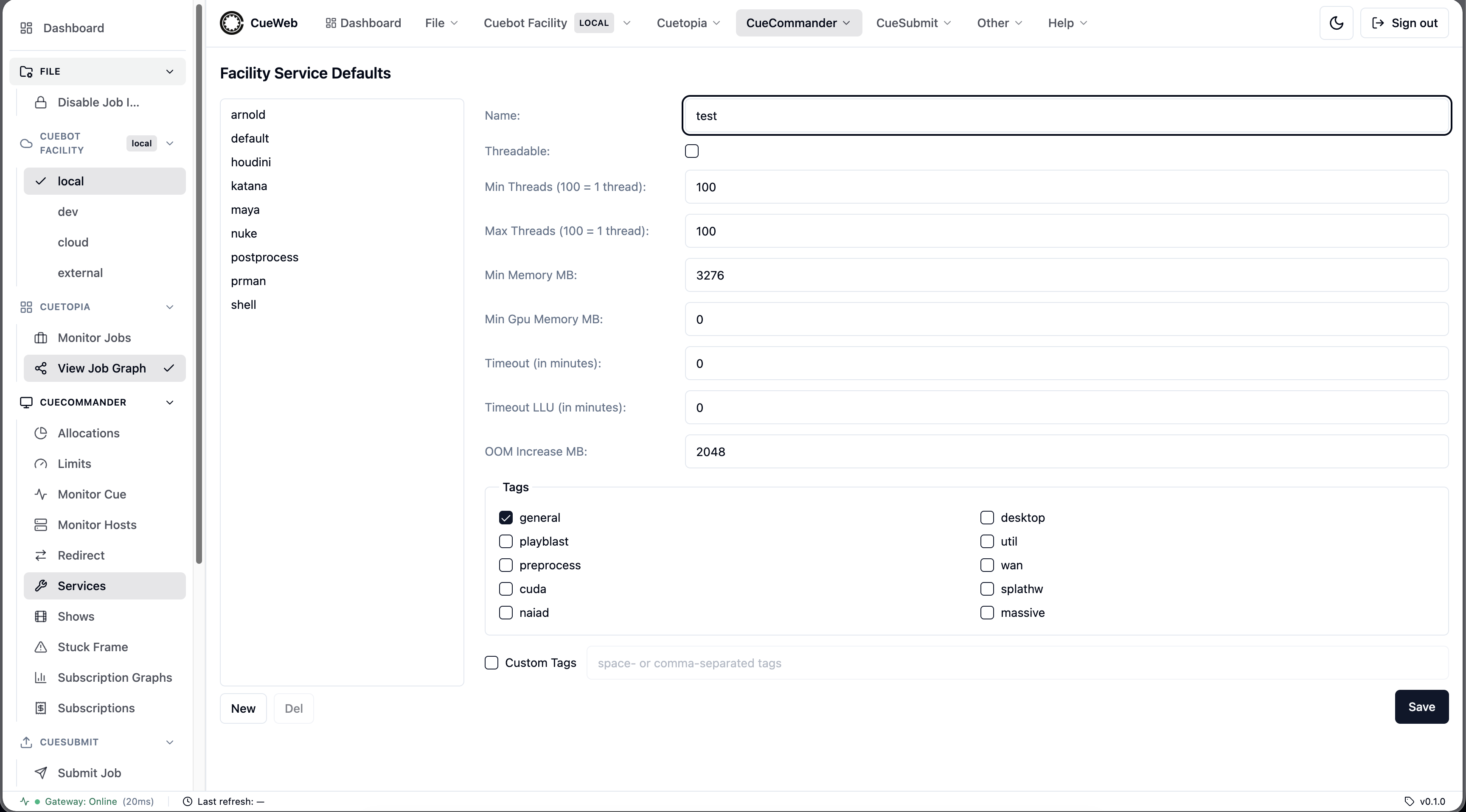
The Facility Service Defaults page (CueCommander → Services in the sidebar or header) edits the facility-wide service templates - the default resource requirements that apply to a layer when it runs a given service (for example arnold, maya, nuke, or shell). It is the OpenCueWeb equivalent of CueGUI’s Facility Service Defaults tab.
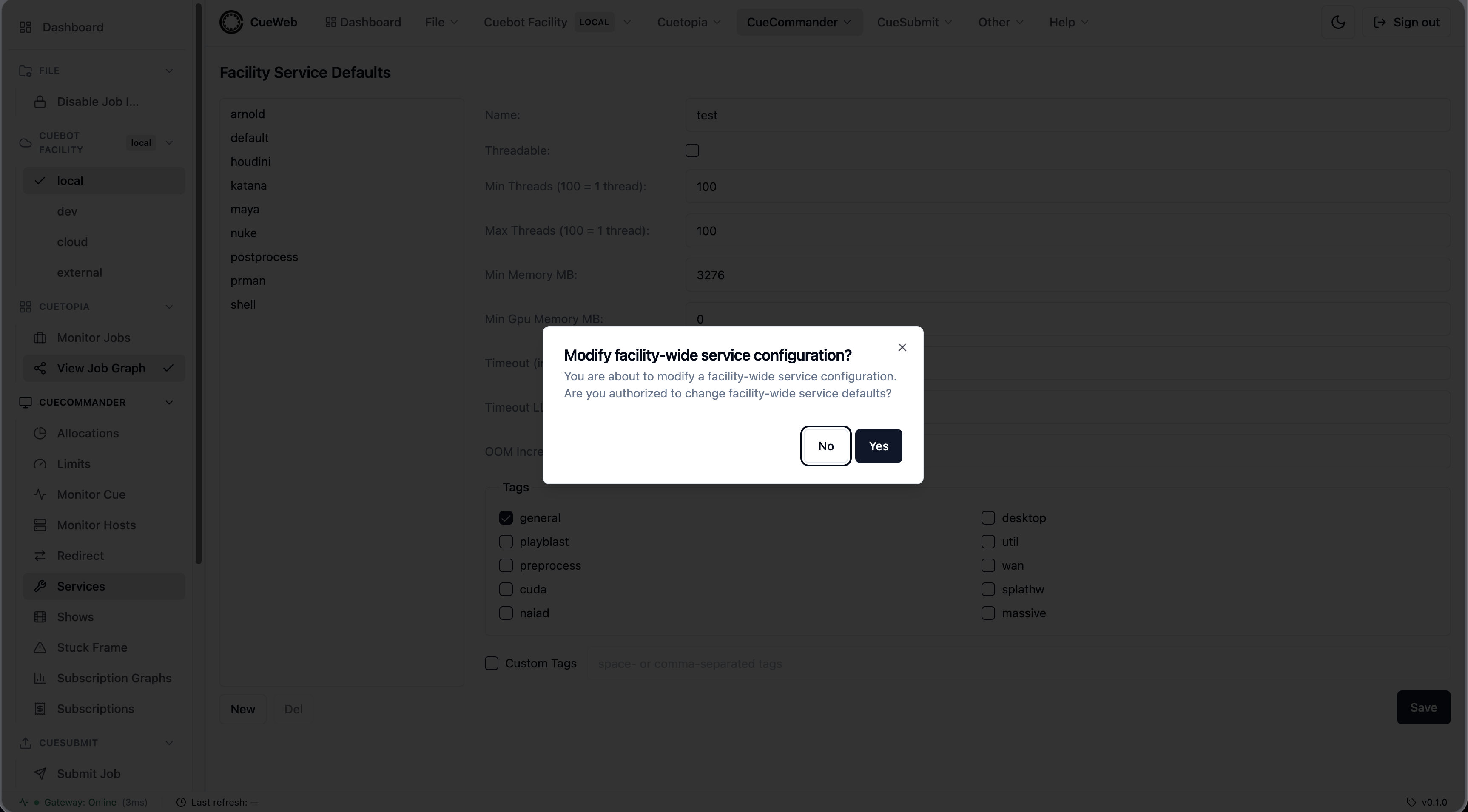
Note: These are facility-wide defaults. A change here affects every job that uses the service, so the page asks you to confirm before saving. Editing should normally be left to administrators.
Open it from the CueCommander menu (or the matching entry in the left sidebar).
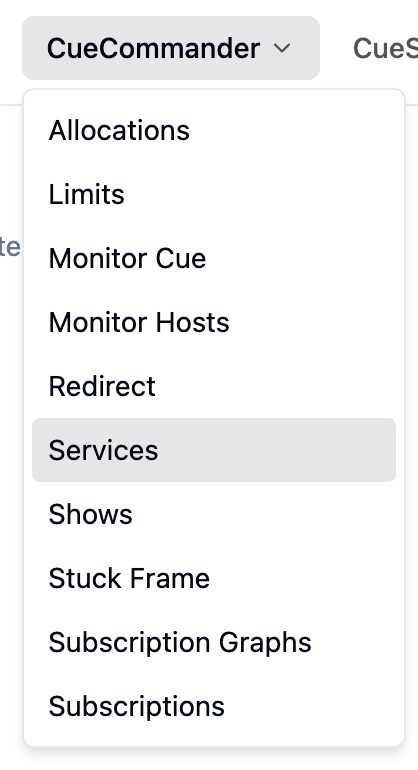
The page has two panes: the list of services on the left, and the edit form for the selected service on the right.
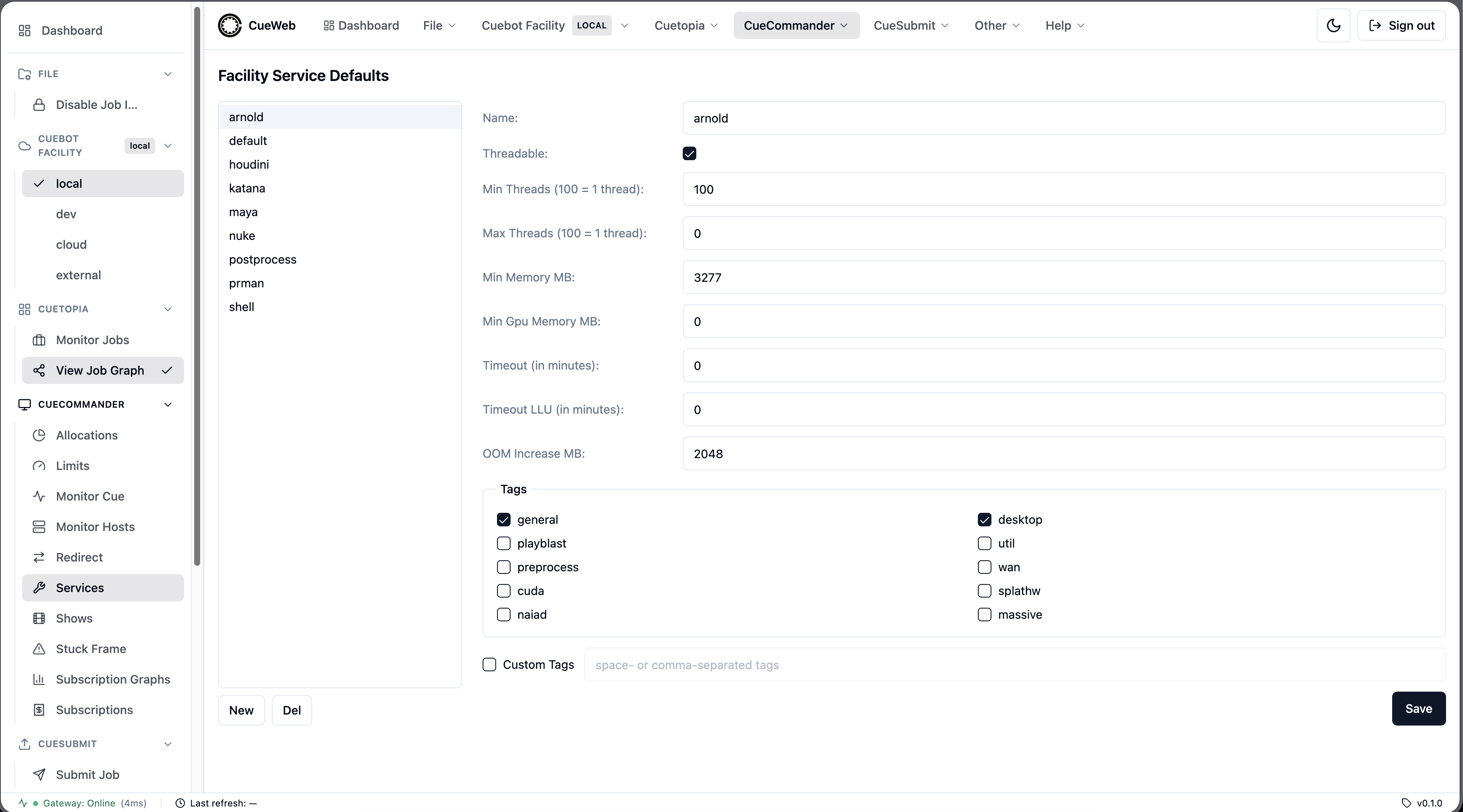
Service fields
| Field | Description |
|---|---|
| Name | Service name (at least 3 characters; letters, numbers, and \| / - _) |
| Threadable | Whether frames of this service can use more than one thread |
| Min Threads / Max Threads | Thread range, where 100 = 1 thread. Min cannot exceed Max when Max is greater than 0 |
| Min Memory MB | Minimum memory reserved per frame |
| Min Gpu Memory MB | Minimum GPU memory reserved per frame |
| Timeout | Maximum run time per frame, in minutes (0 = no timeout) |
| Timeout LLU | Maximum time without a log update, in minutes (0 = no timeout) |
| OOM Increase MB | How much to raise the memory reservation when a frame is retried after running out of memory |
| Tags | The host tags a frame may run on. Pick from the predefined tags, or enable Custom Tags to enter your own (space- or comma-separated) |
The numeric fields take non-negative whole numbers.
Create a service
Click New, fill in the form, and click Save. OpenCueWeb asks you to confirm the facility-wide change before creating the service.
A toast confirms the service was created, and it appears in the list.

Edit a service
Select a service from the list, change any field, and click Save. The same facility-wide confirmation appears before the change is applied.
Delete a service
Select a service and click Del. Confirm the prompt to remove the facility default service.
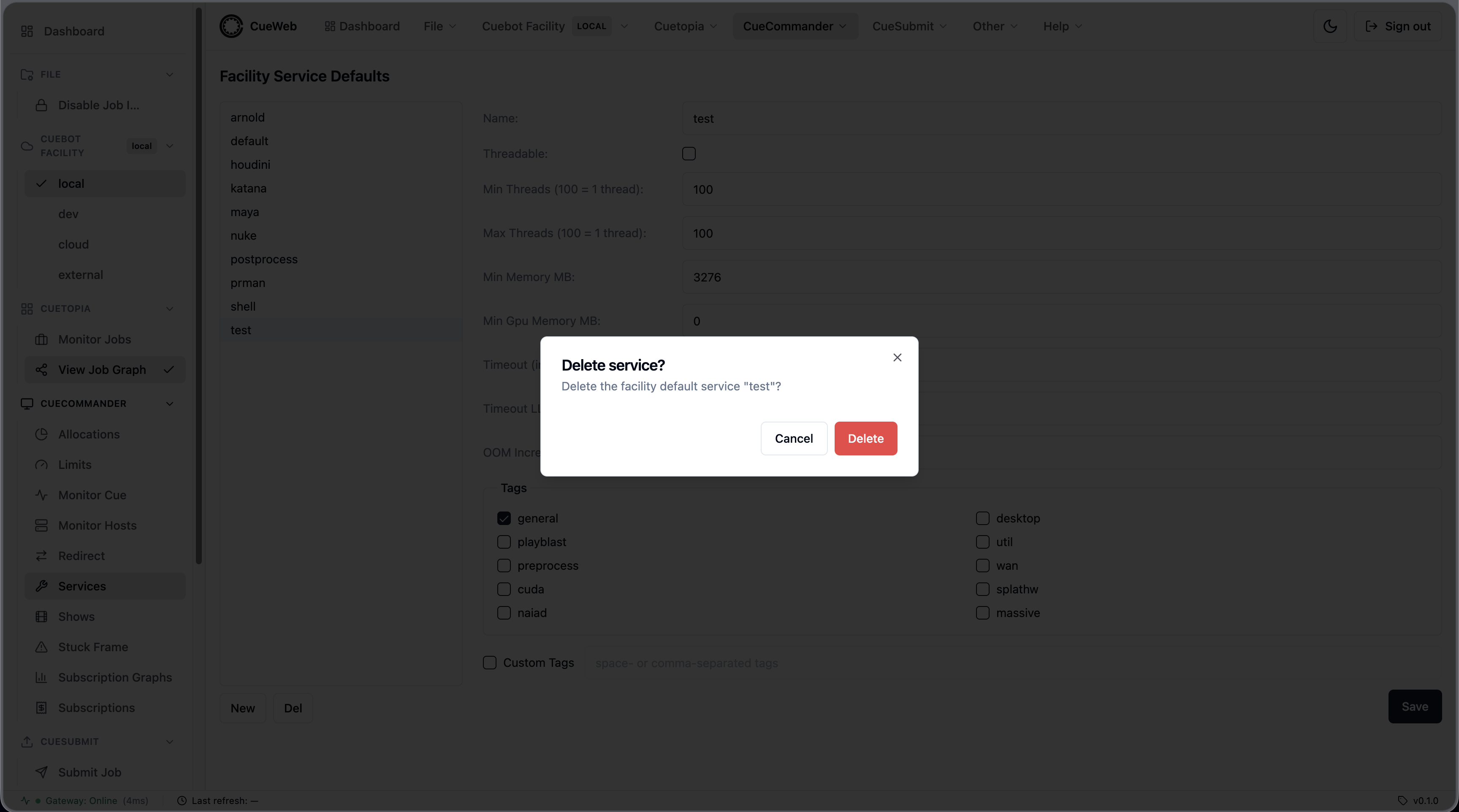
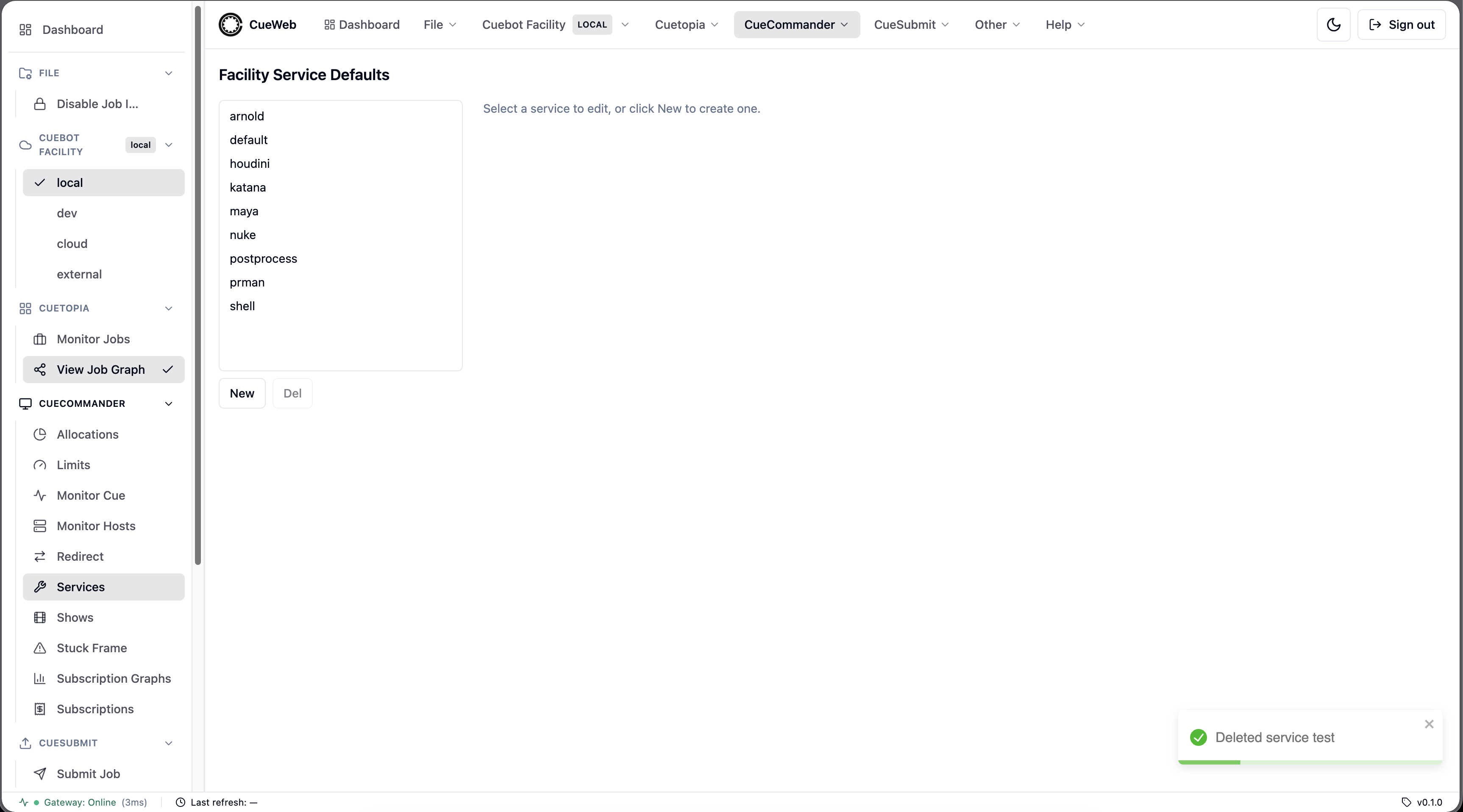
A toast confirms the deletion.
Subscriptions
The Subscriptions page (CueCommander → Subscriptions in the sidebar or header) shows how much of each allocation a show is allowed to use, and how much it is using right now. It is the OpenCueWeb equivalent of CueGUI’s CueCommander Subscriptions window.
A subscription is one show’s reservation against one allocation. It has a Size - the cores the show is guaranteed - and a Burst - the extra cores the show may temporarily grab when they are idle. Sizes and bursts are expressed in cores.
Open it from the CueCommander menu (or the matching entry in the left sidebar).
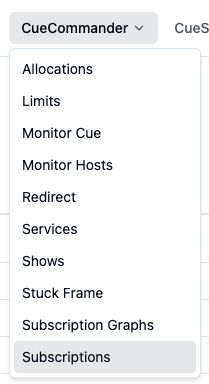
Pick a show from the dropdown at the top left. The table then lists that show’s subscriptions, one row per allocation.
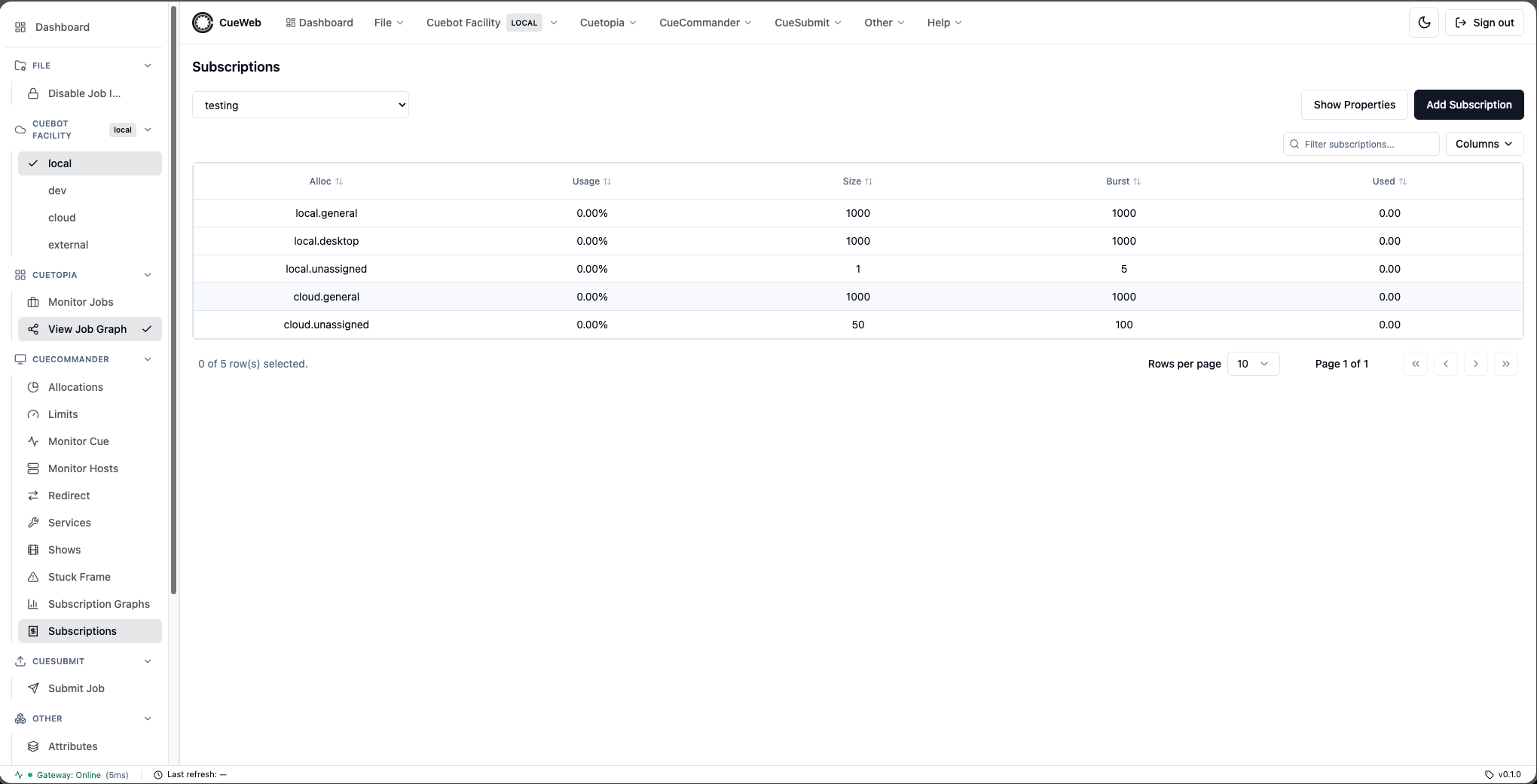
Subscription columns
| Column | Description |
|---|---|
| Alloc | Allocation the show is subscribed to |
| Usage | Cores in use as a percentage of the subscription size |
| Size | Guaranteed cores for this show on this allocation |
| Burst | Maximum cores the show may temporarily use |
| Used | Cores currently reserved (running) |
Numeric columns sort by their underlying value. Use the Columns menu to show or hide columns - your choice persists per browser - and the Filter subscriptions… box to narrow the table. The table auto-refreshes every 30 seconds.
Add a subscription
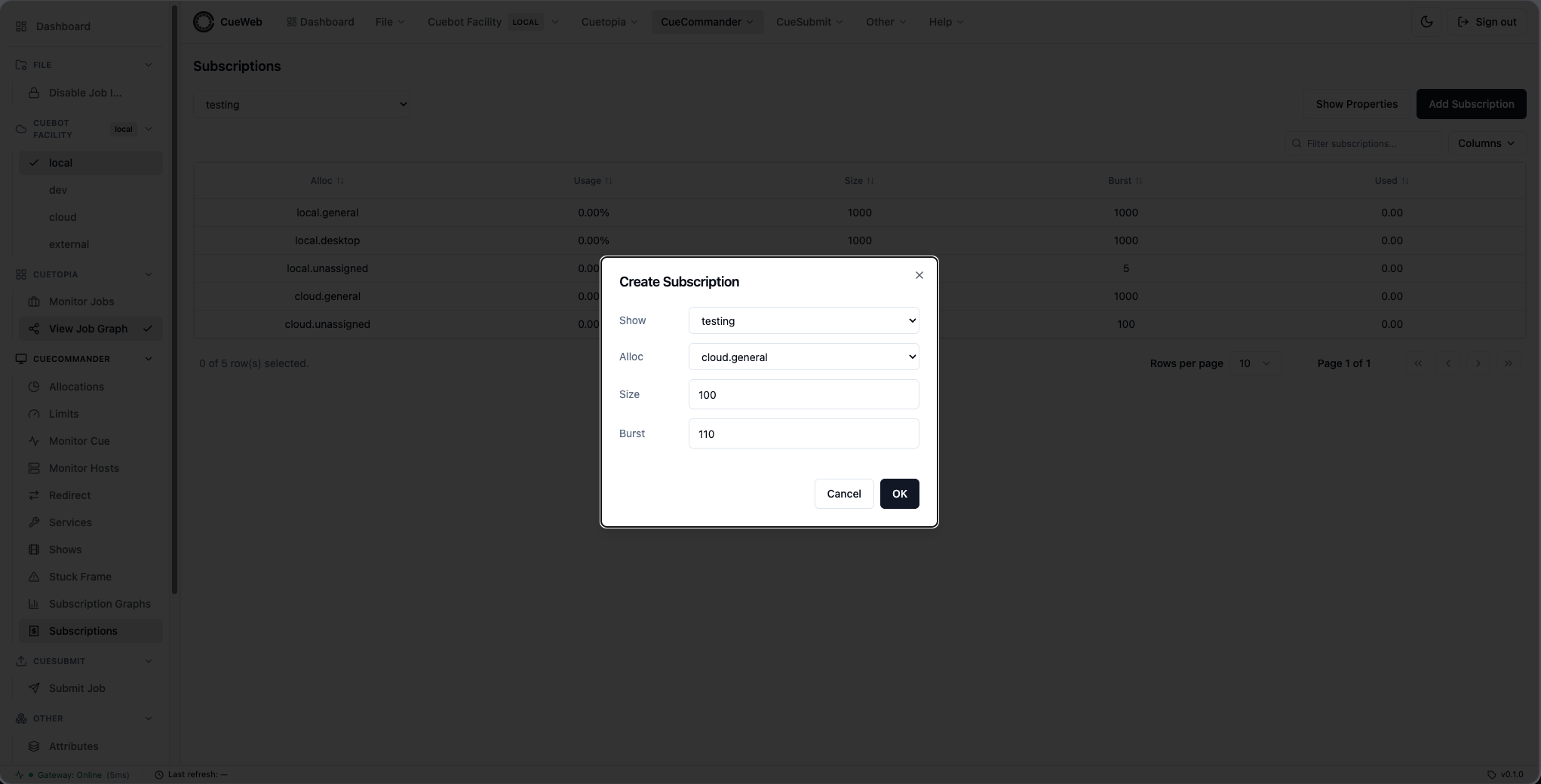
Click Add Subscription to subscribe the selected show to another allocation. Pick the Show and Alloc, set the Size and Burst (defaults 100 and 110), then click OK. A show can have only one subscription per allocation; if one already exists, OpenCueWeb tells you instead of creating a duplicate.
Show Properties
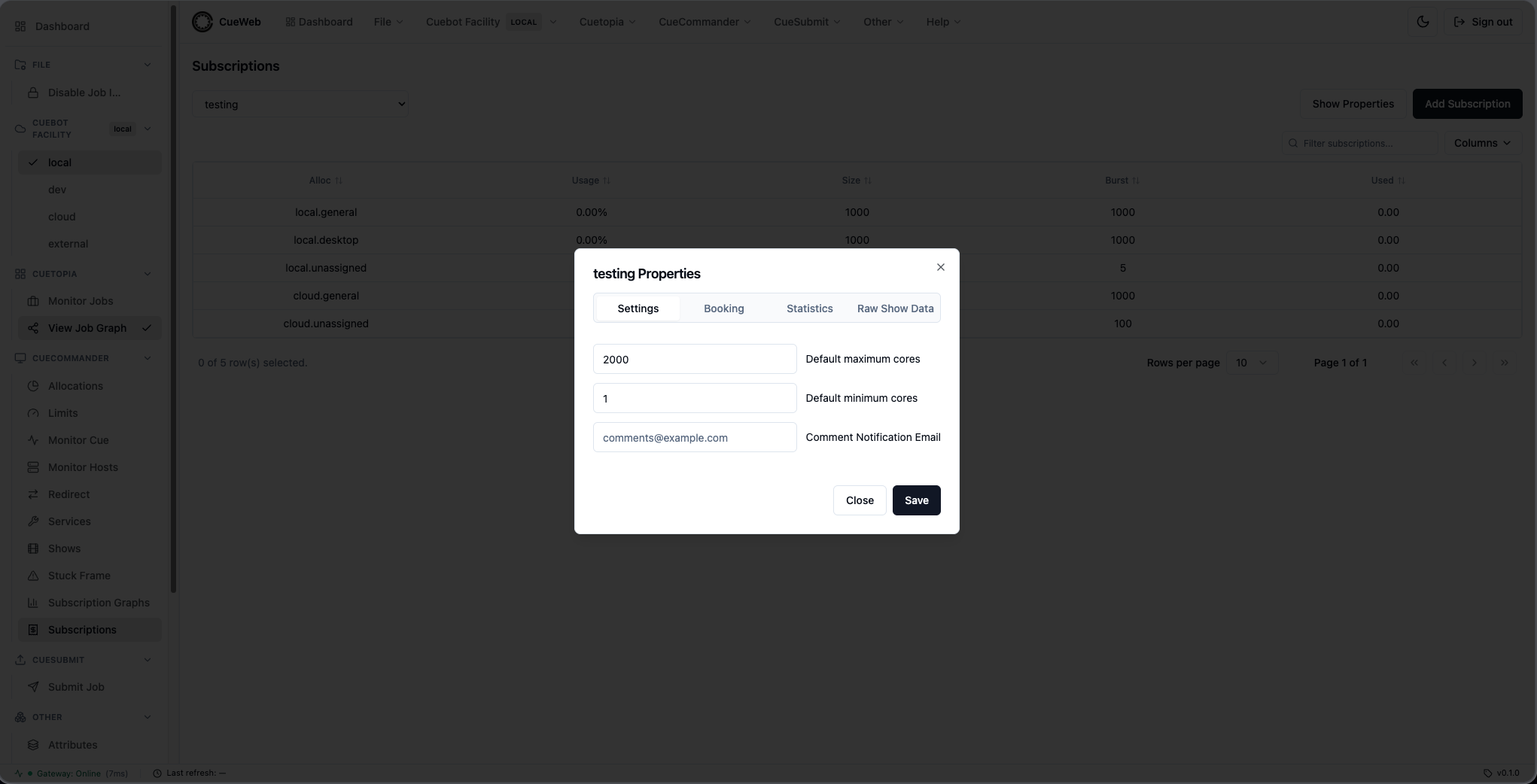
The Show Properties button opens the same four-tab dialog as on the Shows page - Settings, Booking, Statistics, and Raw Show Data - for the selected show.
Edit or delete a subscription
Right-click a subscription row to open its actions menu: Edit Subscription Size…, Edit Subscription Burst…, and Delete Subscription.
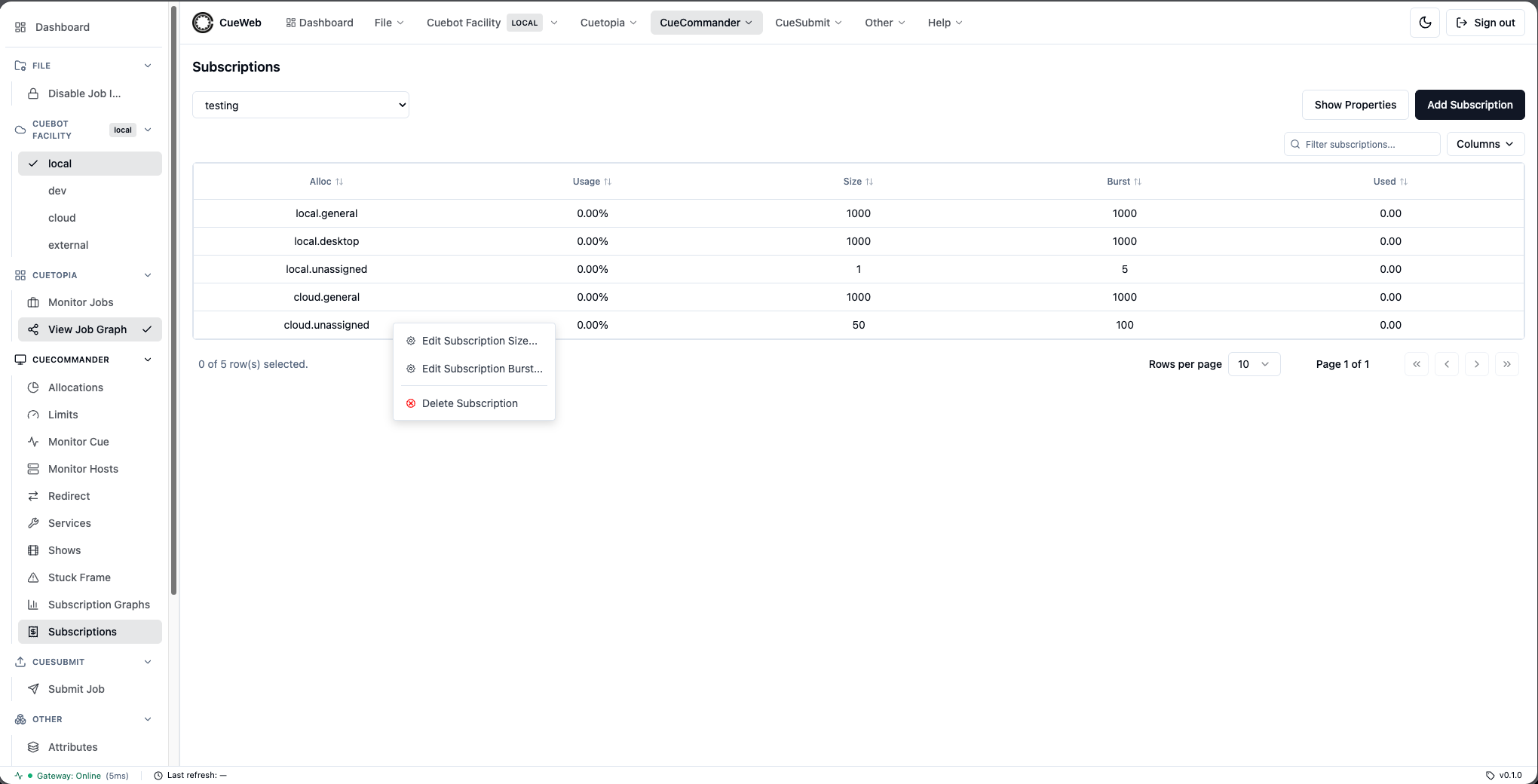
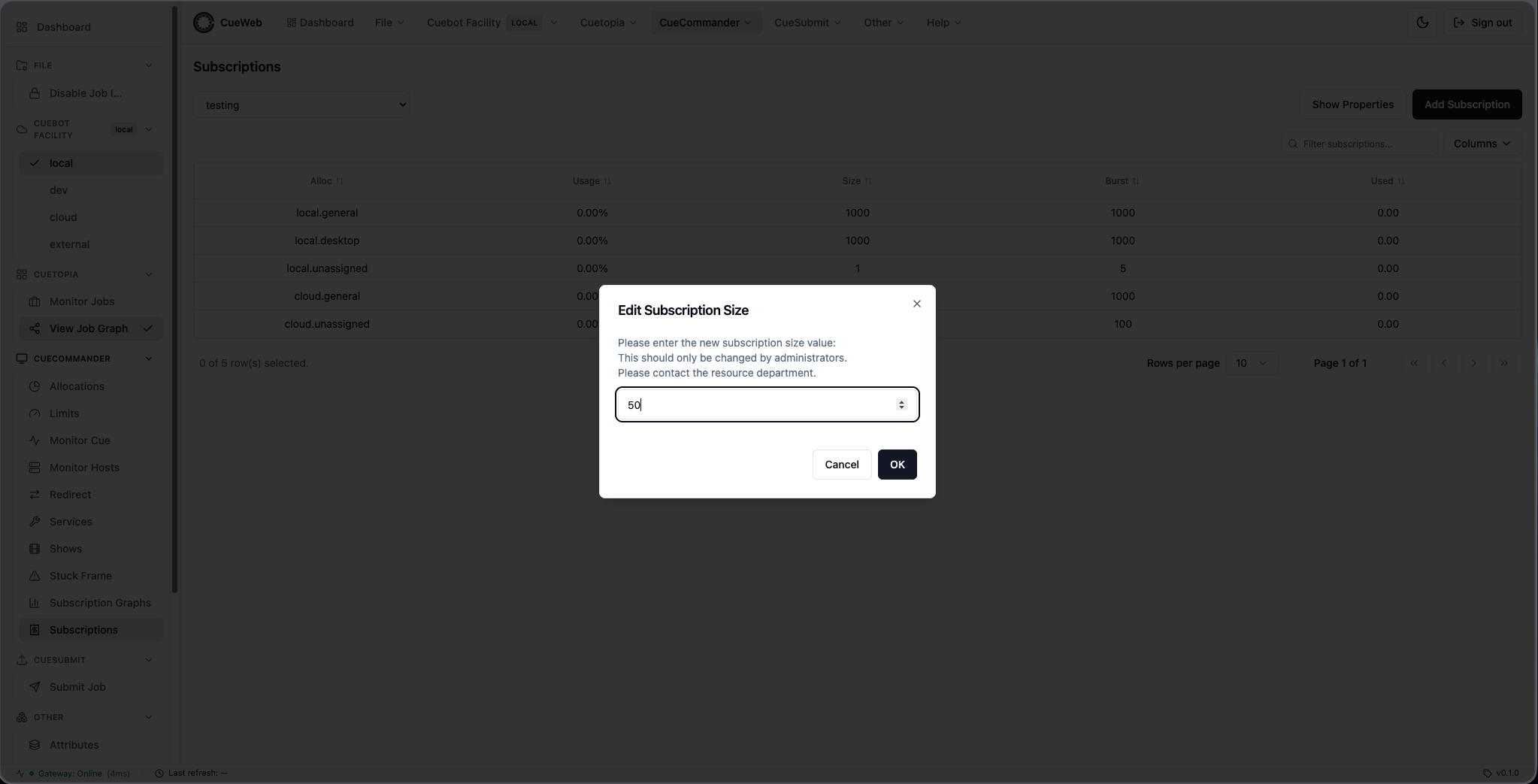
Edit Subscription Size… changes the guaranteed cores. Sizes affect billing, so the dialog asks you to confirm and notes that this should normally be changed only by administrators.
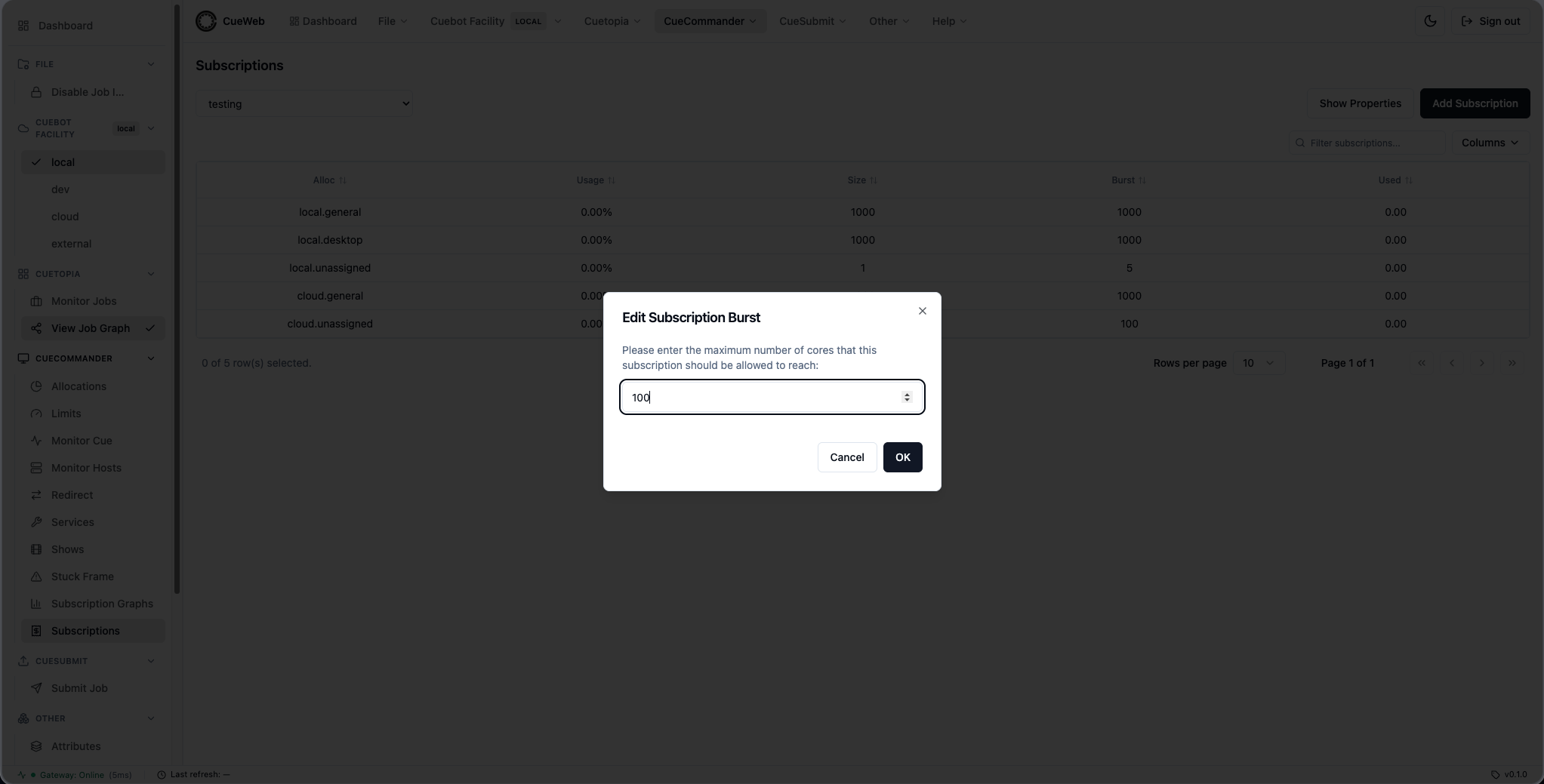
Edit Subscription Burst… changes the maximum cores the show may burst to.
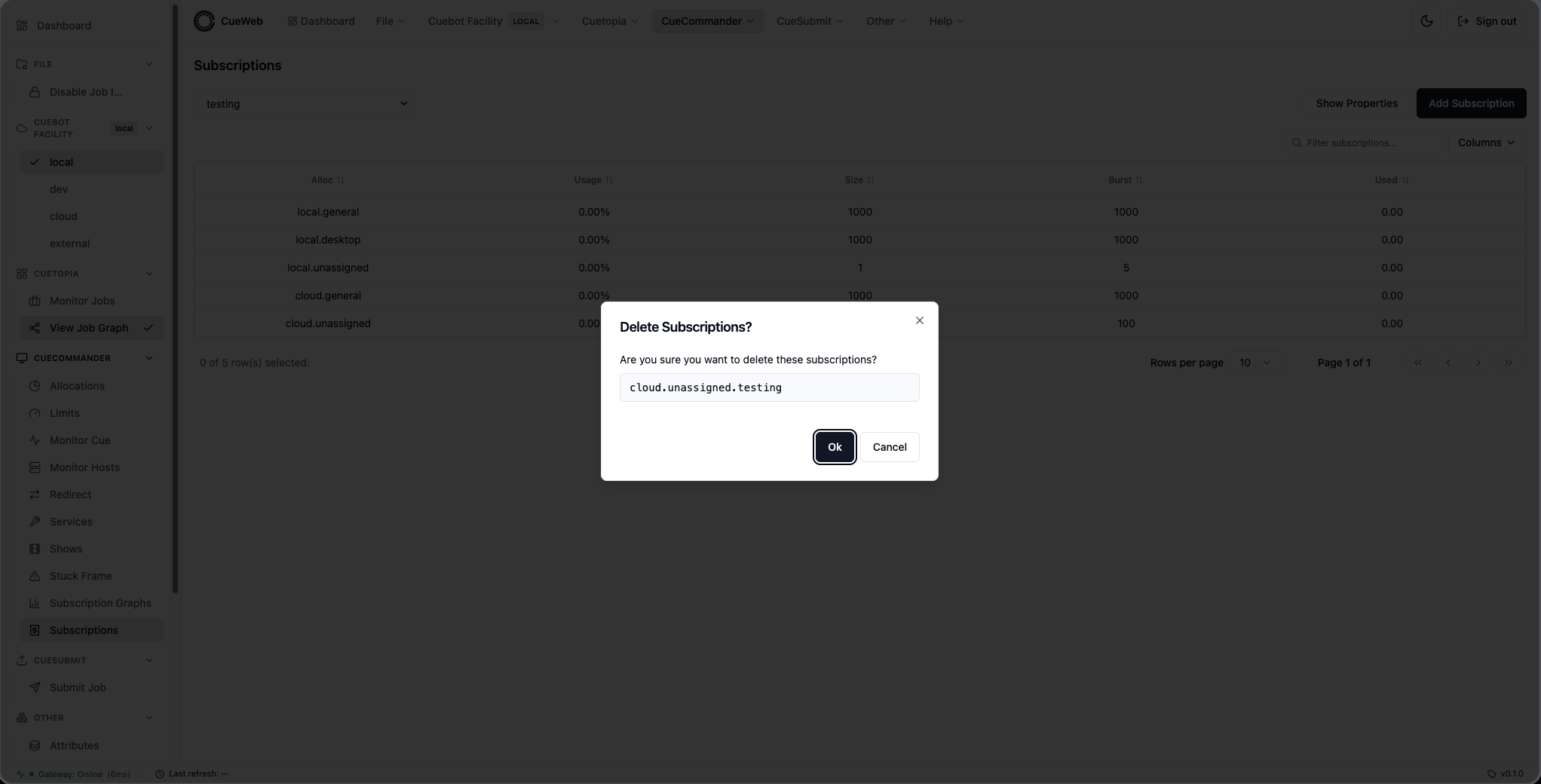
Delete Subscription removes the show’s reservation on that allocation, after a confirmation prompt.
Subscription Graphs
The Subscription Graphs page (CueCommander → Subscription Graphs in the sidebar or header) is a visual companion to the Subscriptions table: it draws each subscription as a horizontal bar so you can see at a glance how much of an allocation a show is using against its size and burst. It is the OpenCueWeb equivalent of CueGUI’s CueCommander Subscription Graphs window.
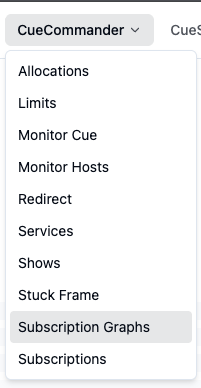
Choosing shows
Use the Shows dropdown to choose which shows to graph. Check individual shows, or use All Shows / Clear. Your selection persists per browser. Each selected show gets its own section with one bar per subscription; a show with no subscriptions says so.
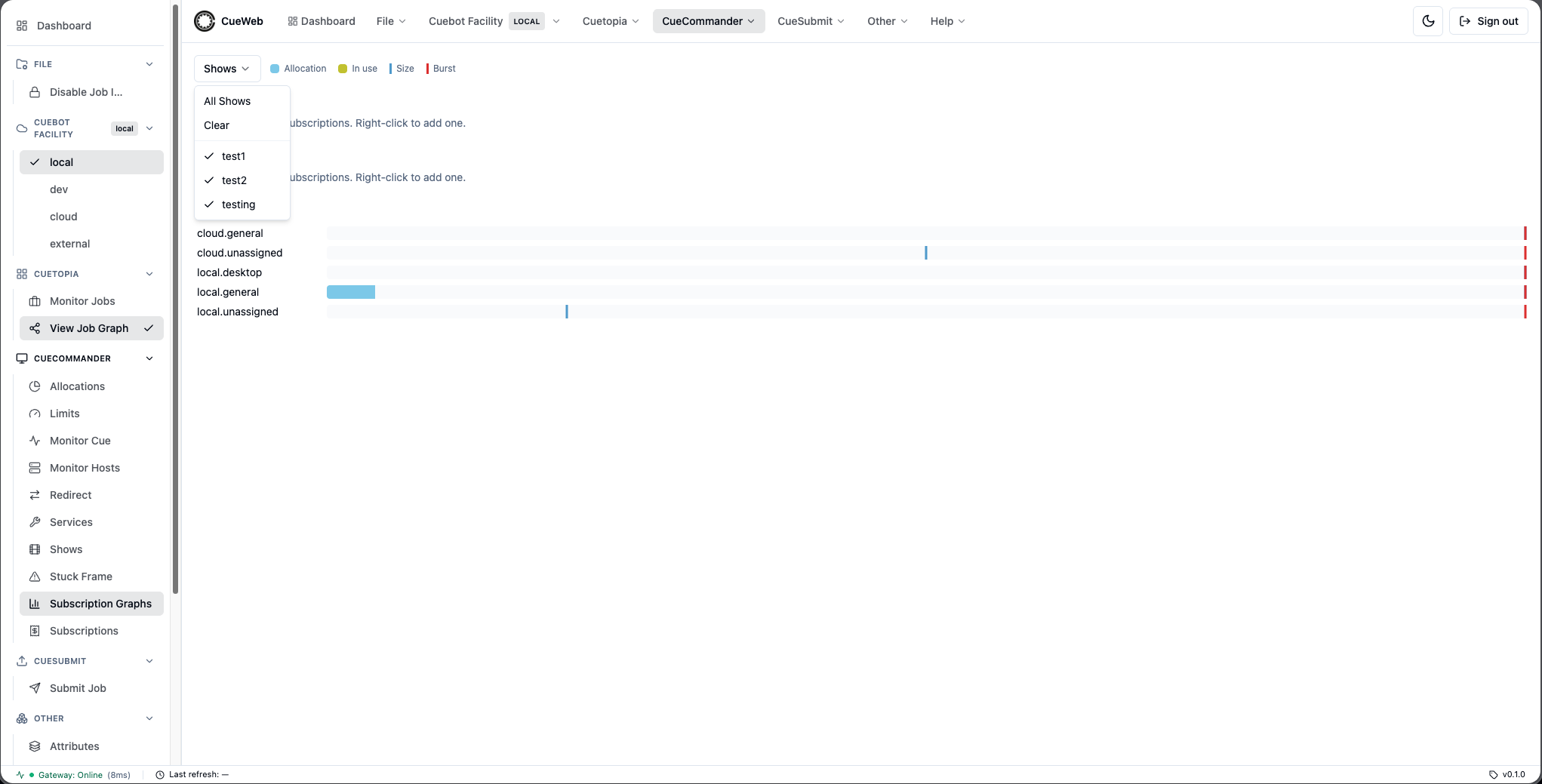
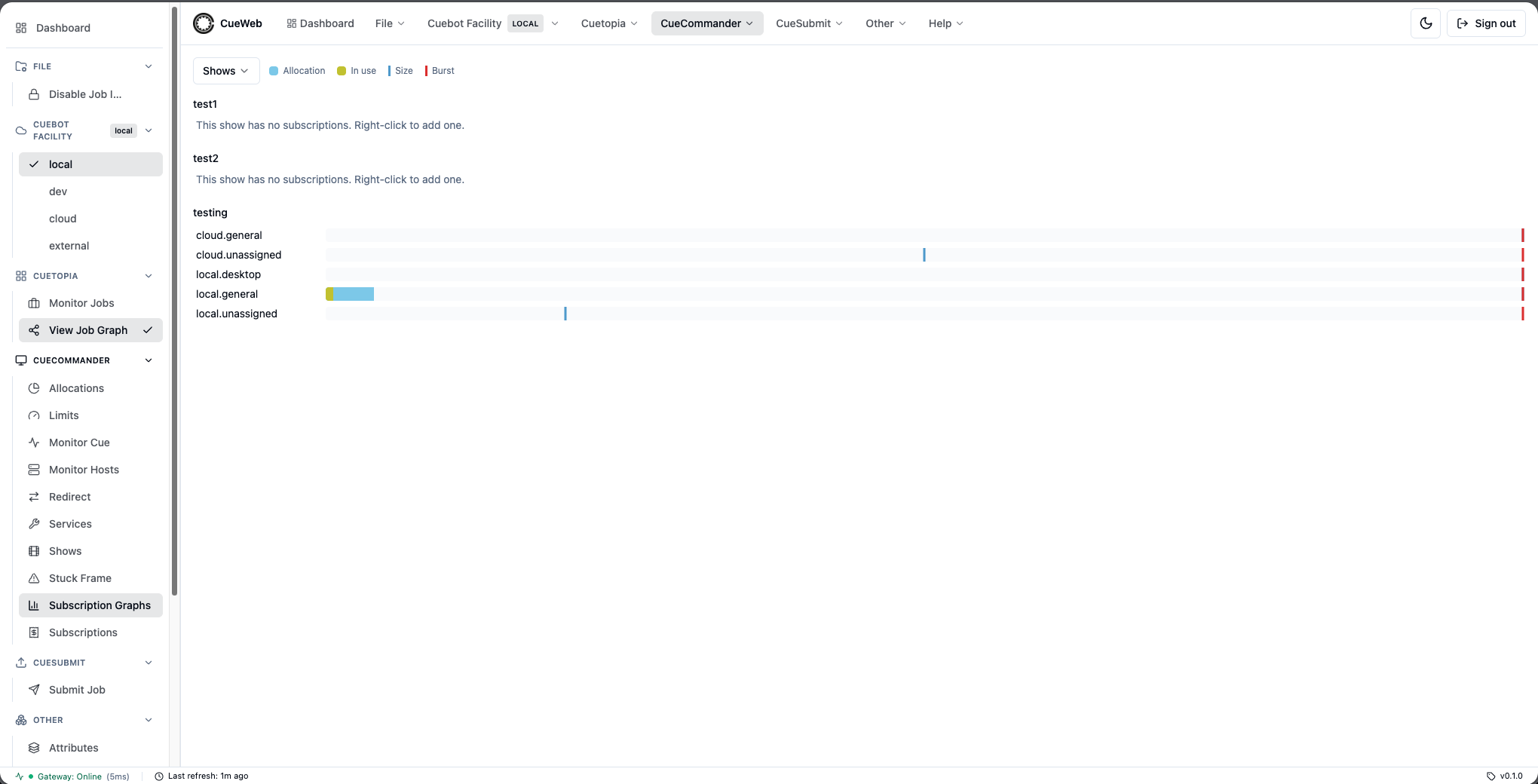
Reading a bar
Each bar is scaled to the allocation’s total core count and uses the same color coding as CueGUI, shown in the legend at the top of the page:
- Allocation (sky-blue) - the allocation’s total core capacity.
- In use (yellow-green) - the cores the show currently has reserved.
- Size (blue line) - the subscription’s guaranteed cores.
- Burst (red line) - the subscription’s maximum cores.
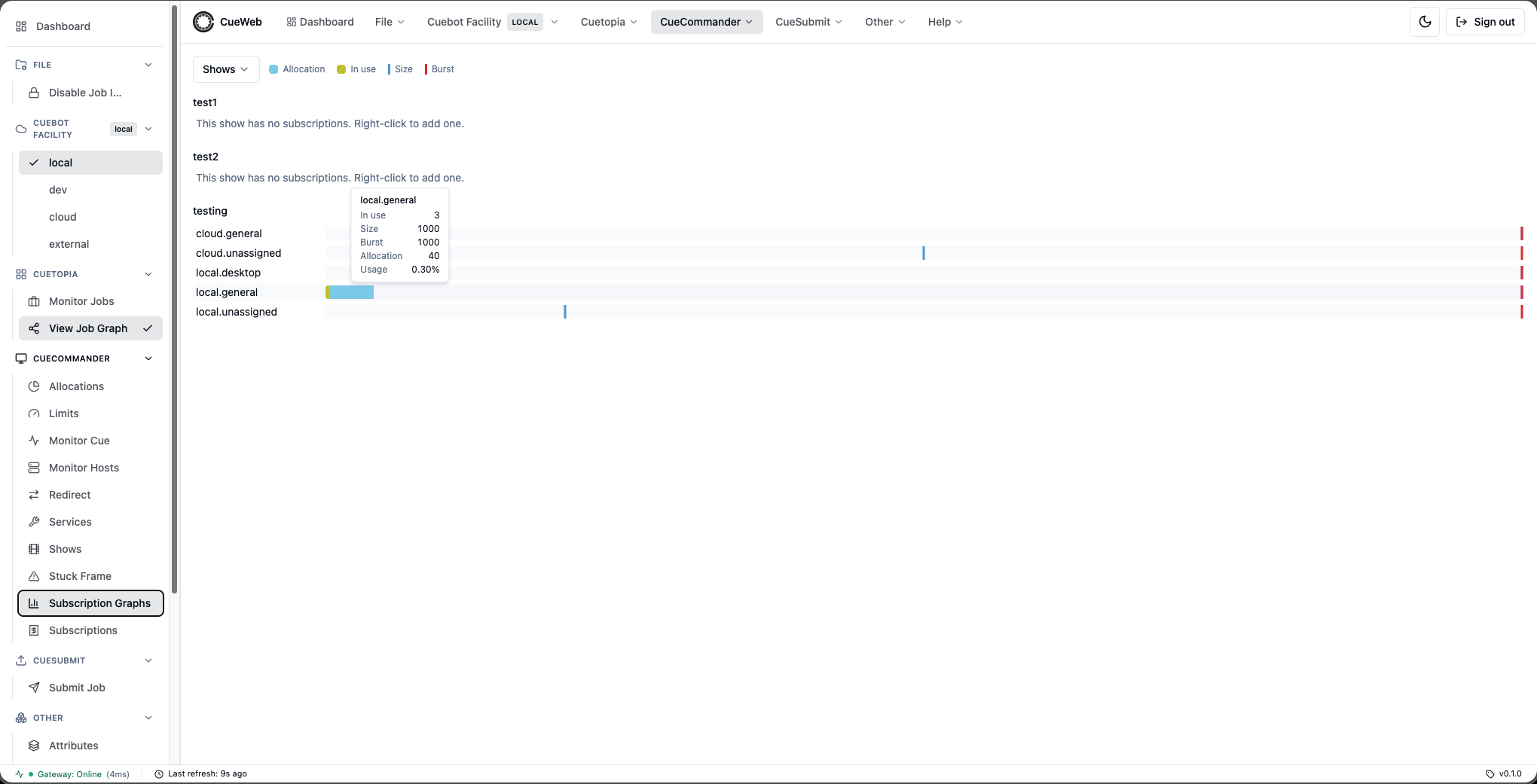
Hover over a bar to see the exact In use, Size, Burst, Allocation, and Usage values.
Actions
Right-click a bar to open the same actions as the Subscriptions table - Edit Subscription Size…, Edit Subscription Burst…, Delete Subscription - plus Add new subscription.
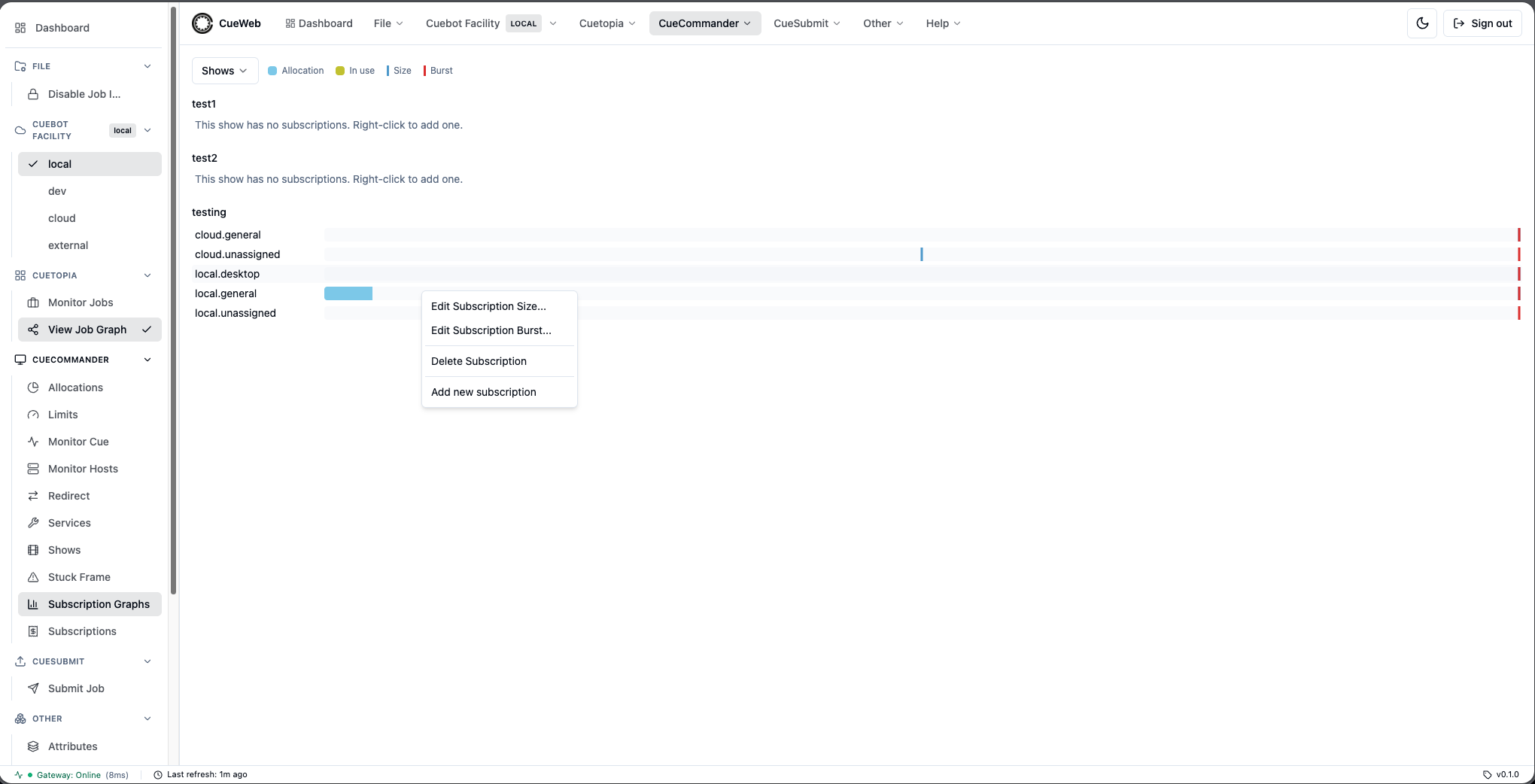
If a show has no subscriptions yet, right-click anywhere in its section and choose Add new subscription to create the first one.
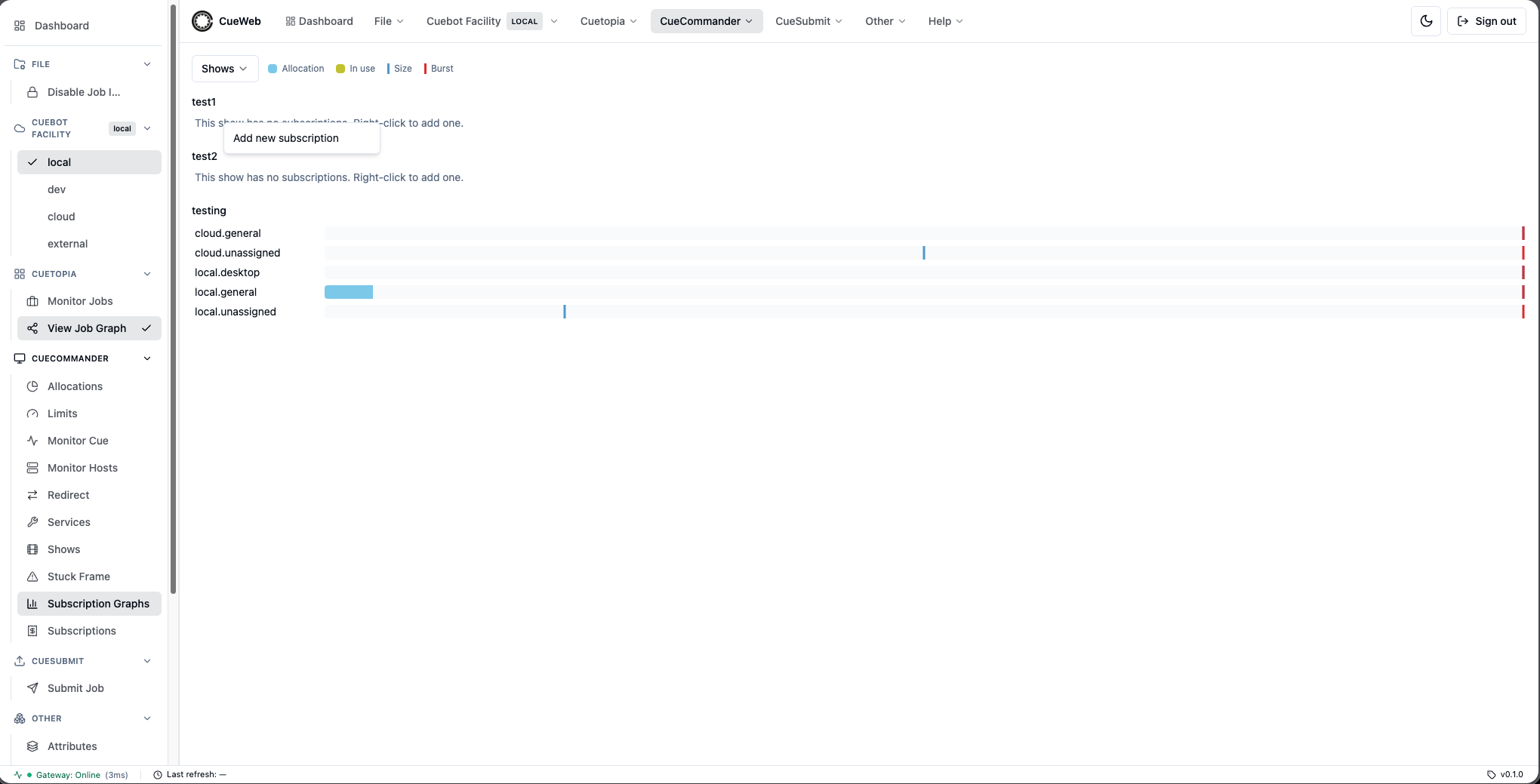
The page refreshes every 15 seconds.
Limits
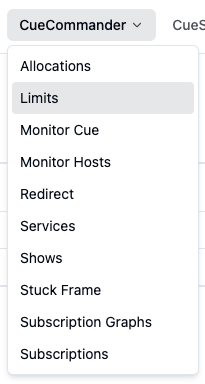
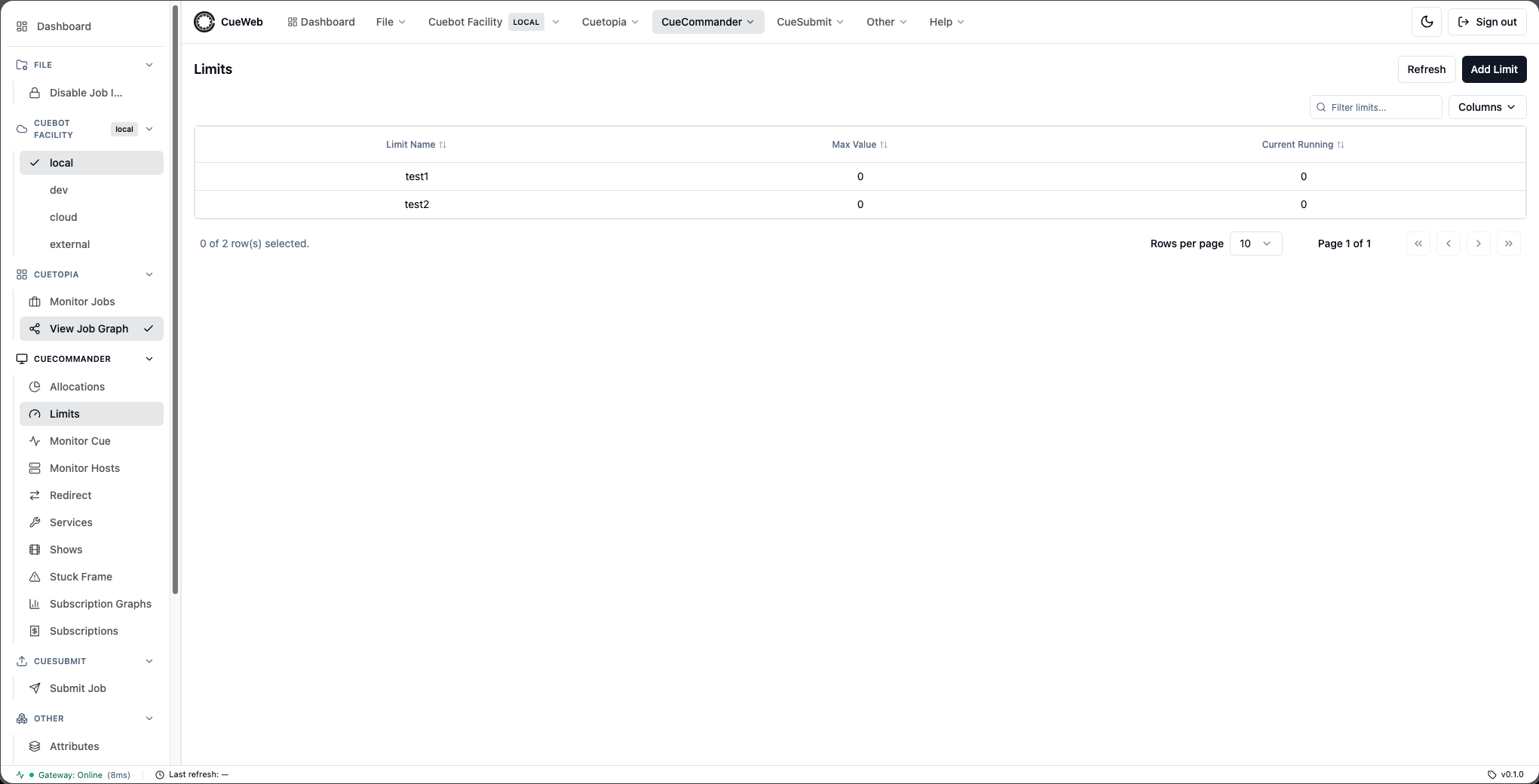
The Limits page (CueCommander → Limits in the sidebar or header) lists the limits configured in Cuebot. It is the OpenCueWeb equivalent of CueGUI’s CueCommander Limits window, with an Add Limit button and a per-row actions menu.
Open it from the CueCommander menu (or the matching entry in the left sidebar).
The page renders a sortable, filterable table with columns Limit Name, Max Value, and Current Running. Use Refresh to reload immediately; the table also auto-refreshes every 30 seconds.
Add a limit
Click Add Limit and enter a name. The new limit is created with a max value of 0; use Edit Max Value afterward to set it.
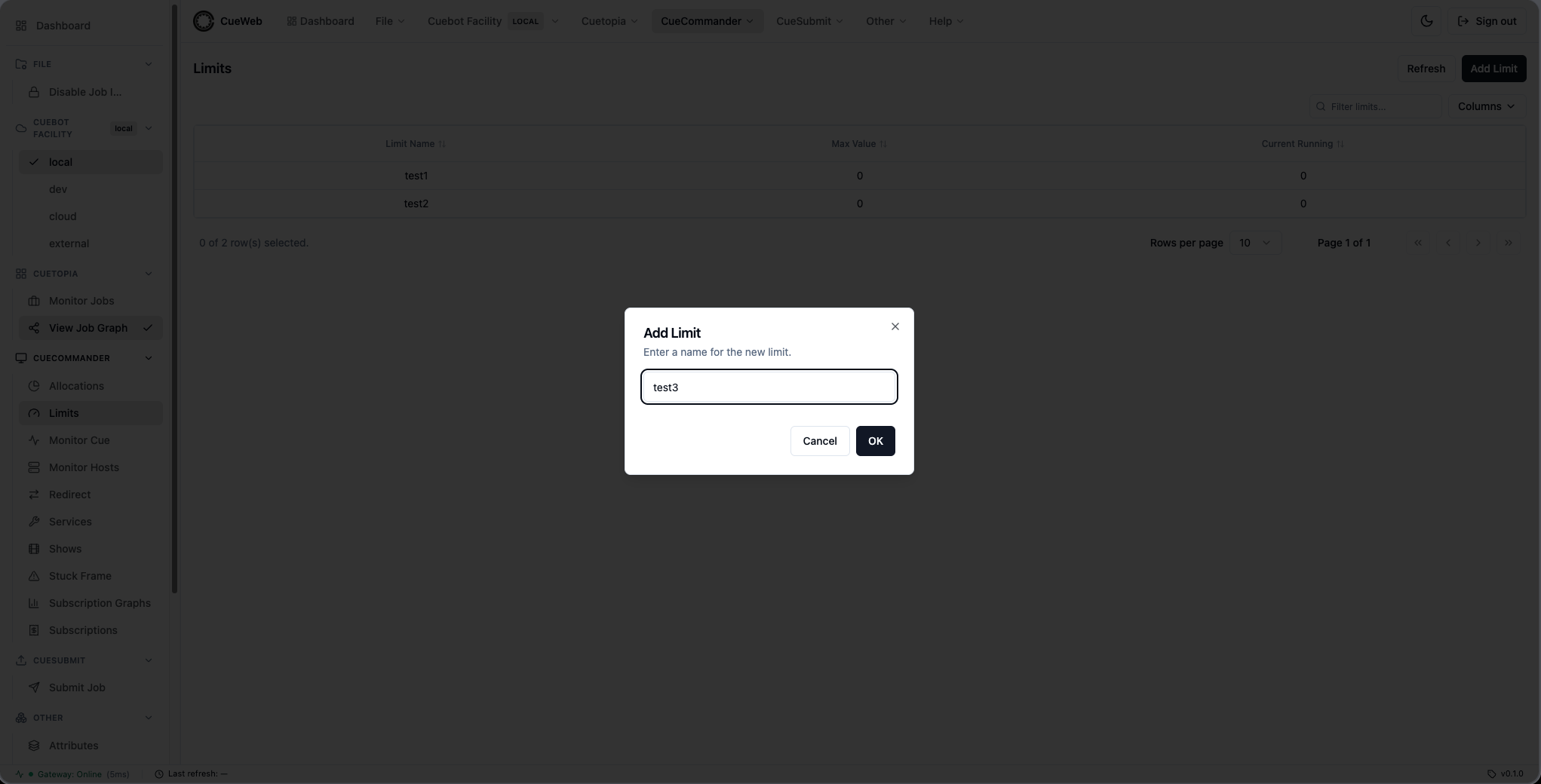
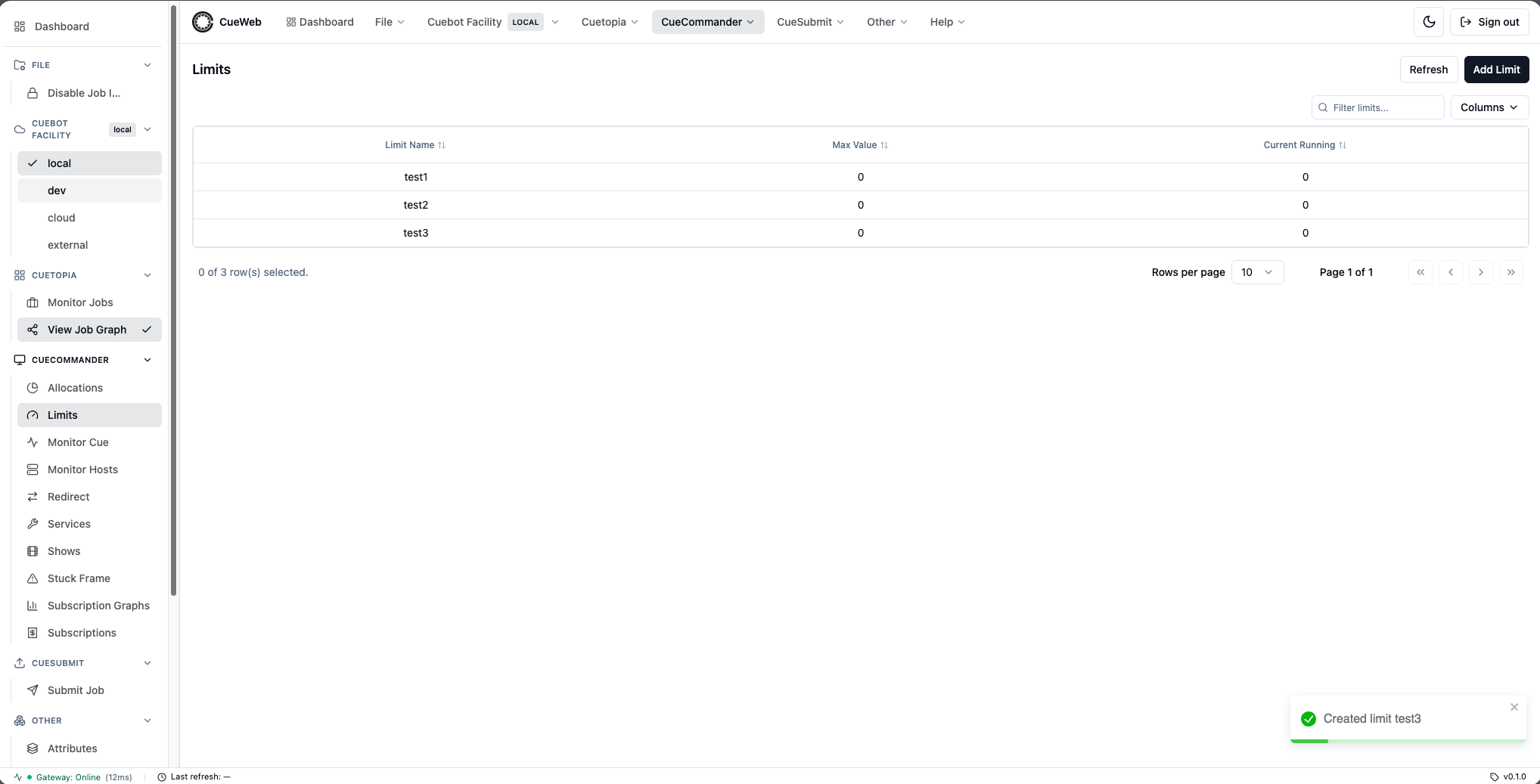
A toast confirms the limit was created.
Limit row actions
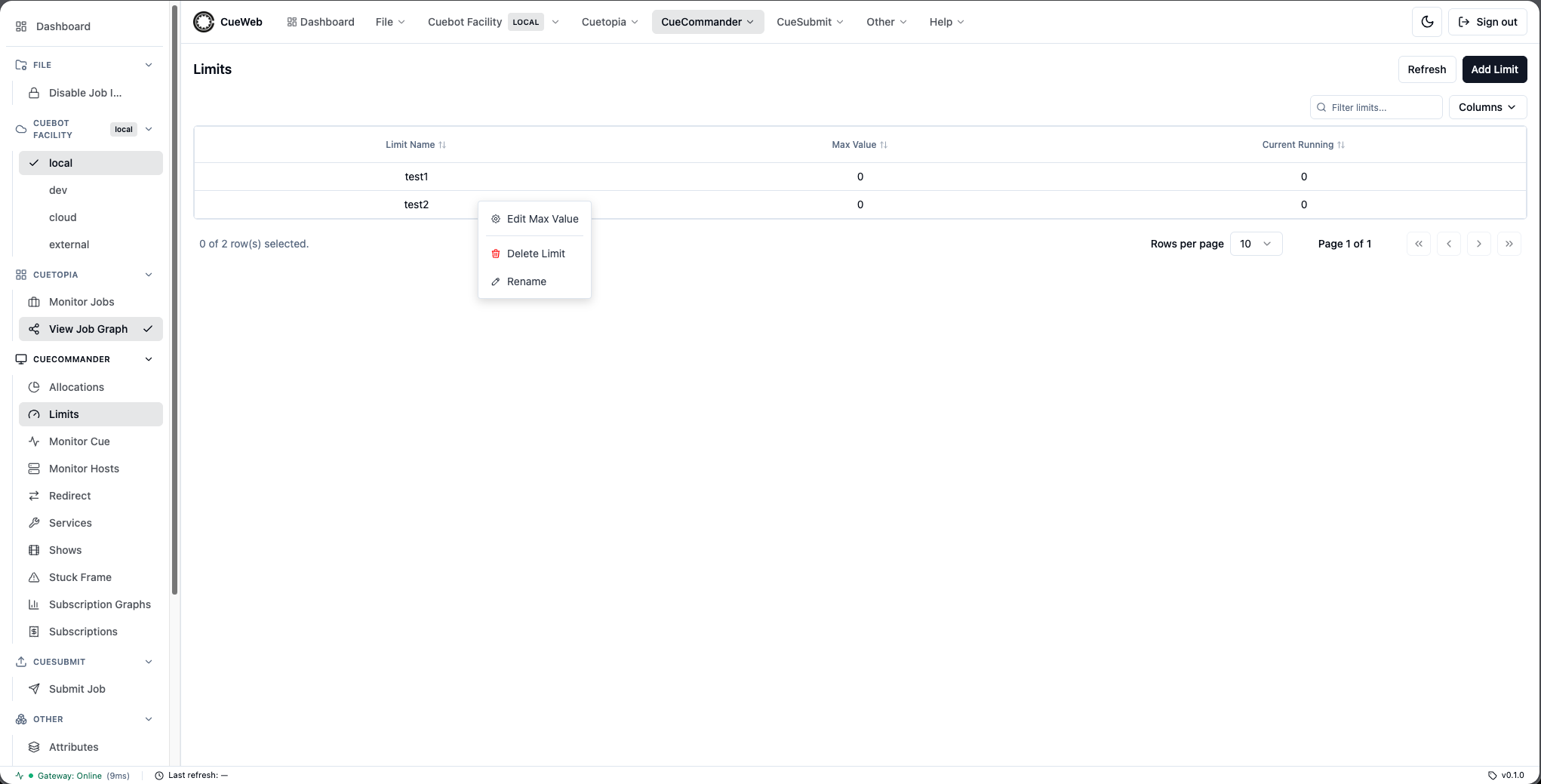
Right-click a limit row to open its actions menu: Edit Max Value, Delete Limit, and Rename.
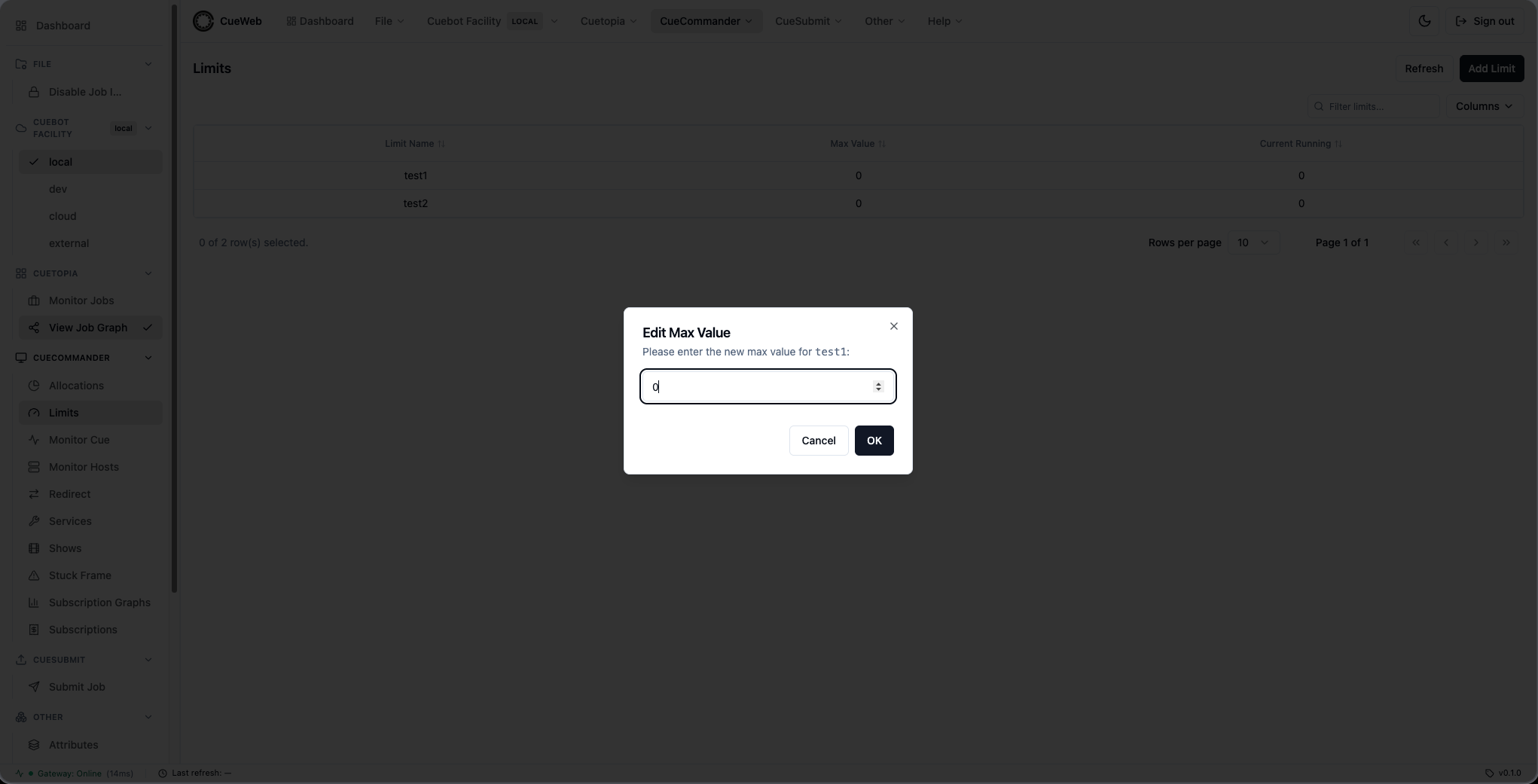
Edit Max Value opens a dialog to set the limit’s max value. The value must be a non-negative integer.
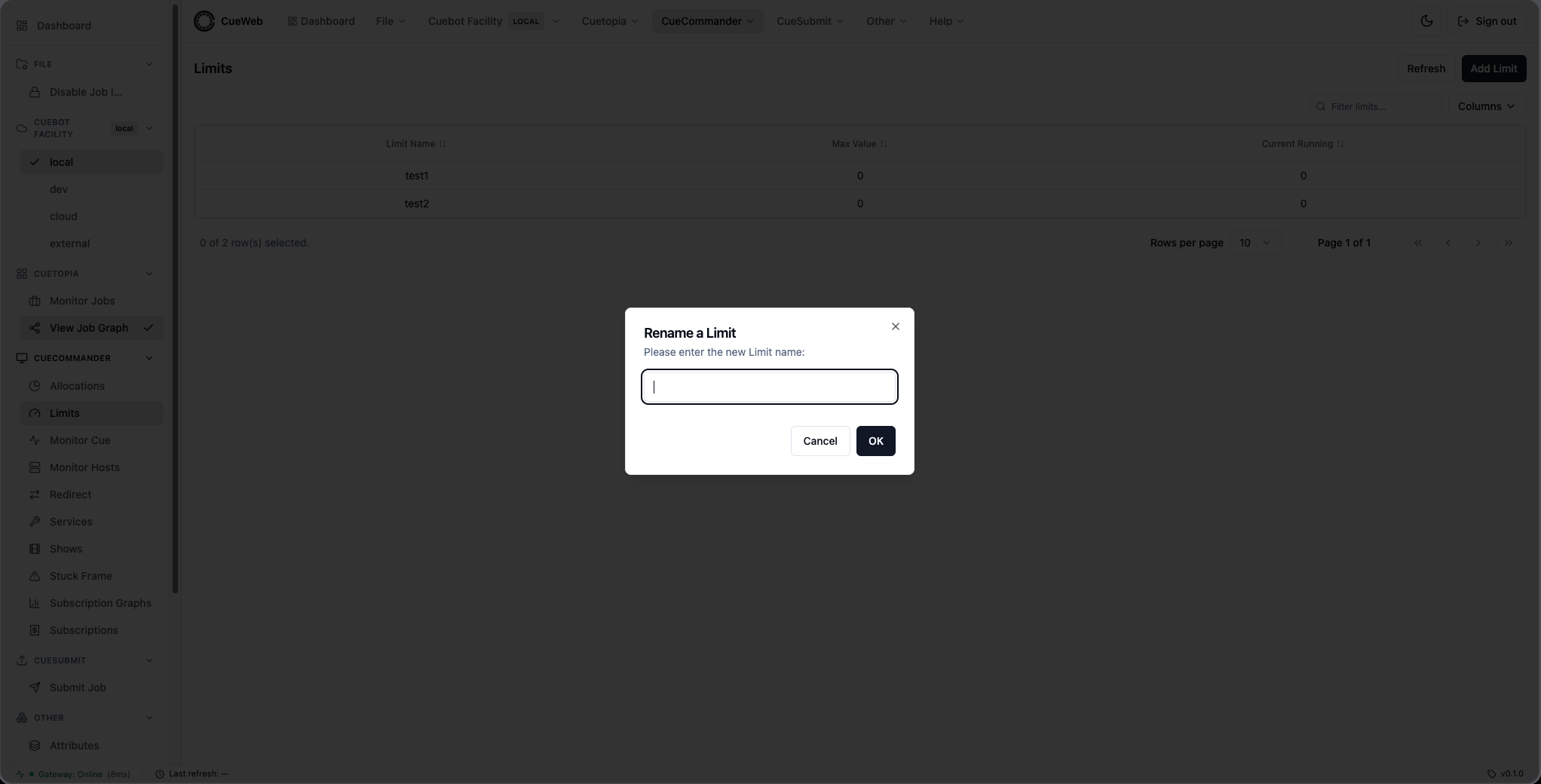
Rename opens a dialog to give the limit a new name.
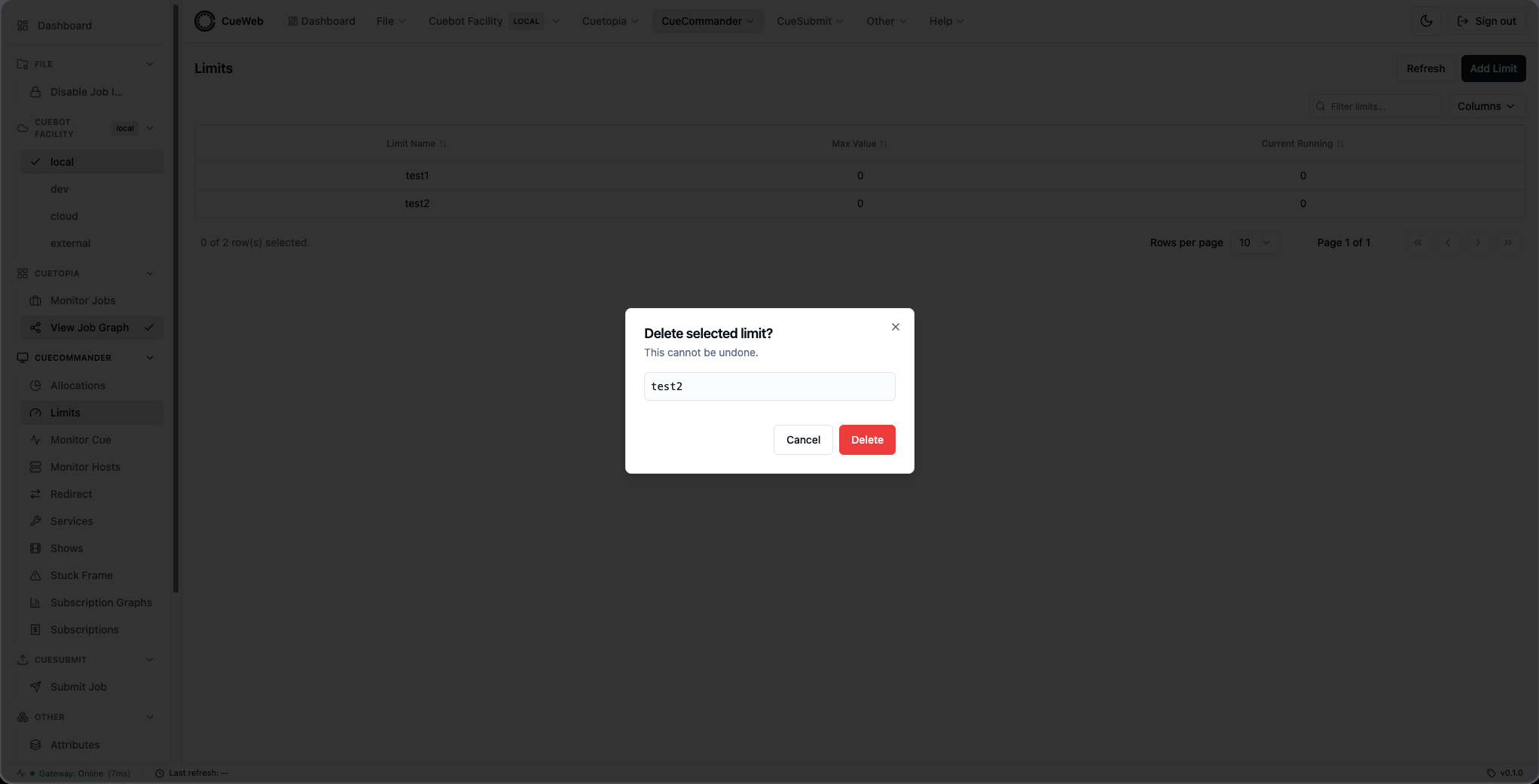
Delete Limit asks you to confirm before removing the limit.
Redirect
The Redirect page (CueCommander → Redirect in the sidebar or header) is an administrator tool for moving cores to a job that needs them. It finds render procs that are currently busy on other work and reassigns (“redirects”) them to a target job - the running frames on those procs are killed and the freed cores are booked onto your target. It is the OpenCueWeb equivalent of CueGUI’s CueCommander Redirect window.
This is a destructive admin action. Redirecting kills the frames currently running on the selected procs so their cores can be handed to the target job. Use it deliberately.
Open it from the CueCommander menu (or the matching entry in the left sidebar).
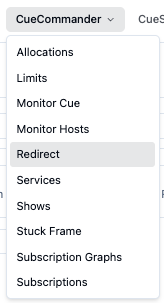
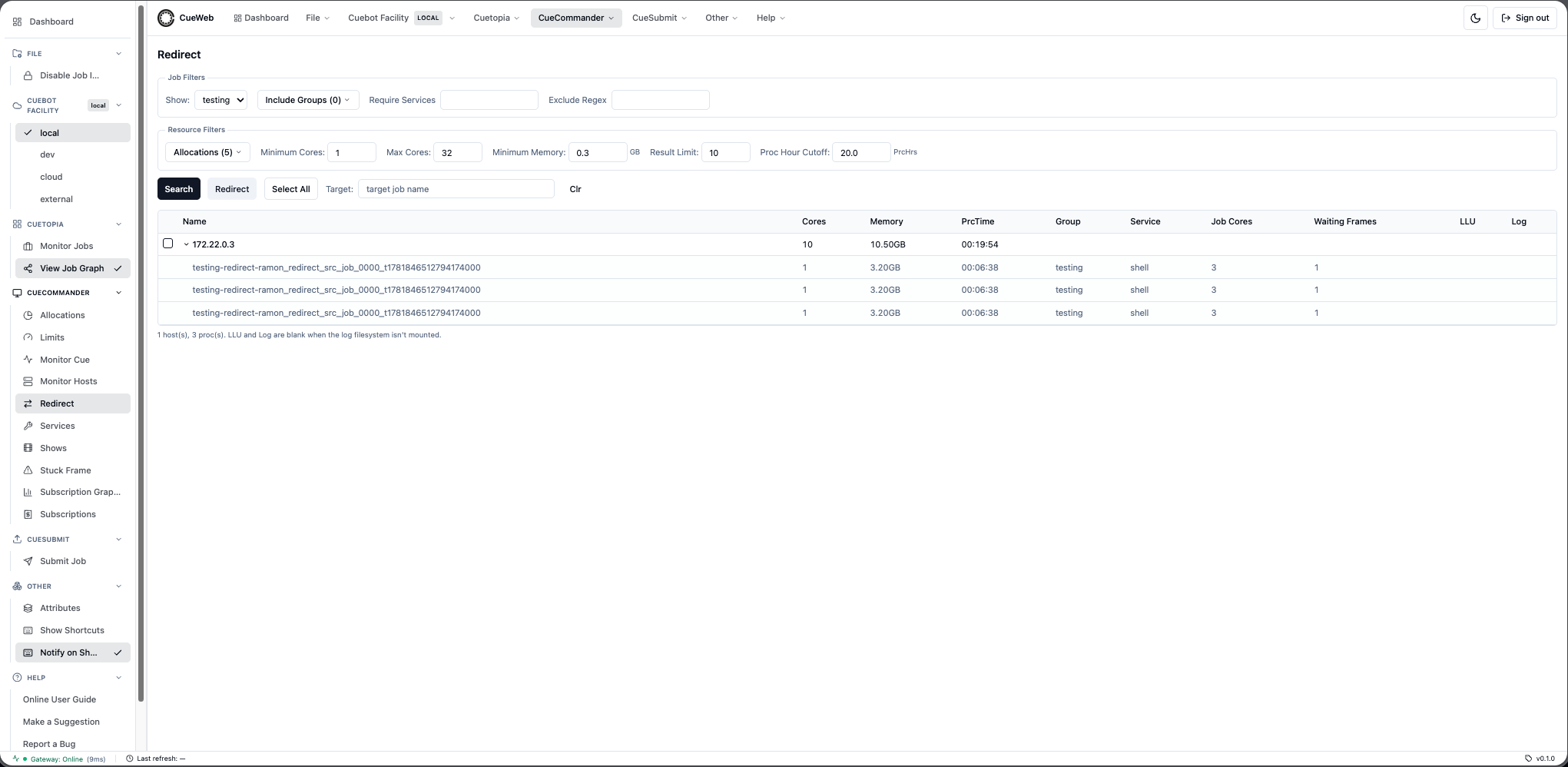
How it works
- Set a Target job (the job that should receive the cores). Typing a job name auto-fills the Show and the Minimum Cores / Minimum Memory from that job’s layers, so the search looks for procs big enough to help it.
- Narrow the search with the filters (below).
- Click Search. OpenCueWeb lists the hosts whose busy procs match - each row shows what would be freed.
- Tick the hosts you want (or Select All), then click Redirect. OpenCueWeb confirms the target is valid, warns about anything risky, kills the selected procs’ frames, and books the cores onto the target job.
Job filters
- Show - the show whose running procs are candidates (required).
- Include Groups - limit candidates to procs from specific groups of that show.
- Require Services - only procs running a layer with this service.
- Exclude Regex - skip procs whose job name matches this pattern.
Resource filters
- Allocations - restrict the search to specific allocations.
- Minimum Cores / Max Cores - the per-host core range to return.
- Minimum Memory (GB) - minimum idle memory a host must have.
- Result Limit - cap the number of hosts returned.
- Proc Hour Cutoff (PrcHrs) - skip procs that have already burned more than this many proc-hours, so you don’t kill near-finished work.
Results and redirecting
Each result row is a host, with columns for Cores, Memory, PrcTime, Group, Service, Job Cores, Waiting Frames, and LLU; expand a row to see the individual procs. Select the hosts you want and click Redirect.
Before redirecting, OpenCueWeb checks the target job and refuses or warns:
- Refuses if the target job no longer exists, has no waiting frames, or has already reached its max cores.
- Warns (asks you to confirm) if the target job is paused, or if any selected proc belongs to a different show - redirecting it will kill that other show’s frame.
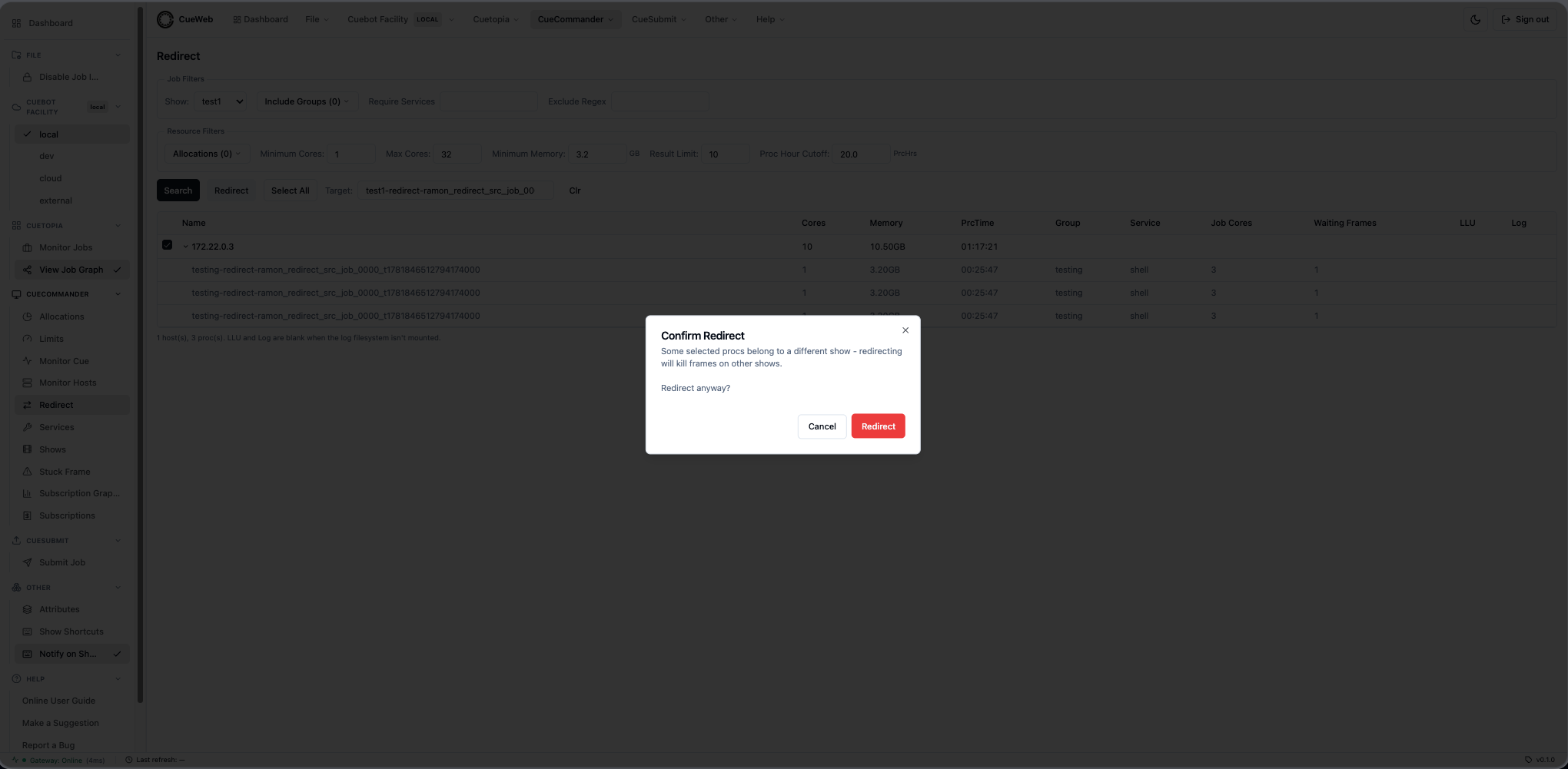
On success, a toast confirms how many hosts were redirected to the target job.
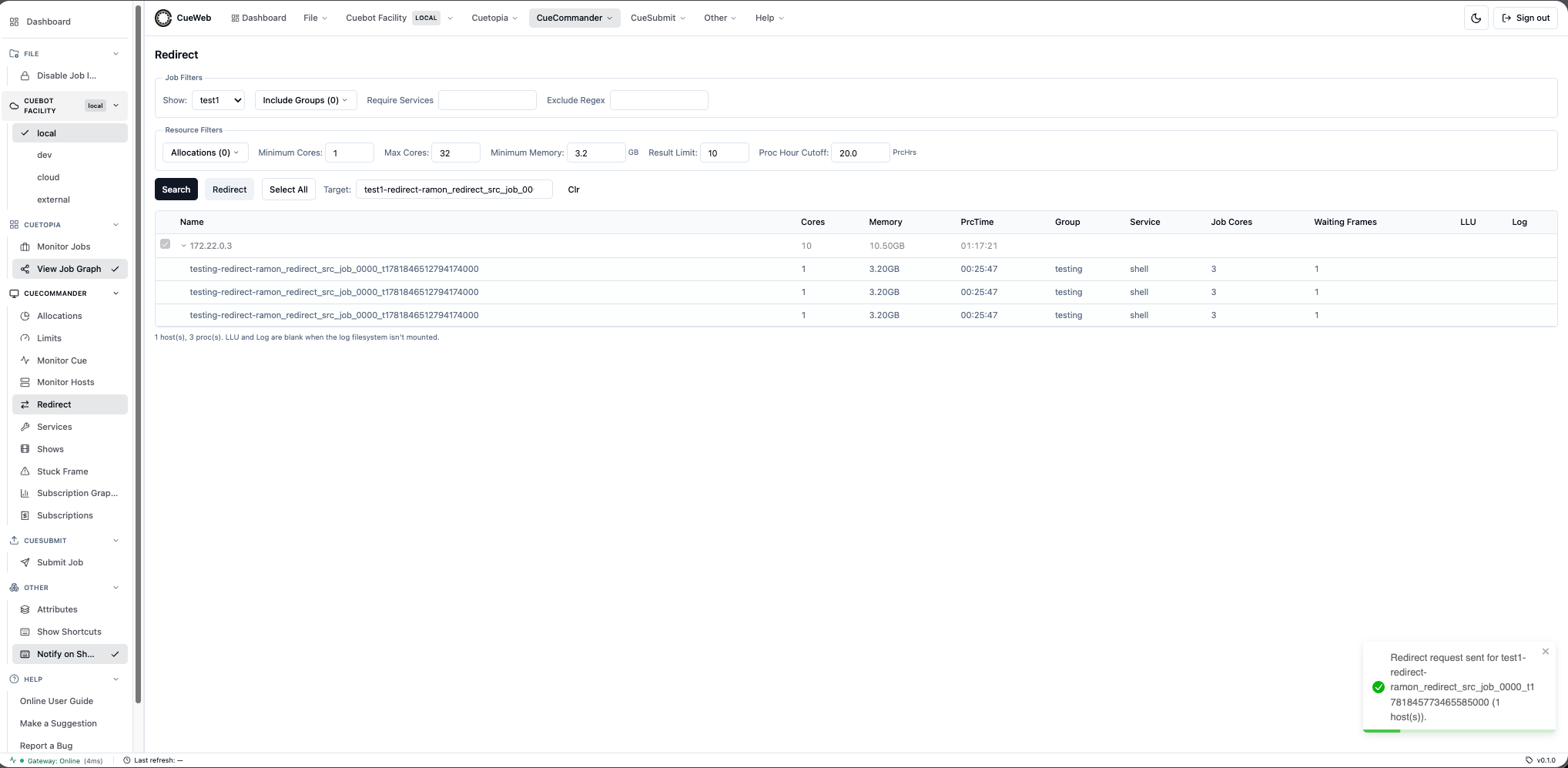
Use Clr to reset the form.
OpenCueWeb Audit
The OpenCueWeb Audit page records every state-changing action performed through OpenCueWeb, giving administrators a searchable trail of who did what, when, and with what result. It is an admin/monitoring tool with no CueGUI equivalent - it audits the OpenCueWeb application itself.
Open it from Admin → OpenCueWeb Audit, available from both the top menu and the left sidebar.
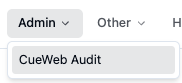
The page loads the most recent records and presents them in a sortable, filterable table.
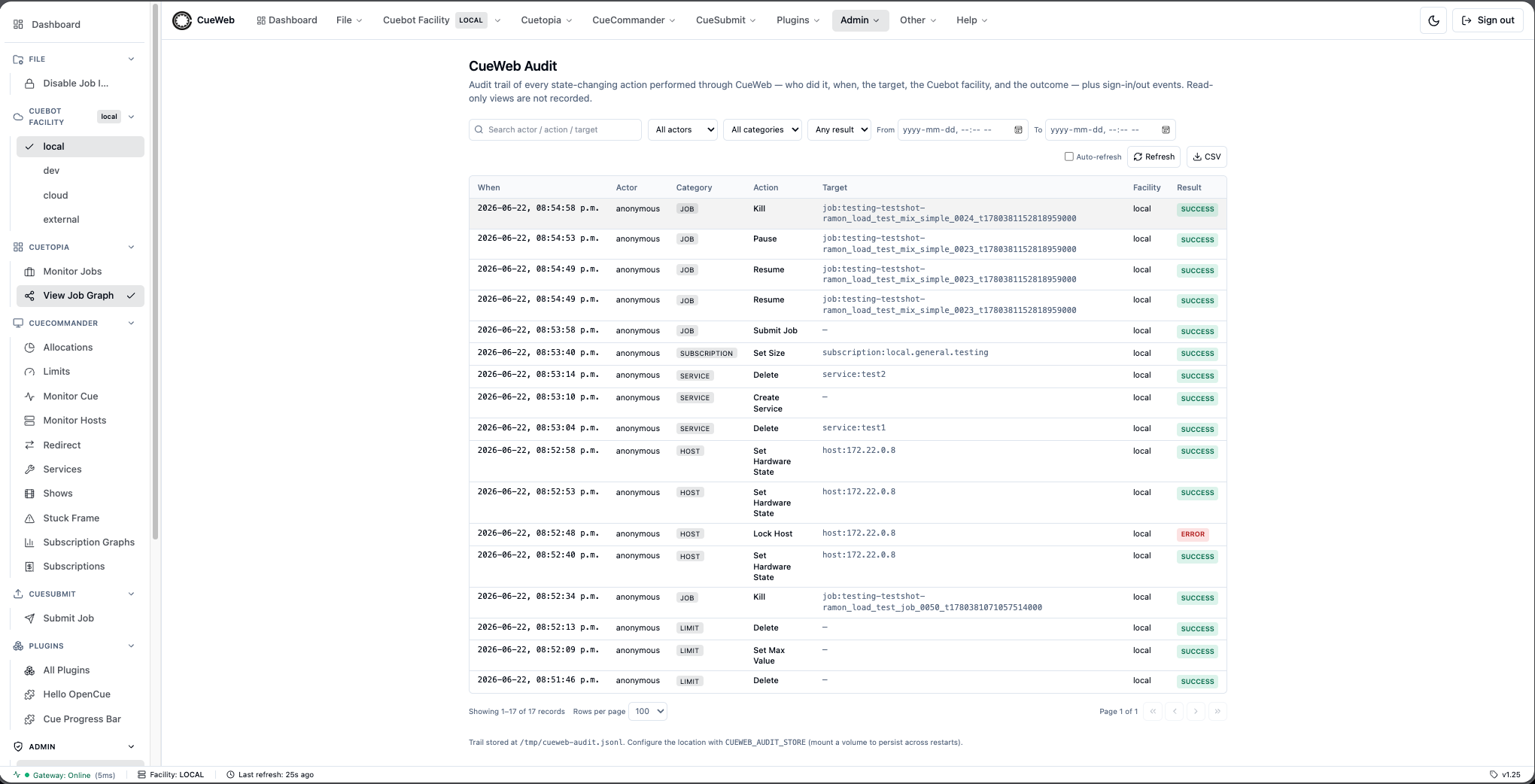
Who can see it
The Audit page is admin-gated. When no group authorization is configured for the deployment (CUEWEB_AUTHZ_ENABLED off), the page is visible to everyone. Once group authorization is enabled, only members of the groups listed in CUEWEB_ADMIN_GROUPS can open it; anyone else sees the standard Access denied page.
What gets recorded
The trail captures every state-changing action taken through OpenCueWeb, including:
- Job / layer / frame actions: kill, pause, resume, eat, retry, mark-done, mark-as-waiting, and similar.
- Setters: set priority, set min/max cores, set max retries, auto-eat on/off, and the like.
- Comments: adding, editing, and deleting job and host comments.
- Job submission through CueSubmit.
- Host actions: lock/unlock, take ownership, reboot, delete, repair state, edit tags, change allocation.
- Admin edits: show, allocation, limit, subscription, and service (facility service default) create/edit/delete.
- Authentication: sign in and sign out.
Read-only views (loading the jobs table, opening a log, browsing hosts) are not recorded. The trail captures actions done through OpenCueWeb only - changes made with CueGUI, cueman, or the pycue API do not appear here.
Audit columns
The table shows one row per recorded action:
| Column | Description |
|---|---|
| When | Timestamp of the action |
| Actor | The signed-in user’s email or name, or anonymous when authentication is disabled |
| Category | The kind of entity acted on (job, frame, layer, host, show, … or auth for sign in / sign out) |
| Action | A human-friendly description of what was done (e.g. Kill job, Set priority) |
| Target | The entity acted on (e.g. job:comp_v2) |
| Facility | The Cuebot facility the action was sent to |
| Result | success or error |
Click a row to expand its sanitized details - the parameters that were sent, the error message (for failed actions), and the underlying REST endpoint and method. Sensitive values are stripped before they are stored.
Filtering
The filter bar narrows the records without leaving the page:
- Free-text search - matches the actor, action, and target.
- Actor dropdown - limit to one user.
- Category dropdown - limit to one category (job, host, auth, etc.).
- Result - show only success or only error rows.
- From / To - a time window; leave either side blank for an open-ended range.
- Clear - reset every filter back to the default view.
The page does a server-side initial load, then the table re-fetches from /api/admin/audit whenever you change a filter.
Pagination
The table paginates the matching records with First / Prev / Next / Last controls and a Page X of N indicator. A rows-per-page selector controls how many records show at once (default 10, matching the Jobs table).
Refresh and export
- Auto-refresh toggle - keep the view current as new actions are recorded.
- Refresh - reload the current view immediately.
- Export CSV - download the records in the current (filtered) view as a CSV file.
Where the trail is stored
The audit trail persists to a JSONL file on the server, configured by the CUEWEB_AUDIT_STORE environment variable (defaults to the OS temporary directory; mount a volume to that path to keep the trail across restarts). The file is size-bounded by CUEWEB_AUDIT_MAX_RECORDS (default 50000; set it to 0 to remove the cap). These are deployment-time settings - see the OpenCueWeb Developer Guide for the operational details.
Plugins
OpenCueWeb has a small plugin system - the browser counterpart of CueGUI’s plugins. A plugin is an add-on panel that lives on its own page under /plugins/<name> and can be surfaced in a Plugins menu next to CueSubmit. Two samples ship in the box, and developers can add their own (see the developer guide).
The Plugins menu and page
The Plugins menu (in the header and sidebar, to the right of CueSubmit) lists the plugins you’ve enabled. Choosing one opens its page.
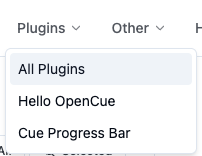
To see everything available and choose what appears in the menu, open the Plugins page. It’s a searchable, paginated index of every registered plugin, each with a checkbox that controls whether it shows up in the Plugins menu. Your selection is saved in your browser and synced across tabs.
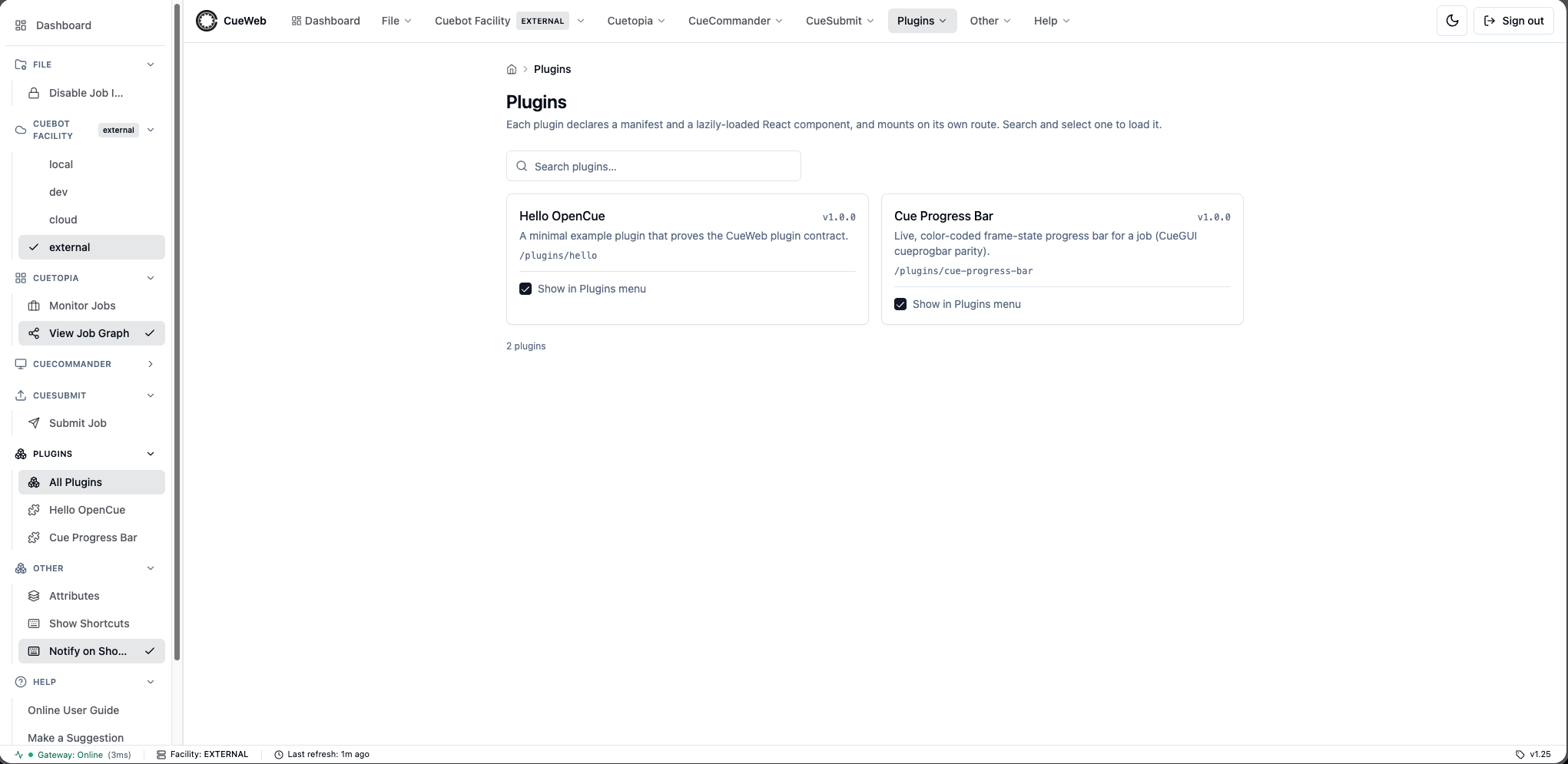
Plugin settings
A plugin can expose its own settings. Open them from the plugin (the Open plugin settings control) - the dialog is scoped to that one plugin, and each value persists in your browser and survives reloads.
Bundled sample plugins
Hello OpenCue - a minimal example that proves the plugin contract. It has greeting / shout / emoji settings you can tweak from its settings dialog. It is off in the menu by default.
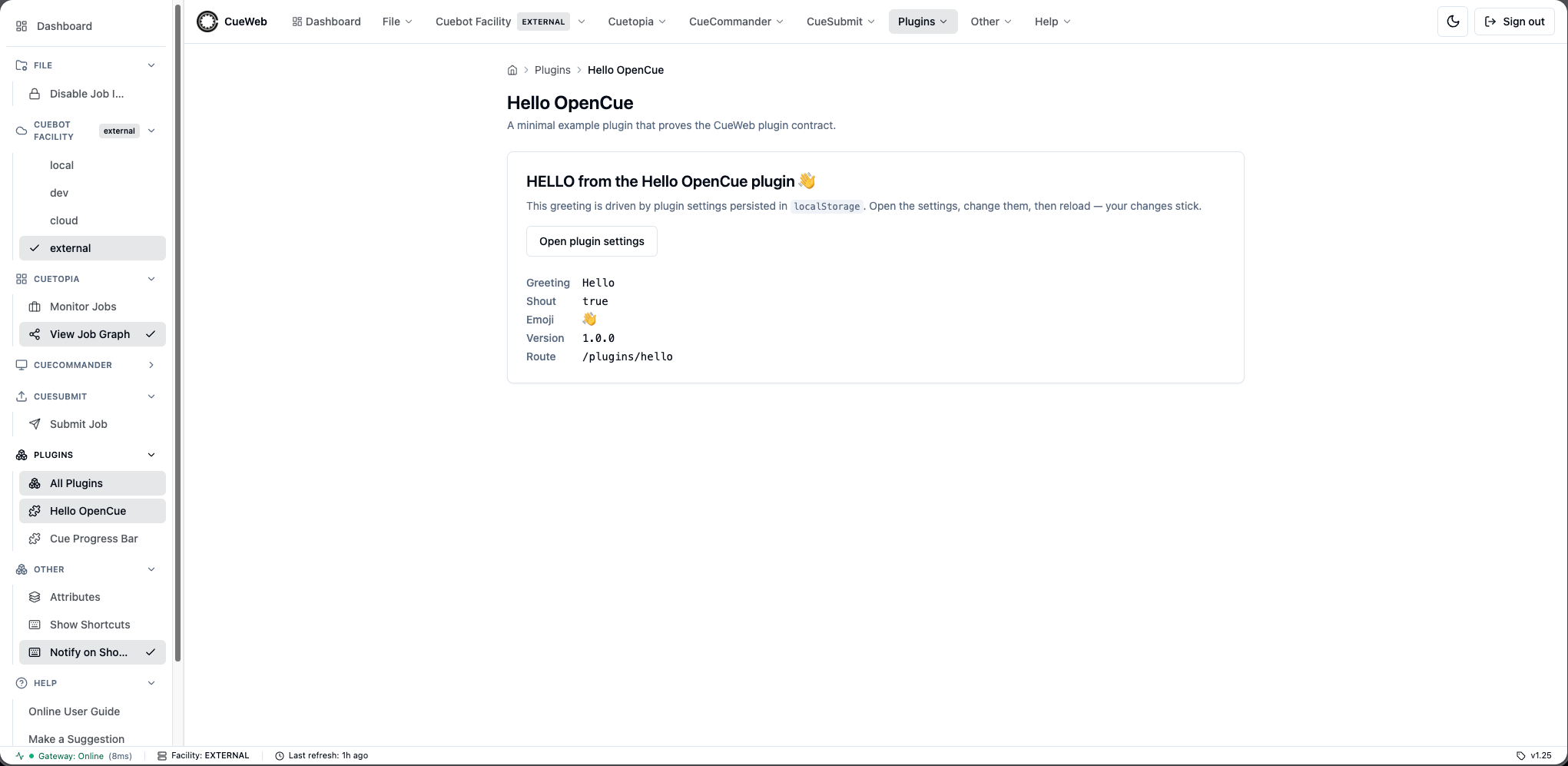
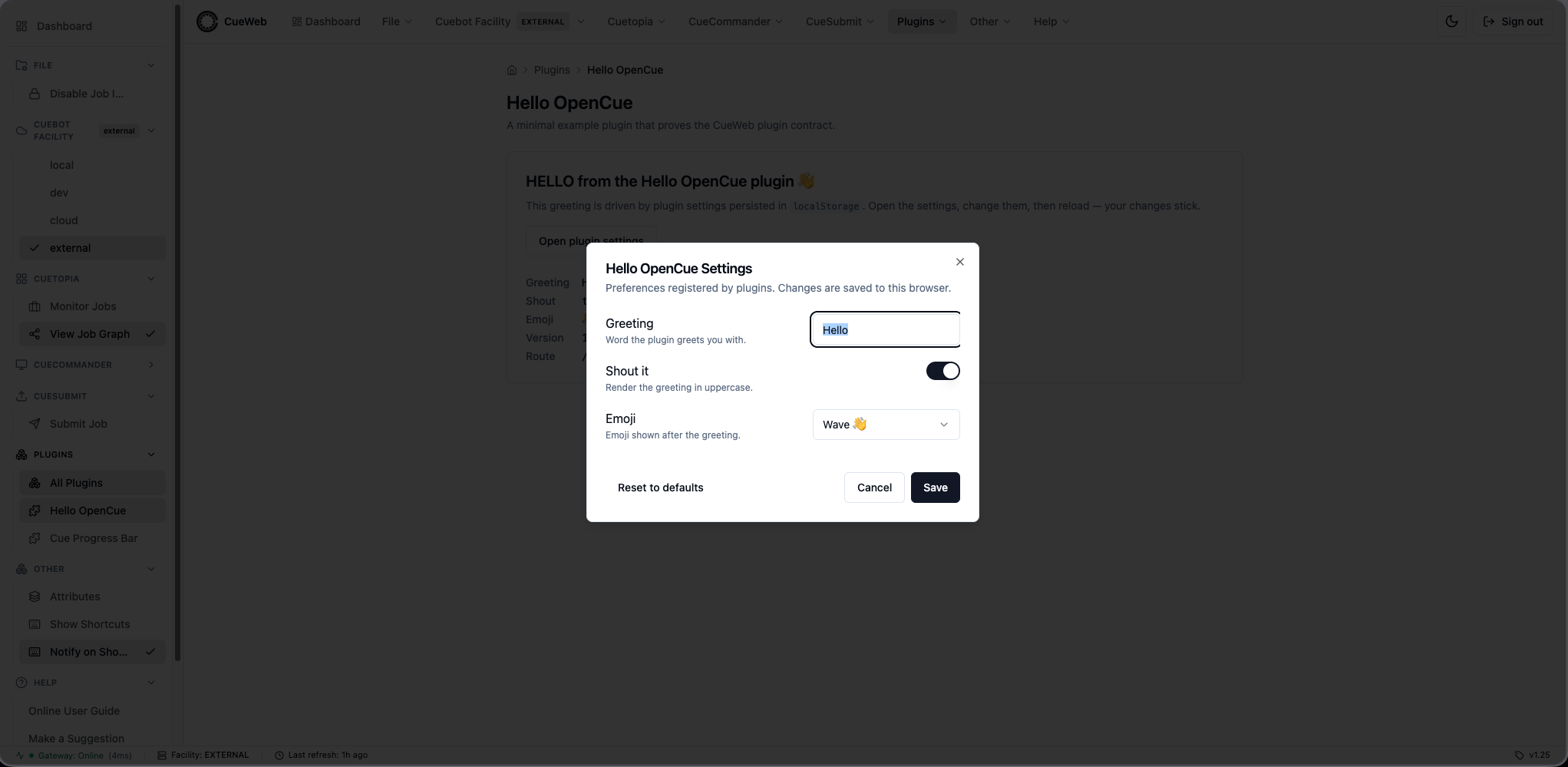
Cue Progress Bar - an OpenCueWeb port of CueGUI’s cueprogbar sample. It draws a live, color-coded frame-state bar for a job (with done / total / running labels) and offers pause / unpause / kill / retry-dead controls, polling Cuebot on a configurable interval. It is on in the menu by default.
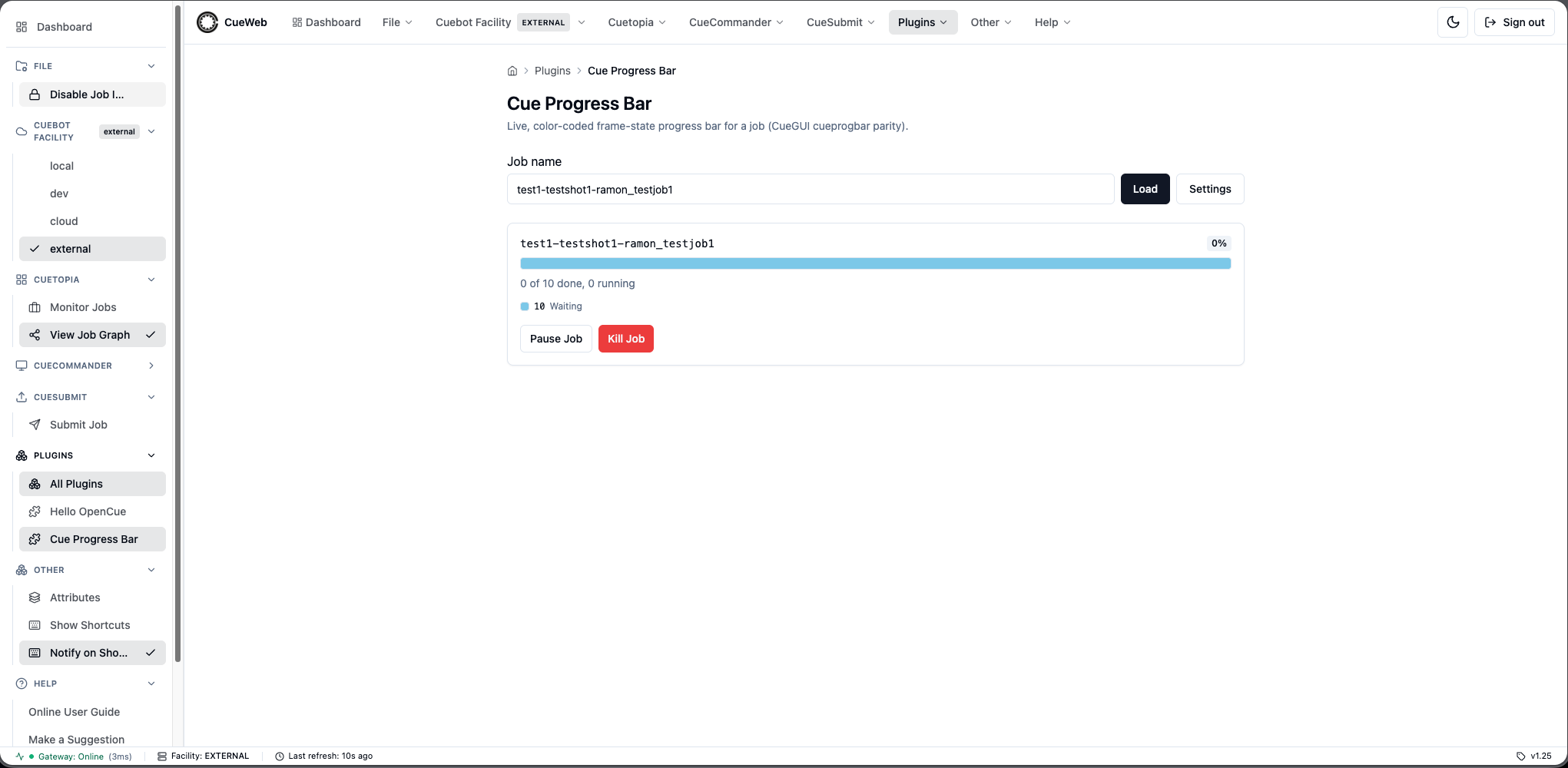
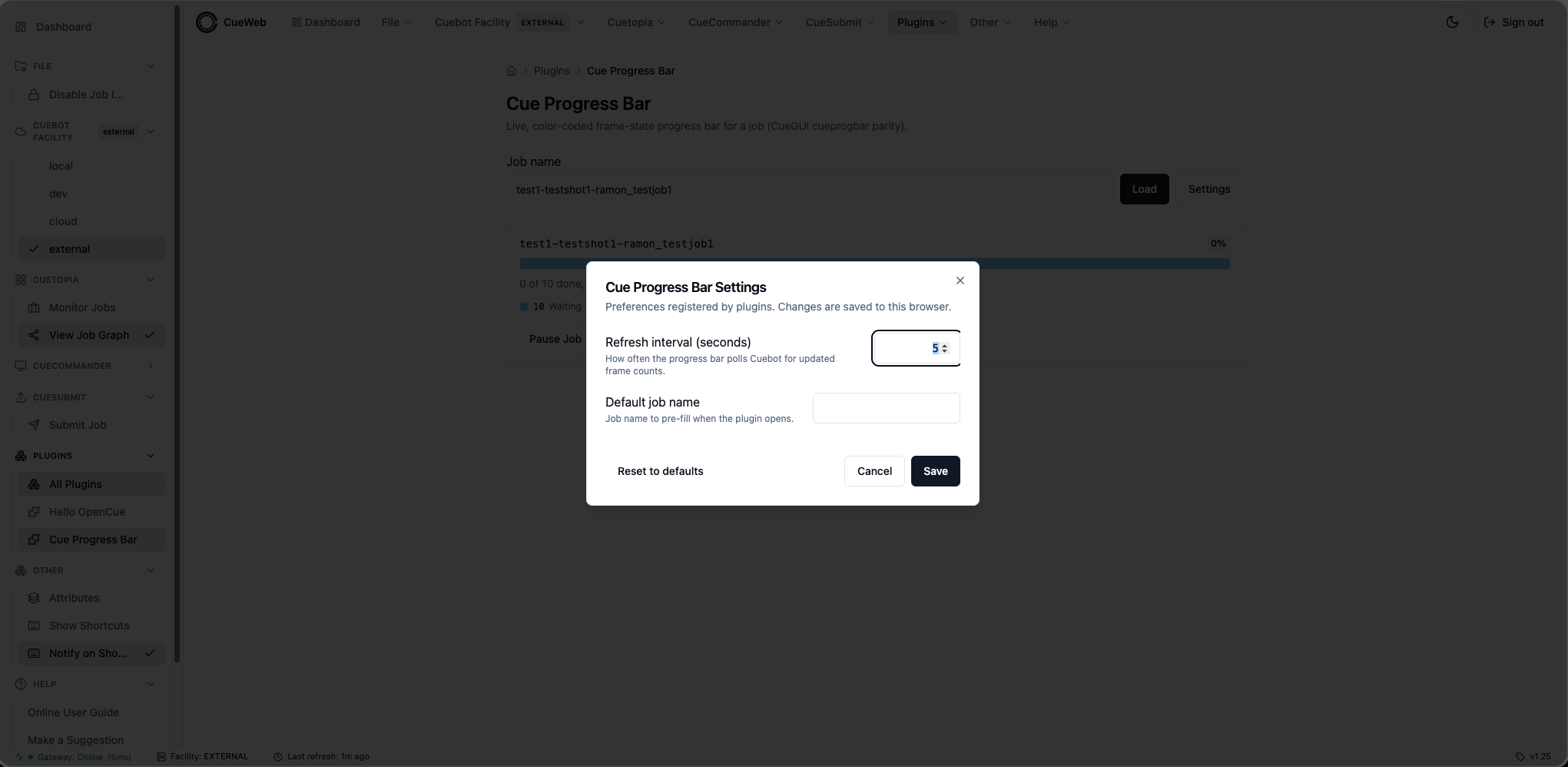
Workspace layout
Three web-native conveniences let you shape the workspace to the task at hand. All three are personal and saved in your browser, and they sync across your open tabs.
Saveable view presets
Every major table (Jobs, Hosts, Allocations, Shows, Layers, Frames) has a Views dropdown next to its Columns dropdown - the web equivalent of CueGUI’s Save Window Settings. A “view” captures the table’s column order and visibility, sort, filters, and page size, so you can set the table up once and recall that exact layout later.
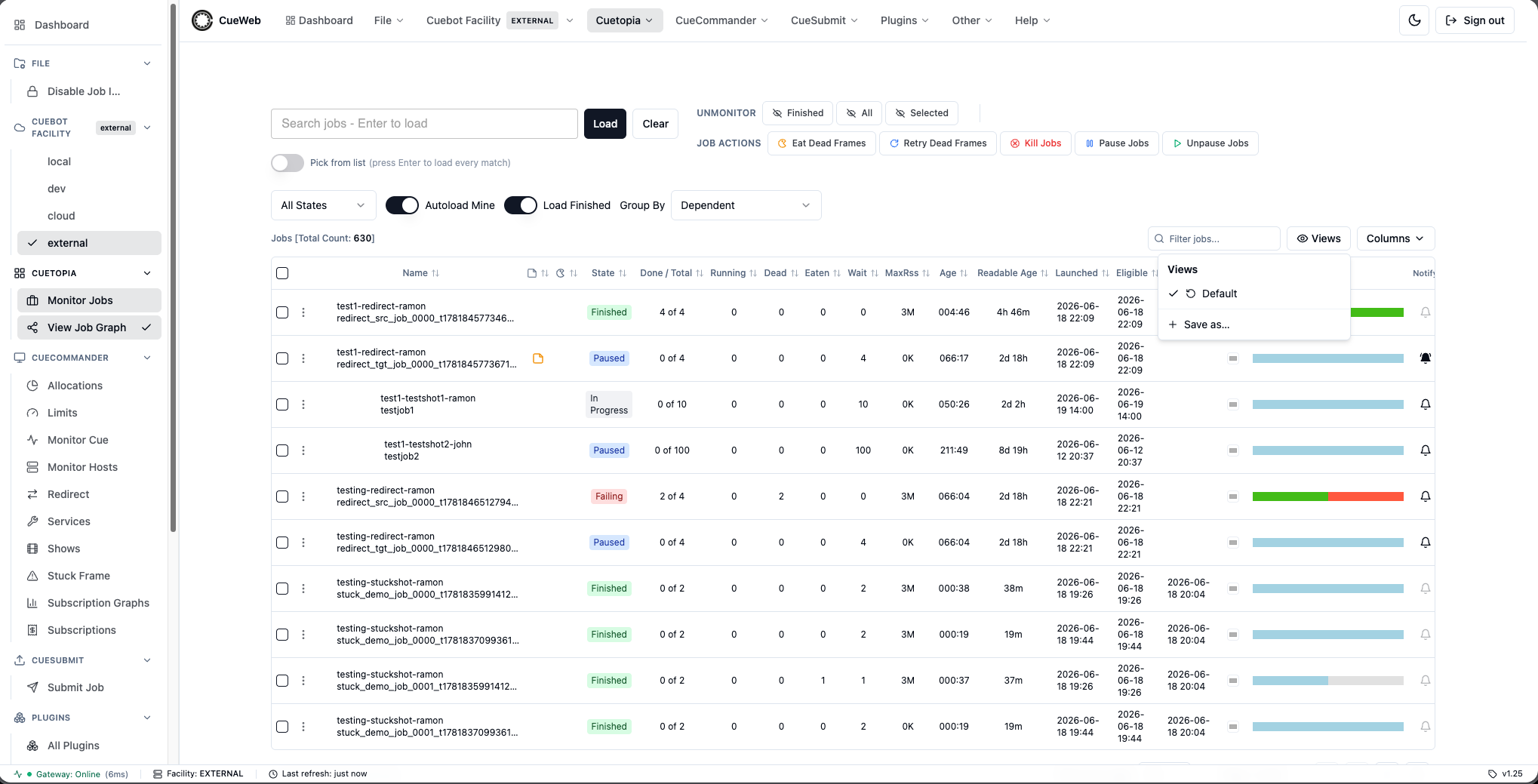
Save a view. Arrange the table how you want it - for example, reorder or hide columns - then open Views → Save as… and give the preset a name.
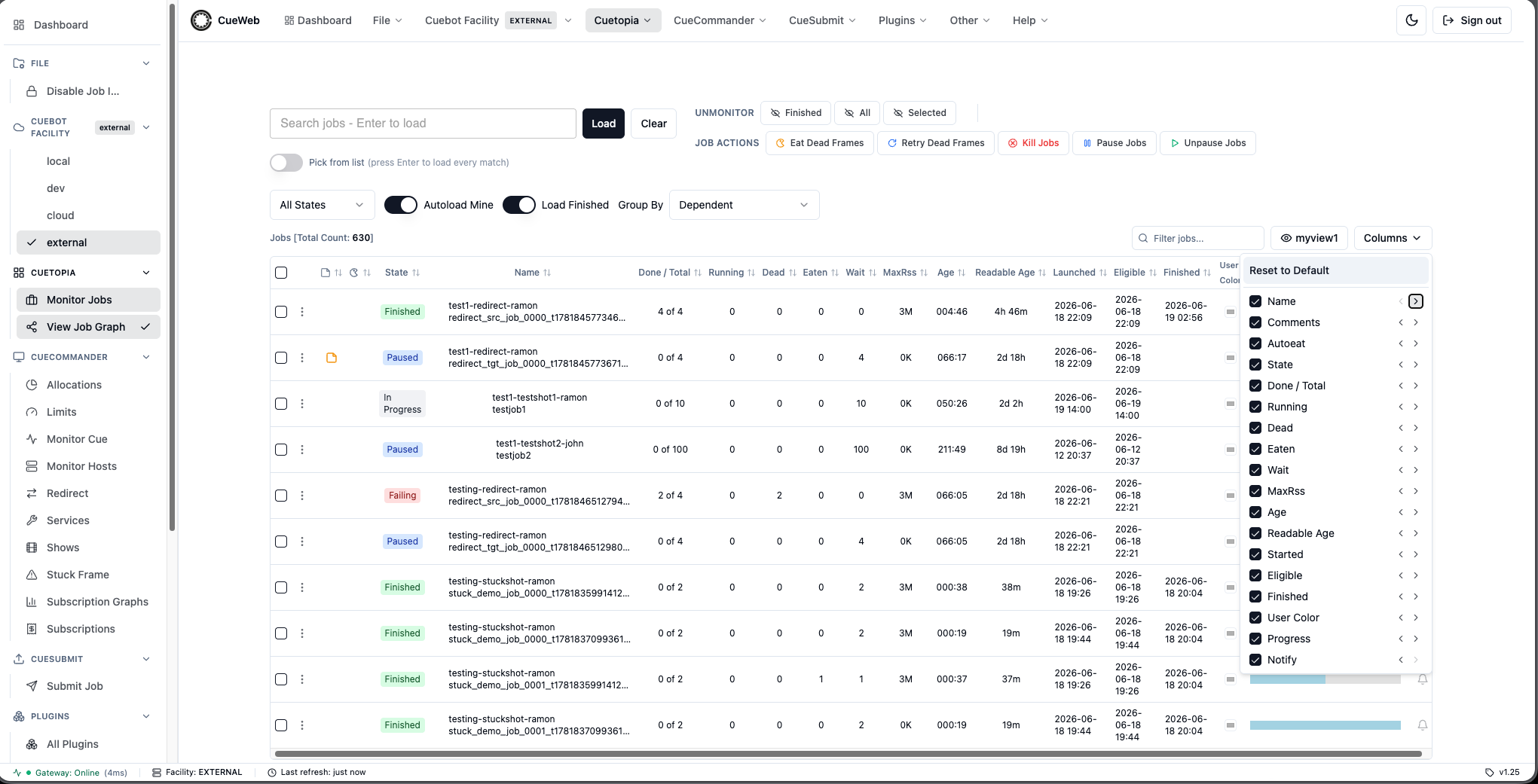
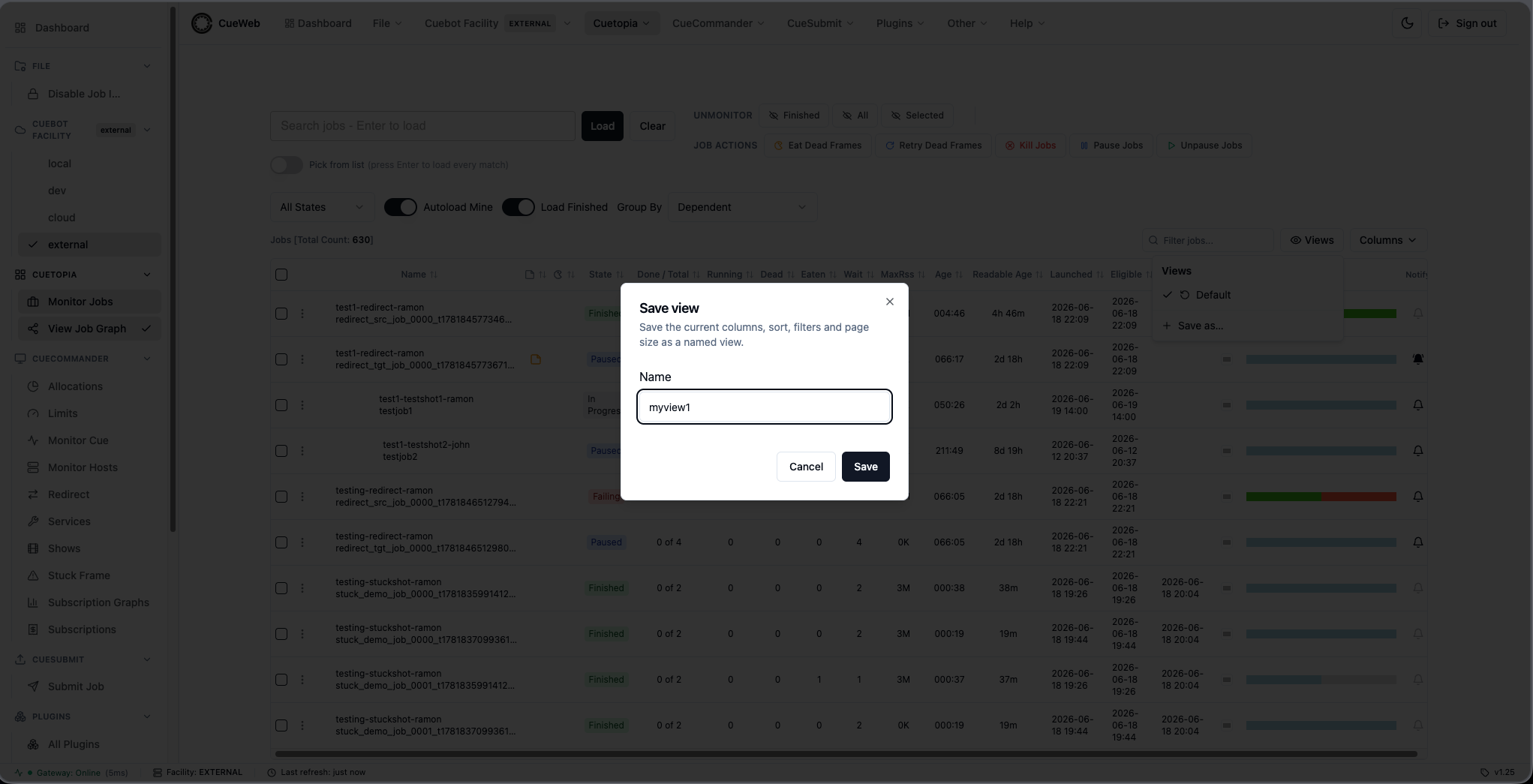
Apply a view. Click a preset to apply it; the active one is checked. Update “<name>“ overwrites the active preset with the current layout.
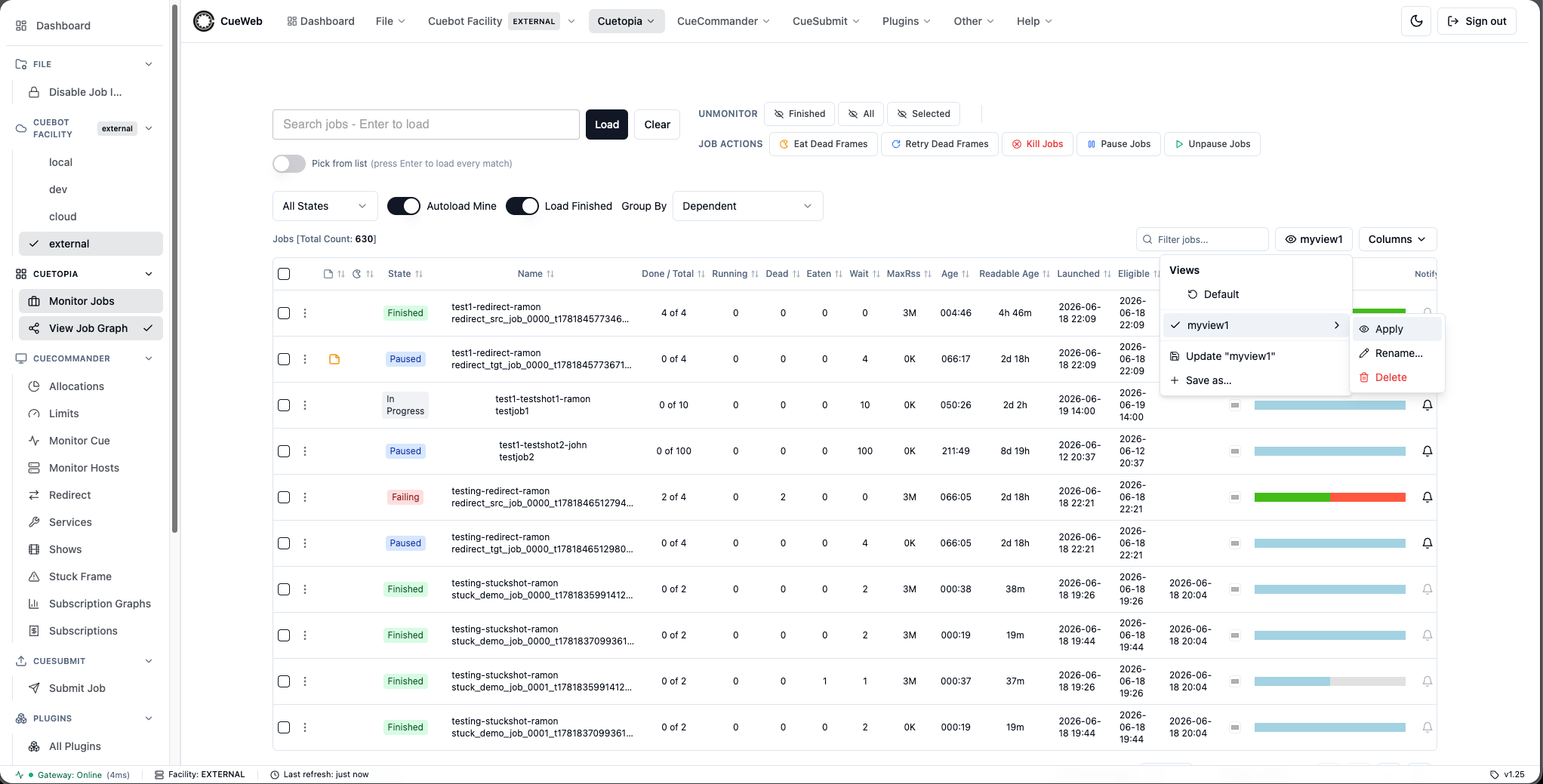
Rename or delete a view. Each preset has inline Rename (pencil) and Delete (trash) buttons.
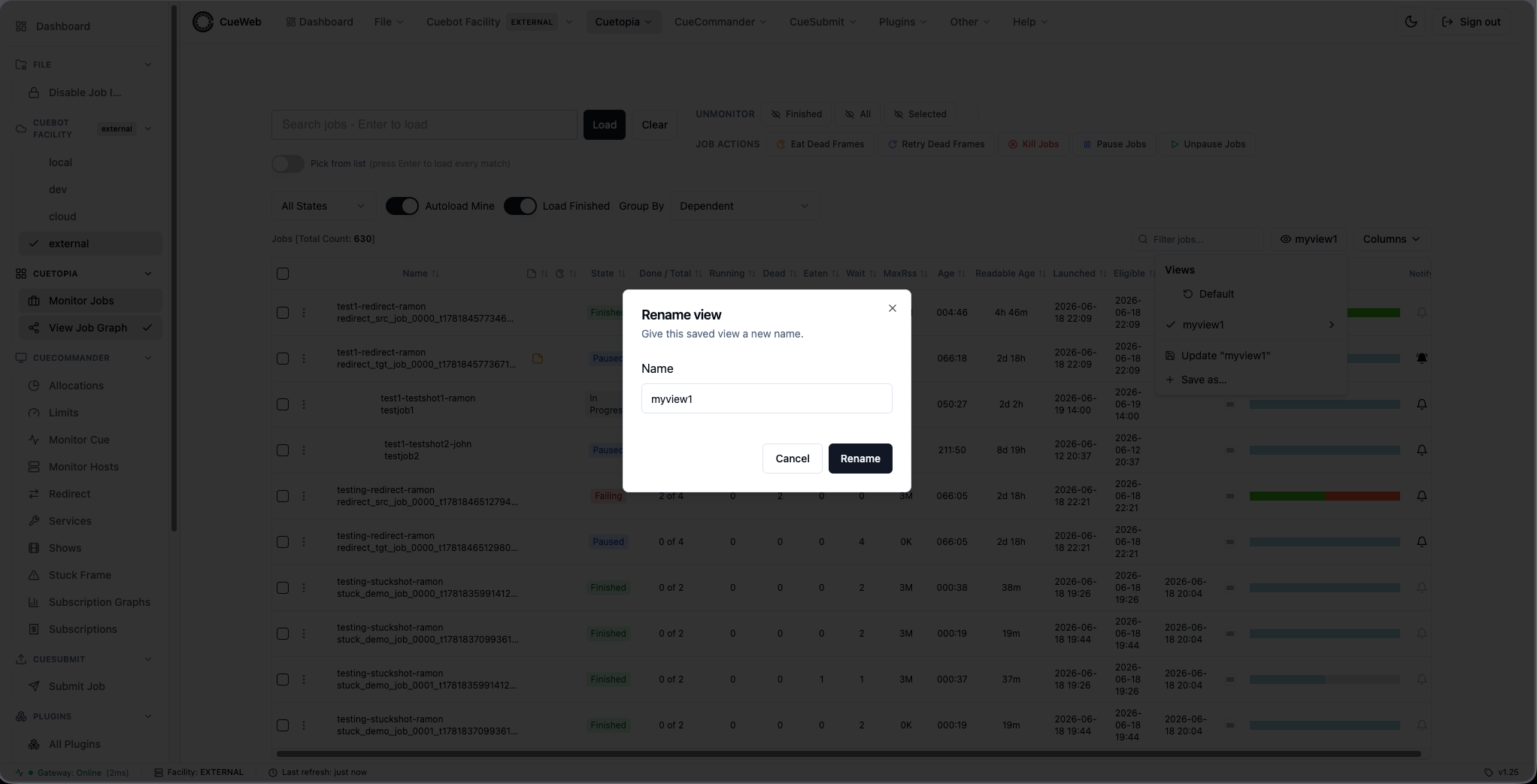
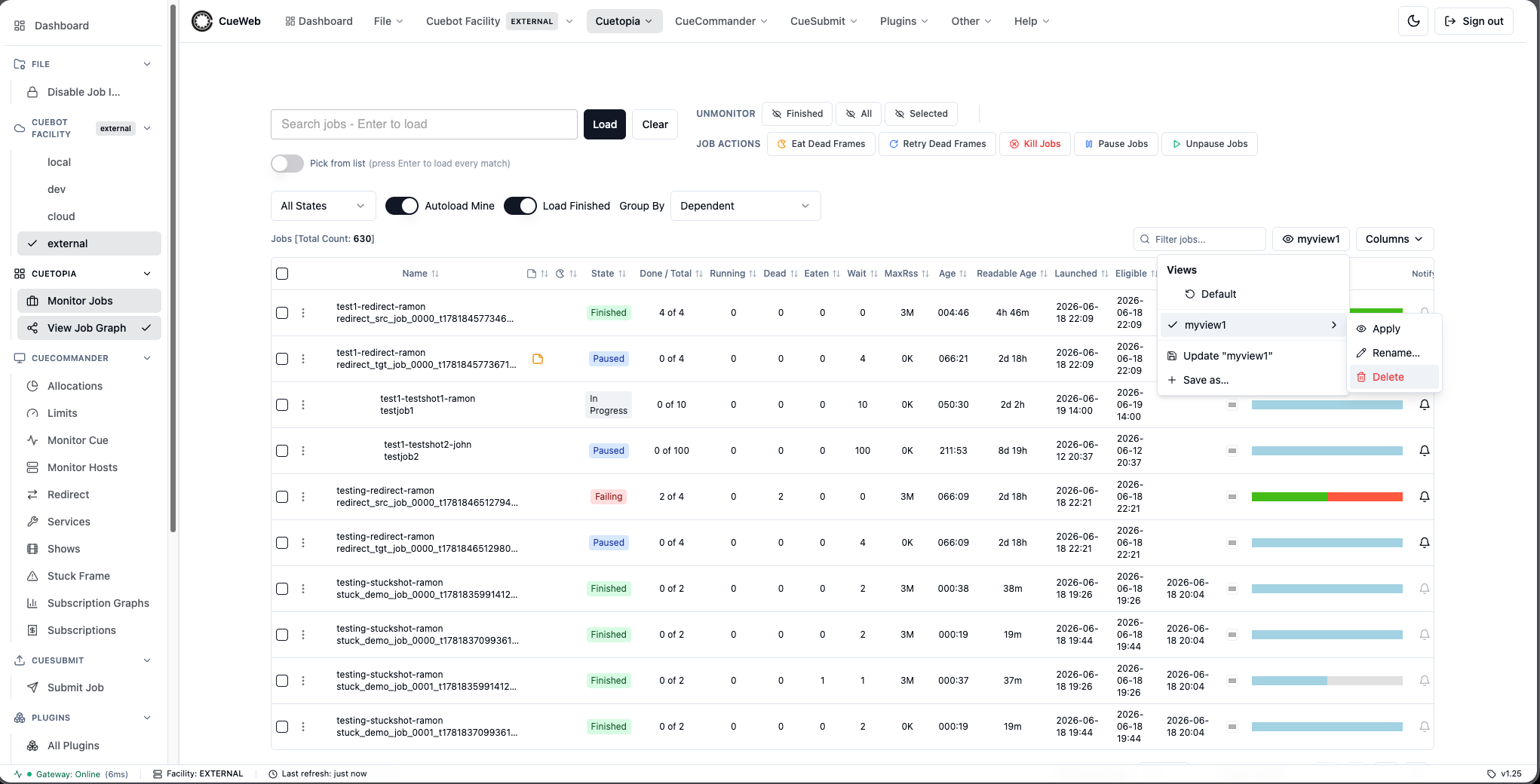
Restore the default. The Default entry (pinned at the top) restores the table’s documented defaults; it can’t be renamed or deleted.
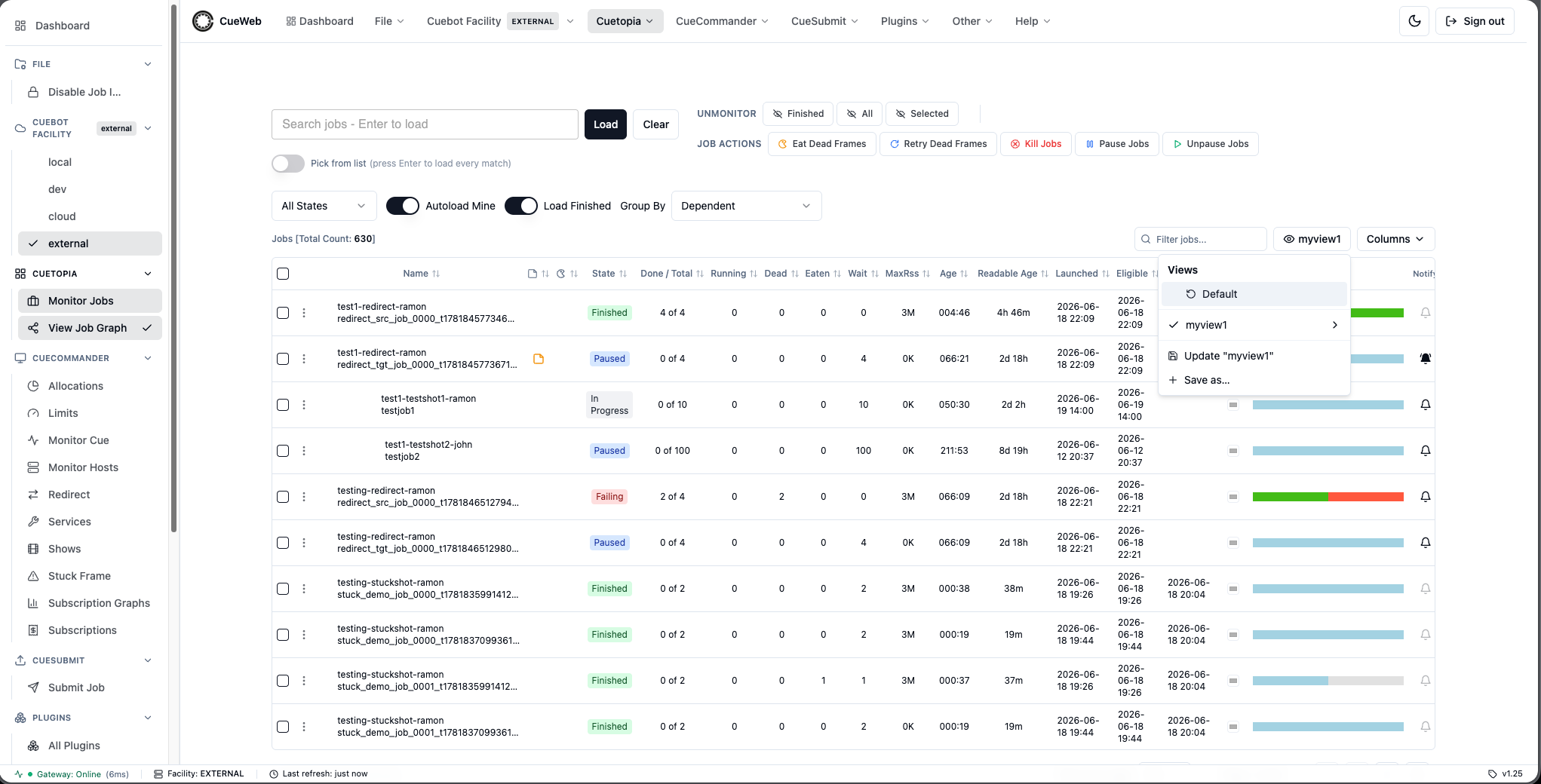
Presets are saved per page in your browser and update across tabs as you add, rename, or delete them.
Immersive (full-screen) mode
Immersive mode hides the header, sidebar, and status bar so the active table gets the entire viewport - handy on a wall display or when you want maximum table real estate. Toggle it from Other → Immersive (full-screen), with the F key (or Cmd/Ctrl+Shift+F), or via Help-menu search.
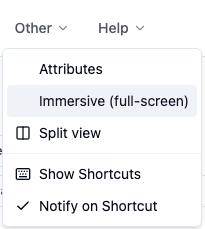
While immersed, a floating Exit immersive button stays on screen so you’re never trapped once the chrome is hidden. Your choice persists per browser and syncs across tabs.
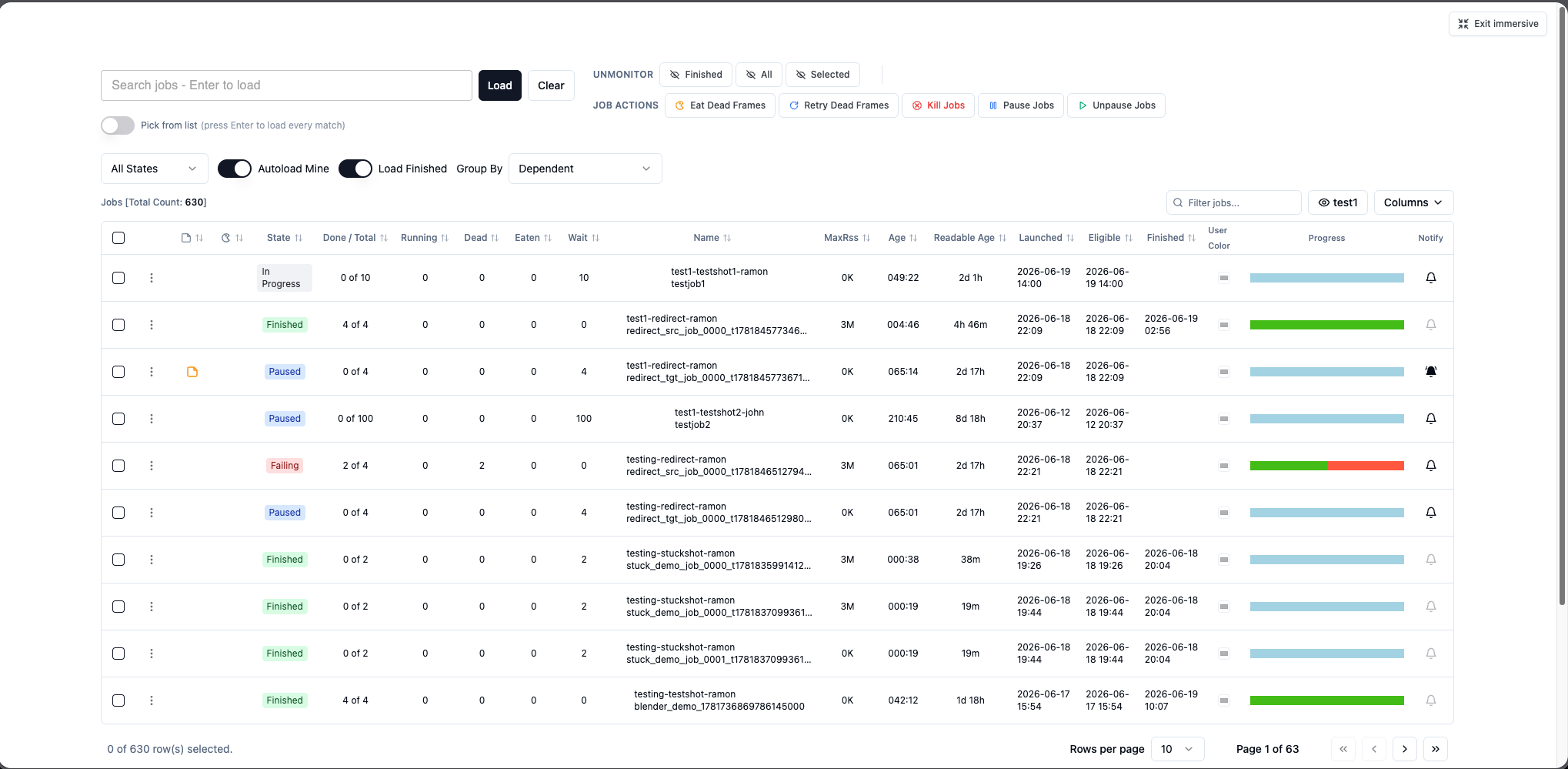
Split view (two pages side-by-side)
Split view opens two OpenCueWeb pages in one tab, side by side in resizable panes - the web equivalent of CueGUI’s Add new window. Open it from Other → Split view (Jobs on the left, Hosts on the right by default).
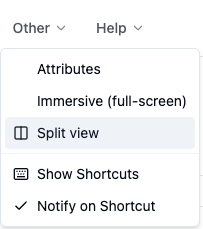
- Each pane has its own page picker offering Monitor Jobs, all the CueCommander pages (Allocations, Limits, Monitor Cue, Monitor Hosts, Redirect, Services, Shows, Stuck Frame, Subscription Graphs, Subscriptions), CueSubmit, the Plugins index, and the Cue Progress Bar plugin - so you can put any two pages together (e.g. Monitor Jobs next to Monitor Hosts).
- Drag the divider (or nudge it with the arrow keys; Home/End jump) to rebalance the panes; the ratio is remembered. Swap flips the panes and Reset 50/50 re-centers.
- The workspace lives in the URL (
/split?left=/jobs&right=/hosts/<name>), so it’s bookmarkable and reload-safe - navigating inside a pane updates that URL, and reloading restores both panes. On phones the panes stack vertically.
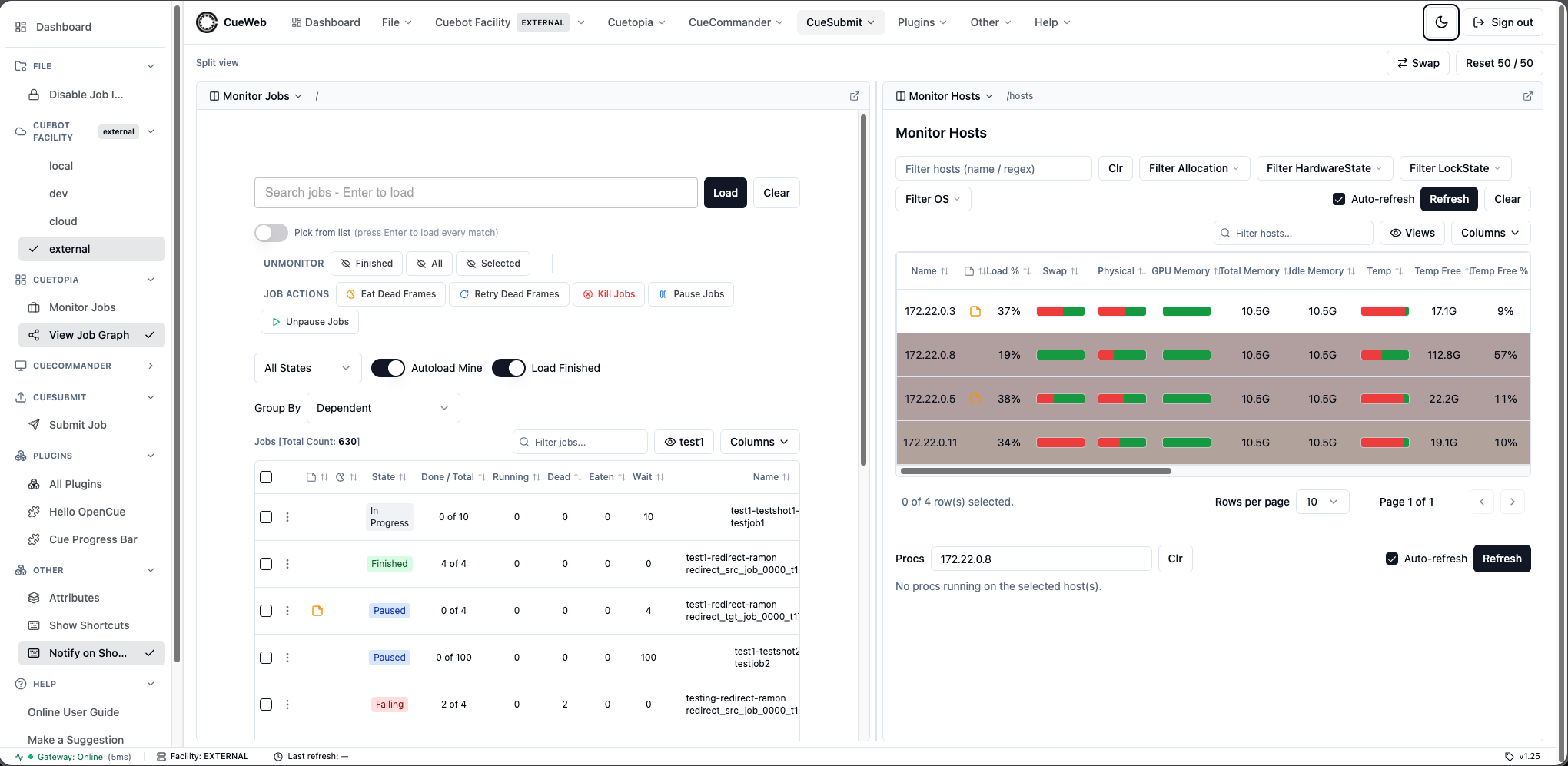
Keyboard Shortcuts
OpenCueWeb registers a small set of global keyboard shortcuts. Single-letter keys are ignored while typing into a text field, and modifier-key combos (Ctrl / Cmd / Alt) are passed through to the browser, so they will not collide with native shortcuts such as Ctrl+R.
| Key | Action | Where it works |
|---|---|---|
? |
Open the keyboard-shortcuts overlay | Anywhere |
Esc |
Close the overlay | Inside the overlay |
/ |
Focus the jobs search box | On the jobs page |
r |
Refresh the jobs table | On the jobs page |
t |
Toggle the light / dark theme | Anywhere |
F (or Cmd/Ctrl+Shift+F) |
Toggle immersive mode (hide header / sidebar / status bar) | Anywhere |
The single-letter keys are ignored while typing into a text field; the immersive chord Cmd/Ctrl+Shift+F is the exception and works even from inside a search box.
Opening shortcuts from the menu
The same overlay is reachable from the menu if you prefer mouse navigation:
- Header Other ▸ Show Shortcuts
- Sidebar Other ▸ Show Shortcuts (in both expanded and collapsed sidebar modes)
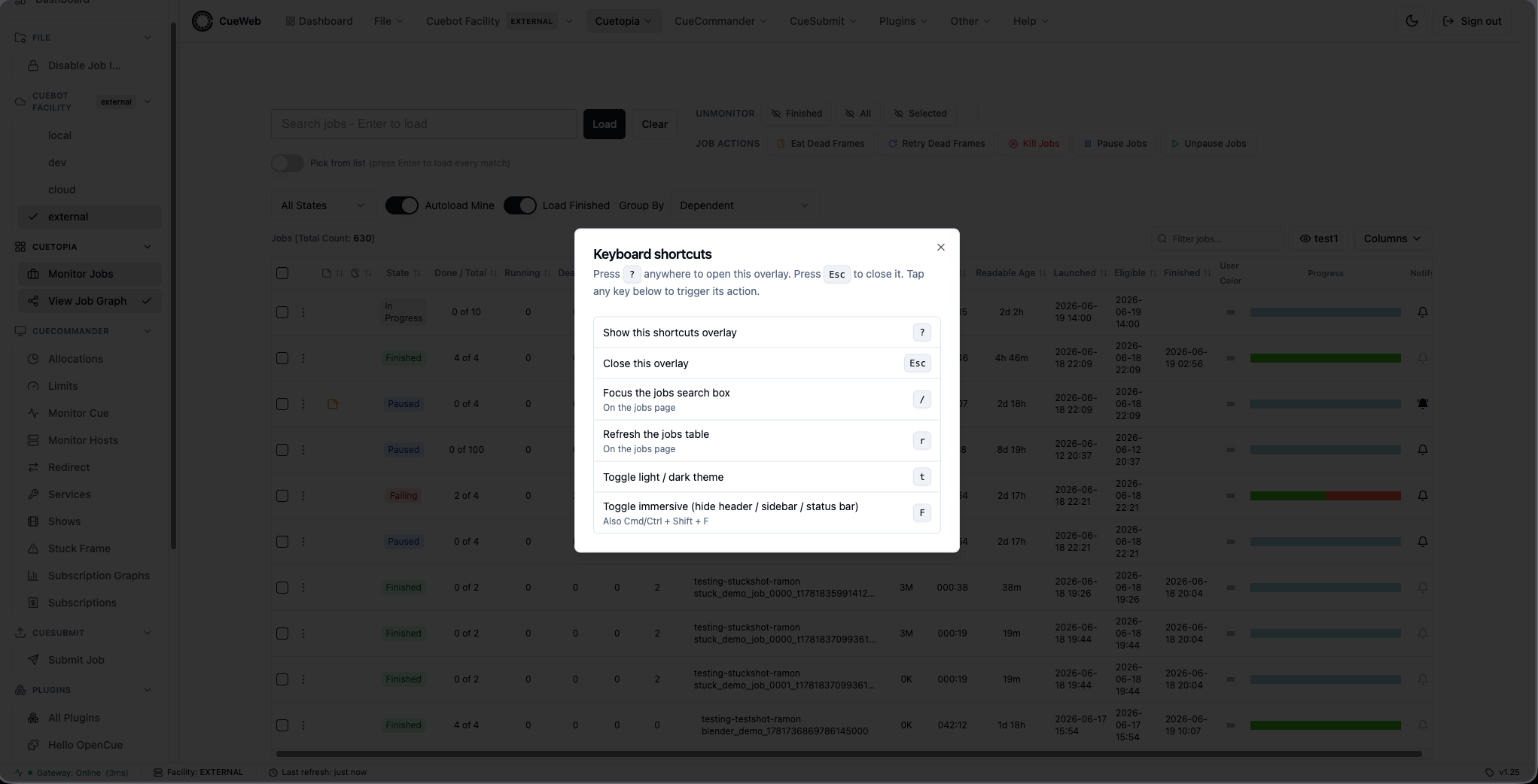
Toast on shortcut
A small toast appears every time you trigger a shortcut so you know it registered (e.g. pressing r toasts Shortcut: r → Refresh table). The toast can be turned off via Other ▸ Notify on Shortcut in the header or sidebar. The preference persists across reloads and across browser tabs.
Submitting Jobs (CueSubmit)
OpenCueWeb has a browser-based equivalent of the standalone CueSubmit CLI tool. Open it from the CueSubmit > Submit Job menu in the header (or from the matching entry in the sidebar / mobile drawer) to reach the /cuesubmit form.

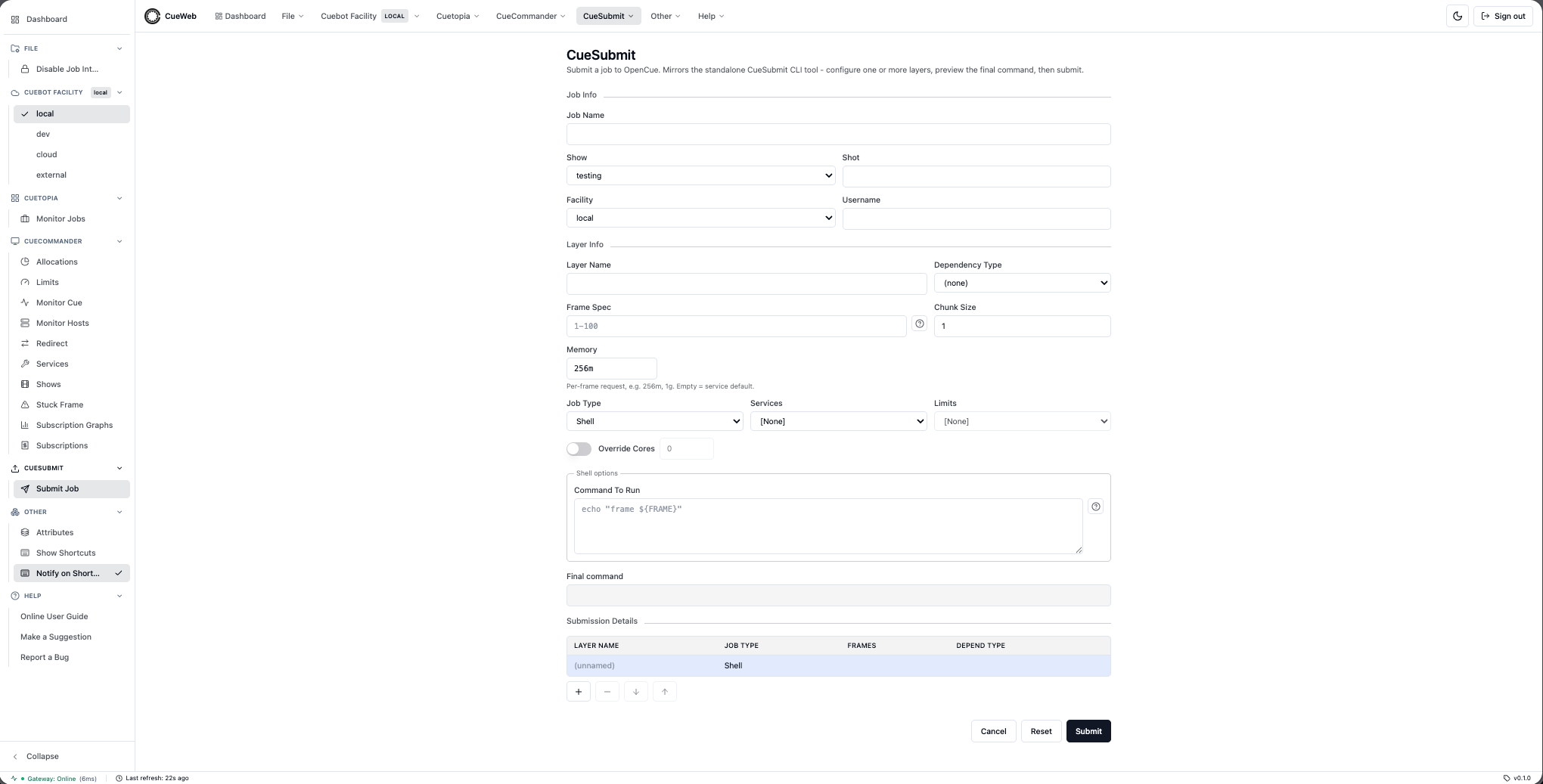
Filling in a job
- Job Info at the top of the page:
- Job Name - free text. The actual cuebot job name will be
<show>-<shot>-<user>_<jobname>. - Show - pick one from the dropdown (populated from the shows registered in cuebot).
- Shot - free text. Letters, numbers,
.,-,_. - Facility - leave as
[Default]to use the sandbox’s local facility, or pick another if your deployment runs multiple. - Username - pre-filled with your signed-in identity when OpenCueWeb is deployed with authentication. Tick the Edit checkbox next to the field to submit as someone else; unticking snaps it back to you.
- Job Name - free text. The actual cuebot job name will be
- Layer Info describes the first (and possibly only) layer:
- Layer Name - free text.
- Frame Spec - the frames to render.
1-10means frames 1 through 10.1-100x2means every other frame. Click the ? badge next to the field for more examples. - Chunk Size - how many frames cuebot bundles into one dispatched frame.
- Memory - per-frame request, e.g.
256m,1g. Leave empty to inherit the service default. - Job Type - Shell, Maya, Nuke, or Blender. The panel below changes to ask for the inputs that type needs (Shell asks for a command, Maya asks for a scene file + camera, etc.).
- Services - pick the cuebot service that should run this layer.
- Limits - optional cuebot limits to apply.
- Override Cores - tick to pin the per-frame core count (otherwise the service default is used).
- Dependency Type - for second-and-later layers only:
Layermeans the whole previous layer must finish first;Framemeans just the matching frame number.
- Per-type options panel is the white box below Layer Info:
- Shell asks for the command to run. Use
#IFRAME#for the current frame number and other cuebot tokens (click the ? for the cheatsheet). - Maya / Nuke / Blender ask for a scene file path plus the type-specific inputs (Maya camera, Nuke write nodes, Blender output path / format).
- Shell asks for the command to run. Use
-
Final command is a read-only preview of exactly what cuebot will execute. It updates per-keystroke as you fill the form.
-
Submission Details is the layers table at the bottom. Use the
+button to add a second layer (or third, etc.); use−to remove the selected layer; the↑ / ↓buttons reorder. Clicking a row loads it back into the Layer Info section above for editing. - Click Submit. OpenCueWeb sends the job to cuebot and redirects you to its detail page so you can watch the frames cycle through WAITING -> RUNNING -> SUCCEEDED.
Convenience features
- Autocomplete history: Job Name, Shot, and Layer Name remember everything you’ve submitted (per browser). Start typing to see previous values. Mirrors the on-disk cache the standalone CueSubmit keeps.
- Auto-saved draft: the form saves to your browser on every change and restores on next page load, so an accidental refresh never wipes a 10-layer setup. Submitting or Resetting clears the draft.
- Reset button: between Cancel and Submit. Opens a themed confirmation dialog before clearing every field; autocomplete history is kept.
- View in Monitor Jobs: after the page redirects to the new job’s detail view, the View in Monitor Jobs button in its header opens Cuetopia with the job auto-searched, so you can act on it alongside the rest of your monitored set.
Sandbox defaults
The form ships with defaults tuned for the OpenCue sandbox so a fresh sleep 5 test job runs end-to-end without further setup: Memory 256m (the seeded default service requires 3.2 GB which the sandbox RQD usually can’t satisfy), Facility local (matches the sandbox RQD’s allocation), and a per-user UID that cuebot will accept. Adjust Memory and Facility for production deployments.
Mobile and Responsive Usage
OpenCueWeb works on phone-sized viewports, not just desktops.
Hamburger nav drawer
On phones the desktop sidebar is replaced by a hamburger button on the LEFT of the global header. Tap it to open a side drawer containing every group: Dashboard, File, Cuebot Facility, Cuetopia, CueCommander, Other (Attributes / Immersive (full-screen) / Split view / Show Shortcuts / Notify on Shortcut), Help. The drawer auto-closes when you tap a navigation link.
Row actions via a tap
Touch devices don’t have a right-click. Every Jobs / Layers / Frames row therefore has a small ⋮ Actions button as its leftmost cell. Tapping it opens the same context menu that desktop users get from right-clicking the row - Copy Job / Layer / Frame Name, View Log, Pause / Kill / Eat actions, etc.
Horizontally swipeable tables
The Jobs / Layers / Frames grids carry 15-25 columns each. Phones can’t fit all of those at once, so the tables can be swiped left / right to reach off-screen columns. Use the Columns dropdown to hide columns you don’t need on small screens (the choice is remembered for next time).
Clickable shortcuts overlay
The keyboard-shortcuts overlay (Other ▸ Show Shortcuts in the hamburger drawer) makes each of its key badges tappable on phones, so you can trigger:
/-> focus the Jobs search box.r-> refresh the Jobs table.t-> toggle light / dark theme.Esc-> close the overlay.
without needing a physical keyboard.
LAN access
OpenCueWeb works correctly when you load it from a LAN IP (e.g. http://XXX.XXX.XXX.XXX:3000 from a phone reaching your sandbox) - not just from localhost. API requests follow whichever host served the page, so the same image works from any address without rebuilding.
Two caveats on plain-HTTP LAN access:
- Clipboard: the modern browser clipboard API is restricted to secure contexts (HTTPS /
localhost). OpenCueWeb automatically falls back to a legacy copy path outside secure contexts, so Copy Job Name / Copy Layer Name / Copy Frame Name / Copy Log Path still work on LAN HTTP. - Desktop notification popups (the optional upgrade for Subscribe to Job) require a secure context. On LAN HTTP, the subscription itself still works and the in-app toast still fires when the job finishes; you just don’t get the OS-level notification banner. Serve the app over HTTPS (self-signed cert is enough for LAN testing) to enable that path.
Troubleshooting and Support
Common Issues
Connection Problems
Symptoms: “Cannot connect to OpenCue” error Solutions:
- Check if REST Gateway is running
- Verify network connectivity
- Check browser console for detailed errors
- Confirm JWT token is valid
Performance Issues
Symptoms: Slow loading, high memory usage Solutions:
- Reduce auto-refresh frequency
- Limit number of monitored jobs
- Use status filters to reduce data load
- Clear browser cache and cookies
Authentication Problems
Symptoms: Login loops, permission errors Solutions:
- Clear browser cookies and local storage
- Check OAuth configuration
- Verify user permissions
- Contact administrator for account issues
Advanced Features
API Integration
For advanced users and developers:
- REST API Access: Direct API calls using JWT tokens
- Custom Scripts: Automate operations with curl or scripts
- Integration Tools: Connect with external monitoring systems
- Webhook Support: Real-time notifications to external services
For advanced configuration and development, see the OpenCueWeb Developer Guide.