Deploying OpenCueWeb
Deploy and configure OpenCueWeb for production use in your OpenCue render farm.
Table of contents
- Overview
- Quick Deployment with Docker
- Production Deployment
- Kubernetes Deployment
- Authentication Setup
- OpenCueWeb Audit trail
- CueSubmit (browser-based job submission)
- Redirect tool
- Monitor Cue
- Monitor Hosts (host & proc management)
- Stuck Frames page (log access)
- Frame log viewing (file-based or Loki)
- Plugins
- Workspace layout (presets, immersive, split view)
- Reverse Proxy Configuration
- High Availability Setup
- Monitoring and Logging
- Security Considerations
- Troubleshooting
- Maintenance
- Next Steps
Overview
OpenCueWeb is a web-based interface for OpenCue that provides job management, monitoring, and control capabilities through a browser. This guide covers production deployment options for OpenCueWeb.
Prerequisites
Before deploying OpenCueWeb, ensure you have:
- OpenCue REST Gateway deployed and accessible
- Node.js (version 18 or later) for building from source
- Docker (recommended for production deployment)
- Web server (Nginx, Apache) for reverse proxy (optional)
- SSL certificates for HTTPS (recommended)
Quick Deployment with Docker
Build OpenCueWeb Image
# Navigate to OpenCueWeb directory
cd cueweb

# Build Docker image
docker build -t cueweb:latest .
Run OpenCueWeb Container
# Run OpenCueWeb with basic configuration
docker run -d \
  --name cueweb \
  -p 3000:3000 \
  -e NEXT_PUBLIC_OPENCUE_ENDPOINT=http://your-rest-gateway:8448 \
  -e NEXT_PUBLIC_URL=http://your-server:3000 \
  -e NEXT_JWT_SECRET=your-jwt-secret \
  cueweb:latest
Verify Deployment
# Check container status
docker ps | grep cueweb

# View logs
docker logs cueweb

# Test accessibility
curl http://localhost:3000
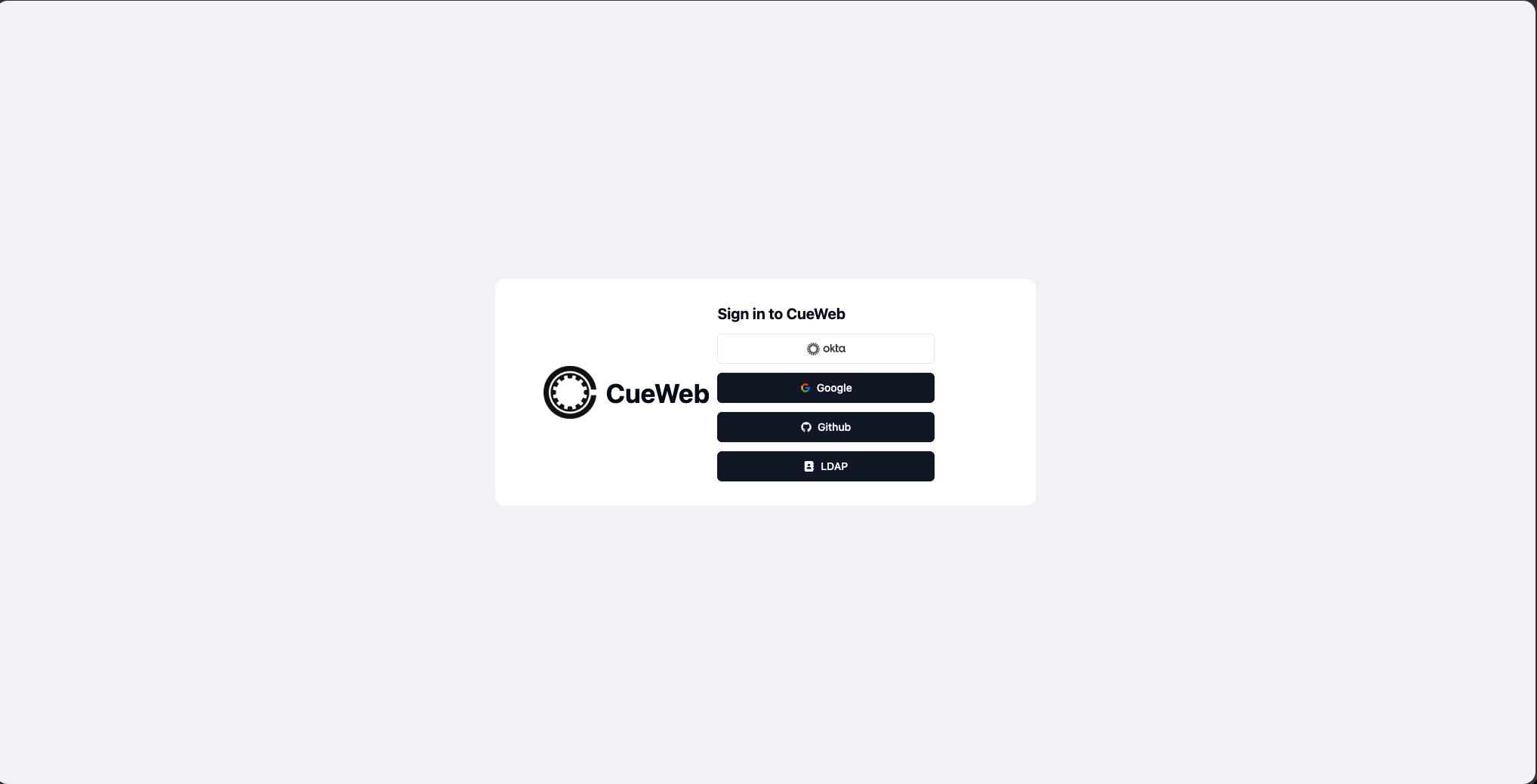
Open http://localhost:3000 in a browser. With no authentication provider configured the login page shows a single OpenCueWeb Home button; with providers enabled it shows the matching sign-in buttons.
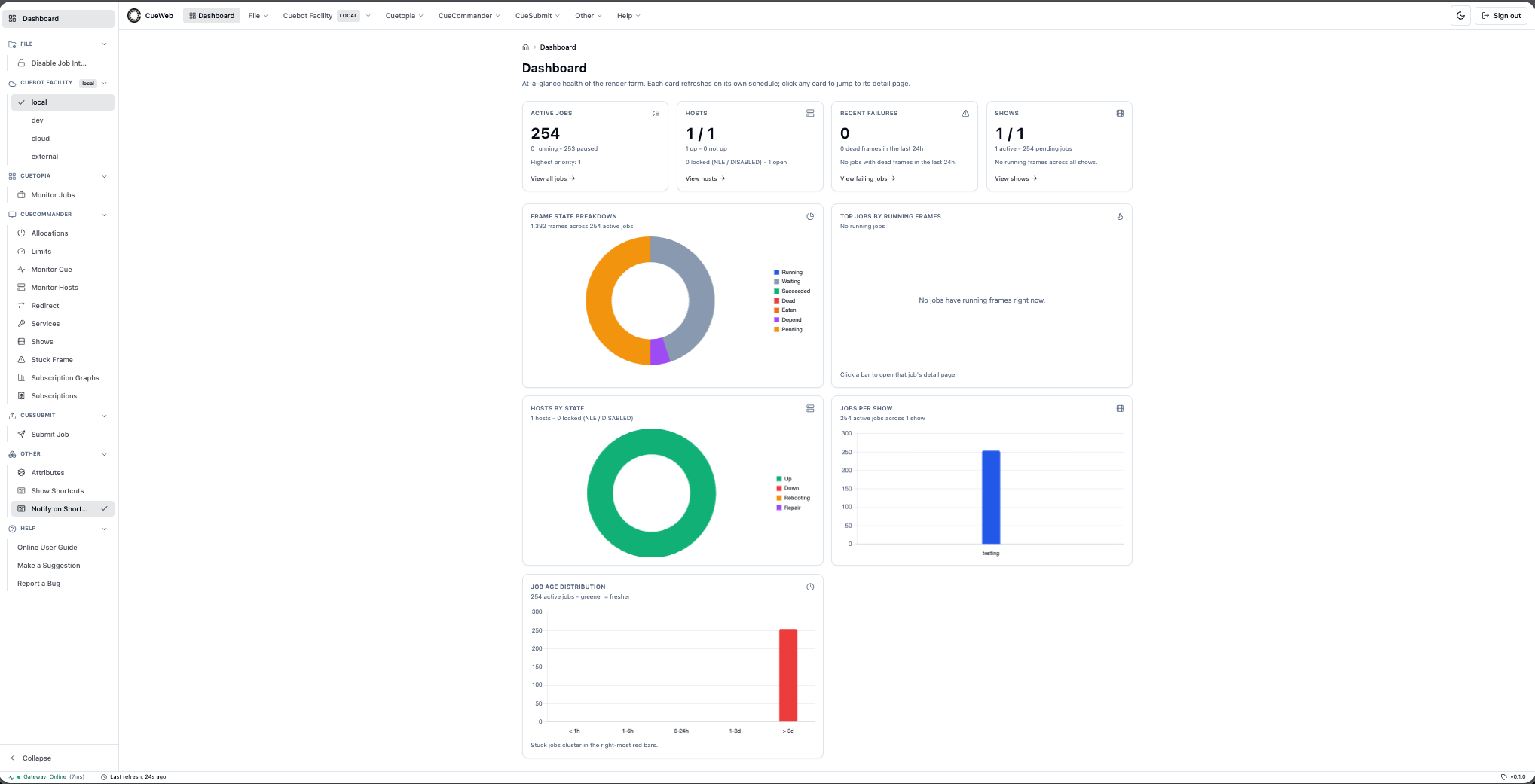
After signing in (or clicking OpenCueWeb Home), you land on the Dashboard, confirming the deployment is healthy.
Production Deployment
Environment Configuration
Create a production environment file:
# .env.production
NEXT_PUBLIC_OPENCUE_ENDPOINT=https://api.renderfarm.company.com
# Leave empty if the UI and the API are served from the same origin
# (the common case): the client will build same-origin relative URLs
# and OpenCueWeb works correctly when accessed from any host. Only set
# this to an absolute URL when the API really lives on a different
# origin than the UI.
NEXT_PUBLIC_URL=
NEXT_JWT_SECRET=very-long-secure-jwt-secret-key

# Production settings
NODE_ENV=production
NEXT_TELEMETRY_DISABLED=1

# Authentication (optional)
# Comma-separated list of providers to enable on the /login page.
# When empty, /login renders only an "OpenCueWeb Home" button. The global
# header's Sign out button is always rendered regardless of this value;
# clicking it routes to /login.
NEXT_PUBLIC_AUTH_PROVIDER=okta,google,ldap
NEXTAUTH_URL=https://cueweb.company.com
NEXTAUTH_SECRET=nextauth-production-secret

# Cuebot Facility selector (optional)
# Comma-separated list of facilities exposed in the header / sidebar
# "Cuebot Facility" menu. Defaults to local,dev,cloud,external if unset.
# Switching facility re-routes every REST gateway call server-side to the
# selected facility's gateway; the choice is carried in a cookie and persists
# for the session.
# NEXT_PUBLIC_CUEBOT_FACILITIES=local,dev,cloud,external
#
# Per-facility gateway + JWT secret (optional, server-only). Each facility may
# target its own REST gateway via CUEBOT_<NAME>_REST_GATEWAY_URL and
# CUEBOT_<NAME>_JWT_SECRET (NAME uppercased). A facility with no override falls
# back to NEXT_PUBLIC_OPENCUE_ENDPOINT / NEXT_JWT_SECRET, so the default
# single-gateway deployment needs no extra configuration.
# CUEBOT_DEV_REST_GATEWAY_URL=https://dev-rest-gateway.company.com
# CUEBOT_DEV_JWT_SECRET=dev-gateway-jwt-secret
#
# The per-facility gateway URL / secret can also be edited at runtime (no
# redeploy) from the /settings/facilities admin screen ("Manage facilities..."
# in the Cuebot Facility menu). Those overrides are layered over the env vars
# above and persisted to CUEWEB_FACILITY_STORE (a JSON file plus a .audit.jsonl
# log). It defaults to a file in the OS temp dir; point it at a mounted volume
# to keep overrides across container restarts. When group authorization is
# enabled, this screen is admin-only - /settings/facilities is one of the
# CUEWEB_ADMIN_GROUPS-gated paths and the "Manage facilities..." menu item is
# hidden from non-admins.
# CUEWEB_FACILITY_STORE=/data/cueweb/facilities.json

# OpenCueWeb Audit trail (optional)
# Path to the append-only JSONL file where OpenCueWeb records state-changing
# actions and sign in / sign out events (who, what, when, target, facility,
# outcome) for the admin-only Admin -> OpenCueWeb Audit page. It defaults to a
# file in the OS temp dir (cueweb-audit.jsonl); point it at a mounted volume
# to keep the trail across container restarts. The file is written 0600 with
# in-process write serialization.
# CUEWEB_AUDIT_STORE=/data/cueweb/audit.jsonl
#
# Maximum number of records retained in the trail; the oldest are dropped on
# write once the cap is reached. Defaults to 50000; set to 0 for no cap.
# CUEWEB_AUDIT_MAX_RECORDS=50000

# Help menu URLs (optional)
# Defaults mirror CueGUI's cuegui.yaml exactly. Override these to point
# internal docs / suggestions / bug trackers at your own systems.
# NEXT_PUBLIC_DOCS_URL=https://www.opencue.io/docs/
# NEXT_PUBLIC_SUGGESTIONS_URL=https://github.com/AcademySoftwareFoundation/OpenCue/issues/new?labels=enhancement&template=enhancement.md
# NEXT_PUBLIC_BUGS_URL=https://github.com/AcademySoftwareFoundation/OpenCue/issues/new?labels=bug&template=bug_report.md

# Build version shown in the bottom status bar and the About OpenCueWeb dialog
# (optional). When unset it is resolved at build time from
# cueweb/OVERRIDE_CUEWEB_VERSION.in: the "VERSION.in" sentinel (default) tracks
# the repo-root VERSION.in (OpenCue's shared version), and any other value pins
# an explicit OpenCueWeb version; package.json is the last-resort fallback. In CI
# you typically override it with the generated version or a release tag:
# `docker build --build-arg NEXT_PUBLIC_APP_VERSION=$(cat VERSION.in)`.
# NEXT_PUBLIC_APP_VERSION=1.25
#
# Short Git SHA shown in the About OpenCueWeb dialog (optional, build-time only).
# CI injects `--build-arg NEXT_PUBLIC_GIT_SHA=$(git rev-parse --short HEAD)`;
# empty renders as "unknown".
# NEXT_PUBLIC_GIT_SHA=

# Optional deep-link template for the Frame context menu's
# "View Log on <editor>" item. The literal {path} is substituted at
# click time with the absolute rqlog path. Empty hides the menu item
# entirely. Browser sandboxing prevents reading $EDITOR / spawning
# subprocesses, so the custom URL scheme is the web-native equivalent
# of cuegui.Utils.popupView's editor launcher. Common values:
#   vscode://file{path}
#   vscode-insiders://file{path}
#   subl://open?url=file://{path}
#   txmt://open?url=file://{path}
#   idea://open?file={path}
# This MUST be passed as a Docker build arg (the value is inlined into
# the client bundle at build time):
#   docker build --build-arg NEXT_PUBLIC_LOG_EDITOR_URL='vscode://file{path}' ...
# NEXT_PUBLIC_LOG_EDITOR_URL=vscode://file{path}

# Optional Loki log backend. When set, the frame log viewer queries this
# Grafana Loki server (by frame_id) instead of reading the on-disk .rqlog
# file, mirroring CueGUI's Loki log viewer. Leave unset to use the default
# file-based viewer. Base URL only (no trailing path; OpenCueWeb appends
# /loki/api/v1/...). The query runs in the browser, so Loki must be reachable
# from clients and allow CORS from the OpenCueWeb origin. Inlined at build time, so
# pass it as a Docker build arg:
#   docker build --build-arg NEXT_PUBLIC_LOKI_URL=http://your-loki-host:3100 ...
# NEXT_PUBLIC_LOKI_URL=http://your-loki-host:3100

# Job menu "Show Progress Bar": the command shown for launching CueGUI's
# CueProgBar for a job ({job} is substituted). Override with your site
# launcher. NEXT_PUBLIC_CUEPROGBAR_URL (optional) is a registered URL scheme
# for a one-click launch button. Build args (inlined into the client bundle).
# NEXT_PUBLIC_CUEPROGBAR_COMMAND=python -m cuegui.cueguiplugin.cueprogbar {job}
# NEXT_PUBLIC_CUEPROGBAR_URL=

# Frame menu "Preview All": command to open a frame's rendered output in an
# external image viewer ({paths}/{job}/{layer}/{frame} substituted).
# NEXT_PUBLIC_PREVIEW_URL (optional) is a registered scheme for a Launch
# button (e.g. openrv://{paths}). Build args (inlined into the client bundle).
# NEXT_PUBLIC_PREVIEW_COMMAND=rv {paths}
# NEXT_PUBLIC_PREVIEW_URL=

# Email Artist dialog defaults. The job context menu's
# "Email Artist..." entry pre-fills From, To, CC, Subject and Body
# from the selected job; these two values drive the address format
# (<user>@<domain> for To; <show>-<suffix>@<domain> for From / CC).
# Both default to a placeholder for the sandbox; set them to real
# values so production emails resolve to your real addresses instead
# of "your.domain.com".
# NEXT_PUBLIC_EMAIL_DOMAIN=studio.example.com
# NEXT_PUBLIC_EMAIL_SUPPORT_SUFFIX=pst

# Request Cores dialog default. The job context menu's
# "Request Cores..." entry pre-fills CC with
# <show>-<suffix>@<NEXT_PUBLIC_EMAIL_DOMAIN>. CueGUI traditionally
# targets a different team queue than Email Artist (which uses "pst"),
# so this is broken out as its own env var. Set it to your real
# Request-Cores team alias for production.
# NEXT_PUBLIC_EMAIL_REQUEST_CORES_SUFFIX=support

# Subscribe to Job dialog default. The job context menu's
# "Subscribe to Job" entry shows an informational From label that
# defaults to opencue-noreply@<NEXT_PUBLIC_EMAIL_DOMAIN>. Set this
# to your deployment's real no-reply alias if you want the dialog
# to show a more accurate sender. The actual email sender is whatever
# Cuebot is configured with; this label is informational only.
# NEXT_PUBLIC_SUBSCRIBE_FROM_EMAIL=opencue-noreply@studio.example.com

# OAuth providers
OKTA_CLIENT_ID=your-okta-client-id
OKTA_CLIENT_SECRET=your-okta-client-secret
OKTA_ISSUER=https://company.okta.com

GOOGLE_CLIENT_ID=your-google-client-id
GOOGLE_CLIENT_SECRET=your-google-client-secret

# LDAP Configuration (optional)
LDAP_URI=ldaps://ldap.company.com:636
LDAP_LOGIN_DN=uid={login},cn=users,cn=accounts,dc=company,dc=com
LDAP_CERTIFICATE=/etc/ssl/certs/ldap-ca.crt

# Monitoring (optional)
SENTRY_DSN=https://your-sentry-dsn
SENTRY_ENVIRONMENT=production
Docker Compose Deployment
# docker-compose.yml
version: '3.8'

services:
  cueweb:
    build: .
    ports:
      - "3000:3000"
    env_file:
      - .env.production
    restart: unless-stopped
    depends_on:
      - rest-gateway
    networks:
      - opencue
    healthcheck:
      test: ["CMD", "wget", "--spider", "-q", "http://localhost:3000"]
      interval: 30s
      timeout: 10s
      retries: 3

  rest-gateway:
    image: opencue-rest-gateway:latest
    ports:
      - "8448:8448"
    environment:
      - CUEBOT_ENDPOINT=cuebot:8443
      - JWT_SECRET=${JWT_SECRET}
    networks:
      - opencue

networks:
  opencue:
    external: true
Building from Source
For environments where Docker is not available:
# Install Node.js dependencies
npm install

# Build production bundle
npm run build

# Start production server
npm run start

# Or use PM2 for process management
npm install -g pm2
pm2 start npm --name "cueweb" -- start
pm2 save
pm2 startup
Kubernetes Deployment
Deployment Manifest
# k8s/cueweb-deployment.yaml
apiVersion: apps/v1
kind: Deployment
metadata:
  name: cueweb
  namespace: opencue
  labels:
    app: cueweb
    version: v1
spec:
  replicas: 3
  selector:
    matchLabels:
      app: cueweb
  template:
    metadata:
      labels:
        app: cueweb
        version: v1
    spec:
      containers:
      - name: cueweb
        image: cueweb:latest
        ports:
        - containerPort: 3000
          name: http
        env:
        - name: NEXT_PUBLIC_OPENCUE_ENDPOINT
          value: "http://rest-gateway:8448"
        - name: NEXT_PUBLIC_URL
          value: "https://cueweb.company.com"
        - name: NEXT_JWT_SECRET
          valueFrom:
            secretKeyRef:
              name: cueweb-secrets
              key: jwt-secret
        - name: NEXTAUTH_SECRET
          valueFrom:
            secretKeyRef:
              name: cueweb-secrets
              key: nextauth-secret
        resources:
          requests:
            memory: "256Mi"
            cpu: "250m"
          limits:
            memory: "512Mi"
            cpu: "500m"
        livenessProbe:
          httpGet:
            path: /api/health
            port: 3000
          initialDelaySeconds: 30
          periodSeconds: 10
          timeoutSeconds: 5
          failureThreshold: 3
        readinessProbe:
          httpGet:
            path: /api/health
            port: 3000
          initialDelaySeconds: 5
          periodSeconds: 5
          timeoutSeconds: 3
          failureThreshold: 3
        securityContext:
          runAsNonRoot: true
          runAsUser: 1001
          allowPrivilegeEscalation: false
          readOnlyRootFilesystem: true
        volumeMounts:
        - name: tmp
          mountPath: /tmp
        - name: nextjs-cache
          mountPath: /.next
      volumes:
      - name: tmp
        emptyDir: {}
      - name: nextjs-cache
        emptyDir: {}
      securityContext:
        fsGroup: 1001

---
apiVersion: v1
kind: Service
metadata:
  name: cueweb
  namespace: opencue
  labels:
    app: cueweb
spec:
  type: ClusterIP
  ports:
  - port: 3000
    targetPort: 3000
    protocol: TCP
    name: http
  selector:
    app: cueweb

---
apiVersion: v1
kind: Secret
metadata:
  name: cueweb-secrets
  namespace: opencue
type: Opaque
data:
  jwt-secret: <base64-encoded-jwt-secret>
  nextauth-secret: <base64-encoded-nextauth-secret>
  okta-client-secret: <base64-encoded-okta-secret>
  google-client-secret: <base64-encoded-google-secret>
Ingress Configuration
# k8s/cueweb-ingress.yaml
apiVersion: networking.k8s.io/v1
kind: Ingress
metadata:
  name: cueweb
  namespace: opencue
  annotations:
    nginx.ingress.kubernetes.io/ssl-redirect: "true"
    nginx.ingress.kubernetes.io/force-ssl-redirect: "true"
    cert-manager.io/cluster-issuer: "letsencrypt-prod"
spec:
  tls:
  - hosts:
    - cueweb.company.com
    secretName: cueweb-tls
  rules:
  - host: cueweb.company.com
    http:
      paths:
      - path: /
        pathType: Prefix
        backend:
          service:
            name: cueweb
            port:
              number: 3000
Authentication Setup
OAuth Provider Configuration
Google OAuth Setup
- Go to Google Cloud Console
- Create or select a project
- Enable Google+ API
- Create OAuth 2.0 credentials
- Add authorized redirect URIs:
https://cueweb.company.com/api/auth/callback/google
Okta Setup
- Log in to your Okta admin console
- Go to Applications > Create App Integration
- Select OIDC - OpenID Connect
- Choose Web Application
- Configure redirect URIs:
https://cueweb.company.com/api/auth/callback/okta
GitHub Setup (Optional)
- Go to GitHub Settings > Developer settings > OAuth Apps
- Create a new OAuth App
- Set Authorization callback URL:
https://cueweb.company.com/api/auth/callback/github
LDAP Setup (Optional)
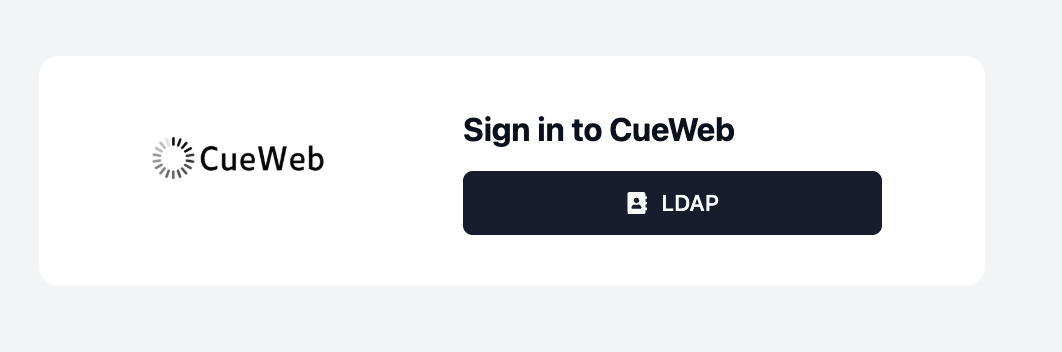
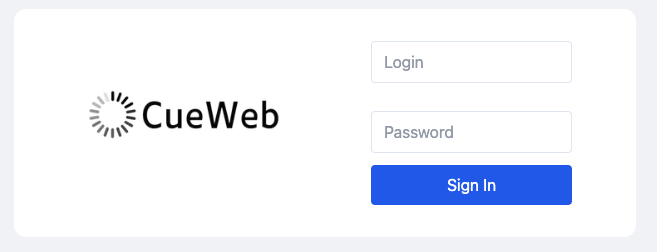
LDAP authentication allows users to authenticate using their company directory credentials. This is useful for intranet deployments where OAuth providers may not be available.
- Configure the LDAP environment variables:
# LDAP server URI (use ldaps:// for TLS) LDAP_URI=ldaps://ldap.company.com:636 # Distinguished Name template ({login} will be replaced with username) LDAP_LOGIN_DN=uid={login},cn=users,cn=accounts,dc=company,dc=com # Path to CA certificate for TLS verification (optional) LDAP_CERTIFICATE=/etc/ssl/certs/ldap-ca.crt - Add
ldaptoNEXT_PUBLIC_AUTH_PROVIDER:NEXT_PUBLIC_AUTH_PROVIDER=google,okta,ldap - For Docker deployments, mount the CA certificate:
docker run -v /path/to/ca.crt:/etc/ssl/certs/ldap-ca.crt:ro ...
Security Notes:
- Always use
ldaps://(LDAP over TLS) in production - Provide a CA certificate for proper TLS verification
- The
{login}placeholder inLDAP_LOGIN_DNis replaced with the username at authentication time
Disable Authentication (Development)
For development or internal deployments without authentication:
# In .env file, comment out or remove:
# NEXT_PUBLIC_AUTH_PROVIDER=okta,google

# OpenCueWeb will run without authentication requirements
OpenCueWeb runs unauthenticated in this mode.
Authorization (group-based access control)
On top of authentication (who you are), OpenCueWeb supports an optional, opt-in group-based authorization gate (what you may do), enforced server-side in middleware.ts. It can restrict who may use OpenCueWeb at all, and limit the entire CueCommander section, job submission (CueSubmit) and the Manage facilities… screen to specific groups.
The gate is off by default and all variables are optional, so behavior is unchanged unless you configure it:
# Enable the gate (opt-in; default off)
CUEWEB_AUTHZ_ENABLED=true

# Groups allowed to use OpenCueWeb at all (empty = every signed-in user)
CUEWEB_ALLOWED_GROUPS=

# Groups allowed on the entire CueCommander section + CueSubmit + Manage facilities (empty = every signed-in user)
CUEWEB_ADMIN_GROUPS=render-admins,wranglers

# JWT/OIDC claim that carries the user's groups (default: groups)
CUEWEB_GROUPS_CLAIM=groups
Notes:
- Requires an auth provider whose token carries group memberships. Group resolution happens once at sign-in (from the OIDC
groupsclaim, or from agroupsfield a credentials/LDAP provider attaches); the middleware reads it from the token. Configure your identity provider to include the user’s groups in the claim named byCUEWEB_GROUPS_CLAIM. When authentication is disabled, the gate is inactive. - Behavior: a signed-in user who is not in
CUEWEB_ALLOWED_GROUPSis redirected to/unauthorized(API routes get403); a user not inCUEWEB_ADMIN_GROUPSis blocked the same way from the entire CueCommander section, CueSubmit and the Manage facilities… screen (those menus are hidden from non-admins). Cuetopia Monitor Jobs and the Dashboard stay open; the health probe (/api/health) and metrics (/api/metrics) are never gated. - Leaving a group list empty means “no restriction” for that scope, so you can gate only admin access (set
CUEWEB_ADMIN_GROUPS, leaveCUEWEB_ALLOWED_GROUPSempty) while Cuetopia Monitor Jobs and the Dashboard stay open to all signed-in users.
OpenCueWeb Audit trail
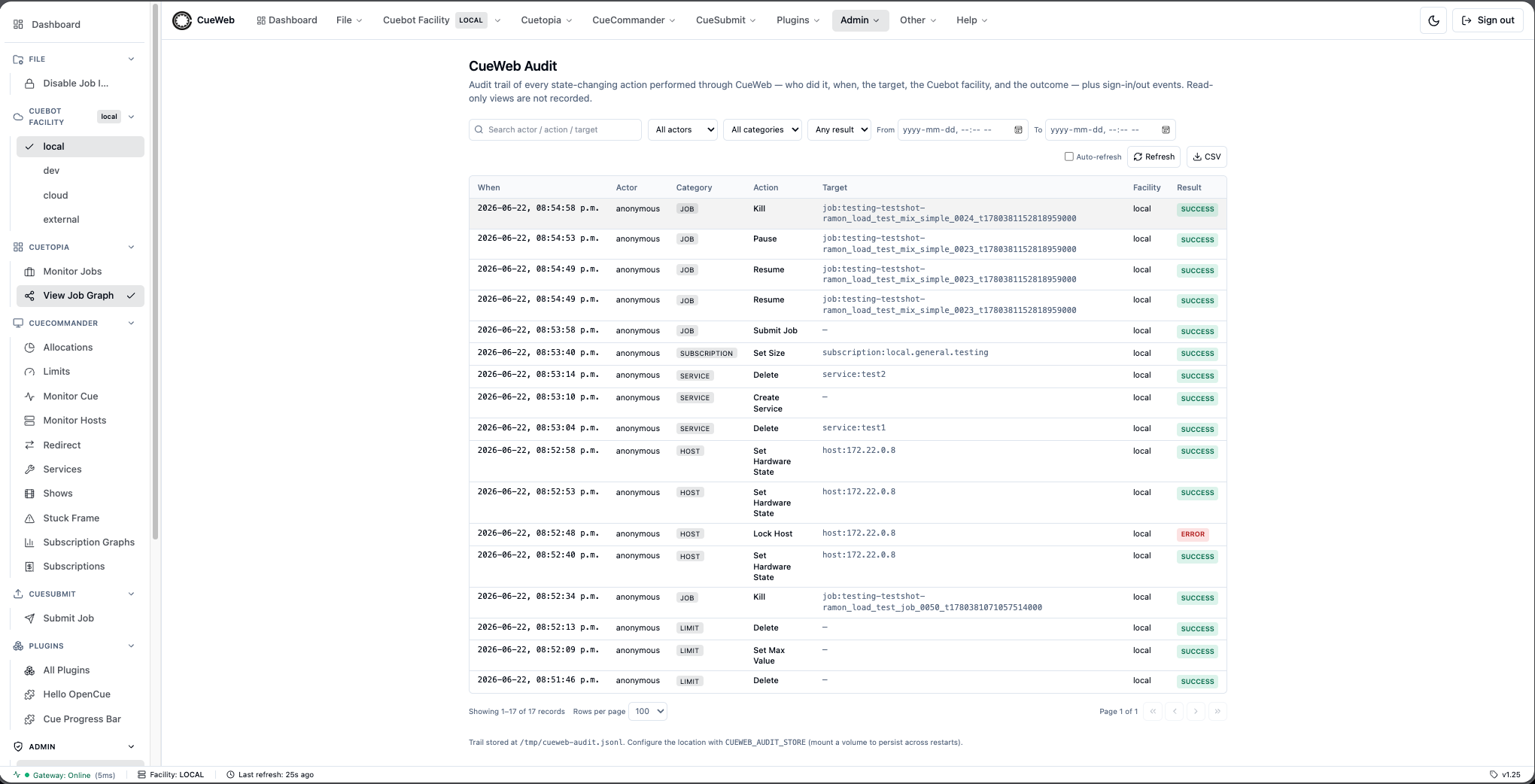
OpenCueWeb records an audit trail of every state-changing action taken through the UI (job/layer/frame/host/group/proc operations such as Kill, Eat, Retry, Pause, Redirect, host lock/reboot, facility-override edits, and so on) plus each sign in and sign out. Each record captures who (the signed-in user), what (the action), when (timestamp), the target it acted on, the facility it ran against, and the outcome (success or failure). The trail is browsable on the admin-only Admin -> OpenCueWeb Audit page (reachable from both the top menu and the left sidebar).
Audit trail persistence
The trail is an append-only JSONL file named by CUEWEB_AUDIT_STORE. Like CUEWEB_FACILITY_STORE, it defaults to a file in the OS temp dir (cueweb-audit.jsonl), so the trail is lost when the container is recreated unless you point CUEWEB_AUDIT_STORE at a mounted volume:
# docker-compose.yml (cueweb service)
volumes:
  - cueweb-audit:/data/cueweb
environment:
  - CUEWEB_AUDIT_STORE=/data/cueweb/audit.jsonl

volumes:
  cueweb-audit:
The file is written with mode 0600.
Size bounding. CUEWEB_AUDIT_MAX_RECORDS caps how many records the trail retains; once the cap is reached, the oldest records are dropped on each new write. It defaults to 50000; set it to 0 for an unbounded trail (in which case you are responsible for rotating or archiving the file yourself).
Access control. The OpenCueWeb Audit page is admin-gated through the same group-based authorization mechanism as the other admin pages - enable the gate with CUEWEB_AUTHZ_ENABLED=true and list the allowed groups in CUEWEB_ADMIN_GROUPS. With no group authorization configured (the gate off, or CUEWEB_ADMIN_GROUPS empty), the page is visible to everyone who can reach OpenCueWeb, so configure the admin gate if the trail should be restricted.
Multi-instance caveat. The single-file store assumes a single OpenCueWeb instance: concurrent appends are kept from interleaving by in-process write serialization only. If you run multiple replicas (for example the replicas: 3 deployment above) all pointed at the same file, that in-process lock does not span processes - you would need a shared store with a cross-process lock, or a separate CUEWEB_AUDIT_STORE per replica, to avoid corrupting the trail.
CueSubmit (browser-based job submission)
The /cuesubmit route is a TypeScript port of the standalone CueSubmit CLI tool. It reuses the same REST gateway + cuebot path as the rest of OpenCueWeb, so no extra services or env vars are needed.
Submit path:
- Browser POSTs the form payload to
/api/job/submit(the Next.js Node route). - The route validates with zod, builds the OpenCue cjsl XML job spec server-side (same format pyoutline emits), and forwards it to
job.JobInterface/LaunchSpecAndWaiton the REST gateway. - Cuebot creates the job and returns the resolved
JobSeq. OpenCueWeb redirects the browser to/jobs/<name>so the user can watch frames dispatch live.
Sandbox-tuned defaults: the form chooses values that produce a runnable job against the seeded sandbox out of the box:
- Memory default
256m. The seededdefaultservice has a 3.2 GB minimum which most sandbox RQDs can’t satisfy; without a smaller request, trivial test jobs sit in WAITING forever. - Facility default
local(when the user picks[Default]in the form). Cuebot’s internal fallback iscloud, which doesn’t match the seeded sandbox RQD’slocal.generalallocation. - Per-user deterministic UID in the range 1000-65000. Cuebot rejects
uid=0withCannot launch jobs as root, so OpenCueWeb never emits zero.
Production deployments: change Memory to whatever the real services expect, override Facility from the dropdown if your deployment has more than one, and confirm NEXT_PUBLIC_CUEBOT_FACILITIES enumerates every facility the user should be able to pick.
The form auto-saves a draft to localStorage on every keystroke and keeps per-field autocomplete history (Job Name / Shot / Layer Name) - these are browser-local and don’t require any server-side persistence.
Redirect tool
The /redirect route (CueCommander → Redirect) reassigns the cores of busy procs to a target job. It ships with OpenCueWeb and needs no extra services or env vars - it uses the same REST gateway + cuebot path as the rest of the app (RPCs ProcInterface/GetProcs, HostInterface/FindHost, JobInterface/GetJobs for the search, and HostInterface/RedirectToJob for the action).
It is a destructive administrative tool: redirecting kills the frames currently running on the selected procs so their cores can be handed to the target job. When the optional group-authorization gate is active (CUEWEB_AUTHZ_ENABLED), /redirect is covered by the admin gate - like the rest of the CueCommander section, it is restricted to members of CUEWEB_ADMIN_GROUPS. When that gate is not configured, OpenCueWeb’s “everyone is an admin” default applies and anyone who can reach the UI can issue redirects. The gate is section-level, not per-action, so if you need finer-grained control over who can perform farm-wide actions, additionally gate it at the authentication / reverse-proxy layer.
Monitor Cue
The /monitor-cue route (CueCommander → Monitor Cue) needs no extra services or env vars - it loads shows, groups and jobs through the same REST gateway + cuebot path as the rest of the app and is purely client-side beyond that (the show selection and column layout persist in the browser’s localStorage). Its job actions (Eat / Retry / Pause / Unpause / Kill, Unbook Frames, and Send To Group via GroupInterface/ReparentJobs) are the same destructive admin actions as Monitor Jobs; gate them at the authentication / reverse-proxy layer or with the optional group-based authorization admin gate (/monitor-cue is a CueCommander admin page) if you need to restrict who can run them.
Monitor Hosts (host & proc management)
The /hosts route (CueCommander → Monitor Hosts) and its bottom proc panel need no extra services or env vars - all host and proc operations go through the same REST gateway + cuebot path as the rest of the app (HostInterface for lock/unlock, reboot, tags, allocation, hardware/repair state, comments, and delete; ProcInterface for the proc list, unbook, and kill).
Several of these are destructive administrative actions (Reboot kills running frames, Delete Host removes the record, Kill/Unbook stop procs). As with the Redirect tool, OpenCueWeb does not implement per-action role checks, so if you need to limit who can perform them, gate access at the authentication / reverse-proxy layer or with the optional group-based authorization admin gate (/hosts is one of the CueCommander admin pages). Predefined host-comment macros are stored per browser in localStorage, so they need no server-side storage.
Stuck Frames page (log access)
The /stuck-frames route (CueCommander → Stuck Frame) finds running frames that have stopped writing to their logs. It ships with OpenCueWeb and needs no extra services - it reads running frames through the same REST gateway + cuebot path as the rest of the app. The one deployment-specific concern is frame-log access, which powers the page’s Last Line column and the Tail/View Log actions.
Mount the render log directory into the OpenCueWeb container, read-only. OpenCueWeb’s server reads frame logs from its own filesystem, so the directory where RQD writes logs (the sandbox uses /tmp/rqd/logs, matching cuebot’s CUE_FRAME_LOG_DIR) must be visible to the OpenCueWeb container at the same path:
# docker-compose.yml (cueweb service)
volumes:
  - /tmp/rqd/logs:/tmp/rqd/logs:ro
# Kubernetes: mount the shared logs volume into the cueweb pod, e.g.
volumeMounts:
  - name: frame-logs
    mountPath: /net/render/logs
    readOnly: true
If the log directory is not mounted, the page still lists stuck frames, but the Last Line column stays empty and the in-app log actions can’t read the file.
Optionally restrict which roots are readable with CUEWEB_LOG_ROOTS - a colon-separated list of absolute path prefixes. When set, the log-reading routes (/api/stuck-frames/lastline and the log download) only serve files under one of those roots; when unset, reads are not restricted to a root. Scope it to the mounted log dir:
CUEWEB_LOG_ROOTS=/net/render/logs
Using the page: open CueCommander → Stuck Frame, tune the filter bar (Min LLU, % of Run Since LLU, Total Runtime) or add a per-service filter with +, then right-click a frame for Retry / Eat / Kill / View Log / Core Up. See the OpenCueWeb User Guide for the full walkthrough.
Frame log viewing (file-based or Loki)
The frame log viewer has two backends, selected at deploy time:
- File-based (default): OpenCueWeb’s server reads the
.rqlogfrom its own filesystem, so mount the render-log directory into the container read-only - the same mount described above for the Stuck Frames page (-v /path/to/logs:/tmp/rqd/logs:ro). No other configuration is needed. - Loki (optional): if your studio centralizes logs in Grafana Loki, set
NEXT_PUBLIC_LOKI_URLto the Loki HTTP API base URL (no trailing path; OpenCueWeb appends/loki/api/v1/...). OpenCueWeb then queries Loki for each frame’s lines instead of reading a file, mirroring CueGUI’s Loki log viewer. RQD must be configured to ship frame logs to Loki tagged withframe_idandsession_start_timelabels.
# Loki backend: point OpenCueWeb at your Loki HTTP API
NEXT_PUBLIC_LOKI_URL=http://your-loki-host:3100
Two deployment notes for the Loki backend:
- It’s a build-time, browser-read variable.
NEXT_PUBLIC_LOKI_URLis baked into the client bundle, so set it as a Docker build arg (like the otherNEXT_PUBLIC_*vars), not only at runtime. The Loki query runs in the browser, so the Loki host must be reachable from clients (not just from the OpenCueWeb server) and must allow CORS from the OpenCueWeb origin. - The log mount becomes optional. With Loki configured, log viewing no longer reads from disk, so the render-log volume mount is not required for the viewer. (The Stuck Frames Last Line column still tails
.rqlogfiles server-side, so keep the mount if you rely on that column.)
When NEXT_PUBLIC_LOKI_URL is unset, OpenCueWeb falls back to the file-based viewer with no other change.
Plugins
OpenCueWeb’s plugin system needs no extra services or configuration. Plugins are registered in the code (cueweb/lib/plugins.ts) and built into the image, so the only way to add or remove a plugin is at build time - there is no runtime plugin directory to mount and nothing to deploy alongside OpenCueWeb. The bundled samples (Hello OpenCue, Cue Progress Bar) ship enabled per their manifest defaults.
What a user does at runtime - which plugins show in the Plugins menu and each plugin’s settings - is stored client-side in the browser’s localStorage (cueweb.plugin-menu.enabled, cueweb.plugin-settings.<key>). It is per-user and per-browser, so it requires no server-side persistence and is not shared between users. To ship a custom plugin, add it to app/plugins/<name>/, register it, and rebuild the image (see the developer guide).
Workspace layout (presets, immersive, split view)
The workspace-layout features - saveable view presets, immersive (full-screen) mode, and the split view - need no server-side configuration. Like the rest of OpenCueWeb’s personalization, all state is per-user, per-browser localStorage (cueweb.views.<page>, cueweb.layout.immersive, cueweb.split.ratio); nothing is persisted on the server and nothing is shared between users.
One deployment detail to be aware of: split view renders each pane as a same-origin <iframe> of another OpenCueWeb page (/split?left=…&right=…). For this to work behind a reverse proxy, the proxy and the app must allow OpenCueWeb to frame itself:
- Don’t send
X-Frame-Options: DENY. If you set it, useSAMEORIGIN. - If you use a Content-Security-Policy, allow same-origin framing, e.g.
frame-ancestors 'self'.
Because the panes are always same-origin internal paths (sanitizePanePath rejects external and protocol-relative URLs), no cross-origin framing is involved.
Reverse Proxy Configuration
Nginx Configuration
# /etc/nginx/sites-available/cueweb
server {
    listen 80;
    server_name cueweb.company.com;
    return 301 https://$server_name$request_uri;
}

server {
    listen 443 ssl http2;
    server_name cueweb.company.com;

    ssl_certificate /path/to/ssl/certificate.crt;
    ssl_certificate_key /path/to/ssl/private.key;
    ssl_protocols TLSv1.2 TLSv1.3;
    ssl_ciphers ECDHE-RSA-AES256-GCM-SHA512:DHE-RSA-AES256-GCM-SHA512;

    location / {
        proxy_pass http://localhost:3000;
        proxy_http_version 1.1;
        proxy_set_header Upgrade $http_upgrade;
        proxy_set_header Connection 'upgrade';
        proxy_set_header Host $host;
        proxy_set_header X-Real-IP $remote_addr;
        proxy_set_header X-Forwarded-For $proxy_add_x_forwarded_for;
        proxy_set_header X-Forwarded-Proto $scheme;
        proxy_cache_bypass $http_upgrade;
    }

    # Static assets caching
    location /_next/static/ {
        proxy_pass http://localhost:3000;
        add_header Cache-Control "public, max-age=31536000, immutable";
    }

    # Health check endpoint
    location /api/health {
        proxy_pass http://localhost:3000;
        access_log off;
    }
}
Apache Configuration
# /etc/apache2/sites-available/cueweb.conf
<VirtualHost *:80>
    ServerName cueweb.company.com
    Redirect permanent / https://cueweb.company.com/
</VirtualHost>

<VirtualHost *:443>
    ServerName cueweb.company.com

    SSLEngine on
    SSLCertificateFile /path/to/ssl/certificate.crt
    SSLCertificateKeyFile /path/to/ssl/private.key

    ProxyPreserveHost On
    ProxyRequests Off

    ProxyPass / http://localhost:3000/
    ProxyPassReverse / http://localhost:3000/

    # WebSocket support
    ProxyPass /api/ws ws://localhost:3000/api/ws
    ProxyPassReverse /api/ws ws://localhost:3000/api/ws

    # Headers for proper forwarding
    ProxyPassReverse / http://localhost:3000/
    ProxyPassReverseRewrite Off

    Header always set X-Frame-Options DENY
    Header always set X-Content-Type-Options nosniff
</VirtualHost>
High Availability Setup
Load Balancer Configuration
# k8s/cueweb-hpa.yaml
apiVersion: autoscaling/v2
kind: HorizontalPodAutoscaler
metadata:
  name: cueweb-hpa
  namespace: opencue
spec:
  scaleTargetRef:
    apiVersion: apps/v1
    kind: Deployment
    name: cueweb
  minReplicas: 3
  maxReplicas: 10
  metrics:
  - type: Resource
    resource:
      name: cpu
      target:
        type: Utilization
        averageUtilization: 70
  - type: Resource
    resource:
      name: memory
      target:
        type: Utilization
        averageUtilization: 80
  behavior:
    scaleDown:
      stabilizationWindowSeconds: 300
      policies:
      - type: Percent
        value: 50
        periodSeconds: 60
    scaleUp:
      stabilizationWindowSeconds: 0
      policies:
      - type: Percent
        value: 100
        periodSeconds: 15
Session Affinity (if needed)
# Add to service configuration
apiVersion: v1
kind: Service
metadata:
  name: cueweb
spec:
  sessionAffinity: ClientIP
  sessionAffinityConfig:
    clientIP:
      timeoutSeconds: 10800  # 3 hours
Monitoring and Logging
Health Checks
OpenCueWeb provides health check endpoints:
# Basic health check
curl https://cueweb.company.com/api/health

# Detailed health status
curl https://cueweb.company.com/api/health/detailed
Prometheus Metrics (user usage)
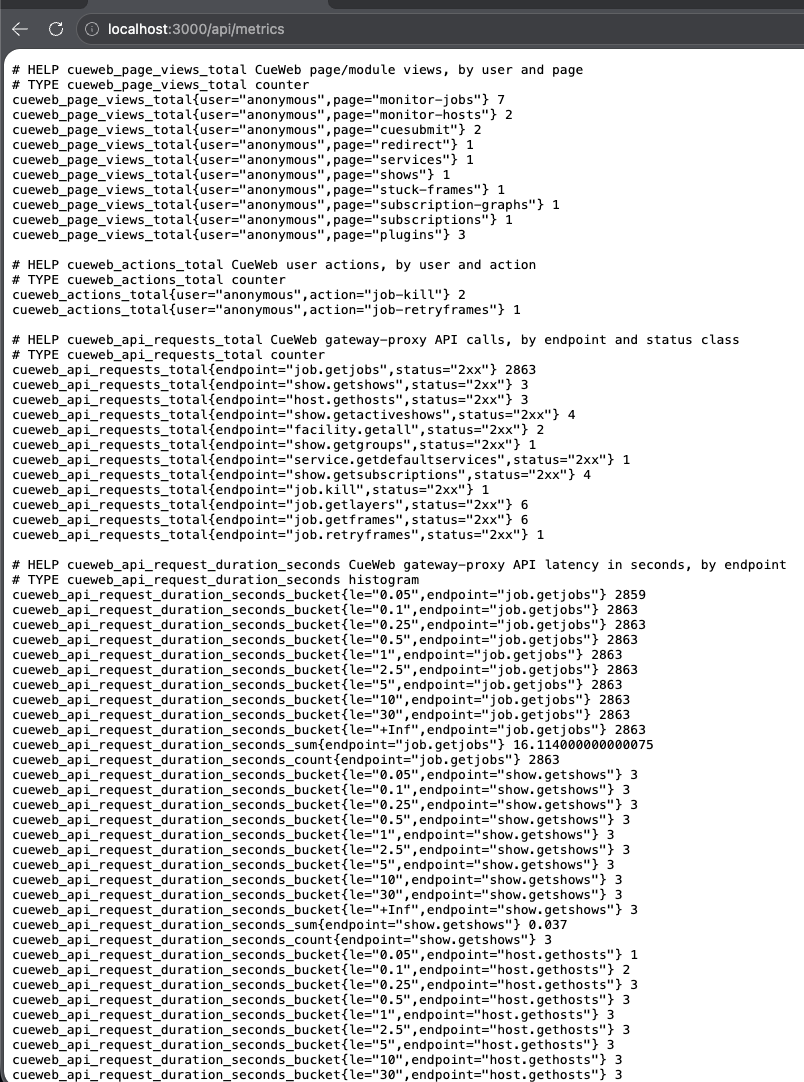
OpenCueWeb exposes Prometheus usage metrics at GET /api/metrics (plain text,
never gated by the authorization gate). They answer who uses what, how often,
and how fast - per user, per page/module, per action - with bounded
cardinality. No setup beyond pointing Prometheus at the endpoint.
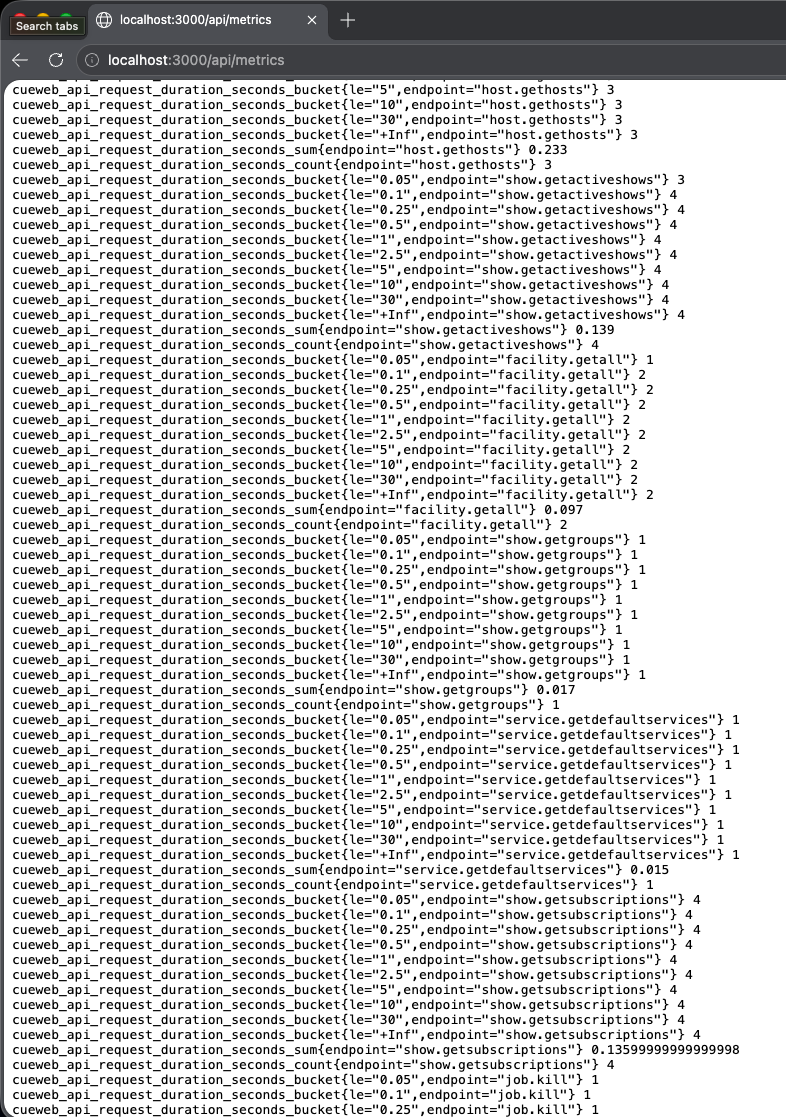
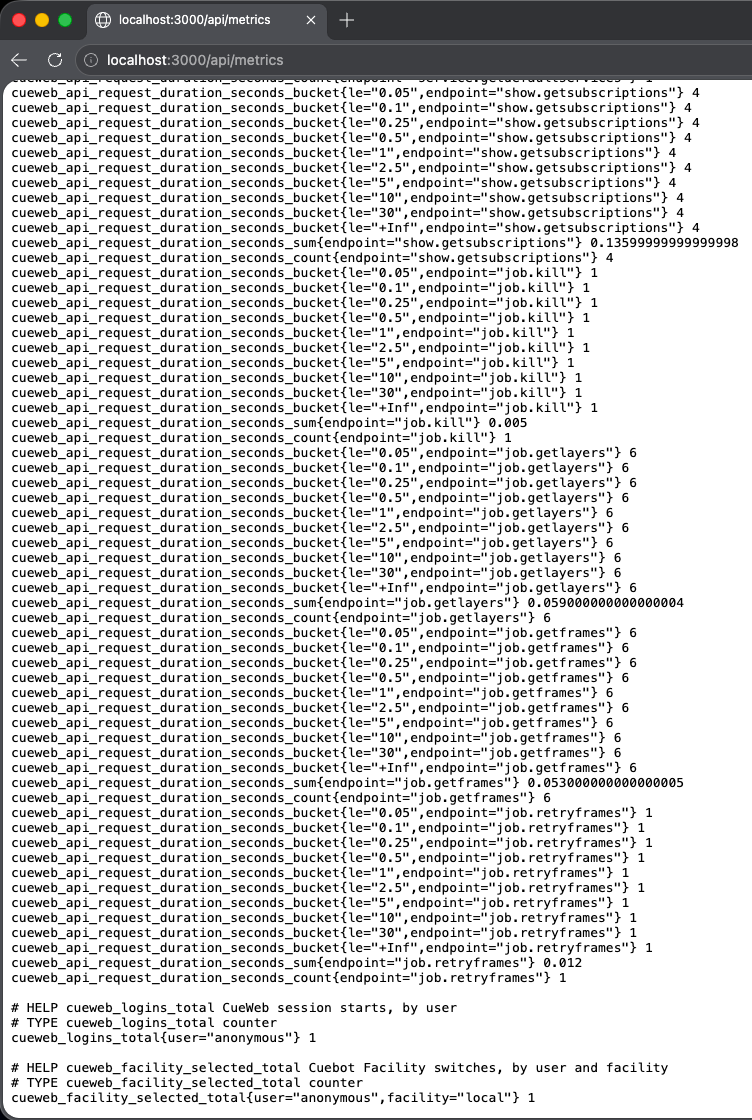
The /api/metrics endpoint returns the metrics in Prometheus text format:
1. Scrape OpenCueWeb from Prometheus. Add a job to your Prometheus config (the
sandbox already does this in sandbox/config/prometheus-monitoring.yml):
  - job_name: 'cueweb'
    static_configs:
      - targets: ['cueweb:3000']
    metrics_path: /api/metrics
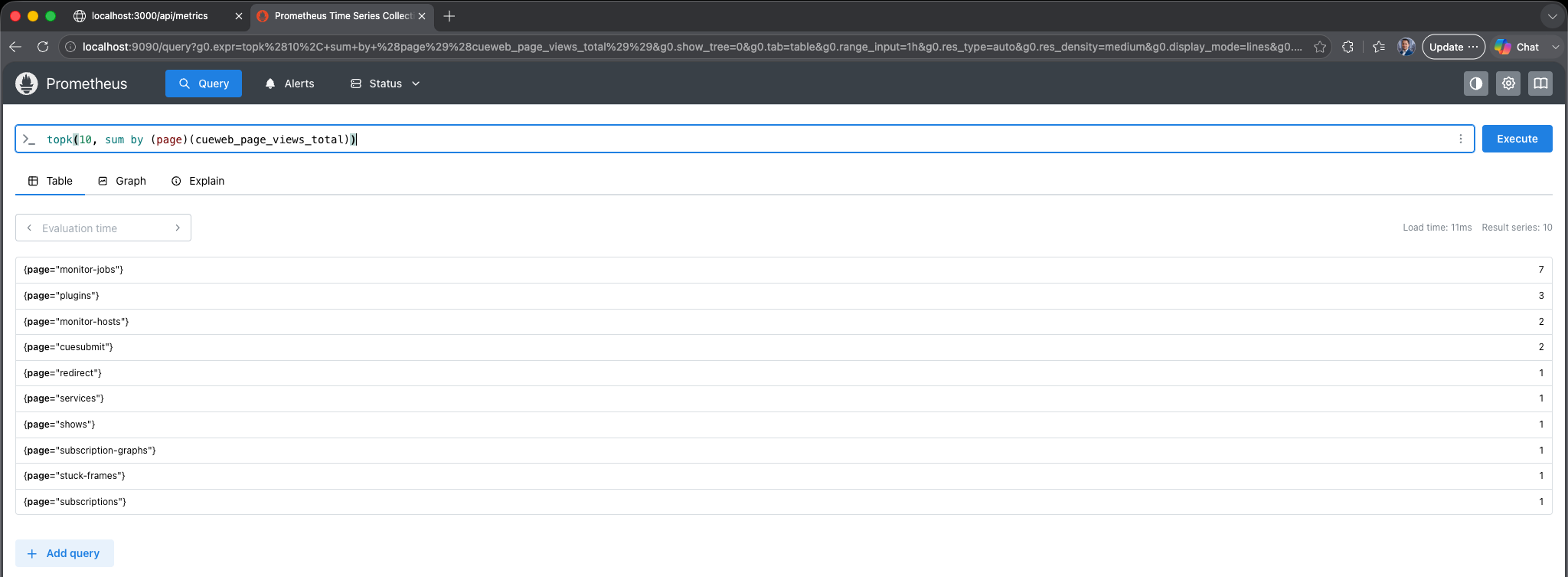
Once scraped, the cueweb_* series are queryable in Prometheus:
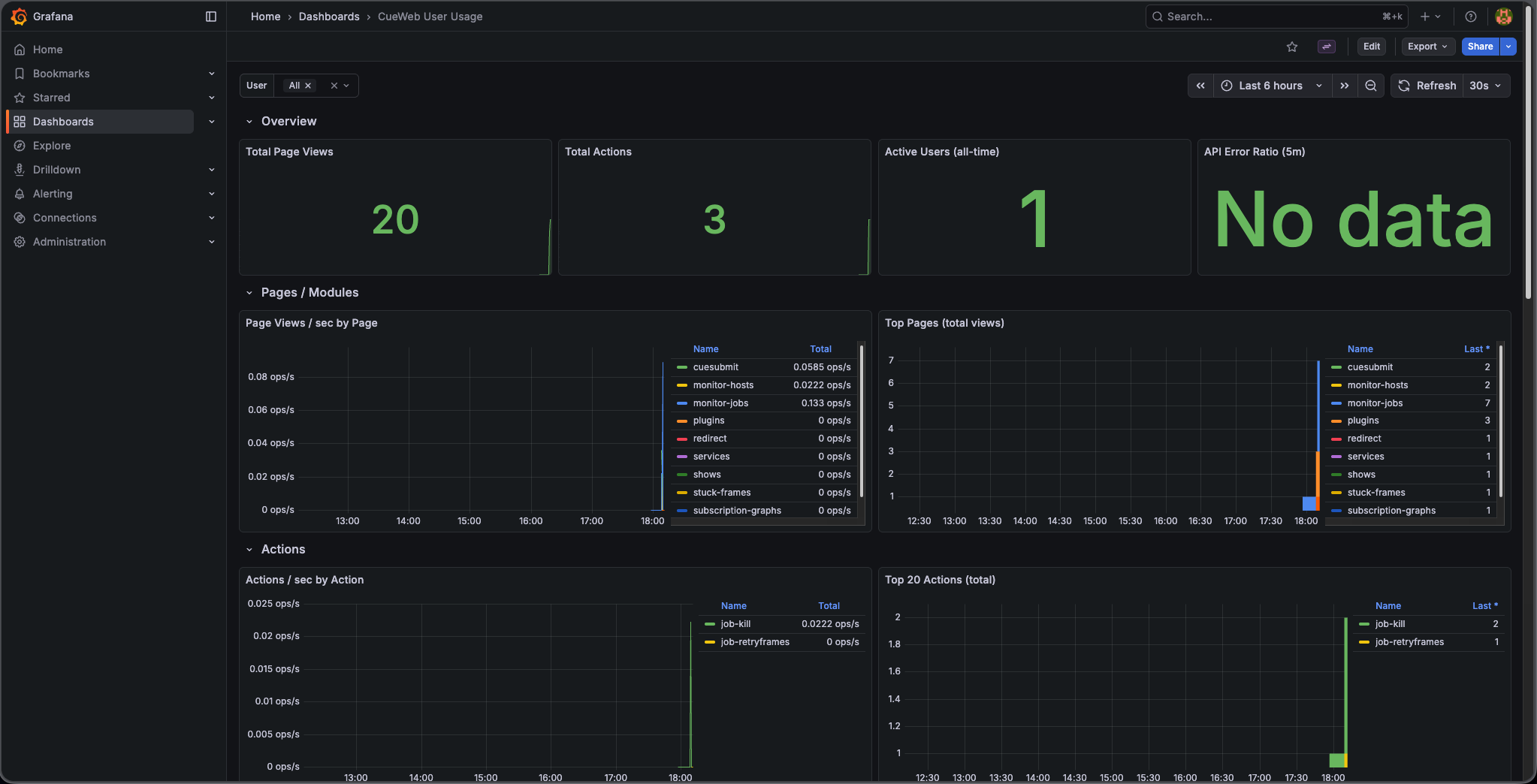
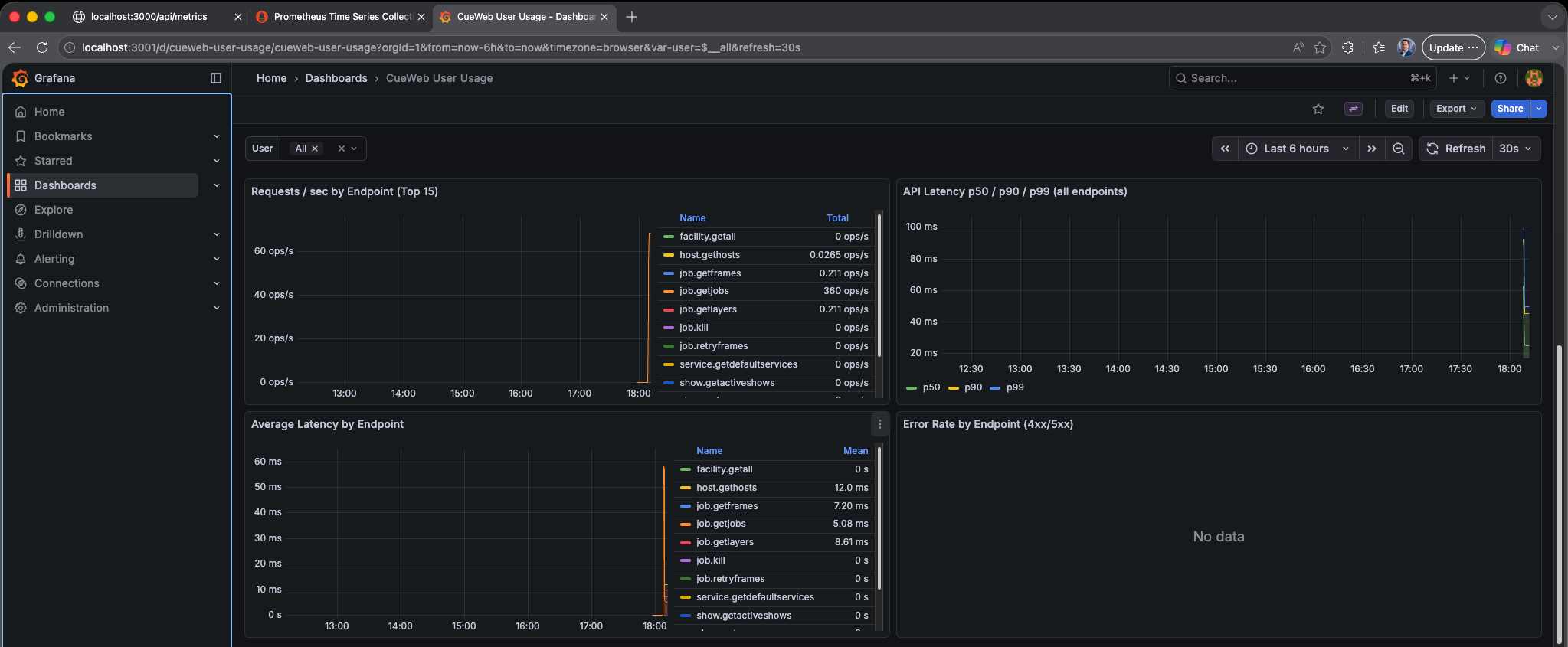
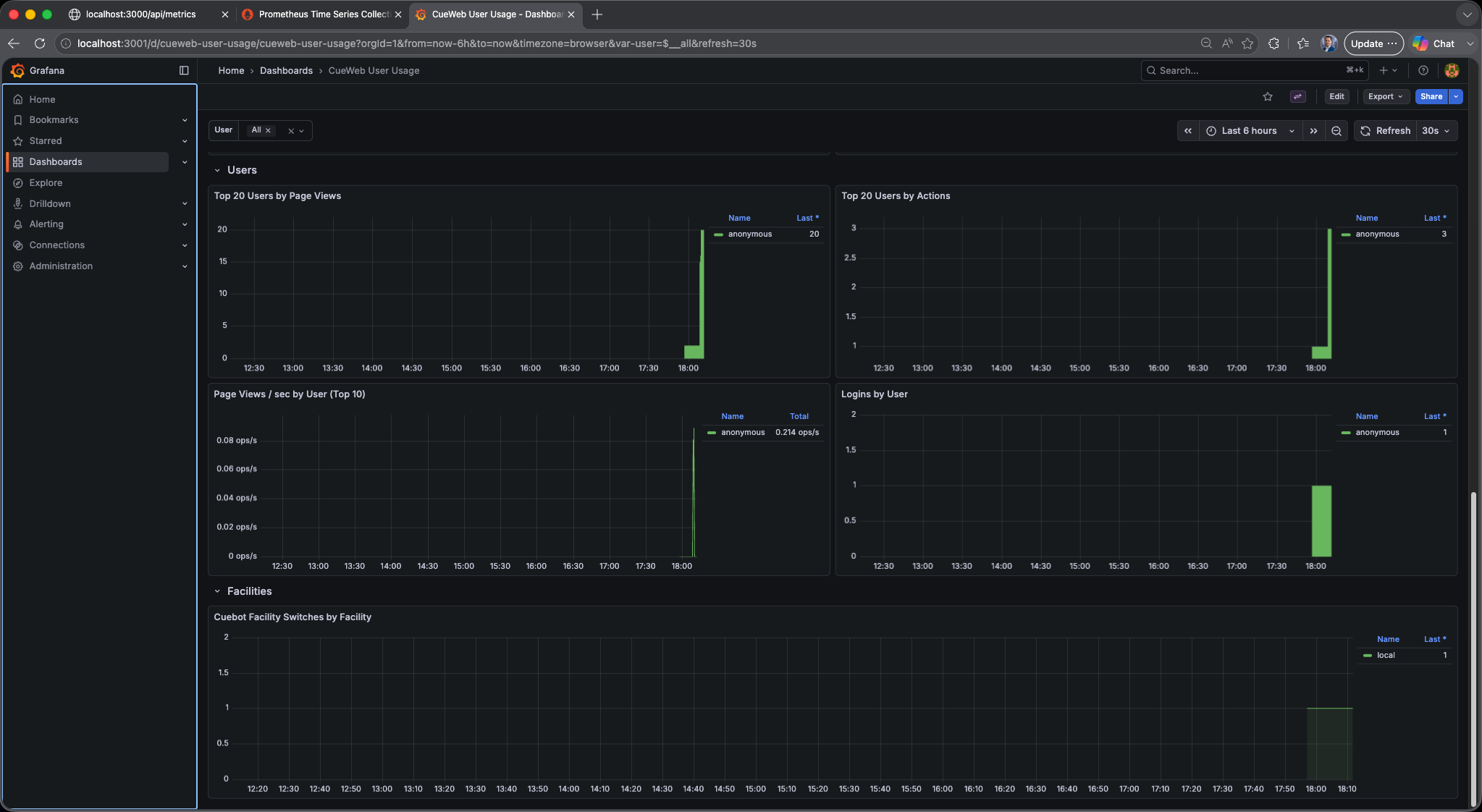
2. Import the Grafana dashboard. The sandbox auto-provisions
sandbox/config/grafana/dashboards/cueweb-usage.json (“OpenCueWeb User Usage”):
overview stats, page/module views, actions, per-endpoint API latency
(p50/p90/p99), and Top-N users, all filterable by a $user template variable.
Metrics exposed:
| Metric | Labels | Meaning |
|---|---|---|
cueweb_page_views_total |
user, page |
Page/module views (Monitor Jobs, Monitor Cue, Monitor Hosts, View Job Graph, CueSubmit, Plugins, …). |
cueweb_actions_total |
user, action |
User actions (job-kill, frame-retry, host-lock, job-submit, …). |
cueweb_api_requests_total |
endpoint, status |
Gateway-proxy API calls by short endpoint and status class (2xx/4xx/5xx). |
cueweb_api_request_duration_seconds |
endpoint |
API latency histogram (for p50/p90/p99). |
cueweb_logins_total |
user |
Session starts. |
cueweb_facility_selected_total |
user, facility |
Cuebot Facility switches. |
The user label is resolved server-side in this order: the signed-in
NextAuth session (authoritative, non-spoofable) → the X-User /
X-Forwarded-User identity headers only when CUEWEB_TRUST_IDENTITY_HEADER=true
(off by default; enable it only behind a trusted reverse proxy / auth gateway
that strips inbound copies and injects the identity) → anonymous. So with
authentication disabled and no trusted proxy, every event is attributed to
anonymous and a client cannot forge another user. Only the username and coarse
page/action names are recorded - no job names, search text, or file paths.
Disable the client beacon at build time with NEXT_PUBLIC_USAGE_TRACKING=off
(the /api/metrics endpoint stays).
Sentry Integration
Configure error tracking:
# Environment variables
SENTRY_DSN=https://your-sentry-dsn
SENTRY_ENVIRONMENT=production
SENTRY_RELEASE=1.0.0
Log Aggregation
# k8s/cueweb-logging.yaml
apiVersion: v1
kind: ConfigMap
metadata:
  name: fluent-bit-config
data:
  fluent-bit.conf: |
    [INPUT]
        Name tail
        Path /var/log/containers/*cueweb*.log
        Tag cueweb.*

    [OUTPUT]
        Name es
        Match cueweb.*
        Host elasticsearch
        Port 9200
        Index cueweb-logs
Security Considerations
Security Headers
// next.config.js
module.exports = {
  async headers() {
    return [
      {
        source: '/(.*)',
        headers: [
          {
            key: 'X-Frame-Options',
            value: 'DENY'
          },
          {
            key: 'X-Content-Type-Options',
            value: 'nosniff'
          },
          {
            key: 'Referrer-Policy',
            value: 'strict-origin-when-cross-origin'
          },
          {
            key: 'Strict-Transport-Security',
            value: 'max-age=31536000; includeSubDomains'
          }
        ]
      }
    ]
  }
}
Secret Management
Use secure secret storage:
# Kubernetes secrets
kubectl create secret generic cueweb-secrets \
  --from-literal=jwt-secret=your-jwt-secret \
  --from-literal=nextauth-secret=your-nextauth-secret

# Docker secrets
echo "your-jwt-secret" | docker secret create jwt_secret -
Network Security
- Use HTTPS/TLS for all connections
- Implement proper firewall rules
- Restrict access to management ports
- Use network policies in Kubernetes
Troubleshooting
Common Issues
502 Bad Gateway
- Check if OpenCueWeb container is running
- Verify port configuration
- Check REST Gateway connectivity
Authentication Loops
- Verify OAuth configuration
- Check NEXTAUTH_URL setting
- Confirm callback URLs match
Performance Issues
- Monitor memory usage
- Check CPU utilization
- Review database connection pool
- Implement caching strategies
Debug Mode
# Enable debug logging
DEBUG=cueweb:* npm start

# Docker debug mode
docker run -e DEBUG=cueweb:* cueweb:latest
Log Analysis
# Container logs
docker logs cueweb

# Kubernetes logs
kubectl logs -f deployment/cueweb -n opencue

# Follow logs with specific labels
kubectl logs -f -l app=cueweb -n opencue
Maintenance
Updates
# Update OpenCueWeb
git pull origin master
npm install
npm run build
docker build -t cueweb:latest .

# Rolling update in Kubernetes
kubectl set image deployment/cueweb cueweb=cueweb:latest -n opencue
Backup
Important data to backup:
- Environment configuration files
- SSL certificates
- OAuth application settings
- Custom configuration files
Performance Monitoring
Monitor these metrics:
- Response times
- Memory usage
- CPU utilization
- Active connections
- Error rates
Next Steps
After deploying OpenCueWeb:
- Configure Authentication: Set up OAuth providers for user access
- Train Users: Provide training on the web interface
- Monitor Performance: Set up monitoring and alerting
- Customize Interface: Adapt UI for your workflow needs
- Integration: Connect with existing pipeline tools
For detailed usage instructions, see the OpenCueWeb User Guide.
For development and customization, see the OpenCueWeb Developer Guide.